How to Fix PAGE FAULT IN NONPAGED AREA in Windows 10
“`html
All Windows users eventually deal with computer problems, depending on how they use their PC and how careful they are when browsing the Internet. Blue screen issues cripple your machine and prevent you from using it. However, no matter how severe the issue is, BSOD errors can be fixed.
What is PAGE FAULT IN NONPAGED AREA?
PAGE FAULT IN NONPAGED AREA is a BSOD error. It’s usually accompanied by the 0x00000050 code and can occur on any Windows iteration, including Windows 10, 8, 7, Vista, and XP.
The stop code indicates that your OS system can’t identify an essential system file in the memory, whether we’re talking about the main, processor or video card memory. As a result, Windows shuts itself down and displays a blue screen to prevent data loss and file corruption. This error is similar to other memory-related BSOD issues like the PFN_LIST_CORRUPT error, which also stems from problems with memory management.
How to fix PAGE FAULT IN NONPAGED AREA on Windows 10
Troubleshooting the PAGE FAULT IN NONPAGED AREA stop code may take a long time. However, it’s important to arm yourself with patience. It’s also a good idea to have another device with Internet access on standby, in order to look up more information on the web as new problems may arise.
Furthermore, unless PAGE FAULT IN NONPAGED AREA causes a boot loop on Windows 10, you should create a system restore point and even a complete backup of your personal files and applications as a security measure. After doing so, check out the following solutions.
1. Hard-reboot your PC
Get started with a simple workaround that might get rid of the PAGE FAULT IN NONPAGED AREA stop code if it’s a one-time problem: hard-rebooting your PC. It means removing all temporary cache stored by your computer in order to perform a clean restart.
How to hard-reboot your computer:
- Power off Windows (press Alt + F4 and select Shut down)
- Disconnect the power cord from the desktop. If you have a laptop, take out its battery
- Press and hold the power button for 20-30 seconds. On tablets, press and hold the power button and volume down simultaneously for this amount of time
- Replug the power cord into your desktop or reattach the battery to the laptop
Turn on your computer and boot Windows
2. Run Windows Update
If you have never updated Windows 10 or too long has passed since the last update, don’t postpone this event any longer. Check for any signs that your computer is ready to perform an update, like a small red dot on the notifications or power button, which signals a pending update.
However, if you have disabled Windows 10 automatic updates, you can manually perform the checkup and allow your operating system to get the newest features, improvements, hotfixes, and security patches.
How to manually check for system updates:
- Right-click the Start button and select Settings
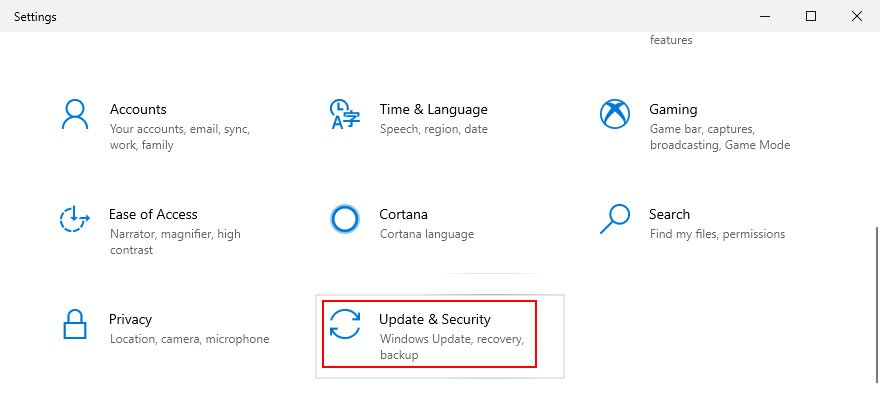
- Go to Update & Security

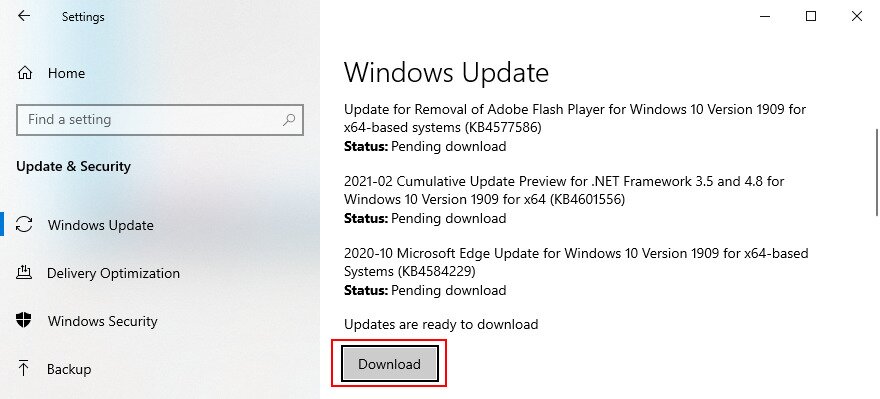
- Jump to Windows Update on the left side
- If there are any pending updates, click Install now or Restart now. Otherwise, click Check for updates and then Download

- Patiently wait while your operating system gets updated. It might restart your PC several times
3. Fix hard disk errors
Hard disk corruption and bad sectors can cause blue screen errors such as PAGE FAULT IN NONPAGED AREA. It can happen when a partition formatting operation is suddenly interrupted by power outage, for instance.
When this happens, you can turn to an internal command-line utility called CHKDSK (Check Disk) to scan your HDD and fix any errors.
How to use CHKDSK:
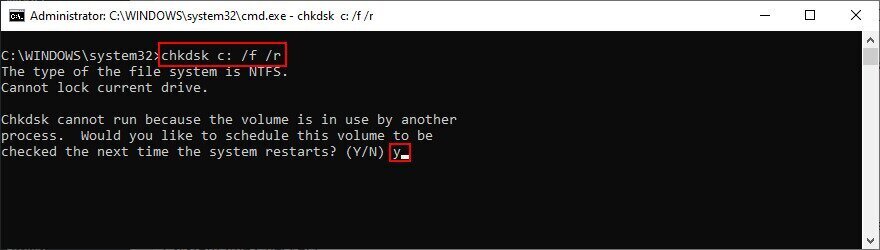
- Click the Start button, search for Command Prompt, and click Run as administrator. If prompted by UAC (User Account Control), click Yes
- Type
chkdsk c: /f /rif your operating system is installed on the default C: drive. Else, replacec:with the correct partition letter. Hit the Enter key
- You will be asked to schedule CHKDSK for the next system restart. Type y and press Enter to confirm
- Exit Command Prompt and restart your PC
- The disk scan and repair will be performed before Windows boots
4. Repair corrupt system files
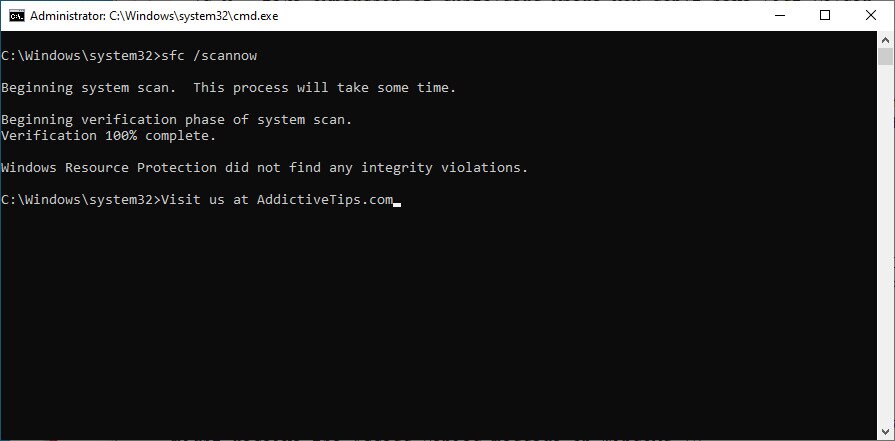
Not only hard disk failure can cause PAGE FAULT IN NONPAGED AREA but also any damaged, modified, or missing system files that Windows needs to run its processes. For that scenario, you can use SFC (System File Checker), another built-in command-line tool.
How to use SFC:
- Press Win key + R, type cmd, and press Ctrl + Shift + Enter to launch Command Prompt with elevation rights
- Run
sfc /scannowand allow Windows to find and fix any integrity violations
- Exit Command Prompt
- Restart your computer
If SFC fails to find any problems or if it’s not enough to repair the PAGE FAULT IN NONPAGED AREA stop code, you can turn to DISM (Deployment Image Servicing and Management) for fixing the component store of the OS image.
How to use DISM:
- Press the Win key, type Command Prompt, select this app, and click Run as administrator
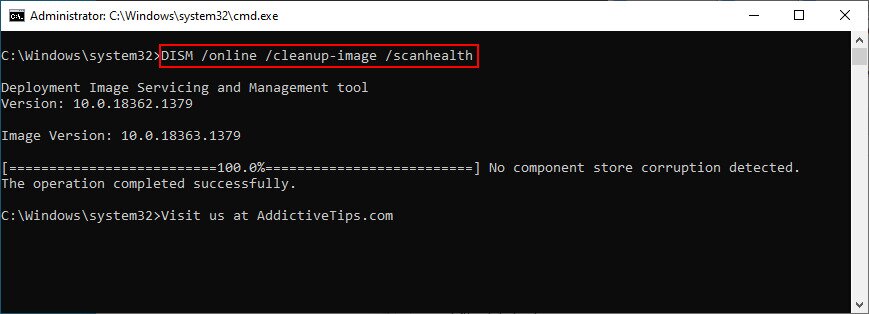
- Run the
DISM /online /cleanup-image /scanhealthcommand
- If DISM doesn’t find anything wrong with your PC, you can exit. Otherwise, run
DISM /online /cleanup-image /restorehealthto fix issues - After DISM completes its task, exit Command Prompt and restart your PC
- Launch CMD with elevation rights again
- Run SFC (
sfc /scannow) to perform a system checkup - Exit Command Prompt and reboot your PC one last time
5. Check device drivers
Devices not properly installed on your computer or drivers which are outdated or incompatible with your operating system could be another reason why you keep seeing the PAGE FAULT IN NONPAGED AREA error on a blue screen. For example, many users report problems with AMD display drivers. Here’s what you need to do.
Reinstall your devices:
- Click the Start button, search for Device Manager, and open this app
- Extend all device menus
- Look for any device with a yellow exclamation mark
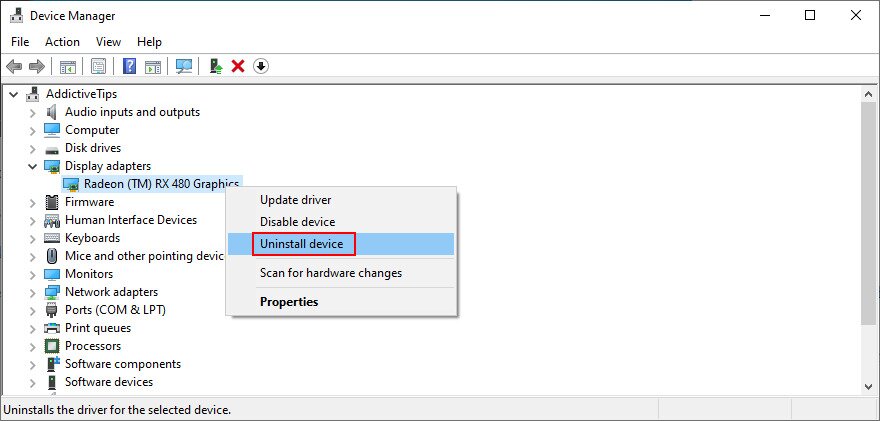
- Right-click it and select Uninstall device

- Click Uninstall to confirm
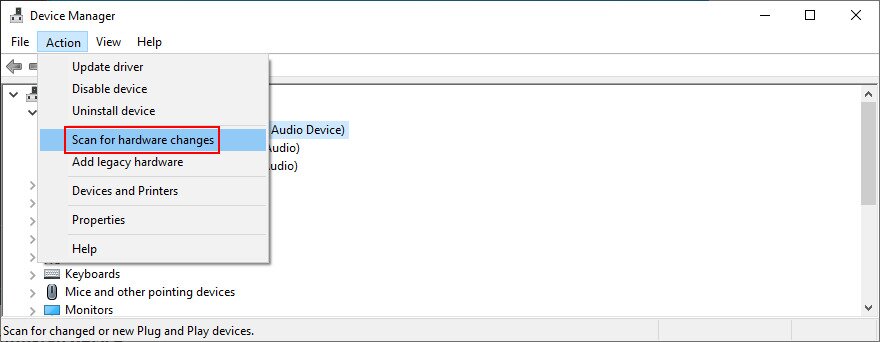
- Open the Action menu and select Scan for hardware changes

- If the device doesn’t get reinstalled automatically, restart your PC
Update old drivers:
- Right-click the Start button and visit Device Manager
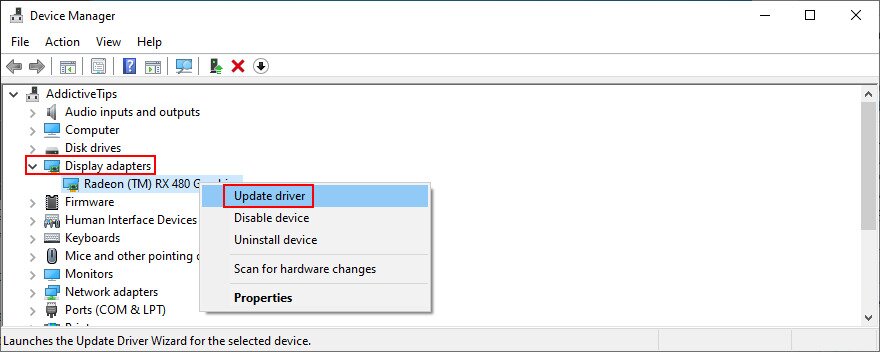
- Select a device, right-click it, and choose Update driver. If you’re unsure about which devices to select, we suggest starting with your display adapter

- When asked what to do, click Search automatically for drivers
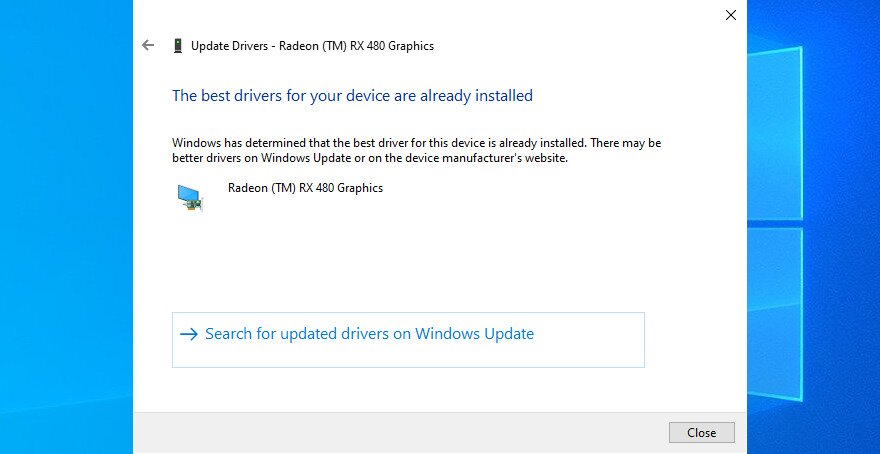
- If you get the The best drivers for your device are already installed message, click Search for updated drivers on Windows Update. But if you already checked for system updates, skip this step

- Follow the on-screen instructions to finalize the driver update
- Restart your computer
It can be hard to figure out which drivers must be updated on your PC. If you don’t want to spend a lot of time trying to solve this problem, just use a driver update application. It autodetects all obsolete drivers on your PC and offers to install all of them. Plus, you won’t risk getting a driver unsupported by your operating system.
If you accidentally installed an incompatible driver for any device, roll it back to the previous, stable version. After that point, you can leave your PC as it is and check if you still get the PAGE FAULT IN NONPAGED AREA stop code, or update your drivers correctly by using the previous steps we described.
Roll back unsupported drivers:
- Press Win key + R, type devmgmt.msc, and press Enter to open Device Manager
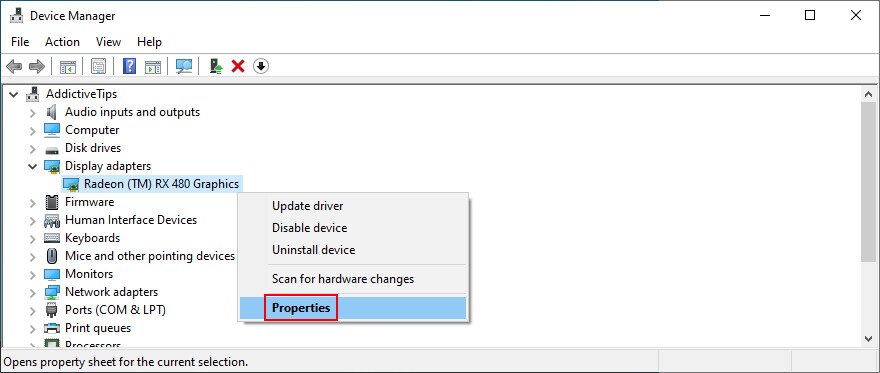
- Select the faulty device and open the right-click menu
- Go to Properties

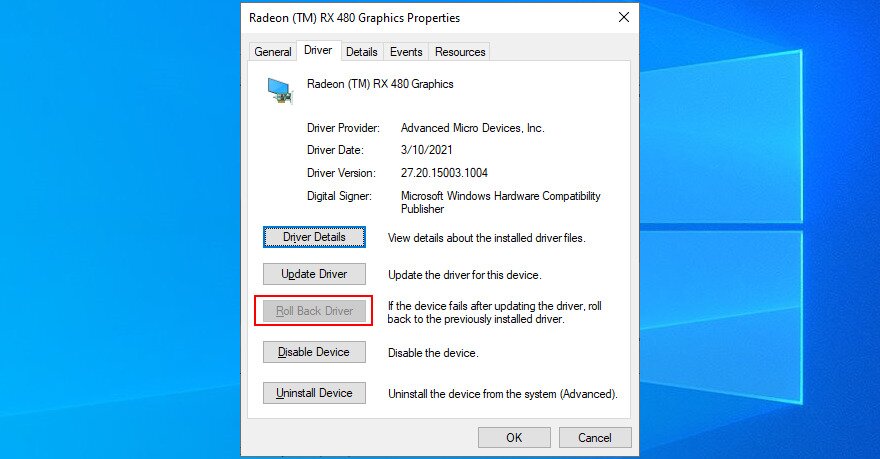
- Switch to the Driver section
- Click Roll Back Driver and follow the given instructions. If you can’t click this button because it’s greyed out, you can’t perform the rollback because there’s no previous driver version on your PC. Just skip this part of the solutions

6. Run a malware scan
A virus infection can be powerful enough to corrupt critical system files that Windows needs to function normally. It usually happens to users who don’t have an antivirus solution installed, keep it turned off all the time, or don’t practice safety tips when going online.
To put this theory to the test, you just have to fire up your anti-malware application and run a scan to see what the results show. If you don’t have a third-party security solution installed, shift your attention to Windows Defender.
How to use Windows Defender:
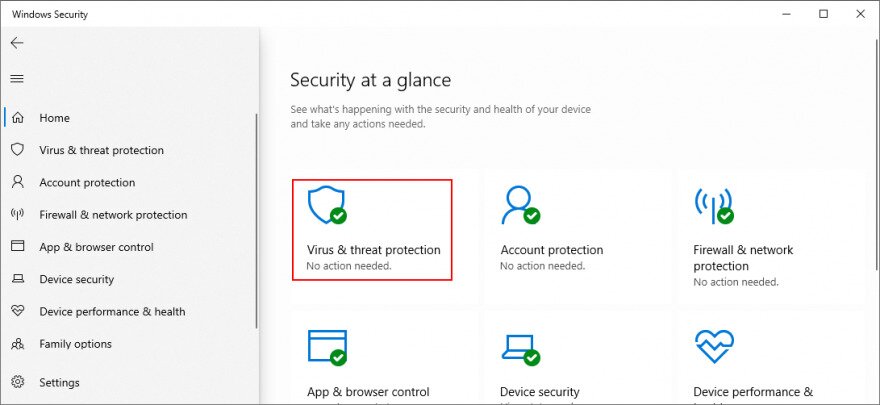
- Click the Start button, search for Windows Security, and open this app
- Go to Virus & threat protection

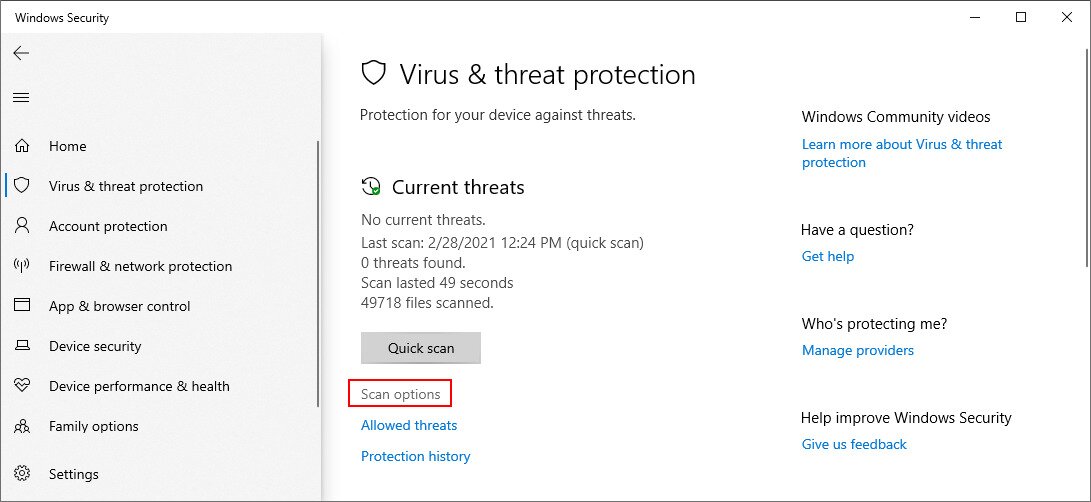
- Click Scan options

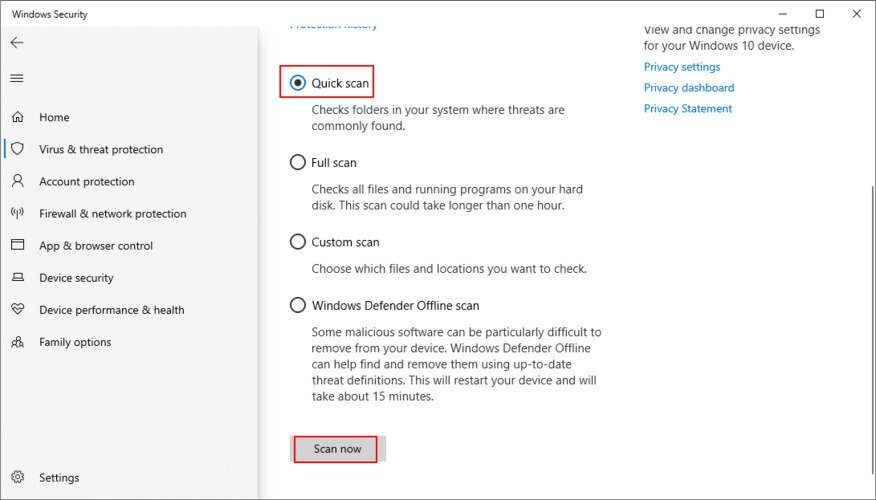
- In the list of scan options, pick Quick scan and click Scan now

- Defender will begin the scan. Don’t turn off or restart your PC during this time
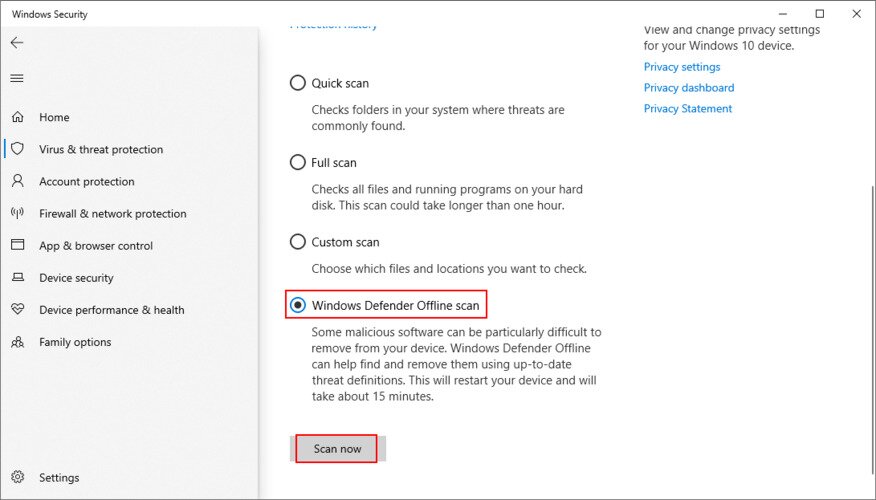
- If the scan results turn up empty-handed, perform another scan using the Windows Defender Offline scan option

- If it finds any malicious threats, allow Defender to remove or quarantine the infected files
- Reboot your PC and see if this fixed your crash issues
7. Run a clean boot
A Windows 10 clean boot means starting your operating system by disabling all programs that automatically run as soon as you turn on your computer. Certain malware agents are sneaky enough to infiltrate into startup programs, so a clean boot will help fix this problem.
How to clean boot Windows 10:
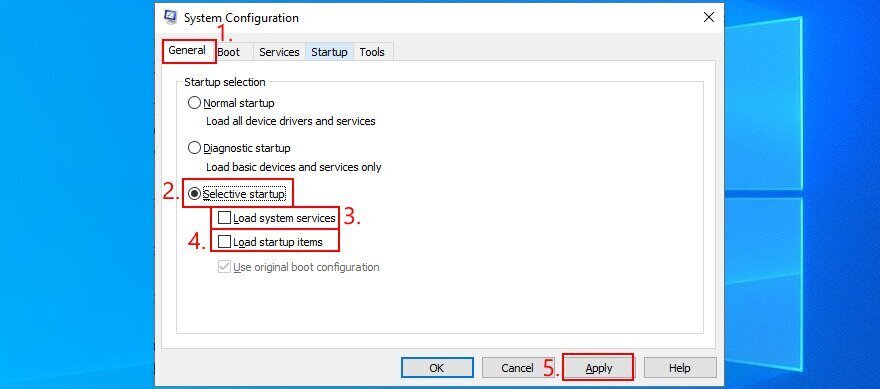
- Press Win key + R, type msconfig, and press Enter to launch System Configuration
- Remain in the General tab
- At Startup selection

- Select Selective startup
- Deselect Load system services
- Deselect Load startup items
- Click Apply and exit
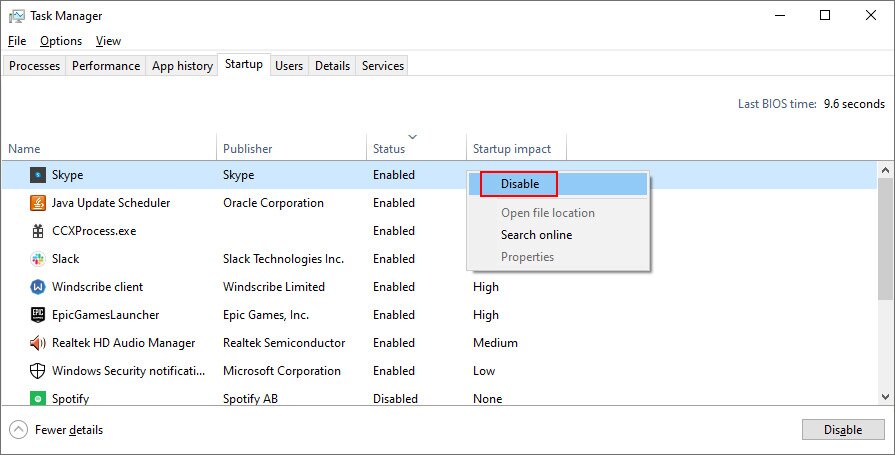
- Press Ctrl + Shift + Esc to open Task Manager
- Switch to the Startup tab
- For every application with the Enabled status, select it and click Disable

- Exit to the desktop and restart your PC
- Check if your system still crashes
8. Start Windows 10 in Safe Mode
To create a secure environment for troubleshooting BSOD errors, it’s recommended to boot Windows 10 in Safe Mode. Your operating system will start only with the necessary drivers, processes, and services. So it’s a simple way to narrow down your search by disabling any software components which might be causing stop code PAGE FAULT IN NONPAGED AREA.
- Click the Start button on the desktop and open the power menu
- Hold down Shift and click Restart to boot Windows in troubleshooting mode
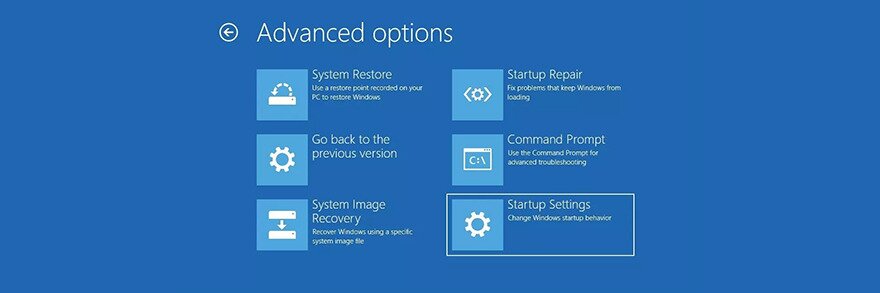
- If you can’t access your desktop because the blue screen error sends your PC into a boot loop, interrupt the Windows boot sequence three times to enter Advanced Startup mode
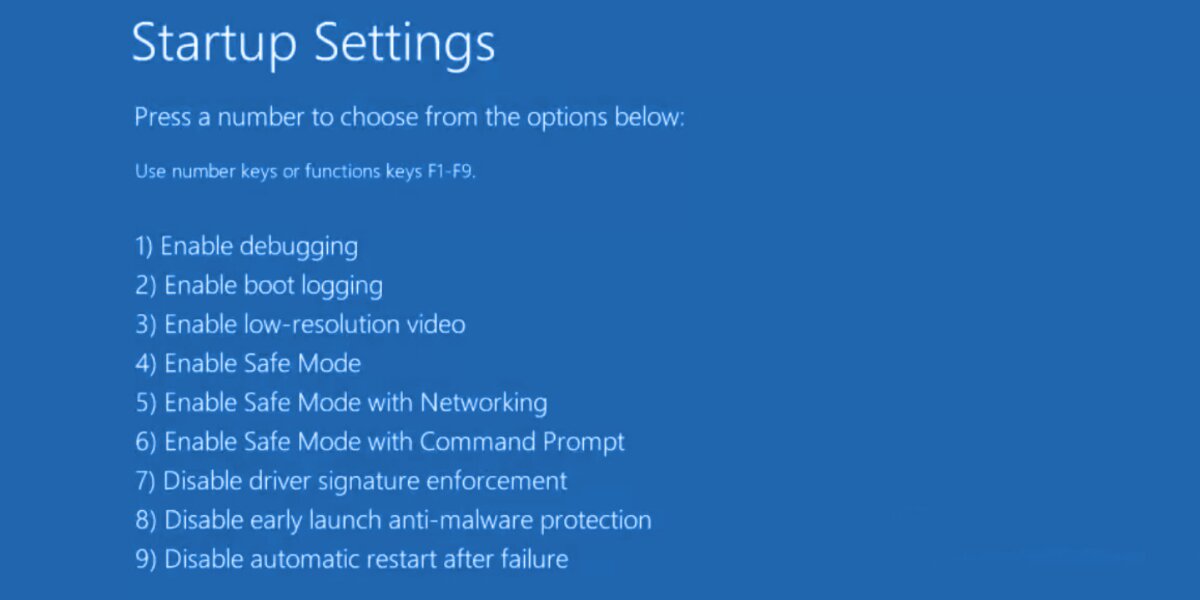
- Go to Troubleshoot > Advanced options > Startup Settings

- Click Restart
- Press F4 to boot Windows in Safe Mode

- Check if you still get blue screen errors after Windows starts
9. Use Display Driver Uninstaller
It’s a good idea to thoroughly check your GPU drivers since any problem in that department can affect your gaming and streaming experience. Worse, it can even cause blue screen errors like PAGE FAULT IN NONPAGED AREA on Windows 10 or older versions.
We suggest using Display Driver Uninstaller (DDU) to reset device software and drivers without too much hassle. It works with NVIDIA, AMD, and Intel. It can even restart Windows in Safe Mode to perform those operations securely.
How to use Display Driver Uninstaller:
- Create a system restore point or a full backup if you haven’t already done this by now
- Download Display Driver Uninstaller from the official website
- Unzip the downloaded file somewhere on your PC
- Open the DDU executable file
- If you get the The app you’re trying to install isn’t a Microsoft-verified app, click Install anyway
- Extract the program files in any folder
- If you have any pending Windows updates, make sure to install them
- Start Windows 10 in Safe Mode by following the instructions from Solution 6 on this list. However, when you reach the Startup Settings screen, make sure to select F5 to enable Safe Mode with Networking
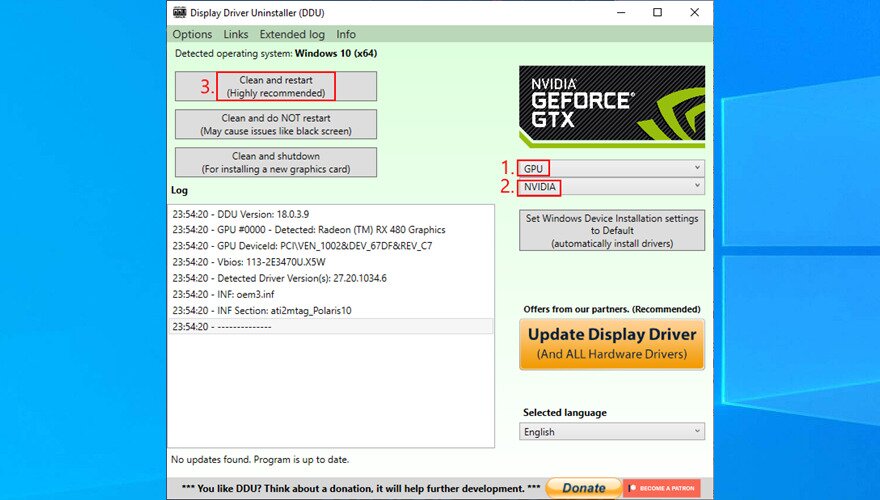
- Launch Display Driver Uninstaller.exe
- Leave the configuration to default and click OK to reach the main DDU window
- Select your device type and device from the two menus on the right side

- Click Clean and restart
10. Repair and reinstall .NET Framework
Microsoft .NET Framework is a required dependency for your operating system and many software applications made by Windows. So, if there’s something wrong with the component package, this could result in software conflicts, system errors, and even blue screen messages like PAGE FAULT IN NONPAGED AREA.
However, you can fix a broken .NET Framework by installing a straightforward and practical tool released by Microsoft for this very purpose.
How to use Microsoft .NET Framework Repair Tool:
- Download Microsoft .NET Framework Repair Tool from the official website
- Launch the setup file
- Agree to the license terms and click Next to check your PC for issues
- If it finds any problems, like reregistering or restarting the Windows Installer service, click Next to apply all fixes
After completing the wizard steps and exiting to the desktop, check if you still get the PAGE FAULT IN NONPAGED AREA stop code on your PC. If you do, it’s a good idea to reinstall .NET Framework. Don’t worry since it’s pretty basic.
How to reinstall Microsoft .NET Framework:
- Right-click the Start menu and go to Apps and Features
- Find and select any entry that includes .NET Framework
- Click Uninstall and then again to confirm removal
- Do this for all .NET Framework entries
- Open a web browser
- Go to the .NET Framework official download page
- In the Supported versions category, click the recommended entry
- Download the runtime version (for non-developers)
- Open the downloaded file and install .NET Framework
11. Run Windows Memory Diagnostic
The PAGE FAULT IN NONPAGED AREA blue screen error could be caused by issues with your system memory. A simple way to test this is by running Windows Memory Diagnostic, a tool that comes integrated with Windows 10.
- Save all ongoing projects and terminate all applications
- Press Win key + R, type mdsched.exe, and press Enter
- Click Restart now and check for problems

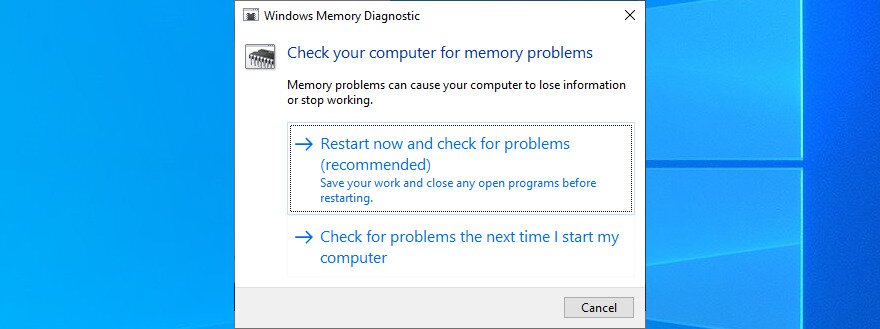
Before Windows boots, it engages in memory testing. There are three tests available: Basic, Standard, and Extended. By default, it runs the Standard test. However, it’s a good idea to switch to the Extended version. Although it takes more time, it’s more thorough.
To to this, press F1 to access Options. Then, select Extended and press F10 to apply. After the memory diagnosis is done, Windows will start as normal and show you the results in the notifications center. It might take a few seconds or minutes, just be patient until you get notified.
If you’re looking for a more advanced solution, we suggest checking out MemTest86.
12. Remove and reseat the memory slots
If Windows Memory Diagnostic doesn’t indicate any errors and you still can’t shake off the PAGE FAULT IN NONPAGED AREA error, you should remove and reseat your memory slots. But you need to be a bit handy with your computer.
It means removing all cables, taking apart your desktop, unpluging the memory sticks from their slots, then attaching them back. You could also try different
