Hide’N'Send: Conceal Sensitive Text Files Inside Images Through Steganography

The term 'steganography' is far from being obscure. This ancient art of hiding secret messages into bits and pieces, is not really a foreign concept in modern times, either, as the term has made its place in the world of computers. Referred to as the dark side of cryptography, steganography is used to send confidential text files by embedding them into ordinary images, the purpose of which is to make it devious to a common person and thus avoiding any unintended recipient. Being an avid reader of AddictiveTips, you must have known about our previous coverage of different steganography tools. Well, here’s another one for you, known as  Hide’N’Send. As the name implies, this nifty little application can be used to conceal text files containing private messages, information and passwords by hiding them inside JPEG images, which you can share through email or any other medium. Read More

Hide Folders For Windows: Protect Important Data By Keeping It Hidden From Prying Eyes

Data privacy is a major concern for everybody these days and when it comes to protecting confidential files and documents, there is a little to no room for any compromise. Despite the major security enhancements with every new iteration of Window OS (and even intermittent updates), there can still be loopholes and having that extra layer of protection doesn’t hurt. So if you’re one of those who have their "personal computer" shared among other members in the house and occasionally find their important files messed up (well, most of the time), then it's time to step ahead and conceal them from unintended eyes. How? By simply using Hide Folders! This small tool is designed to let you protect your files/folders through a simple Hide and Unhide operation from within the application. The program itself is password protected, so no one but only you can use it. Let’s jump inside and see how it works. Read More

DeEgger Embedder: Hide Private Files Within Images, Videos Or Audio (Media Steganography)
If you are oblivious of the term Steganography, you might be missing on one of the most widely used methods of securing important data. It is a technique that allows you to embed one file into another. The purpose of which, is to hide the original file, make it devious to an unintended recipient by concealing it within a fake one. If a certain sensitive information you consider is yours prerogative only, then using a steganography application is advisable to keep it away from others. There are various Windows application at your disposal (both paid and free) that does this job and back in 2010, Aatif reviewed SilentEye, which uses the steganography technique to hide confidential data. We have another similar application for you labeled as Deegger Embedder,  which offers the same facility, but with support for additional media formats. This free steganography software is designed to merge two or more files together, supports a wide range of file extensions you can hide and lets you create the bogus file in AVI, JPEG, MP3, MP4, PDF, PNG and other formats. Read More

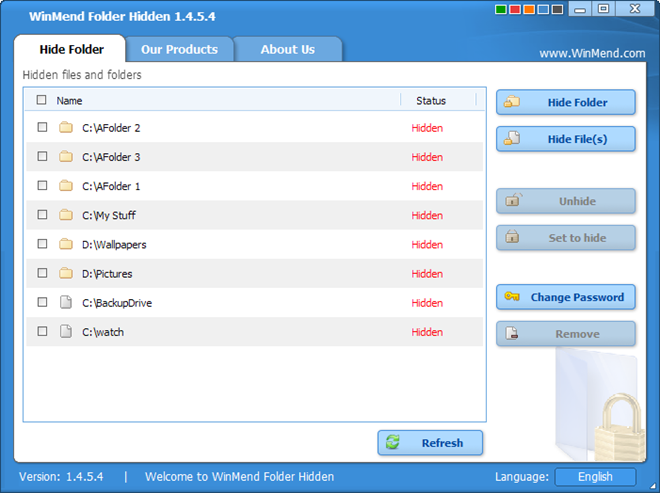
WinMend Folder Hidden: Set Password To Hide And Unhide Files & Folders

Securing files has reasons of its own. Nobody likes their confidential data to be easily compromised. Although Windows security parameters are getting tighter and tighter, loop-holes still remain. Sometimes, even our kids using the PC can unintentionally make various alteration to important files, without us even knowing. If you absolutely cannot give second chances to your important data being stolen, then its time to step ahead and lock it away though some extra layer of protection. Try WinMend Folder Hidden, a robust application that allows you to quickly hide your files and folders placed in local hard drives, remote locations, and removable memory devices. The files hidden through the application are not accessible through usual means, i.e. via the default Show Hidden Files option or any other third party solution. For instance, if you hide a folder in a USB drive using WinMend Folder Hidden, you will not be able to view it in any other computer that includes even your own computer, unless you unhide it with the application itself. If you install the application on another PC, you will need to enter the same password to access the hidden files that you may have assigned on the PC where the files were originally locked away. More on WindMend Folder Hidden after the break, with a few screenshots. Read More

Hide / Unhide Mac OS X Files & Folders From Menu Bar Using Funter

Unlike Windows where you can easily toggle Hide Files and Folders option On or Off, Mac OS X doesn’t provide a GUI based facility to hide and unhide files and folders. You may know that files and folders can only be hidden and revealed by running AppleShowAllFiles [Boolean Value] command in Terminal. If you often use Terminal to hide and unhide files, have a look at Funter. It’s a menu-bar app for Mac OS X that allows you to hide and unhide all system and user profile files and User Library folder with a single click. Unlike AppleShowAllFiles which requires running killall Finder command to hide and unhide the files, Funter can automatically relaunch the Finder app to perform the required hide and unhide action. Read More