Get Weather Info With 4-Day Forecast In Android Notification Drawer

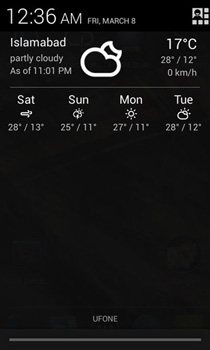
Android users are not new to weather apps, and there are is a wide array of those on the Play Store with features and functions to suit different tastes. One of the more sought after features is getting weather info in the Notification shade and not just on the Lock screen or Home screen. AOKP ROM brought users an awesome weather panel for the notification drawer, with a minimal design. Though AOKP ROMs are not available for all devices and not everyone might want to install a custom ROM just to get weather info in the notification area. Enter Notification Weather a no-nonsense, easy-to-set-up weather panel for the Notification drawer of your device running Android 4.1 or above. Let's take a more detailed look at it after the jump Read More

How To Quickly Clear Icon Badges From Any Or All iPhone Apps

When you stop to think about it, a handful of tweaks like Activator, SBSettings, Springtomize, Infinyfolders and a few others cover the bulk of customization needs of many users, while most other tweaks strive to bring some small new features or modified versions of the functionality offered by these famous Cydia projects. In the past, there have been some pretty decent options for you to get rid of the icon badges from your SpringBoard, with a few tweaks going as far as concentrating on just a specific app’s badge, like the previously covered noOTA. Springtomize, in addition to its various other virtues, has the most convenient badge-removal options available for jailbreak users. However, it does cost money and if you want nothing more than hiding icon badges, the investment might not be worthwhile. Clear Badges offers the same functionality for free, and even throws in an SBSettings toggle for those looking to remove all badges in one go. Read More

Post To Facebook, Twitter & Google+ From Android Notification Shade Using notiShare

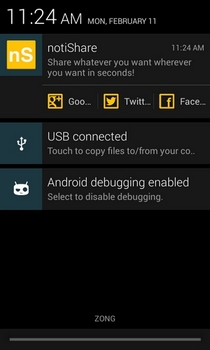
Android apps that have their own widgets are often preferred by users over others that don't, due to the ability of using many features from the home screen or lock screen using the widgets. A prime example of this can be seen in the high popularity of social networking apps with widgets that they allow you to post instantly from your device’s home/lock screen. Though what if your preferred social network mobile app – whether official or third-party – doesn’t sport a widget at all? Lack of widgets or a quick sharing/posting method is mainly the reason why most users ditch an app regardless of how feature-rich it otherwise is. Fresh to the Play Store, notiShare is a free Android app that vows to offer a viable solution to this problem by adding a dedicated ‘new post’ widget/shortcut to your device’s notification dropdown. Using the app’s notification panel widget, you can instantly navigate to the new post sharing screen of your preferred official or third-party social networking apps. Read More

Notifications Widget Displays All Alerts On Android Home & Lock Screen

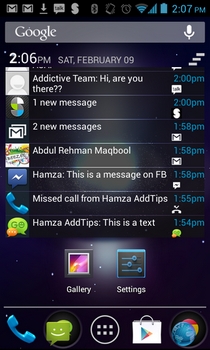
Developed by XDA member Roymam, Notifications Widget is a customizable widget for Android 4.0.3 Ice Cream Sandwich and higher devices that replicates the looks and functionality of dismissible notifications introduced in Android 4.1 Jelly Bean and later iterations. Using the widget, you can view and interact with all the notifications that show up in your Android device’s notification shade. Be it a notification regarding a missed call or a new SMS/email, update alerts from Play Store, a Gtalk message, or any third-party app notification for that matter, Notifications Widget is capable of displaying them all on a compact home screen widget. If you have an Android 4.2 Jelly Bean or higher device, you can install Notification Widget to your device’s lockscreen to take a peek at all your latest notifications without having to unlock the device. In addition, the widget lets you directly launch relevant apps and dismiss all notifications at once with a mere tap. Read More

Create Scheduled Notification Panel Reminders With Lotify For Android

The Android notification bar provides you with a quick and convenient means to take a peek at all your important phone, social media and other events and updates. Be it the app update notifications from the Play Store, your upcoming calendar event, a missed called alert or a critical system upgrade notification, the bar serves as a dedicated spot on your device to remind you about virtually every important thing. With the previously reviewed ReNotify, we have already seen a very handy solution to create multiple custom notification bar alerts that can keep you apprised of your important tasks/notes without requiring you to rely on any overly complicated alarm, to-lo list management or reminder apps. New to the market, Lotify is yet another app belonging to said genre that can be called an enhanced variant of ReNotify. Besides supporting almost all the core features of the aforementioned app, Lotify brings to the table certain subtle personalization tweaks, as well as the option to create scheduled notification bar alerts. Read More

ReNotify Adds Notes Or Reminders To The Android Notification Panel

The Google Play Store is filled with all sorts of Android alarm, notification and reminder apps, but if you wish to be reminded of your most important tasks via personalized toast alerts or status bar notifications, you’d be hard-pressed to find solutions that are better or more convenient than previously-reviewed apps, toastr and Notif. While the former displays a user-defined text message via a customizable toast notification each time the device is unlocked, the latter allows you to generate custom status bar notifications. The catch with Notif, however, is that it’s meant to take advantage of Android 4.1 Jelly Bean’s expandable notifications, meaning that a large contingent of Android users out there is still unable to benefit from the app’s features. Envy not, as we have found a handy alternative that is compatible with any device rocking Android 2.2 or higher. ReNotify is a free Android app that allows creating custom status bar notifications, thereby helping you with staying apprised of your most important tasks via notification drawer alerts. Read More

Disable Lock Screen App Notifications For All Users In Windows 8 [Tip]

Since Windows 8 is optimized for both PC's and tablets devices, there are some features that seem more PC oriented, while others feel to be more useful for tablet devices. Yesterday, we brought you a tutorial on how to prevent users from changing the Lock Screen image in Windows 8. Other than the clock, date, time and battery icons, the Lock Screen of Windows 8 also allows users to view app notifications for different apps, such as Messages, Calender, People etc. If you have a new message waiting, or a reminder in your calendar, the Lock Screen will show a notification on the Lock Screen reminding you to check out the new event. You are allowed to enable and disable application notifications from the Notifications tab in PC Settings. However, these settings are only User Account-specific, and if you disable notifications from your account, other PC users can still check app notifications from the Lock Screen when they log in to Windows 8. If you want to disable the Lock Screen notifications for all users, you can do that using the Windows 8 Local Group Policy Editor. In this post, we will show you how to disable the lock Screen notifications for all users on a Windows 8 device. Read More

Download Reminder Displays Alerts On App Download Completion [Cydia]

There are many apps in the iOS App Store that are less than 10Mb in download size, but most of the latest games, and even a few apps, cross the 100Mb mark. It isn’t much of an issue if you rely on iTunes desktop client for downloading apps to your iPhone, but if you use the App Store client on your iDevice, things tend to get a bit hectic. iOS doesn’t have any way of notifying users at the time of a download’s completion, and you might have to come back to your iDevice’s Springboard repeatedly in order to check if the download has finished. The issue becomes even more acute if you are using your mobile data connection, rather than Wi-Fi, as the connection might be interrupted at any time, halting your download without warning. So, what can you do to ensure that when a download is initiated, you can passively track it, without thinking too much about it. There is a solution to this problem available in the Cydia store. Download Reminder is a jailbreak tweak that displays a notification as soon as an app gets downloaded and installed successfully. Read More

Kwerty Gmail Notifier: View Emails Using Windows 7 Thumbnail Preview & Compose From Jumplist

Gmail is one of the most widely used email service in the world. After being released in 2004 as an invite-only beta service, it quickly became popular and replaced Hotmail and Yahoo Mail as the default email service choice for most people. The most unique feature of Gmail was the number of email management features it offered to the users. Today, we discovered a Gmail notifer for Windows called Kwerty Gmail Notifier for Windows 7 that is designed to monitor your Gmail Inbox and notify you about new, unread emails. Supporting Windows 7 Live Thumbnail Preview and Jump List features, it lets you easily read emails from its taskbar icon. Not only does it display the email text body in live thumbnail preview, it also provides navigation controls to switch between email items in your inbox. Read on to find out more about this handy Gmail notifier. Read More

View Track & Artist Notification On iTunes Dock Icon In Mac [Tip]

You would have undoubtedly come across a lot of apps that allow you to control iTunes from the Menu bar, and we’ve certainly covered our fair share of them. What most of these apps have in common, is that the ones displaying the song & artist name on the menu bar either do so as ticker, or take up a lot of space on the bar itself. As far as seeing the which song is playing goes, this simple tip lets you view the name of the song and the artist on the iTunes Dock icon. Somewhat similar to viewing the number of unread messages on the Mail icon, this little tweak will show a small popup whenever the song changes, and splash the name of the one that is currently playing. Read More

How To Remove Cydia, App Store & Settings Badges From Your iPhone

If you are the kind of person who is easily annoyed, then surely you must have noticed how the badges on your iOS device’s Springboard look, just sitting there, staring at you all day with their red eyes (or maybe it’s just me and my overactive imagination) and doing nothing particularly useful. To be honest, the notification badges are a useful feature of iOS, but if you are not interested in a specific update, then that means the badge will stay there for good, unless you delete the app altogether. These badges are not only there on the App Store’s icon, but are also to be found for the Cydia store, and if your iPhone is due for an update, on the Settings app. The badge on the Settings app can be removed by any tweak like noOTA (reviewed here), and I am pretty sure that tweaks to remove other badges can be found as well, but there are three new options for doing so now available in the jailbreak store, namely No AppStore Badges, No Cydia Badges and OTA Begone. Head past the break for details of all three. Read More

Tab Badge: View Count Of Unread Items For Pinned Tabs In Firefox

Recently, we covered a Chrome extension called Icon Badger that displays a count of unread messages or items on the favicons of various popular websites for pinned tabs. Tab Badge is a similar add-on for Firefox that adds a small badge to your tabs to alert you, for instance, when you have new messages and notifications on websites like Facebook, Gmail, Twitter and others. The add-on makes the badge visible even when the tab is pinned, so you can always see when something new comes up. Moreover, you can access the Options to change the background and foreground color for the badge. Read More

Pixable: Browse Facebook Photos In iPhone-Like Interface [Chrome]

When we browse through our Facebook newsfeed, we come across a massive collection of all kinds of photos, uploaded by our friends and family. To see all these images we need a lot of time, and with all the effort, it is still possible that we might miss out on the ones that actually matter to us. This is where Pixable, a Chrome extension, comes in handy. This smart tool organizes photos in a gorgeous way and lets you see all of them in one slick pop-up. The extension is fully customizable, and after you’ve connected your Facebook account with Pixable, it instantly pulls photos from Facebook feed and creates a photo stream that you can view right in the pop-up. Additionally, Pixable ranks and sorts your friends’ photos based on popularity and your connections, giving you a more personal viewing experience. With it, you can flip through feeds like New Cover Photos, My Likes & Comments, Top of the Day, New Profile Pics, Most Recent Photos and others. The extension makes sure that you enjoy your friends' photos by following them, and receive notifications when they upload or when they are tagged in photos. Read More

ForgetNot!: Reminder App With Desktop Notifications & Pre-Event Alerts

If you find it hard to keep an eye on your tasks, events and other schedules, or may feel regretful of missing your sweetheart’s birthday every year, then worry no more, as ForgetNot! will keep a record of all your important events and tasks. You can set as many reminders as you want in the application's built in reminder database, and the program will keep notifying you of all upcoming events using alarm and notifications. You may also set as many number of events as you like, such as birthdays, weddings, business meetings, concerts, travel times and what not. This is quite a simple and easy to use utility. Please note that this program is Java-based so you will need to have java installed in your computer. Read More

How To Remove iOS Firmware Update Badge From Settings Icon [Cydia]

If your iPhone, iPad or iPod touch is jailbroken, then you must be familiar with the routine which is followed each time a newer version of iOS is released, The developers start working on finding new exploits and creating the appropriate jailbreak for the the latest release. The duration in which jailbreak masters carry out their search for exploits might consist of months at times, and all the while, jailbreak fans are usually instructed to stay away from the newer versions of iOS until the jailbreak is released. If you update by mistake, then you might end up stuck without access to the Cydia store forever. The main culprit for making people accidentally update in such scenarios is the OTA update (since iOS 5), which presents itself in the stock Settings app, with an annoying badge staying visible on it until you finally succumb to Apple’s wishes and update to their latest firmware. There is a solution to this problem though, and you can easily remove the Settings OTA badge using the Cydia tweak named noOTA. Read More

Smart Statusbar: Reveal Status Bar Within Full Screen Android Apps

The previously reviewed Bird Bar app presented Android users with an extremely useful feature of accessing the notification bar while playing games or watching movies in full screen. Here’s another useful addition to the list of apps from aforementioned genre, it’s called Smart Statusbar, and it comes from Kiumiu.CA – the same developer behind the previously reviewed apps, Everywhere Clipboard and Smart Taskbar. Although Smart Statusbar’s concept is very much similar to the aforementioned Bird Bar app, it brings a very handy utility of its own that distinguishes it from any of its counterparts. The app lets you specify a certain time period after which the status bar would automatically disappear from the screen. This particular facet of the app is quite handy, especially if you just want to take a sneak peek into whatever notification you’ve received (or the time for that matter), without wanting to launch the entire notification panel only to manually swipe it all the way back. The app, once enabled, lets you swipe from the top edge of your Android’s screen (to bottom) to reveal the status bar while in full screen. Once the status bar is revealed, you can drag it all the way down to launch the full notification panel. Read More

Bird Bell: Monitor Your Twitter Notifications From The Menu Bar [Mac]

We’ve covered Twitter clients for Mac in the past and what they all do is let you read your Tweets, Tweet to your followers, retweet people you follow, send messages and reply to tweets. There are, however, other things that one might be interested in when it comes to a Twitter client. While many people need these clients to monitor their feeds, there are people who need a client that will tell them when they have been followed or unfollowed. Bird Bell is a free Mac app that, in addition to notifying you when one of your tweets has been favorited, retweeted or you’ve been added to a list, also tells you if you’ve gained or lost a follower. The app supports Growl notifications, and lets you manage more than one account. Read More

Display An Album Art HUD Every Time The Song Changes [Cydia]

When it comes to looks, iOS is a pretty neat platform, and its interface is one of its major selling points. To complement the stock interface, there is a plethora of themes and other cosmetic tweaks in the Cydia store which serve the purpose of letting users give a personal touch to their iPhone, and also make the device look more beautiful. Hud is one such tweak, and although it's not a theme or custom font for iPhone, iPad and iPod touch devices, it still goes a long way towards making your iDevice look better. Hud will flash a heads-up display on your device’s screen every time a new song starts. The HUD will consist of the album art associated with the new song, as well as the volume level currently set on the iPhone. Of course, the name of the new song will be displayed as well, and the tweak makes a push notification appear at the start of each new song. Read More

EyeLeo Regularly Reminds & Forces You To Take Short & Long Breaks

It has been a long known fact now that taking small breaks while working not only increases the productivity but also proves to be far more efficient compared to working in long shifts without breaks. Work that involves thinking  especially requires your mind to be fresh all the time. For instance, if you are in the creative department of some company and trying to think of a witty line for an advertisement, or trying to make an eye catching poster, it is very important that your mind is open to absorbing and generating new ideas. Likewise, our financial management folks would already know how hectic it is to keep an eye on cash inflows and outflows during lengthy hours of work burden. One of the reason is that most of the times, we forget to take regular breaks because of the pressure of work. Previously, we have covered some applications for both Windows and Mac that remind you to take regular breaks while working, such as BreakTaker, Breaker, Time4Breax and eyeBreak for Windows and Time Out for Mac.  As these applications play a pivotal role in your work tools, today we have another application for Windows called EyeLeo that reminds you through notifications to take both short and long breaks after user specified intervals. Keep reading to find out more about EyeLeo, including screenshots. Read More

MusicBanners: Get Notifications For Song Change In iOS 5 [Cydia Tweak]

One of the main reasons people own an iPod touch is to listen to their favorite songs on the go. Even on iPhone and iPad, the stock Music app gets used a lot, and that is why a music-related Cydia tweak for jailbroken iOS devices is always welcome. MusicBanners might not seem like a really useful tweak at first glance, but actually, it can prove to be pretty useful for people who like to listen to music for longer periods of time, and while performing various tasks. If you have this tweak, a banner notification will be displayed each time a song ends and a new song starts. Not only that, the tweak also comes with Notification Center and lockscreen support. Read More