Save High Quality Wallpapers To Dropbox With Desktoppr

Background wallpapers are the prime example of desktop customization. The right wallpaper works as a foundation of which way you choose to go in terms of embellishing the desktop with applications like Rainmeter and Rainlendar. I recently stumbled upon an incredible wallpaper web service, which is not just intuitive, but quite fun to use as well. Meet Desktoppr, an enticing web app that does a wonderful job in providing you with fresh wallpapers every day. It uses your Dropbox account to quickly send the selected wallpapers to your computers. Read More

Compare Advance Lets You Backup, Sync & Mirror Data In Windows

Some applications ooze simplicity and ease-of-use, and Compare Advance daringly qualifies for being one of them. It’s a user-friendly application that’s designed to let users compare two different folders to find any similarities or dissimilarities between the stored content in each. Obviously, you can simply put two folder windows side by side for some manual nitpicking, but what Compare Advance actually does, is that it automatically finds similar and non-similar files among the folders and presents them in separate panes, which definitely saves a lot time from being wasted. Comparing files isn’t the only weapon up its arsenal; the program also allows you to synchronize, backup or mirror files from one directory to the other, within a few clicks. Read More

Organize, Extract, Shorten And Share Links Using FCorp Link Manager

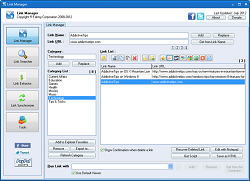
FCorp Link Manager is a powerful application that allows you to organize URLs in accordance with customized categories, search them instantly, synchronize and extract links from HTML files or the clipboard. With features like adding links to Explorer Favorites, Convert to PDF, Translate & Search using Google and the option to bookmark and share links using 342 built in social media websites with a single click, this software promises to assist you in extracting and sharing a wide range of useful links. In addition, features like Link Encoder & Decoder, export to the browser and URL Shortener (supporting 10 popular URL shortener websites) lets you perform a number of link-specific operations from a single platform. Read More

Favekeeper: Automatically Sync Bookmarks To Cloud From System Tray

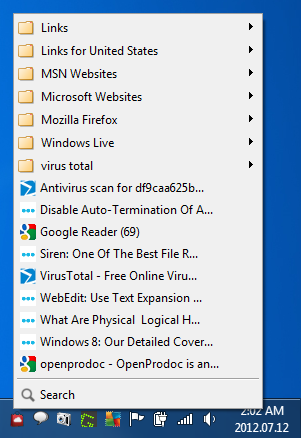
Managing an extensive list of bookmarks/favorites manually often becomes tedious for the common user. There are various popular utilities like Xmarks (browser extension) that provide bookmark synchronizations between all popular browsers. What if you could access these bookmarks from frequently used browsers with just a click on your system tray? Favekeeper is an application for Windows that lets you easily sync bookmarks from your browsers with its cloud. With this application, you can easily search and access links from your desktop, browsers and mobile devices for the better. With multi-user management and a built-in Recycle bin feature, managing valuable links becomes much simpler. In addition, it follows your browser in the sense that if you delete a bookmark from your browser, Favekeeper would move that entry to its Recycle bin, enabling you to easily recover the URL with a click. Hence, this utility is sure to keep your favorites safe! Read More

MyShelf: Evernote-Like Cross-Platform Note Taking & Syncing Without An Internet Connection

When I first discovered MyShelf, it looked quite impressive, but then I thought it's just another cloud service (until I saw the big noCloud logo on the developer’s website, of course) that provides synchronization between your various devices. MyShelf does provide synchronization of your personal documents that you create and add to it, but it's not a cloud-based service. The application is geared towards people who need to keep various personal notes at their fingertips. It allows you to add pictures, text snippets, links etc., related to those notes, which are referred to as Elements. Not only does the application support Windows, Mac OS X and Linux, it also offers applications for both iOS and Android. The application is designed to let you Shelf anything you want on the go. Whether you’re at work or enjoying vacations, at a meeting or at friend’s place etc., you can instantly jot important notes down using MyShelf. Links, pictures or text snippets can be attached for any reference. For instance, you liked this baby’s photo on the internet, Shelf that photo with a text “cute” or a URL link from where you found it. The uniform interface across all the devices is easy on the eyes and feels great. Read More

Synchronize Media Between PC & Mobile Using Salling Media Sync

Just a decade ago, computers were fast enough to do all that peta flop calculations they are capable of doing today. Besides our PCs, even mobile phones nowadays are practically computers with dual core processors and capability to perform almost every function that a computer can, including opening and editing text files, playing music and video files, playing 3D games, overclocking, communicating via video chat and what not. With this much capability, phones also come with gargantuan amount of storage space, which for a cellphone, is considered quite enough. With huge data storage capacities, it is common for people to sync and carry around important files, as well music and video collections, in their phones. Salling Media Sync is a Windows application that allows you to synchronize playlists, music and podcasts from iTunes, and photos from Adobe Photoshop Elements or Adobe Photoshop Albums SE, to your mobile phone. The application lets you sync selected or all the media from and to your mobile device. It's quite easy to use and consists of a simple interface design. Keep reading for details about its usage, including a few screens. Read More

How To Synchronize Applications Between Multiple Ubuntu Computers

Ubuntu 11.10 comes with a number of new features and GUI enhancements, which we discussed in an earlier post. While most Oneiric features are quite easily identifiable, there are also some features which one might not notice immediately. One such feature is the application synchronization capability of Ubuntu 11.10. This functionality allows you to synchronize, identify and install your applications across multiple computers, for example, if you have installed some applications on an office computer, you can sync them with your home computer as well. In this post, we will tell you how to use this synchronization feature to keep your favorite applications updated across multiple Ubuntu computers. Read More

Ubuntu One Indicator Displays Synchronization Stats From System Tray

Ubuntu One, despite being the premium synchronization service for Ubuntu, does not have an app indicator. That's the reason why one requires resorting to third-party programs, such as Magicicada, to view synchronization updates in real time. Ubuntu One Indicator is an app-indicator menu applet which displays Ubuntu One synchronization stats, providing a Dropbox-like synchronization overview. Read More

Backup And Restore Data Between Computers And External Media

Backit Down is a portable and open source application which allows backing up data on external media which can then be restored on multiple computers. It provides synchronization of folders or files between different computers and storage devices from created projects with specified data. Each project contains custom configurations which make it easy to create multiple projects with precise settings for backing up data which can be restored on one or more computers via BackitDown. Read More

Shoot-out: Dropbox vs. SugarSync

Backing up files in the cloud has become an activity that has been made sufficiently intuitive to actually improve productivity. Easy-to-use automatic backup clients like Dropbox, Live SkyDrive and Mozy give people easy backup or synchronization facilities. SugarSync is another player in the folder synchronization segment, allowing you to have your files available on all your computers, as well as online. A direct comparison between SugarSync and the better-known Dropbox is the crux of this article. Read More

An Online Backup System To Manage Yourself? Use Opera

Since the latest 10.10 alpha/beta releases (an unofficial release candidate is already there), Opera's desktop browser supports integrated applications/services that make the browser into a personal music player, a media streaming server, online web-RSS reader, scratch pad, proxy server or whatever you want, anywhere. Basically your web browser is now a web server. The great potential this has is shown by the latest Opera Unite application of the week: Document Sync. Read More

SyncMate Syncs Mac With Google Account, Nokia S40, Win Mobile (We Have 5 Expert Licenses)

Suppose you are using a Nokia S40 Mobile or Windows Mobile 6 and plan to switch to Mac, how would you sync contacts, sync calendars, and backup your data? Or suppose another situation where you need to sync your Mac with Google Accounts(both ways), how would you do it? By default most software(including iSync) don’t allow two way syncing, this is what makes SyncMate special.

It is a great tool that allows syncing of all your information between multiple devices and Google accounts quickly. What makes it worth is that you can also sync data between two Macs, which will come useful in two situations, when you have multiple Macs(desktop Mac and Macbook) and when you want to move to another Mac computer.

Read More

Sync More Than 2 Folders In Windows Using Horodruin

We have covered many ways to synchronize folders with each other, you can find some here and here. But most synchronization tools do not allow syncing of more than 2 folders. What if you want to sync more than 2 folders?

Horodruin(this name is quite difficult to remember) is a free synchronization tool for Windows that allows syncing of multiple folders. It supports multi-threading and is for advanced users only. Since the whole concept and user-interface is different, you will have to read the documentation that comes with it before you are able to fully utilize it.

Read More

Monitor And Sync Any Music Folder With iTunes

In February, we reviewed an app called iExporter that could export iTunes playlist instantly.  The developer notified me a few days back about his new software called iWatchSyncer. It let’s you sync any music folder with iTunes.

Suppose you have added music to your iTunes and later added more songs in your folder, what will you do now? The only way would be to manually add these new songs to your iTunes playlist. iWatchSyncer solves this problem. It monitors your folder for any change, when you add a new song to the folder, it will automatically add it to your iTunes playlist. It can also monitor sub-folders inside the main folder.

Read More

How To Sync Search Box Content In Firefox

SearchBox Sync is a small add-on for Firefox that updates the search box content every time you make a search on any popular search engine(Google, Yahoo, Live, Amazon, Wikipedia, YouTube, eBay, etc). You must be thinking how it’s helpful? But once you get used to it, you will find it very useful in certain circumstances. It saves us from typing the search terms over and over again.

Read More

How To Sync Your Firefox Bookmarks Across Different Computers Using Xmarks

Suppose a situation where you have two computers, one at home and one at office. You bookmarked an important article at home and would like to show it to your co-workers, what would you do? Suppose another situation where you have a home computer and a laptop for travel purposes, you bookmarked important websites at home and would like to access them in your laptop while traveling to a far away never land.

Xmarks is an awesome add-on for Firefox and other browsers that can sync the bookmarks between multiple browsers and computers instantly. Currently it supports Firefox add-on only, add-ons for other browsers are coming soon. I decided to test it on two different computers(for the sake of  convenience I am naming them Computer A and Computer B), both running same version of Firefox but different versions of Windows OS.

Xmarks works by syncing your bookmarks with it’s server, you will need to create an account with them to begin. After you have created an account with Xmarks, right-click the Xmark icon on the right side of the status bar and select Xmarks Settings.

Read More