Launch, Backup & Uninstall Modern UI Apps From Windows 8 Desktop

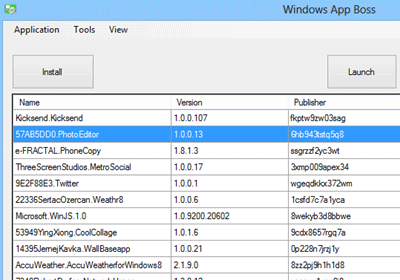
Those of you who have already joined the Windows 8 club should be aware that the Start Screen is the only place from where the OS lets you manage Modern UI apps. The Start Screen allows users to pin legacy apps to the Taskbar, unpin any app from Start Screen, uninstall them or change the sizes of their tiles. However, all that doesn't seem very convenient, particularly if you’ve also pinned additional items here, such as files, folders or desktop apps. That’s where Windows App Boss comes to the rescue. This freeware allows users to manage Windows 8 applications right from the desktop. It can also help developers and testers easily add signed packages for testing purposes. Keep reading past the break for further details. Read More

Delete User & System Android Apps In Bulk With GO App Uninstaller

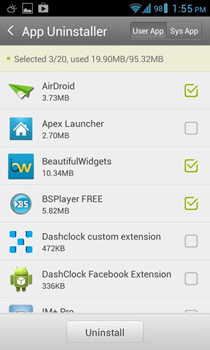
Android has always fallen short of a better app management system when it comes to uninstalling apps. Sure you can do that from the system settings, or from the app drawer as well in case of Android 4.0 and higher. Also, many third-party launchers allow you a quick way of uninstalling apps from their icons, but what if you want to uninstall multiple apps in one go? There are apps available on the Play Store for batch uninstalling, but none offer the simplicity and additional features that GO App Uninstaller brings to the table. In addition to uninstalling user apps, the app can also delete system apps on rooted devices. With no complicated settings to configure, Go App Uninstaller is simple and easy to use for anyone. Read More

Uninstall Apps, Corrupt Programs, Native Windows Utilities & Drivers With Any Uninstaller

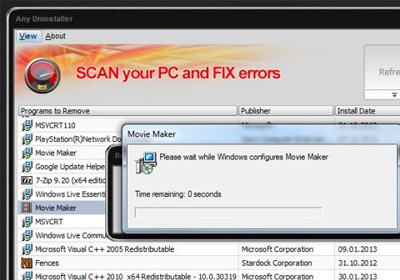
With every new software installation, a lot of registry values, shortcuts and other elements are created and added to your computer. Last week, we covered a small tool called Windows Uninstaller that allows you to uninstall applications easily from the context menu. However, it uses the native uninstall utility of Windows, which does not always remove everything associated with the apps, leaving residue such as folders, shortcuts, registry keys and at times, context menu entries. Moreover, that utility only allows you to uninstall third-party applications, and you cannot use it for uninstalling drivers or system components. Today, we have an application for you called Any Uninstaller that takes care of all these problems by allowing you to uninstall all software and drivers, even including native Windows applications such as Photo Gallery, Movie Maker, etc. and cleaning their leftovers from registry. You can use the tool to uninstall, modify or repair applications depending on your requirements. Read More

‘Should I Remove It?’ Helps You Decide Which Windows Apps To Uninstall

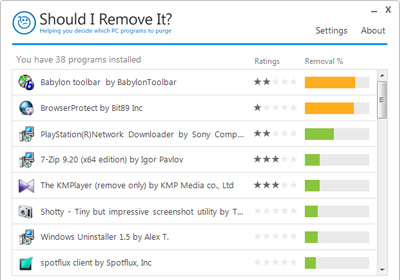
Free apps are a great way to get more out of your computer without spending a dime. Even though paid applications often contain more features, there are a lot of free apps that surpass them in usability. However, free software often comes bundled with other free software, such as unnecessary browser toolbars and programs. Previously, we have covered some very useful applications that allow you to remove unwanted software from your computer, such as SlimComputer and Toolbar CleanerShould I Remove It? is another Windows application that performs the same function, but in a different manner. Instead of automatically deleting the software, it analyzes your installed programs and provides you suggestions regarding the ones you can safely remove. Read More

Quickly Uninstall Unwanted Windows Apps From Right-Click Menu

Here at AddictiveTips, we try to bring our readers several application reviews each day. Before writing the post, we test the application in question extensively to make sure that whatever we are writing depicts the truth about the tool in question. The process involves installing a number of apps, testing them, and then picking out the best ones for the day to share with our readers. By the end of the day, all this ends up in a lot of unneeded software installed on the system, adding to the clutter and making the computer run slower. The default Windows uninstall utility allows you to uninstall applications from your computer, but you have to open the dialog box and look through the list of installed application before you uninstall them. We have covered some very useful uninstallation utilities such as Revo Uninstaller that includes additional clean-up tools, and Geek Uninstaller that removes all residue along with the application, including registry entries and context menu integrations. However, today we present you a simpler solution called Windows Uninstaller that lets you perform the task right from the context menu of installed applications, without ever opening another dialog box. Read More

Easily Remove A Second Windows Installation With NanWick Uninstaller

Our computers allow us to dual boot them with multiple operating systems. Windows itself offers the same option, meaning you can install Windows 8 along with Windows 7, and keep both the operating systems intact. Dual-booting a system has several advantages; you can test drive a preview a major update of an OS (Windows 8 for instance) or try out an entirely different OS (like Ubuntu) to get an overview of the intended changes and features before making the choice of actually switching to it. The only ordeal however, is that there isn’t really any easy way to cleanly remove an installed operating system, and doing so anyway by formatting its partition often leaves you with issues in the bootloader menu. Previously, we covered an in depth guide detailing the procedure to remove Windows 8 Consumer Preview from dual boot systems and how to get rid of the boot entry via the BCDEdit command. Though if you are looking for a simpler method to do the same, then give NanWick Windows Uninstaller a shot. Not only does it uninstalls the selected operating system from your machine, but it also erases the boot entry of the non-required OS. Read More

Wise Program Uninstaller: Powerful Third-Party Application Remover

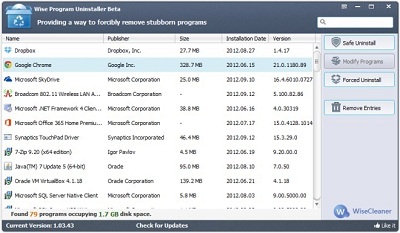
Microsoft works hard on improving their operating system, which can be noticed by comparing Windows Vista and Windows 7, but they always overlook the add remove program tool. Uninstalling a huge application software suite from Windows, using Window's native tool, can be very irritating at times, as it might not be on the uninstallable programs list of the add remove program tool, and even if its there, upon uninstallation, it might leave behind its residues of registry and system files. To deal with this problem, most users opt in for third-party tools like Geek Uninstaller, Revo Uninstaller etc. Today, we came across a similar utility called Wise Program Uninstaller, which lets you easily remove software and their left over data and registry entries. Read More

Mirekusoft Install Monitor Is A Powerful Registry-Level Application Uninstaller

I personally use Geek Uninstaller to remove installed applications from my PC, the reason being the application’s robust scanning and uninstallation engine that cautiously looks for any remnants of uninstalled software and helps you in removing all the bits and pieces, including registry traces and other miscellaneous residual junk. Windows’ integrated uninstaller feels quite primitive when it comes to features like these. While Geek Uninstaller is undoubtedly darn good, Mirekusoft Install Monitor also take cares of the job quite efficiently. It provides features akin to Geek Uninstaller and goes even beyond that (in certain cases its succeeds, while in others it doesn’t surpass the former). The application, along with removing bloatware off of your machine, also successfully erases various registry files. Should you need to only remove or inspect registry entries, you can do that too with its ability to monitor various resources of the installed applications. It watches files and folders created by the applications without intercepting your workflow. Although tinkering around with registry files is something I’d advice to skip altogether, power users will be delighted by this advanced option one way or the other. Lets find out how it fares against Geek Uninstaller. Read More

AppRemover Now Lets You Remove Almost Any AntiVirus Suite & Its Left Over Data

There are certainly sheer number of security related software available out there to fight even the most obnoxious of viruses, malware, trojans, worms, spywares etc. Sometimes while switching to a new antivirus or anti-malware program, we want to first remove the existing security application. However, the Windows application uninstaller is not effective enough to remove every single bit of the installed anti-virus suite/application, and it often leaves behind various traces in the form of registry files and other preferences/settings file. Back in 2008, we covered an application known as AppRemover (reviewed here) to get rid of this nuisance, it's an app uninstaller that allows you to remove any system security-related software within a few clicks. Since our review, the application has been completely revamped, and now it supports a wide range of system security solutions including McAfee, Kaspersky, AVG, Avast, Avira, ESET, GDATA, k&, Kingsoft, Panda, Symantec, Lavasoft, TrendMircro, TrustPort, Norman, Webroot, ClamWin and so on. We took a deeper look inside to see what changes the developers has made to this nifty little tool. Read More

Geek Uninstaller Lets You Completely Wipe Off Any Application From PC

Windows 7 as a whole is a great OS, with so many improved features over previous versions of Windows and a surprising boost in its performance. But its integrated application uninstaller feature is still not up to the mark (at least for advance users) and usually leaves behind various registry traces, empty folders and other useless junk, even after the complete removal of an application (or if that's what it seems). This can make you fall into a major dilemma, as one has to manually remove all the leftovers, should an application needs to be completely wiped out. Perhaps, it would be improved in the upcoming version of the Windows (read: Windows 8), but to cope with current uninstaller utility, we have covered its various third-party alternative solutions, such as Revo Uninstaller, Fire U Uninstaller, KUninstall etc. Today, we have another useful uninstaller application, labelled Geek Uninstaller. What makes it stand out from the integrated utility is that, while removing your unwanted applications, it also lets you remove all of its residue, such as registry entries and other items, after the uninstall operation. Details to follow after the jump. Read More

App Zap: Remove Apps & All Files Associated With Them On Mac [Paid]

Some apps play nice, others not so much. At some point, we download a seemingly innocent app that will do what it says and be easily banished when we’re tired of it or have no use for it. However, it later turns out that app is there to stay, whether we like it or not. Evil apps? Not necessarily. Some apps have more files than others, and depending on what they do, they copy those files to different locations. While you can delete these apps, finding and tracking down the rest of the files isn’t easy. If you haven’t enabled viewing hidden files, it is likely you won’t get to the Saved Application State folder in Library, and will retain some files from an installed, and later removed, app. App Zap is an app uninstaller for Mac that is worth $4.99 in the Mac app store that not only lets you delete files, but also view and selectively remove files created by the app or the app itself. Read More

Root Uninstaller: Freeze, Backup, Restore & Batch Uninstall Android Apps

Root Uninstaller is a comprehensive app manager for rooted Android devices that lets you view, backup (APKs only, no data), restore, freeze and uninstall system as well as user apps. Apart from letting users perform the aforementioned functions, Root Uninstaller supports quite a few handy additional features such as the advanced application filter and APK file viewer/installer. With Root Uninstaller, you can directly launch installed apps on your device, visit their Market links and launch their info screens (to clear app cache and defaults, for instacne). In addition, Root Uninstaller also supports uninstalling user apps in batch. Read More

Uninstall Any Software From Context Menu In Windows 7

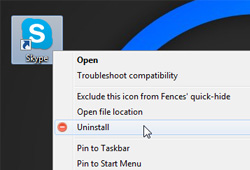
To uninstall programs in Windows 7, one has to go to Control Panel -> Programs And Features. If you're looking for a more convenient way to uninstall applications without having to open Add or Remove Programs each time to remove them from the system, Menu Uninstaller is the most suitable tool for you. It lets you remove programs directly from right-click menu. All that is required is to right-click on app shortcut and select Uninstall. This will initiate the uninstallation process after showing you a pre-cautionary prompt to confirm if you would like to remove the specific application. Read More

SlimComputer Removes Toolbars And Unneeded Software From Your Computer

The installation of free software often comes with the forced inclusion of unnecessary toolbars, associated applications and the like. Many of these unwanted programs and toolbars can drain valuable system resources, hence slowing down your computer. SlimComputer is a utility which allows identifying and removing all of the unneeded programs, toolbars, startup entries and demo links that consume system resources. Read More

Remove Applications And Their Traces With Simnet UnInstaller

Simnet UnInstaller is a simple uninstaller which can be used to uninstall/remove installed application(s). As we know, Windows build-in uninstaller may need an extra push to uninstall those applications/plug-ins/toolbars which are hard to remove and when removed manually, leaves some traces back on the system. This application is built to uninstall the application(s) without leaving any traces on the system. Read More

How to Uninstall Your Software Without Add/Remove Utility

Did you come across a situation where you needed to uninstall a software without using Add Remove Program tool? I came across a situation when I had to uninstall a software and its uninstall applet was not available in Windows Add/Remove list. This is when I started a search for a software, and found Revo Uninstaller. It does a perfect job in completly removing any installed program along with the registry. Revo Uninstaller is an uninstall utility that includes additional system clean-up tools. It provides an alternate interface for the Windows Add/Remove software dialog that offers web search options, access to registry keys and some additional commands. The program also includes a startup manager to inspect and disable programs that start automatically as well as a privacy cleaner to remove Internet traces, a secure deletion tool and an option to find and remove files, folders and registry keys that were left behind during uninstall. Read More