Add Math Equations With Word 2010 Equation Editor
When writing a document which primarily covers mathematical signs and equations then using Word 2010 built-in Equation feature would be of great help. In Word 2010, you can insert Equation from the built-in list instantly. Handling equation that you have written by yourself would be a bit tedious task to get by, but through this feature of Word you can manipulate them by performing simple actions and clicks. In this post we will explain how easy it is to use Equations in Word.
Launch Word 2010 document, in which you want to insert any mathematical equation.
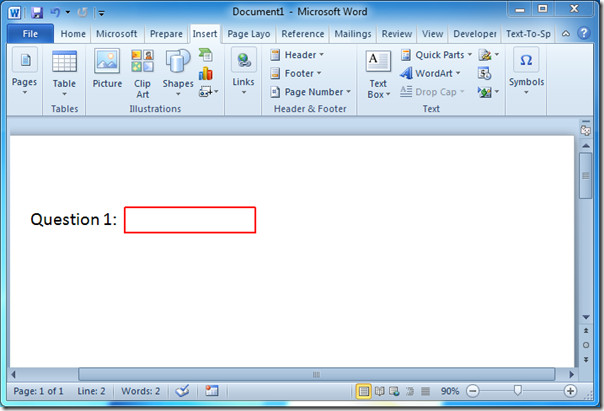
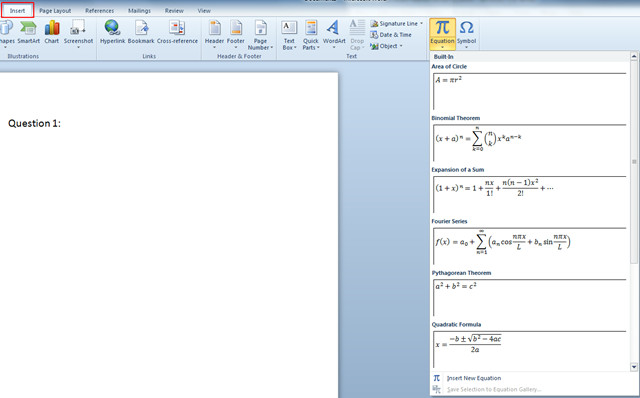
Now navigate to Insert tab, and Click Equation drop-down button to view built-in list, containing different equations.
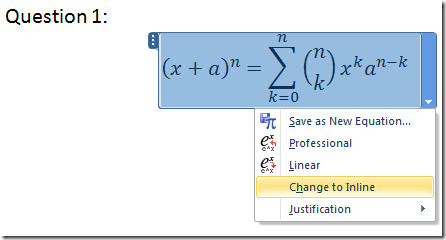
Upon click desired equation from list, it will be automatically added into the document. Now click the drop-down button being present in the equation box for more options, click Change to Inline, to place it in the line you were editing.
Upon click, it will be adjusted properly in the line, as shown in the screenshot below.
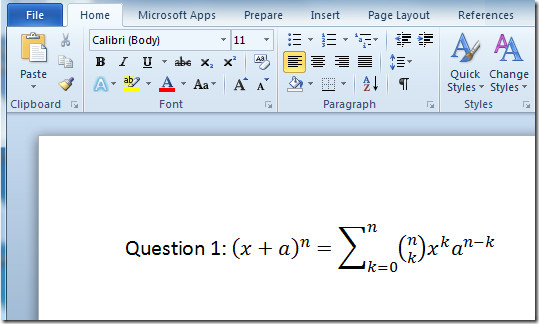
For editing equation values you need to click inside equation box to change values manually.
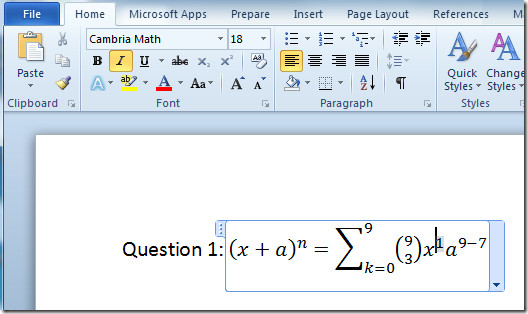
For viewing it or checking equivalent linear equation, click drop-down button in equation box and click Linear. You can also save the newly created equation through single click on Save as New Equation.
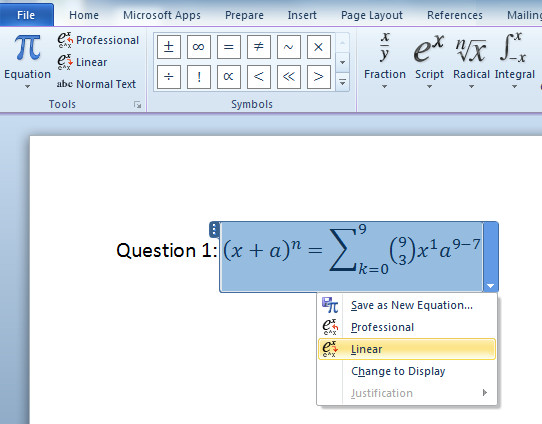
Now if you want to include another equation which is not present in the list, then navigate to Insert tab and from Equation options, click Insert New Equation.
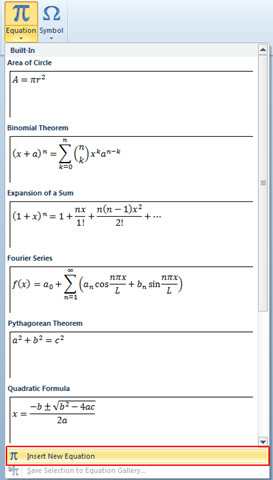
You will notice a Equation Tools Design tab will appear, from Structures Group, you can select new equation from a given extended list. From Symbols group you can choose different symbols to use with equations.

Now for inserting another equation, choose the equation you want to insert in the document from Structures group.
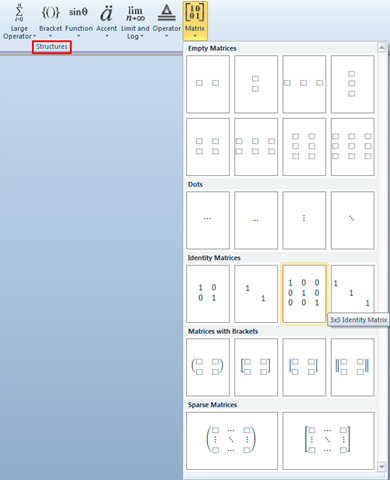
Upon click it will automatically insert equation in to the document.
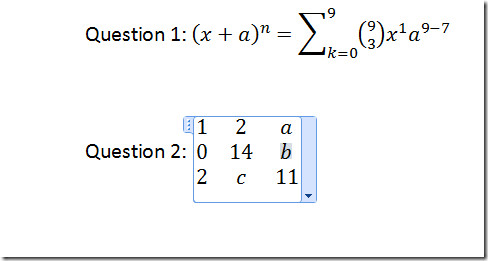
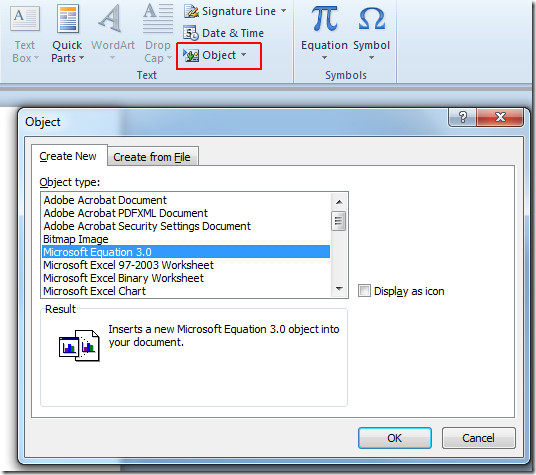
You can also include equation from Microsoft Equation 3.0, as an object. For this navigate to Insert tab, Click Object, that will open Object dialog to insert any object, select Microsoft Equation 3.0 from Object type, and click OK.
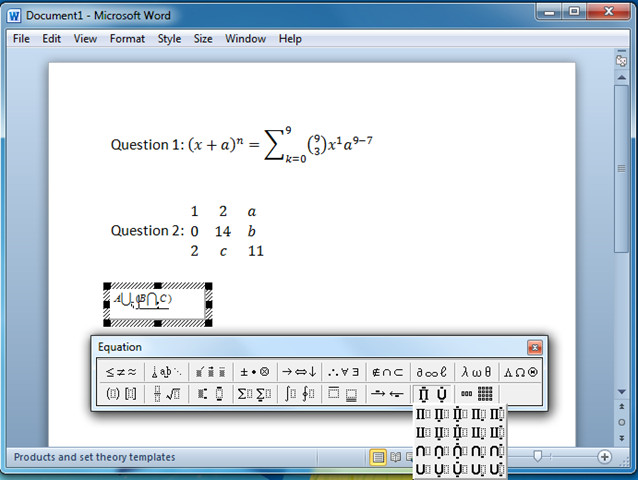
Upon click a new window will open up where you can customize equation as shown in the screenshot below, the difference will be Word will be treated this as an object of Microsoft Equation 3.0.
You can also check out previously reviewed guides on How to insert watermark in Word 2010 & Track Changes in Word 2010.

Recently I am facing a problem while trying to type an equation in the equation editor 3.0 in the MS Office 2010 platform. After completion of the certain part of the equation, while I am going to enter any character to complete the remaining part of the equation one warning message is displayed and after that no character insertion would become possible. The warning message is stated here: “Can’t have more than 10 levels of nested templates,matrices,and/or embellishments.”
Please help me to solve this problem.
Thanks in advance.
This will give a lot of advantage to us in using this kind of program. Allowing us to use this kind of add on to Microsoft word will make our learning to become essay and effective.
i have lots of math type 6.9 equation and i want convert to ms word 2010 equation… so please suggest me ….. how can i do & what can i do…. please….
Hi, how in 2010 Equations for Dinosaurs use keyboard shortucts as its possible in Equations 3.0
it was really helpful, specially last part about microsoft equation 3
Thank you so much microsoft..
Terrible terrible way to do math equations. Microsoft has the WORST HELP FEATURE of any program I have used. Being new to formulas it takes so much time to figure this stuff out and to try and write a formula and
get it to appear properly. At the very least the formula list should have the most common formulas that high school students use for physics, chemistry, etc. The more advanced they try to make Word the more difficult it is to use.
I generally steer folks to Equation 3.0, the object built-in since Windows 3.1 (someone else referrd to this Object as MathType Lite, which it is–a Design Science product) There are youtube videos for both programs, and eventually you’ll settle for the one that makes the most sense. I put together 40-page math booklets using Equation 3.0 for using Mathematica in analyzing Taylor polynomials, os it has PLENTY of power. I also own MathType 6.8 because I also do some heavy-duty equation work and can save them in different forms for different applications, including MathXL. Most folks don’t need that much power.
I agree, the Office Equation product (2007 and 2010 versions) are a bit doggy, but they work well enough with enough persistence until you figure out the “culture”. BTW, you can save and reuse your basic physics, chem and math expressions. They get saved into the existing pile available on the Equation Button.
I can’t figure out how to write sine squared (or cubed etc) properly, Word 2010 either writes sin slanted, or insists on putting something between sin and the raised digit. Any suggestions? Also, the Swedish translation is terrible, whoever translated doesn’t know the difference between integer and integral.
I’m using equation editor in 2010 for the first time. I can’t hit return to type a system of equations!! Help
Shift-Enter will create a new equation directly under your current equation. Otherwide, use vertical box structure inside matrix. Technically, it’s a 3×1 matrix, but you can then add more boxes by clicking in the bottom box and inserting another 3×1 matrix. Etc. the net effect is to add two boxes per insert.
very helpful thanks for the effort
Can anyone tell me how to write a subscript symbols with in an equation?
What dafaq? There is no equation drop-down tab!The picture shows it between “Object” and “symbol”, but only Symbol is there! I’m using 2010, so again, What DAFAQ?
Try type “ff” in MS Word 2007/2010 Equation editor. There are no kerning and it looks realy bad.
The new equation editor in Word 2010 sucks – big time. Writing custom equations takes ~ 5× longer than it does with good ol’ Equation 3.0. Then, you’re allowed only one font – Cambria – so if I want to insert an alphanumeric variable from the text into the equation (e.g., GD = group delay), I have to write my whole document in the sh*tty font of Cambria! Lame, MS, lame.
I miss Office 2003 – before the abortion known as “the Ribbon.”
If you select the word then change to normal text you can change to any font you like but as far as I know you cannot change the size.
So use Mathtype Lite (its free).
Totally agree. I miss Office 2003, too. MS did hard since Office 2003 to make everything harder to use. My company forced the upgrade to 2007 years ago and now 2010. After so many years, I still cannot love 2007 or later Office. Sigh…
Thanks for a great explanation. A lot of people use Word but almost noone knows about such functions. As for me, I like tutorials a lot. I often find them at rapidshare SE http://rapidpedia.com . You can always learn something new with their help. Besides, they save a lot of headaches.
The old MathType-based Equation Editor still comes included with MS Office and will work with Visio. Just do Insert Object and choose “Microsoft Equation”. Just like MathType, EE will work with any app that support Object Linking and Embedding (OLE). Most will have an Insert Object command. Others may provide another way to do it. Obviously, choosing Insert Object every time you want to make an equation is a bit tedious so you will want to look for ways to make a shortcut for this. Each app may (or may not) have a facility for doing this. Don't know about Visio.
Hey thanks for the comment, but because I have mathtype installed, it will open instead of the old equation editor.In addition in the 2007 version when I used microsoft equation editor 3.0, and I would type 2 characters beside each other, the would seperate significantly.fx would become f x with a great big space inbetween.
There is no “Insert Object” in Microsoft Word 2010.
Turns out you can still type “alt-i o” (or maybe it was alt-i alt-o), and it will insert object, even though there’s no menu item for it.
There IS an item for Insert Object on the ribbon in the Text section of the Insert tab.
There are a few bugs with this equation editor. The inbuilt one in office 2010. (The same bugs are in the 2007) one.If I type an equation, with a fraction and then type some regular text on the same line as it, then the characters in the fraction will shrink (this does not happen for 1×2 matrices). a similar issue occurs if you have the corner of a 3D shape, picture or an arrow pointing to the equation.Has anyone found a fix or a way to prevent this (without saying use mathtype)? Mathtype equations are not functioning correctly in word with the fix, hats in x, y and rho appear as white boxes and appear fine on z. They print in x and y but not rho or x.Secondly powerpoint and excel have the equation editor included now, but not Visio, does anyone know how to get equations from the inbuilt equation editor into Visio?
Yes, we will be coming out with a MathType update shortly after the release of Office 2010 as we do with all MS Office releases. They always change some things that we need to deal with though, as you guys have found, the current version mostly works.
Readers of this page may be interested to know that MathType offers additional features, including equation numbering, handwritten math, integration with over 350 apps and websites. See www.mathtype.com.
Oh yes, thanks for reminding us. Btw the latest version of MathType does not work with Office 2010, we have posted the fix here: https://www.addictivetips.com/windows-tips/offic…
How do you install equation editor in MS 2010 beta?