View Detailed PC Hardware Information & Benchmark It With HWM BlackBox

There is no shortage of system information tools out there. Most of them however, are either paid or not as heavy handed with features as their paid counterparts. And then there are some that simply fail to deliver on what they promise. Despite that, we have come across tools like Speccy that have successfully impressed us in the past. HWM BlackBox is another such program that not only supports a slew of features, but presents them in a very well-organized UI as well. The tool basically scans your computer’s hardware and displays the information neatly organized under different tabs to help you quickly get the right information about your hardware when you need it. It also comes with an integrated benchmark utility to quickly assess your system’s overall performance on a scale of ten. Read More

Battery Compare Lets You Benchmark Your Android Device’s Battery Life Relative To Others

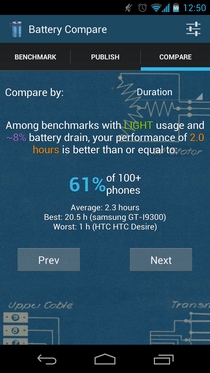
Limited, poor or fast-fading battery timing is one of the most widely debated issues among smartphone users, and Android is no exception in this regard. In fact, the level of fragmentation in the Android world, the variety of custom ROMs, and the depth of tweaking that Google’s mobile OS allows may result in varying battery timings for two Android users owing exactly the same device. Atop all that, one has to take into consideration the varying mileage that you might be getting from your device’s battery as a result of your normal usage and preferred settings, which are seldom the same for any two users. There is no simple means to obtain detailed battery comparison results, statistics and analysis reports to see how your device fares as compared to other similar devices, or there hasn't been one, until now. Fresh to the Google Play Store, Battery Compare is a free Android battery benchmarking tool that presents you with various filters and settings that you can apply to analyze your device’s battery performance in detail. Using the app, you can have your battery’s drainage recorded for a user-specified time, and then submit it to its servers to obtain detailed results based on comparison with reports submitted by other users from around the world. Read More

Anvil’s Storage Utilities: Comprehensive Benchmark Tool Aimed At SSDs

With the ever-decreasing prices of the SSD (Solid State Drive), everybody’s been thinking of getting their hands on one. If you have recently shelled out on an SSD, and want to check its read/write speed, then give Anvil’s Storage Utilities a try. It’s a storage benchmark tool for monitoring the performance of both SSDs and HDDs. The application is designed to perform various sequential read and write tests on the drive, and provide the results for overall drive  performance. The portable application houses a plethora of  tweaks and settings, a user-friendly interface and an integrated system monitoring tool which provides complete system information about your computer. Details to follow after the break. Read More

CamSpeed: Test Focus & Shutter Speed Of Your Android Or WP7 Device’s Camera

Easily one of the best camera benchmarks for Android and WP7 out there today, CamSpeed is not your average benchmark app highlighting the time it takes from pressing the shutter button to capturing an image. The apps measures variables such as Focus Time, Shutter Time and JPEG available. With mobile phone cameras catching up fast with digital cameras, with the pixels per shot and quality of sensors increasing year by year, the competition between the phones is heating up as well, and it always helps to try and roughly figure out how fast the camera on a device is. Comparisons are always fun; benchmarks, even more. And where most users gauge cameras by their results alone, others might want to take comparisons a step further, which is where CamSpeed comes in handy. Read More

CPU-M: Benchmark CPU, Save Test Scores, Check RAM & Processor Details

CPU benchmarking tools are designed to measure the computing and stress handling ability of processor, enabling users to not only check CPU performance, but also share benchmark scores with others. Although Windows 7 lets you calculate Windows Experience Index to check ability of all major system components including CPU, RAM, Disk etc., it doesn’t provide in-depth information on each system component. For this reason, most proficient users rely on third-party benchmarking tools, like Phronix, in order to test each system component ability to withstand extreme stress. CPU-M is built to benchmark processor cores. It also maintains an offline benchmark score history to let you easily evaluate the performance of processors over the period of time. Despite being a simple CPU benchmark tool, it also shows current memory usage and other important information on CPU and main memory. You can choose to conduct benchmark test for each CPU core or put entire CPU through a thread test. Read More

DiskBench: Real-Life Hard Disk Benchmark Tool With Multithread Support

Disk benchmarking and information tools are a dime a dozen, and you’ll find so many of them out there that it becomes to make the right pick. We at AddictiveTips have ourselves covered a lot of such tools, generic and specific both, such as DHE Drive Info for detailed hard drive statistics, AS SSD Benchmark particularly for SSD drives, and even a guide on performing benchmark testing on your hard disk, USB drive and optical drive. The problem with most of these tools, however, remains the fact that they present you with synthetic benchmarking numbers, figures that you are most unlikely to meet in real life situations. For a more realistic and accurate measure of how your disks will perform in real time under stress, try DiskBench. It is a portable Windows application that uses your current filesystem to save, read and manipulate data. Details after the break. Read More

Manage Internal, External & Network-Mapped Drives Using Drive Manager

Each drive that you connect to your Computer, for example the internal hard drive, any external hard drive, USB flash drives etc, has certain data included in it that can be used to identify it. Every time you connect the drive, the information is stored in your computer. However, using the default options provided by Windows does not allow you to fully view this information. Today, we have an application for Windows that lets you view detailed information for any type of drive connected to your computer. Drive Manager is a complete internal, external, network mapped and CD/DVD drive management tool that lets you identify drives in Windows, display volume label and vendor information, show/hide drive letters, view complete hard disk and optical drive information, and scan drives for errors. Information regarding Drive Type, Volume Serial, Capacity, Free Space, Total Clusters, Free Clusters, Partition Type, Number etc. of connected drives can be viewed in Drive Manager. The information is automatically refreshed after every 20 seconds. Moreover, the application lets you benchmark the read speed of, and safely remove, connected drives. Read More

Benchmark Application Start Up Times With AppTimer

When creating an application, it is important for developers to know how much time it takes to load up once the user clicks its executable file. Imagine if you are trying out a new application, and when you run it, it takes ages to load. Most probably you will not use the application again, right? There are plenty of alternatives available for each type of software and if you want people to use your tool, you should make sure that everything is running smoothly. AppTimer is an application start up time bench marking tool that lets you run an executable file a pre-specified number of times, and check how long it takes for the application to be ready for use after execution. The application logs the start up times to a log file after each execution of the application. It comes in handy if you are trying to compare the performance of one software on different hardware, or multiple software on a single hardware. Read More

Analyze System Components And Diagnose Issues With Fresh Diagnose

While diagnosing system issues, it can be hard to identify the source of software and hardware problems. In such a case, precise information regarding hardware and operating system specifications is required to identify and resolve issues. Fresh Diagnose is a benchmarking application for benchmarking system components that covers anything from the BIOS to installed application, and even the motherboard. Fresh Diagnose displays comprehensive benchmarking results and provides in depth information about almost every system component. Read More

Auslogics Benchtown System Benchmark Tool Lets You Test And Share Results

Benchmark utilities are written to measure the capability of software and hardware components installed on the system to provide a detailed compatibility and system performance report. Both Windows Vista and Windows 7 have the option to rate PC through build-in Windows Experience Index which actually does the same; it assess the capability of software configuration and hardware components but instead of providing a report on installed software and hardware devices, it shows result as a number, referred to as base score. Depending on that number,  you can infer the overall performance of your PC. But If you’re not satisfied the way it measures your PC performance, you can consider using advance third-party benchmark utilities like Auslogics Benchtown to evaluate system capability to withstand immense stress and resolve performance-related issues under low resources. Read More

Online Drive Benchmark Compares Storage Services, Picks Best One For You

When users embark on a journey to select an online drive where they want to backup all their data, it can be a hard decision to make. Once you select an online storage drive where hundreds of Gigabytes of personal data have been stored, you cannot move to another cloud service easily. Online Drive Benchmark wants to help you in making this difficult decision speedily. It benchmarks and compares the leading online storage drives and shows the one which is best suitable for your PC and your internet connection. Read More

Run Heavy 3D Benchmark Test To Check Your GPU Performance

Since GPU plays a vital role in giving best gaming experience on PCs, gamers show their utmost concern about the type and strength of GPU installed in their systems. If you’re looking for the best GPU available in the market, do check out for best GPU benchmark score before buying. GPU benchmarking tools come particularly useful, when you need to put your GPU through different kind of tests to check a diverse range of abilities, such as, glass shadowing, pixel shading, 3D object models clarity and so on. Out of many attributes which users look for in their GPUs, the ability to display object shadows is considered to be the most suitable yardstick to check GPU strength. Soft Shadows Banchmark is a GPU benchmarking tool which tests your installed graphic unit for displaying quality shadow effects in 3D environment. While it can be, generally, used to quickly test installed GPU in any system, its main focus is on pixel processing unit (pixel pipelines). It creates a 3D environment, rendering 5 objects with 3 dynamic light effects while calculating animation FPS, so users can compare the results with other high-end GPUs available. Read More

QwikMark – Test CPU Speed & FLOPS, RAM And Disk Transfer Rate

Benchmarking tools help user in testing several internal and external peripherals of computer system. Finding one complete benchmark tool which can test all the hardware and software specific capacities is a bit difficult, as many benchmark tools come with a different set of tests and configurations. As far as system testing is concerned, you must not be worried about more than 3 computing abilities, which are, CPU speed, memory, and data transfer rate. QwikMark is developed to test these basic computer abilities. It enables you to check CPU speed, CPU Flops, Memory bandwidth and Disk transfer rate while showing information on CPU, Main memory, and GPU memory under one window. Read More

Benchmark/Test Your Hard Drive With CrystalDiskMark

Hard drive is a vital part of your system and its very important that you keep a close eye on the performance of your hard disk. We covered a detailed review on both HD Speed and HD Tune and also compared them both. If you are looking for a dead-simple portable alternative, then try CrystalDiskMark. It  is a utility which benchmarks and tests your Hard disk,  USB drives, and Read & Write speeds. Read More

How To Perform Benchmark Test On Your Hard Disk, USB Drive, And CD/DVD Rom

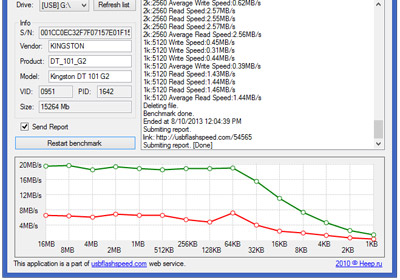
Have you ever wondered why your transfer speed is so slow when copying the files from an external hard disk, USB, or CD/DVD Drive? There could be a possibility that it is not working properly, recently, my old USB was given problems while reading and writing files. The best way to determine would be to perform a benchmark test. Another reason to perform a benchmark test would be to check whether the device you bought actually works like the way your manufacturer calm. I have found two tools that would help, HD Speed and HD Tune.

HD Speed

HD Speed is a free portable tool for Windows that can perform a quick benchmark test on any drive and is only 73Kb in size. Just select the drive from the list and hit Start.

Read More