Batch Resize & Convert Images While Retaining Metadata With PIXresizer

With all the high-resolution cameras out there these days, most of the images we capture are in resolutions much higher than our display devices. Having a 2560p image to view on a 720p or 1080p screen does not offer any benefit when it comes to the picture quality, and having a lot of such images on your disk can consume significantly high amounts of storage space. Image resizing is also very important if you need to frequently upload images online, because larger images take more time to upload and consume more space on the server. PIXresizer is a nifty application that lets you resize images as well as convert them into other formats, including PNG, JPEG, BMP, GIF and TIFF. You can work with single images, or use the batch mode to resize and convert images in bulk with ease. Resized images are saved as copies in a location of choice and can be set to retain EXIF data. Read More

Easily Batch-Resize Images On Your iPhone With Photo Resizer

No one can claim that iOS does not have enough photo editors, but even some of the most feature-rich apps belonging to that genre lack something as basic as resizing options. A few of the apps do let you change the dimensions of a photo, but only a few presets are available, with little thought given to aspect ratio preservation or changing the size to a custom value. These features can easily be found in desktop apps, but having a comprehensive image resizing tool on your iPhone can certainly come handy in many situations. The plainly named Photo Resizer app does what its name says - offering you a way to resize photos stored on your iDevice. You get full control over the image resolution and aspect ratio, and can even select a custom size for the photo. The best thing about the app, though, is its ability to batch-resize entire albums in one go. The original images are preserved unaltered, and resized images are created as new copies. Read More

Resize, Convert & Compress Images From ‘Send To’ Right-Click Menu

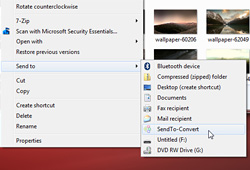
With all the high-resolution cameras out there these days, most of the images we capture are in resolutions much higher than our display devices. Having a 2560p image to view on a 720p or 1080p screen does not offer any benefit when it comes to the picture quality, and having many such images can consume significantly high amounts of storage space. Image resizing is also very important if need to frequently upload images online, because larger images take more time to upload and consume more space on the server. Moreover, people visiting your website will have to wait longer for the images to be properly loaded and displayed. SendTo-Convert lets you quickly resize multiple images from the 'Send to' option in the right-click menu or via drag and drop, based on a profile you can configure. Read More

Resize Images To Multiple Sizes At Once Through Drag & Drop

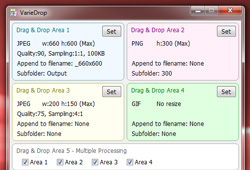
If you are a blogger or frequently post images on the internet, you must know the importance of resizing an image. Most forums and some other image hosting services have their own rules as to what the dimension for an image should be if you want to upload it to the server. Moreover, bloggers have to deal with the image resolution restrictions of their own blog. Even though there are a lot tools that people use for resizing the images, a major problem faced by many is that the image quality drops down significantly during resizing. Previously, we have covered several images resizing applications such as Cooltweak that lets you resize images from the right-click context menu, and Shrink Pic that lets you resize images through drag and drop. Different types of images require you to resize them using different configurations, and changing the settings of the resizing program each time can be a bit tedious. Today, we have found an application called VarieDrop that allows you to set four different profiles for resizing images, supports drag & drop and using multiple resizing profiles for each image simultaneously. Read More

The Best Way To Resize Images In Windows 8 And RT

As a blogger, I have to work with screenshots, and one of the real pains (besides taking screenshots) is to resize them. There are many things to be kept in mind, like the maximum width, maximum image size, and so on. Resizing images one by one takes up a lot of time, so I planned to devise a solution for this: using batch image resizers. And since I’m using Windows 8, there’s a Modern UI app for that. And I thought, why not share this tip with our readers? So here you go, two of my favorite image resizing options for Windows 8 users. Read More

Auto-Resize Images Without Shrinking The Main Subject

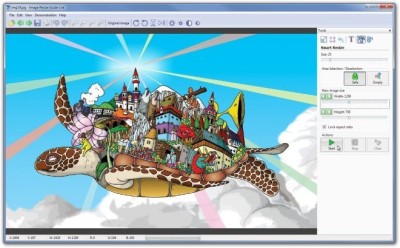
How many times has it happened that you found a good image to use as your wallpaper, but when you tried to set it as the desktop background, the resolution did not match that of your computer's screen. The image is still displayed, but sometimes you most favorite part of the image is left out from focus and goes to the side. In such situations, either you have to find a new wallpaper with the resolution that fits your screen, or you can resize it using any image editing tool. You can use the previously covered Easy Image Modified, a tool that lets you perform everyday image related tasks, such as resize, rename, sort, realign, convert etc, or Microsoft’s very own Office Picture Manager that lets you quickly crop or resize images. However, the problem with these tools is that when you resize the image, the pixels can get squeezed together distorting the real image. Today, we have a tool for you called Image Resize Guide Lite that mixes the concept of resizing and cropping, and using its Smart Resize technology, changes the size of the image by both squeezing the pixels and cropping out the empty parts of the image. Keep reading to find out more about Image Resize Guide Lite. Read More

Resize Images & Apply Effects In Batch Operation With Fotosizer

Image resizing is very important especially for people who develop websites, as they have to upload images of different sizes to different sections of the web page. Larger size means that the image will take more space, more time to upload and consequently increase the loading time of the web page for users. Other than that, if you are a fan of upload your pictures to Facebook or any other social network, resizing them will greatly speed up the uploading process. Previously, we have covered a lot of image resizing applications for Windows, such as Plastiliq ImageResizer, Shrink O’Matic and ImBatch. Today, we have another image resizing application called Fotosizer, which allows you to shrink image files, enabling you to quickly prepare your image collections for publishing on the web. The application supports TIF, JPG, PNG, BMP, TGA and GIF image formats. More on Fotosizer after the break. Read More

Plastiliq ImageResizer: Resize & Convert Images Using 7 Resizing Modes

Whenever you need to use an image in a project, the first thing that comes to mind is if it the selected image of the right size or not. Using the wrong image size will cause the whole project to look bad. For instance, if the image that you use is bigger in size than what the project requires, it might get distorted or even cut from one size and the complete image will not be displayed in the final version of the project. Some days ago, we covered an application by Plastiliq called Plastiliq PixelPicker, that allowed you to view color codes in 10 different formats, such as RGB, ARM, HTML, CMYK, HEX etc. Today, we have another application from the same developer, titled Plastiliq ImageResizer. As the name suggests, it is a simple image resizing application with a beautiful GUI, which allows you resize the height and width of your images, as well as change their output format just with a few clicks. Adding files and folders is just a matter of dragging and dropping them onto the main interface. Moreover, it can also convert files to different formats, and currently supports JPG, PNG, TIF and BMP output formats. More on Plastiliq ImageResizer after the break. Read More

JMC Photo Resizer Is A Simple Yet Useful Image Resizer For Windows

Image resizing comes in very handy especially if you run a website and need to constantly upload images to the internet. Larger size means that the image will take more time to upload, will consume more space on your website, and resultantly, people visiting your website will have to wait longer for the images to download and get displayed on their systems. You can check out some very good image resizing applications for Windows, such as Image Resizer and Free Resizer. Back in 2009, we reviewed an image viewing application called JMC Photo Gallery, which we liked so much that we rated it as an alternative to Windows Live Gallery and Picasa. The same developer has come up with an image resizer, JMC Photo Resizer, and we thought we'd check it out and review it for you guys. Read on to find out more about JMC Photo Resizer. Read More

FreeSizer Is Fast Profile Based Image Resizer

Many image resizers don’t show dimensions and estimated size of resultant images, which leaves users to the moment where they have to manually evaluate the size of the images, and in some cases, check size of each converted image to resize the original imageset again to get the required size. Profile based image converters, in contrast, lets you quickly convert images for numerous pre-defined purposes, such as, send images through email, share images on social media platforms, make image size compatible for mobile devices, etc., without giving details regarding resultant image size and dimensions. Read More

Optimize And Resample Images With RIOT (Radical Image Optimization Tool)

Radical Image Optimization Tool or RIOT, is a free Image optimizer which offers a wide range of features and tools for image resampling while a staunch compression tool is included to compress image files. Its main usability revolves around optimizing images, you can adjust compression parameters according to your needs, edit image meta information and change image masking (offers basic transparency threshold, and let user blend image with solid background). To bring ease in manipulating images, it offers multiple re-sampling filters having different attributes, some of which are; Bilinear, Catmul Rom, B-spline, and lot more. Read More

TSR Watermark Image Software Is An Advanced Image Watermarking Utility

TSR Watermark Image Software is an advanced batch image watermarking utility, featuring all the options and features which are essential for watermarking images in desired way. Be it transparency, color choice, text or image watermarking, setting horizontal and vertical scales, image quality, supporting multiple output formats, it caters all whilst offering super fast processing speed. It has a build-in image viewer to view the resultant image that helps in carrying out watermarking again if some parameter went wrong. Read More

Perform Multiple Batch Operations Over Image Set With ImageBatch

Every now and then, we need to perform multiple operations over enormous image set. Most of the times, batch conversion is needed, or bulk resizing with watermarking is required. Considering this immediate need, ImageBatch is a simple yet powerful portable tool which is designed to do multiple batch operations over images, some of which includes; resizing images, text watermarking, picture watermarking, flip, rotate, and crop images, etc. It supports all the eminent image file formats like; PNG, JPEG, GIF, and BMP. Read More

Copy Images In Folders Being Monitored To Auto Resize Them

Some image resizing tools offer fancy interfaces, others would be too simplistic, while some may contain a whole lot of other features that one hardly ever uses. Amongst the crowd exists Dropresize, a portable freeware tool that works with image resizing profiles, and does so without user interference, with automatic folder monitoring and resizing. Read More

Image Resizer – Free Mac Batch Image Resize Tool

Image Resizer is a small utility from the same developer who bought you QuickTunes. It lets user resize the image and save it in JPG-format with medium level compression. Since it doesn’t include any advanced functionality, the basic usage is to resize and compress the images so that they can be uploaded to Facebook, Picasa, or send via Email.

Read More