WPS Button on Router – What It Is & How to Use It
If you’ve found a WPS button on a router and are wondering what it does, you’re in the right place. Understanding the WPS button on router hardware is essential for anyone setting up a modern home or office network. It increases the compatibility of the router for a wide range of electronic devices that support Wi-Fi connectivity. Continue reading to get an in-depth understanding of the WPS key of your home or office router.
What Is the WPS Button on Router Hardware?
WPS stands for Wi-Fi Protected Setup, a standard hardware feature found on modern routers and Wi-Fi-enabled devices. Cisco developed the technology in 2006, and in the same year, the Wi-Fi Alliance made it a standard feature for new routers, should the manufacturer choose to implement it.
Since the feature increases the ease of use of Wi-Fi routers, most modern routers come with this key out of the box. Previously, the protocol was known as Wi-Fi Simple Config.
It lets home users set up and grant access to home networks with the press of a button. Nowadays, even less tech-savvy consumers can easily connect Wi-Fi security cameras, thermostats, smart TVs, and other IoT devices to their routers without entering a password manually.
Where Is the WPS Button on a Router Located?
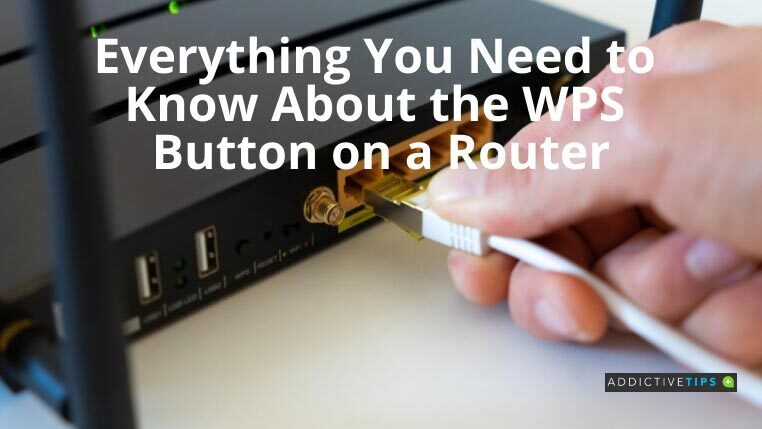
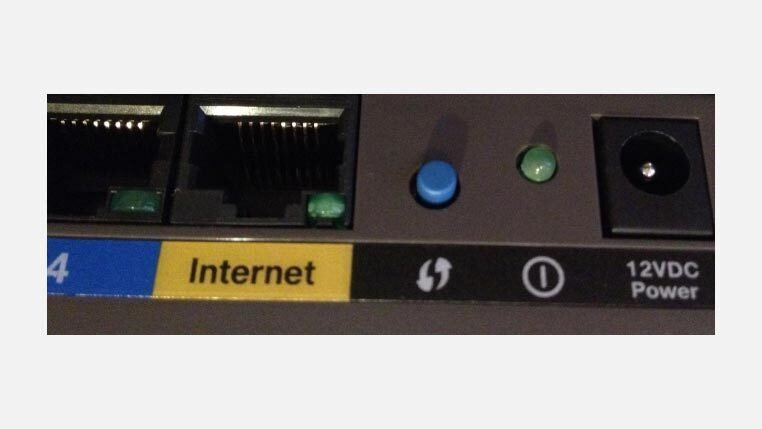
Depending on the product model, the WPS button should be at the back or bottom of the device. It will be a physical push-button, and there will be an inscription such as “WPS” or “WPS Wi-Fi” printed nearby.
Some manufacturers may use the Wi-Fi Alliance WPS logo to indicate the button’s location. It’s an oval-shaped black and white logo with two arrows pointing at each other.
How to Use the WPS Button on Router Devices
Before you start, confirm that both your router and the device you want to connect actually support WPS. Most modern routers and many printers, smart TVs, and IoT devices do — check the device label or manual if you’re unsure. Once confirmed, follow these steps:
- Press and release the WPS button briefly on your router. Do not hold it down — on many routers, holding the button too long can trigger a factory reset or a different function entirely. If you are unsure how long to press it, consult your router’s manual.
- The router’s WPS indicator light will start blinking. This means the router has entered pairing mode and is actively searching for a device to connect.
- Within about 2 minutes, go to your device’s Wi-Fi or network settings and select the WPS connection option. It may be labeled “WPS,” “Connect via WPS,” or shown as the WPS logo.
- The router and device will exchange credentials automatically. Once pairing is complete, the WPS light on the router will typically stop blinking and remain solid, and the device will show a successful connection.
- If the 2-minute pairing window expires before your device connects, the router exits pairing mode on its own — simply press the WPS button again to open a new session and try once more.
A router can only connect to one device at a time through WPS mode. If WPS fails after a couple of attempts, stop trying and connect using your regular Wi-Fi password instead. WPS is a convenient shortcut, not a replacement for standard Wi-Fi setup.
One important clarification: WPS is a one-time onboarding method, not an ongoing connection type. Once a device has joined your network through WPS, it connects to your Wi-Fi like any other device. If you change your Wi-Fi password later, devices that stored the old credentials may fail to reconnect and will need to be reconfigured — but this applies to all devices on the network, not just WPS-paired ones. There is no separate persistent “WPS connection” that exists independently of your Wi-Fi network.
WPS Methods: Push-Button vs PIN
WPS can work in two different ways, and understanding the distinction matters — especially when it comes to security.
The push-button method (PBC) is the physical button on your router covered above. You press it briefly, the router opens a short pairing window, and a nearby WPS-enabled device connects automatically. No PIN or password entry is needed. This is the method most people encounter and the safer of the two options.
The PIN method works differently. Either the router generates an 8-digit PIN that you enter on the device’s setup screen, or the device generates a PIN that you type into the router’s admin page. While it sounds convenient, the PIN method has a well-documented security vulnerability: because the PIN is validated in two separate halves rather than as a single string, an attacker can narrow down the possible combinations dramatically and brute-force the correct PIN in a matter of hours. Security researchers disclosed this flaw in 2011, and it has never been fully patched in the WPS standard itself.
The practical takeaway: if you use WPS at all, stick to the push-button method. The push-button approach requires brief physical proximity to the router, which significantly limits the attack surface. If your router’s admin panel gives you the option to disable PIN-based WPS while keeping push-button WPS available, it is worth enabling that setting.
Is WPS Safe? When to Turn It Off
WPS is a convenience feature, and like most convenience features, it involves a trade-off with security. Here is how to think about it practically.
The push-button method is the lower-risk option. Because an attacker would need to be physically close to your router at the exact moment you press the button, opportunistic remote attacks are not realistic. The window is short and requires presence.
The PIN method is a different story. As covered above, the 8-digit PIN has a known brute-force weakness and should be avoided. If your router’s admin interface shows a static WPS PIN or lets you enable PIN-based WPS, leave it disabled.
Even with push-button WPS, the feature is worth turning off after you have finished pairing a device, if your router allows it. Leaving WPS permanently enabled means the pairing mode can be triggered at any time, which is an unnecessary exposure. Many current routers let you disable WPS from the admin settings page — check under the Wireless or Advanced settings section.
WPS is a particularly poor choice in apartments, dense housing, or office buildings where neighboring devices are within Wi-Fi range. In those environments, the risk of an unintended or malicious connection attempt during an open pairing window is meaningfully higher than in a detached home.
It is also worth noting that many newer routers now ship with WPS disabled by default, or steer users toward app-based or QR code onboarding instead. If your router offers those alternatives, they are generally the better option for initial device setup.
If you do choose to use WPS, follow this simple checklist:
- Use it only for pairing a specific device such as a printer, smart TV, or IoT device — not as a routine connection method.
- Stay near the router when pressing the WPS button so you can monitor what connects.
- Connect only one device at a time.
- Turn WPS back off in the router’s admin settings once pairing is complete, if your router supports it.
The Pros and Cons of the WPS Button on a Router
Pros of the WPS Button on Router
- WPS-compatible routers will automatically configure incoming device connections using their SSID and WPS key.
- Users don’t need to remember any passwords or SSIDs to connect their WPS devices to Wi-Fi.
- Some manufacturers also fortify the protocol with a random key each time you use the WPS button for device connection.
Cons of the WPS Button
- Non-WPS devices won’t be able to connect to Wi-Fi using the WPS button.
- Hackers can compromise the WPS security key using brute-force attacks.
- Anybody who can physically access your router can connect their devices and misuse the Wi-Fi network.
Final Words
Now that you’ve learned about the WPS button on router setups in depth, you should be able to utilize it wisely. You’ll also be better prepared to protect your home or office network, knowing that WPS-based connections can be vulnerable to certain attacks.
Having said that, VPNs are also essential to protect data privacy from online threats. With a strong WPS PIN and router password in place, you should also consider trying one of the best VPN services available today.
