How to Allow Pop Ups on Safari Web Browser?
The Safari web browser comes with a default pop-up blocking system that keeps distractions at bay. If you need to allow pop ups on Safari to use specific services, some sites rely on pop-ups for legitimate functions like banking portals, file downloads, or account management tools.
Continue reading to learn how to allow pop ups on Safari across macOS, iPhone, and iPad when you need to interact with website pop-ups.
How to Allow Pop Ups on Safari: macOS
MacBooks let you customize pop-up permissions so that preferred sites always open pop-ups in the future. You can also allow global pop-ups for all the websites that you visit. Here are a few methods you must try:
Enable Pop Ups in the Safari Screen
- Locate the address bar of Safari. It’s at the top of the web browser just below the tabs.
- When on a website, right-click on the address bar.
- You’ll see Settings for this website or Settings for the site name.
- A small window will appear with options like Auto-Play, Pop-up Windows, etc.
- Go to Pop-up Windows and click on the drop-down menu to discover the Allow option.
- Select Allow to enable pop ups.
- If the selection is already Allow, you can change that to Block to prevent pop ups.
- Reload the website to see pop ups.
Allow Pop Ups When Visiting a Website
You should apply this method if you want to manually control all pop-ups. It’s safer since all the websites don’t get to open pop-ups until you act. Here are the steps you can try:
- Access any website that previously tried to open a pop up but couldn’t.
- Click on the link that triggers the pop-up windows.
- Now, take your time and look at the address bar of the website that you’re visiting.
- The Safari browser will show the following message “Show blocked pop up window”.
- You’ll also see a tiny icon of pop-ups in the right corner of the address bar.
- Click on that to allow the pop up instantly.
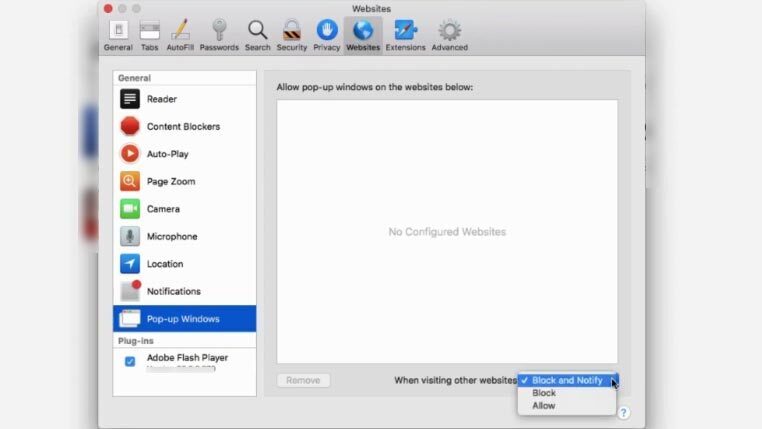
Allow Pop-ups on One Website via Safari Settings
If you want to grant pop-up access to a specific site without opening the floodgates for every site you visit, Safari’s Settings pane gives you precise per-site control.
- Open Safari and navigate to the website you want to allow pop-ups for.
- In the menu bar, click Safari, then select Settings.
- Click the Websites tab at the top of the Settings window.
- In the left sidebar, click Pop-up Windows.
- Under Currently Open Websites, find your site listed on the right side of the panel.
- Click the drop-down menu next to the site name and select Allow.
- Close the Settings window and reload the page.
Safari gives you three choices for each site in the Pop-up Windows panel: Allow opens all pop-ups from that site freely; Block silently prevents them; and Block and Notify keeps blocking active but places a small icon in the address bar so you can manually open a specific pop-up when you need it. Block and Notify is a good middle ground — it leaves your default protection in place while still giving you a way to let through a single needed pop-up without permanently changing the site’s setting.
Allow Pop-ups on All Websites via Safari Settings
If you want pop-ups enabled across every site you visit, you can set a global rule from the same Settings panel.
- Open Safari and click Safari in the menu bar, then select Settings.
- Click the Websites tab.
- Click Pop-up Windows in the left sidebar.
- At the bottom of the panel, find the When visiting other websites drop-down menu.
- Click that drop-down and select Allow.
- Close Settings and reload any site where pop-ups were previously blocked.
Clear Site-Specific Overrides Under Configured Websites
If you’ve previously blocked pop-ups on individual sites, those rules are saved under Configured Websites in the Pop-up Windows panel. A per-site rule will always override your global setting — so if a site still blocks pop-ups after you’ve set the global option to Allow, a saved override is very likely the reason.
- Go to Safari > Settings > Websites > Pop-up Windows.
- Scroll through the list on the right to find any sites listed under Configured Websites.
- To remove a site-specific override, select the site and click Remove, or change its drop-down to match your preferred global setting.
- Reload the affected website to confirm the change takes effect.
How to Allow Pop Ups on Safari: iPhone
iPhones don’t support site-specific pop-up permissions the way macOS does. You must allow pop ups on Safari for iPhone globally through the Settings app, which applies to all websites. Here are the steps to follow:
- When a previously known website can’t open pop ups on your iPhone, open the Settings app.
- Scroll down and tap Apps.
- Tap Safari from the list of apps.
- In the General section, find the Block Pop-ups toggle.
- Tap the toggle to turn it off (it will turn grey when disabled).
- Go back to Safari and reload the website to view pop-ups.
Keep in mind that disabling the Block Pop-ups toggle will allow pop-ups from all websites, not just the one you’re trying to use. According to Apple’s official Safari support documentation, you can re-enable the setting at any time to restore pop-up blocking across all sites.
While you’re in Safari settings, it’s worth confirming that Fraudulent Website Warning remains turned on. This option, found in the same Safari settings screen under the Privacy & Security section, helps protect you from scam pages — including the kind that hijack your browser with fake pop-up alerts. Turning off pop-up blocking does not disable this protection, but it’s a good habit to verify it’s still active any time you adjust your Safari privacy settings.
How to Allow Pop Ups on Safari: iPad
The steps to allow pop-ups on Safari for iPad follow the same current path as iPhone. Note that Safari on iPad only offers a global pop-up setting — there is no per-site allow list the way there is on Mac.
- Open the Settings app on your iPad.
- Scroll down and tap Apps.
- Tap Safari from the list of apps.
- In the General section, find the Block Pop-ups toggle.
- Tap the toggle to turn it off (it will turn grey when disabled).
- Return to Safari and reload the website where you need pop-ups to appear.
To restore pop-up blocking, follow the same steps and tap the toggle back on. This setting applies to all websites you visit in Safari on your iPad.
If Safari Pop-Ups Still Won’t Open or Keep Appearing
Changing the pop-up setting doesn’t always solve the problem right away. Here’s what to check if pop-ups are still blocked after you’ve made the change — or if unwanted pop-ups keep appearing even when blocking is enabled.
Pop-ups are still blocked after changing the setting
- Reload the page. Safari applies the updated setting on the next page load, so a simple refresh is often all that’s needed.
- Check Configured Websites on Mac. If a site-specific override was saved before you set a global Allow rule, that override takes priority. Go to Safari > Settings > Websites > Pop-up Windows and remove or update any existing entry for that site under Configured Websites.
- Update macOS, iOS, or iPadOS. Older software versions can behave inconsistently with Safari settings. Check for updates in System Settings on Mac, or go to Settings > General > Software Update on iPhone and iPad.
Unwanted pop-ups keep appearing even with blocking enabled
- Keep Fraudulent Website Warning enabled. This setting in Safari helps protect against scam pages that trigger fake pop-up alerts. Confirm it’s turned on in your Safari settings under Privacy & Security.
- If a suspicious page takes over Safari on Mac, don’t click anything on the page. Press Command + W to close the tab, or quit Safari entirely and reopen it while holding the Shift key — this prevents Safari from restoring the hijacked session.
- Check Safari extensions on Mac. Go to Safari > Settings > Extensions and look for anything you don’t recognize or didn’t intentionally install. Disable or remove suspicious extensions, then restart Safari.
- Look for adware or unwanted software on Mac. If persistent pop-ups continue across multiple sites, a recently installed app may be the source. Review your Applications folder for anything unfamiliar and move it to the Trash. Apple’s support guidance also recommends checking for adware-related software if the problem continues after other steps have been tried.
The Final Words
Pop-ups can be disruptive, but many websites that provide specialized services — such as banking, eCommerce, enterprise resource planning (ERP), and data entry — rely on them to deliver key functionality. If you need to allow pop ups on Safari across any of your Apple devices, the methods above cover every scenario, whether you’re on a Mac, iPhone, or iPad.
You may also be interested in learning are AirPod Pros waterproof?
