100 Funny Wi-Fi Names to Prove You’re the Best Neighbor
Here’s the thing, there’s nothing wrong with the classics. Smith-Home-WiFi, 4-Privet-Drive, and Joe-Guest-WiFi all have their merits. However, if you really want to make a splash on the neighborhood group chat, there is a world of funny WiFi names waiting to be discovered. So, before finalizing your internet network, just take an extra moment to scan some funny WiFi names. Don’t worry if you have already set it up, your Wi-Fi name can easily be changed. Of course, you can come up with your own unique Wi-Fi name, but looking at some suggestions is always a good place to start.
We have scoured all the archives, forums and local intel we could find, to list 100 funny WiFi names in different categories. This includes clever names, punny names, sarcastic names, seasonal and holiday names, and even a few geeky names (we see you, “LAN Solo”). Seriously, there is something for everyone here. After finding a name you like, you can add your special touch and make it your own.
Clever Funny WiFi Names
- Hack Me If You Can
- Loading…
- Connecting…
- 404 Wi-Fi Unavailable
- Connection Lost
- Your Ex’s Wi-Fi
- Searching for Wi-Fi…
- Network Not Found
- Access Denied
- Loading Forever
- Join or Die
- You again?
- Not Today, Pal
- Hop On My Bandwidth
- Aliens Have LANded
- LAN of Opportunity
- Stay in Your LANe
- The Answer is Always No
- High-speed Buffering
- Nope, Still Not Free
Punny Wi-Fi Names
- Silence of the LANs
- Winternet is Coming
- Wu-Tang LAN
- Live Free or Wi-Fi Hard
- I did it All for the Cookies
- Sherlock Homezone
- Lord of the Pings
- Ping’s Landing
- The LAN Before Me
- Drop it Like It’s Hotspot
- LAN Solo
- Keep it on the Download
- Winter is Buffering
- LAN Skywalker
- Wi-Fight Club
- House LANister
- Wi Not?
- LAN-a Del Ray
- Get Off My LANd
- Pinging in the Rain
Sarcastic Wi-Fi Names
- Nothing to See Here
- Free Virus Download
- Undercover Cop
- The Password is 12345
- Slow Internet
- Click here for Internet, Mom
- Dial-Up Speed
- I’m Calling 911
- The Dark Web
- Hacked by Your Neighbor
- Nice Try
- Waiting for Payment
- Wrong Password, Genius
- Out of Stock
- Oops, Try Again
- Strong Password Detected
- Exclusive Wi-Fi
- No Freeloaders Allowed
- Thanks for Paying My Bill
- Premium Members Only
Holiday and Seasonal Wi-Fi Names
- HalloWi-Fi
- Easter Eggwork
- Turkey Net
- Merry Connectmas
- New Year, New Wi-Fi
- Santa’s Hotspot
- Frosty the Router
- Valentine LANd
- FestiWi-Fi
- Happy Haunting
- ThanksgiWi-Fi
- Spooky Network
- Ho Ho Hotspot
- Trick or Connect
- Happy New Wi-Fi
- Spooki-Fi
- New Year’s Resolution
- Free Christmas Cookies
- Holiday Spirit Network
- Click to Get Haunted
Geeky Wi-Fi Names
- Localhost Only
- The Bandwidth Strikes Back
- Starfleet HQ
- Einstein’s Network
- Ctrl Alt Del Network
- Quantum Realm Router
- Nerdtopia
- The LANding Page
- Beta Test Zone
- Glitched Network
- Source Code LANd
- Dark Mode Enabled
- Obi-Wi-Fi Kenobi
- LANdo Commando
- MAC-and-Cheese
- Operation Wi-Fi
- Back to the Router
- Warp Speed Connection
- Byte Me
- Hack to the Future
What is the Point of Using Funny WiFi Names?
A funny WiFi name is a great conversation starter that can bring people together. In fact, this somewhat small gesture can ultimately lead to lasting friendships and memorable moments.
Furthermore, you can use funny WiFi names related to movies, games, and franchises that you love, and find people who share the same interests as you. Imagine discovering that your neighbor is a huge Lord of the Rings fan — just like you. All through the modern-day middle-earth magic of changing your Wi-Fi name to Lord of the Pings!
Beyond the laughs, there are some genuinely practical reasons to rename your SSID too. A custom funny WiFi name makes it much easier to spot your own network in a long list of nearby signals — especially in apartments or dense neighborhoods where you might see a dozen generic names like NETGEAR_2G_xxx or TP-Link_5GHz_xxx. It also helps guests find the right network immediately without having to ask.
If your name sounds private or exclusive enough, it can lightly discourage opportunistic freeloaders who might otherwise guess at a default network. Here is a quick summary of the practical benefits:
- Easier to identify: Stands out clearly among nearby networks on any device.
- Guest-friendly: Visitors can find and connect to the right network without confusion.
- Replaces generic defaults: Gets rid of forgettable names like NETGEAR_xxx or TP-Link_xxx that tell you nothing useful.
- Subtle freeloader deterrent: A name that feels personal or private can discourage casual moochers from trying their luck.
Tips and Tricks for Creating Funny WiFi Names
If you don’t like any of our suggestions, you can try to come up with funny WiFi names that are clever and unique on your own. Here are some tips and tricks to find the best funny WiFi name (and to avoid the network no-nos):
- No Personal Information: Make sure that the name doesn’t include any personal information such as your address, your social security number, your birth year, and more. Making personal information public is generally not a good idea, as it makes you vulnerable to a bevy of online attacks.
- Stick with Simple Names: You don’t want to overcomplicate things by using a name that is too long or too difficult to read. The simpler the name is; the more people will be able to appreciate it as a funny pun or clever joke.
- Don’t be Offensive: Why offend people and create trouble for yourself for no reason? Alienating those close to you might create a toxic living environment for yourself and your family.
- Start with a pop-culture reference and swap in a Wi-Fi term: Take a movie title, TV show, song, or celebrity name you love and replace a word with Wi-Fi, LAN, router, ping, or password. For example, The LAN Before Time, Pinging in the Rain, or LAN Solo all follow this simple formula.
- Turn a warning or anti-freeloader message into a joke: Think of something you’d genuinely say to someone stealing your Wi-Fi, then make it absurd. Names like Get Your Own Wi-Fi, No Freeloaders Allowed, or Thanks for Paying My Bill land because they feel direct but silly at the same time.
- Use family-safe inside jokes: References that only your household or close friends will understand make the name feel personal and give it a story. These also tend to be the most memorable funny WiFi names over time.
- Keep it short enough to read on a phone screen: SSIDs can technically be up to 32 characters, but anything much longer than 20 characters gets truncated on most device Wi-Fi menus. Short names hit harder anyway.
- Avoid excessive symbols and special characters: Symbols like &, #, or @ can make the name harder to type when guests need to reconnect, and some older devices do not display them correctly.
To get your creative juices flowing, here are a few reliable name formulas you can use as a starting point:
- Title + LAN: The LAN Before Time, House LANister, LAN of Opportunity
- Warning + Wi-Fi: Get Your Own Wi-Fi, No Free Wi-Fi Here, Pay Your Own Wi-Fi Bill
- Tech term + punchline: 404 Network Not Found, Loading Forever, Access Denied
- Pop-culture swap: Silence of the LANs, Winternet is Coming, Drop it Like It’s Hotspot
Wondering How to Change your Wi-Fi name?
Once you have picked the perfect funny WiFi name from our list, the process of applying it is actually quite easy. Follow these steps to change your Wi-Fi name:
- Connect to your Wi-Fi Network with your computer or mobile device.
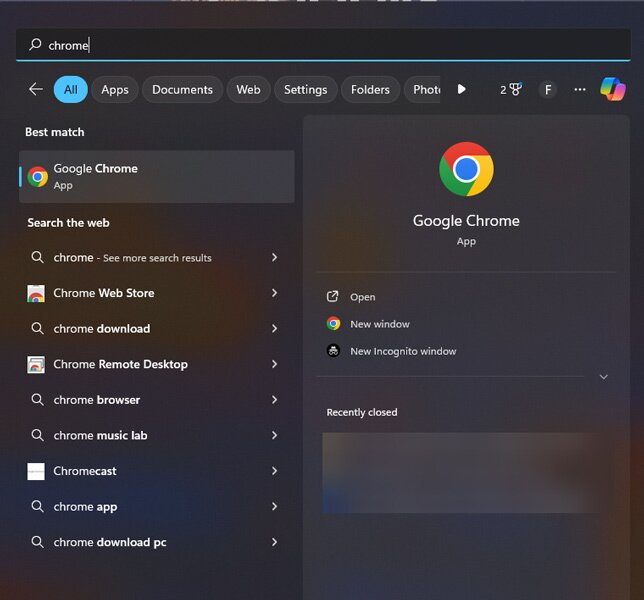
- Open a web browser such as Chrome, Edge, or Firefox.
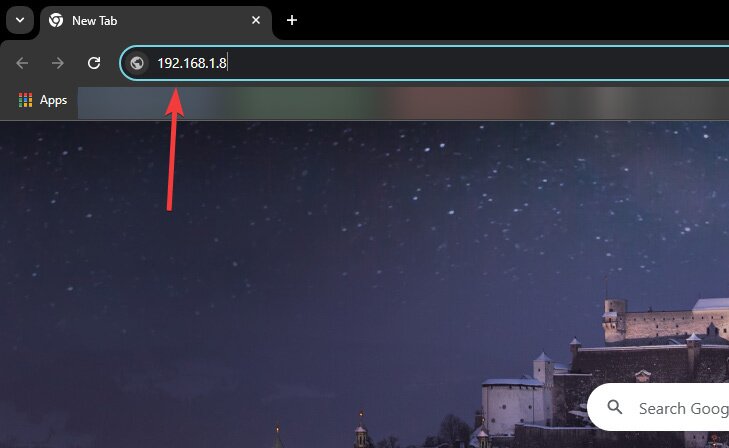
- Enter your router’s IP address in the browser’s address bar, then press Enter. The most common router admin addresses are 192.168.0.1, 192.168.1.1, or 10.0.0.1 — but the exact address for your router is usually printed on a sticker on the router itself, listed in the router’s manual, or available through your provider’s app. Try those common addresses if you are unsure, or check the label first.
- You will be prompted to enter your router’s username and password. Default login credentials vary by brand and ISP — there is no single universal combination. Many newer routers use a unique password printed on the router’s sticker rather than a shared default, and some ISP-supplied routers or mesh systems require you to log in through the provider’s app instead. Check the sticker on your router or its manual for the correct credentials.
- After logging in, locate the Wireless or Wi-Fi settings. The exact step may differ slightly from one provider to the next.
- Now, find the section dedicated to SSID or Wi-Fi Name.
- Enter your new funny WiFi name and save changes by clicking on Save or Apply.
- If the router’s settings page prompts you to restart, go ahead and do so. Otherwise, a full router restart is not always required — the new SSID name typically takes effect as soon as you save.
- Once the name change is active, all of your devices will lose their connection to the old network name. You will need to go into the Wi-Fi settings on each device — phone, laptop, smart TV, and so on — and reconnect to the newly renamed network using your existing Wi-Fi password.
How to Keep Your Wi-Fi Connection Safe
Cybersecurity is no laughing matter. Renaming your Wi-Fi is a great opportunity to also make sure your network is properly secured — because changing the SSID alone does not make your connection any safer. Here is a practical checklist to run through whenever you update your router settings:
- Avoid personal details in your SSID: Do not include your name, address, apartment number, or anything else that identifies you. And never hint at your password in the network name.
- Change the default router admin login: While you are in the router settings page, update the admin username and password if you have not done so already. Default credentials are widely known and leaving them unchanged is a common security risk.
- Use WPA2 or WPA3 encryption: Check your router’s wireless security settings and make sure you are using WPA2 at a minimum. WPA3 is the current standard and offers stronger protection if your router supports it.
- Set a long, unique Wi-Fi password: A strong password is your primary defense against unauthorized access. Aim for at least 12 characters with a mix of letters, numbers, and symbols.
- Do not impersonate public or official networks: Avoid naming your network something like “Starbucks WiFi” or “Free Public Internet.” This can create confusion and, in some cases, legal issues.
- Update your router firmware: Many routers have a firmware update option in the admin panel. Keeping it up to date patches known security vulnerabilities.
One useful extra layer of protection is a VPN. When you connect to a VPN, your internet traffic is routed through the VPN provider’s servers, which encrypt your information — including your IP address and location — before forwarding your request to the site you are visiting. This shields your identity and guards against certain cyber threats, particularly on shared or public networks.
That said, a VPN should complement your router security, not replace it. The steps above — strong encryption, a unique password, and updated firmware — are the foundation. The key step when choosing a VPN is selecting a trustworthy one with fast, secure servers and robust encryption protocols. With so many low-quality VPNs on the market, it’s crucial to conduct thorough research to ensure you choose the best VPN that meets your needs and provides reliable protection.