iPhone XS Wallpapers
The iPhone XS has a 5.8-inch Super Retina OLED screen that renders at 1125 x 2436 pixels, and it is unforgiving of a wallpaper that was sized for something else. A 1080p image gets upscaled and looks soft behind a sharp home screen. A screenshot from social media arrives compressed twice. A wide landscape photo loses both edges to the crop, usually taking the subject with it.
The eight wallpapers below avoid all of that. Each one is cropped to the XS’s 19.5:9 aspect ratio, exported at exactly 1125 x 2436, and encoded until the file fits under 500 KB, which is small enough to download on mobile data and to send through a messaging app without the platform recompressing it. They are free to use on your own devices.
The short answer
- Use 1125 x 2436 pixels. That is the XS’s native resolution, so the image maps one-to-one onto the display with no rescaling at all.
- Keep the aspect ratio at 19.5:9. A square or landscape photo will be cropped by iOS when you set it, and you cannot see what you lost until it is already on the lock screen.
- Save the file, don’t screenshot it. A screenshot of a wallpaper on a webpage is re-encoded and drops detail. Long-press and choose Save to Photos instead.
If you only remember one thing: 1125 x 2436 at 19.5:9. Everything else on this page follows from those two numbers.
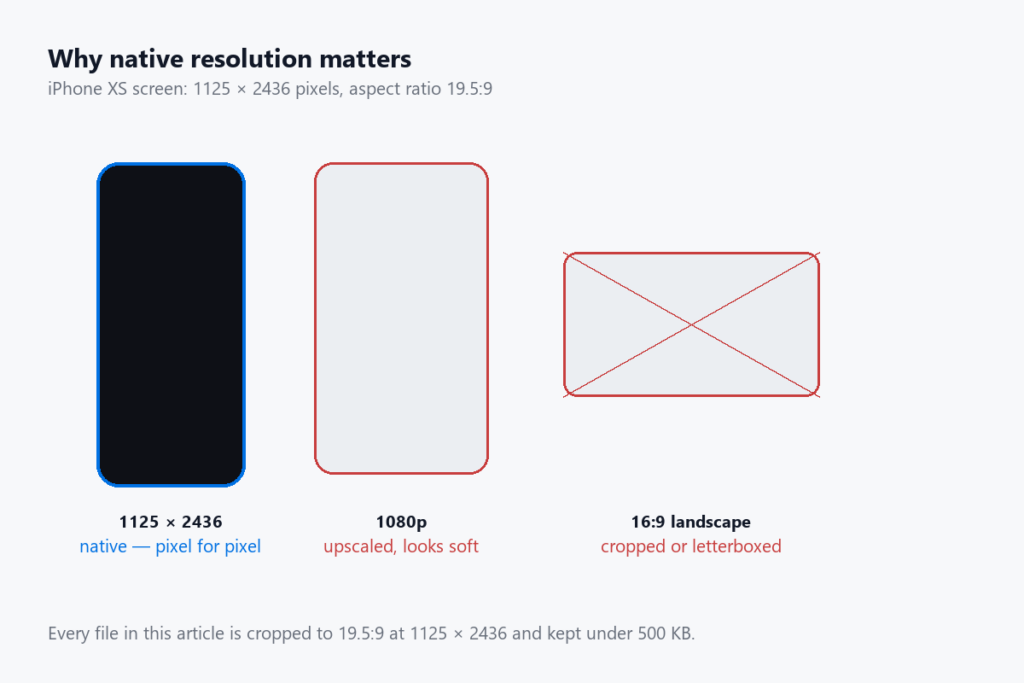
Why native resolution actually matters
Most advice about phone wallpapers treats resolution as a vague quality setting. On the XS it is arithmetic. The screen has 1125 physical pixels across and 2436 down, and iOS renders the wallpaper at @3x so that a 375 x 812 layout fits exactly. Feed it a 1125-pixel-wide image and every pixel you supplied is a pixel that gets shown.
| Spec | iPhone XS | What it means for a wallpaper |
|---|---|---|
| Native resolution | 1125 x 2436 | The exact pixel count to author at |
| Aspect ratio | 19.5:9 (2.165:1) | Crop to this before saving, not after |
| Pixel density | 458 ppi | Softness is visible at normal viewing distance |
| Panel | Super Retina OLED | Deep blacks; dark wallpapers show true black |
| Layout | 375 x 812 pt at @3x | iOS will scale anything that is not 3x |
Anything smaller than 1125 pixels wide is upscaled, and upscaling cannot invent detail. Anything larger is downsampled on import, which costs you download time and gains nothing visible. Sending a 4000-pixel photo to a 1125-pixel screen is not higher quality; it is just a larger file.
The 500 KB limit is not arbitrary. It is comfortably under the point where messaging apps start recompressing images to save bandwidth, and it is small enough that eight wallpapers load on a weak mobile connection without anyone noticing. Every file here is under that ceiling with room to spare.
The collection
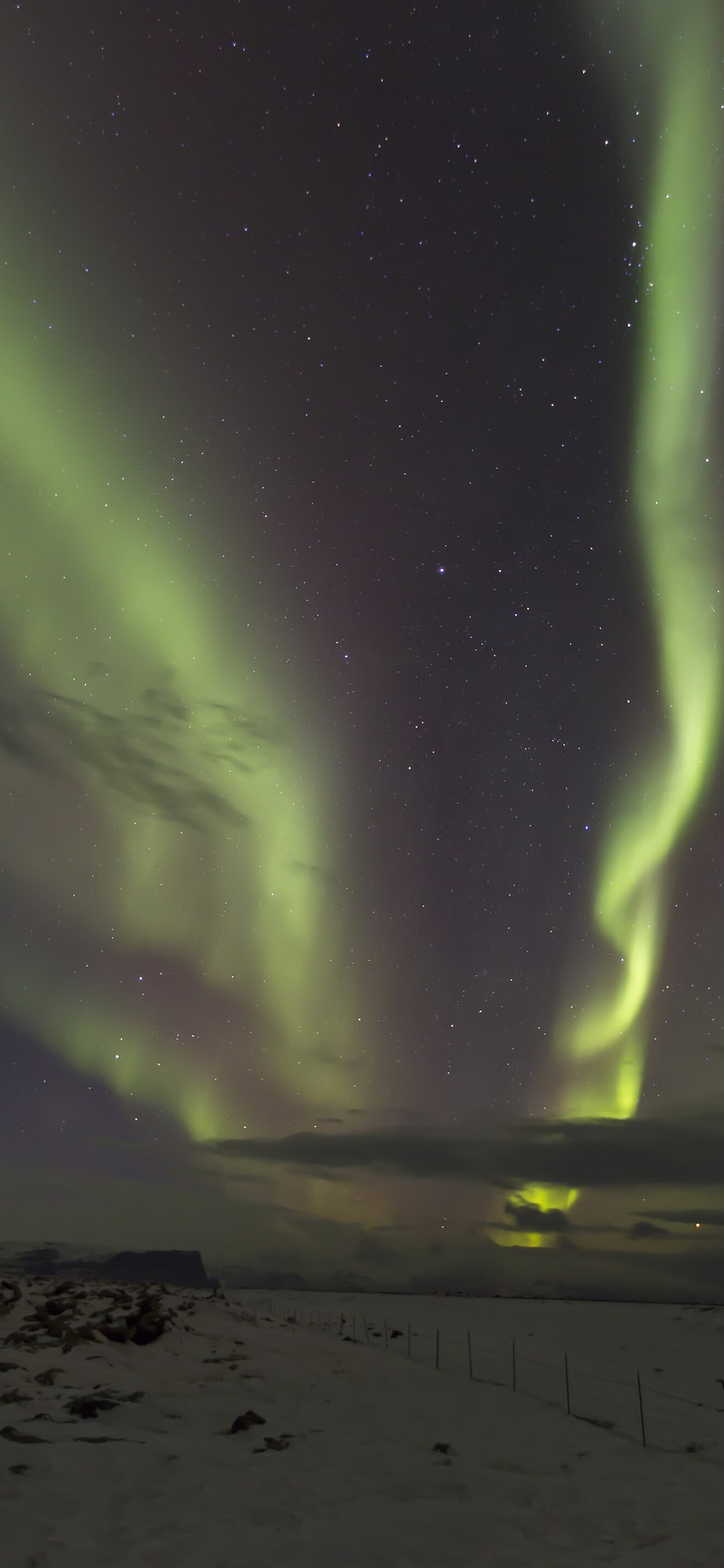
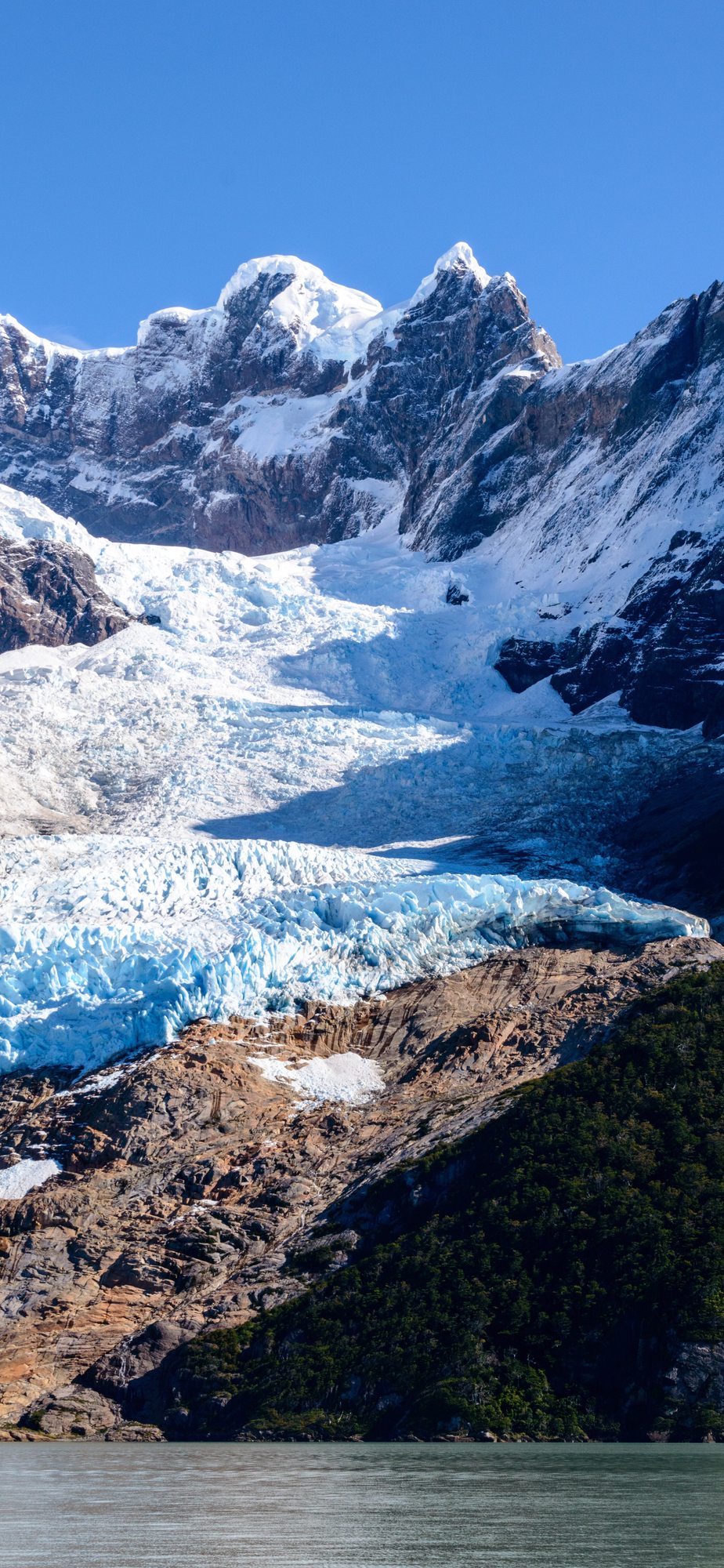
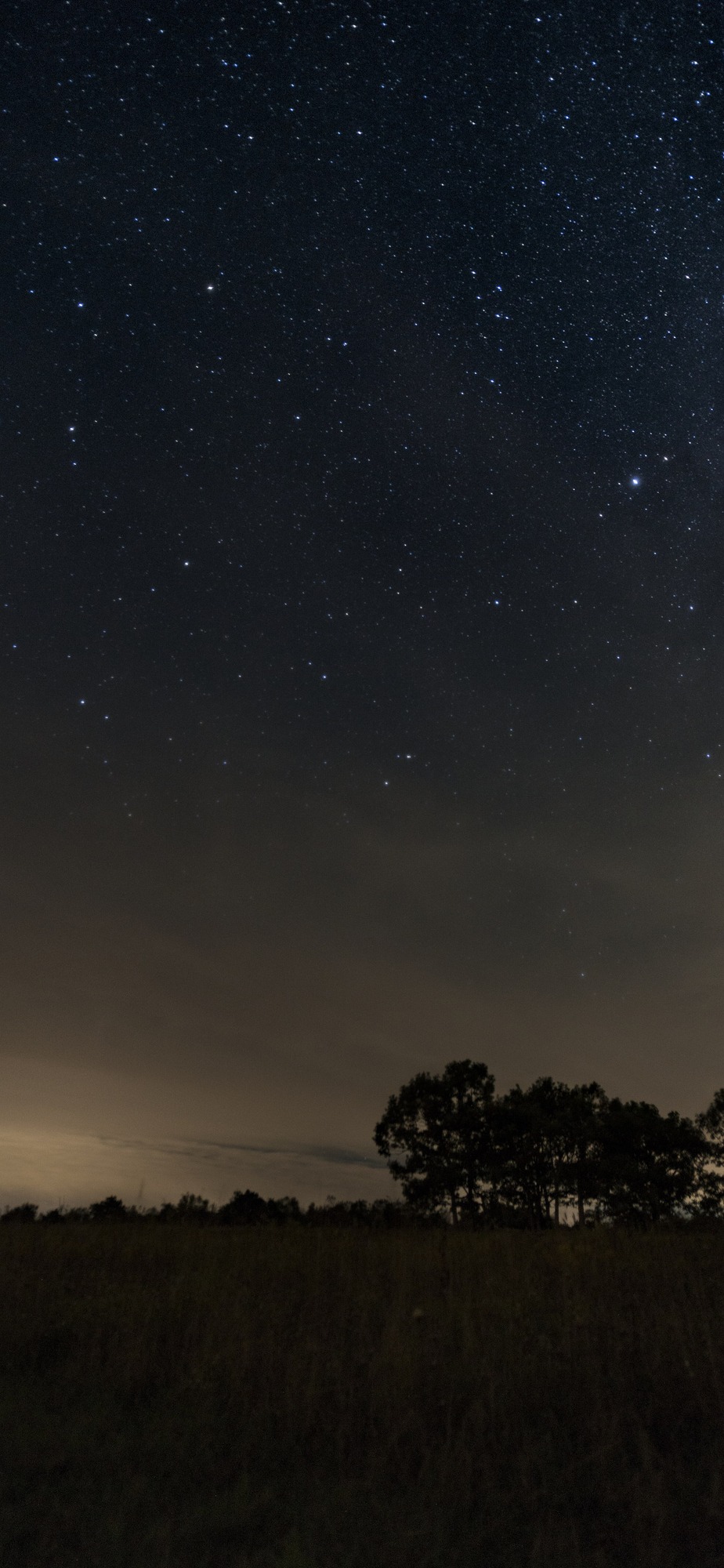
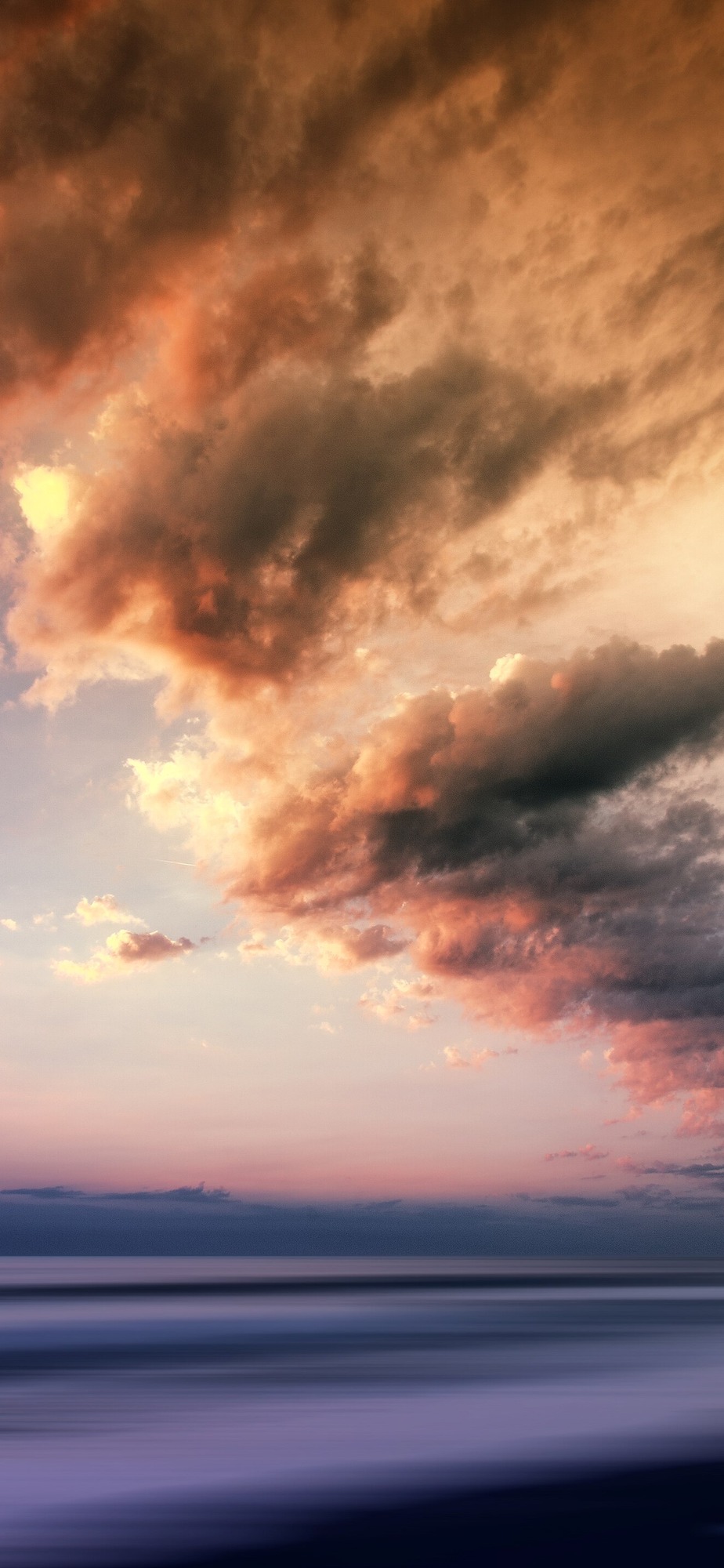
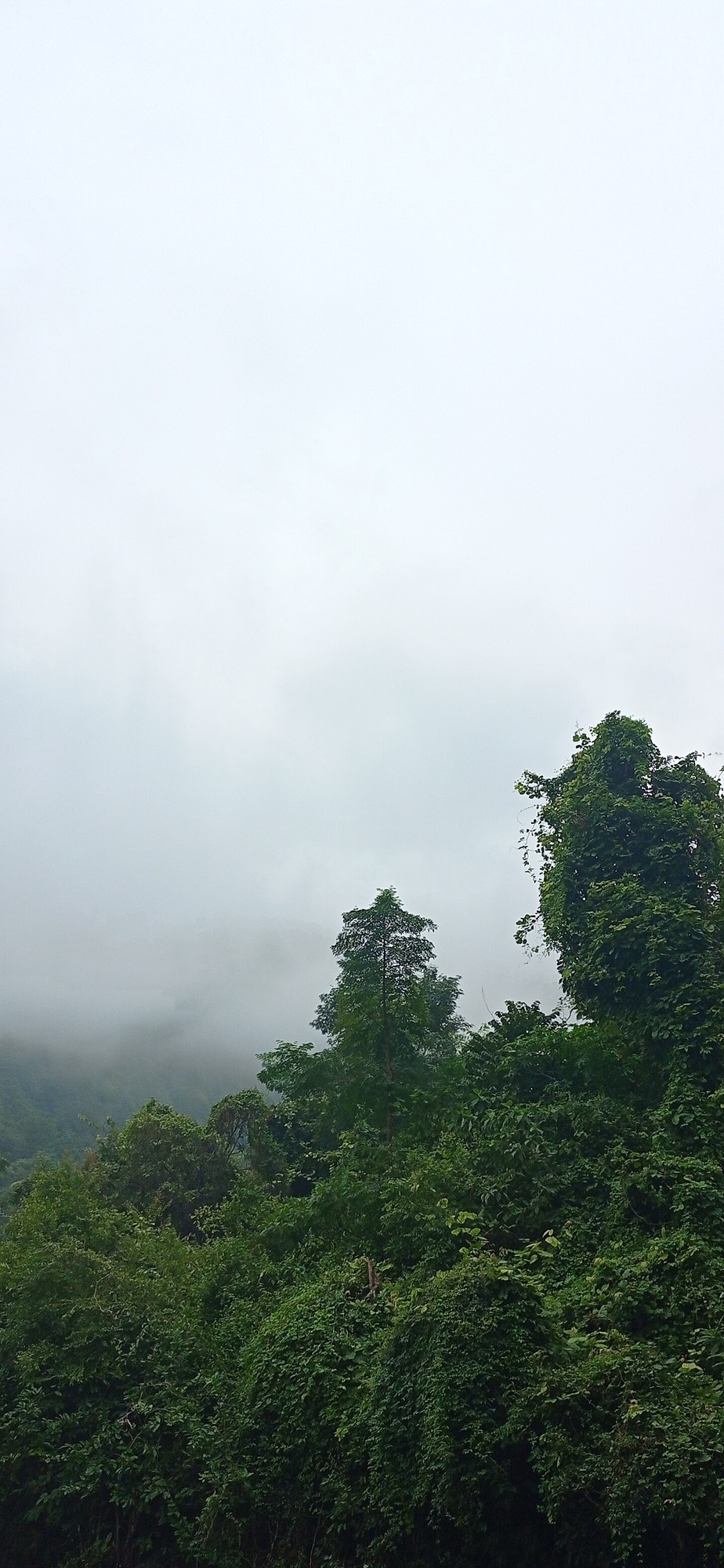
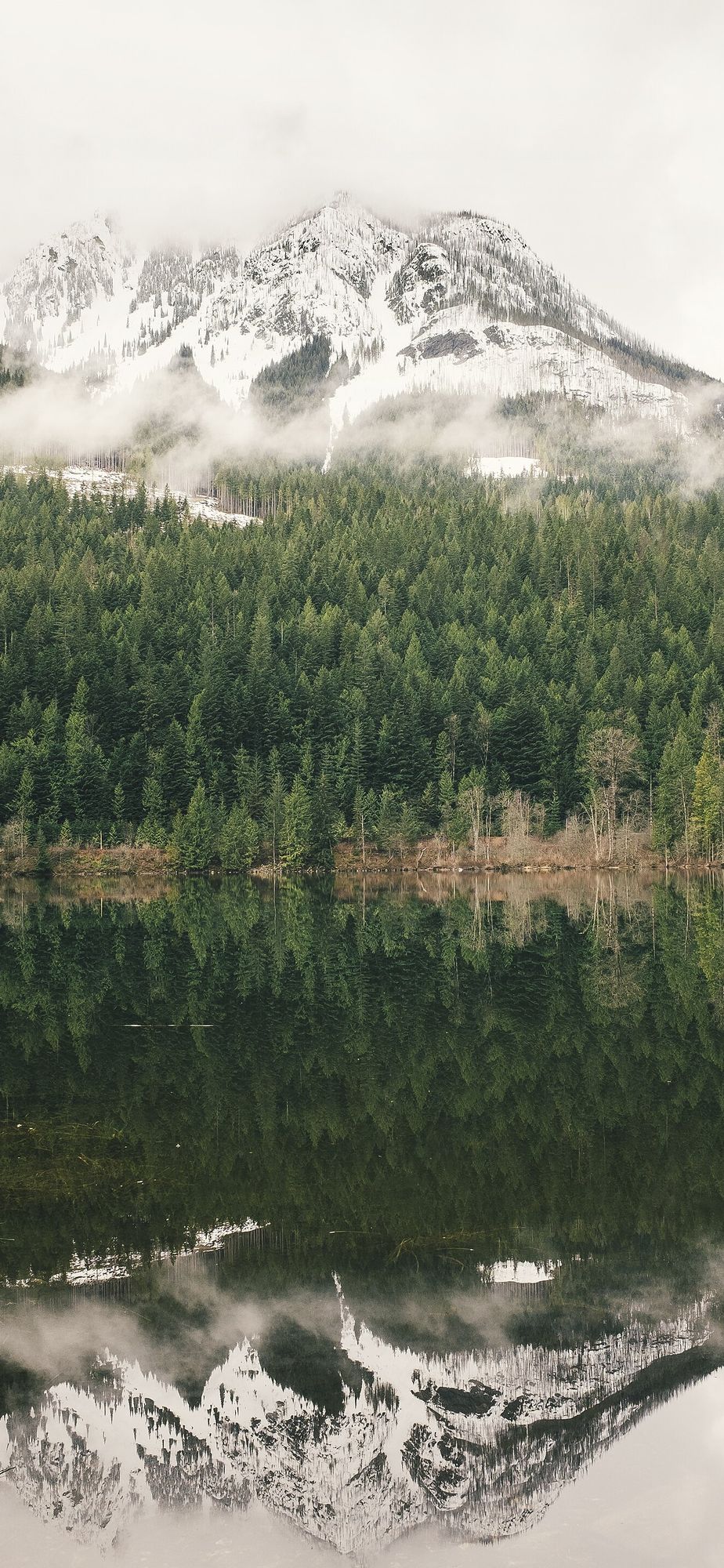
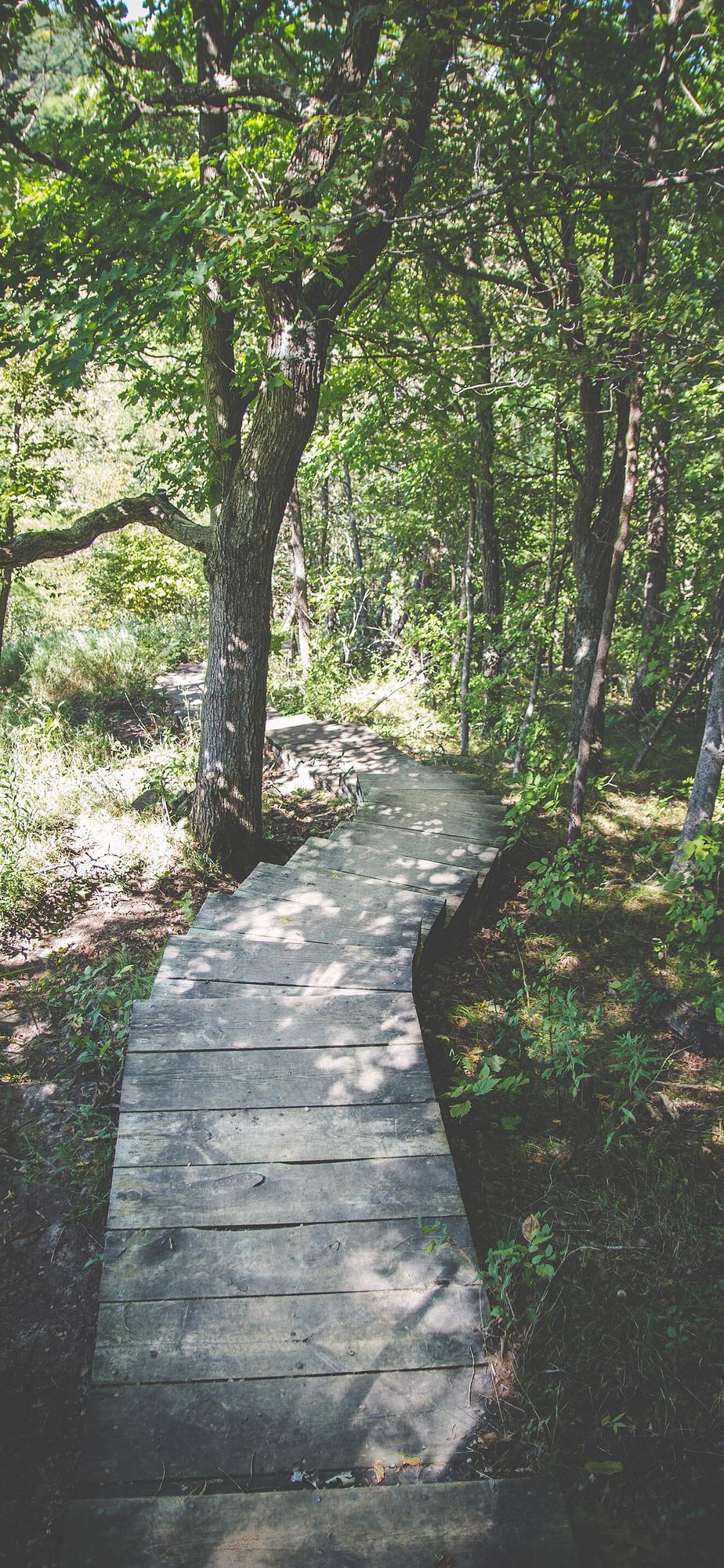
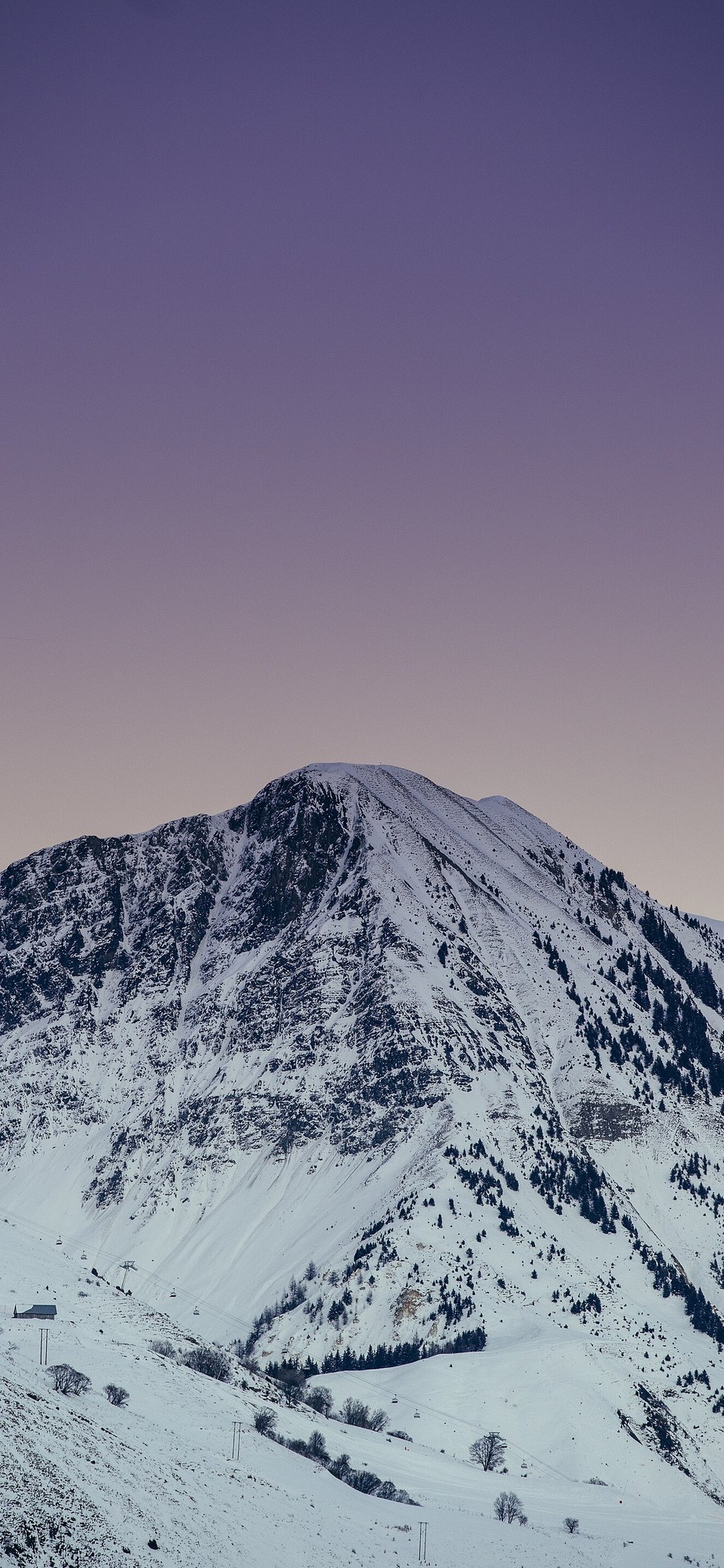
Eight wallpapers, each cropped to 1125 x 2436. Tap any thumbnail to open the full-size file, then save it to Photos.
How to set one as your wallpaper
You can set a wallpaper from the Settings app or straight from Photos. Both routes end in the same place, and neither one re-compresses a file that is already the correct size.
- Save the image first. Open it at full size in Safari, long-press the image, and choose Save to Photos. Avoid taking a screenshot — that captures your screen at a different size and re-encodes it.
- Open Settings → Wallpaper → Add New Wallpaper and select the saved photo, or open the image in Photos, tap the share button, and choose Use as Wallpaper.
- Leave the crop alone. The image already matches the screen, so pinch-zoom should require no adjustment. If iOS asks you to reposition, the photo app has not picked up the full-resolution version yet — try the Settings route instead.
- Turn Perspective Zoom off if you want the composition to stay exactly as designed. With it on, iOS shifts the image as you tilt the phone, which crops a little more off each edge.
- Choose Set as Wallpaper Pair so the lock screen and home screen match, or set them separately if you want a busier image on one and a calm one on the other.
iPhone XS, XS Max and the 11 Pro
All three phones in that generation use a 19.5:9 screen, so the composition of every wallpaper here survives unchanged. What differs is the pixel count, and therefore how much scaling iOS applies.
| Model | Screen | Native resolution | These files |
|---|---|---|---|
| iPhone X / XS / 11 Pro | 5.8″ | 1125 x 2436 | Exact fit |
| iPhone XS Max / 11 Pro Max | 6.5″ | 1242 x 2688 | Upscaled ~10% |
| iPhone XR / 11 | 6.1″ | 828 x 1792 | Downscaled |
On an XS Max the files are scaled up by about ten percent, which is mild enough that you will not notice it in normal use — but if you are setting a wallpaper on that phone specifically and want it perfect, crop from a larger original rather than relying on the XS-sized file.
Frequently asked questions
Are these wallpapers free to use?
Yes. Seven of the eight photographs are CC0 or public domain, which means no attribution is required and commercial use is allowed. The aurora photograph is licensed CC BY 4.0, which does require a credit line — it is included in the image credits at the foot of this page, and you can copy it as-is.
Why are the files capped at 500 KB?
Because that is the point where a photo this size still looks clean but stops being awkward to move around. Under 500 KB a wallpaper downloads quickly on a poor connection and survives being sent through a messaging app without the platform aggressively recompressing it. All eight files here are comfortably within that limit.
Why does my wallpaper look blurry after I set it?
Usually because the file was smaller than the screen, or because it was a screenshot. A screenshot is captured at whatever the source was displaying and re-encoded, so it is rarely 1125 x 2436. Save the original file instead. The second most common cause is Perspective Zoom, which magnifies the image slightly as you tilt the phone.
Can I use a landscape photo on the iPhone XS?
You can, but iOS will crop it hard. A 16:9 landscape image fitted to a 19.5:9 screen has to give up roughly a quarter of its width, and any subject near an edge will be cut. If you want to use one, crop it yourself first so you can choose what survives.
Do dark wallpapers really save battery on OLED?
Slightly, and only while dark pixels are actually on screen. On an OLED panel a black pixel is switched off rather than dimmed, so a mostly-black wallpaper such as the aurora or starfield does draw less power than a white one. The saving is modest next to everything else a phone does, so treat it as a small bonus rather than a reason to choose a wallpaper.
How often should I change my wallpaper?
There is no technical reason to change it at all — a wallpaper is a static image and has no effect on performance. Change it when you want to. The only practical tip is to keep a few saved at the correct size so you are not resizing something in a hurry and ending up with a soft result.
Making your own
If you would rather use one of your own photos, the recipe is the same three steps. Crop to 19.5:9 first so you control what gets cut. Resize so the short edge is at least 1125 pixels — anything more is wasted on this screen. Then export as JPEG with quality around 85 and progressive encoding on, which usually lands a detailed photo under 500 KB without visible artefacts. If it overshoots, drop quality a few points at a time rather than resizing down.
Avoid resizing an already-compressed image. Each JPEG save throws away a little more detail, so work from the original file each time you produce a new size.
Image credits
All photographs are sourced from Wikimedia Commons and used under the licences shown. Featured image: Winter in gradient by Filip Zrnzević, CC0. Aurora portrait by AstroAnthony, CC BY 4.0. Snow covered mountain by Guillermo Riquelme, CC0. Stars in the Night Sky at Big Meadows by Shenandoah National Park, public domain. Colored sky by Anthony Cantin, CC0. Mountain reflection in a lake by Gabriel Santiago, CC0. Forest boardwalk by Bryan Rodriguez, CC0. Fog image by Abinayasekar357, CC0. Resolution diagram created for this article.