How to Stop Windows Updates
There are several reasons why you may want to stop automatic updates on Windows. They can be very disruptive if they suddenly interrupt you in the middle of something. They can affect bandwidth usage, cause update errors or blue screen update issues, among other problems.
This guide will cover all ways to pause or disable Windows updates for both Windows 10 and Windows 11, and discuss the risks and benefits of adjusting these settings.
Quick Comparison Table: Ways to Stop Windows Updates
Here is a brief overview of the different ways to adjust Windows Update settings. Whether you just want to pause updates or permanently disable updates, there are ways to do both. Here is a quick rundown of methods for anyone in a hurry:
| Method | Temporary/ Permanent | Windows 10 | Windows 11 | Home | Pro | Difficulty |
| Pause via Settings | Temporary | Yes | Yes | Yes | Yes | Easy |
| Disable via Services Manager | Permanent | Yes | Yes | Yes | Yes | Medium |
| Disable via Group Policy | Permanent | Yes | Yes | No | Yes | Medium |
| Disable via Registry Editor | Permanent | Yes | Yes | Yes | Yes | Advanced |
How to Pause Windows Updates Temporarily (Settings Menu)
This first method is an effective way to pause updates temporarily, so you can always toggle it back on when you’re ready, or let it run its course until the time period runs out. This is especially useful when you want to avoid interruptions to updates during important projects. Here are the steps:
How to pause updates if you’re using Windows 10:
- Go to Settings.
- Go to Update & Security.
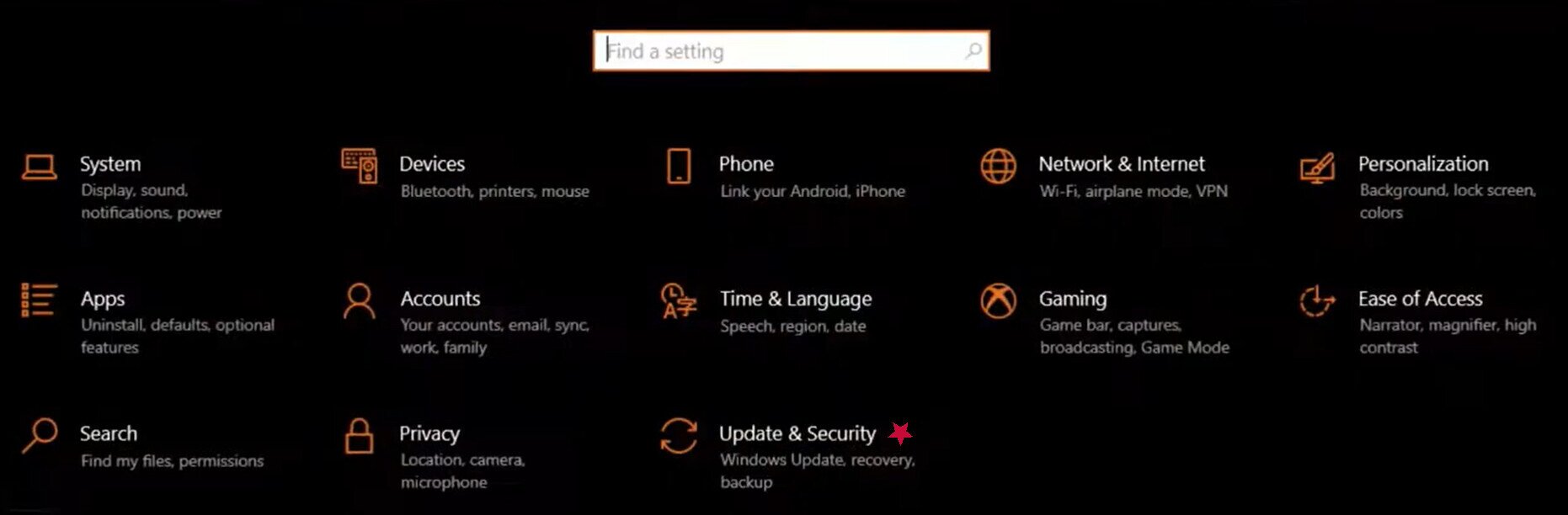
- Select Windows Update (on the left side of the screen).
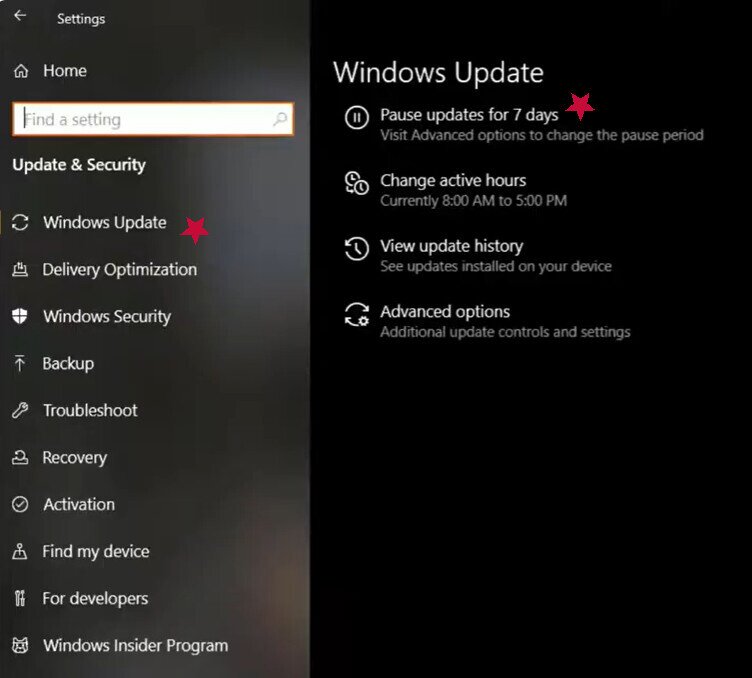
- From there, you can select Pause for 7 days.
- Another option is to go to Advanced Options (on the same screen) and fine-tune your Windows Update settings. For instance, you can disable Windows Updates for up to 35 days or pause until a specific date.
To resume updates on Windows 10:
- Go to Settings.
- Select Update & Security.
- Select Windows Update.
- Select Resume Updates.
Here are the steps for pausing updates on Windows 11:
- Go to Settings.
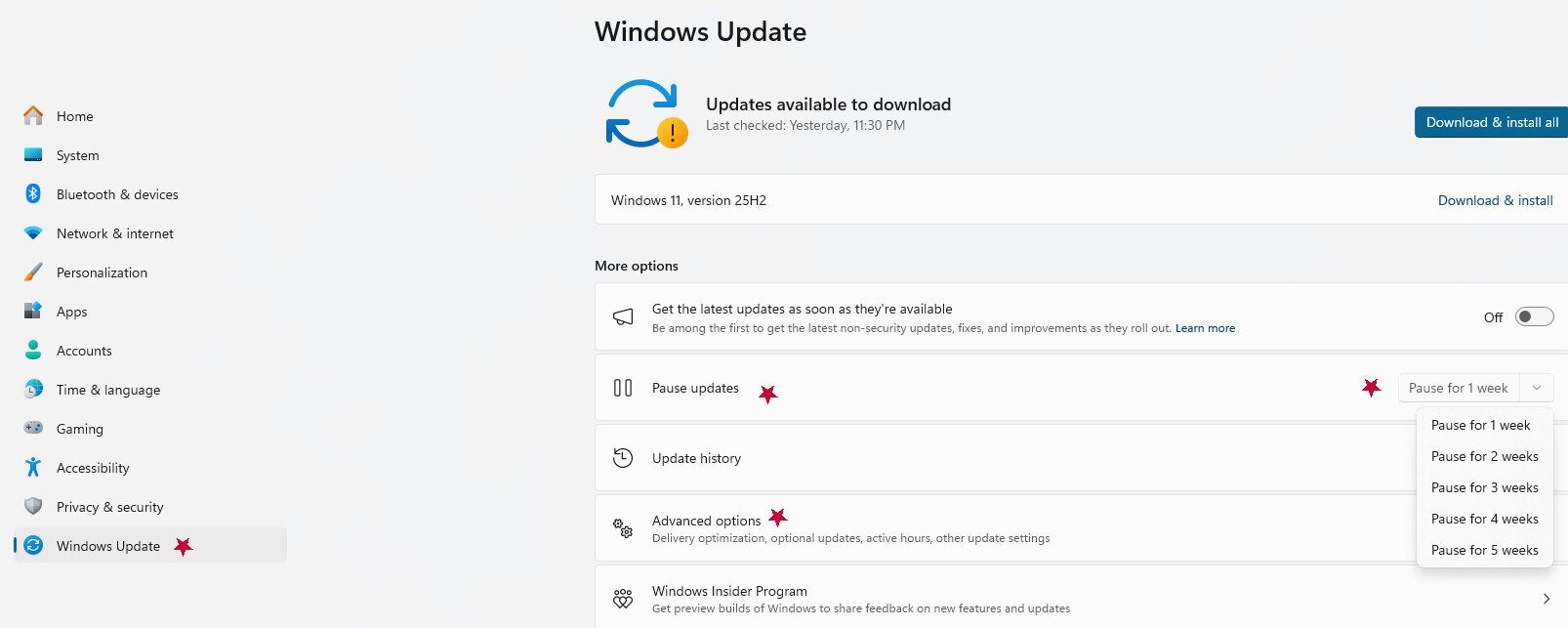
- Select Windows Update (on the lower left of the screen).
- From there, you have the option to pause updates with a dropdown menu of up to 5 weeks.
To resume updates on Windows 11:
- Open Settings.
- Select Windows Update.
- Select Resume Updates.
How to Permanently Disable Windows Update
If you want to permanently stop Windows 10 and 11 updates, you can do so through Windows Update Services Manager, through Group Policy Editor, or similar options. You can also reverse it whenever you like. We’ll cover all of the required steps below.
Disable via Services Manager (services.msc)
How to stop updates for Windows 11 (& 10):
- Press the Windows key and the R key at the same time to bring up the Run window.
- Type services.msc in the empty field, then click Ok.
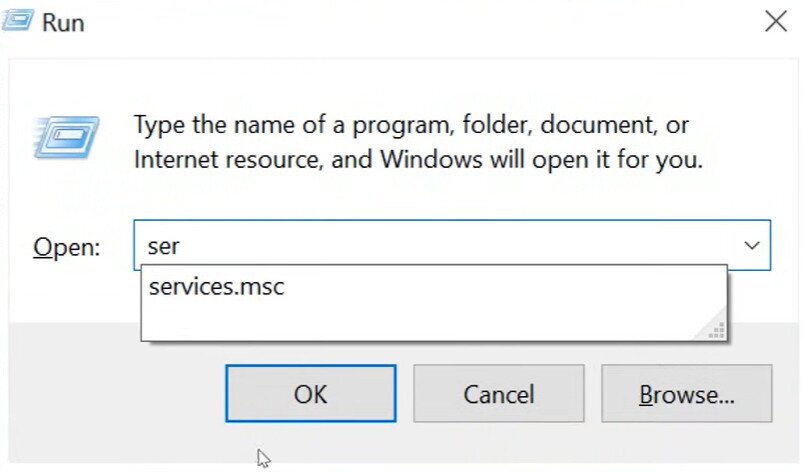
- The services manager window will appear.
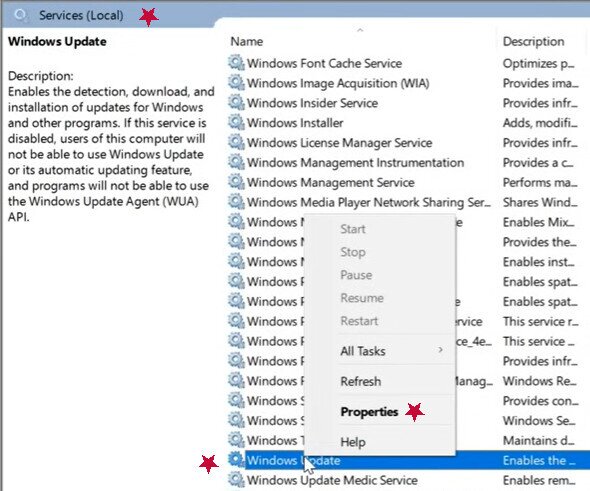
- Scroll down through the options until you find Windows Update.
- When you find it, right-click and select Properties.
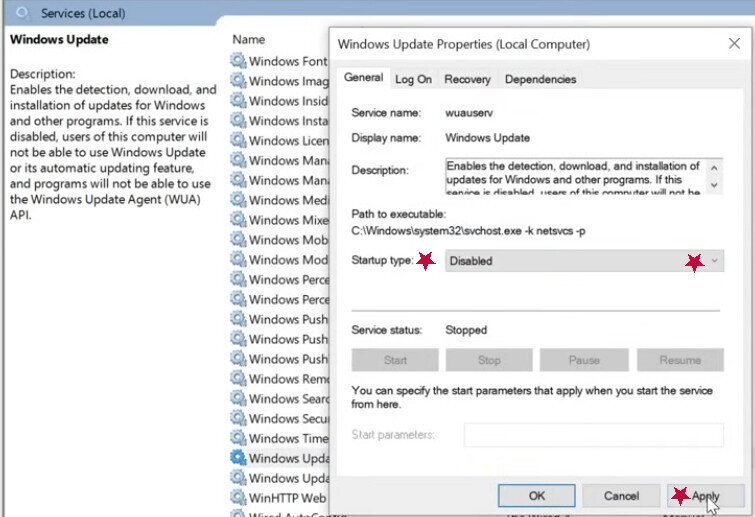
- On the new window that opens, click Stop and under Startup Type, select Disabled, then click Apply, then Ok.
To re-enable Windows Updates for Windows 10 and Windows 11:
- Press the Windows key and the R key at the same time to bring up the Run window.
- Type services.msc in the empty field, then click Ok.
- The services manager window will appear.
- Scroll down through the options until you find Windows Update.
- When you find it, right-click and select Properties.
- Set your Startup type to Manual or Automatic (depending on your preference).
- Select Start.
- Select Apply.
Disable Windows Update Medic Service
Now that you’ve disabled updates via Services Manager, you should know that Windows Update Medic Service can sometimes turn updates back on without your intervention. One way around this is todisable Windows Update Medic Service, which lets you permanently stop updates.
That said, it’s pretty common for users to be unable to do so, as some versions of Windows either don’t give access or require extra steps or third-party tools. Also, Medic Service has a habit of turning itself back on without permission quite frequently, which isn’t ideal. However, it can be helpful to know the steps so you can at least try to disable the service. With any luck, it will remain disabled.
For Windows 10:
- Press the Windows key and the R key at the same time to bring up the Run window.
- Type services.msc in the empty field, then click Ok.
- The services manager window will appear.
- Scroll down to find Windows Update Medic Service.
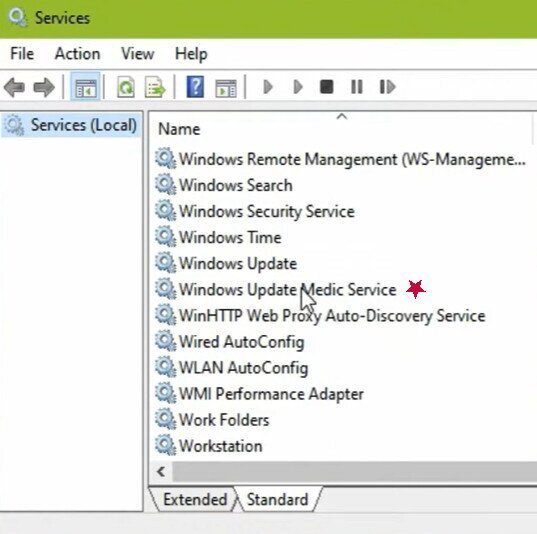
- Right-click and select Properties.
- Select Stop and switch the Startup type to Disabled (if this is an option for you).
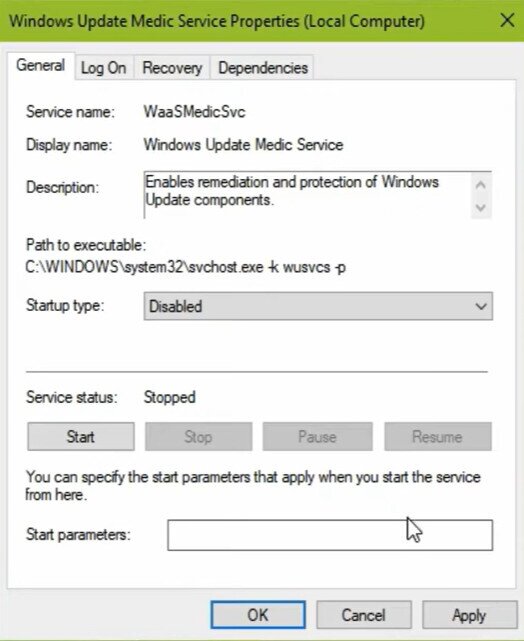
- Select Apply.
- Keep in mind that even if you go through these steps, you may still end up with a pop-up that says “Access Denied.”
Note: If you need to re-enable the Windows Update Medic service, follow the same steps, and once you are in Properties, select Automatic or Manual, selecting Apply/Ok as prompted.
For Windows 11:
The steps are pretty similar to those for Windows 10; however, in Windows 11, Windows Update Medic Service is listed as “WaasMedicSvc” in the Services Manager window. Here’s what you need to do:
- Press the Windows key and the R key at the same time to bring up the Run window.
- Type services.msc in the empty field, then click Ok.
- The services manager window will appear.
- Scroll down to find WaasMedicSvc.
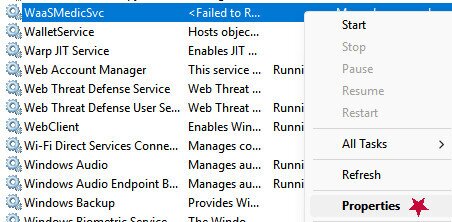
- Right-click and select Properties.
- Select Stop and then select Disabled, and click Apply.
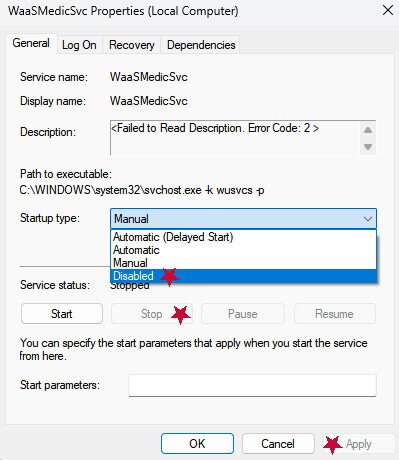
- Similar to Windows 10, there is a chance your access will be denied.
- If you need to re-enable WaasMedicSvc, follow the same steps and once you are in Properties, select Automatic or Manual, selecting Apply/Ok as prompted
Disable via Group Policy Editor (Pro Editions Only)
For Windows Pro users, you can use the Group Policy Editor to configure automatic updates.
Here’s how to disable via Group Policy if you’re using Windows 10:
- Select the Windows Start button and type GP Edit, which will bring up Edit Group Policy in the Control Panel. Select it.
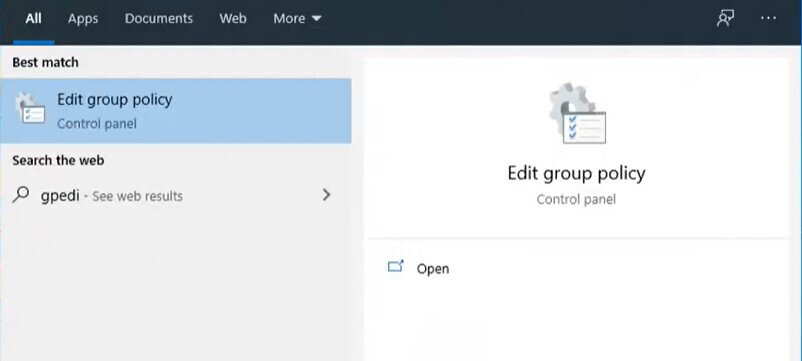
- This brings up the Local Group Policy Editor. On the left of this new window, go to Computer Configuration.
- Click on Administrative Templates.
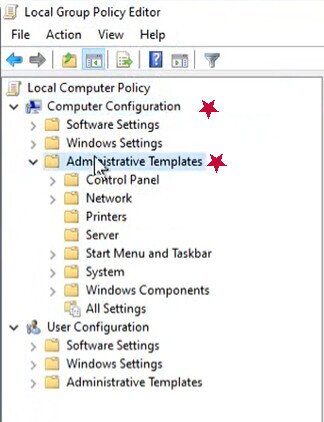
- Select Windows Components.
- Scroll down to select Windows Update.
- On the right-hand side of the Window, several options will appear. Double-click on Configure Automatic Updates
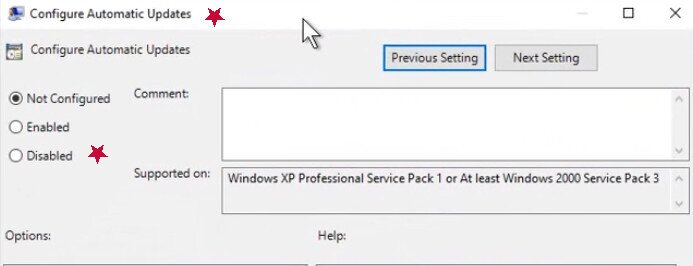
- A window will pop up. Select Disabled and then select Apply/Ok.
- Restart your computer to initiate the change.
Note: To revert to your original settings, follow the same instructions, and when you get to the step where you double-click Configure Automatic Updates, choose Not Configured or Enabled, select Apply, click OK, and then restart your computer.
For Windows 11 Pro:
- Push the Windows button and the R button at the same time to bring up the Run dialogue box.
- Input “gpedit.msc” without the quotes in the empty field, then push Enter.
- A pop-up will appear for Windows Group Policy Editor.
- Select Computer Configuration.
- Select Administrative Templates (you may need to double-click it).
- Double-click Windows Components.
- Double-click Windows Update.
- Depending on your version, you may see the option to choose Manage updates offered from Windows Update. Otherwise, you can probably just gain access from Windows Update.
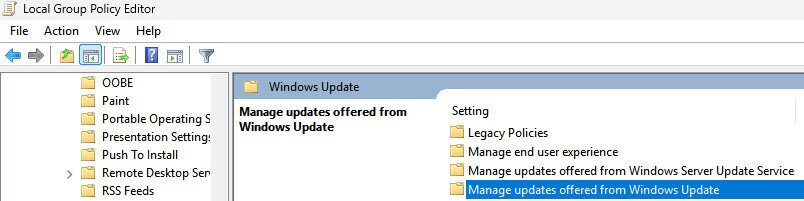
- Select Configure Automatic Updates and double click to open it, and then choose Disabled (hitting Apply and then OK).
Note: To revert to your original settings, follow the same instructions, and when you get to the step where you double-click Configure Automatic Updates, choose Not Configured or Enabled, then choose Apply, OK, and restart your computer.
Disable via Registry Editor (All Editions)
Registry Editor is another method to turn off updates for Windows. However, you will want to back up your registry beforehand so you have a fix if something goes amiss. Here’s how:
- Push the Windows key and the R key at the same time.
- Input regedit into the empty field.
- Push Enter.
- Select File.
- Select Export, choosing a location to save the registry (e.g., documents).
- Choose All under the Export range.
- Name your file something regarding registry backup (along with the date).
- Select Save. You should be able to restore your registry by double-clicking this file if needed.
Now that you have a registry backup, here’s how to disable updates for Windows 10 and 11 using the Registry Editor. The steps are essentially the same:
- Click the Windows Start button and type Registry Editor, clicking on it when it appears.
- If prompted to give permissions from User Account Control, select Yes.
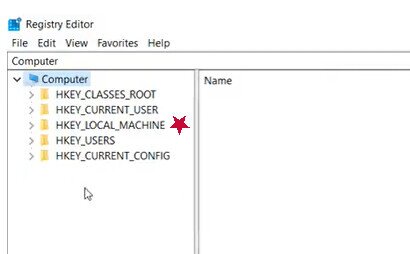
- The Registry Editor window will appear. Select HKEY_LOCAL_MACHINE
- Select Software.
- Select Policies.
- Select Microsoft.
- Expand Windows and right–click on it.
- Select New.
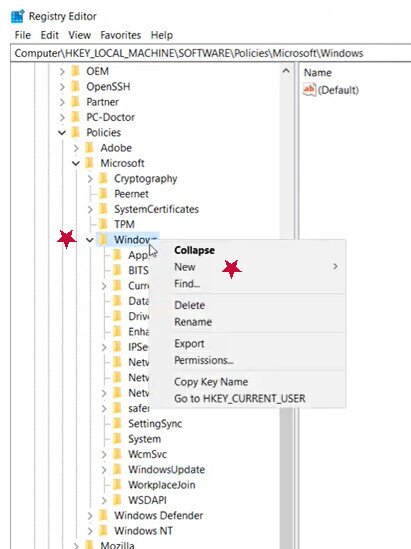
- Select Key.
- Name it something to do with Windows Update.
- Now you’ll need to create a folder within this folder. Right-click your new Windows Update folder, select New, and then select Key. Name it AU and push Enter
- Select the new AU folder and right–click on it.
- Select New and then select DWORD (32-bit) Value.
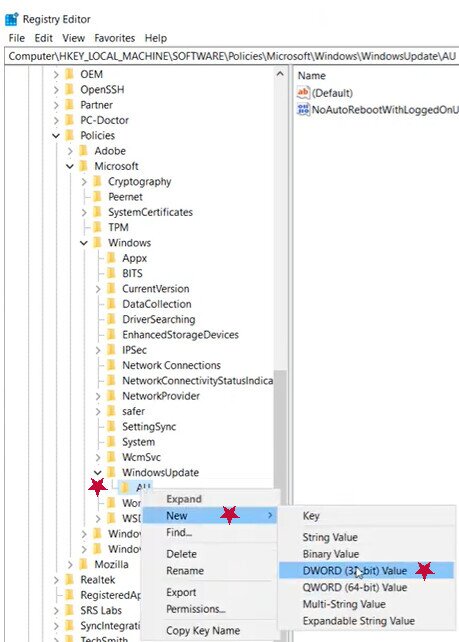
- Now name it “NoAutoUpdate” without the quotation marks, and make sure there are no spaces.
- Push Enter.
- Double-click on NoAutoUpdate and set the value data to 1.
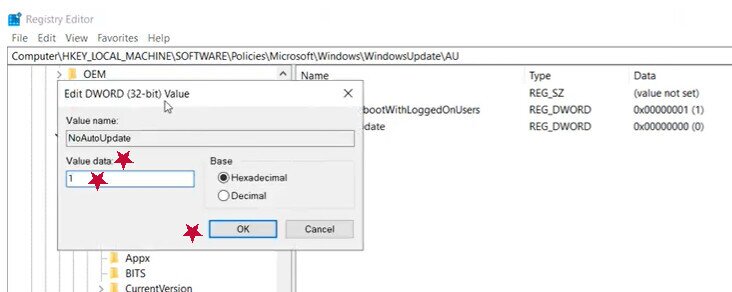
- Select Ok.
- You may need to reboot your computer to apply these changes. It should disable Windows Update.
- If you want to re-enable Windows Update, just follow the steps again until you can find the NoAutoUpdate file within the AU folder, then right-click it and select Delete.
It’s important to note that Windows 11 can be resistant to permanently disabling Windows Updates. Don’t be surprised if it enables itself out of the blue and you’re forced to go through this process again.
How to Cancel a Windows Update in Progress
Now that you know how to shut off updates, is it safe to cancel an update in progress? Yes, but some risk comes with it.
You can perform an update interruption and resume later by turning off your computer, but timing matters. Early in the process, Windows downloads files. If power cuts during download, the system usually resumes where it left off when you restart, or restarts download from scratch.
If you are still in the downloading updates stage, try pausing updates first, then disconnect from the internet. That may stop updates in progress from continuing. Once the installation phase begins, this method rarely works.
If updates are installed but restart has not started, shutting down often works, with installation resuming at next boot. Warning signs include messages such as “Don’t turn off your computer,” “Working on updates,” or a percentage display during restart. Interrupting at that point can corrupt Windows or trigger boot failure or repair mode. Avoid that scenario whenever possible.
When stuck on a blue screen update, wait and watch percentage for movement. Progress usually signals active installation. If nothing changes after a reasonable time, force shutdown by holding the power button for at least 10 seconds. After a brief pause, power back on. That step often restores normal behaviour.
Risks and Warnings: Should You Disable Windows Updates?
While Windows automatic updates can feel intrusive, completely disabling them rarely makes sense. Updates help your system run smoothly and fix bugs, but more importantly, they deliver critical security patches that protect against evolving security threats. Because new vulnerabilities surface daily, these patches roll out frequently. Skipping them increases risk, especially after an update interruption that leaves your system partially updated.
Temporarily pausing updates for short periods is usually fine. Permanently disabling them, however, can leave your device exposed. Windows also tends to override long-term attempts to block updates, so effort often outweighs benefit.
Troubleshooting & How to Re-Enable Windows Updates
Every method we’ve covered has ways to re-enable updates and Windows Update settings. Whether you use the Services Manager, Group Policy Editor, or the Registry Editor, they can all be simply reversed. You simply go through the same basic steps but enable updates instead of disabling them. We’ve organized these specific instructions in all of the sections above, so if you need to revert something, there are steps listed to do so already.
But what if you do everything to re-enable Windows updates, only for it not to start? Here’s how to use Windows Update Troubleshooter:
For Windows 10:
- Go to Start.
- Go to Settings.
- Go to Update & Security.
- Go to Troubleshoot.
- Select Additional troubleshooters.
- Find Get up and running, and choose Windows Update.
- Run the troubleshooter.
- Once the troubleshooter is done, restart your computer.
- See if there are new updates to install by going to Start, Settings, Update & Security, Windows Update, then Check for updates.
- If there are any, install the updates.
For Windows 11:
- Go to Start.
- Go to Settings.
- Go to System.
- Go to Troubleshoot.
- Go to Other troubleshooters.
- Find Most frequent.
- Choose Windows Update.
- Choose Run.
- Restart your computer when the troubleshooter is done running.
- Look for new updates by going to Start, Settings, Windows Update, Check for updates, and installing any you find.
If you’re still having issues with Windows Updates starting, here are some general Updates troubleshooting methods to try:
- Make sure you have administrator privileges
- Try freeing up space on your computer
- Make sure you’re connected to the internet
- Update your third-party drivers
- Clear your Windows Update cache
- Make sure your date and time settings are correct
- Restart your system and try running Updates again
Frequently Asked Questions (FAQ)
How do I stop a Windows Update in progress?
If you are still in the downloading stage, you can try going to Settings and Pausing updates (as we instructed earlier in this article), then disconnecting from the internet. Or, you can just turn off your computer at this stage. Later stages, however, such as during blue screen updates, can be riskier, and you may want to let it run its course to avoid potentially corrupting Windows and causing other problems.
What happens if Windows Update is interrupted?
That depends on the update’s stage. If it happens during downloading, it usually just resumes or starts over when the interruption ends. If it happens during installation, it may roll back to the previous version or try to update again. If it happens during the blue-screen “working on updates” stage, things can go haywire, and you could be stuck in a repair loop or have the system corrupted. You may also be fine, but it’s best to avoid the risk if you can.
Can I permanently disable Windows Updates?
You can, and we’ve listed several options and steps to do so earlier in this article. However, Windows 11 in particular can be resistant to permanently disabling updates. You may find it toggles itself back on from time to time, and you’ll need to repeat the process.
Is it safe to turn off automatic updates?
It’s usually safe to do so temporarily; however, there are important security patches and updates that help keep your system protected. It’s generally advised not to skip updates on a long-term basis, as it can leave your system vulnerable.
Conclusion
Now that you know how to adjust Windows Update settings, you should have plenty of options to disable or pause updates. If you need further help, try contacting Microsoft support. Just keep in mind that they will likely also recommend you don’t permanently skip vital updates, as they can help keep your system more secure.
If you want more Windows tips, check out our articles below:
- How to differentiate between hardware and software problems in Windows
- How to fix Windows Access Denied error
- How to force quit apps on Windows
