Tweak To Optimize SSD Drive [Windows]
Solid State Drive(SSD) is the new technology that is slowly starting to go mainstream. It is much faster and has longer life when compared with the traditional hard disk. Even though it is said to last much longer than HDD, the first and second generation SSD drives can sometime give serious problems — problems that a utility like SSD Tweaker is designed to help address.
One such problem is the that it can slow down to so much an extent that it will become slower than the HDD. This is a serious problem which can be partially fixed by optimizing your system for Solid State Drives(SSD). Rather than having to manually optimize the settings, SSD Tweaker can do it for you.
Verify AHCI Mode and TRIM Before Using SSD Tweaker
Before touching any optimization tool, two baseline checks have a more direct impact on your SSD’s performance and longevity than any software tweak.
1. Confirm AHCI mode in your BIOS/UEFI
Your SATA controller should be set to AHCI (Advanced Host Controller Interface) mode — not IDE — before Windows 7 is installed. AHCI unlocks native SSD features, including the TRIM command and improved command queuing. If Windows 7 was installed with the controller already in IDE mode, switching to AHCI afterward requires additional steps such as registry edits and driver changes to avoid a boot failure. It is not a simple setting flip, so check this before you do anything else.
2. Verify TRIM is enabled in Windows 7
TRIM instructs Windows to proactively clear deleted data blocks on the SSD so they are ready for new writes, which helps maintain consistent long-term performance. To check whether TRIM is active, open a Command Prompt as Administrator and run:
fsutil behavior query DisableDeleteNotify
A result of 0 means TRIM is enabled — this is the state you want. A result of 1 means TRIM is disabled. To re-enable it, run:
fsutil behavior set DisableDeleteNotify 0
Getting AHCI mode and TRIM right matters more for SSD speed and lifespan than most of the tweaks discussed below.
Since most users are not knowledgeable enough to handle the SSD drive, this tool should be used with caution. It is worth knowing that Windows 7 already handles some SSD behavior automatically, and several tweaks offered by tools like SSD Tweaker are optional, workload-dependent, or mainly useful for reclaiming disk space rather than improving speed.
Settings such as indexing, System Restore, the paging file, Prefetch/Superfetch, and hibernation should each be reviewed individually — they are not always-safe defaults for every setup. If you are unsure what a specific setting does, research it before applying it rather than relying on a single auto-tune pass to cover every case.
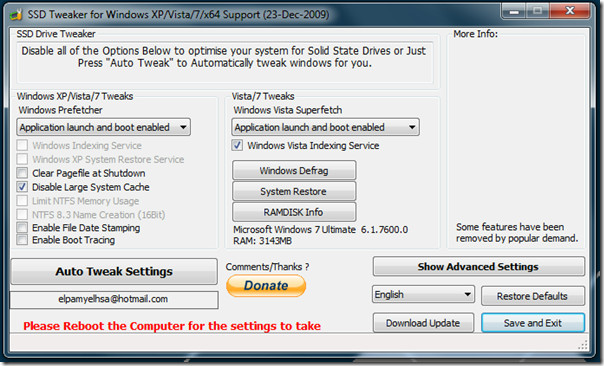
Performing the SSD Tweaker auto tweak will help most SSD drives since it basically tells Windows to play nice with the drive by reducing unnecessary write processes, disabling large system cache, limiting NTFS memory usage, and more. One setting to be aware of is the option to clear the pagefile at shutdown — this actually forces Windows to overwrite the paging file every time you shut down, which increases disk writes and lengthens shutdown time rather than reducing wear. If pagefile adjustments are on the table at all, treat them as an optional space-saving measure for systems that have plenty of RAM or store the pagefile on a secondary HDD, not as a universal SSD performance improvement.
Manual Windows 7 SSD Tweaker Optimization Checklist
Rather than relying entirely on a third-party tool, you can verify the most important Windows 7 SSD settings yourself. Here is what to check and how to check it:
- Scheduled defragmentation: Defragmenting an SSD is unnecessary and adds write cycles. Open the Start menu, search for Disk Defragmenter, select your SSD, and click Configure schedule. Make sure the SSD is not included in the automatic defrag schedule.
- Indexing: Windows Search indexing writes data to your drive continuously. For an SSD used primarily as a system drive, you can disable indexing on it by right-clicking the drive in Computer, selecting Properties, and unchecking Allow files on this drive to have contents indexed. This is a personal preference choice — disabling it reduces minor background writes but slows down file searches.
- Prefetch and Superfetch: Windows 7 is designed to detect an SSD and may already limit or disable Superfetch automatically. You can confirm the Superfetch service status by opening services.msc and checking whether the Superfetch service is running. Disabling it on a fast SSD is generally safe but is unlikely to produce a noticeable speed difference.
- Hibernation: The hibernation file (hiberfil.sys) can consume several gigabytes of SSD space. If you do not use hibernate, you can free that space by opening a Command Prompt as Administrator and running
powercfg -h off. This is a space-saving measure, not a speed tweak. - System Restore: System Restore writes snapshots to your SSD over time. You can reduce the space it uses or turn it off for the SSD via Control Panel > System > System Protection, but consider keeping at least minimal protection enabled since restore points can be a useful safety net.
- Paging file: Moving the paging file to a secondary HDD (if you have one) reduces writes to the SSD. If the SSD is your only drive, leaving the paging file at its default size is usually the safest choice. Eliminating it entirely is only advisable on systems with a large amount of RAM.
Check SSD Firmware and Manufacturer Tools
If your SSD is still slow after verifying the Windows settings above, the problem may not be a Windows configuration issue at all. SSD performance can degrade due to outdated drive firmware or drive-specific conditions that software tweaks cannot fix.
Check your drive manufacturer’s website or support utility for the following:
- Firmware updates: Manufacturers such as Samsung, Crucial, Western Digital, and Kingston release firmware updates that can address performance bugs, improve compatibility, and extend drive reliability. Look up your drive model and check whether a newer firmware version is available.
- Manufacturer utilities: Most major SSD brands offer their own desktop tools — for example, Samsung Magician, Crucial Storage Executive, or Kingston SSD Manager. These applications can report drive health, remaining lifespan, and whether features like TRIM are functioning correctly at the drive level.
- Drive health: A sudden and sustained slowdown can be an early sign of drive wear or a hardware issue. Manufacturer utilities or a third-party tool like CrystalDiskInfo can display S.M.A.R.T. data so you can rule out a failing drive before spending time on software-side optimizations.
Windows tweaks are a useful layer of optimization, but they work best when the drive itself is healthy and running current firmware.
It works on Windows XP, Windows Vista, and Windows 7.
[via gHacks]

In W7 you only need defrag stopped (if it’s not already) other stuff will not help you with anything 🙂
The majority of those tweaks are long established and were’t really intended for SSD ‘optmisation’. Windows 7 already optimises SSD out of the box for free.
Ramdisk isn’t used by default and you wont need it if you have an SSD.
Rather than disabling indexing service, its possible to move its database off c: drive thereby reducing useage of c:. I feel its always better to have a fast search function than not.
So even users who have never used SSDs before will find no difference at all in performance from using this program. And since most new users are now buying computers with Windows 7 installed, they wont beed to worry about if theyre machine will benefit from this program since Windows 7 already has the necessary optimization including TRIM being enabled by default.