How to Delete Facebook Account: Learn the Sure Shot Solution
If you’re wondering how to delete your Facebook account and quit the platform entirely, you’ve come to the right place. Although Facebook is one of the most popular social media platforms, many users choose to leave it. The process is very straightforward — all you need to do is go to the Account Center and Personal Details and delete or deactivate it. However, if you need more guidance, we have screenshotted each step below to make the process even easier for you to follow. So, without further ado, let’s get started.
How to Delete Your Facebook Account on a Browser
To permanently delete your Facebook account on your PC or mobile device through a browser such as Chrome or Firefox, follow these steps:
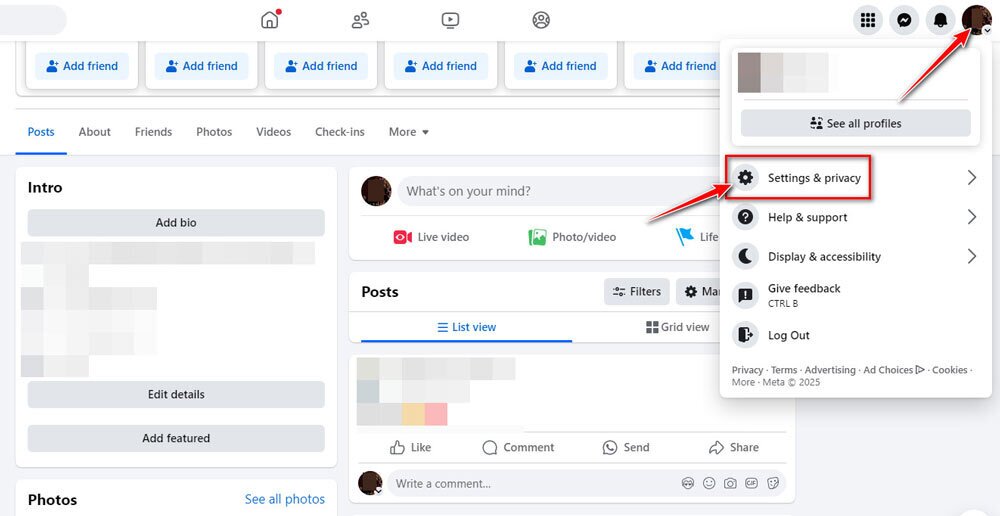
- Log in to your account. On the top right corner, click on your profile picture, and in the opened menu, select Settings & Privacy.
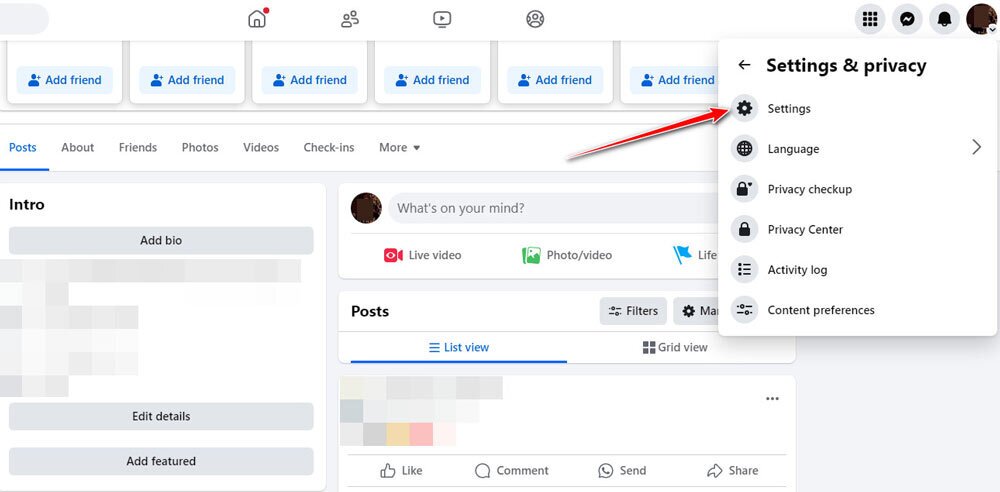
- In the new menu, click on Settings.
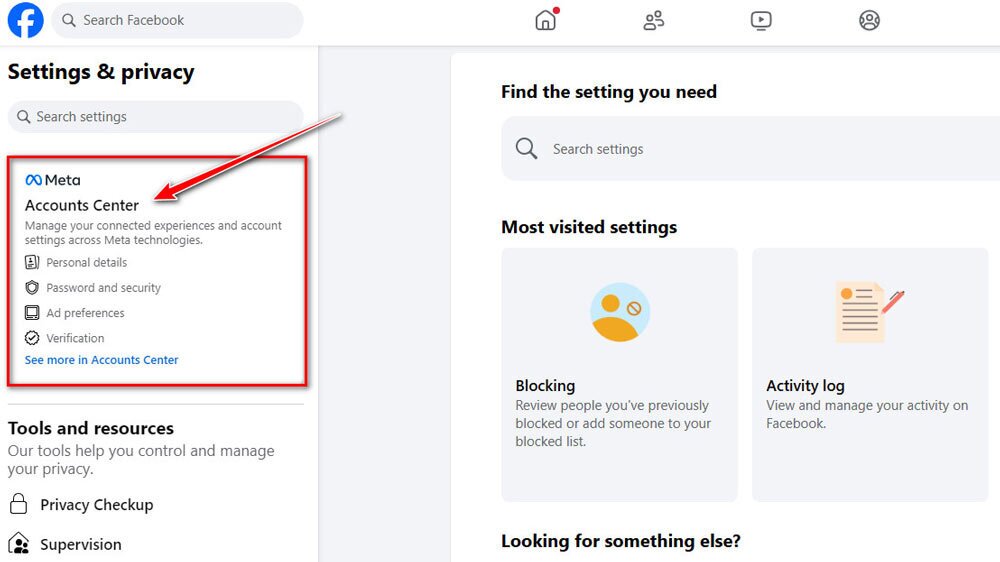
- In the left menu, select Accounts Center.
- On the new page, select Personal Details.
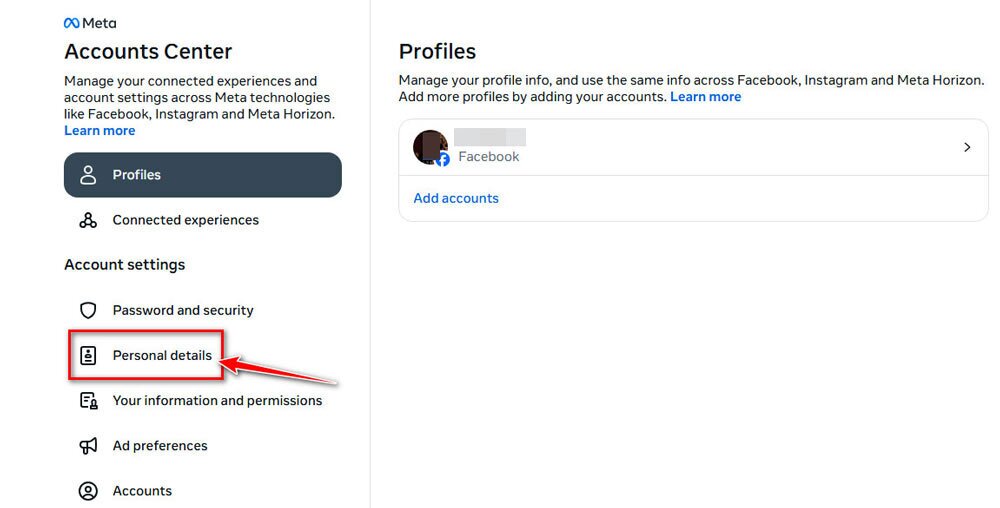
- Click on Account ownership and control.
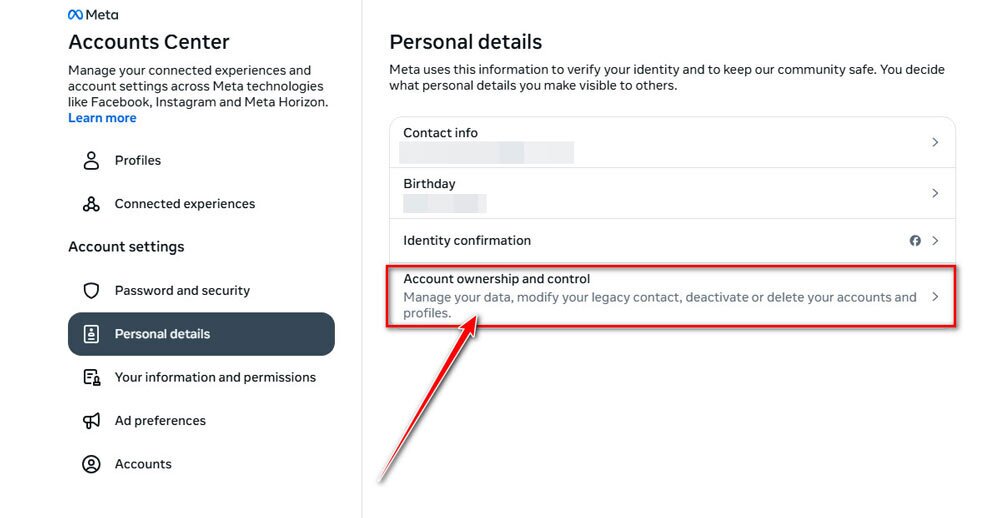
- On the new tab, choose Deactivation or deletion.
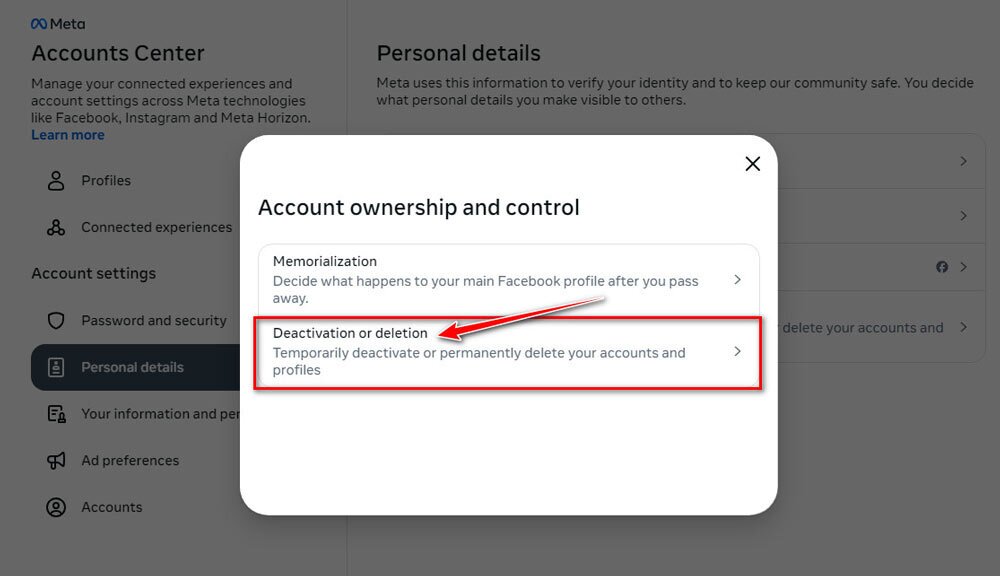
- Select the Facebook account you want to delete.
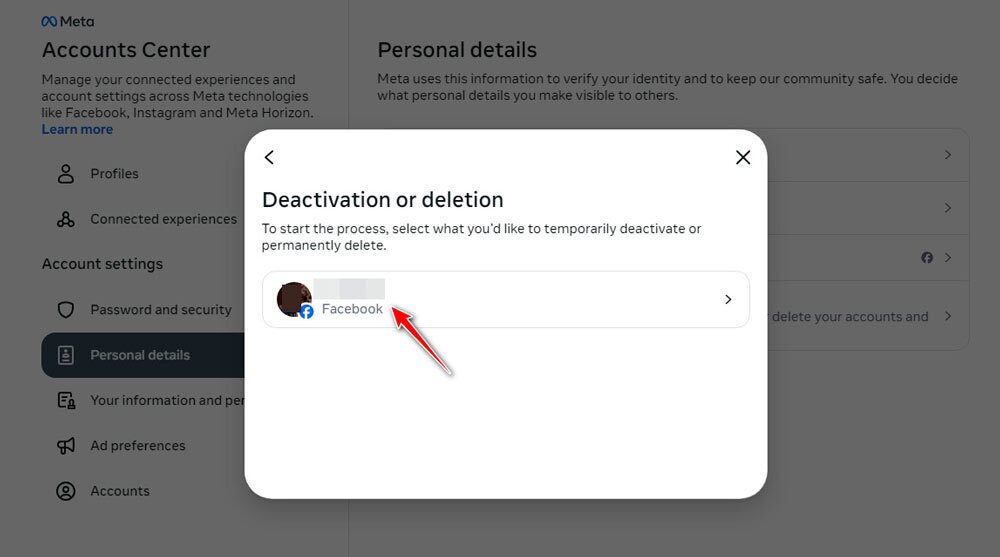
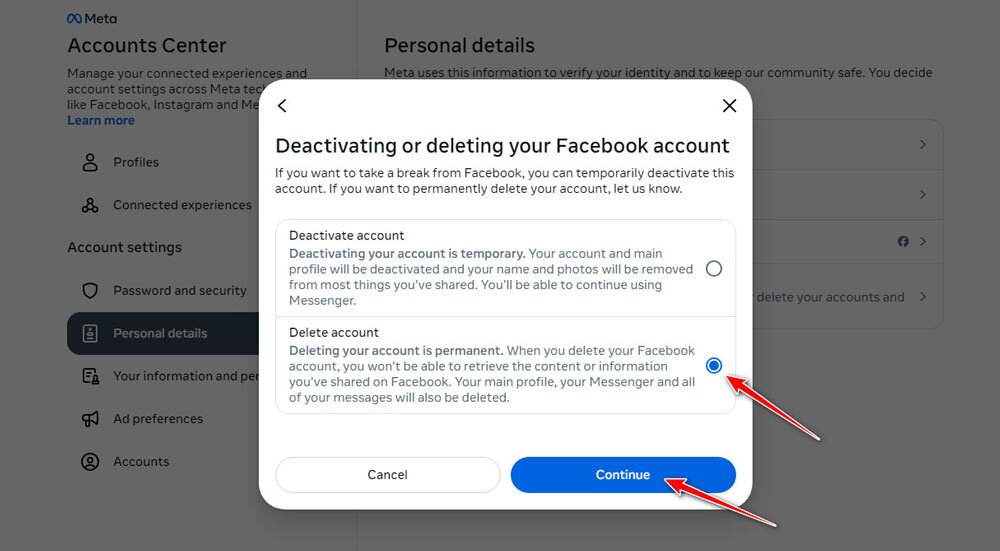
- Now you have two options: deactivating or deleting your account. Deactivating your account hides your profile and timeline from most people, but it does not shut down Messenger — people can still find and message you there, and you can still use it. If you reactivate later, your full Facebook account comes back. To permanently delete your Facebook account, select Delete Account and click on Continue.
- Facebook will ask you the reason you are deleting the account. Choose one option and then click on Continue.
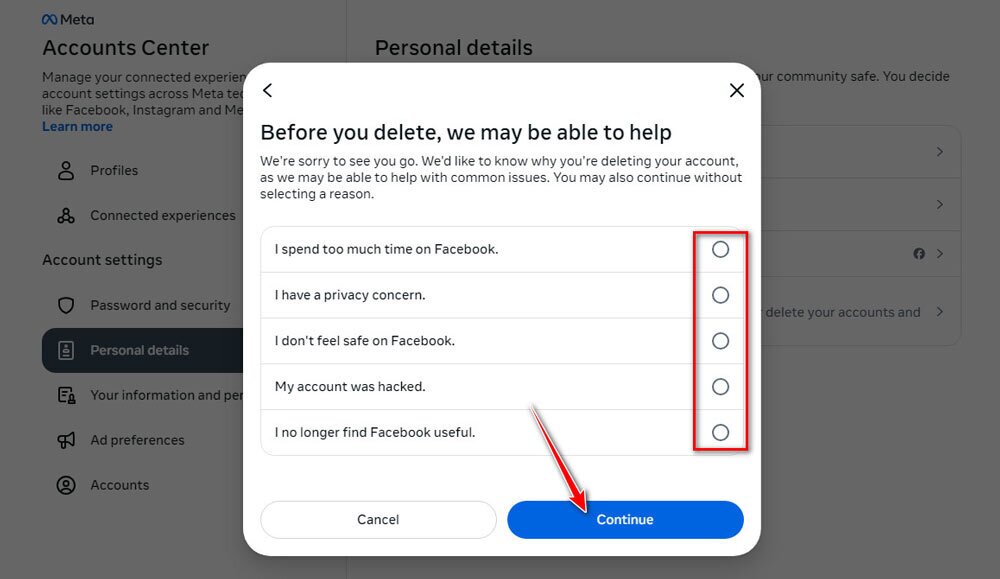
Facebook may ask you to re-enter your password to finish the process.
How to Delete Your Facebook Account with the Mobile App
If you want to delete your Facebook account through the Facebook app on your smartphone, follow these steps (This method works for both Android and iOS phones):
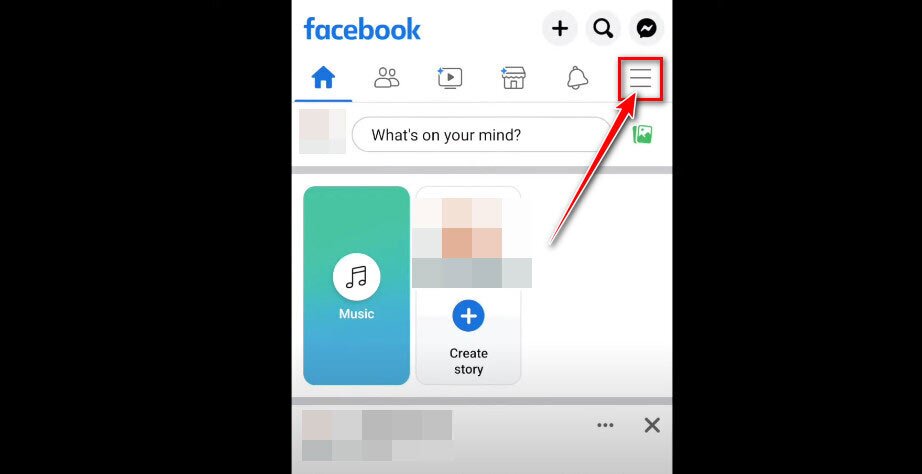
- Open the official Facebook app on your phone and select the three-line icon in the top right corner.
- On the new page, find Settings under Settings & Privacy, and tap on it.
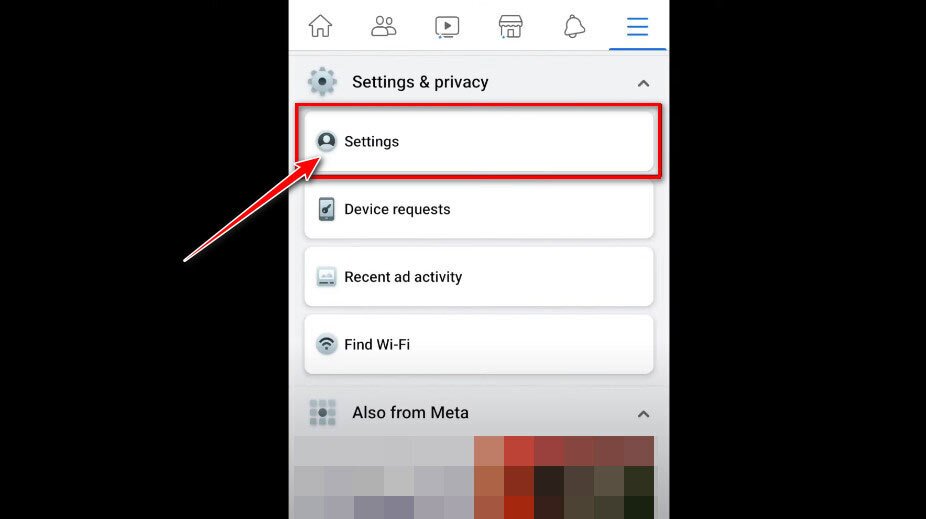
- Now, choose Accounts Center.
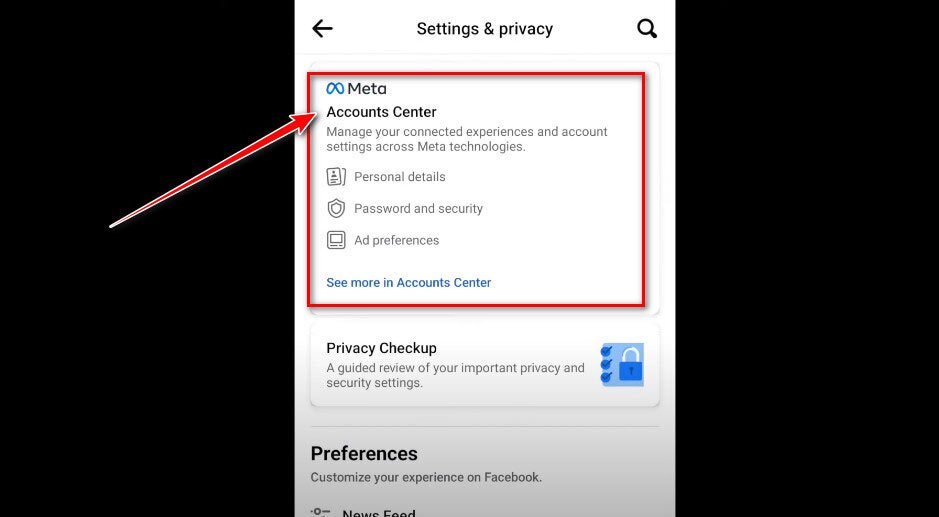
- In this section, scroll down a bit, and select Personal Details.
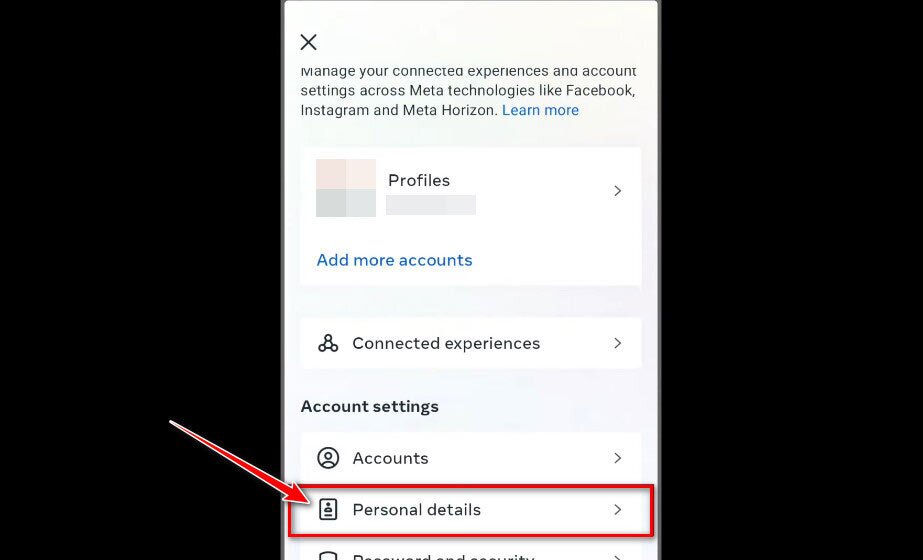
- On the new page, tap the Account ownership and control option.
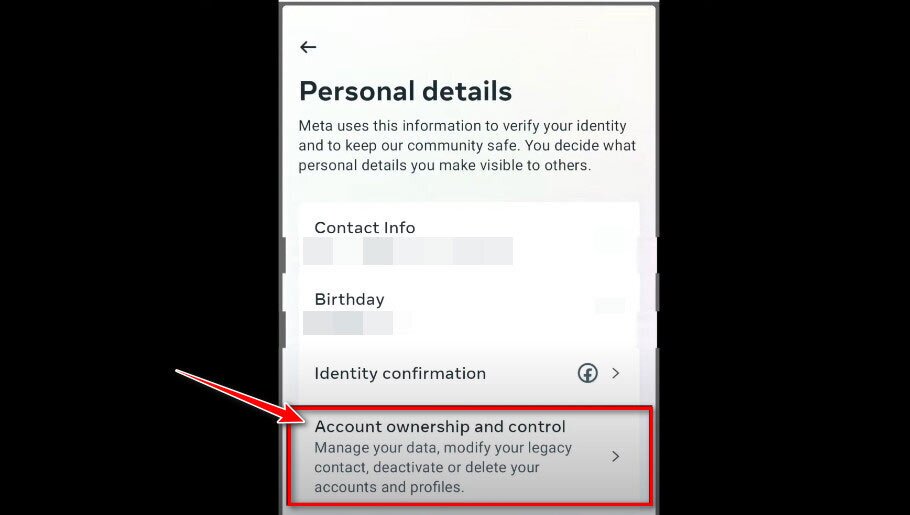
- Next, you have to select Deactivation or Deletion.
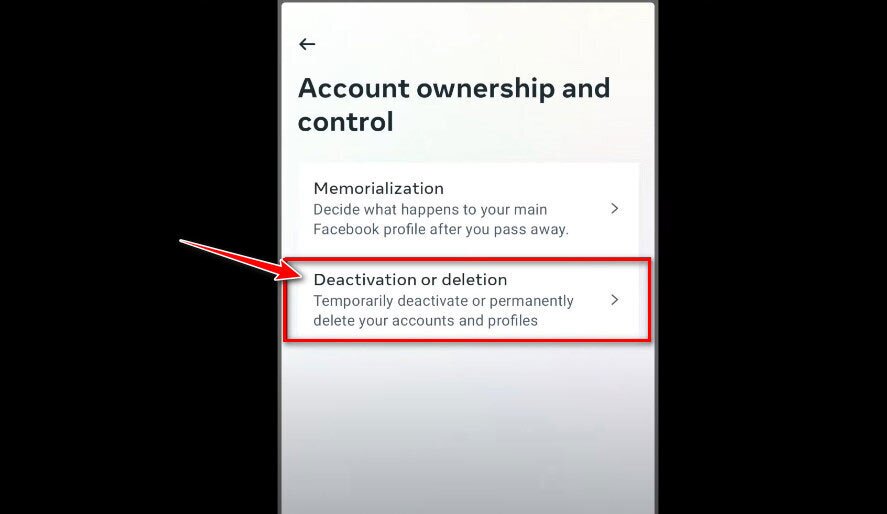
- Now, simply choose the Facebook account you want to delete.
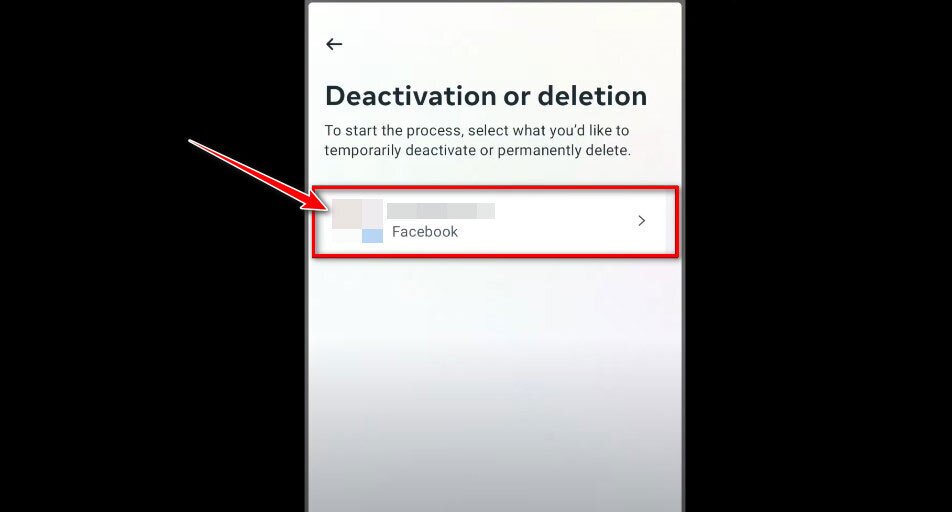
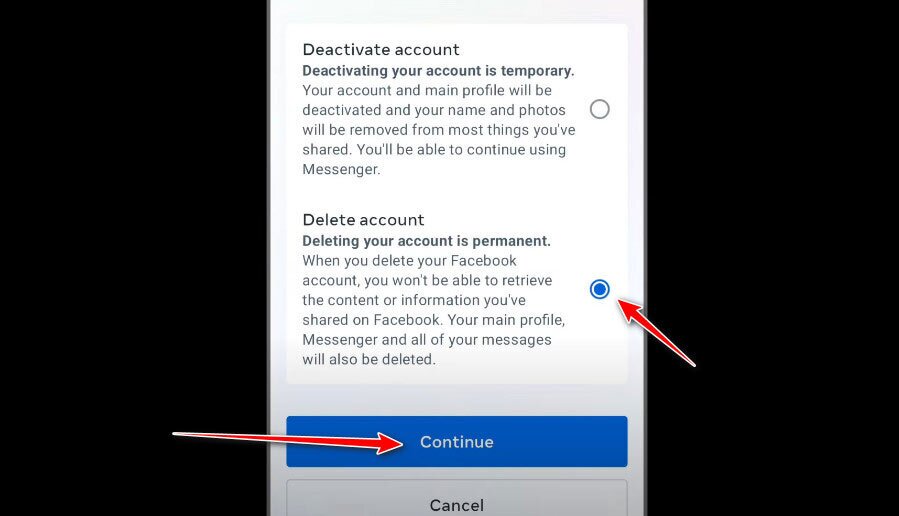
- In this step, first select Delete Account, then tap the Continue option.
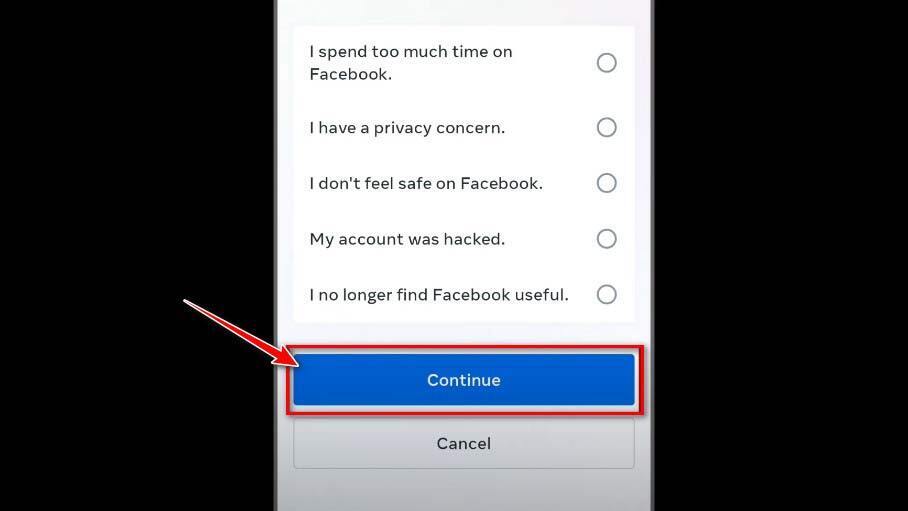
- Choose the reason you want to delete your Facebook account and then tap Continue.
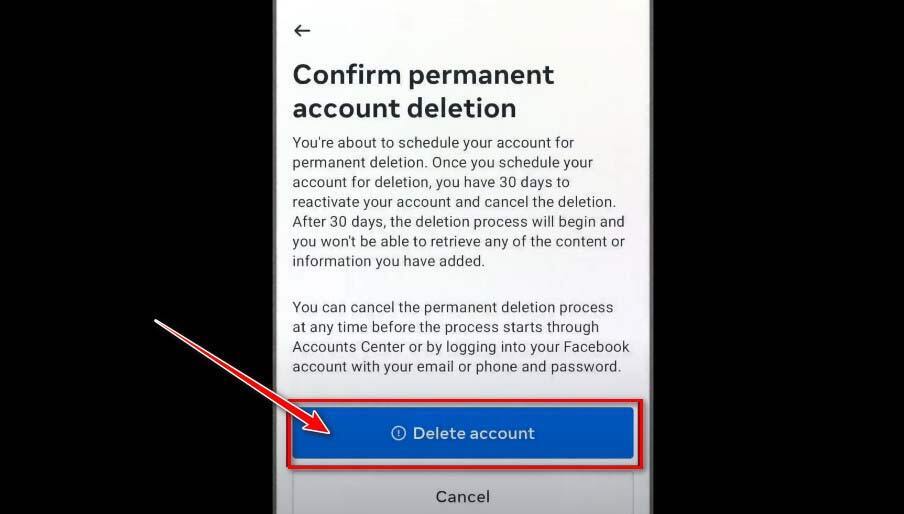
- Select Continue for any of the remaining sections. Finally, Facebook will ask you to enter your password to confirm the deletion. After typing your password, choose Continue and then Delete Account to finish the process.
Deleting vs. Deactivating the Facebook Account
If you want to just take a break from Facebook and focus on something else, or you think there is a chance you will need your account and its data in the future, the ability to temporarily deactivate your account can come in handy.
After deactivating your account, people won’t be able to see your profile. However, you will still have the ability to use Facebook Messenger — deactivation does not shut Messenger down, and people can still message you there. Also, the Facebook Login feature will still work for other apps such as Spotify and Pinterest.
Most importantly, your posts, videos, and photos won’t be deleted from the account. Take note that you won’t be able to use your Facebook account to access Meta Quest products during the deactivation period.
On the other hand, when you delete your Facebook account, it will permanently remove your profile, posts, photos, and videos after the 30-day cancellation window — and you will never be able to restore them. It is important to understand that this does not mean every trace of you disappears instantly.
Messages you already sent to other people can remain visible in their inboxes even after your account is gone. If you’re also trying to limit how long conversations stick around elsewhere, disappearing WhatsApp chats can be useful. Additionally, some copies of your data may persist in Facebook’s backup systems or be retained for legal or security reasons for a period of time. According to Facebook’s official Help Center, it can take up to 90 days to delete all of your information from their servers.
Also, you won’t be able to access Messenger after you delete your Facebook account. This is a suitable option if you don’t want to keep any personal data and worry about your privacy. If you’re taking the same approach with other platforms, our guides on how to delete Telegram profile or delete Twitter account can help. After deleting the account, the only way back on Facebook will be through creating a brand new account.
Is It Possible to Cancel Facebook Account Deletion
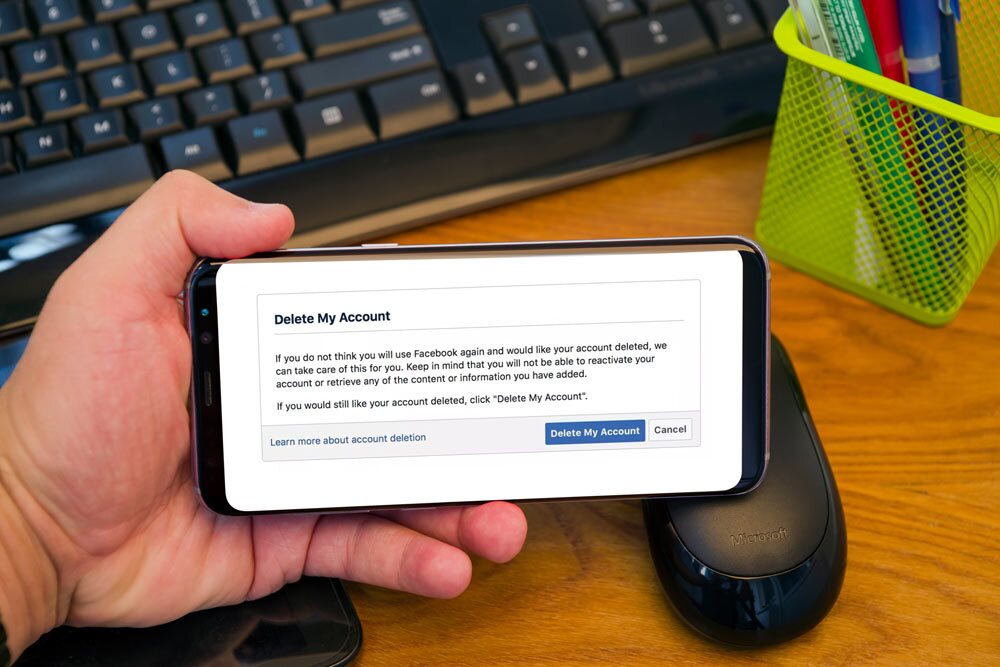
After you initiate the process of deleting your Facebook account, you’ll get a chance to revoke it within 30 days. After 30 days, Facebook will delete your account and its related information. Once it’s done, it’ll be impossible to retrieve your account or information.
To cancel your account deletion, all you need to do is to access your Facebook account within these 30 days. After you sign in, click on Cancel Deletion to continue using your account. Facebook may take up to 90 days from the deletion process initiation to delete all your posts. However, these won’t be available to other Facebook users.
The platform’s backup storage might store copies of your information even after 90 days as a part of recovery management for a disaster, data loss event, or software error. It can also keep your information for various legal purposes.
What Happens After You Delete Your Facebook Account Permanently
- Choosing to delete your Facebook account is completely different from deactivating it. After deleting your account, it will not be possible to reactivate your account.
- Everything you’ve added to your profile, including posts, photos, and videos, will get permanently deleted and won’t be available for retrieval.
- You won’t be able to use Facebook Messenger on Chrome or any other platform, either. However, messages sent to your friends will be stored in your friends’ inboxes.
- After you delete your Facebook account, you can’t access other apps you use with this account, such as Spotify and Pinterest. This is one of the most common gotchas people run into after deletion. Before you delete your account, go to Settings & privacy > Settings > Apps and websites to see every service connected to your Facebook login.
- Review the connected apps list carefully, then remove the connections you no longer need. More importantly, visit each of those services before deleting Facebook and set up an alternative sign-in method — whether that’s adding an email address, creating a standalone password, or linking a different account such as Google. If you skip this step and delete Facebook first, you may permanently lose access to those accounts and will need to contact each service’s support team to recover them.
- If you’re the only admin of any Facebook Page, those will be deleted as well. If that’s not what you want, you can share the full control of that Page with someone else. Then, it’ll be possible to delete your Facebook account without deleting the Page.
Note: If you want to get a copy of your Facebook posts and photos, you need to do it before deleting the account. Once your account is deleted, you won’t be able to recover any of the information.
Download your Facebook information before deleting
Before you permanently delete your Facebook account, it’s worth taking a few minutes to export your data — including photos, posts, videos, and messages — so nothing is lost for good. Facebook may also surface the download option during the deletion flow itself, but it’s safer to handle it beforehand. Here’s how to do it:
- Go to Settings & privacy > Settings and open Accounts Center.
- In Accounts Center, select Your information and permissions.
- Tap or click Download your information.
- Select Download or transfer information.
- Choose the Facebook account you want to export data from.
- Select a date range for the data you want to include (for example, all time, or a specific period).
- Choose the data types you want to export — such as posts, photos, videos, messages, friends list, and more. You can select all or just the categories that matter to you.
- Pick your preferred format: HTML is easier to read in a browser, while JSON is useful if you plan to import the data elsewhere. Also choose your media quality (high quality is recommended for photos and videos).
- Decide whether to download the archive to your device or transfer it directly to another service such as Google Photos or Dropbox.
- Click Create file and wait for Facebook to prepare your archive. You will receive a notification when it is ready to download.
Once you have your archive, store it somewhere secure — ideally outside of Meta’s ecosystem — since you will not be able to access your account or request another copy after deletion is complete.
Conclusion: How to Delete Your Facebook Account without Headache!
If you want to quit the platform, instead of changing your Facebook name and deleting everything manually, you can either deactivate your account or delete it. Instead of deleting, we recommend starting by deactivating your account. After a few weeks of living without it, if you feel confident that your life doesn’t depend on Facebook, you can go ahead and delete your Facebook account for good.
Frequently Asked Questions
Can I still use Messenger after I delete my Facebook account?
No, your Facebook Messenger data will be deleted alongside other data. If you want to keep your access to Facebook Messenger, you can consider deactivating your account instead of deleting it.
Can I download my Facebook data before deleting my account?
Yes, and you should do this before starting the deletion process. Navigate to Accounts Center > Your information and permissions > Download your information > Download or transfer information, then choose your account, date range, data types, format, and media quality. See the full step-by-step walkthrough in the “Download your Facebook information before deleting” section above.
How long does it take for Facebook to fully delete my account?
It usually takes 30 days for Facebook to delete your account after you confirm the request, but it may take up to 90 days to remove all of your data from their servers.
Can I sign into my Spotify with the deleted Facebook account?
No, if you have signed up to other apps using your Facebook account and then deleted it, you won’t be able to log in anymore. So, you have to contact the support team of those apps or websites to recover the accounts.
