How To Reset Your Password For Windows: Easy Guide
If you need to know how to reset your Windows password, you’ve come to the right place. There are plenty of reasons why you may need to reset a Windows password — you may have been locked out of your account or simply forgotten your login information. This situation is common and can be frustrating. This guide will cover how to reset your Windows password on Windows 10 and Windows 11, how to unlock laptops and PCs, and how to handle “forgot password” scenarios to unlock your laptop, desktop, or phone.
Understanding Windows Account Types
It can be helpful to understand the different Windows accounts available and how they affect password resets. Users can choose between a Microsoft account and a local account. Here’s a quick overview:
| Account Type | Local Account | Microsoft Account |
| Features | Doesn’t require internet to sign inNot connected to the cloudSettings, apps, etc. are all limited to one deviceIt is not connected to other services | Linked to the same email/password that you use with other Microsoft services, such as Outlook, Xbox, Windows, etc. Files and settings can sync across multiple devicesEasier to manage user accounts |
| Reset Options | Limited password reset optionsYou’ll need to have already set up a password reset disk or security questions to verify identityMay require an administrator account to deal with resetting passwordsMay require a system resetMore susceptible to getting locked out of a single device | You can reset your password from any deviceBecause user password changes can happen from any device, it’s a great workaround if you’re locked out of a specific computer or laptop |
How to Reset Windows Password: Microsoft Accounts
There are a couple of ways you can reset your Windows password if you have a Microsoft account. The right path depends on whether you are currently signed in or locked out. We’ll cover both scenarios so you can regain access as quickly as possible.
When You’re Signed Out
If you’re on the lock screen or sign-in screen and cannot get in, Microsoft provides several official entry points to start a password reset.
Using the “I forgot my password” Option on the Sign-in Screen
- Go to your Microsoft account sign-in screen.
- Beneath the “enter your password” field, choose “Forgotten your password?“
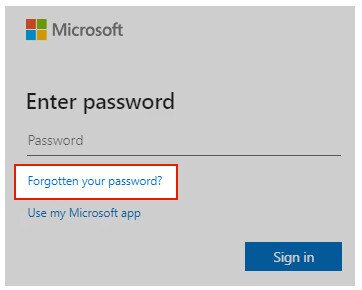
- To reset your Windows password, Microsoft will need to verify your identity first. Microsoft will send a verification code to your email address or phone number. Part of your number or email will be hidden for security purposes, and you will need to confirm that you know the missing information by entering it. Click Get Code.
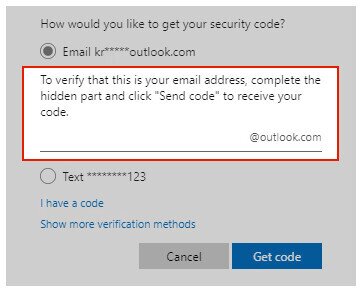
- You should receive a verification code by email or text. Enter the code when prompted to proceed and create a new password.
Using Sign-in Options > Web Sign-in (Where Available)
On some Windows 11 devices, you may also see a Sign-in options link on the lock screen. If you select it and see a Web sign-in option, choose it and then click Forgot my password to begin the same verification-code recovery process.
Resetting via Browser from Another Device
If you cannot access the lock screen at all, you can start the recovery process from any browser on any device.
- On another device, go directly to https://account.live.com/password/reset in your browser. Alternatively, you can go to the Microsoft account login page and click “Can’t access your account?“
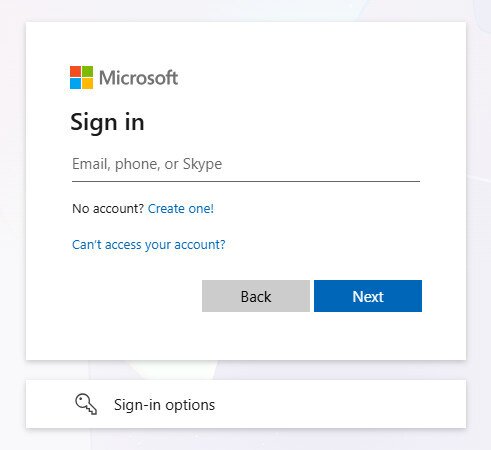
- Select whether it is a work or a personal account.
- Enter your email address or phone number.
- Microsoft will send a verification code to your email or phone. Enter the code when prompted.
- Once the code is verified, you will be able to create a new password.
If you have any issues with this process, visit the Microsoft account recovery page. If your sign-in problem is tied to Xbox services, this Xbox sign in fix may help.
When You’re Already Signed In
If you can currently sign in to Windows but want to change your Microsoft account password — or you’ve forgotten your current password and need to reset it while already inside your account — use the Settings path below.
- Open Settings.
- Go to Accounts.
- Select Sign-in options.
- Under the Password section, click Change.
- If you know your current password, enter it and follow the prompts to set a new one. If you do not know your current password, click Forgot my current password and follow the verification steps to reset your Windows password.
How to Reset Windows Password for Local Accounts
Resetting your Windows password through a local account can be a little more complex. Still, it is often possible, especially if you have taken preventive measures before losing access. Here are the methods and steps to know.
Using Security Questions (if set up)
Before you try this method, it helps to know exactly when and for whom it works. Security questions are available only for local accounts that had them configured during setup. If your PC is connected to a Microsoft account, a work domain, or an Azure AD account, you will not see security questions on the sign-in screen — use the Microsoft account recovery flow instead.
Additionally, some older Windows 10 local accounts may display a password hint rather than security questions, depending on how the account was originally created.
To trigger the Reset password option on the sign-in screen, you will usually need to enter an incorrect password first. After the failed attempt, the Reset password link should appear beneath the password field. On some systems the exact sequence is: click the arrow next to the password box to submit the wrong entry > the screen refreshes > Reset password appears. If you do not see it after one failed attempt, try once more before concluding the option is unavailable on your device.
If you did set up security questions in advance, resetting your Windows password should be relatively simple once the Reset password link appears:
- Go to the Windows sign-in screen.
- On the blank password field, click the arrow to open the Reset Password option, or look for Reset Password if it’s already listed.
- You’ll see various security questions that you should have already answered when you initially set up your account.
- Answer the questions with the exact same information you did upon account creation.
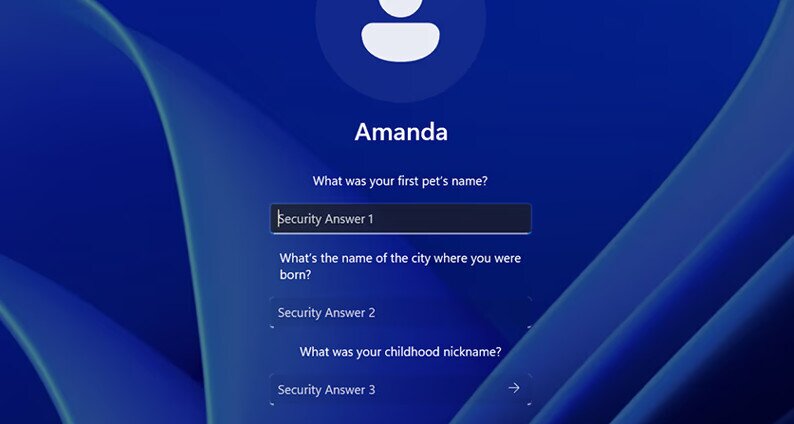
- The option to create a new password will then appear.
Using a Password Reset Disk
Using the reset disk option is a great way to change your password without logging in. However, it requires you to have set it up in advance, which won’t help you much if you’ve already lost access to your account. It is well worth taking this precaution to avoid future login issues. Here’s how to set up a password reset disk:
- You will need a USB flash drive.
- Sign in to your local Windows account (you can’t use this method for Microsoft accounts).
- Insert the flash drive into your computer.
- Go to the taskbar search field and input Control Panel, selecting it when it appears.
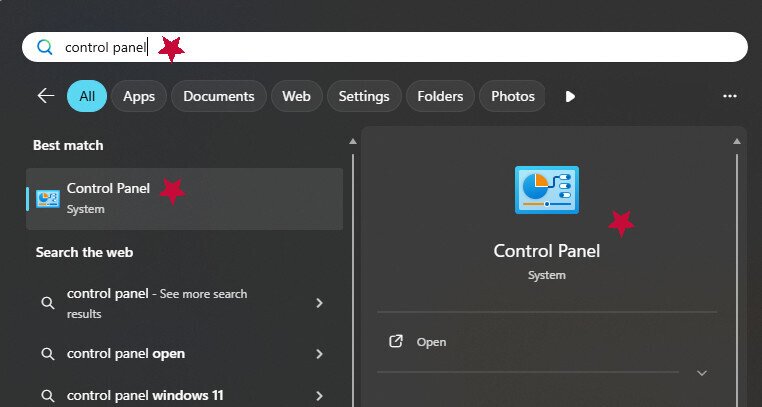
- Type in the search box on the upper right of the Control Panel, “Create password reset“.
- You’ll see “Create password reset” as a clickable option on the Control Panel window. Click it
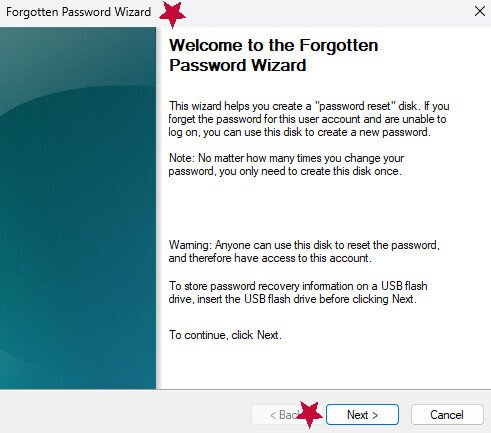
- This opens the Forgotten Password Wizard, which explains several important points that we will add below. Read through it and select Next.
[file:forgotten-password-wizard; alt:Windows Forgotten Password Wizard pop up]
- Choose the USB drive to save the password disk to, and then select Next.
- Input your current user password and click Next.
- Follow the prompts to confirm and finish.
Now that you know how to create a password reset disk, here’s how to use one:
- Insert the USB drive that you have the password reset disk saved to.
- Go to the Windows login screen.
- If you don’t already see “Reset password” as an option, put in any wrong password into the field to bring it up, then click on it.
- Because the USB drive is plugged in, the Password Reset Wizard window will open.
- There will be a dropdown list of various drives to choose from. Select the USB you’re using and select Next.
- From here, you should be able to create a new password and even put in a hint to help you remember it in the future. Follow the prompts to finish. Note that even after you change your password, there is no need to create a new disk; it should still work. However, if you go through the process of making another password reset disk, the new one will override the previous one, and it won’t work anymore.
Reset a Local Account from Another Administrator Account
If your PC has a second administrator account on it, this is the simplest way to reset a locked local account’s password — no Command Prompt required. This method uses built-in Windows GUI tools that any user can follow, and it does not require any special preparation in advance.
Important limitation: This method only resets the password for local accounts stored on that device. It cannot change credentials for a Microsoft account, because those passwords are managed on Microsoft’s servers and must be reset through the Microsoft account recovery process instead.
Here are the steps:
- Sign in to the other administrator account on the same PC.
- Open the Start menu and search for Control Panel, then open it.
- Go to User Accounts.
- Click Manage another account.
- Select the locked local account from the list.
- Click Change the password.
- Enter a new password, confirm it in the second field, and optionally add a password hint.
- Click Change password to save.
- Sign out of the administrator account, then sign in to the previously locked account using the new password.
Alternatively, on some Windows 10 and Windows 11 configurations, you can reach the same option through Settings > Accounts > Family & other users (or Other users). Select the locked account, and if a Change account type or password option is available, follow the prompts. The Control Panel path described above is the most consistently available route across both Windows versions.
Using Command Prompt (Advanced Method)
Important: This method only works if you are already signed in to a different administrator account on the same PC. It requires you to open Command Prompt from inside Windows with admin privileges.
If the account you are locked out of is the only account on the device, you will not be able to use this method — you will need to use Microsoft account recovery, local security questions, a password reset disk, or contact your IT administrator instead.
If you do have access to a separate administrator account on the device, here are the steps:
- Sign in to the other administrator account on the PC.
- Click the Windows Start menu on the bottom left of the screen.
- In the search field, input CMD to pull up the command prompt.
- Right-click on the command prompt and select Run as administrator.
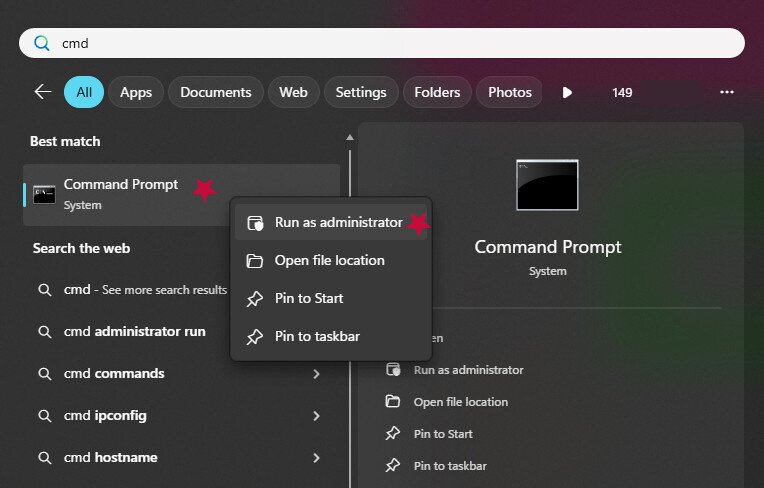
- Click Yes when prompted to allow changes to your computer.
- Type “net user” without the quotes and press Enter.
- You should see the available accounts listed, such as Administrator, Guest, and specific user account names.
- To reset the Windows password for the locked account, type net user <username> * (replacing <username> with the actual account name) and press Enter. Using the asterisk (*) instead of typing the new password directly means Windows will prompt you to enter and confirm the new password without it ever appearing on screen, which is safer.
- Enter and confirm the new password when prompted. You should see a message that the command completed successfully, indicating the password has been updated.
Change a Local Account Password When You’re Already Signed In
If you can currently access Windows under your local account — whether you signed in with a PIN, Windows Hello, or you simply know your current password — you have two straightforward ways to change your local account password without any special tools.
Method 1: Ctrl + Alt + Delete
- While signed in to Windows, press Ctrl + Alt + Delete on your keyboard.
- From the menu that appears, select Change a password.
- Enter your current password in the first field.
- Enter your new password in the second field and confirm it in the third.
- Press the arrow button or hit Enter to save the new password.
Method 2: Settings
- Open Settings.
- Go to Accounts.
- Select Sign-in options.
- Under the Password section, click Change.
- Enter your current password when prompted, then follow the steps to set a new one.
Note: Both methods above require you to know your current local account password. If you have forgotten the current password but are still signed in because you used a PIN or another sign-in method, you will not be able to complete the change this way. In that case, use the Reset a Local Account from Another Administrator Account method described above, or the Command Prompt method, to reset the Windows password from a second admin profile instead.
Alternative Methods to Reset Windows Password
Here are some alternative password recovery methods to unlock laptops and PCs, even if you need to reset without disks or don’t have admin privileges.
Reset Windows Password Using PIN (if set up)
Note, you’ll need to already have PIN-based access set up to reset your passwords this way, but it is an effective method in these circumstances. For this to work, you’ll need to be able to sign in with your PIN, but it lets you reset your actual password.
For Microsoft accounts:
- Go to the Settings.
- Go to Accounts.
- Go to Sign-in options.
- Go to Password.
- Go to Change.
- Follow the prompts and choose Forgot my current password.
- You should get directions to verify and let you make a new password.
Meanwhile, if you ever run across a problem, here’s how to fix the “something happened and your PIN isn’t available” error.
Use Advanced Startup (Reset this PC)
Warning: This is a last-resort option, not a standard password reset method. Choosing “Reset this PC” reinstalls Windows, removes all installed apps, resets many of your settings, and — if your device uses BitLocker encryption — may require your BitLocker recovery key to complete.
Even after the reset, if your account is tied to a Microsoft account, you may still need to sign in with those Microsoft credentials or go through account recovery. Only use this path when all official account recovery options (Microsoft account recovery, security questions, password reset disk) have already failed and your priority is simply regaining use of the device rather than preserving a specific password.
The instructions are pretty much the same for both Windows 10 and 11. Here are the steps:
- Go to the log-in screen.
- Select the Power icon (it’s on the lower right).
- Hold down the Shift key.
- Select Restart.
- Continue pressing the shift key down until you see “Choose an option“.
- Select Troubleshoot.
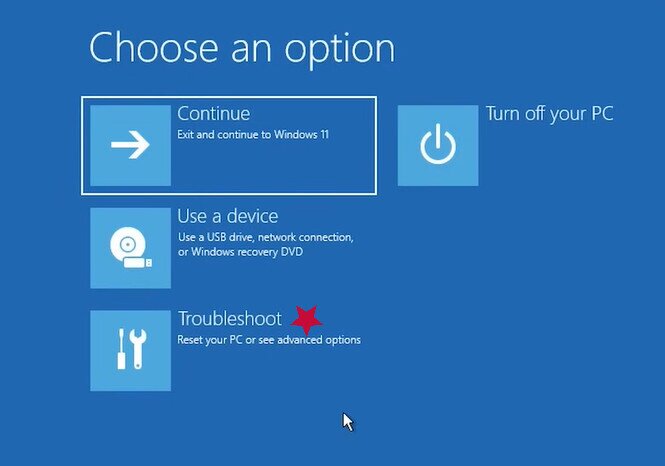
- Select Reset this PC.
- Select Keep my Files.
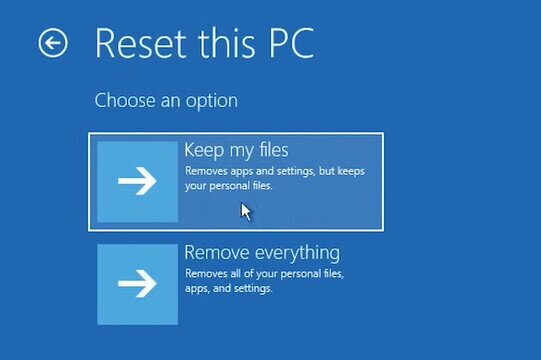
- From here, you can choose to either Cloud install Windows or Local install. If you have internet access, Cloud install is ideal, but either is fine.
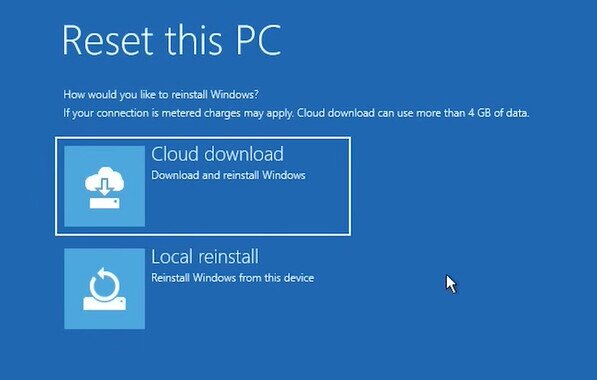
- Follow the prompts to confirm the reset and expect the computer to restart multiple times to implement the changes.
Third-Party Tools
There are some third-party tools that may help you manage or recover your passwords. Some allow you to log in temporarily to update your password, whereas others are password managers that store this information and help you avoid forgetting it.
That said, be careful about which third-party tools and apps you trust. Some can be malware in disguise, and it’s also important to know that you should use these methods only on computers you own and have complete control of. If you try to break into a computer from work, for example, you could end up in trouble.
Use caution and judgment when using these types of tools. Looking into user reviews and tech forums is a great start, as many users warn others about bad experiences and can serve as valuable red flags to avoid.
Important Notes on Data Security and Account Recovery
When it comes to data security and account recovery, being prepared is the best tactic. Knowing how to reset your Windows password before you’re locked out can save you a great deal of stress. Here are some helpful tips to try to prevent and also manage password and account protection:
- Set up security questions in advance: Because this is a valuable recovery method, set them up as soon as possible. If you’re ever worried about someone else knowing the answers to your security questions, you can choose untrue answers that no one else would know. Just be sure not to lose this information.
- Try using a password manager: There are plenty of reputable options to help you keep track of your login data.
- Manage user accounts: Identify which accounts have admin permissions and which account recovery methods are in place for each user.
- Add MFA to your Microsoft account: Having multi-factor authentication helps increase security and verification options for your account.
- Change your password regularly: This is a cybersecurity best practice that reduces the risk of bad actors finding and using your login data.
- Use alternatives to passwords when possible: PINs and biometrics are handy ways to log in without the hassles of remembering passwords. For example, Windows Hello lets you use facial recognition to unlock your PC instead of typing in a password.
Troubleshooting: What If You Still Can’t Reset Your Windows Password?
If you have tried all of these password recovery methods and still can’t get in, what else can you do to try to gain access?
What Microsoft Support Can and Cannot Do
Before contacting Microsoft support, it is important to set the right expectations. Microsoft support agents cannot retrieve, bypass, or manually change a forgotten password on your behalf — this is a firm security policy, not a matter of willingness. They also cannot send you a special reset link on request. Contacting support will not shortcut the standard recovery process, so it is worth exhausting the self-service options first.
The correct escalation path for Microsoft account holders, in order, is: the Microsoft Sign-In Helper, the verification code troubleshooter if you are having trouble receiving codes, and finally the Microsoft Account Recovery form for cases where standard verification is not possible.
For local accounts: if you never set up security questions and do not have a password reset disk, there is no supported online reset path for that local password. Your options at that point are the Command Prompt method (if a second administrator account exists on the device) or using Reset this PC as a last resort.
- If you are using your PC for work, contact the IT administration to see if they can reset your Windows password for you.
- If you have a Microsoft Account, you have a few options. First, here is the Microsoft Sign-In Helper to help you troubleshoot and contact support. Here’s a resource to help troubleshoot Microsoft verification issues, too. Lastly, here is a link to the Microsoft Account Recovery form.
- If you’re trying to access the account of someone who has passed away, Microsoft has specific steps to request password/account recovery for someone who has died.
- If you run across Windows access denied errors, it’s important to have admin authority to fix them. Setting that up in advance can help you troubleshoot multiple login issues.
Frequently Asked Questions
How do you reset Windows if you forgot your password?
That depends on the type of account you have. If you have a Microsoft account, you can choose the “Forgot Password” option on the sign-in screen or reset it from another device. If you have a local account, you’ll need to either reset it via the security questions you already set up, enter the password reset disk (which you should have prepared in advance), or use the command prompt. Instructions for all of these are earlier in this article.
How can I find my current Windows password?
You won’t be able to find the current password stored in your account, as it’s encrypted. This means you’ll need a different way to sign in, such as by using a PIN or security questions. Resetting the password is likely the best option. You can use a password manager or other secure method to keep the new password safe for future use.
What if I don’t have a password reset disk?
If you know your current password, you can create a password reset disk for your local account any time, as long as you have a USB drive. However, if you didn’t create it in advance and need to reset your password, you’ll need to use security questions to reset your login, or use the command prompt or reset your PC.
Will resetting my password delete my files?
Most of the time, your files will be completely safe, even when you reset your password. However, there’s a risk of data loss if you use complex, in-depth recovery tactics, such as resetting your entire PC (not just the password). In this case, there may be a risk of data loss.
Conclusion
Now you should know the most applicable methods to reset your Windows password, how to manage user accounts, and how to set up security questions and a password reset disk. Hopefully, these options will help you to avoid being locked out of your account in the future. Meanwhile, if you want even better prevention tools, here are the best password managers in 2026 to look through.