Minecraft Color Codes: Ultimate 16-Color Easy Guide
Minecraft color codes let you change the color and style of text on signs, in chat, and in commands — in both Java Edition and Bedrock Edition. Understanding Minecraft color codes is essential for anyone who wants to customize their in-game text. This guide covers every code you need, how to enter the section symbol (§) on any device, and exactly where each code works.
Version note: This guide covers Minecraft Java Edition (1.20+) and Bedrock Edition. Hex color codes require Java Edition 1.16 or later.
Java vs. Bedrock — quick difference: In Bedrock Edition, the § formatting system works directly in a wide range of end-user text fields: signs, book and quills, anvils, cartography tables, chat input, and some command and resource-pack text. In Java Edition, the legacy § system is used primarily in server-side and config contexts — server.properties, pack.mcmeta, splashes.txt, language files, world titles, and server names — and in JSON or command contexts such as /tellraw and /title.
Typing § directly into normal vanilla Java Edition chat or onto a sign does not produce colored text the way it does in Bedrock. Hex color codes (custom RGB colors) are a Java-only feature, available from version 1.16 onward.

The Section symbol
To apply a color or style using Minecraft color codes, you type the section symbol (§) immediately followed by the color or format code — no space between them. The symbol tells Minecraft to treat the next character as a formatting instruction rather than regular text.
The quickest method for most users is to copy and paste the symbol directly: §
If you prefer to type it natively on your device, here are the methods by platform:
| Platform | Method |
|---|---|
| Windows | Hold Alt and type 0167 on the numeric keypad (requires a dedicated number pad — if you don’t have one, use copy-paste or open Character Map: press Win+R, type charmap, and search for §) |
| macOS | Press Option + 6 |
| Linux | Press Ctrl + Shift + U, then type 00A7 and press Enter |
| iOS | Copy-paste is the most reliable method. Alternatively, try holding the & key on your iPhone keyboard — § may appear as a pop-up option, though this varies by keyboard and iOS version |
| Android | Switch to the number keyboard, then the symbols keyboard. Try holding the paragraph symbol (¶) — § should appear. On some keyboards, holding S may also reveal it. If not, copy-paste is your best option |
| Game console | Open the character keyboard and hold the & button until more options appear, then select §. It may also appear in the symbols section depending on your console |
In our testing, copy-paste is the most consistent method across all platforms — especially on mobile, where keyboard layouts vary widely. If you’re also customizing mobile controls, our Minecraft auto-jump tutorial can help.
Minecraft color codes
The game supports 16 built-in colors. Enter the § symbol followed by the code immediately before your text to apply a color. These Minecraft color codes are the foundation of all in-game text formatting. For the full technical reference, see the Official Minecraft Wiki — Formatting Codes.
The table below includes all the code variants you may need depending on where you are applying formatting. Here is what each column means: § Code — the legacy formatting prefix used in Bedrock end-user fields, server config files, and resource packs; Plugin & Alias — the shorthand used by most Bukkit, Spigot, and Paper plugins such as EssentialsX, which convert it to § automatically.
JSON / Name Code — the color name used in commands like /title, /tellraw, and /team; MOTD / Unicode — the escaped Unicode form required in server.properties, pack.mcmeta, and similar config files; Hex Value — the RGB hex color for reference and Java Edition JSON usage.
| Color | § Code | Plugin & Alias | JSON / Name Code | MOTD / Unicode | Hex Value |
|---|---|---|---|---|---|
| Dark Red | §4 | &4 | dark_red | \u00A74 | #AA0000 |
| Red | §c | &c | red | \u00A7c | #FF5555 |
| Gold | §6 | &6 | gold | \u00A76 | #FFAA00 |
| Yellow | §e | &e | yellow | \u00A7e | #FFFF55 |
| Dark Green | §2 | &2 | dark_green | \u00A72 | #00AA00 |
| Green | §a | &a | green | \u00A7a | #55FF55 |
| Aqua | §b | &b | aqua | \u00A7b | #55FFFF |
| Dark Aqua | §3 | &3 | dark_aqua | \u00A73 | #00AAAA |
| Dark Blue | §1 | &1 | dark_blue | \u00A71 | #0000AA |
| Blue | §9 | &9 | blue | \u00A79 | #5555FF |
| Light Purple | §d | &d | light_purple | \u00A7d | #FF55FF |
| Dark Purple | §5 | &5 | dark_purple | \u00A75 | #AA00AA |
| White | §f | &f | white | \u00A7f | #FFFFFF |
| Gray | §7 | &7 | gray | \u00A77 | #AAAAAA |
| Dark Gray | §8 | &8 | dark_gray | \u00A78 | #555555 |
| Black | §0 | &0 | black | \u00A70 | #000000 |
Hex Color Codes in Minecraft (Java Edition 1.16+)
If you’re running Java Edition 1.16 or later, you can use any custom RGB hex color — not just the 16 built-in ones. This works through JSON text components in commands like /tellraw and /title. It does not work on regular signs or in standard chat.
The syntax uses a JSON format with a "color" key:
/tellraw @a {"text":"Hello world!","color":"#FF6600"}Replace #FF6600 with any valid hex color code. This is useful for server operators and map makers who want precise color control beyond the standard 16 Minecraft color codes options. If you’re also experimenting with other visual effects in your builds, our beacon block recipe guide is worth a look.
Using Minecraft Color Codes
Changing Text Color on Signs
Edition note: Typing § codes directly onto signs works natively in Bedrock Edition — this is one of the most common places Bedrock players use formatting. In Java Edition vanilla, § does not produce colored sign text when typed directly; sign colors in Java are handled through commands (such as /data or adventure-map tools) or server-side plugins rather than by typing the symbol in the sign editor.
- Place a sign and enter text editing mode.
- Type the § symbol followed immediately by your color code (no space).
- Type your text right after — again, no space between the code and the text.
If your text wraps to a new line, re-enter the color code at the start of that line. Minecraft color codes on signs do not carry over to the next line automatically.

Example:
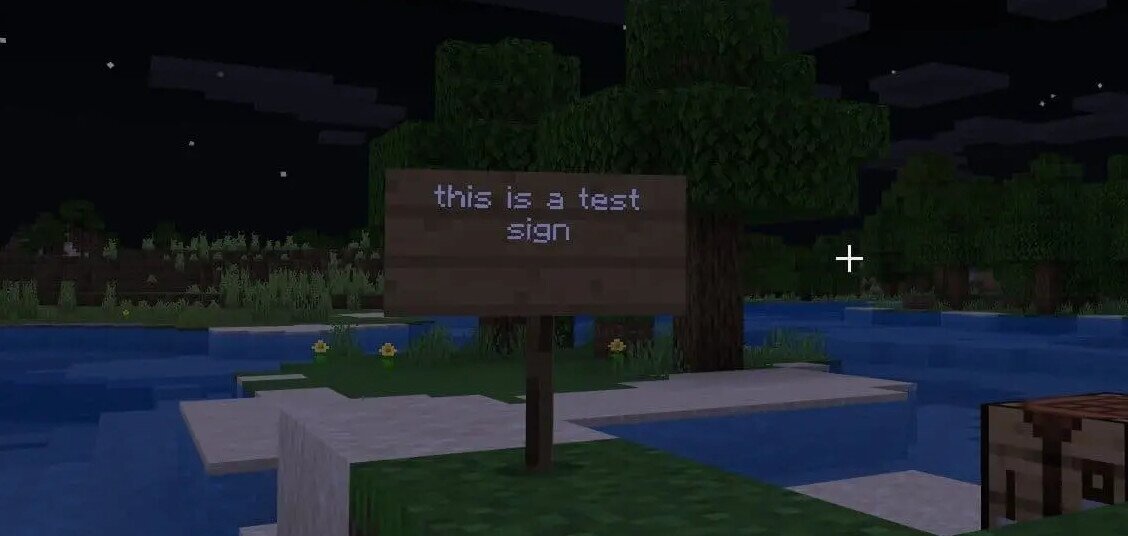
§fThis is a test §fsignYou can also combine color codes with style codes (bold, italic, etc.) — more on that in the style codes section below.
Changing Chat Text Color
Edition note: Typing § codes directly into the chat box works in Bedrock Edition, where the client accepts § formatting in chat input. In Java Edition vanilla, typing § in the chat box does not color your messages — colored chat in Java is a server-side feature handled by plugins (using the & alias) or server operators, not something the vanilla client processes from a player’s typed input.
The same rules apply in Bedrock chat. Open the chat window, type the § symbol followed by your color code, then type your message immediately after — no space. Using Minecraft color codes in chat is a quick way to make your messages stand out.
§5Hello!This displays “Hello!” in dark purple. You can also stack a color and style code together:
§a§lGreen Bold Text
Note: Some servers disable colored chat for moderation reasons, so it may not always work online. If your color code isn’t showing up, check the troubleshooting FAQ at the bottom of this page.
Using Color Codes in Commands
In Java Edition, you can use § codes inside commands like /title, /tellraw, and /scoreboard. This is especially useful for server operators and command block builds, and our Minecraft formatting commands guide covers more command syntax.
For /title, use JSON text with the color name or hex value:
/title @a title {"text":"Welcome!","color":"gold"}For /tellraw, the same JSON format applies:
/tellraw @a {"text":"Server message","color":"red"}The color names in JSON commands correspond directly to the 16 built-in Minecraft color codes (e.g., "dark_red", "aqua", "light_purple"). Use underscores instead of spaces for multi-word color names.
Using Color Codes for Teams
In Java Edition, you can assign a color to a team using the /team command. This changes the color of team members’ names in chat and above their heads.
/team modify [teamName] color [colorName]For example, to set a team called “red_team” to red:
/team modify red_team color redValid color names are the same as the 16 built-in Minecraft color codes (e.g., dark_red, gold, aqua).
Using Color Codes on Minecraft Servers (& Symbol)
If you run or play on a Bukkit, Spigot, or Paper server with plugins like EssentialsX installed, you typically use the & symbol instead of § to enter color codes. The plugin converts & codes into the proper § formatting automatically.
For example, in a server config file or plugin message:
&aThis text will be green&c&lThis text will be bold redThe & syntax is the standard for most server plugins and is much easier to type than §. Check your server’s plugin documentation to confirm which symbol it uses — most modern plugins support & by default.
Using Color Codes in server.properties, MOTD, pack.mcmeta, and Other Files
A large share of people looking up Minecraft color codes are trying to color a server MOTD, a resource pack description, or another config file — not just signs or chat. These file-based contexts use a slightly different format that is worth understanding on its own.
server.properties (MOTD): The server’s message of the day, displayed in the multiplayer server list, is set in the server.properties file. This file does not accept the raw § character reliably across all systems, so you use the escaped Unicode form \u00A7 instead of § directly. The color and format codes that follow are identical to the standard table above.
For example, to display a green “Welcome” followed by bold “Survival”:
motd=\u00A7aWelcome \u00A7lSurvivalHere \u00A7a applies green and \u00A7l applies bold. You can chain as many codes as you like. The MOTD / Unicode column in the color table above gives you the ready-to-paste form for every color.
pack.mcmeta (resource pack description): The description field in a resource pack’s pack.mcmeta file also supports the \u00A7 Unicode form, letting you add color or style to the text shown in the resource pack selection screen.
splashes.txt and language files: The splashes.txt file (which controls the random splash text on the main menu) and custom language files in resource packs both accept § codes directly, making them straightforward to colorize.
World names and server names: World folder names and server list names displayed in the client can also use § codes on some platforms and launchers, allowing colored labels in your server list or world selection screen.
Commands vs. config files — which format to use: When you are working inside commands such as /title, /tellraw, and /team, use the JSON name code format (for example "color":"dark_red") rather than § or \u00A7. When you are editing a config or properties file such as server.properties or pack.mcmeta, use the \u00A7 Unicode escape form. When you are typing directly into a Bedrock Edition text field (sign, book, chat), use § directly.
Leather Armor Dyeing
Leather armor can be dyed custom colors in both Java Edition and Bedrock Edition using dyes at a crafting table (or a cauldron in Bedrock). This mechanic is entirely separate from the § text formatting system — it does not use § codes or the hex values from the color table above, and it is not exclusive to either edition. If you arrived here looking for armor colors specifically, note that armor dyeing is a crafting mechanic rather than a text-formatting feature.
Minecraft Style codes
Minecraft Style Codes
Style codes work the same way as Minecraft color codes — type § followed by the code letter. You can combine them with color codes to create styled, colored text.
| Description | Code |
|---|---|
| Obfuscated (scrambled/random characters) | §k |
| Bold | §l |
| Strikethrough | §m |
| Underline | §n |
| Italic | §o |
| Reset (clears all formatting and color) | §r |
Edition note — formatting behavior after a color code: In Java Edition, applying a new color code cancels any active style formatting (bold, italic, underline, etc.) that was set before it. This means if you want bold green text, you need to apply the color first and the style second: §a§l. If you add a new color code mid-string, you will need to re-apply your style codes after it.
In Bedrock Edition, formatting persists after a color code — active style codes remain in effect even when a new color code is inserted — so the interaction between color and style is more forgiving on that platform.
Always apply the color code before the style code. Putting the style first can cause the color to override it on some versions.
Combination examples:
§f§lBold white text§c§nRed underlined text§a§oGreen italic text§6§lGold bold textUse §r to stop formatting mid-line. For example:
§aGreen text §rBack to defaultIf your text continues onto a new line, re-enter the color and style codes at the start of that line — formatting doesn’t carry over automatically.
Frequently Asked Questions
What is the section symbol (§) in Minecraft and why do I need it?
The § symbol is the required prefix for every Minecraft color and format code. Without it, the code character (like c or l) just appears as plain text. When Minecraft sees §, it knows the next character is a formatting instruction — not content to display. Think of it as a trigger that activates the code that follows it.
Do Minecraft color codes work the same way in Java Edition and Bedrock Edition?
Not exactly. In Java Edition, Minecraft color codes work natively in chat, on signs, and in commands. In Bedrock Edition, § codes work on signs, but colored chat is more restricted and often depends on the server or platform you’re playing on. Custom hex colors (via JSON text components) are a Java-only feature, available from version 1.16 onward.
Can I use color codes on Minecraft servers?
Yes, but the syntax is usually different. Most Bukkit, Spigot, and Paper servers running plugins like EssentialsX use the & symbol instead of § — so &aGreen text becomes green in-game. Some servers restrict colored chat to admins or moderators only. If your colors aren’t showing up, check whether the server uses & syntax and whether you have permission to use formatting codes.
How do I combine color codes and style codes in Minecraft?
Always put the color code first, then the style code — for example, §a§l gives you bold green text. If you reverse the order (style before color), the color code can override the style on some versions, stripping the formatting. Here are a few working examples: §c§nRed Underlined, §a§oGreen Italic, §6§lGold Bold. You can stack multiple style codes after a single color code as well.
Why isn’t my color code working in Minecraft chat?
There are three common reasons. First, the server may have disabled colored chat for regular players — this is a moderation setting and there’s nothing you can do about it on that server. Second, you may have accidentally put a space between § and the color code — there should be no space at all. Third, the § symbol may not have been entered correctly, which is a common issue on mobile. The most reliable fix is to copy-paste the § symbol directly rather than trying to type it.
What does the §r reset code do in Minecraft?
§r clears all active formatting — both color and style — and returns the text to its default appearance (white, unstyled). It’s useful when you want to apply formatting to only part of a line. For example: §cRed text §rNormal text — the first part appears red, and after §r, the text returns to default white with no styling applied.

I love Minecraft so much
im on chromebook and it wont let me paste the § symbol into chat, any other ways
How do you reset it? Like if you want part of a line bold?
it still doesn’t work, the section symbol just wont show up.
Does this also work in online servers?
it kinda worked the colours showed up after i was done typing but not when the sign was a block plz let me know any potential fixes just so you now i am on the bedrock edition of minecraft
it wont let me put that symbol in minecraft
Works and is a great way to spice up any build. Keep it up! 😀
This was very informative plea keep on writing these 😀
NICE STUFF!
The code for the colour change for minecraft in windows 10 does not work on a laptop. There is no seperate numerul keypad on my laptop and the code doesn’t work with the normal keys.
did you know there is allso another styl §k and its look like words but in another language and its scrambling
I wanna do this on the Nintendo switch edition(the one without cross platform play) and when I try and look for the symbol page it isn’t there, but them I change other stuff it is there. Why? Is there a way to do this, as many claim?
Signed
A 9 year old with an email account
This doesnt work anymore on pc the § symbol can’t be typed anymore on pc. anyone got a fix?
i really found this website useful
thx
my minecraft name is TBNRfrags3610