Windows 7 Schedule Shutdown
If you need to schedule system shutdown on your Windows PC after a specified interval of time, WinDown is a handy tool worth trying. It is a portable, lightweight utility that lets you schedule system shutdown automatically without leaving your computer running all night or wasting energy unnecessarily.
How to Schedule a System Shutdown with Built-in Windows Tools
Windows 10 and Windows 11 include several native ways to schedule a system shutdown without installing any third-party software. Depending on whether you need a one-off timer or a recurring shutdown on a set schedule, one of the three methods below will suit your needs.
Method 1: Using the Run Dialog or Command Prompt (One-Time Shutdown)
This is the fastest way to schedule a single shutdown. Open the Run dialog with Win + R, or open Command Prompt, and enter the following command:
shutdown /s /t 3600
The /s flag tells Windows to shut down, and /t sets the delay — always in seconds. In the example above, 3600 equals one hour. Adjust the number to match how long you want to wait before shutdown. Windows will display a notification and begin the countdown. To cancel the shutdown before it fires, run:
shutdown /a
A few other useful variations of the shutdown command worth knowing:
shutdown /s /f /t 0— Shuts down immediately and force-closes any open applications. Be aware that unsaved work will be lost when/fis used.shutdown /r /t 3600— Schedules a restart instead of a full shutdown, using the same seconds-based countdown.shutdown /l— Logs off the current user immediately (no delay option applies here).
Best for: Quick, one-time shutdowns where you know roughly how many minutes or hours remain on a task.
Method 2: Using Task Scheduler (Recurring or Precisely Timed Shutdown)
Task Scheduler lets you set a shutdown to fire at a specific clock time, and optionally repeat it on a daily or weekly basis. Here is how to set it up:
- Press Win + S, search for Task Scheduler, and open it.
- In the right-hand panel, click Create Basic Task.
- Give your task a name (for example, Scheduled Shutdown) and click Next.
- Choose your trigger: One Time for a single shutdown, or Daily for a recurring schedule. Click Next.
- Set the date and time you want the shutdown to occur. Click Next.
- Under Action, select Start a program and click Next.
- In the Program/script field, enter:
C:\Windows\System32\shutdown.exe - In the Add arguments field, enter:
/s /f /t 0 - Click Next, review the summary, and click Finish.
Best for: Recurring shutdowns at a fixed time each day, or any situation where you need the shutdown to fire at a precise clock time rather than after a countdown.
Method 3: Using PowerShell
PowerShell offers another built-in option, particularly useful if you are already working in a script or terminal environment. Open PowerShell and run:
Start-Sleep -Seconds 1800; Stop-Computer
This waits 1800 seconds (30 minutes) and then shuts the computer down. To force-close open applications during the shutdown, use:
Start-Sleep -Seconds 1800; Stop-Computer -Force
Best for: Users comfortable with PowerShell or those who want to chain a shutdown at the end of an existing script.
How to Schedule System Shutdown with WinDown
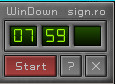
Using WinDown is straightforward. Simply set the time at which you want the system to shut down and click the Start button. The application will get minimized to the system tray and will shut down your system at the specified time — no further interaction required. This makes it ideal for situations where you want to leave a download running or a file transfer completing, but do not want the machine to stay on indefinitely afterward.
Because WinDown runs quietly in the system tray, it does not interfere with your workflow. You can continue working normally, and the shutdown will trigger automatically when the timer expires. If you change your mind, you can reopen the application from the tray icon and cancel or adjust the timer before it fires.
Why Use a Dedicated Tool to Schedule System Shutdown?
Windows does include a built-in way to schedule system shutdown via the command prompt using the shutdown /s /t [seconds] command, but that approach requires you to remember the exact syntax and work in a terminal window. A dedicated graphical tool like WinDown removes that friction entirely, giving you a simple timer interface that anyone can use without technical knowledge.
If you do want to use the command-line approach, here is a practical reference for the commands you are most likely to need:
shutdown /s /t 3600— Schedule a shutdown in 3600 seconds (one hour). The/tvalue is always in seconds.shutdown /a— Cancel a pending shutdown. This only works before the countdown expires.shutdown /s /f /t 0— Force an immediate shutdown and close all open applications. Note that/fwill cause any unsaved work to be lost, so use it with care.shutdown /r /t 3600— Schedule a restart instead of a full shutdown.shutdown /l— Log off the current user immediately.
We have already reviewed several tools that provide similar functionality, and you may read one such post here. One of the key benefits of WinDown specifically is that it does not overwhelm you with options. There are no complex schedules, no recurring task configurations, and no settings menus to navigate. This simplicity keeps the application extremely light on resources — consuming barely 1/4 MB of memory during operation, which is negligible even on older hardware.
WinDown was originally designed for older Windows releases and has not been verified for full compatibility with Windows 10 or Windows 11. If you are on a current version of Windows, we recommend treating the built-in methods described above — Command Prompt, Task Scheduler, or PowerShell — as the safer and more reliable default. For users who prefer a command-line reference, Microsoft’s own official shutdown command documentation is a useful resource.
Key Features of WinDown
Here is a quick summary of what makes WinDown a practical choice when you need to schedule system shutdown:
- Portable: No installation required. Simply run the executable and it is ready to use immediately.
- Lightweight: Uses less than 1/4 MB of RAM, making it one of the most resource-efficient shutdown schedulers available.
- System tray integration: Runs silently in the background without cluttering your taskbar.
- Simple interface: Set a time, click Start, and you are done. No learning curve whatsoever.
- Broad Windows compatibility: Designed to work across multiple Windows versions without configuration changes.
When Should You Schedule System Shutdown?
There are many practical scenarios where it makes sense to schedule system shutdown rather than leaving your PC running or manually powering it off. For example, if you are running a long antivirus scan, a large file compression job, or a software update overnight, you can set WinDown to shut the system down once you expect the task to be complete. This saves electricity, reduces wear on hardware components, and gives you peace of mind knowing the machine will not run unattended for hours longer than necessary.
Similarly, parents who want to enforce screen time limits can use a scheduled shutdown as a simple enforcement mechanism. While more advanced parental control software exists, a lightweight timer-based shutdown tool is often all that is needed for straightforward use cases. WinDown fits that role perfectly thanks to its no-frills design.
Why a Scheduled Shutdown Might Not Work
If your scheduled shutdown fails to fire, the cause is almost always one of a small set of configuration issues. Here is what to check, depending on which method you used.
For Task Scheduler tasks:
- Run with highest privileges: Open your task in Task Scheduler, go to the General tab, and check Run with highest privileges. Without this, the task may be blocked by User Account Control on Windows 10 and Windows 11.
- AC power condition: On the Conditions tab, uncheck Start the task only if the computer is on AC power if you are using a laptop and want the shutdown to fire on battery power as well.
- Missed start behavior: On the Settings tab, enable Run task as soon as possible after a scheduled start is missed to ensure the task fires even if the computer was asleep or off at the scheduled time.
- Admin rights: Creating or modifying shutdown tasks may require an administrator account. If the task was created under a standard user account, it may not execute correctly.
For Command Prompt and PowerShell methods:
- If open applications are blocking the shutdown, add the
/fflag to your shutdown command (shutdown /s /f /t 0) or useStop-Computer -Forcein PowerShell. Be aware that this will close apps without saving, so only use it when you are certain no unsaved work is open. - Running Command Prompt or PowerShell as Administrator can resolve permission-related failures.
For WinDown specifically: As an older utility, WinDown may be flagged or restricted by Windows Security, SmartScreen, or User Account Control on Windows 10 and Windows 11. If WinDown fails to trigger a shutdown on a current system, switching to one of the native built-in methods above is the most reliable fix.
Overall, if you are looking for the fastest and easiest way to schedule system shutdown on Windows without installing bloated software or memorizing command-line syntax, WinDown is a solid choice. Give it a try and enjoy the convenience of automated shutdowns on your own schedule.
