How To Add Multiple Input Languages In Android 7.0
Android supports a long list of languages that you can set as your input language. Up until Android 6.0, you could only set one input language at a time. If you ever needed to switch to typing in a different language, you had to edit your system-wide preferences from the Settings app. This was obviously time consuming, but Android 7.0 rectifies that. You can now add multiple input languages directly from your device settings. The new multiple language support can be prioritized so that the language you type in most often is presented as the default one in the keyboard layout. The secondary language is one you can switch to from inside the keyboard. Here’s how to add multiple input languages in Android 7.0 and set their preferential order.
How To Add Multiple Input Languages on Android
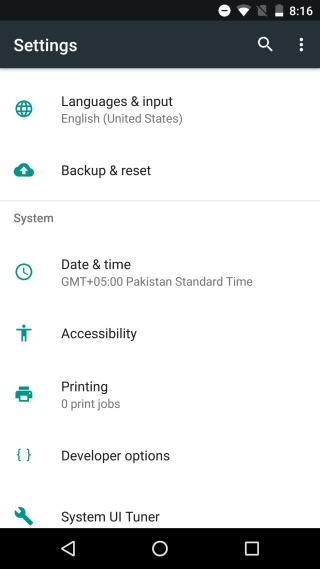
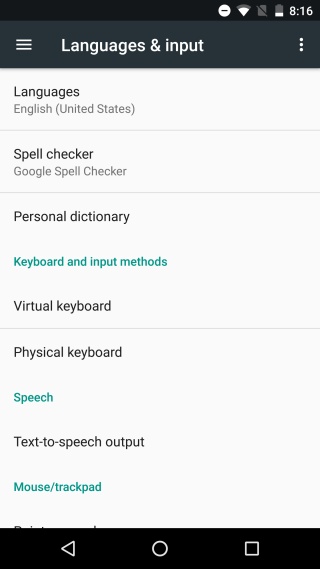
Open the Settings app and tap Languages & input. On the Languages & input screen, tap Languages. It should be the first option on the screen. Below it, you can see the default input language for your device.
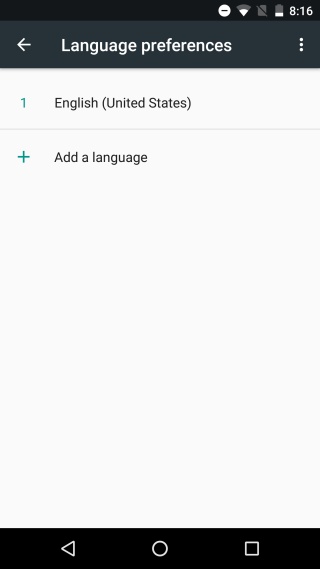
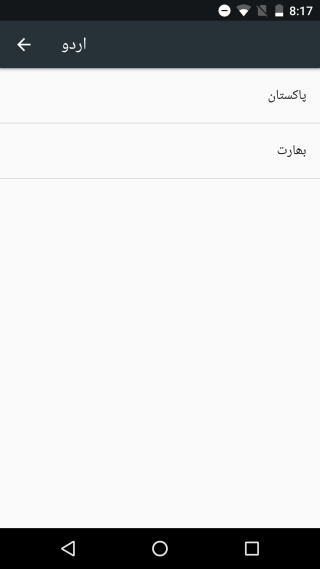
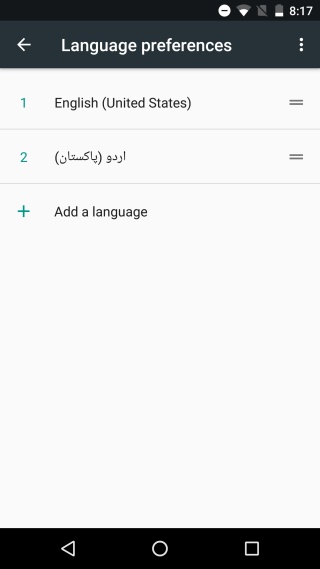
On the Language preferences screen, tap ‘Add a language’ and search for the language you want to add. Some languages might have different regional versions — for example, English has a US version and a UK version. When you select a language, you will be asked to choose a version if different regional versions are available.
Tap the version you want and the language will be added as the secondary input language on your device. This makes it easy to add multiple input languages without navigating deep into system menus each time you want to make a change.
How To Organize Languages
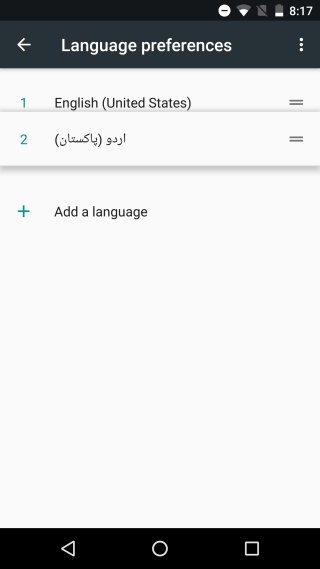
The language that appears at the very top of the Language preferences list is going to be your primary input language. When you open the messaging app and start typing a message, the keyboard layout will default to the language at the very top of this list. To change the order, simply drag & drop one language over the other to change the primary input language.
It is worth noting that the order you set here affects every app on your device that uses the system keyboard. If you frequently write in two languages, placing the one you use most at the top will save you time throughout the day.
How To Switch Between Multiple Input Languages
Open the Messages app or the Google Docs app to input text. The keyboard layout will be in your primary language. To switch input languages and move to your secondary language, tap the little globe button next to the space bar. Tap it again to return to the previous language. If you’ve configured three input languages, tapping the globe button a second time will switch you to it. You can use it to cycle through all the input languages you’ve added.


If you’ve got quite a few languages configured and don’t want to cycle through all of them, tap and hold the globe button. A prompt will appear asking you to select which language it is you want to type in. This is especially useful when you add multiple input languages for different scripts, such as Arabic, Chinese, or Hindi, where switching one at a time would be tedious.
According to Google’s official Gboard support documentation, you can add and manage multiple keyboard languages directly through the Gboard app settings as well, giving you an alternative route if the system settings approach doesn’t work for your device.
iOS has long supported multiple language input but Android is doing it better. In iOS, if you want to switch to a different language or insert an emoji, you have to do so by tapping the same button. In Android, input language switching and emoji access have their own separate buttons on the keyboard. This separation makes the experience far more fluid, especially for users who regularly add multiple input languages and need quick, uninterrupted access to both features.

how to get this done on Samsung note 5… i updated my phone to android 7 today… now unable to switch languages on keyboard…