Kill Or Close All Running Programs Quickly In Windows
When you install certain applications or software, they often ask you to close all running programs first. Closing all programs one by one can be a difficult task, especially if you have more than 10 programs running at the same time. Fortunately, there are tools designed specifically to handle this quickly and efficiently, saving you time and frustration.
What “Running Programs” Actually Means on Windows
Before diving into methods and tools, it helps to know exactly what Windows considers a “running program,” because not all processes are the same.
Windows runs four distinct types of processes at any given time:
- Open app windows — programs with a visible window on your desktop or taskbar, such as your browser, a document editor, or a media player.
- Background processes — apps that run without a visible window, such as cloud storage clients, update checkers, and communication tools.
- Startup apps — programs configured to launch automatically when Windows starts, which may or may not have a visible window.
- Windows services — low-level system components that handle core functions like networking, security, and hardware drivers.
Tools like SmartClose primarily deal with user-facing application windows, not every service or system process running in the background. That is an important distinction. When an installer asks you to “close all running programs,” it almost always means apps that could be locking files the installer needs to modify — not every background process on your PC.
With that in mind, avoid closing security software, sync clients that are mid-transfer, hardware drivers, or any core Windows process unless you know exactly what you are doing. Terminating the wrong process can cause system instability or data loss.
How to Close All Running Programs Without Extra Software
If you prefer to use built-in Windows tools rather than a third-party utility, you have several solid options. Here is the safest workflow to follow.
1. Save your work first
Before closing anything, save all open documents, browser tabs you want to keep, and any unsaved data. No method — built-in or third-party — can recover unsaved work after a program is closed.
2. Close apps from the taskbar or with Alt+F4
Right-click any open app on the taskbar and select Close window. Alternatively, click on an open window to bring it into focus and press Alt+F4 to close it. Repeat for each open application. This is the safest method because each app gets a chance to prompt you to save unsaved work before it closes.
3. Use Task Manager to close remaining programs
Press Ctrl+Shift+Esc to open Task Manager. Click the Name column to sort by type so that Apps appear at the top of the list. Select any app you want to close and click End task. Work through each app in the list until only system processes and services remain.
4. Sign out or restart for a truly clean slate
If you are preparing for a major installation or system update, signing out of Windows or restarting your PC is often the safest approach. A restart closes every user-facing application automatically and gives installers the cleanest possible environment to work in.
5. Command-line option (advanced users only)
Experienced users can use the command line to close all running applications silently. Some third-party utilities support a /NOUI switch that closes applications without displaying a user interface, making them suitable for scripts and automation. However, be aware that any command that force-closes applications will not give those apps a chance to save data. Use this approach only when you are certain no unsaved work is open, and understand that data loss is a real risk if you skip that check.
How SmartClose Helps You Close All Running Programs
This is where SmartClose comes in — it makes closing all programs a piece of cake. It not only closes all programs, but you can even restore all your programs too. You can take a snapshot before closing all running programs, and later restore them by using this software. This snapshot feature is particularly useful when you need to free up system resources temporarily without losing your workflow.
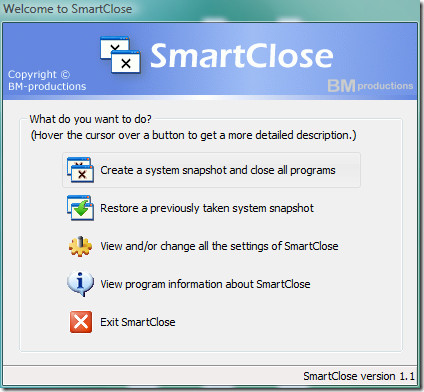
Here is exactly how to use SmartClose safely and effectively:
- Launch SmartClose — Open the application. The wizard interface will guide you through each step of the process.
- Choose to create a system snapshot — When prompted, select the option to save a snapshot of your current session. This records which programs are running so SmartClose can attempt to reopen them later.
- Review the list of open apps — SmartClose will display the applications and windows it has detected. Take a moment to look through this list before proceeding so you know exactly what will be closed.
- Exclude anything critical — Use the exclusions setting to protect programs you want to keep running, such as your antivirus or any app that is mid-process. Do not assume SmartClose will automatically protect every important background process.
- Run the close action — Confirm the action and let SmartClose close the listed applications. Most apps will close cleanly; some may prompt you to save unsaved work first before they close.
- Perform your installation or maintenance task — With your programs closed and a snapshot saved, carry out the task that required the clean environment.
- Restore from the saved snapshot — Once your task is complete, open SmartClose and use the restore function to relaunch your programs from the saved snapshot.
Important limitations to keep in mind: SmartClose can reopen your apps, but it cannot recover unsaved documents, web form entries, or the exact state each app was in when it was closed. Some programs may also prompt you for confirmation before closing, and a small number may refuse to close cleanly through SmartClose. Always save your work manually before running any close action.
Options and Settings to Close All Running Programs Your Way
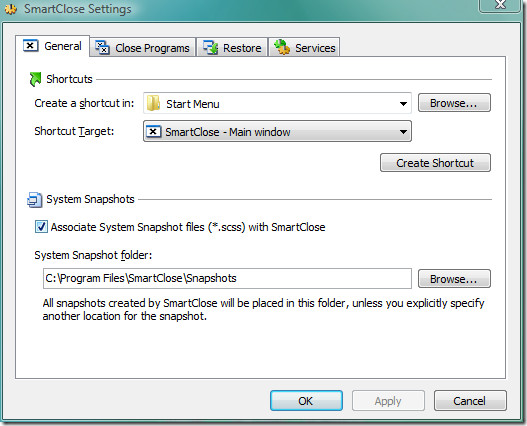
SmartClose has a number of options that can be easily changed. You can select the destination where you would like to save the system snapshots, among many other preferences. The settings panel lets you define exclusions — for example, you can tell SmartClose to leave your antivirus or firewall running even while it closes everything else. This level of control ensures that critical background processes are never accidentally terminated.
One thing worth noting is that SmartClose is a lightweight application. It does not run as a background service and only activates when you launch it. This means it has virtually no impact on your system’s performance during normal use. You can keep it installed without worrying about it consuming memory or CPU resources unnecessarily.
If you need to close programs silently or as part of an automated script, note that some alternative utilities document command-line switches such as /NOUI for running without a user interface. This is worth researching if you have a workflow that requires automation, though any silent close approach carries the same risk of data loss for unsaved work described throughout this guide.
If you are looking for a reliable tool to close all running programs quickly and later restore them without hassle, look no further than SmartClose. It is free to download, easy to use, and genuinely effective at streamlining the process of preparing your PC for installations, updates, or any task that requires a clean slate. Give it a try and see how much time it saves you on a daily basis. Enjoy!