How to Add Signature in Outlook for Office 365 in 2026
If you want to know how to add a signature in Outlook, you can do so on its web interface and on any of the Outlook apps. This includes the apps for your Windows or Mac computer and Apple or Android mobile devices. Outlook also supports multiple signatures. If you decide to create more than one signature, you can choose which one to use with a message when you’re composing it.
The email signature is a vital part of any business email as it displays professional acumen. Signatures also help you promote your brand, resume, or portfolio. As your personal info changes and your brand evolves, you may also want to know how to change your signature in Outlook or swap between multiple signatures.
In this quick guide, we will show you how to do all of the above. To get started, here’s a short video on how you can create a signature in Outlook for Office 365:
How to Add a Signature in Classic Outlook for Windows
Note: The steps below apply to classic Outlook for Windows (the traditional desktop app). If you are using new Outlook for Windows or Outlook on the web, the File > Options path does not exist in those versions — use the Settings gear menu instead. See the next section for those instructions.
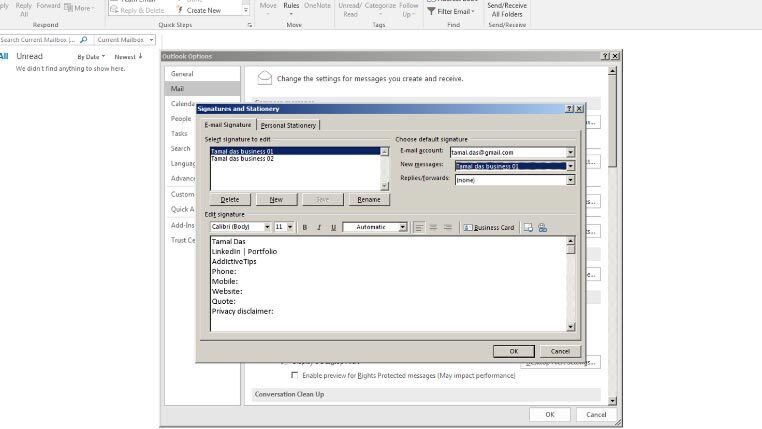
Open classic Outlook for Windows and go to File>Options. On the Options window, go to the Mail tab, and click the ‘Signatures’ button.

A new window will open. Click the ‘New’ button and give your signature a name. Keep it short and precise. If you have multiple email accounts configured with Outlook, use the ‘Email account’ dropdown to select the account you’re creating a signature for. These signatures are created on a per-account basis. Once the name has been created, enter the signature in the ‘Edit Signatures’ field below it.

In a classic Outlook signature, you can add text and format it any way you want, you can include a business card, photos, and hyperlinks. Keep it simple and if you can, avoid including images as some email services might block them from appearing and give your signature an unprofessional look, or they might just mark it as spam.

How to Add a Signature in Outlook on the Web, New Outlook, Mac, Android, and iPhone
The steps for creating a brand-new signature vary depending on which version of Outlook you use. Here is how to do it on each platform.
Outlook on the Web and New Outlook for Windows
- Open Outlook in your browser or open the new Outlook for Windows app.
- Click the Settings gear icon in the top-right corner.
- Select View all Outlook settings at the bottom of the Settings panel.
- Go to Mail (or Account in some versions) and then select Compose and reply (or Signatures).
- Click New signature, give it a name, and type or paste your signature content in the editor.
- Under Select default signatures, use the New messages dropdown to choose this signature for new emails, and use the Replies/forwards dropdown if you want it to appear on replies too.
- Click Save when you are done.
Outlook for Mac
- Open the Outlook app on your Mac.
- In the menu bar, click Outlook and then select Settings (or Preferences on older versions).
- Click Signatures.
- Use the account dropdown at the top to choose which email account the signature is for.
- Click the + (plus) button to create a new signature, give it a name, and enter your signature content in the editor panel.
- Use the Default signatures options to assign it to new messages and replies/forwards for that account.
- Close the Signatures window — changes are saved automatically.
Android and iPhone
- Open the Outlook app and tap your profile icon or initials in the top-left corner.
- Tap the Settings (gear) icon at the bottom of the navigation pane.
- Scroll to the Email section and tap Signature.
- Clear the existing placeholder text and type in your signature.
- Tap the back arrow or Done to save.
Keep in mind that Outlook on Android and iPhone supports plain-text signatures only. Formatting, images, and hyperlinks that work on desktop and web are not available in the mobile app.
How to Add a Signature in Outlook to a New Message
Outlook will automatically add a signature to a new message, but only if you have assigned a default signature for that account and message type. To set this up in classic Outlook for Windows, go to File > Options > Mail > Signatures. In the Choose default signature section, use the New messages dropdown to select the signature you want applied automatically to new emails, and use the Replies/forwards dropdown to assign a signature (or none) for replies and forwarded messages. Each email account has its own set of default dropdowns, so if you have multiple accounts, configure each one separately. In new Outlook and Outlook on the web, the equivalent default-selection step is in Settings > Mail > Compose and reply > Select default signatures — set your preferred signature for new messages and for replies/forwards there, then click Save.
If no default signature is assigned, no signature will appear automatically. To add one manually while composing, click the Signature dropdown on the Message tab (in classic Outlook) or the signature icon in the compose toolbar (in new Outlook/web), and select the signature you want to insert. If a signature was inserted automatically and you want to switch it or remove it, click the same Signature dropdown in the compose window, choose a different signature from the list, or select None to remove it entirely. If you click the ‘Signatures’ option, you will be taken to Outlook’s signature composer where you can edit or continue to create multiple signatures for different occasions.

How to Change Signature in Outlook:
Windows App
To edit existing Outlook email signatures on the Windows app:
- Open Outlook and click on File on the ribbon menu.
- From the left-side navigation pane, choose Options.
- On the Outlook Options screen, click on Mail.
- Click on Signatures to open the Signatures and Stationery dialog box.
- Select an existing signature to edit and click on Save.
- Press Ok to close out the settings screens.
Web Browser
Here’s how you can modify an existing signature from the Office 365 Outlook app:
- Open online Outlook in a web browser.
- Click Settings (cogwheel icon) in the top-right corner of Outlook.
- Select View all Outlook settings located at the bottom of the Settings list.
- Navigate to Compose and reply.
- Select a signature from the drop-down menu to edit it.
- Click on Save to finish the process.
macOS App
You can also change the signature from a Mac computer by trying these steps:
- Start the Outlook app on your Mac computer.
- In the Apple menu, click on Outlook and then select Preferences.
- Outlook Preferences screen will open. You need to expand this list by clicking on Show All.
- Now, click on Signatures under the email section.
- The Signatures dialog box of Outlook will appear.
- The Signature name section will display all the saved signatures.
- Pick a signature to edit.
- Finally, click on the floppy disk save icon located on the top panel of the Signature screen to save your work.
Android App
Here’s how you can do this on an Android smartphone:
- Open the Outlook app and tap on your avatar or profile picture located beside the inbox icon.
- A navigation pane will draw from the left.
- Look at the bottom of this menu to find a cogwheel icon.
- Tap on it. It’s the Settings of Outlook in Android.
- In the Email section, you’ll see Signature. Tap on that.
- You can remove the existing signature text and type in the new one.
Outlook for Android doesn’t have complex or multiple signatures. Instead, it only lets you add simple texts as an email signature. To get around this, you can copy-paste text that has a hyperlink from another text editor on your Android phone.
iPhone App
To amend the existing email signature of Outlook from your iPhone:
- Open the iPhone app drawer and find the Outlook app.
- Tap on it to open and then tap on your profile picture or initials.
- The left-side menu bar of Outlook will open.
- At the bottom, you’ll find the Settings or gear icon.
- Tap on it to access Mail settings.
- Inside the Mail settings, you’ll see the Signature option.
- Tap on that and make the changes as you need.
If Your Outlook Signature Is Not Showing or Won’t Insert
If your signature is not appearing automatically or refuses to insert, one of these common issues is usually the cause. Work through this checklist before assuming something is broken:
- Check the sending account. Signatures in Outlook are tied to a specific email account. Make sure the signature you created is assigned to the same account you are sending from. If you switch accounts while composing, the signature may not carry over.
- Confirm a default is selected. A signature will not appear automatically unless you have explicitly chosen it in the New messages or Replies/forwards default dropdowns. Go back into Signatures settings and verify both dropdowns are set correctly for each account.
- Save settings before closing (new Outlook and web). In new Outlook for Windows and Outlook on the web, changes are not applied until you click Save. If you closed settings without saving, your signature setup was not recorded.
- Pick the right signature in the compose window. If you have multiple signatures, Outlook inserts the default one — but you can click the Signature button in the compose toolbar to switch to a different one from your list.
- Plain-text mode strips formatting. If you or your recipient is using plain-text email mode, all rich formatting, images, hyperlinks, and business cards will be stripped from the signature. Only plain text will survive.
- Mobile signatures are more limited. Outlook on Android and iPhone only supports simple text signatures. Images, formatted HTML, and multiple signatures are not available in the mobile app — this is by design, not a bug.
Who can see my email signature?
Signatures will be visible to your recipients regardless of what platform (desktop or mobile), or which app (Gmail, Thunderbird, Mail on macOS, Mail on Windows 10, etc.) they view the message on. According to Microsoft’s official Outlook support documentation, knowing how to add a signature in Outlook correctly ensures your branding appears consistently across all recipients’ email clients.
Outlook’s signatures will replace any email signatures that you’ve set up on the web version of an email service. For example, you can create an email signature in Gmail but, if you connect your Gmail account to Outlook, and compose and send a message from Outlook, the signature that you created in Gmail will not be used.
Instead, Outlook will use the signature that’s been created in the Outlook app. If no signature has been created in Outlook, the message will be sent without one. For more detailed instructions on setting up an email signature in Outlook, you can explore additional configuration options and best practices.
