Why Is My Printer Offline? Common Causes and Fixes
An offline printer is a device that has been installed on your system, but that is currently ‘off’ as far as the OS is concerned. This may point to a problem with how a printer was installed, the printer itself, or the app you’re using to print from.
Below, we’ll answer the question, “Why is my printer offline?”, and provide proven solutions for making it work again. This includes both built-in Windows options and tools from HP, like the company’s HP app (formerly HP Smart).
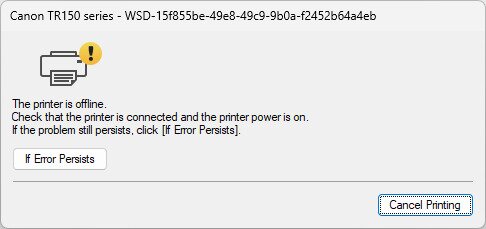
What Does it Mean When a Printer is Offline?
An “offline printer” is similar to any device that goes offline: it can’t communicate over the network. A printer can also be considered offline if it can’t communicate with the computer it’s physically connected to, like if it’s attached over USB.
In other words, a printer goes offline when it’s unreachable by a computer or other device that needs to communicate with it.
Why Is My Printer Offline?
Several possible causes are behind an offline printer. Understanding why is my printer offline in the first place is the key to choosing the right fix:
- No network connection: A printer is offline if it can’t connect to the router. The router is how the printer communicates with other local devices wirelessly. If there are issues with that connection, the printer will not be discoverable by phones, tablets, or computers that need to print to it. This can happen if there’s wireless interference, a cable is disconnected, or the network is too congested.
- Bad drivers: Print drivers are necessary for a computer or other device to translate commands into signals the printer can interpret. Printer drivers must be installed, or the printer will appear offline. The drivers can also become corrupted or conflict with other software.
- Wrong settings: If the printer is set up manually, it’s possible that it wasn’t configured correctly; maybe it’s using the wrong virtual port or is set up to be used offline with the “Use Printer Offline” option.
- Power issues: An unplugged printer is offline for obvious reasons. It must have power before it can be reached by devices that intend to print to it. A power outage or a bad cable or outlet can also be to blame for the offline printer.
- Software conflicts: Unfortunately quite common are software issues that make a printer go offline. Maybe Windows installed an update that broke the driver, or a VPN is preventing access to local devices, or a printer-related app was installed that deletes the printer from the computer.
- Hardware issues: Even if everything else is working correctly, the printer itself might be experiencing problems. The printer might appear offline if there’s a paper jam, low or missing ink, or a physical malfunction.
Basic Checks for an Offline Printer
Before diving into advanced fixes, run through these quick checks. Many users find that why is my printer offline comes down to something simple — a loose cable, a paper jam, or a printer that hasn’t fully powered on yet.
- Print a test page. You can do this directly from a printer by pressing or holding down a button. Consult your printer’s manual to see how you can print a test page.
- Make sure all slots on the printer are closed and it is in the ‘ready’ state.
- Ensure that there are no blinking lights or error messages on the printer.
- Make sure the printer is loaded with paper and that there is no paper jam. The smallest bit of paper can cause the printer to not work.
- Make sure the printer is connected securely to the computer. Change the data cable out for a new one and check if the printer comes online.
- If you’re using an older printer, connect it to a USB 2.0 port, not a USB 3.0 port. Check out how you can use a legacy printer on a new system.
How to Fix a Printer that is Offline
If all the above check out and your printer still appears offline, try the following fixes. Each solution below targets a specific reason why is my printer offline, so work through them in order until the issue is resolved.
0. Quick: Put it “Online” in Windows
Windows can be set to use a device offline. Clear that setting and try again:
- Go to Start > Settings > Bluetooth & devices > Printers and scanners, select your printer, then choose Open print queue.
- In the queue window, open the Printer menu and make sure Use Printer Offline is unchecked. Also clear Pause Printing if enabled.
1. Run the printer troubleshooter
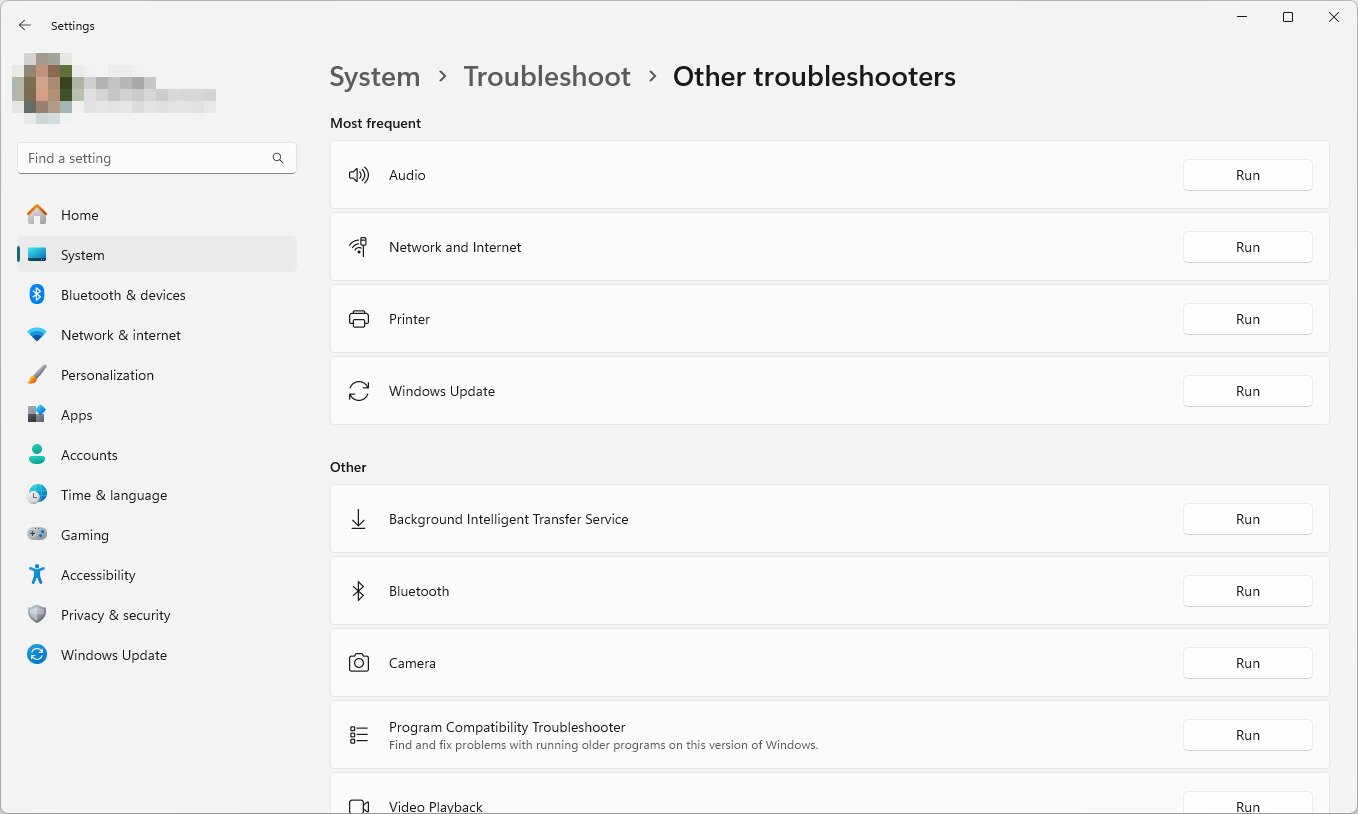
Windows has a built-in troubleshooter for printers. Run it to attempt to resolve problems with the printer.
- Open Settings by pressing Win+I.
- Select System (Windows 11) or Update & Security (Windows 10).
- Scroll down and choose Troubleshoot.
- Select Other troubleshooters (Windows 11) or Additional troubleshooters (Windows 10).
- Run the printer troubleshooter and apply any fixes that Windows recommends.
Tip (Windows 11): You can also open Get Help and run the automated printer troubleshooter from there.
2. Use the HP app’s Diagnose and Fix tool
For HP-branded printers, the company offers an app that can fix “offline” and other issues pretty quickly. If you’re wondering why is my printer offline on an HP device specifically, this tool is the fastest place to start.
- Download HP Smart on your computer and then open it.
Note: The app runs on Windows 11/10 and macOS 12.0 or later. - Add your printer to the app if it isn’t there already.
- Choose your printer from the list and then select Diagnose and Fix. If you don’t see that option, select it from the Printers menu or scroll to Diagnostics > Diagnose and Fix.
- Select Start and follow the on-screen steps to let the tool correct any issues it finds.
Important change: HP’s legacy “Print and Scan Doctor” utility has been retired. Use the HP app’s Diagnose and Fix instead.
3. Use Virtual Assistant in the HP app
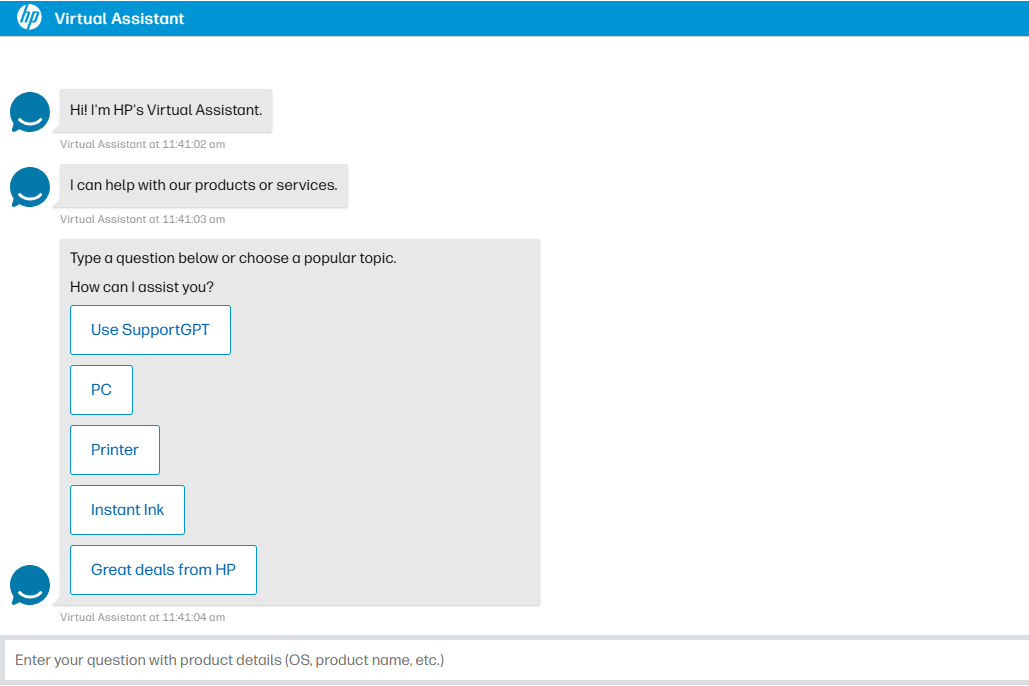
HP Smart also has a virtual assistant built-in that can help you troubleshoot offline printers and other related problems. The nice thing about this app is that you don’t have to know how things work with your particular printer; it identifies the model automatically.
- Open the HP app and select Help & Support on the Home page.
- Choose Chat with Virtual Assistant.
- Select Printer and follow the prompts. Or choose Use SupportGPT and type a short description like printer offline.
4. Reinstall the printer
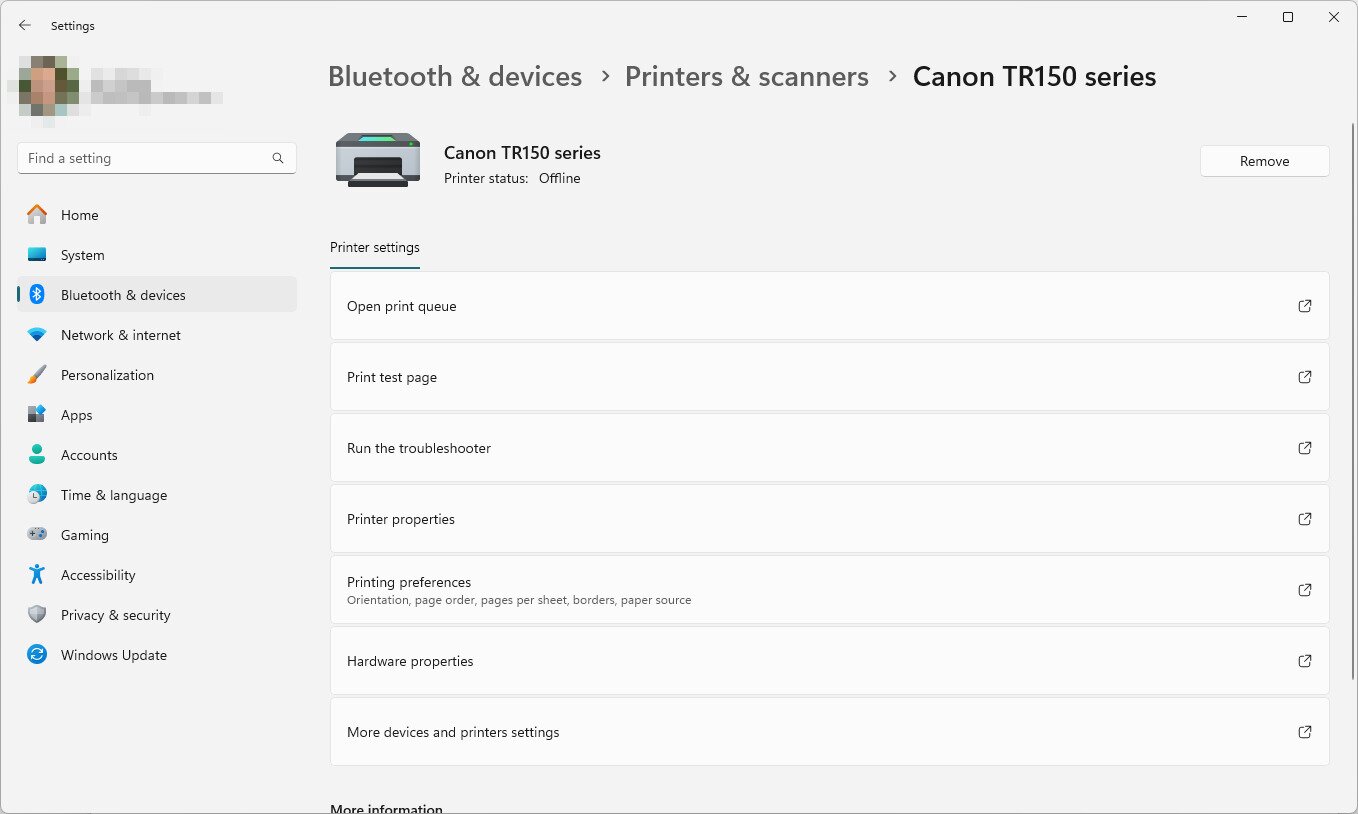
Often the easiest way to fix an offline printer is to uninstall and reinstall it. You should do this if you suspect something might have gone wrong during installation, if you’ve recently changed the cartridge on the printer, or if you’ve changed the cable connecting the printer to the system.
1. Open Control Panel (type control into Start).
2. Go to Hardware and Sound > Devices and Printers.
3. Navigate to Printers and Scanners, select your printer, and click Remove. (Windows 10: right-click the offline printer > Remove device.)
4. Once removed, disconnect the printer from your computer.
5. Turn the printer off and disconnect it from the power source.
6. Wait 5–10 minutes.
7. Plug the printer in and allow it to warm up.
8. Connect the printer to your computer.
9. Windows will install drivers for it (or add it from Printers and scanners > Add device).
10. Print a test page.
4.5 Set the right default printer
On shared PCs, Windows can change your default printer. If your jobs keep going to the wrong device (and show as offline), set your real printer as default and turn off automatic switching:
- Go to Settings > Bluetooth & devices > Printers & scanners.
- Select your printer > Set as default.
- Back out one level and turn Let Windows manage my default printer to Off.
5. Check the Printer Port
If your printer is going offline and none of the above steps have helped, the printer port configured in Windows may no longer match how the printer is actually connected — this is especially common with network printers whose IP address has changed.
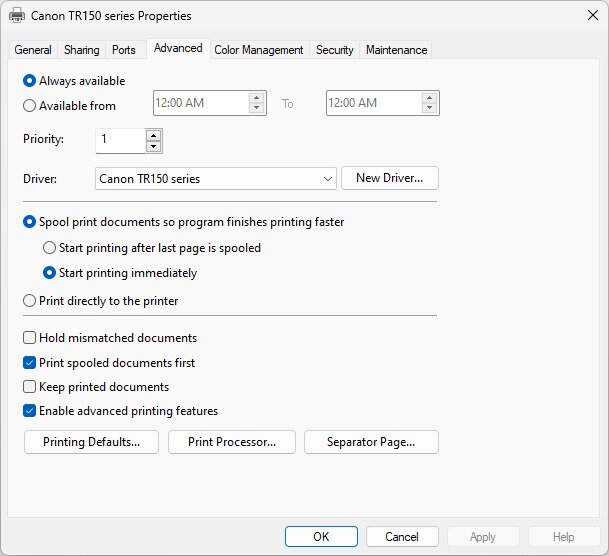
Note: You may notice an Always available option under the Advanced tab in printer properties. This setting controls the hours during which a shared print queue accepts jobs and is primarily relevant to shared printers on a business network or print server — it does not cause a standard home or office printer to go offline and is not the fix for most users.
To check and correct the printer port:
- Open Settings > Bluetooth & devices > Printers & scanners (or Control Panel > Hardware and Sound > Devices and Printers).
- Right-click your printer and select Printer properties.
- Go to the Ports tab and look at the checked port. For a network printer, the port name typically shows the printer’s IP address (for example, IP_192.168.1.50).
- Print a network status page directly from the printer (consult your manual for the button combination) and note the printer’s current IP address.
- If the IP address on the Ports tab does not match the printer’s current IP, click Add Port, choose Standard TCP/IP Port, and enter the printer’s current IP address to create a new port. Select the new port and click OK.
- Try printing a test page to confirm the printer is now online.
6. Restart (and clear) the Print Spooler service
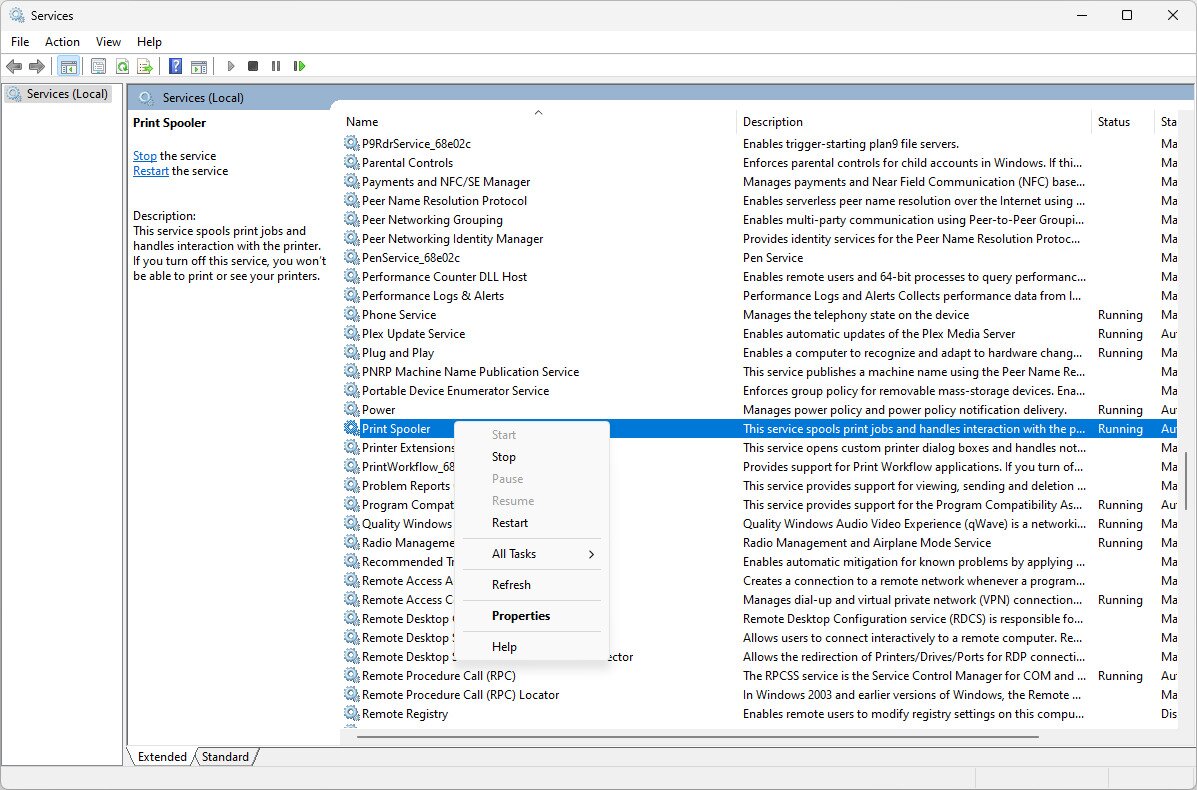
The Print Spooler stores jobs until they’re printed. If it’s stuck, your printer can look offline. Restarting (and, if needed, clearing) the spooler often resolves it.
Restart the service:
- From the taskbar, search Services and open it.
- Right-click Print Spooler and choose Restart.
- Try printing again.
Clear stuck jobs (advanced):
- In Services, right-click Print Spooler > Stop.
- Open File Explorer and go to
C:\Windows\System32\spool\PRINTERS(continue if prompted). - Delete all files in that folder (this only clears the queue, not your drivers).
- Back in Services, right-click Print Spooler > Start.
Command-line shortcut: Open an elevated Command Prompt and run: net stop spooler, then del %systemroot%\System32\spool\printers\* /Q, then net start spooler.
7. Restart your computer
We saved this one for further down the list because it’s a hassle to close all the open programs and reboot. But, often, a simple restart is the way out of strange tech troubles like this one.
- Press Ctrl+Alt+Del.
- Select the power button in the corner of the screen.
- Choose Restart.
8. Find a better driver
This can be a tedious process, but it’s the most likely fix for an offline printer if none of the above have helped. Sometimes, the driver provided by Windows isn’t enough to make the printer go back online, maybe because it’s corrupt. Updating to the manufacturer’s official driver is one of the most reliable answers to why is my printer offline when everything else seems fine.
1. Locate the manufacturer of the printer. This should be on the printer somewhere. You might find that you have a Brother printer, for example, or a printer from Canon.
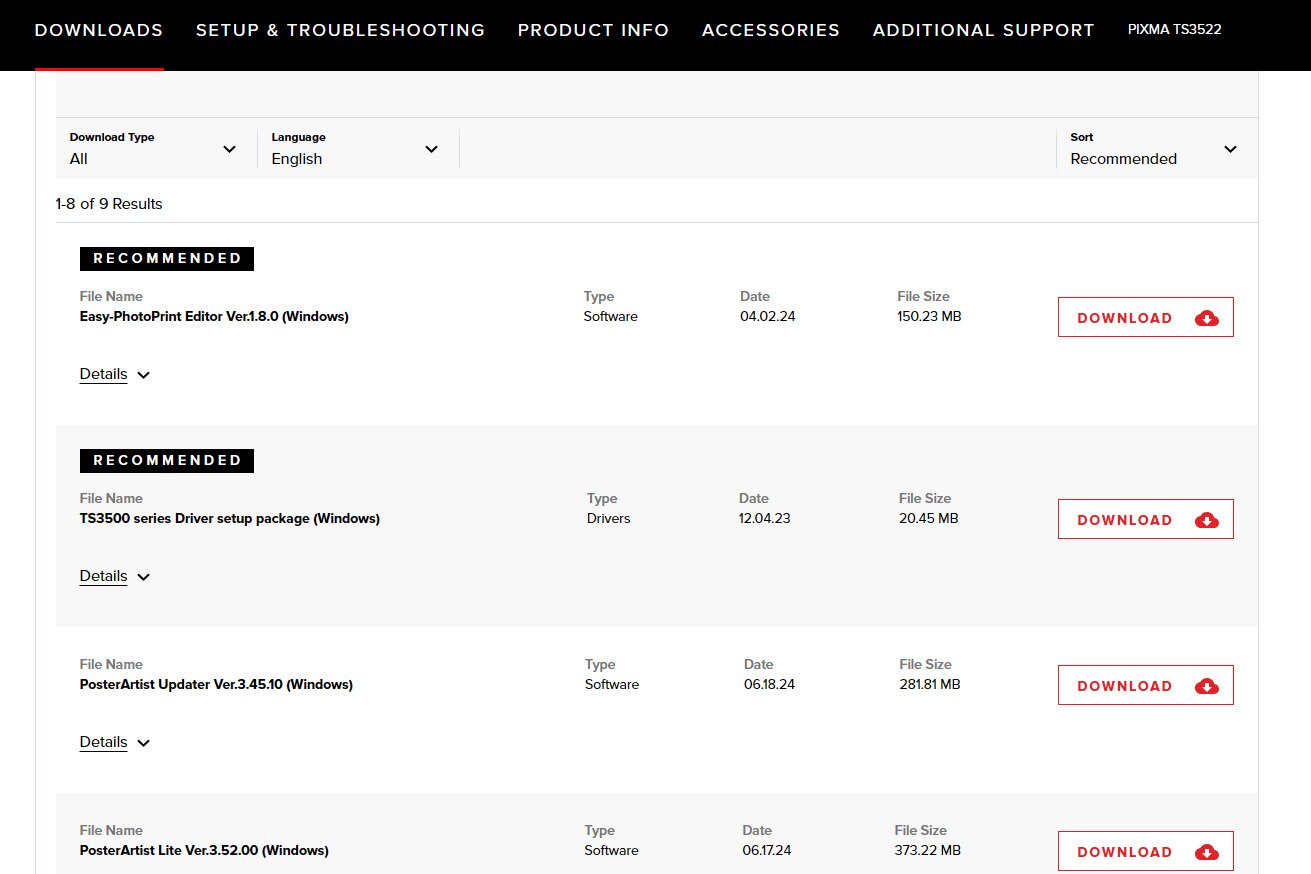
2. Search the web for your printer manufacturer’s website. For instance, if your Brother printer is offline, searching brother printer drivers will land you on the Brother website. The same is true for a Canon printer that’s offline.
3. On their website, use the search bar to find your specific printer. It’s identified by its model number, which is listed somewhere on the printer, likely next to the brand name.
4. Download the driver and open the utility to install the latest driver.
9. Update firmware or reset printing (Mac)
Mac users have a different troubleshooting path when a printer keeps showing as offline. If you’re on a Mac and asking why is my printer offline, work through these steps in order:
- Make sure your printer and your Mac are connected to the same Wi-Fi network. Check the Wi-Fi name shown on the printer’s display or print a network status page to confirm.
- Check that your printer’s firmware is up to date. Use the vendor app (such as HP Smart) or visit the manufacturer’s support page, search for your model, and download and install any available firmware update.
- On your Mac, go to System Settings > Printers & Scanners, select your printer, and click the minus (–) button to remove it.
- To do a deeper reset, Control-click anywhere in the printers list and choose Reset printing system… This removes all printers and queues so you can start fresh.
- Power-cycle your devices in this order: turn off your router first and wait 30 seconds, then turn it back on and wait 2–3 minutes for it to fully reconnect. Next, power-cycle your printer. Finally, restart your Mac.
- Go back to System Settings > Printers & Scanners and click Add Printer, Scanner or Fax… to re-add the printer. If your printer supports AirPrint, add it as an AirPrint device — this is the recommended option for most modern printers unless the manufacturer’s documentation specifically instructs you to use a different driver.
- Print a test page to confirm the printer is online.
10. Network checks for Wi-Fi printers
A wireless printer that shows as offline is often a network communication problem rather than a printer problem. Work through this diagnostic sequence to identify exactly what has broken down:
- Print or view the printer’s network status page. Most printers let you print this directly from the control panel — consult your manual for the exact steps. The page shows the printer’s current IP address and which Wi-Fi network (SSID) it is connected to.
- Confirm the printer and your PC are on the same network. Compare the SSID shown on the printer’s network page (or its display panel) with the Wi-Fi network your computer is connected to. They must match exactly — including whether you are using the 2.4 GHz or 5 GHz band, if your router broadcasts them separately.
- Verify the printer’s IP address. Note the IP address from the network status page and compare it to the port configured in Windows (see step 5 above). If they differ, the printer has picked up a new IP and Windows can no longer reach it.
- Reconnect the printer to Wi-Fi if the network or password changed. If you recently changed your router’s SSID or password, or replaced the router entirely, your printer is still trying to connect to the old network. Use the printer’s control panel or the manufacturer’s app to run wireless setup again and reconnect to the correct network with the new credentials.
- Restart your devices in the correct order. Turn off your router and wait 30 seconds. Turn the router back on and wait 2–3 minutes for it to fully establish a connection. Then power-cycle your printer. Finally, restart your computer. This order ensures each device finds a stable network before the next one tries to connect.
- Reserve the printer’s IP address in your router (DHCP reservation). If the printer repeatedly disappears after router restarts or reconnects, the root cause is usually that the router assigns it a different IP address each time. Log in to your router’s admin page, find the DHCP reservation or static IP section, and assign your printer’s MAC address a fixed IP. Then re-add the printer in Windows using that IP address (Settings > Bluetooth & devices > Printers & scanners > Add device > Add manually) to ensure Windows always knows exactly where to find it.
Why Is My Printer Offline Again and Again?
If your printer goes offline once and a single fix resolves it, you’re done. But if you keep asking yourself “why is my printer offline every few days” — especially after reboots, router restarts, or periods of inactivity — the cause is almost always one of a small number of recurring issues. Here’s what to look for and how to stop it happening again.
Dynamic IP changes
This is the most common cause of a printer that repeatedly goes offline on a home or small office network. By default, routers assign IP addresses dynamically (DHCP), which means your printer’s IP address can change every time the router restarts or the printer reconnects.
When that happens, Windows is still pointing to the old IP address and can’t find the printer — which is exactly why is my printer offline after a router reboot.
Fix: Log in to your router’s admin interface and set up a DHCP reservation for your printer. This ties your printer’s MAC address to a fixed IP so the address never changes. Then re-add the printer in Windows using that IP address. You only need to do this once.
Weak Wi-Fi signal
A printer placed far from the router, behind thick walls, or near sources of interference (microwaves, cordless phones, neighboring networks) may connect intermittently. The printer appears online when the signal is strong and drops offline when it weakens.
Fix: Move the printer closer to the router, or use a Wi-Fi extender or mesh node nearby. If possible, connect the printer via Ethernet instead of Wi-Fi for a more reliable connection.
Printer sleep and deep sleep modes
Many modern printers enter a sleep or deep sleep state after a period of inactivity to save energy. In deep sleep, some printers drop their network connection entirely and take time to wake up when a print job arrives — long enough that Windows marks them as offline.
Fix: Check your printer’s settings menu or the manufacturer’s app for sleep timer and deep sleep options. Increasing the idle time before sleep, or disabling deep sleep if your model supports it, can prevent the printer from dropping off the network. Consult your printer’s manual or the manufacturer’s support site for model-specific instructions.
Router or SSID changes
If you replace your router, change your Wi-Fi network name (SSID), or update your Wi-Fi password, your printer will keep trying to connect to the old network and will appear permanently offline until you reconnect it.
Fix: Run the wireless setup process on the printer again — either from the printer’s control panel or through the manufacturer’s app — and connect it to the new network with the updated credentials.
Firmware bugs
Some printer models have known firmware bugs that cause repeated offline or connectivity issues. Manufacturers typically address these through firmware updates. If you find yourself repeatedly asking why is my printer offline after it was working fine, a firmware bug may be the culprit.
Fix: Visit the manufacturer’s support website, find your printer model, and check whether a firmware update is available. Install it and monitor whether the disconnections stop. For HP printers, you can also check for firmware updates through the HP app.
11. Contact manufacturer support
If you’ve worked through every step above and your printer is still offline, this could be a hardware failure or a bug in the driver — things that your printer manufacturer can address directly.
Don’t worry, though. Depending on when you bought your printer, repairs or even a replacement might be covered by your warranty.
For HP printers, use the HP app or visit the HP Printer Support website. You’ll likely need your printer’s serial number (on a label at the back or inside the access door).
Other brands like Canon and Epson have similar support portals, live chat, and phone support. When contacting support, be ready to describe the steps you’ve already tried — this will help the technician understand why is my printer offline and get to a solution faster.
