What Is Firmware? Firmware Definition (Meaning) in Computers
Understanding what is firmware can save you a lot of confusion whenever you try upgrading your PC or building one from scratch. Firmware comes preinstalled on your hardware by the manufacturer, but during a PC build or upgrade, you may sometimes need to check or update the motherboard BIOS/UEFI, SSD, GPU, or peripheral firmware to ensure everything runs smoothly.
While firmware is something that has been around for quite some time, there are users that have no idea what is firmware exactly, and what purpose it serves.
That’s precisely why we’ve taken the liberty to write this article, to explain in greater detail what firmware is, what does it do, and why it is important.
What Is Firmware, And What Does It Do?
Firmware, also known as software for hardware, is a basic program that comes embedded within hardware, providing low-level control over them.
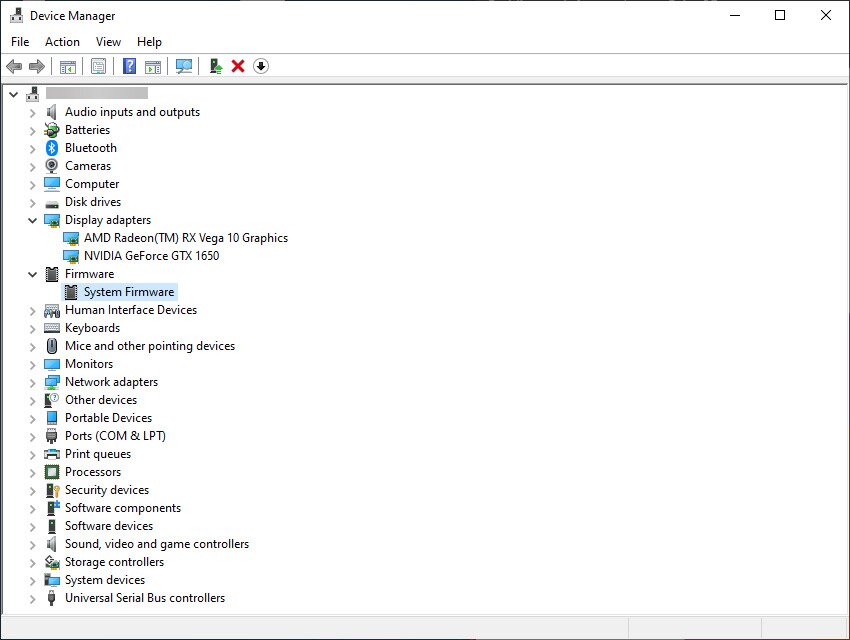
In a sense, a device’s firmware can be considered a primitive form of an operating system.
It usually acts as an interface, allowing for a more standardized operating environment between the hardware associated with it, and other third-party software.
What Devices Come With Firmware?
Pretty much any device imaginable can have firmware installed, from components such as a PC’s GPU to peripherals such as mice and keyboards.
More so, firmware isn’t limited just to PC components and peripherals, since pretty much any type of hardware comes with firmware pre-installed, such as television remotes. Once you understand what is firmware and how it operates, it becomes clear why virtually every electronic device relies on it.
Firmware vs Drivers: What’s The Difference?

How do firmware and drivers differ in terms of their build?
Firmware is a basic program embedded within a piece of hardware that enables a device to perform its duties without the need of installing additional software.
On the other hand, a device driver is a more complex type of software that allows different hardware components to interact with each other.
How do firmware and drivers differ in terms of their update process?
One key difference between firmware and drivers is the way that they are updated.
On one hand, firmware is rarely updated and usually involves complex processes such as specialized standalone applications, custom boot mechanisms, and more.
On the other hand, driver updates are more often released since they need to keep up with the everchanging code of the PC’s OS.
Additionally, obtaining driver updates is much easier, and there are also plenty of third-party tools available that serve that specific purpose.
Where is firmware stored vs where are drivers stored?
In short, firmware is stored on its device’s memory, while a driver is usually stored inside the PC’s OS, on the hard drive.
Both can be rewritten or deleted, although this should never be done if you don’t have the necessary experience, or if you don’t have a way to provide a backup.
What Is Firmware vs Software vs Operating System?
One of the most common points of confusion is understanding how firmware differs from software and the operating system. Here is a plain-English breakdown of how they relate to each other.
Firmware is the low-level code embedded directly into a device’s memory by the manufacturer. It lives on the device itself — think of the firmware inside your router, printer, or motherboard. It loads before anything else and handles the most fundamental hardware operations. Users rarely interact with it directly.
The operating system — Windows, macOS, Android, iOS — loads after the firmware has done its job. The OS manages hardware resources, runs background services, and provides the environment that applications need to function. Without firmware initializing the hardware first, the OS would have nothing to run on.
Application software — apps like Google Chrome, Microsoft Word, or a game — runs on top of the operating system and handles specific user tasks. Apps depend on the OS to communicate with hardware; they have no direct relationship with firmware.
A simple way to think about what is firmware in relation to these layers: firmware wakes the hardware up, the OS takes control and manages resources, and apps run on top of the OS to get things done for the user. Each layer depends on the one beneath it.
What Are The Different Types of Firmware?
BIOS Firmware
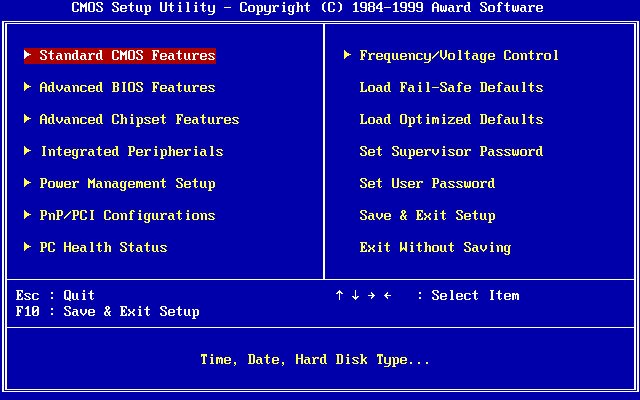
The BIOS (Basic Input/Output System) is one type of boot firmware found on older PCs. Every time you boot a BIOS-based machine, the firmware initializes your hardware, performs startup checks to ensure all components are working correctly, and then hands off control to the bootloader, which loads the operating system stored on your drive.
The BIOS has been a reliable staple for all PCs for quite a few years, but it is slowly becoming outdated since hardware has evolved a lot in the past 20 years. For example, BIOS still uses 16-bit code while pretty much every single consumer-grade PC and laptop runs 32-bit and 64-bit code.
EFI/UEFI Firmware
UEFI (Unified Extensible Firmware Interface) — sometimes referred to as EFI (Extensible Firmware Interface) — is the modern replacement for BIOS and is now the standard on most Windows PCs. It is important to understand that BIOS and UEFI are alternatives to each other, not steps in the same boot sequence. Your PC uses one or the other: UEFI on modern systems, legacy BIOS on older ones.
When a UEFI-based PC boots, the firmware initializes hardware and performs startup checks, then reads boot entries from the EFI System Partition (ESP) on your drive, and finally hands off control to the bootloader and operating system. This sequence is faster and more flexible than the legacy BIOS process.
One major advantage UEFI has over BIOS is the Secure Boot feature, which ensures your PC only loads software that is trusted and signed by the manufacturer, helping protect against malicious code running at startup.
Network and Router Firmware
Your home router, network switch, and modem all run firmware that controls how they manage traffic, apply security rules, and connect devices to the internet. Router manufacturers such as Netgear, ASUS, and TP-Link regularly release firmware updates to patch security vulnerabilities and improve performance. This is some of the most important firmware to keep current, since routers are always exposed to the internet.
Storage Firmware
SSDs and traditional hard drives contain their own onboard firmware that manages how data is read, written, and cached. SSD firmware updates can improve performance, fix compatibility issues, and sometimes resolve data integrity bugs. Manufacturers like Samsung, Western Digital, and Crucial provide dedicated utilities to check and update drive firmware.
Peripheral Firmware
Keyboards, mice, monitors, printers, and webcams all ship with firmware that controls their core behavior. A gaming mouse, for example, uses firmware to manage its sensor polling rate and button mapping at a hardware level, independent of any driver software. Manufacturers often release peripheral firmware updates to fix bugs or add new features.
Embedded Firmware
Smart TVs, smartphones, home appliances, medical devices, and IoT gadgets like smart thermostats and security cameras all run embedded firmware. This firmware is tightly integrated with the hardware and is what makes these devices functional out of the box. On smartphones, for instance, the baseband firmware controls cellular radio communication separately from the Android or iOS operating system running above it.
What Is Firmware Update: How to Check
How to check for firmware version
As mentioned earlier, firmware can also be updated, and if you know your BIOS version, it becomes a lot easier to find the latest version for the firmware running your devices. Knowing what is firmware and how to identify its version is the first step toward keeping your hardware secure and performing well.
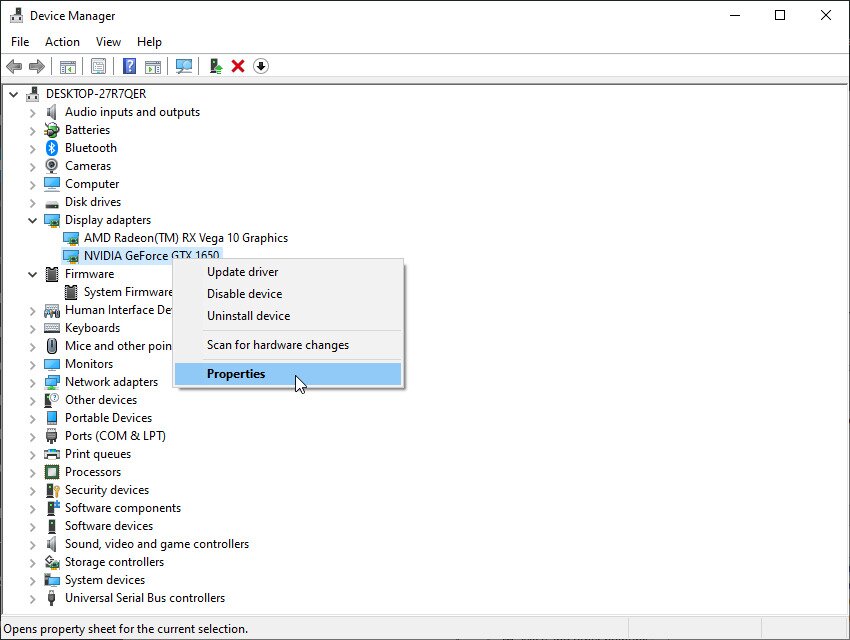
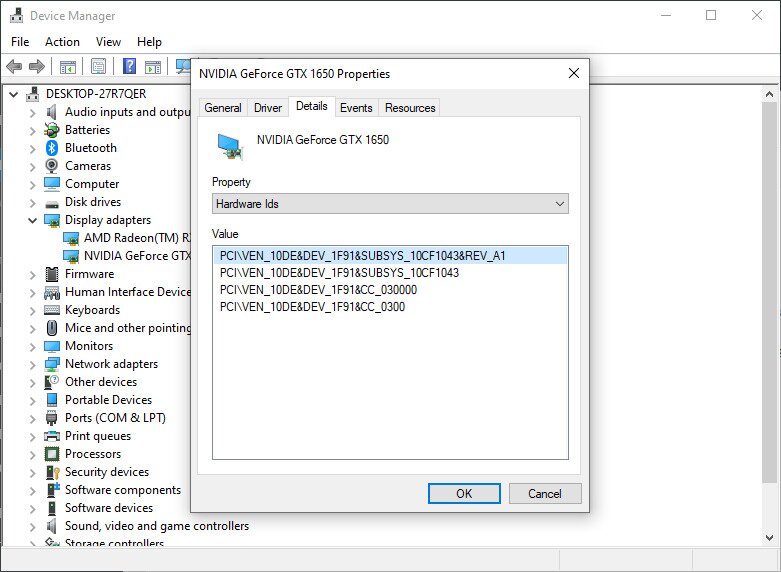
Here’s how you can check for device firmware:
- Press Windows + X
- Select the Device Manager from the Power User menu
- Right-click on the desired device driver, and click Properties

- Go to the Details tab and select the Property drop-down menu
- Click on Hardware Ids
- The firmware version will be located in the Value table

How to update firmware?
Keeping firmware up to date is one of the most important — and most overlooked — maintenance tasks for any device. Firmware updates can deliver security patches that close vulnerabilities attackers could exploit, bug fixes that resolve crashes or compatibility problems, performance improvements, and entirely new features.
For internet-connected devices like routers, staying current with firmware is especially critical since they are constantly exposed to potential threats. The Cybersecurity and Infrastructure Security Agency (CISA) recommends keeping all device firmware updated as a core part of network security hygiene.
Common firmware update methods
- Automatic updates: Some devices, including many smartphones and smart home gadgets, can download and install firmware updates automatically in the background with little or no user intervention.
- Over-the-air (OTA) updates: Common on phones, tablets, and routers, OTA updates are pushed directly from the manufacturer’s servers to your device over your internet connection. You typically just confirm the update in a settings menu.
- Vendor utilities: Many hardware manufacturers provide dedicated desktop applications — such as Samsung Magician for SSDs or ASUS GPU Tweak for graphics cards — that detect your hardware, check for available firmware, and walk you through the update process.
- Admin console uploads: Routers, network switches, and similar devices are usually updated through their web-based admin interface. You download the firmware file from the manufacturer’s website and upload it directly through the device’s settings page.
- Manual USB or media flashing: For motherboard BIOS/UEFI updates or devices without an internet connection, you may need to download the firmware file, copy it to a USB drive, and load it manually — either through the UEFI interface or a manufacturer-specific boot tool.
Safe firmware update checklist
Before you start any firmware update, follow these steps to protect yourself from a failed flash that could leave a device unusable:
- Confirm the exact make, model, and hardware revision of your device before downloading anything.
- Download firmware only from the official manufacturer’s website — never from third-party sources.
- Read the release notes to understand what the update changes and whether it applies to your situation.
- Back up any device settings if the option is available, since some updates reset configurations to factory defaults.
- Use a stable power source. For laptops or desktop systems, consider connecting to a UPS (uninterruptible power supply) to guard against power cuts mid-update.
- Never turn off, restart, or unplug the device while a firmware update is in progress — interrupting the process can permanently brick the hardware.
- After the update completes and the device reboots, verify that the new firmware version is showing correctly in the device’s settings or admin interface.
What Is Firmware: Closing Thoughts
As you can see, a device’s firmware is the backbone of its functionality, and while it is primitive and simplistic, it is still vital if you need that device to work properly.
However, firmware is just one aspect that you need to consider if you want your PC to run properly since drivers and software are also important.
All in all, we hope that you now have a better understanding of what is firmware, what it does, and how you can manage it better across all your devices.
If you’d like to read more articles explaining such fundamental terms, let us know by leaving your feedback in the comments section below, and we’ll cover your desired topics as soon as possible.
