403 Error: What It Means and How to Fix It
When you try to go to a website or open a media file on a site you are already on, you might face a 403 error. This error informs you that your access to a particular URL or resource is blocked. There is a plethora of reasons why you are seeing this error. However, most of them are connected to the moderation measures put in place for the website or the content you are trying to access. But sometimes, you can ratify this blocked access by trying a handful of solutions on your part. As there are different reasons why you are facing 403 forbidden errors, we will go through these solutions individually as each of them responds to a different issue.
What Is a 403 Error?
Every online content and data has built-in measures to moderate who can or cannot access it. This type of permission to access is usually put in place by the provider of that content, be it the website owner, editor or server provider. You will face 403 Forbidden Error, or one of the variations of this error when you are denied permission to access a particular URL or content online.
Different websites might use various iterations of this error but all point to the same problem. These different versions include:
- HTTP 403
- HTTP Error 403 – Forbidden
- Access Denied
- 403
- Error 403
- Error 403 – Forbidden
- 403 Forbidden
- HTTP – 403 Forbidden
- HTTP – 403.14 – Forbidden
- Forbidden
- Forbidden Access 403
- Forbidden: You don’t have permission to access
403 Forbidden Error is the HTTP status code for denied access. If there is a legitimate reason set in place by the website owner or content provider that blocks your access, there isn’t much you can do about it. But on many accusations, minute details and minor problems are blocking your access to content or site that you should be able to access.
There are several ways to check whether you can remove the blockage or whether the limit put in place by the server permissions is irremovable.
What Causes the 403 Error?
There are many reasons you are facing a 403 Forbidden Error. As it relates directly to the server permissions to access a specific web address or content, it may be that you simply legitimately do not have the required authority to access that URL or content. But there may be several other things at play here.
The issue might be caused by servers being temporarily down or improper access limits set on the providers’ side. Whilst you cannot solve this type of issue on your part, there are other reasons like VPN usage, ISP or DNS blocking by the server, mistyped URL, log-in problems, and others you can solve. In the following section, we will show you the solution for each of these issues.
How to Fix a 403 Error
If a 403 Forbidden error occurs because the website owner or server provider legitimately blocks your access, there is not much you can do to solve this problem. But there are direct solutions for different issues that might have blocked your access to the website or your desired content. Suppose the problem is rectifiable on your end. In that case, the solutions below can help you lift the limit and gain permission to access the URL or the data you want.
Refresh Your Web Page
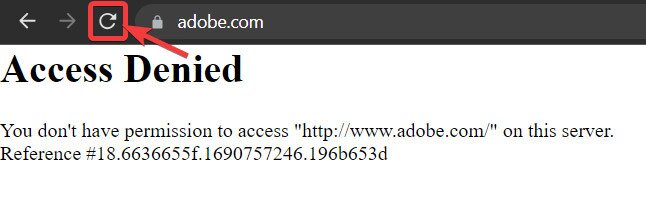
On many occasions, a temporary server error or other minor issues might have been the cause of access being denied. You can wait for a while and revisit the site after a few minutes, or just simply refresh the page to see if the issue causing the 403 Forbidden Error has been solved. If the issue is still there, and you know that the website is working for others, try other our other solutions.
Double-Check Your URL for Errors
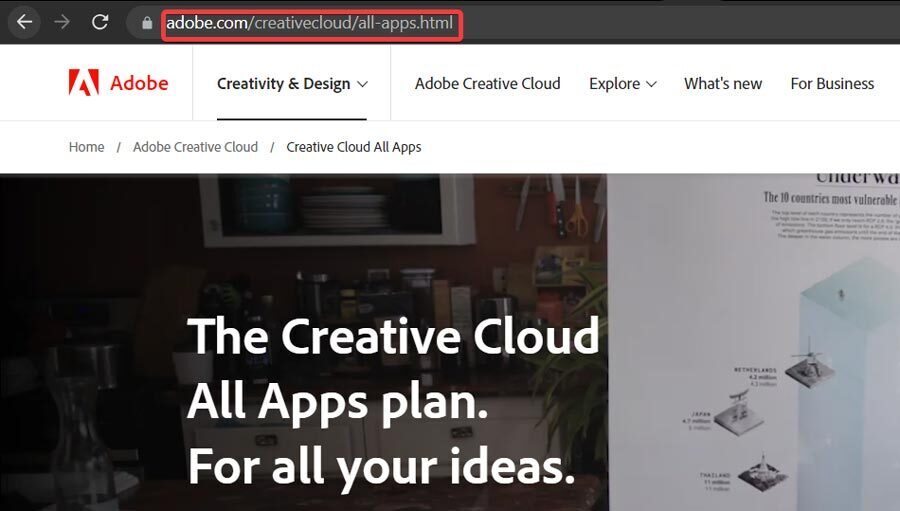
Typing mistakes are one of the main causes behind 403 Forbidden Error messages. Double-check the URL in the address bar, especially if you typed it manually. One reason the error shows up is if you’re trying to load a directory on the server instead of a web page or other publicly accessible resource.
The best solution is to erase everything but the domain name (i.e., erase everything after the TLD, such as everything after ‘.com’). In our example, you’d return to adobe.com and then use the menus on the website to find whatever it is you’re looking for.
Alternatively, open a search engine like Google, and type the page you want to visit; for example, adobe creative cloud plans. If the page still doesn’t open from a Google search, the problem isn’t yours to fix, and all you can do is wait for the website owner to fix the link.
Log in to the Website
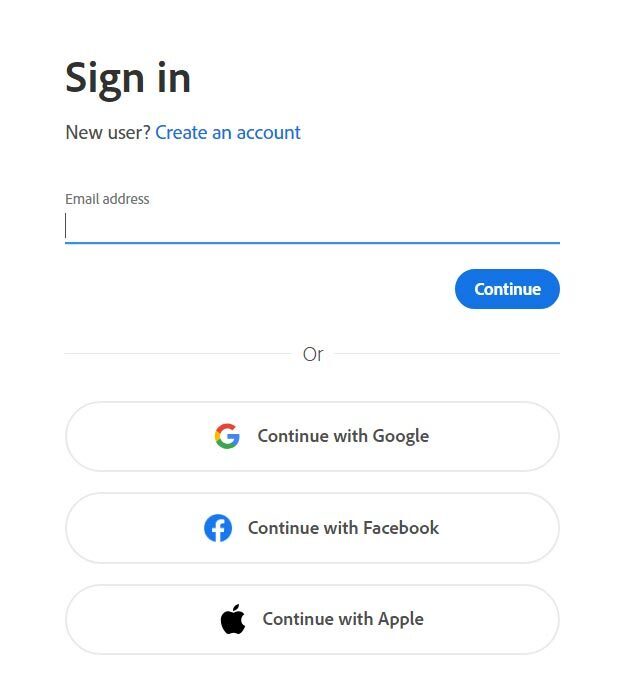
Using the incorrect user credentials can also trigger 401 or 403 error messages. Many websites restrict access to certain files that are available only to logged-in users or administrators.
If you have a valid account on the site showing the 403 error, go back to the login screen and try signing in again. (Also, ensure that your password is entered correctly).
Clear Your Browser Cache
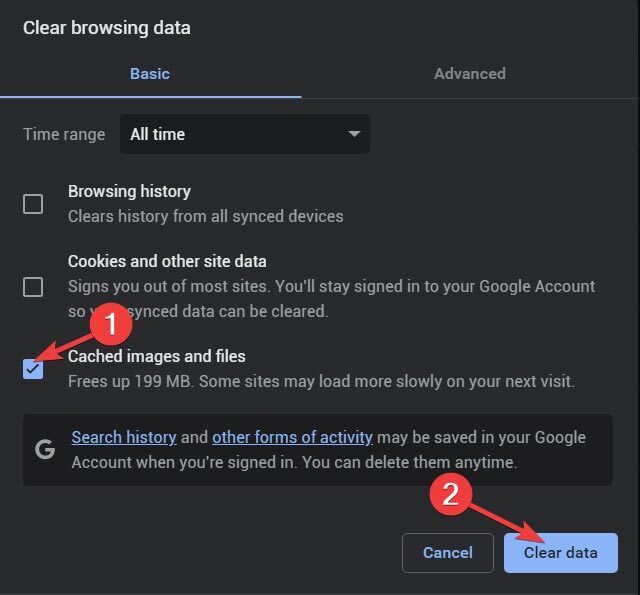
This is a common troubleshooting step for many browser or website issues. Over time, your cache can fill up or become corrupted with outdated data. Clear your cache and reload the page to check if the 403 Forbidden Error is gone.
Delete Website Cookies
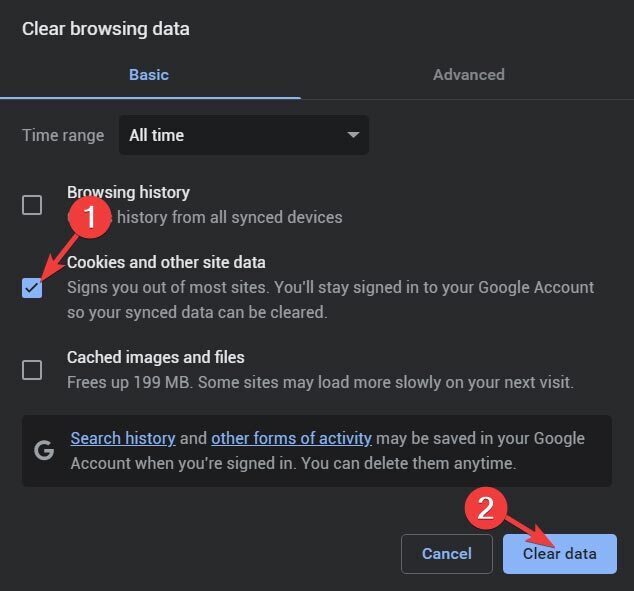
Just like with cache problems, cookie issues can sometimes trigger a 403 Forbidden Error. Try delete your cookies first, then double-check that cookies are enabled for the site. Once that’s done, log in again to see if the error clears up.
Disconnect From Your VPN
While VPNs are helpful, they don’t always work smoothly with every website. Try disconnecting from your VPN for a moment and see if that clears the 403 Forbidden Error. If you can’t disable it for privacy or security reasons, switch to a different VPN server—your current one might be blocked or experiencing connectivity issues.
Change Your DNS
Your Internet Service Provider (ISP) uses default DNS servers, but you can switch to another if you prefer. Either your DNS or your ISP may conflict with a particular website—for example, if the site blocks requests from that DNS server.
The good news is that switching your DNS to Google DNS or another reliable provider only takes a minute. Here’s how:
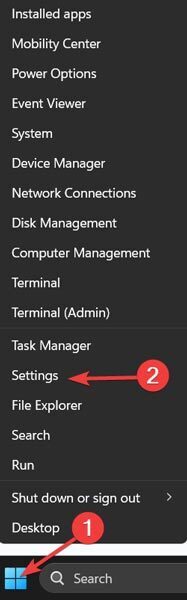
1. Right-click on the Start menu and select Settings.
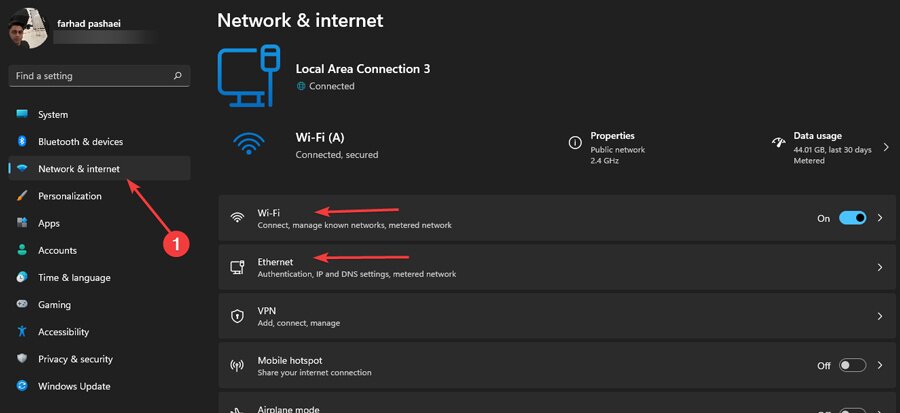
- From the left menu, click on Network & Internet, then select Wi-Fi or Ethernet depending on your connection.
- Click the Edit button next to DNS server assignment.
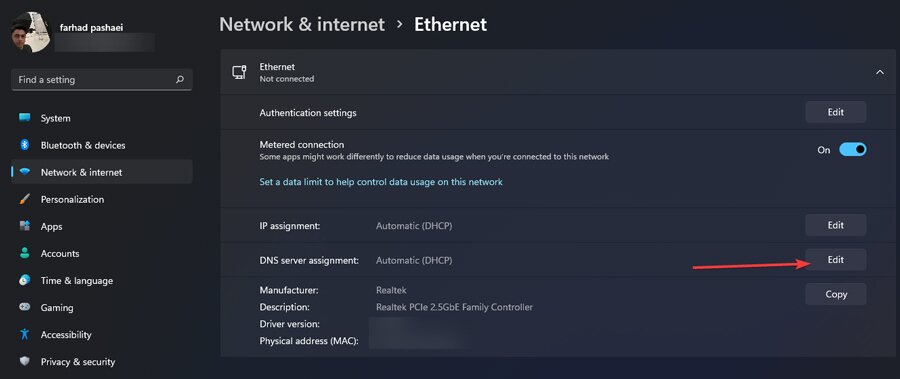
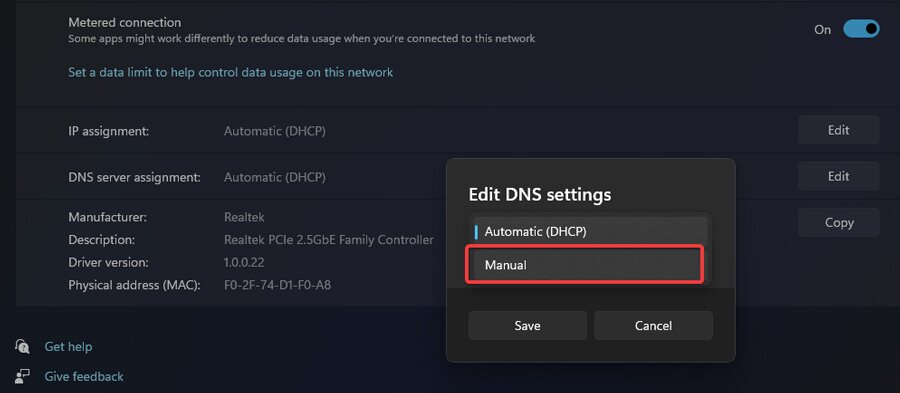
- From the drop-down menu, choose Manual.
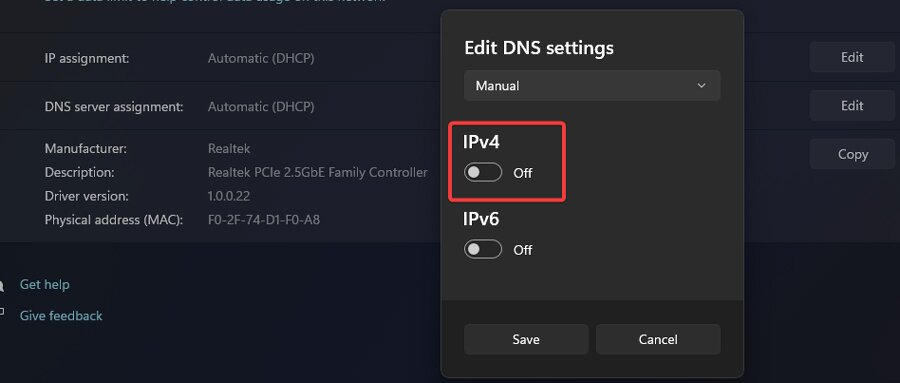
- Turn on the IPv4 toggle.
- In the Preferred DNS field, enter the address for Google, Cloudflare, or another DNS service you prefer.
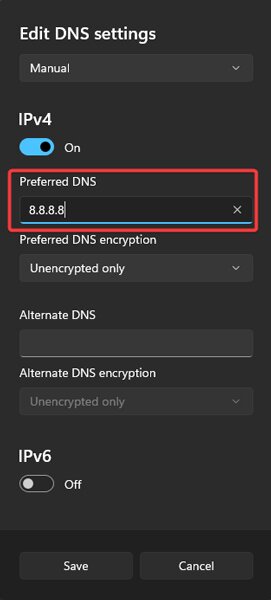
- Unencrypted only: No encryption will be used for DNS queries.
- Encrypted only (DNS over HTTPS): DNS requests are encrypted using HTTPS (available only if your chosen DNS supports encryption).
- Encrypted preferred, unencrypted allowed: Encryption will be used when possible, but unencrypted queries are also accepted.
- Enter a secondary DNS address in the Alternate DNS field. This backup will take over if the primary server is down or too slow.
7. Enter a secondary DNS address in the Alternate DNS field. This backup will take over if the primary server is down or too slow.
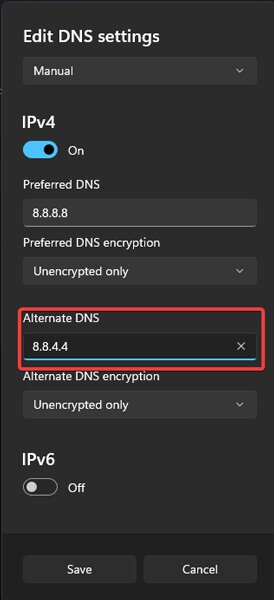
8. Choose your preferred encryption option, then click Save.
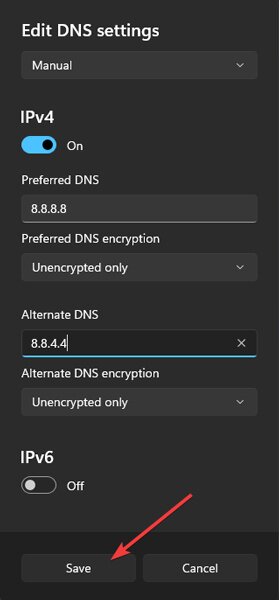
Contact the Website Directly
Suppose your need to access the website is urgent. In that case, you can find the website owner’s contact information from their “contact us” or at the bottom of the website. Tell them about your issue, see if they know what might be causing it, and ask for their aid.
Contact Your Internet Service Provider
There might be some server issues on the side of your Internet Service Provider, resulting in the denied access you are experiencing if you are aware that others have access to the URL. Contact your ISP’s customer service and tell them about the issue; they might be able to resolve it by changing your IP address, as the website may have blocked it. If the block is tied to a forum or community site, reading about a Discord access denied error, learning how to unban Discord with VPN, or reading this 4chan ban workaround may also help you understand your options.
Come Back Later
By now, you should have resolved your 403 Forbidden Error. However, sometimes, there’s not a lot you can do on your end to fix it. If you’ve tried all the steps above and the problem persists, the issue likely lies with the website itself. In that case, consider contacting the site owner to let them know, or simply wait until they fix it. For popular websites, the 403 Forbidden Error usually gets resolved within a few hours.
How to Fix Roblox 403 Error Code
Well, it is no secret that Roblox has taken the world by storm. It is available on Windows, iOS, Android, Xbox Series X and Series S, Mac OS, Fire OS, and even Linux. Millions of users use the gaming platform every day, and it isn’t uncommon for some users to face problems accessing the servers. If you see the error code 403 when using Roblox, there might be a problem on the side of the platform’s servers or your connection to it. Therefore, we will show each possible burden disallowing you from using Roblox with ease and how to resolve it:
Check if Roblox Server is Down
Roblox error code 403 might be caused by the platform’s servers being down temporarily, which you can check directly through their website. If the link informs you that the servers are under maintenance, there is not much you are able to do but sit tight and wait for them to be done. It is a common occurrence as they try to keep the quality of your gaming ever so high by maintaining the quality of servers. The servers will become operational very fast, so you don’t have to wait for a long time. But if the servers are up and running and you are still unable to access them, you should try our other solutions.
Allow Roblox to Run Through Windows Firewall
Sometimes your access to online games and game/gaming platforms like Roblox is being blocked by your Windows firewall. To make sure that Roblox has the proper access through your firewall, by following these steps:
1. Right-Click on Start Menu and select Settings.
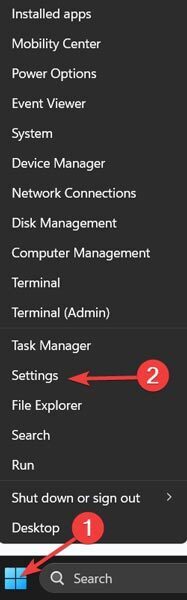
2. Go to the Privacy and Security tab and Pick Windows Security.
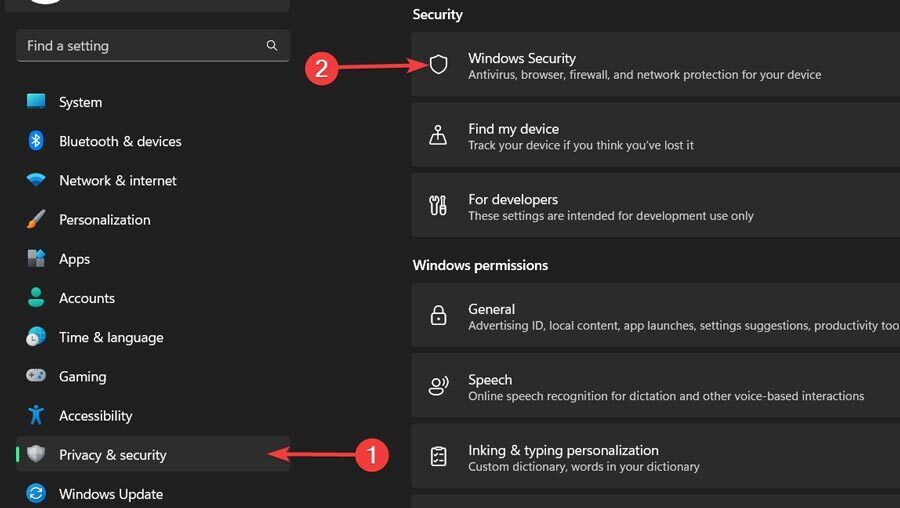
3. Next, click on Firewall and network protection.
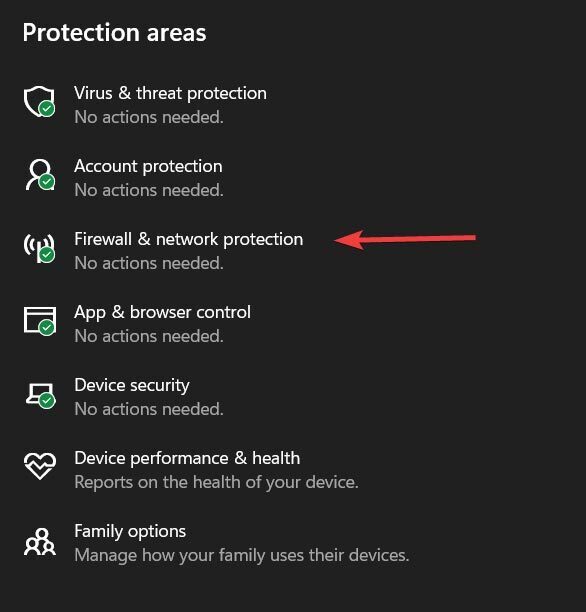
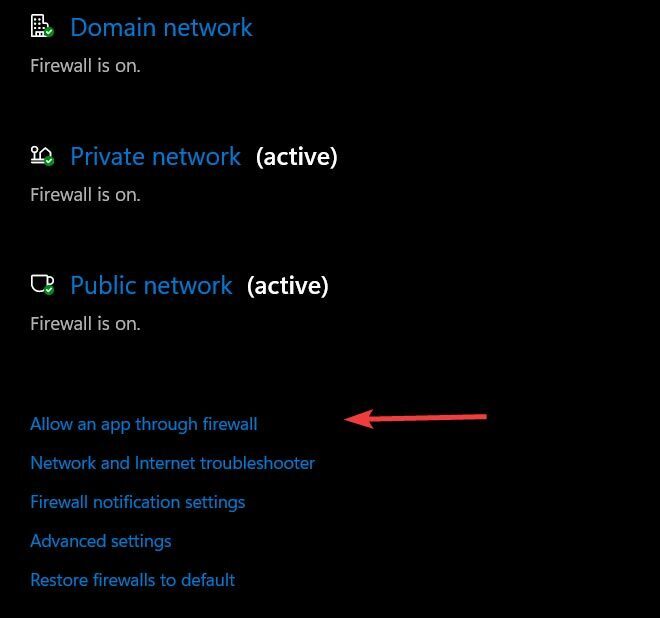
4. In the opened window, select Allow an app through the firewall.
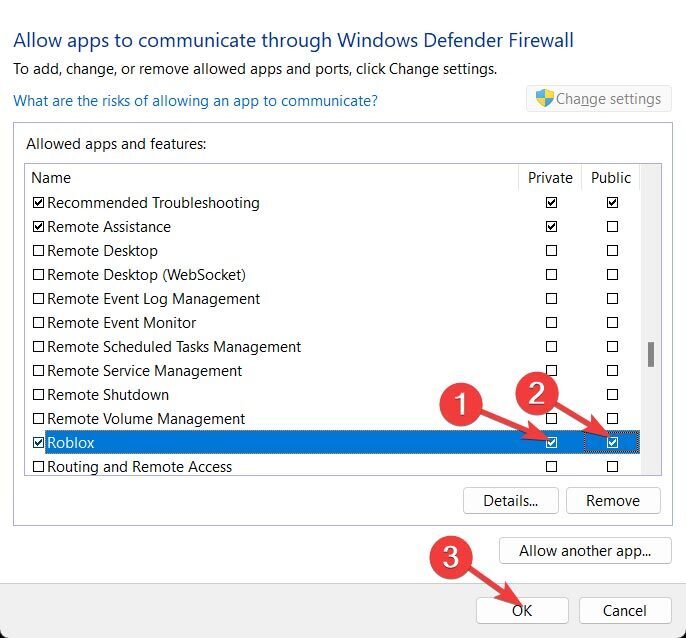
5. In Allowed apps windows that have opened, scroll to find the Roblox app. Then tick both the Private and Public boxes to allow the app to go through your Windows firewall on both Private and Public Wi-Fi networks. Then, click on OK.
6. After finishing the steps, restart your system, and try using Roblox to see if your issue is still in place or not.
If you are still facing a 403 error code, you might want to try our other solutions.
Terminate Your VPN Connection
Roblox’s error code 403 can directly result from using a VPN service to connect to the platform’s servers. If you are seeing the error and are currently using a VPN connection to access Roblox, terminate your connection from the VPN’s User Interface (usually by clicking on the power button). After making sure that you have no active VPN service on your device, once again, try Roblox.
Change Your DNS
It may be the case that Roblox has banned access to the default DNS provided to you by your ISP, or you are experiencing this error because your ISP’s default DNS is not stable enough. You can clear up the issue by simply using Cloudflare DNS or Google DNS to connect to Roblox and play games, which will be both faster and more secure.
Run an SFC Scan
You may be experiencing a 403 error because there is corruption in your Windows files. You can check this by using an SFC scan. Basically when you run this code it scans your computer to find and replace any corrupted or missing Windows files. After running an SFC scan, restart your system and check if you can use Roblox without facing the 403 error.
Delete Roblox Cache
Each time you use Roblox, it caches some data to maintain information about your preferences and improve your experience. But the unwanted consequence of this can be that Roblox might cache the 403 error you’re facing on your visit, which might be why it’s still in place no matter what you do. The problem might also be caused by corruption or malware in your Roblox cache folder. To solve this issue, follow these steps:
1. Click on the Start Menu and search %localappdata% and select the first result.
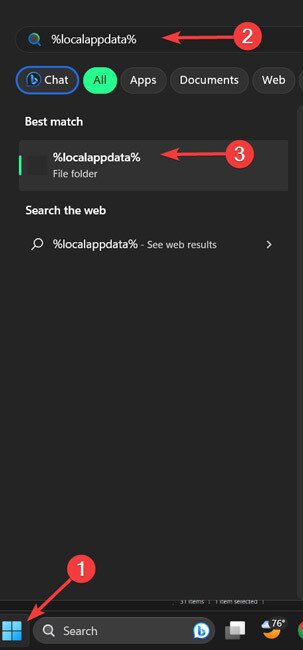
2. Scroll down to find the Roblox folder and double-click to enter it.
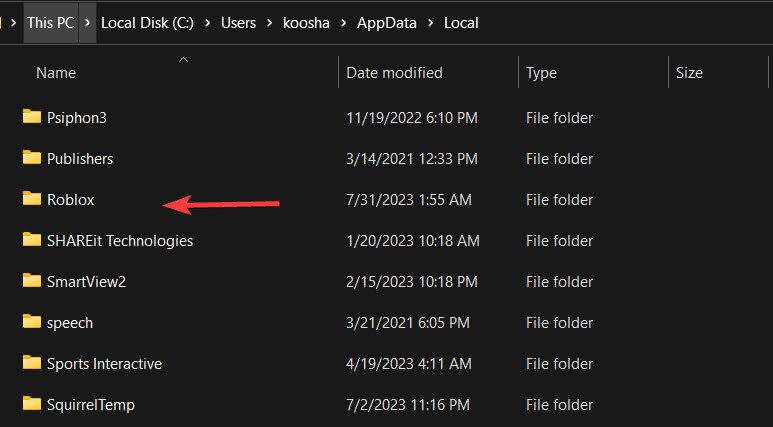
3. Once you are inside the “Roblox” folder, select all the folders there and click Delete.
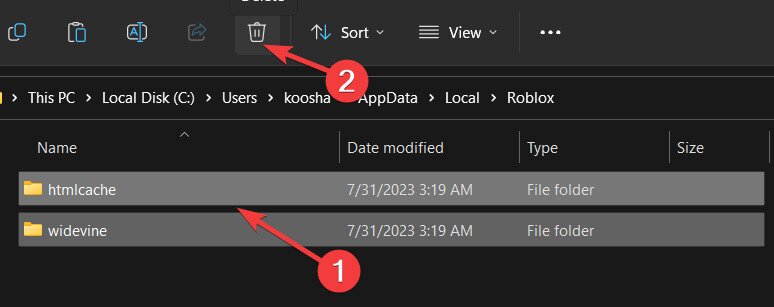
Now, restart your system and rerun Roblox. If the issue was because of a problem in the Roblox cached data, you won’t see the 403 error anymore, and you’ll be able to access and play in Roblox.
Wrap Up
If you get a “403 Forbidden” message, it indicates that you are trying to access a web page or online content you do not have permission to see. The issue, which appears to be difficult to address, is actually resolved by just refreshing the website or clearing the browser cache. So, you shouldn’t immediately go for the most complex solutions.
However, for those without technical expertise, fixing Roblox error code 403 can be a bit of a challenge. However, if you stick to the advice given above, you should be able to solve the problem without difficulty.