How to Add Money to Apple Pay (Apple Cash): Step-by-Step Guide
Apple Pay and Apple Cash make it easy to pay for things with your iPhone or iPad, and you can add money to your Apple Cash balance right inside the Wallet app. Most people load it with a debit card, but there are a few other ways to top things up depending on what you have set up.
However, before we get into the steps, it helps to know the difference between Apple Pay and Apple Cash, plus how these make sense with Apple Wallet, since each one plays a slightly different role when you’re adding money or checking your account balance.
What’s the Difference Between Apple Pay, Apple Cash, and Apple Wallet?
Apple uses a few similar-sounding names, so it can get confusing if you’re not sure what each one actually does. In a nutshell: Apple Pay is the thing you use to make a payment, Apple Cash is the digital card where your balance lives, and Apple Wallet is the app that holds everything together.
The steps for adding money to your account makes more sense once you see how they all fit together:
| Apple Pay | Apple Cash | Apple Wallet | |
| Explanation | A payment system you use to pay at stores, online, or in apps | A digital card with a balance you can add money to | The app that stores cards, passes, IDs, and Apple Cash |
| Use | Checking out with your device instead of a physical card | Sending/receiving money and paying with your balance | Managing your cards, Apple Cash, and payments |
| Balance? | No | Yes | No (it just holds everything) |
How to Add Money to Apple Cash in the Wallet App
You add money to your Apple Cash balance inside the Wallet app. It only takes a few taps. You’ll have full control over the exact amount you want to add each time. This process looks the same on iPhone and iPad:
1. Open the Wallet app and tap your Apple Cash card.
2. Tap the three dots in the corner, then choose Add Money.
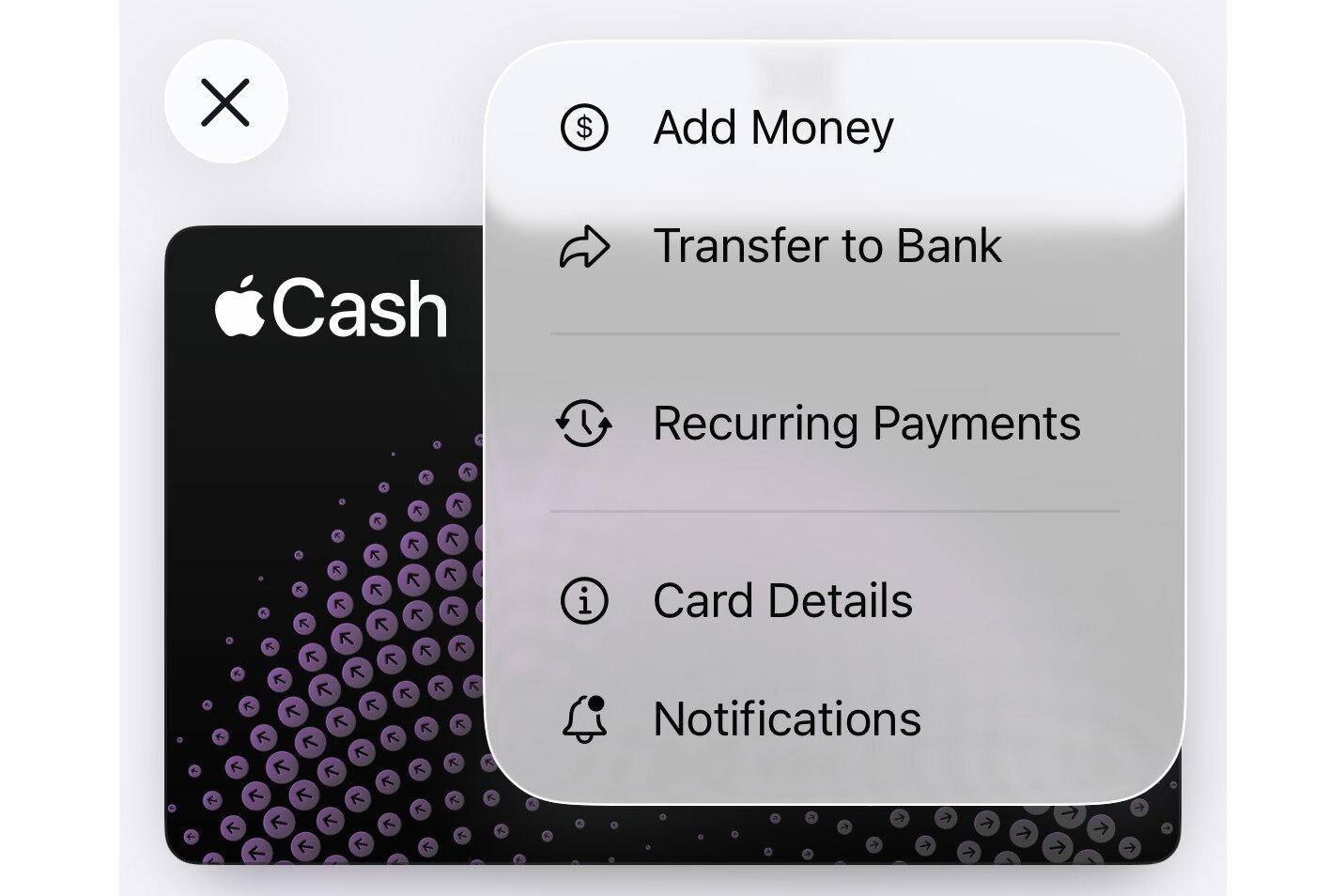
3. Enter the amount (the minimum is $10).
4. Tap Add.
5. Confirm with Face ID, Touch ID, or your passcode.
Payment Methods: Debit Card, Credit Card, Bank Account & More
When you add money to Apple Cash, the Wallet app pulls those funds from whatever payment method you’ve set up. Apple is pretty strict about what works here, so you should know your options before you try to load your balance.
The main methods you can use include:
- Debit Cards: A US-based debit card is the standard way to add money to Apple Cash. This is the method Apple officially supports for top-ups, and it’s what most people use. The card must already be added to your Apple Wallet.
- Credit Cards and Prepaid Cards: You can’t use credit cards with Apple Cash. Certain prepaid cards can fund Apple Cash, but support depends on the card issuer. If a prepaid card can’t be used, the app will tell you during setup.
- Bank Account: Apple doesn’t let you add money directly from a bank account into Apple Cash. Bank accounts are only for transferring your balance out.
- Gift Cards: Apple Gift Cards can increase your Apple Account balance, but that balance cannot be used to add money to Apple Cash. So even though it seems like this might work, it’s not actually allowed.
- Cash App, Venmo, etc.: These apps can send money to you, but that cash lands in each respective app, not in your Apple Cash balance. However, money sent from Cash App or Venmo that’s stored in your bank can then be transferred to Apple Cash via your bank’s debit card. If you no longer use Cash App, you can delete Cash App profile after transferring any remaining balance.
How to Add Money to Apple Pay Without a Debit Card
Don’t have a debit card you can use? Your options are more limited, but you can still get money into your Apple Cash balance in a few different ways. These methods don’t involve adding funds yourself through the Wallet app; instead, they rely on receiving money or using alternative, approved setups.
Before we get into it, please know that once you’ve added money to Apple Cash, you can use it right away for payments or for sending money, but there are a few rules and limits worth knowing.
- Your device needs to stay compatible with the latest operating systems, whether that’s iOS, iPadOS, watchOS, or visionOS.
- Your Apple account must have two-factor authentication switched on to send or receive money.
- If you get money from someone else, it automatically shows up in your Apple Cash balance.
- If you want to move your Apple Cash money out, like to a bank account, there might be additional conditions depending on the account type or regional rules.
Options That Work Without a Debit Card
- Receive Money Through an iMessage Transfer: Anyone who already uses Apple Cash can send you money. This money goes straight into your Apple Cash balance. This is the simplest and most reliable workaround if you find yourself without a working debit card.
- Use an Eligible Prepaid Card: Not all prepaid cards are supported, but some can be added to Apple Wallet and used to fund Apple Cash. However, support depends entirely on the card issuer.
- Bank Account Transfers: You can’t load Apple Cash directly from a bank account, but you are allowed to move money into a linked bank account and then use a debit card tied to that account at a later time. This isn’t a true “no-debit-card” method, but people often assume bank accounts can load Apple Cash directly, but they can’t.
Options That Don’t Actually Work
To avoid any confusion, the following methods can send you money in other ways, but none of them can directly fund your Apple Cash balance:
- ATM deposits
- Store cash deposits
- Cash App, Venmo, or PayPal
- Credit cards
How to Set Up Automatic Reload for Apple Cash
If you use Apple Cash a lot, consider turning on automatic reload to save you from running out of money at the wrong time. Doing this will add funds whenever your balance drops below the limit you pick.
Configuring Apple Cash automatic reload is easy through the Wallet app:
1. Open Wallet and select your Apple Cash card.
2. Tap the three dots and then Card Details.
3. Select Set Up Auto Reload.
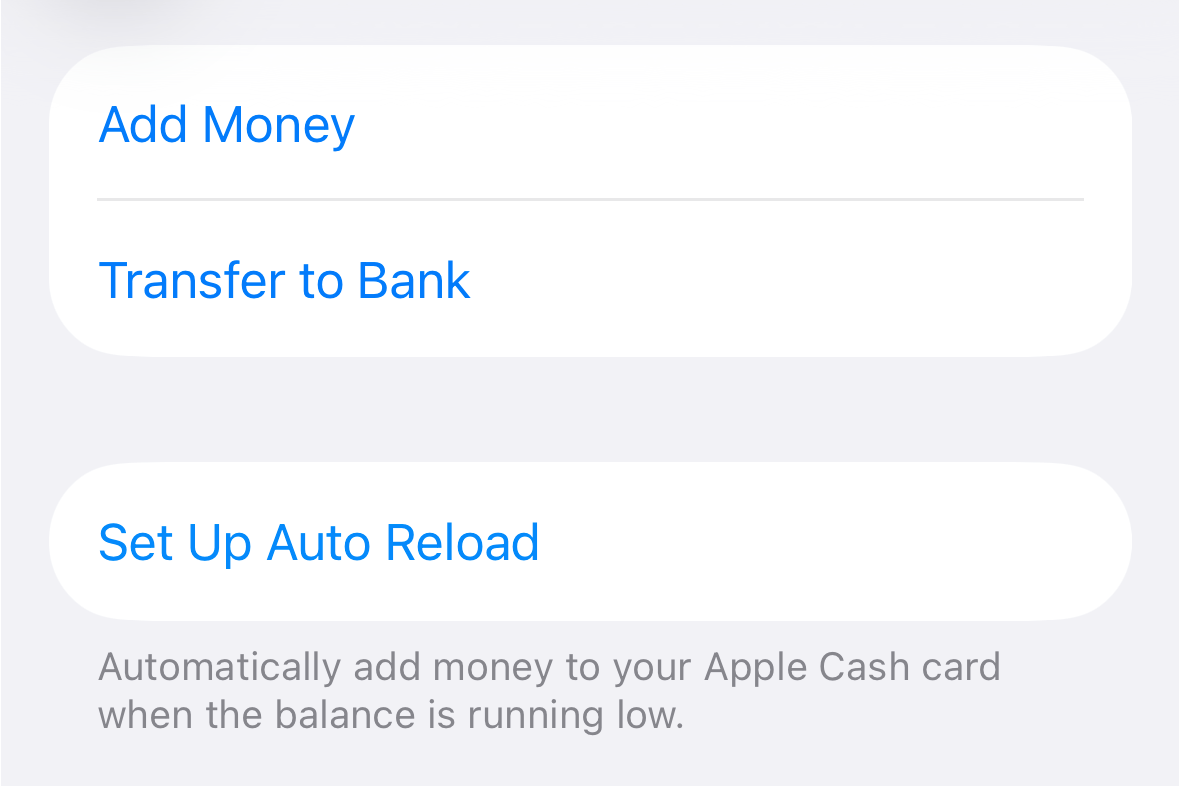
4. Enter the amount of money you want loaded automatically.
5. Tap Minimum Balance and enter the balance below which the funds will be added.
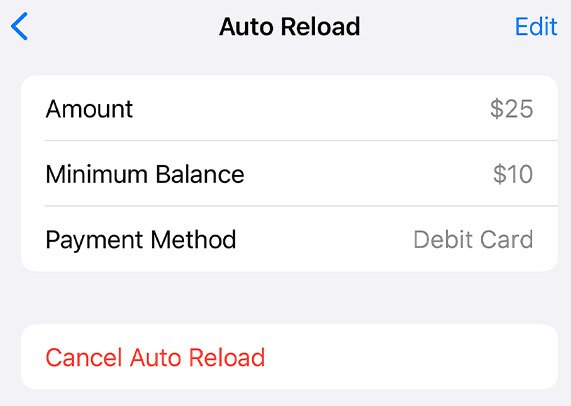
6. Select Set Up.
7. Authenticate with Face ID, Touch ID, etc. to finish up.
How to Send or Receive Money Using Apple Cash
Once you have money in Apple Cash, you can start using it to pay people through iMessage transfers. Everything happens inside the Messages app, so you don’t have to switch to the Wallet app to do this.
How to Send Money With iMessage
1. Open Messages and tap a conversation, or start a new one, with the person you want to pay.
2. Tap the + button followed by Apple Cash.
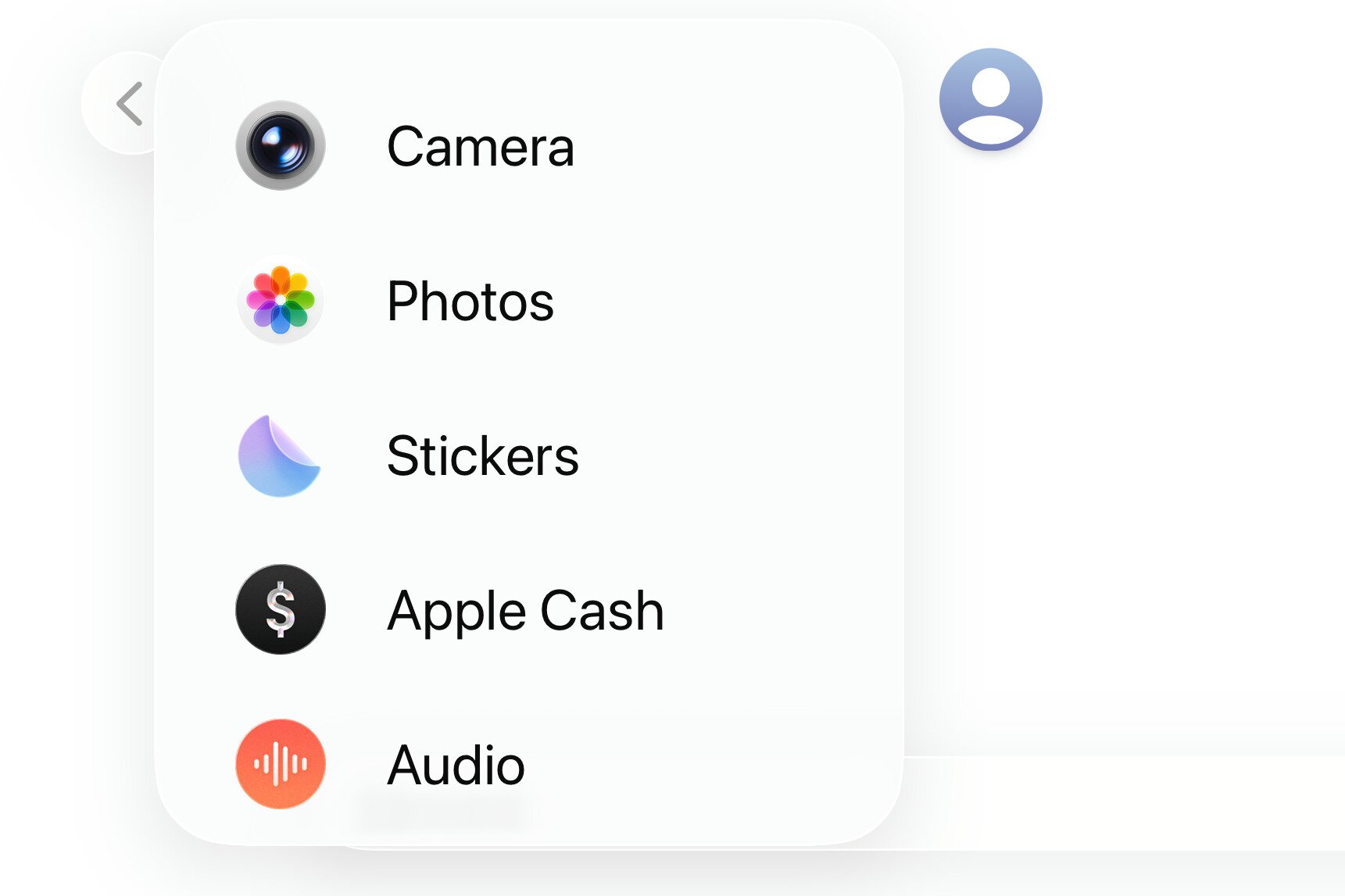
3. Enter the amount you want to send.
4. Tap Send, then authenticate to confirm the payment.
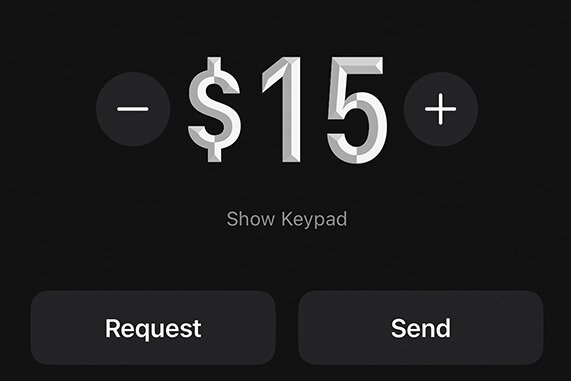
Tip: As you can see, requesting money works the same way. Just choose Request instead of Send.
How to Receive Money
If someone sends you money through Apple Cash, it appears in your Apple Cash balance automatically. You don’t have to accept it manually unless your settings require verification. Once it hits your balance, you can spend it anywhere Apple Pay is accepted (or just keep it in your balance for use later).
If you were told by someone that you should have received money, check your settings:
- Open the Wallet app and tap your Apple Cash card.
- Tap the three dots and then Card Details.
- Scroll down and confirm that Automatically Accept Payments is chosen.
Troubleshooting: Why Can’t I Add Money to Apple Pay?
This usually comes down to a card issue, but there could also be an account restriction, a recent Apple account region change, or a minimum-amount rule that you’re not following. Apple is strict about what’s allowed, so a small mismatch can block the option to add money.
Here are some common reasons you can’t add money:
- Unsupported card: Apple only allows US debit cards or eligible prepaid cards for loading money into Apple Cash. If you’re trying to use a credit card, you’re out of luck. And many prepaid cards aren’t supported either.
- Unverified card: Some banks require extra identity or card verification before they let you use their card with Apple Cash.
- Unmet minimum threshold: Apple requires a minimum top-up of $10. Anything below that won’t go through.
- Apple Cash isn’t fully set up: If your identity hasn’t been verified or if your Apple Cash setup is incomplete, the option to add money might be disabled.
- Apple Cash isn’t supported where you are: Apple Cash currently works only in the United States, so adding money won’t work if your region settings say that you’re elsewhere.
- Temporary bank holds or fraud blocks: Banks sometimes flag Apple Cash deposits as unusual transactions. If so, this will stop the transfer until the hold clears.
However, if none of those seem to apply to your situation, the quickest fix is to remove your card from the Wallet app and add it again. If you’ve also noticed a mysterious Amazon charge or other unexplained transactions on that card, sort that out with your bank first. Sort of like a reboot, this should fix most problems with adding money to Apple Cash.
FAQ: Adding Money to Apple Pay
How do I put money in my Apple Pay?
You add money to your Apple Cash card in the Wallet app using a supported debit card or prepaid card.
Can I add cash to Apple Pay without a card?
Not directly. You can only receive money from someone else, or use a prepaid card that Apple supports.
Is Apple Wallet the same as Apple Pay?
No. Apple Wallet is the app that holds your cards, while Apple Pay is the service you use to make payments.
How can I add money to my Wallet?
You can’t add money to the Wallet app itself. Instead, you add money to Apple Cash, which is a component of the service that lives inside the Wallet app.
What is the minimum amount I can add to Apple Cash?
$10 is the bare minimum.
Can I use a credit card to add money to Apple Cash?
No. Apple only allows debit cards or eligible prepaid cards for adding funds.
Can I add money to Apple Pay at an ATM or store?
No.
How do I set up auto reload for Apple Cash?
Open Wallet and go to Apple Cash card > three dots > Card Details > Set Up Auto Reload.
Why can’t I add money to my Apple Cash balance?
You might be trying to use an unsupported card. It could instead be unverified or below the minimum amount. It’s also possible that Apple Cash isn’t fully set up on your device.
Can I add money to Apple Pay on my iPad?
Yes. The steps are the same as on an iPhone, as long as Apple Cash is set up on your iPad.
