How to See Notifications on iPhone and Manage them
There are days you get occupied with work and cannot even spare a second to pick up or view the contents of your phone, causing notifications to pile up on your lock screen, especially if you have many social media apps installed.
However, this shouldn’t be a problem with the intuitive Notifications Center on iOS. Your notifications are arranged based on the priority of the apps they’re spurring from and the time they arrive.
You can view and manage them all at once when you finally get to pick up your phone. Even better, to avoid distractions, you can block all notifications and view a summary of them later via a feature called Scheduled Summary.
Read on below to find out how to go about it.
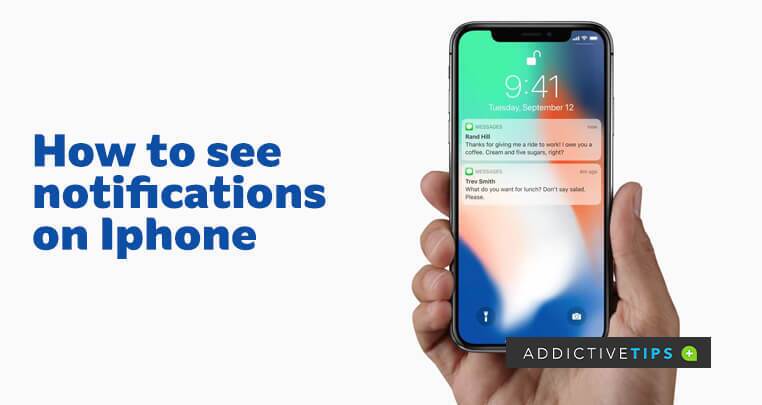
How to See Old Notifications You’ve Missed
Provided a notification has popped up on your lock screen when you’re away from your phone, it should remain accessible for some time, even if newer notifications have moved it down the notifications ladder.
You can still see old notifications even if they appear lost amid the many notifications. To do this,
- Wake up your iPhone to the lock screen by pressing the side power button or round home button, depending on your iPhone model.
- Swipe down from the middle to pull up all notifications lurking in the Notifications Center. You should see No Older Notifications if there are no notifications to pull up.
Note: If your Face ID or Touch ID is active, your phone will unlock quickly instead of staying on the lock screen. When this is the case, Swipe down from the top edge of the screen instead to pull up the Notifications Center.
- Browse through and read the listed notifications based on how they’re grouped. You should see older ones at the bottom of the notifications list.
- Tap on a notification and then Open to launch the connected app and read the notification thoroughly.
How to Manage and Clear Notifications on iPhone
To clear or manage how notifications for individual apps appear on your iPhone, follow the steps below:
- If you want to manage an individual notification, swipe left over it and select the View, Clear, or Manage option. The latter will enable you to set when and how you want the notification to appear.
- If you want to clear all notifications, tap and hold the X button in a grey circle next to the header Notifications Center
- A Clear All Notifications button will pop while blurring out the rest of the screen. Tap it to free up your Notifications Center.
How to Use Scheduled Summary for your Notifications
Apple recently introduced this feature in the latest iteration of iOS, so your software version must be up to date for you to get it. Scheduled Summary blocks all notifications and only allows calls, messages, and other time-sensitive apps.
Afterward, it provides you with a summary of all the blocked notifications later at your preset time. To enable this feature,
- Go to the Settings app and select Notifications.
- Next, tap Scheduled Summary and use the toggle button on the following page to enable it.
- A message should pop up describing how the feature works. Tap Continue under it and follow the prompts to schedule your notifications.
Final Notes
There you have it. You can now view, manage, and even get a summary of your notifications later based on your preference. However, keep in mind that it’s impossible to bring back cleared notifications unless you open the affected app to check all notifications therein.
In the meantime, we can only hope that Apple brings the feature to see deleted notifications on iOS as it is on the latest iteration of Android.
