How to Save Google Docs as PDF: Top 2 Reliable Methods
The PDF file is a widely used document file format that enjoys popularity all over the world. It can be opened on any common platform and easily compressed to make the file size smaller. Moreover, if someone tries to edit a PDF file, there’ll be a digital footprint.
While these are the reasons people want to have their documents saved in PDF format, often, they have the original document in some other formats, such as Google Docs. If you want to create a PDF file out of a Google Docs file, you need to know how to save Google Docs as PDF.
Benefits of PDF File
PDF is a file format that enables easy file sharing without compromising the original formatting of the document, such as font and text sizes.
Moreover, it’s the perfect format for documents containing clip art, photos, and digital images. For these reasons, people use it for emailing, printing, and document uploading to the web.
How to Save Google Docs as PDF
If you’ve got a Google Docs file either created on this platform or uploaded from your local drive, It can be easily converted into a PDF file. Google Docs comes with multiple native options for this feature.
Method 1
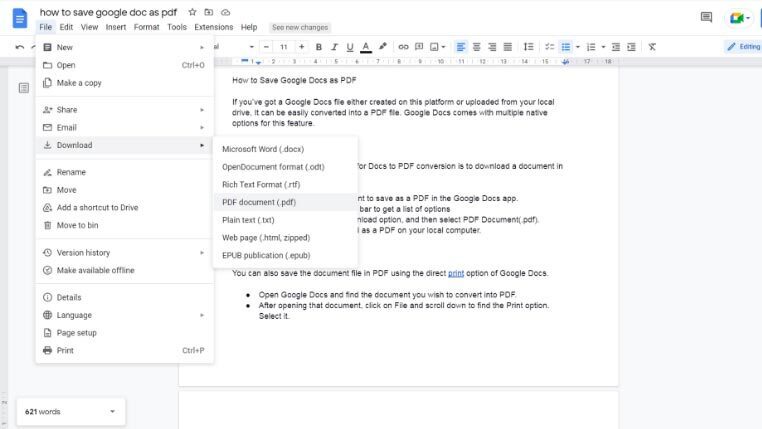
The most commonly used method for Docs to PDF conversion is to download a document in PDF format.
- Open the document you want to save as a PDF in the Google Docs app.
- Click on File from the menu bar to get a list of options
- Put your cursor on the Download option, and then select PDF Document(.pdf).
- The document will be saved as a PDF on your local computer.
Method 2
You can also save the document file in PDF using the direct print option of Google Docs.
- Open Google Docs and find the document you wish to convert into PDF.
- After opening that document, click on File and scroll down to find the Print option. Select it.
- The Print window will appear. Click the drop-down box and select Save as PDF from the Destination options.
- You can customize different settings as well before hitting the Save button.
- The file will be saved as a PDF in no time.
Apart from the above methods, many third-party websites can save Google Docs files as PDFs. However, these websites aren’t 100% reliable in terms of data privacy and security. Therefore, it’s ideal to choose from the native methods that Google Docs offers.
When Should You Save Google Docs as PDF?
You need to convert its files into PDF format in the following cases:
- School and college projects, and research papers.
- Legal documents like contracts, leases, and bills of sale.
- Any downloadable materials, including eBooks, white papers, product manuals
- Online portfolios, resumes, cover letters, and invoices.
There could be more reasons to save Google Docs as a PDF and that depends on your creativity and imagination.
Wrapping Up
In this blog, we’ve described two methods for saving Google Docs files as PDFs. All these work well and help you get the job done with little effort.
So, if you want to know how to save Google Docs as PDF, you can go through the methods and choose whichever works best for your situation.
If you’re experiencing response lag from Google Docs you may try to clear your cache on Chrome browser and feel the difference.
