Claude Cowork for Windows: What Can You Do with This Tool?
Claude Cowork lets you use Claude in a way that feels more like having a helper sitting next to you. So instead of just asking a question and moving on like you might be used to with other chatbots, Claude Cowork lets you think through ideas together (with the AI) or work through code without starting over each time.
This tool is designed for people who don’t just want quick answers, but instead, people who want help while they’re actually doing the work. If you use a PC, Claude Cowork for Windows is super useful because you can use it as a desktop app instead of keeping it tucked away in a browser tab. That makes it easier to open, come back to, and keep close by as you work.
When you work with AI that way, Claude feels way more useful, rather than a tool you forget about until you need it.

Is Claude Cowork Available for Windows Yet?
If you’ve been waiting to use Claude Cowork on your computer, the Windows desktop app finally makes that possible. You can download it and run it like any other app on your PC.
Currently, the Windows version sits alongside the Mac version as the only options. Linux support is still unknown; the company’s website does not mention if or when it will arrive.
| Platform | Cowork Support |
|---|---|
| Windows | Yes, via the desktop app |
| Mac | Yes, via the desktop app |
| Linux | No |
| Web | No |
| Mobile | No |
What Your Windows PC Needs to Run Claude Cowork
Before downloading anything, you should check if your PC is compatible with Claude Cowork for Windows. The good news is that you don’t need a high-end machine. You’re probably fine as long as your computer can handle modern desktop apps without any trouble.
Claude Cowork runs inside the Claude desktop app, so the requirements are really about making sure Windows itself is up to date and supported. And, of course, you’ll need the correct Claude plan to use Cowork; it’s available on Pro and Max plans.
Minimum system requirements for Windows
- Windows 10 or newer (S Mode must be disabled)
- Administrator privileges
- Stable internet connection
- Enough memory to comfortably run desktop apps
Note: Using a Mac? You’ll need to be updated to macOS 11 (Big Sur) or newer. Linux is not supported at this time.
How to Get Claude Cowork Set Up on Your Windows PC
Getting Claude Cowork for Windows starts with installing the Claude desktop app. Cowork isn’t a separate download or add-on. Once the app is installed, Cowork will be ready to use within minutes.
Here’s how to do it:
- Download Claude for Windows. Be sure to pick the right Windows download for your computer.
- Open the file. It will begin installing immediately.
- Choose Get started and then sign in when prompted.
- Cowork is available immediately if you’re subscribed to Pro or Max.
Getting Comfortable With Claude Cowork on Windows
Once Claude Cowork for Windows is installed and running, the next step is getting comfortable using it day to day. Because Cowork lives inside the Claude desktop app, it stays close to whatever else you’re doing on your PC, so you can get help without breaking your flow too much.
- With the app open, switch from Chat to the Cowork tab using the mode selector.
- Type out what you’re trying to get done in plain language.
- Look over how Claude plans to handle the task before it starts.
- Let it run while you continue working or reviewing the output.
Note: One important thing to remember is that the Claude app needs to stay open while Cowork is running. If you close it, the session ends, and the task stops.
What can you do with Cowork? Here are some ideas:
- Working through longer writing tasks where structure matters
- Getting help breaking down coding or technical problems
- Organizing ideas when a project feels overwhelming
- Letting Claude handle repetitive or time consuming steps
Tip: Cowork works best when you treat it like a partner instead of a shortcut. In other words, clear instructions usually lead to better results.
What Claude Cowork Can Do on Windows
Claude Cowork for Windows focuses on helping you finish tasks, so it’s not just an answer engine like most people expect from a chatbot. Instead of sending you quick replies, Cowork works through things step by step. This is why it’s so different than just a chat tool.
Most of the core features are the same on Windows and Mac since Cowork runs inside the same Claude desktop app. Here are some features you’ll notice:
- Task-based workflows instead of open-ended chat
- Step by step planning before Claude starts working
- Ongoing progress you can review as it runs
- Support for writing, research, and coding tasks
- Clear boundaries so things don’t spiral off topic
Claude Cowork also supports plugins, which let it work with more specialized tools and data. One example you may see mentioned is legal plugin support, which is designed for people working with legal documents or structured legal tasks. These plugins extend what Cowork can handle without making things harder to use.
Other plugins available right off the bat help with productivity, finance, marketing, and even biology research. There’s also a Plugin Create tool that lets you build your own plugins from scratch.
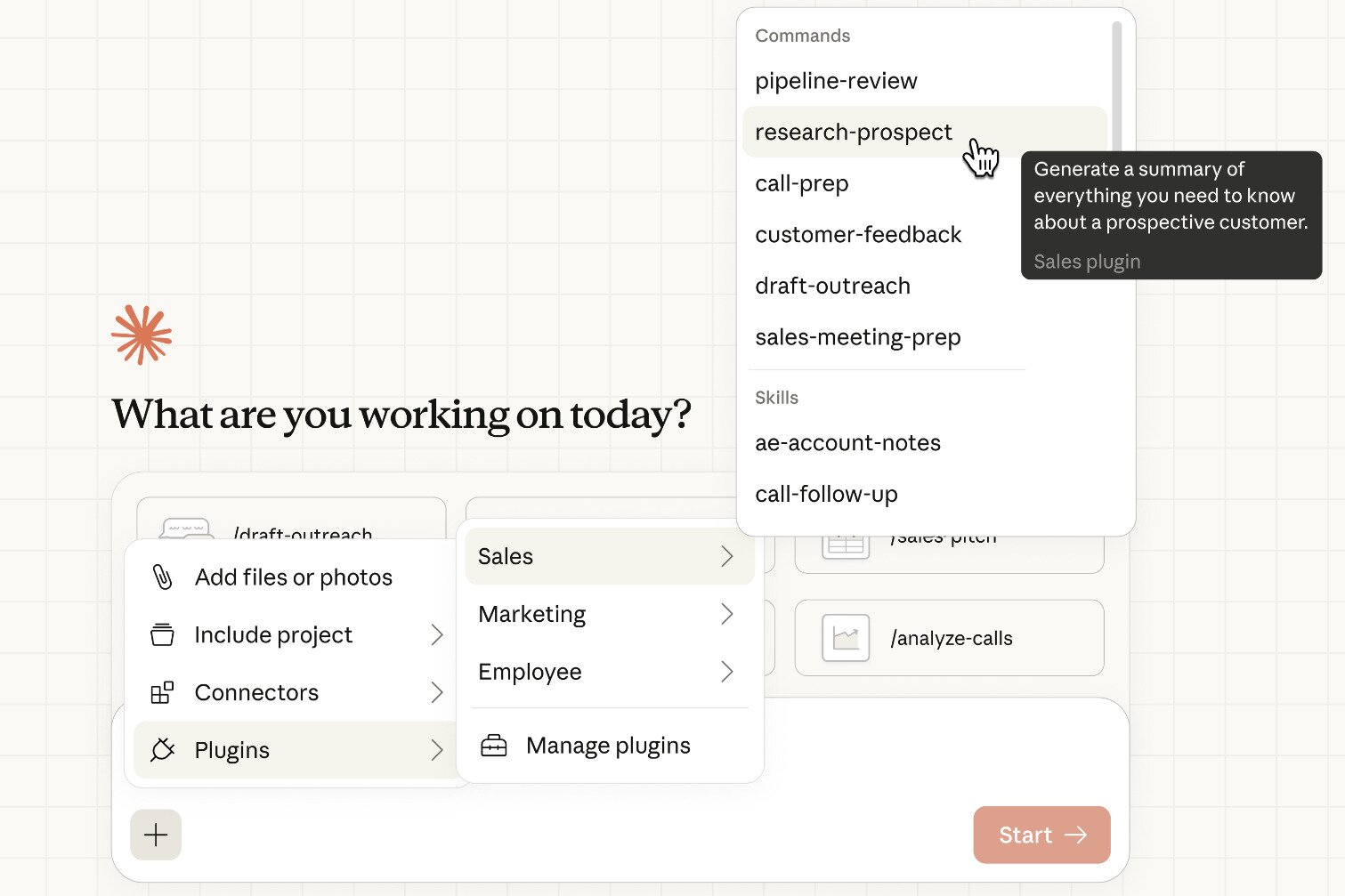
If you’ve used Claude on the web before, the most significant difference here is focus. Cowork isn’t so much centered around quick back-and-forth messages but more about helping you complete something from start to finish.
How People Are Reacting to Claude Cowork on Windows
Most feedback around Claude Cowork for Windows focuses on how different it feels compared to normal chat. People tend to like that Cowork slows things down instead of jumping straight into answers. They say that Claude explains what it plans to do first, which gives you a chance to guide it before anything happens.
For example, one paraphrased Reddit comment puts it simply:
Cowork feels more like working with someone who thinks before acting, instead of a chatbot that blurts things out.
Another common reaction is relief. When you’re stuck or overwhelmed, having Claude break things into steps can take pressure off. Writing and coding come up a lot here, especially when people are staring at half-finished work and don’t know what to do next.
Here’s how another user described it:
It’s slower than chat, but that’s kind of the point. It helps me get unstuck instead of just throwing answers at me.
Like all tools, especially new ones, there are some downsides mentioned, too. A few people say the pacing takes adjustment, especially if they’re used to fast replies. Others note that having to keep the desktop app open the whole time can feel limiting at first.
Once expectations are clear, though, most reactions are positive, especially when the person is dealing with longer and more thoughtful tasks.
Claude Cowork Alternatives for Windows
Claude Cowork for Windows fills a specific role, but it isn’t the only option if you want AI help while you work. Some tools focus more on quick answers, and others lean toward coding help. If Cowork’s task-based style doesn’t really fit how you like to work, there are some alternatives you might like more.
Most of these options work in a browser or inside other apps, which makes them easier to access but also a bit less focused.
Here are some alternatives to Cowork you might want to check out:
- ChatGPT is good for fast answers and brainstorming
- You can use GitHub Copilot for code help inside editors
- Microsoft Copilot includes AI help inside Windows and Office apps
- Use Notion AI for writing and organizing notes and projects
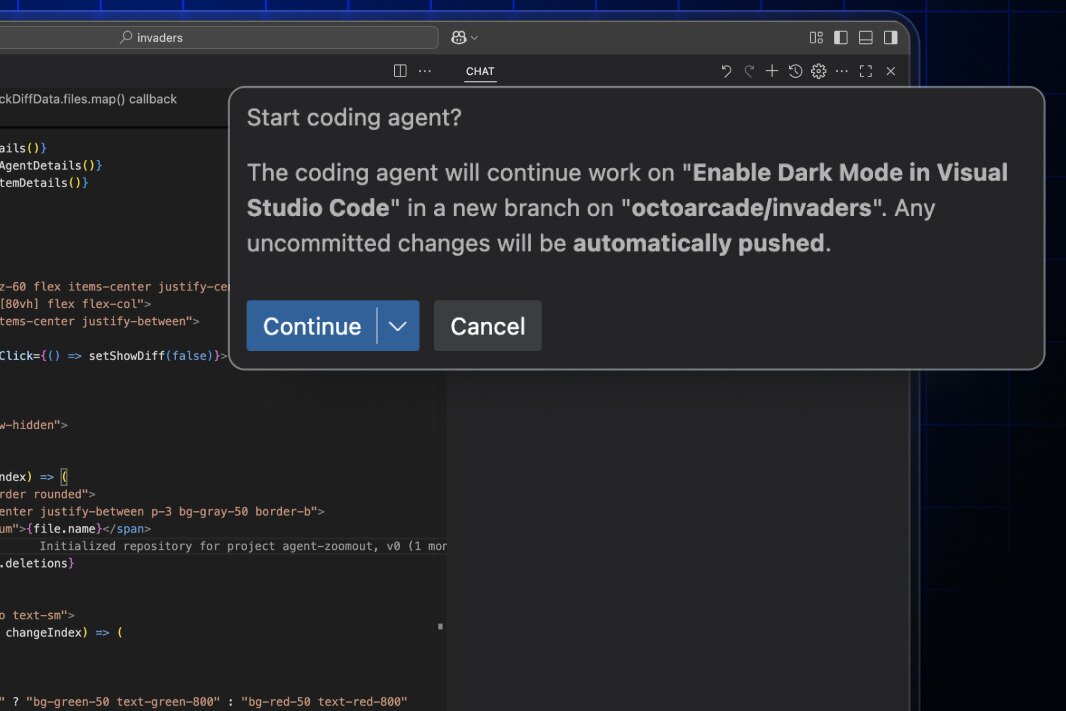
Claude Cowork stands out if you want AI that sticks with a task from start to finish. But if you’re mostly after just short answers or built-in help within other apps, one of these alternatives may feel more natural.
| Tool | Main Focus | App Required? | Best For |
|---|---|---|---|
| Claude Cowork | Task-based AI help | Yes | Long, structured work |
| ChatGPT | Quick AI chat | No | Fast questions and ideas |
| GitHub Copilot | Coding assistance | No | Writing and reviewing code |
| Microsoft Copilot | App integration | No | Office and Windows tasks |
| Notion AI | Writing and notes | No | Organizing projects |
Frequently Asked Questions
Does Claude Cowork work on Windows?
Yes. It works with Windows through the Claude desktop app. You’ll need to install the app to use Cowork.
Can I install Claude Cowork directly on my PC?
You install the Claude desktop app for Windows, and Cowork is included inside it. There’s no separate Cowork download.
Is Claude Cowork only available on Mac?
No. Cowork is available on both Windows and macOS, as long as you’re using the desktop app.
Does Claude offer a Windows desktop app?
Yes. Claude has an official Windows desktop app, and that’s where Cowork runs.
Can I use Claude Cowork in a web browser or on mobile?
No. Cowork is for desktop use only right now.
Does the Windows version support plugins, including legal plugins?
Yes. Plugin support is available on Windows, including plugins designed for more specialized tasks like legal work.
What does my PC need to run Claude Cowork?
You’ll need a supported version of Windows and a reliable internet connection. Most modern PCs should work fine.
Is there a Linux version of Claude Cowork?
No. There’s no Linux app available for Cowork at this time because the Claude desktop app for Linux is not currently available as a download from the company’s website.