Fix docs.google.com refused to connect Error in Minutes
The “docs.google.com refused to connect” error is something you may run into from time to time. Don’t worry, though. This article explains why it happens and how to fix it, including step-by-step instructions for common “Google.com refused to connect” troubleshooting methods.

What Causes the Error
There isn’t a clear-cut answer for exactly why this problem occurs, but the most common causes of the Google Drive error include:
- Being logged into multiple Google accounts at the same time in the same web browser can cause conflicts.
- Trying to access the add-on library.
- Using an account with add-on restrictions, such as a work account with tighter controls.
- Trying to install add-ons.
As mentioned, it’s not always clear why these situations trigger the error, but the good news is that the fixes are usually quite simple.
Fix docs.google.com refused to connect Error Now
No matter the cause, the tips below can help you fix the error. In many cases, signing out of extra Google accounts or installing the add-on in Incognito Mode or a separate browser profile resolves the issue.
1. Clear the browser cache and cookies
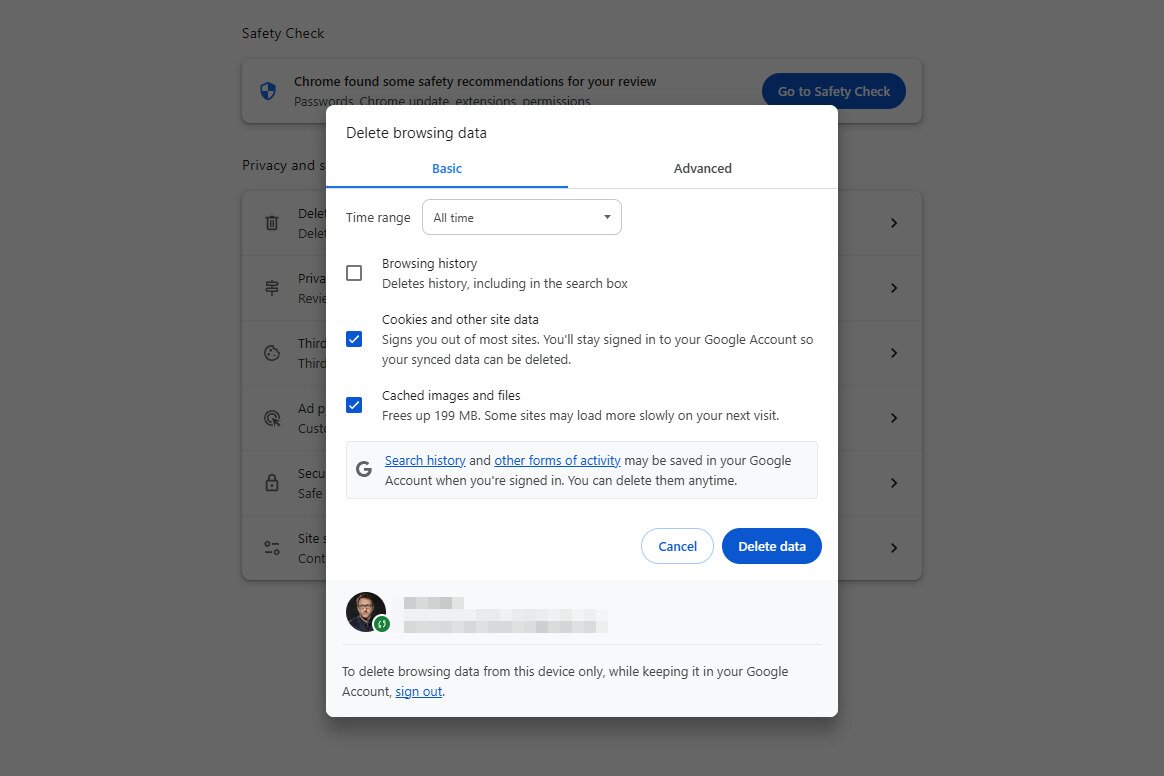
An overloaded or corrupted cache causes many common browser problems. Clearing it is an easy first step and often fixes the “google.com refused” error. Give this a try to see if it works. Here’s how it works in Chrome:
- Press Control+Shift+Delete to open the Delete browsing data prompt. This shortcut works in most browsers, not just Chrome.
- Select the Basic tab.
- Choose All time for the Time range.
- Make sure both Cookies and other site data and Cached images and files are selected.
- Select Delete data.
- Check whether you can install the add-on now.
2. Sign out of other accounts
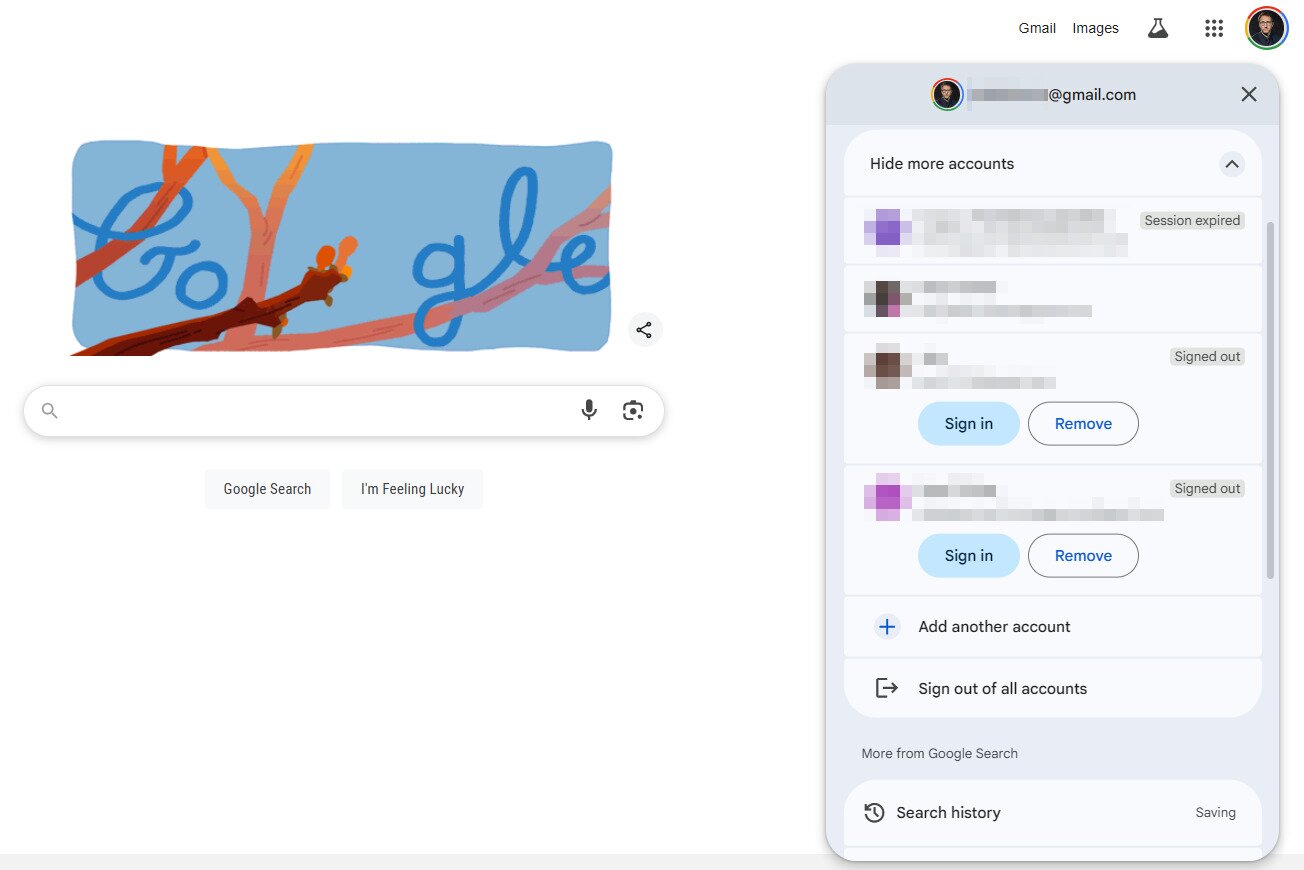
If you’re signed into multiple Google accounts in the same browser, a quick fix for the docs.google.com refused to connect error is to sign out of the accounts you don’t need right now.
Follow these steps, which should be similar across browsers:
- Open Gmail or Google and select your profile icon in the top-right corner.
- Select Sign out of all accounts. If you don’t see this option, click Show more accounts first.
- Open Google Docs and sign in to the account you want to use.
- Install the add-on as usual, hopefully without seeing the docs.google.com refused to connect error.
3. Use Incognito Mode
If, understandably, you do not want to sign out of your Google accounts, then use Incognito Mode instead to fix the docs.google.com refused to connect error. Here’s how:
- Open the browser.
- Press Control+Shift+N to open an Incognito window.
- Visit Google Docs.
- Sign in with the account you want to use.
- Install the add-on through the Extensions > Add-ons menu.
4. Make a new browser profile
If you use Chrome, you can create a separate profile for each Google account that you have. The profile will keep everything—including passwords, history, and auto-fill data—separate from other Chrome profiles.
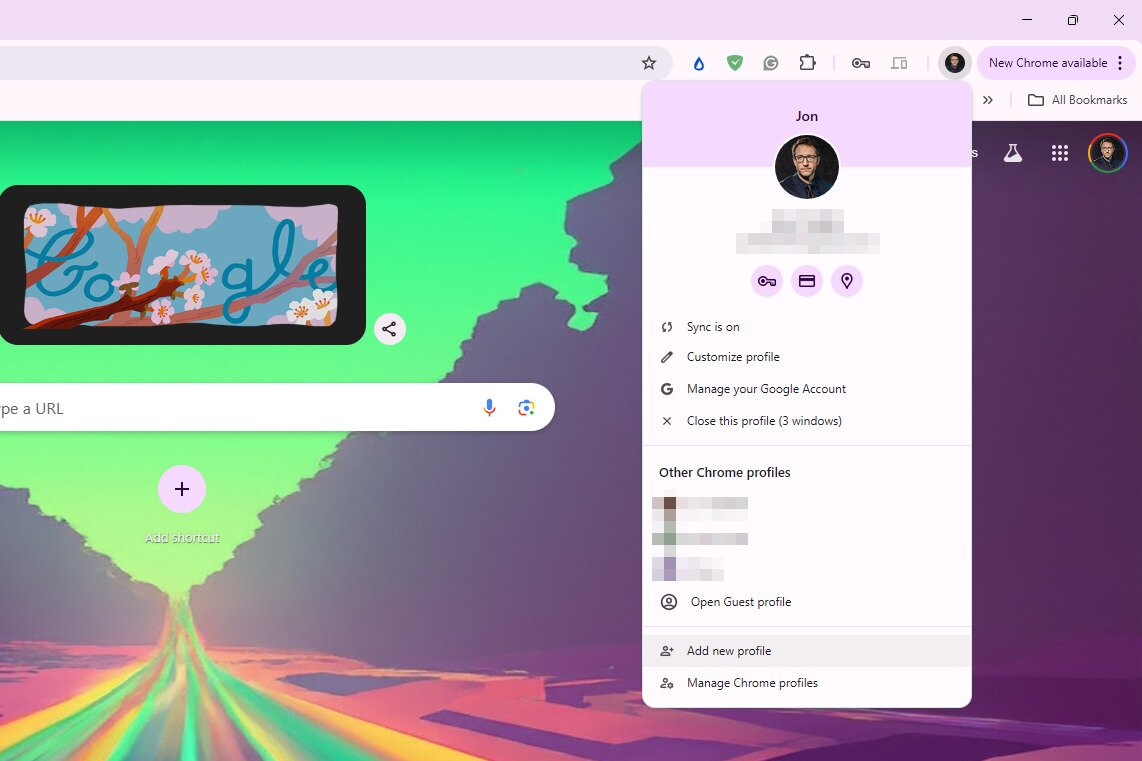
- Select your profile icon at the top right of Chrome.
- Choose Add new profile.
- Select Sign in and log in to your Google account.
- Open Google Docs.
- Install the add-on.
For Microsoft Edge:
- Open the Edge browser.
- Select the profile icon in the top-right corner.
- Choose the option to set up a new personal profile.
- Decide whether to sign in with a Microsoft account.
- Customize the profile if desired.
- Log into Google Drive to see if the connection issue is resolved.
For Mozilla Firefox:
- Open the Firefox browser.
- Type “about:profiles” (without the quotation marks) in your address bar, then press Enter.
- Select Create a New Profile.
- You’ll be given a couple of prompts, such as choosing a name for your profile. Follow the prompts and click Finish.
- Select Launch profile in new browser.
- Open Google Docs and sign in to check if the issue is resolved.
For Safari:
- Open Safari and select Safari from the menu bar.
- Choose Settings, then select Profiles.
- Select Add Profile.
- Name the profile and customize it if desired.
- Open a new window using the profile.
- Sign in to Google Docs to see if the connection issue is fixed.
5. Update the browser
The docs.google.com refused to connect error can happen if your browser is outdated. Update your browser can install bug fixes that may resolve the problem.
For Google Chrome:
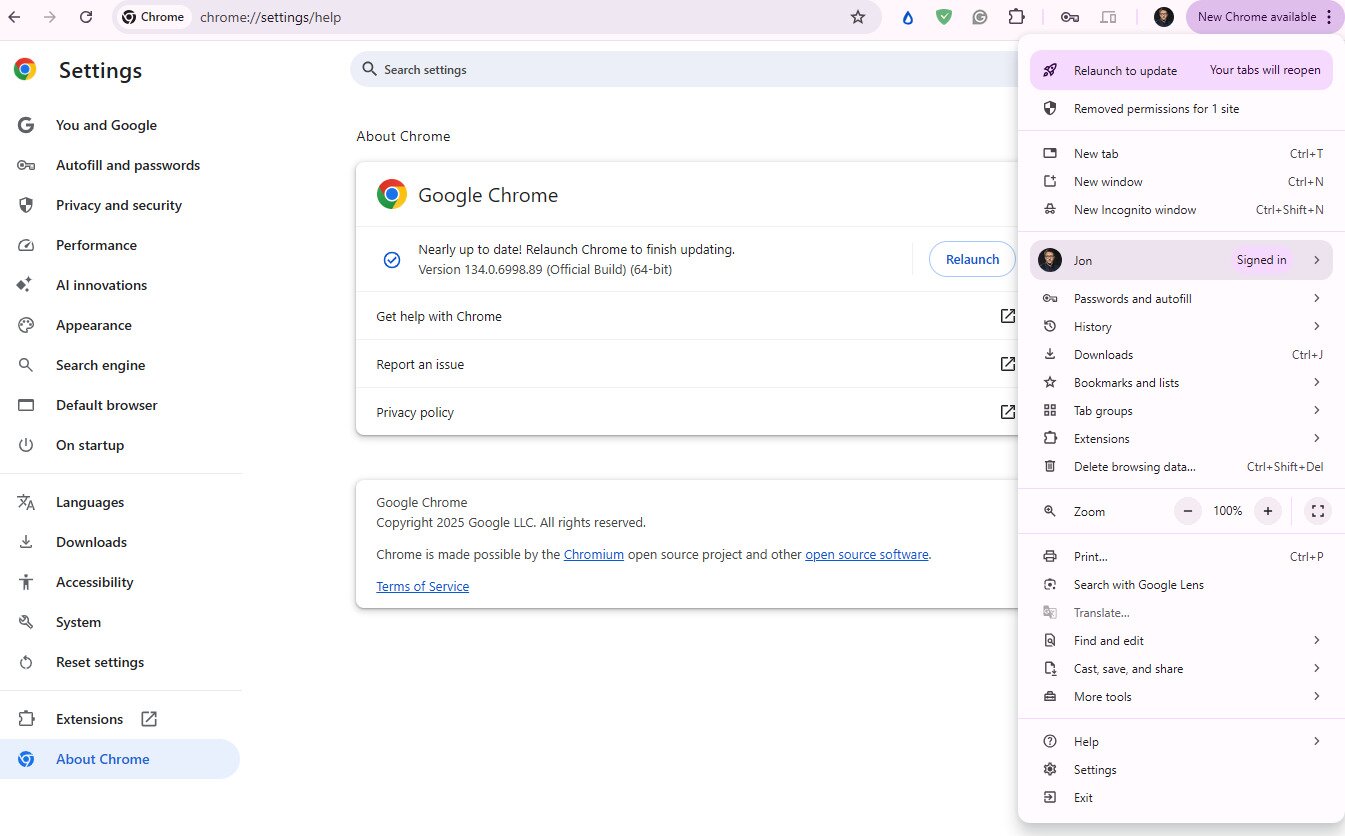
- Open your Chrome browser.
- Select the three dots in the corner of the browser.
- If Relaunch to update appears, select it. Otherwise, choose Settings.
- Select About Chrome at the bottom left.
- Wait for the update to complete, then select Relaunch.
For Microsoft Edge:
- Open your Edge browser.
- Select the three-dot menu and choose Settings.
- Select About Microsoft Edge on the left of the screen.
- If it says “Microsoft Edge is up to date” then you’re using the latest version.
- If an update is available, choose Download and Install to update it.
- Restart Edge.
For Mozilla Firefox:
- Open your Firefox browser.
- Select the menu icon in the top right and choose Help.
- Select About Firefox.
- A window will pop up to indicate if your browser is up to date. If an update is available, it will download automatically.
- When the download is finished, select Restart to update Firefox.
For Safari:
- Open your Safari browser.
- Select the Apple menu and then System Settings.
- A window will open, choose General from the sidebar.
- Select Software Update to look for new updates. If one is available, select Update/Upgrade or Restart Now, to begin the installation.
- If no update is available, it will say “your Mac is up to date”.
Visual Guide: How to Fix Google Drive Connection Issues Fast
For visual learners, this video tutorial on how to fix the Google Drive connection error gives you all the steps you need.
Get Google Docs Working Again
The docs.google.com refused to connect error usually appears when many accounts are signed in at once.
If the error appears while signed into a single account, it’s possible that your account is restricted from installing add-ons. This is common with work or school accounts. In this case, you may have to ask your system administrator to enable add-ons (though company policies may prevent changes).
Frequently Asked Questions
Can a browser extension cause the ‘docs.google.com refused to connect’ error?
Yes. Extensions related to privacy, security, or ad-blocking can interfere with Google Docs. Try disabling extensions one by one to see if one of them is causing the docs.google.com error.
Does this error affect all Google Docs features, or just add-ons?
Typically, the “Google.com refused” error appears when installing or using add-ons. However, in some cases, it can also affect document loading if there’s a deeper account or connectivity issue.
Can a firewall or antivirus cause ‘docs.google.com refused to connect’ error?
Yes. Strict firewall or antivirus settings can block Google Docs connections. Temporarily disabling them or adding an exception can help determine if they are responsible.
Will resetting my browser settings fix this error?
Resetting browser settings might be the only solution if other fixes fail. In Chrome, go to Settings > Reset settings > Restore settings to their original defaults. Other browsers offer similar options if you need to try this as a last resort.
What should I do if this error keeps happening despite trying all fixes?
If none of these solutions for the docs.google error work, try any or all of the following: use a different browser, check for Google service outages, or switch to a different network. If you’re using a work or school account, contacting the network administrator may be necessary.

Super
This website is not open
Experienced this and is very frustrating! not with docs.google.com but with gmail.google.com (even worse). Tried all the above on this post as well as more because i though it was a browser/firewall problem. My work around was changing to manual DNS server addresses to the google ones.
Just in case you are at my situation: Windows 10 try this:
1- Right click on “open network and settings”
2- Ethernet (or whatever your connection is)
3- Change adapter options
4- Right click on “ethernet” (or whatever your connection is)
5- Properties
6- Select on Internet Protocol Version 4 (TCP/IRv4) OR the Version 6 (TCP/IRv6) and click properties
7- Use the following DNS server addresses from google: https://developers.google.com/speed/public-dns/docs/using (Note: leave your IP address as it is. In my case automatically obtained)
8- OK = done
For me all working good.