Optimize Windows 10 Startup Programs for Improved Performance
The best way to start your computer faster and improve overall system performance is to manage startup programs — reducing the number of applications that load when Windows starts. Cutting down on unnecessary startup programs can help Windows load faster, save RAM, and deliver a snappier experience from the moment you log in.
It is worth knowing that Windows startup items can live in several different places — including the Task Manager or Settings startup list, the Startup folders in the Start Menu, and registry Run keys — so a single screen may not show you everything. Windows includes a built-in utility called System Configuration (msconfig) that shows many common startup entries, but if a program does not appear there or in Task Manager, you may also need to check the Startup folders or use Microsoft’s free Sysinternals Autoruns tool, which provides a complete inventory of every auto-start location on your system. Follow the steps below to manage startup programs directly through Windows.
How to Manage Startup Programs in Windows 10 and Windows 11
Modern versions of Windows give you two convenient built-in methods for managing startup programs. Either method lets you turn startup apps on or off without uninstalling them — the programs remain fully installed and can still be launched manually at any time.
Method 1: Settings > Apps > Startup
On Windows 10: Open Settings, go to Apps, and then select Startup.
On Windows 11: Open Settings, go to Apps, and then select Startup.
You will see a list of apps that can run at startup. Each app has a toggle switch next to it. Turn the toggle Off to prevent an app from launching at boot, or On to allow it. Next to each toggle, Windows displays a startup impact rating so you can prioritize which items are worth disabling:
- High — this app noticeably slows your startup time and is a good candidate for disabling.
- Medium — moderate impact on startup speed.
- Low — minimal effect on startup time.
- Not measured — Windows has not yet collected enough data to rate this app.
- None — the app has no measurable effect on startup performance.
Method 2: Task Manager > Startup Apps
Press Ctrl + Shift + Esc to open Task Manager. In Windows 10, click the More details arrow at the bottom if you see a compact view, then select the Startup tab. In Windows 11, click Startup apps in the left-hand sidebar.
You will see a table listing every startup app along with its publisher, startup status (Enabled or Disabled), and a Startup impact column that uses the same None, Not measured, Low, Medium, and High ratings described above. To disable an app, select it and click Disable in the bottom-right corner (Windows 10) or right-click and choose Disable (Windows 11). To re-enable it later, select it and click Enable.
Task Manager also offers two helpful right-click options for unfamiliar entries:
- Open file location — reveals exactly where on your hard drive the program’s executable lives, which can help you identify what it belongs to.
- Search online — opens a browser search for the program name so you can quickly find out whether it is safe to disable.
Changes take effect after your next restart. You do not need to restart immediately — the current session is unaffected.
Use the Startup Folder to Add or Remove Programs
Another way to manage startup programs is through the Windows Startup folders. Any shortcut placed in these folders will launch automatically when Windows starts, and removing a shortcut stops that program from running at boot — without uninstalling it.
There are two Startup folders with different scopes:
- shell:startup — affects only the currently logged-in user.
- shell:common startup — affects all users on the computer (requires administrator permission).
To open either Startup folder:
- Press Windows + R to open the Run dialog.
- Type shell:startup (for your user only) or shell:common startup (for all users) and press Enter.
- File Explorer will open directly in the correct folder.
If you prefer to browse there manually, the underlying folder paths are:
- Current user:
C:\Users\YourUsername\AppData\Roaming\Microsoft\Windows\Start Menu\Programs\Startup - All users:
C:\ProgramData\Microsoft\Windows\Start Menu\Programs\Startup
To add a program to startup via the Startup folder:
- Open the Startup folder using one of the Run commands above.
- Find the program’s executable or existing shortcut elsewhere on your PC.
- Right-click the executable and select Create shortcut, then move or copy that shortcut into the Startup folder. Alternatively, right-click directly inside the Startup folder, choose New > Shortcut, and browse to the program’s location.
To remove a program from startup via the Startup folder:
- Open the Startup folder using the Run command above.
- Find the shortcut for the program you want to stop from launching at startup.
- Select the shortcut and press Delete. The program itself remains installed — only the startup shortcut is removed.
Note that not all startup programs use the Startup folder. Many applications register themselves through the registry or through Task Manager’s startup list instead, so check both places if a program does not appear where you expect it.
How to Manage Startup Programs on Windows XP and Vista (Legacy Reference)
Note: Windows XP and Windows Vista are no longer supported by Microsoft and should not be used as primary operating systems. The information below is provided as a legacy reference only. If you are running Windows 10 or Windows 11, use the Settings or Task Manager methods described above.
On these older systems, startup programs were managed through the System Configuration (msconfig) utility.
For Windows XP: Click Start and then Run. In the dialog box, type msconfig and click OK.
For Windows Vista: Click Start and in the search bar type Run. In the dialog box, type msconfig and click OK. The quickest method is to simply type msconfig directly in the search bar and press Enter.
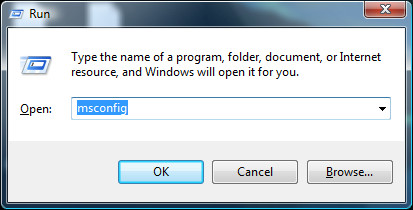
Now in the System Configuration window, click on the Startup tab and you will see the full list of startup programs as shown below.
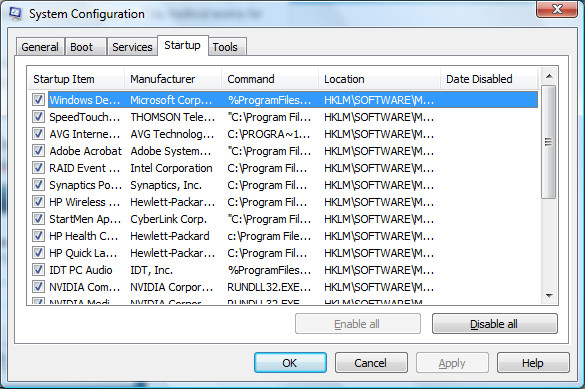
You can uncheck any program that you feel you don’t need running at startup. The programs listed here are still installed on your computer — they are not deleted or uninstalled. So do not worry: even clicking the Disable All button will not damage your system. It simply prevents those programs from loading automatically at startup, without removing them.
After unchecking the programs you don’t need, click OK. Windows will then prompt you to restart your computer. Restart and you will notice that your login and desktop load time is noticeably faster than before.
Tips to Manage Startup Programs More Effectively
Knowing which programs to disable is just as important as knowing how to disable them. Here are a few practical guidelines to help you make better decisions:
Safe to disable: Instant messaging clients, media players, download managers, and software updaters for applications you rarely use are generally safe to remove from startup. These programs can always be launched manually when needed.
Be cautious with: Security software such as antivirus programs, firewall utilities, and system drivers should generally remain enabled. Disabling these can leave your computer vulnerable or cause hardware to stop functioning correctly.
Not sure what a program is? You can search for the executable name online to find out what it does before deciding whether to disable it. Microsoft’s Autoruns for Windows is a powerful free tool that provides detailed information about every startup entry on your system, making it easier to identify unfamiliar programs.
Why You Should Regularly Manage Startup Programs
Over time, as you install new software, your startup list tends to grow without you noticing. Many applications automatically add themselves to startup during installation, even when this is not necessary for their core functionality. Regularly reviewing and trimming your startup programs is one of the simplest and most effective ways to keep your PC running at peak performance.
A bloated startup list means your computer takes longer to become usable after booting, consumes more RAM from the moment Windows loads, and may cause slowdowns during the first few minutes of use while background processes finish initializing. By taking a few minutes every couple of months to manage startup programs, you can maintain a faster, more responsive system without spending money on hardware upgrades.

Thanks a lot. This tips saved my time. Great help.
You posted this 6 years ago and it’s still useful. Thank you.
Just cleaned up my wife’s computer Hope this hepls get rid of the low mem close firefox notices when the only thing running is the browser! THANKS!
My computer just went stupid! I don’t know what I did wrong! Now it won’t turn on D:
Thanx alot, this has really helped me to realize what programs run at start up and has also given me a chance to chose what has to start and not, thus to increase the performance of my computer at start up.
thanks
Thanks! also thanks to the person who said make sure not to disable everything!
thanks a lot. I got some useful piece of information.
I have 500GB HDD,4GB RAM Windows 7 1GB graphic card BUT… when i installed Counter Strike 1.6 Game,n tried to run it, it said available memory less than 15 MB !!!!! also NFS n Harry potter Quidditch games r not running … PLZZZZZZZ HELP
Thanks. I just started reading your post yesterday. They are great, as a Grandma of 5, I need help keeping up. I will be using a lot of your info in the next few days. I am still a little slow. LOL
This was immensely helpful to me. It freed up enough RAM for me to run a program that I really needed to run. The option of buying more RAM is not possible at this time. Thank you so much! It was very easy to do and works like a charm!
Too bad amateaurs will disable about 80% of the necessary programs their computers need to function correctly, unknowingly, of course…. Be very careful, yes there is alot of spam that loads into your ram, however, on the other hand there are system-essential residental programs, such as WLAN programs, sound management devices, display adapter files, etc… Just be extremely careful, and, by all means DO NOT disable ALL of them, cuz in the end you’ll have 4 GB of ram free with a computer wont do anything except boot up.
this guy said that even clicking Disable all button will not screw up your computer….
it helped me too so thanks, it’s not unappreciated!
It probably helps alot of people and they just do not comment.
It helped me. I also followed your instructions on downloading regcure and am running it now
Heres to a faster computer. Thanks for taking the time to write this 🙂
Thanks for leaving a comment. It’s great to know that this tip helped you. 🙂
I am happy that is helped someone finally ! 🙂
Thanks for this quick tip or reminder. I knew about this, but forgot how easy it was. Found out that I had a bunch of junk that was on startup that I didn’t need but snuck in over time.