How To Connect Any Bluetooth Device With Windows 10
We’ve been exploring Windows 10 for quite a while and one thing we’ve come away with is that Windows has two types of settings; the new Settings app and the old familiar Control Panel. The Control Panel is obviously the more powerful of the two and it’s meant to give you access to far more advanced settings that an average user might not need, or might access very rarely. One of the many things featured in the simplified Settings app is the ability to connect a Bluetooth device to your PC. Here’s how you can do that from the Settings app in just a few steps.
How to Connect a Bluetooth Device on Windows 10
First and foremost, make sure Bluetooth is turned on. If you do not see a Bluetooth toggle, or it appears disabled, work through this checklist before assuming it is a BIOS issue:
- Confirm your PC has Bluetooth hardware: Not every desktop or laptop includes a built-in Bluetooth radio. Open Device Manager and look for a Bluetooth category or a Bluetooth adapter listed under Network adapters. If nothing appears, your PC may not have Bluetooth hardware. Desktop PCs often need a USB Bluetooth adapter to add this capability.
- Turn off Airplane mode: Airplane mode disables all wireless radios, including Bluetooth. Check the Action Center or Quick Settings to make sure Airplane mode is off.
- Check for a disabled adapter: In Device Manager, expand the Bluetooth section and look for any device with a yellow warning icon or a downward arrow indicating it is disabled. Right-click it and select Enable device.
- Install or update the Bluetooth driver: Go to Settings > Windows Update and check for updates, or visit your PC manufacturer’s support site to download the latest Bluetooth driver directly.
- Check BIOS/UEFI settings: Some laptops include a setting in BIOS or UEFI firmware that disables wireless radios entirely. If none of the above steps resolve the issue, restart your PC, enter BIOS/UEFI setup, and confirm that the wireless or Bluetooth radio is enabled there.
Before you attempt to connect a Bluetooth device, make sure the device itself is in pairing mode. Most Bluetooth accessories — such as headphones, keyboards, and mice — have a dedicated pairing button or a specific button combination you need to press to make them discoverable. Refer to your device’s manual if you’re unsure how to enable pairing mode. The device should appear in the list within a few seconds once it is discoverable.
On Windows 11
- Open Settings and select Bluetooth & devices.
- Toggle Bluetooth on if it is not already enabled.
- Click Add device.
- In the Add a device dialog, select Bluetooth.
- Wait for your accessory to appear in the list, then click its name to begin pairing.
- If prompted, confirm the PIN or passcode shown on your screen matches the one on the device, then click Connect.
On Windows 10
- Open Settings and go to Devices.
- Select Bluetooth & other devices from the left panel.
- Toggle Bluetooth on if it is not already enabled.
- Click Add Bluetooth or other device.
- In the Add a device dialog, select Bluetooth.
- Wait for your device to appear in the list, then click its name.
- Click Pair or Connect when it appears.
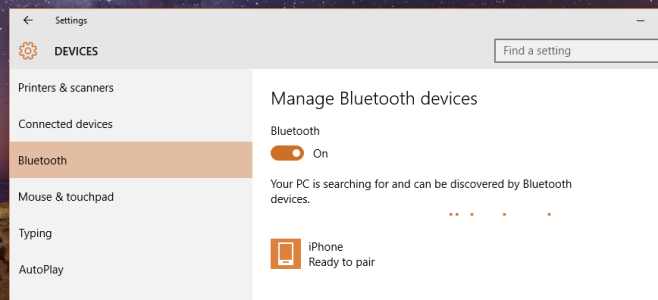
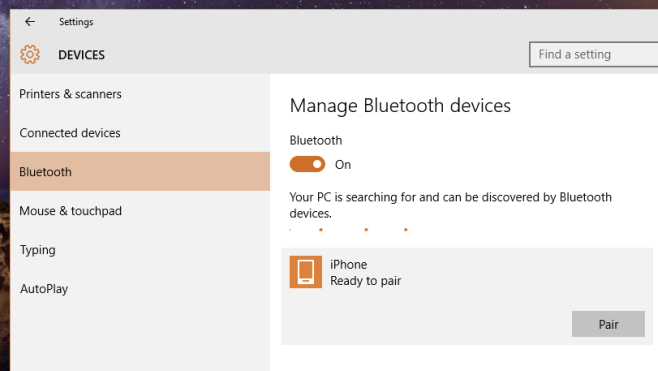
Depending on the device you’re connecting with, an authentication prompt will appear on your screen. It might prompt you to confirm the connection on the device you’re trying to connect with, or just on your screen. Some devices will display a PIN code that you need to match and confirm on both ends. This is a standard security measure to ensure you’re pairing with the correct device and not an unintended one nearby.
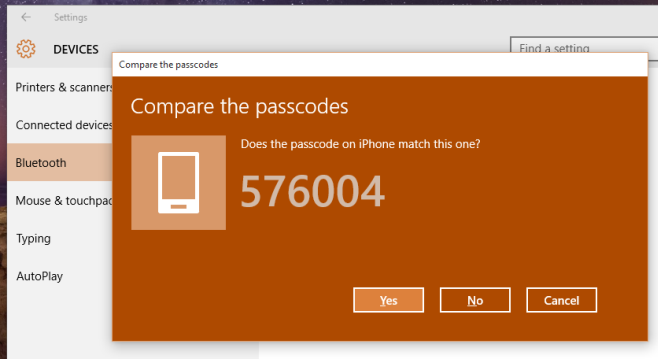
Once you’ve confirmed that you want to connect the device, it will appear in the list of connected devices. Any time the device is in range again, it will reconnect automatically. If you want to remove the device, click it in the list and click the ‘Remove device’ option.
How to Connect a Previously Paired Bluetooth Device
There is an important difference between pairing a device for the first time and simply reconnecting one you have already paired. Pairing exchanges security credentials between your PC and the accessory and only needs to happen once. Reconnecting is much faster and does not require the Add device dialog at all.
To reconnect a saved Bluetooth device:
- Make sure the accessory is powered on and within range of your PC.
- Open Bluetooth settings: on Windows 11 go to Settings > Bluetooth & devices, on Windows 10 go to Settings > Devices > Bluetooth & other devices.
- Find the device in your list of paired devices. If it shows as Disconnected, click it and then click Connect.
- Most devices will reconnect automatically without any further steps once Bluetooth is on and the accessory is in range.
A note for Bluetooth headphones and speakers: Even after a successful reconnection, Windows may not automatically switch audio output to the device. If you hear no sound, click the speaker icon in the taskbar (or open Quick Settings), select your Bluetooth audio device from the output list, and it should start playing immediately.
When you need to re-pair instead of reconnect: If you removed or forgot the device in Windows, paired the accessory to a different host device in the meantime, or the device simply refuses to reconnect after several attempts, you will need to put the accessory back into pairing mode and go through the full Add device process again as described in the section above.
Tips for Troubleshooting When You Connect a Bluetooth Device
Sometimes things don’t go as smoothly as expected. If you need a more detailed Bluetooth troubleshooting guide, use the decision tree below to find the fix that matches your specific problem.
Device Does Not Appear in the List
- Put the accessory back into pairing mode — many devices exit pairing mode after 30–60 seconds.
- Click Add Bluetooth or other device (Windows 10) or Add device (Windows 11) again to start a fresh scan rather than waiting on the static list.
- Toggle Bluetooth off and back on in Settings to refresh the adapter.
- Move the accessory closer to your PC — ideally within one metre for initial pairing.
- Temporarily move away from Wi-Fi routers and other devices operating on the 2.4 GHz band, which can interfere with Bluetooth signals.
Device Pairs but Will Not Connect
- Remove the device from Windows (click it in the Bluetooth list and select Remove device), then re-pair it from scratch.
- Open Device Manager, expand the Bluetooth section, right-click your Bluetooth adapter, and select Disable device, then Enable device to restart the radio.
- Press Win + R, type services.msc, and press Enter. Scroll to Bluetooth Support Service, right-click it, and select Restart. Set its startup type to Automatic if it is not already.
Headphones or Speakers Connect but There Is No Sound
- Right-click the speaker icon in the taskbar, select Sound settings (or Open Sound settings), and set your Bluetooth device as the default output device.
- If another audio device — such as a monitor’s HDMI output — is set as the default, Windows may have routed audio there instead. Switch it to your Bluetooth device.
- Check that the accessory supports the audio profile you need. Some Bluetooth headsets connect in hands-free mode (lower audio quality) rather than stereo mode. Disconnecting and reconnecting can sometimes switch the active profile.
No Bluetooth Toggle or Repeated Failures
- Run the built-in troubleshooter: go to Settings > System > Troubleshoot > Other troubleshooters (Windows 11) or Settings > Update & Security > Troubleshoot > Additional troubleshooters (Windows 10) and run the Bluetooth troubleshooter.
- Go to Settings > Windows Update and install any pending updates, as driver fixes are frequently delivered through Windows Update.
- Visit your PC or adapter manufacturer’s support site and install the latest Bluetooth driver manually if Windows Update does not resolve the issue.
If you continue to experience problems, Microsoft provides detailed guidance on their official Bluetooth troubleshooting page that covers a wide range of common issues and fixes for Windows 10 and Windows 11.
Managing Your Connected Bluetooth Devices
Once you successfully connect a Bluetooth device, Windows 10 stores the pairing information so the device reconnects automatically whenever it’s in range and powered on. This is especially convenient for peripherals like wireless headphones or a Bluetooth keyboard that you use every day.
You can manage all your paired devices from the same Bluetooth settings screen. Simply navigate to Settings > Devices > Bluetooth & other devices to see the full list. From there, you can click any device to access options such as removing it from the list or viewing its connection status.
If you want to connect a Bluetooth device that was previously removed, you’ll need to go through the pairing process again from scratch. Just put the device back into pairing mode and follow the same steps outlined above. The process is quick and straightforward once you’ve done it a couple of times.
It’s also worth noting that Windows 10 supports a wide range of Bluetooth profiles, meaning it can work with many different types of accessories — from audio devices and input peripherals to smartphones and fitness trackers. If you’re pairing an iPhone and also troubleshooting missed call alerts, these phone ringing fixes may help. As long as the device supports a standard Bluetooth profile, Windows 10 should be able to recognize and pair with it without any additional software.

how do I pair Bluetooth speaker with my computer?
hello, my problem is hat while my laptop has Bluetooth, window 10 does not even give me a Bluetooth option in the devises section of settings. what to do?
Hi,
I trying to connect my iPhone 6 plus to windows 10 system. Before pairing windows show iphone 6 plus as a BLE but after pairing it convert into Bluetooth Classic. I searching solution of this issue since a week why BLE change to classic. Please any have idea, share it.
Thanks
Rajendra
I can’t connect Bluetooth. After I updated the Bluetooth driver by OSToto Driver Talent, I connect Bluetooth successfully.
Headphones are paired but, if i want to connect them for the second time, i must delete headphones from bt list, paired it again and after that, headphones will connect, this is stupid, windows doesn’t connect to headphones automaticaly and there is not any button to manually connect headphones, do you know any fix or help?
In Windows 10 you can connect or disconnect already paired devices by going to the “Connect” quick-action button at the bottom of the Notification Centre pane.
In windows 10 clicking on connect in the quick-action button at the bottom of the Notification Center Pain! Fails to connect every time.
Also going into the volume control and hitting playback devices also fails every time.
The only way to connect is to go into bluetooth devices and remove the already paired device. The when it is rediscovered – pair with it again. It’s like windows10 uses temporary credentials to pair and when you come back to it they are no longer valid. Powering the bluetooth device on and off has no effect.
Hopefully they fix this on the next build?!!
Hi Kevin
I have no problems using the Quick action button to reconnect to both some bluetooth headphones and a speaker that I have. Are you sure it is not an issue with your device or PC instead?
i removed old bluetooth device and while reconnecting same device not showing in list. what I can do? tell me .
my bluetooth device is headphone. I want to connect this to laptop.
paired but i cant sent data
Is there away to manually disconnect a BT device in Windows 10? Or, to prevent ‘automatic’ connection? I don’t want to remove device every time…
My phone bluetooth is not getting connected with my system. what to do.
All devices in the bluetooth settings show up as “unknown” and I can’t connect anything, it’s extremely frustrating
i cant find Bluetooth in settings
I have already paired the device the first time, how do I connect to that device the next time?
Right click on the volume icon in the task bar >playback devices. Then right click your Bluetooth device >connect
Ah i see the bluetooth device > connect button (among all the other playback devices). Thanks! Will try it out!
we have this issue, but niether of our iphones are showing in the playback devices list (have already paired). how do we add them to this list? tia
Not every Bluetooth device is an audio device For non-audio Bluetooth, this isn’t a solution
ok this works.
Wish windows would do this automatically when a paired device comes into range.