How To Reset Data Usage On Windows 10
Windows 10 runs on tablets, desktops, and laptops. Data tracking in Windows 10 matters most on metered Wi-Fi, mobile hotspot, and limited broadband connections, where knowing your consumption can help you avoid overages and unexpected charges. One particularly useful feature is the ability to reset data usage in Windows 10, giving you a fresh baseline for tracking your network consumption.
You can see which apps consumed how much data on WiFi or Ethernet. The Settings app shows data consumption for the past 30 days on both WiFi and on Ethernet. It also shows you data consumption by individual apps installed on your system. The only downside is, there’s no built-in option to reset data usage. If you use a tablet or have a metered connection, this running total will not help you manage your data plan effectively. Here’s how you can reset data usage on Windows 10 and keep your stats accurate.
How to Reset Data Usage on Windows 10
Before you reset
Windows 10 stores all network usage statistics in a system database file called SRUDB.dat, located at C:\Windows\System32\sru\SRUDB.dat. Resetting your data usage means removing or replacing this file, so it is worth understanding a few key points before you proceed:
- Resetting permanently removes all historical per-app and per-adapter usage data — there is no undo.
- The reset applies to all tracked adapters (Wi-Fi and Ethernet) at once, not just a single app or connection.
- Administrator rights are required to modify or delete this file.
- Deleting the file is safe — Windows recreates SRUDB.dat automatically and begins logging fresh data immediately.
- The reset only affects Windows’ local tracking. Your ISP’s billing meter and any router-level statistics are completely unaffected.
There is no native way to reset data usage on Windows 10 built into the operating system. Perhaps there is a registry entry you can modify to reset the data consumption figures, but that’s the long way to do it. A much easier way is to use an app called Reset Data Usage. It’s a portable utility that requires one click to reset your data usage stats. It will reset both the WiFi and Ethernet stats, making it ideal for anyone who wants a clean slate at the start of a billing cycle or after a major update.
Download the app and run the correct version for your system. The zipped file contains both a 32-bit and 64-bit version. Run the app and click the ‘Reset Data Usage’ button. If you want to check out what the current data usage stats are, you can click the ‘Data Usage’ button to open the Settings app and view them. The tool is lightweight and does not require installation, so you can keep it handy for regular use.

Once you reset the stats, there’s no way to recover them. Make sure you note down any important figures before clicking the reset button, especially if you need to report or review past usage.
How to reset data usage manually using Command Prompt
If you prefer not to use a third-party utility, you can reset the SRUDB.dat file directly from an elevated Command Prompt. This is the underlying process that reset tools automate. Here is how to do it:
- Press Start, type cmd, right-click Command Prompt, and select Run as administrator.
- Stop the Diagnostic Policy Service, which holds a lock on the database file, by running:
net stop DPS - Take ownership of the file:
takeown /f "C:\Windows\System32\sru\SRUDB.dat" - Grant your administrator account full permissions:
icacls "C:\Windows\System32\sru\SRUDB.dat" /grant administrators:F - Delete the file to clear all stored stats:
del "C:\Windows\System32\sru\SRUDB.dat"— or rename it withren "C:\Windows\System32\sru\SRUDB.dat" SRUDB.dat.bakif you want to keep a backup copy. - Restart the Diagnostic Policy Service or reboot your PC:
net start DPS
After completing these steps, open Settings > Network & Internet > Data usage to confirm the counters have been cleared. Windows will recreate SRUDB.dat automatically and start tracking fresh data from this point forward. Note that this manual process is exactly what the Reset Data Usage utility does behind the scenes.
How to View and Reset Data Usage in Windows 10
If you want to know how you can view data usage stats without going through the app, it’s pretty simple. Open the Settings app. Go to the Network & Internet group of settings. Select the Data Usage tab. You can see how much total data was consumed by all your apps. This overview is helpful for spotting unexpected spikes in network activity.
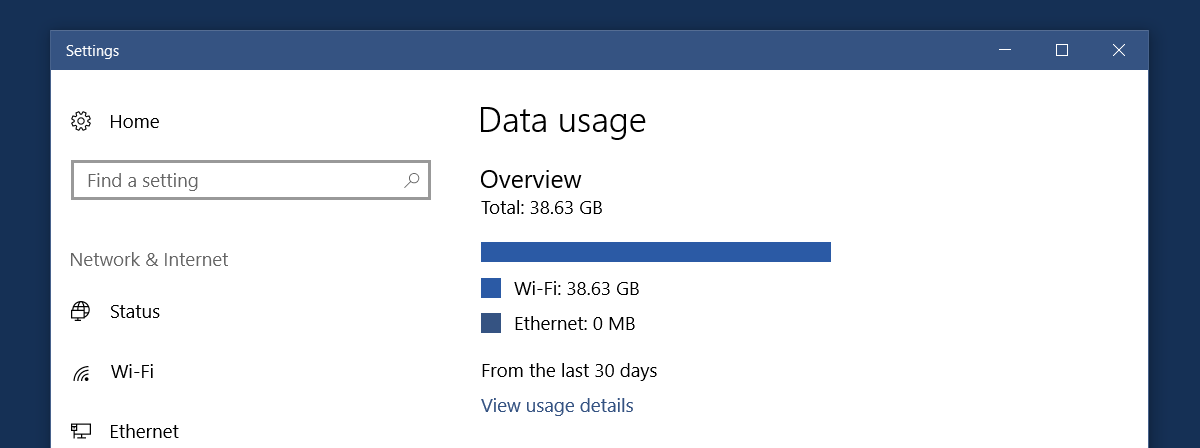
Click ‘View usage details’ to see how much data was consumed by each individual app on your system. This per-app breakdown is one of the most useful diagnostic tools available in Windows 10, especially for identifying apps that consume data in the background.
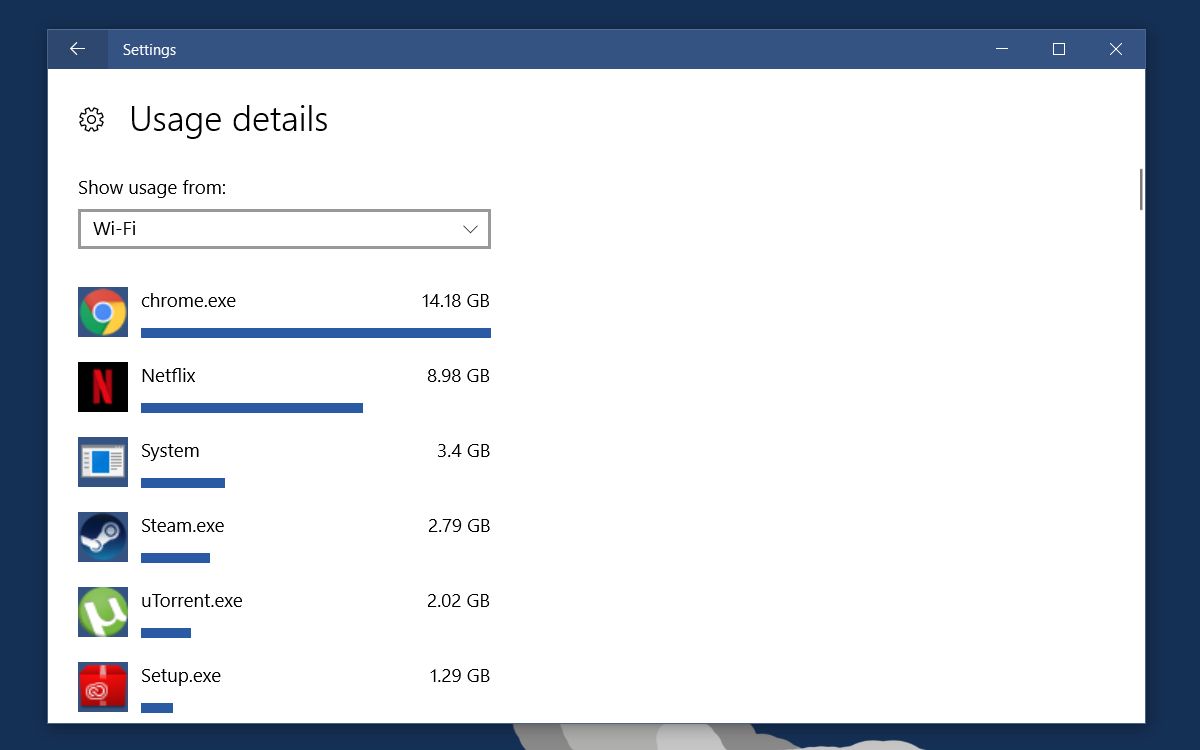
When you reset data usage in Windows 10 with the app, this list will disappear. You won’t be able to view data usage stats for apps until you use them again. It’s a pretty good way to check out which apps constantly use the internet even when they aren’t open. For example, after purging my data stats, they filled up again immediately because I was using Chrome, which is normal. What isn’t normal is that Netflix had also consumed about 2MB of data even though I wasn’t watching it. Identifying these background data consumers can help you optimize your connection and avoid unexpected overages on metered plans. According to Microsoft’s support documentation, Windows 10 tracks data usage per network adapter, so resetting the stats gives you a true fresh start for monitoring purposes.
Using Windows 10’s built-in Data limit feature
While Windows 10 does not include a built-in button to erase your historical usage stats, it does offer a built-in Data limit feature for metered connections that helps you track consumption against your plan. To set it up, go to Settings > Network & Internet > Data usage, select your connection, and click Enter limit (or Edit limit if one is already configured).
From there you can choose a monthly data cap, set a monthly reset date to align with your billing cycle, and receive warnings as you approach your limit. This is a useful way to stay on top of your plan without needing to reset your stats manually each month. Keep in mind, however, that this feature tracks usage against a threshold and resets its counter on your chosen date — it does not erase the underlying 30-day or per-app usage history stored in SRUDB.dat. If you need to clear that stored history entirely, use the manual Command Prompt method or the Reset Data Usage utility described above.
