Why Won’t My AirPods Connect? Simple Fixes That Work
Wondering why your AirPods not connecting to Windows or another device is such a headache? We’ve got you. Whether they show up but won’t play sound, or don’t show up at all, it’s incredibly frustrating.
Good news: the fixes below are current for 2025 and cover AirPods (1–4), AirPods Pro (1–2), and AirPods Max on iPhone/iPad, Mac, and Windows. Start with the quick checks, then follow the targeted steps for your device.

Why Your AirPods Won’t Connect: Here’s What to Check
AirPods are super convenient, but both hardware and software issues can block a clean connection. The most common causes:
- Bluetooth conflicts (paired to another device or auto-switching at the wrong time)
- Low battery in buds or case
- Outdated firmware
- Wireless interference (2.4 GHz crowding, USB hubs, microwaves)
- Dirty charging contacts in buds/case
- Incorrect output device selected (especially on Mac/Windows)
- Faulty hardware
Start with the basics below, then move to the device-specific fixes. If your AirPods connect but AirPods keep pausing, follow that guide instead.

AirPods Not Connecting? Quick Fixes to Try First
- Charge everything: Put buds in the case until the status light turns green; top up the case too.
- Toggle Bluetooth: Off, wait 10 seconds, back on.
- Update software: Install the latest iOS/iPadOS/macOS/Windows updates. AirPods firmware updates automatically when on charge near a paired Apple device; you can check firmware under Settings > Bluetooth > (i) next to your AirPods.
- Reduce conflicts: Temporarily disable Bluetooth on other nearby devices signed into your Apple ID.
Fixing Connection Problems with Your MacBook
1. Disconnect from other devices
AirPods can auto-switch between your Apple devices. If they keep jumping away from your Mac, turn off Bluetooth on your iPhone/iPad for a minute or, on iPhone, go to Settings > Bluetooth > (i) next to AirPods > Connect to This iPhone and choose When Last Connected (instead of Automatically).
2. Ensure your Mac is using AirPods for output
- On macOS Ventura/ Sonoma/ Sequoia: Apple menu > System Settings > Sound.
- Under Output, select your AirPods (not “MacBook speakers”).
- If you see multiple entries (e.g., “Headphones” and “Hands-Free”), pick the Headphones/Stereo one for music/video.
3. Unpair and re-pair AirPods
- Go to System Settings > Bluetooth, click the ⓘ next to your AirPods > Forget This Device.
- Put AirPods in the case and open the lid.
- Pairing:
- AirPods 1–3 / Pro 1–2: hold the case’s setup button ~15s until light flashes white.
- AirPods 4: double-tap the front of the case until the light flashes white.
- AirPods Max: hold Noise Control + Digital Crown until LED flashes white.
- Select your AirPods in Bluetooth to connect.
Apple’s step-by-step guides: If your AirPods won’t connect • How to reset AirPods/AirPods Pro • Restart/reset AirPods Max • Change sound output on Mac.

4. Reset your AirPods
A full reset fixes many stubborn pairing bugs. Follow Apple’s official instructions for your model:
- AirPods 1–3, AirPods Pro 1–2: Put buds in case, close lid 30s, open, then hold the setup button ~15s until light flashes amber then white. Reset guide.
- AirPods 4: Put buds in case, close lid 30s, open, then double-tap the front of the case repeatedly until light flashes amber then white. If you see an AirPods orange light, it indicates the reset is in progress. Model-specific steps.
- AirPods Max: Hold Noise Control + Digital Crown ~15s (LED flashes amber then white). Reset Max.
How to Pair AirPods to Windows 10 and Windows 11
Before diving into troubleshooting, it’s worth walking through the correct pairing process from scratch — because many connection problems stem from skipping a step during initial setup. Here’s how to connect AirPods to Windows cleanly on both OS versions.
Pairing on Windows 11
- Open Settings > Bluetooth & devices and make sure Bluetooth is toggled on.
- Click Add device, then select Bluetooth from the “Add a device” dialog.
- Put your AirPods into pairing mode (see model-specific steps below), then select them from the list when they appear.
- Click Done once Windows confirms the connection.
Pairing on Windows 10
- Open Settings > Devices > Bluetooth & other devices and confirm Bluetooth is on.
- Click Add Bluetooth or other device, then choose Bluetooth.
- Put your AirPods into pairing mode, select them from the list, and click Done.
How to Put AirPods into Pairing Mode
- AirPods (all generations) and AirPods Pro: Place both earbuds in the case and open the lid. Press and hold the setup button on the back of the case until the status light flashes white.
- AirPods Max: Press and hold the Noise Control button until the LED on the headband flashes white.
Confirm Your AirPods Are Connected Correctly
After pairing, check that Windows shows your AirPods as Connected voice, music in the device list — not just “Connected” or “Paired.” Then make sure they’re actually being used for audio: go to Settings > System > Sound and select your AirPods under the Output dropdown, or click the speaker icon in the taskbar and switch the output device there. If Windows defaults to your laptop speakers instead, you’ll need to set AirPods as the active output each session until you set them as default. If you’re using AirPods Pro, you can also toggle AirPods Pro ANC once the connection is stable.
Fix AirPods Not Connecting to Windows: Step-by-Step
Windows often pairs AirPods to two “profiles”: Stereo/Headphones (good sound) and Hands-Free/Headset (for mic, low quality). If you hear nothing or tinny audio, you’re likely on the wrong profile or output device. The steps below will help you resolve AirPods not connecting to Windows quickly.
1. Disconnect your other devices
Turn off Bluetooth on nearby phones/tablets so Windows can claim your AirPods cleanly. If needed, remove AirPods from Settings > Bluetooth & devices > Devices and pair fresh.
2. Set AirPods as the default output
- Right-click the taskbar speaker icon > Sound settings.
- Under Output, choose Headphones (AirPods Stereo).
- Scroll to Advanced sound options and ensure your apps use AirPods for output.
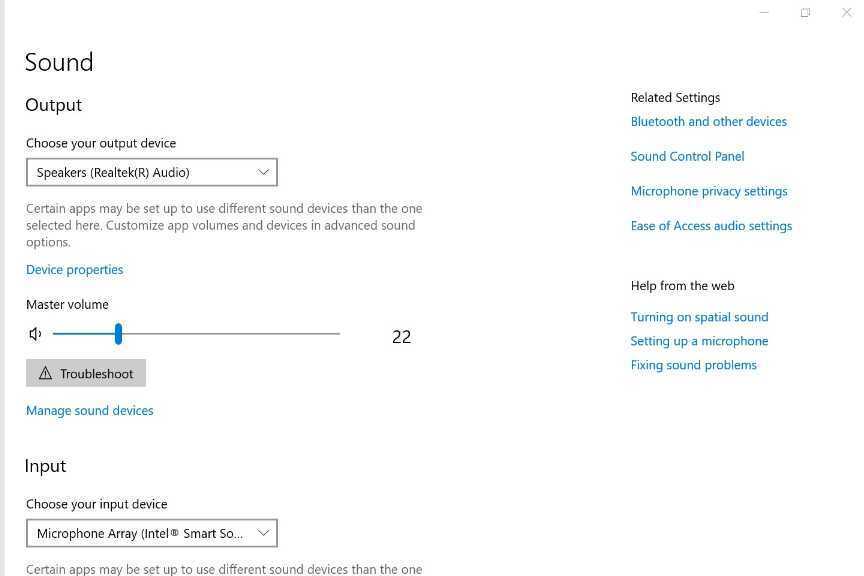
Tip: If Windows keeps switching to Hands-Free, open Settings > Bluetooth & devices > More devices and printer settings, right-click your AirPods > Properties > Services, and uncheck Handsfree Telephony. You’ll get better sound quality, but the mic won’t work in this mode.
3. Update your Bluetooth drivers
A faulty, outdated, or recently changed Bluetooth driver is one of the most common root causes of AirPods connection problems on Windows. Work through the following decision tree:
If the problem started after a recent Windows Update or driver update: Open Device Manager, expand Bluetooth, right-click your adapter (e.g., Intel, Mediatek, Realtek), and choose Properties > Driver > Roll Back Driver. Restart your PC and test the connection again.
If Roll Back Driver is greyed out or doesn’t help: Right-click the adapter and choose Uninstall device. Restart your PC — Windows will attempt to reinstall the adapter automatically. Once it’s back, re-pair your AirPods before testing.
For the most reliable fix: Rather than relying solely on Windows Update, download and install the latest Bluetooth driver directly from your laptop or motherboard manufacturer’s support page (e.g., Dell, HP, Lenovo, ASUS, or Intel’s own driver site). OEM drivers are often more stable than the generic versions Windows installs automatically.
If the Bluetooth toggle is missing entirely or your adapter doesn’t appear in Device Manager: This is a Bluetooth driver or hardware issue, not an AirPods-specific problem. To confirm, test another Bluetooth accessory — if it also fails to show up, the adapter itself is the issue. In that case, a USB Bluetooth adapter (available for under $15) is a quick workaround while you investigate further. After updating or reinstalling the driver, remove any leftover “AirPods Hands-Free AG” or headset entries under Bluetooth in Device Manager, then re-pair your AirPods fresh.
Other Troubleshooting Methods
- Stay close: Keep buds within a few feet of the device when pairing.
- Test Bluetooth with another accessory: Confirms whether the issue is your phone/computer vs. the AirPods.
- Clean buds and case: Gently clean charging contacts; see Apple’s guides for AirPods and AirPods Pro.
- Reboot the host device: The classic fix that still works.
- Check for damage: Cracks, water ingress, or swollen batteries may require service.
Solutions to Try When All Else Fails

1. The AirPods hokey pokey
Not an official method, but it can clear pairing confusion: with your phone/Mac nearby and case on charge, open/close the case, insert/remove one earbud at a time, then re-pair. If it fails, do a full reset (steps above).
2. The AirPods switcheroo
Forget the AirPods on the troublesome device, pair them to a second device, forget there too, then pair back to the original. This forces a fresh handshake across iCloud and often resolves stubborn conflicts — including cases where AirPods not connecting to Windows persists after all other steps.
Connection Resolved? You Should Be Good to Go
With the steps above, most “Why won’t my AirPods connect?” problems are fixable. If nothing works, contact Apple Support or book a repair—especially if the buds/case are damaged or very old. If the issue started after workouts or moisture exposure, it also helps to understand AirPods sweat resistance.
Frequently Asked Questions
How do I update my AirPods?
Firmware updates install automatically when your AirPods are charging in the case near a paired iPhone/iPad/Mac with internet. To check the version, go to Settings > Bluetooth, tap the ⓘ next to your AirPods and view Version. If stuck on an old version, reset the AirPods, reconnect, and charge near your device for ~30 minutes.
Why aren’t my AirPods showing in the device list?
On Windows, AirPods not appearing during a scan is one of the most common pain points. Work through these steps in order:
- Keep both earbuds in the open case while Windows is scanning. Don’t remove the buds — the pairing button and status light are only accessible this way.
- Confirm the case light is flashing white. A flashing white light means the AirPods are in pairing mode and ready to be discovered. If the light stays amber, the case or buds need more charge — plug in for 15–30 minutes and try again.
- Remove any old AirPods entry before rescanning. On Windows 11, go to Settings > Bluetooth & devices, find your AirPods in the device list, click the three-dot menu, and select Remove device. On Windows 10, go to Settings > Devices > Bluetooth & other devices, click your AirPods, and choose Remove device. Stale entries can block rediscovery.
- Temporarily turn off Bluetooth on nearby iPhone, iPad, or Mac devices. If your AirPods are still paired to an Apple device nearby, they’ll reconnect to it automatically and disappear from Windows’ scan results. Disabling Bluetooth on those devices forces the AirPods to stay available.
- Start the scan from Add device > Bluetooth — don’t just look at the existing device list. On Windows 11: Settings > Bluetooth & devices > Add device > Bluetooth. On Windows 10: Settings > Devices > Bluetooth & other devices > Add Bluetooth or other device > Bluetooth. Windows only actively scans for new devices when you open this dialog.
- Verify that your PC’s Bluetooth adapter is present and enabled. Open Device Manager (search for it in the Start menu), expand the Bluetooth section, and confirm your adapter appears without a warning icon. If it’s missing entirely, see the Bluetooth driver section above.
Why are my AirPods flashing white but not connecting?
They’re in pairing mode but the host device isn’t completing the handshake. Move closer, forget/re-pair, and remove other Bluetooth devices. This applies whether you have AirPods not connecting to Windows or to an Apple device.
How do I force pairing mode?
- AirPods 1–3 / Pro 1–2: With lid open, hold the case’s setup button until the light flashes white.
- AirPods 4: With lid open, double-tap the front of the case until the light flashes white.
- AirPods Max: Hold Noise Control + Digital Crown until the LED flashes white.
How do I fix unresponsive AirPods?
- Charge case and buds for at least 30 minutes.
- Update your device OS and re-pair the AirPods.
- Restart your phone/computer.
- Test your device with another Bluetooth accessory.
- Reset the AirPods (model-specific steps above).
What’s New in This Update
- macOS steps modernized for System Settings (Ventura and later) and correct Output selection.
- Windows 11 guidance expanded: set default output, fix “Connected but no sound,” and optionally disable Hands-Free/AG profile for better audio.
- AirPods 4 pairing & reset behavior added (double-tap the front of the case) alongside classic setup-button method for older models.
- AirPods Max reset instructions clarified (Noise Control + Digital Crown).
- Auto-switching tip added to stop AirPods jumping between Apple devices at the wrong time.
- Typos and duplicated lines fixed; troubleshooting order streamlined.
Last updated: 2025-10-09
