How to Turn on Noise Cancelling on AirPods: A Step-by-Step Guide
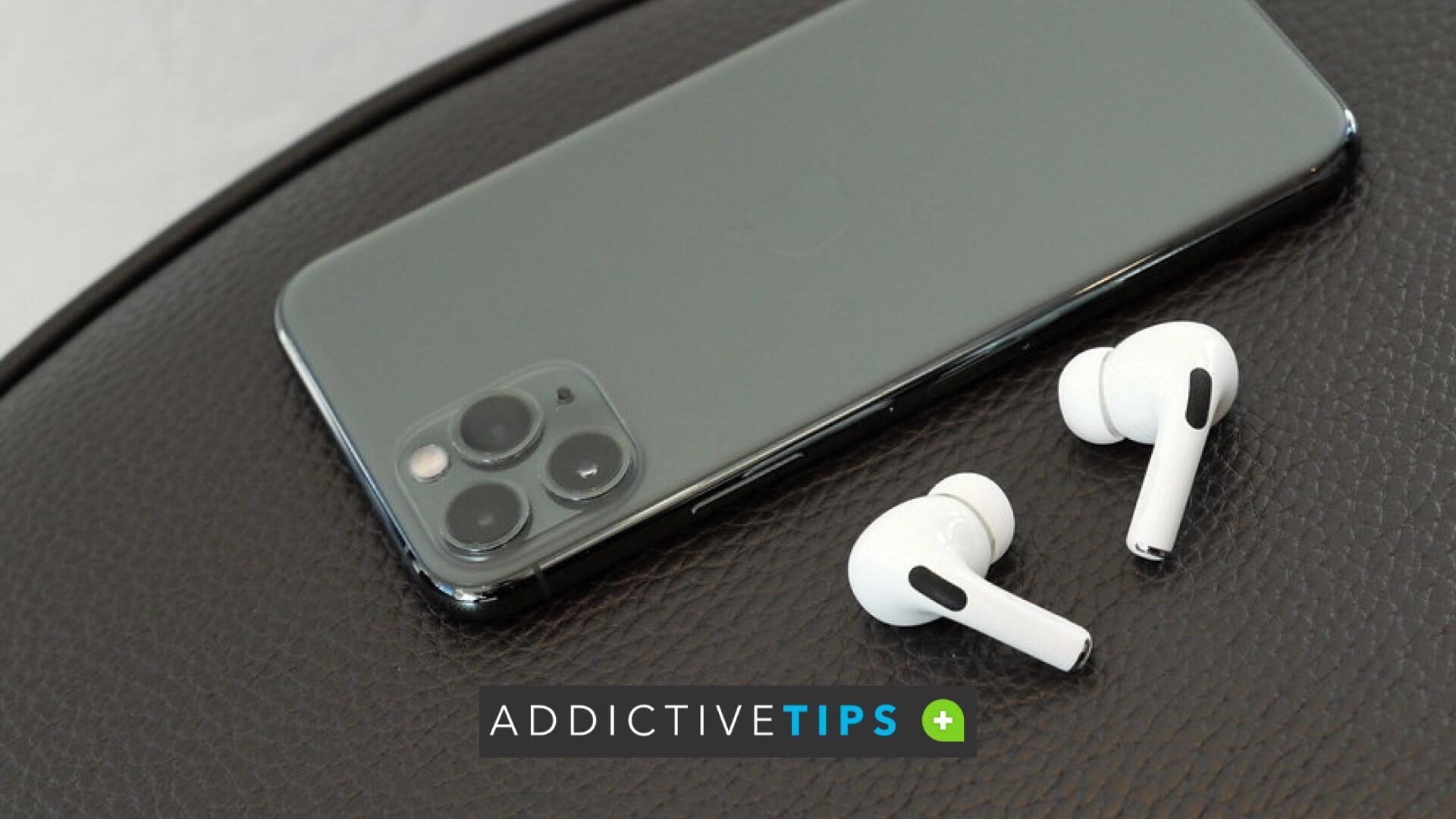
Active noise cancelling is a compelling feature that persuades many to buy this super gadget. If you want to know how to use noise cancellation on AirPods, you’ve come to the right place — read on to learn how to turn on noise cancelling on AirPods Pro.
We introduce you to multiple methods to use active noise cancelling in different devices.
Which AirPods Models Support Noise Cancellation?
Before diving into the steps, it’s worth confirming whether your specific AirPods model actually supports Active Noise Cancellation (ANC). Not every pair of AirPods includes the hardware required for this feature.
Active Noise Cancellation is available on the following models:
- AirPods Pro (all generations)
- AirPods 4 (ANC model) — note that the standard AirPods 4 without ANC do not support this feature
- AirPods Max (all generations)
Standard AirPods models that do not include ANC hardware — such as AirPods 2, AirPods 3, and the base AirPods 4 — cannot use noise cancellation, regardless of software version or settings.
The steps in this article are written primarily for AirPods Pro. If you own AirPods Max or AirPods 4 (ANC), the general process is the same, but if you are unsure which model you have, check Settings > Bluetooth on your iPhone or iPad — your AirPods model name will appear next to the device in the list.
How to Use Noise Cancellation on AirPods: On a Mac
Working on your Mac while listening to your favorite focus music, but the noise of the workplace or home office environment troubling you? Get rid of noise by activating noise canceling on AirPods Pro using these steps:
- Look for the volume icon on the Mac menu bar and click on the icon.
- You’ll see a context menu for Output Device, Volume, and Sound Preferences.
- If you’ve paired AirPods Pro with Mac, you should see the name of AirPods Pro.
- Click on your AirPods Pro, and the Noise Control context menu will open.
- Check mark the Noise Cancellation option.
- That should fix you up with noise cancelling on AirPods Pro.
How to Use Noise Cancellation on AirPods: On an iPhone/iPad
There are many ways to turn noise cancelling on AirPods Pro using an iPad or iPhone. Active Noise Cancellation works on ANC-capable AirPods paired to a compatible Apple device. Newer features such as Adaptive Audio and the Off listening mode require a newer AirPods model and a current OS version — check Apple’s AirPods support page if you are unsure whether your device combination supports these. Now, follow these steps:
- Make sure you’ve already paired AirPods Pro with your iPad or iPhone.
- Now, pull down the Control Center of iOS or iPadOS by swiping down your finger from the top right side of any of these devices.
- You should see the Volume or AirPods Pro module in the Control Center.
- Long tap this panel until you see these options Noise Cancellation, Off, and Transparency.
- Tap Noise Cancellation to activate the feature.
You can also activate Noise Cancellation from the Settings console of AirPods Pro on an iPhone or iPad. The quickest route on current iOS and iPadOS is to go directly to Settings and tap your AirPods name at the top of the list when they are connected — this brings you straight to your AirPods settings page. Alternatively, you can use the Bluetooth path described below:
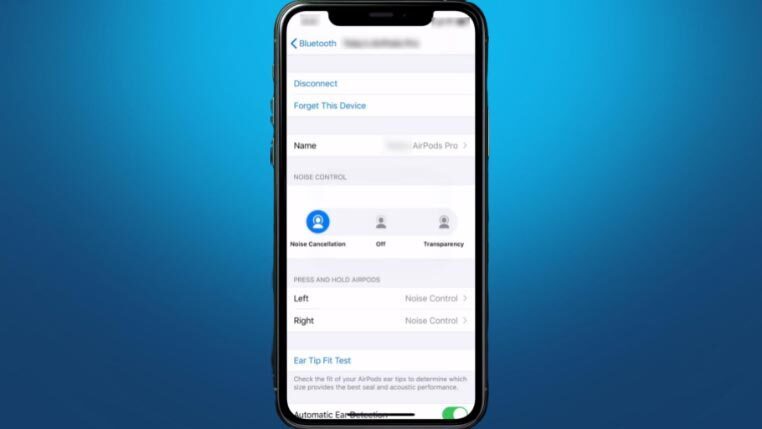
- Open Bluetooth from the Settings app of iPhone or iPad.
- You should see the connected AirPods Pro there in the Bluetooth devices list.
- Besides the name of your AirPods Pro, there should be a More Info or (i) icon. Tap on this.
- Now, you’ll see the Noise Cancellation option. Tap on that to activate noise cancelling.
How to Turn Noise Cancelling On AirPods Pro: On Android
- While connected to an Android device, press and hold the Force Sensor groove on either AirPod Pro.
- Release the Force Sensor when you hear a chime.
- This cycles through the listening modes configured on your AirPods — the result will depend on which mode you were in and which modes are included in your current cycle settings. It does not always land directly on Noise Cancellation.
Keep two important caveats in mind when using AirPods Pro with an Android device:
- You normally need to be wearing both AirPods for full listening mode switching to work as expected.
- If you want to use Noise Cancellation while wearing only one AirPod, you first need to enable Noise Cancellation with One AirPod on an iPhone or iPad. Find this option under Settings > Accessibility > AirPods.
If you find the stem cycles through modes you don’t want, connect your AirPods to an Apple device and adjust which modes are included in the cycle from the AirPods settings page — those preferences carry over when you switch back to Android.
How to Turn Noise Cancelling On AirPods Pro: On Windows
For Windows PCs, controlling noise cancellation on Apple AirPods Pro works similarly to Android. You use the Force Sensor on either AirPod stem, but it is important to understand what actually happens when you press it.
Press and hold the Force Sensor until you hear a chime. This cycles through the listening modes that are configured on your AirPods — it does not guarantee that Noise Cancellation will activate on every press. The mode you land on depends on which mode was active before and which modes are included in your cycle.
Two things to keep in mind:
- Wearing both AirPods is normally required for listening mode switching to work fully.
- To use Noise Cancellation with only one AirPod, you must first enable Noise Cancellation with One AirPod on an iPhone or iPad via Settings > Accessibility > AirPods.
If you need to change which modes the stem cycles through, connect your AirPods to an Apple device or Mac and adjust the cycle settings there — the configuration will stay on the AirPods when you reconnect to your Windows PC.
Switch between Noise Cancellation, Transparency, Adaptive Audio, and Off
AirPods Pro and other ANC-capable AirPods do not just offer a simple on/off toggle for noise cancellation — they come with a full set of listening modes, each suited to a different situation. Understanding how to use noise cancellation on AirPods alongside these other modes will help you get the most out of your earbuds. Here is what each mode does:
- Noise Cancellation: Actively blocks outside sound so you can focus on your audio without distraction.
- Transparency: Lets ambient sound pass through so you can stay aware of your surroundings, such as hearing conversations or traffic, while still listening to audio.
- Adaptive Audio: Available on newer AirPods Pro models, this mode automatically blends Noise Cancellation and Transparency in real time based on your environment. It adjusts continuously as conditions change.
- Off: Disables listening-mode processing entirely on supported models, delivering a more natural sound without active adjustment.
Switching modes on the AirPods stem: Press and hold the Force Sensor on either AirPod Pro until you hear a chime. Each press cycles to the next mode in your configured sequence.
Switching modes on iPhone or iPad:
- Open Control Center by swiping down from the top-right corner of your screen.
- Touch and hold the volume slider.
- Tap the Listening Mode control at the bottom of the volume panel.
- Choose your preferred mode — Noise Cancellation, Transparency, Adaptive Audio, or Off.
Switching modes on Mac:
- Click the volume icon or the AirPods name in the Mac menu bar.
- Select your connected AirPods Pro to reveal the Noise Control options.
- Choose the mode you want from the list.
You can also customize which modes the stem cycles between. On iPhone or iPad, go to Settings > [your AirPods name] and look for the Press and Hold AirPods or Noise Control section to select which modes are included. On Mac, open System Settings > [your AirPods name] to find the same option. This is useful if, for example, you never use the Off mode and want the stem to cycle only between Noise Cancellation and Transparency.
Final Words
Find above a list of multiple methods showing how to use noise cancellation on AirPods across Mac, iPhone, iPad, Android, and Windows. Use the method that matches the device you’re using with your Apple AirPods Pro.
If you’ve followed the steps but your AirPods Pro won’t connect to your device, you might be facing a pairing problem. In that case, our detailed guide on why won’t my AirPods connect can walk you through the fixes.
You may also be interested in knowing if AirPod Pros waterproof.
