YouTube TV Not Working: How to Fix YouTube TV Down Right Now
YouTube TV is a popular streaming service in the United States, which you can use to watch live TV. It covers more than 100 popular channels, including ABC, CBS, FOX, NBC, AMC, BBC, Comedy Central, Discovery, Disney, E!, and ESPN.
Unfortunately, the service is not infallible and many subscribers have reported playback issues on their devices. In some cases, this has even led subscribers to ponder on whether YouTube TV is worth it or not. If you have found yourself going down the ‘YouTube TV not working’ rabbit hole, we’ll walk you through everything you need to know on how to solve the issue.
What is YouTube TV?
YouTube TV is a subscription based service that allows users to watch live TV from over 100 channels, including sports, news, television shows, and movies. This is all accessed from the YouTube TV app, which makes it easy to watch content from one convenient source. There is even unlimited DVR (digital video recorder) space so that users can store content to watch later.
However, sometimes things go wrong and there are issues with the app. Some common problems users face include:
- Poor video quality
- The app crashing
- Log in issues
- Internet connection problems
- No video and/or audio
- Excess buffering
- Functionality problems with DVR
Why Is YouTube TV Not Working or Down?
A wide range of factors can lead to functionality issues with this streaming service. Usually, it’s a problem on the server’s side, and YouTube 503 troubleshooting can help you better understand these errors. These types of issues should get resolved on their own by YouTube TV, which means that you just have to wait a while, and then try again later.
However, if the issue persists, there might be an issue with your YouTube TV subscription, device settings, or internet connection.
How to Fix Any YouTube TV Not Working Issues
Before starting the troubleshooting process, it’s a good idea to check the YouTube TV live status on Downdetector. If there’s a problem on its end, then there’s sadly nothing you can do about it, except to sit and wait.
Furthermore, you should always reboot your device as a first troubleshooting step. It’s a simple trick that usually solves the problem, even when YouTube TV is not working on Firestick. Otherwise, proceed with the following solutions to get YouTube TV working again.
1. Check the device limit
According to YouTube TV, you can’t connect more than three devices at the same time using the same account. This includes devices such as a computer, smartphone, tablet, smart TV, or gaming console.
So, if you are currently logged in to more than three devices, you should disconnect the ones you don’t use. It’s also a good idea to check with your friends, in case you are all (ahem) sharing a YouTube TV subscription.
2. Restart the YouTube TV app
Stopping and relaunching the app might be the perfect simple solution that YouTube TV needs to function normally again. However, you should make sure to properly close the app before restart. Here’s how:
How to restart the YouTube TV app on Android:
- Go to the Settings section of your Android
- Visit the Apps area and find YouTube TV
- Tap YouTube TV and then Force stop
- Go back to your home screen
- Relaunch YouTube TV
How to restart the YouTube TV app on iOS:
- Swipe up and stop in the middle of the screen
- Swipe left or right to find and tap YouTube TV
- Swipe up to the app’s preview and close YouTube TV
- Restart YouTube TV
3. Restart the web browser
If you’re using a desktop and a web browser for YouTube TV, make sure to restart it to fix any functionality issues with the streaming service. For example, you can effortlessly restart Chrome. Here’s how to do it properly.
How to restart a web browser correctly on Windows 10:
- Press Ctrl + Shift + Esc to start Task Manager
- Remain in the Processes section
- Select your web browser and click End task

- Start your browser again
- Check for YouTube TV errors
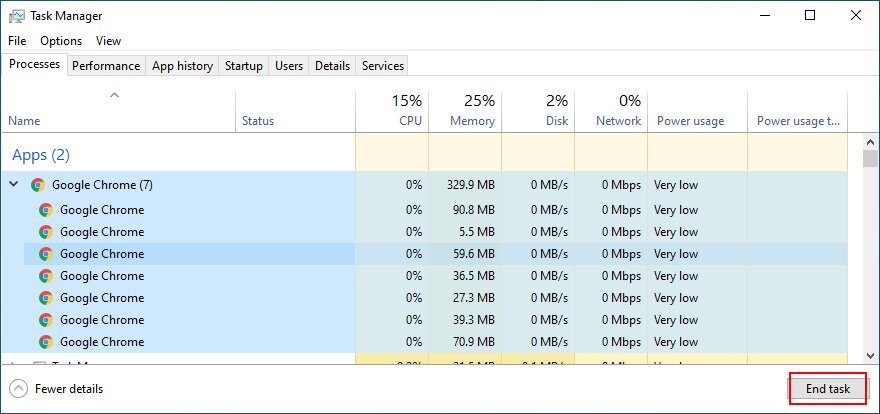
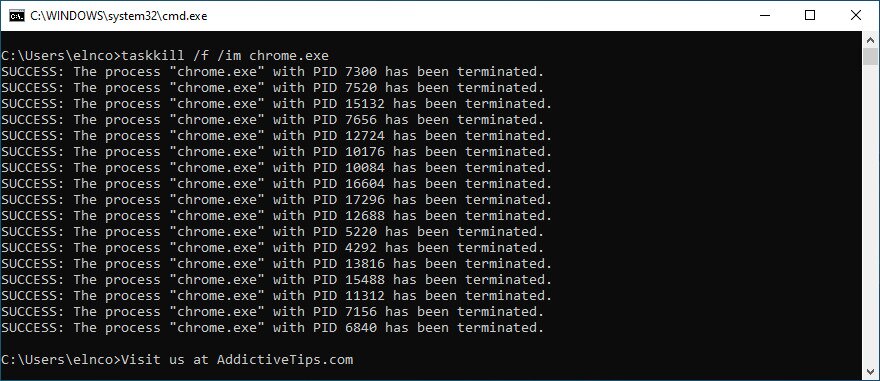
If Task Manager is unavailable, you can use Command Prompt:
- Click the Start button, search for Command Prompt, and open this app
- Run the
tasklistcommand to view all currently running processes - Find the process name of your web browser in the list
- Write
taskkill /f /im task_name.exe /tand make sure to replacetask_name.exewith your browser’s process name. For example, if you want to terminate Chrome’s task, typetaskkill /f /im chrome.exe /t. Press Enter
- Exit Command Prompt
How to restart a web browser correctly on macOS:
- Select your web browser’s window
- Open the Apple menu from the top-left part of the screen
- Click Force Quit
Once you have shut down the browser, you can simply re-launch the program to see if the issue has been resolved.
4. Power-cycle your devices
If restarting the streaming app or browser doesn’t do the trick, try power-cycling your devices. Here’s how to kickstart the process:
- Shut down all devices used for YouTube TV. This includes any desktop, laptop, tablet, smartphone, smart TV, or gaming console
- Turn off your router and modem
- Unplug all devices from their power source
- Wait a few minutes
Then, simply plug everything back in, turn the devices on and try again to access YouTube TV.
5. Try using another device or internet network
There might be something wrong with your device or its settings, which is preventing YouTube TV from working properly. To put this theory to the test, try to connect to the TV streaming service using another device from your household. If that doesn’t solve the problem, try connecting to another Wi-Fi network.
Or, if you are using cellular data, try connecting through a 3G or 4G network. You don’t have to use up your mobile data — but this test could help you to figure out if the problem lies with your internet connection. In that case, you should contact your ISP and ask for further assistance.
6. Update the YouTube TV app
It’s always a good idea to keep the TV streaming service up-to-date to avoid any functionality issues that may prevent you from enjoying your favorite movies and TV series. Here’s how to make it happen:
How to update YouTube TV app on Samsung Smart TV
Many smart TVs, such as LG and Samsung, will have similar methods to update the YouTube TV app. For Samsung, specifically, you will:
- Push the Home button to open the Home Screen menu
- Choose Apps
- Then go to Settings
- Toggle auto update on
7. Update your web browser
Your web browser should also be kept updated if you use it to watch YouTube TV on your desktop, laptop, or tablet. Normally, browsers find and install updates automatically. But if that doesn’t happen on your device, here’s how to update it manually.
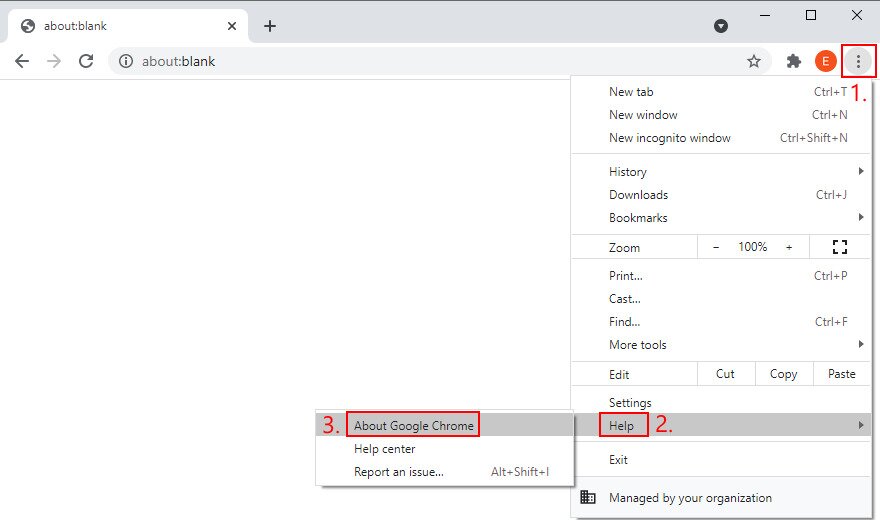
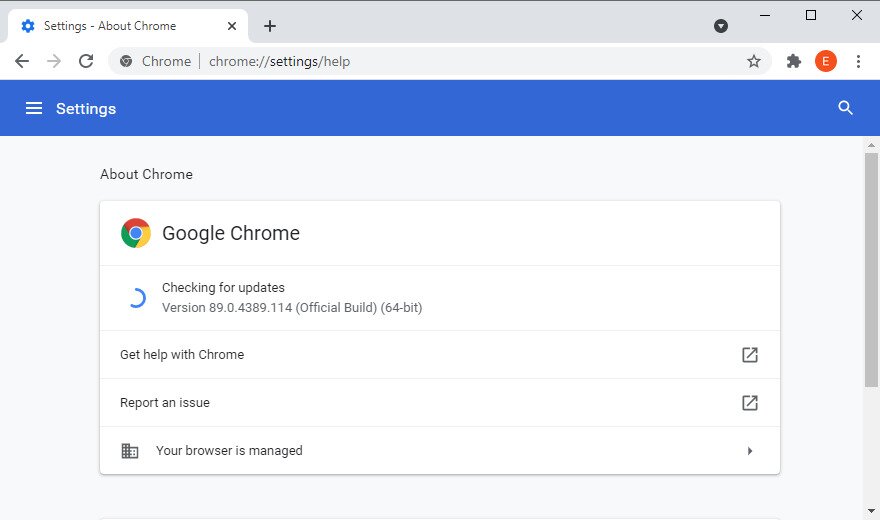
How to update your Google Chrome :
- Launch Chrome
- Open the More menu from the top-right corner
- Go to the Help section

- Click About Google Chrome. Or, you can visit
chrome://settings/help
- Wait for Chrome to find and install any updates
- Click Relaunch when the update is over
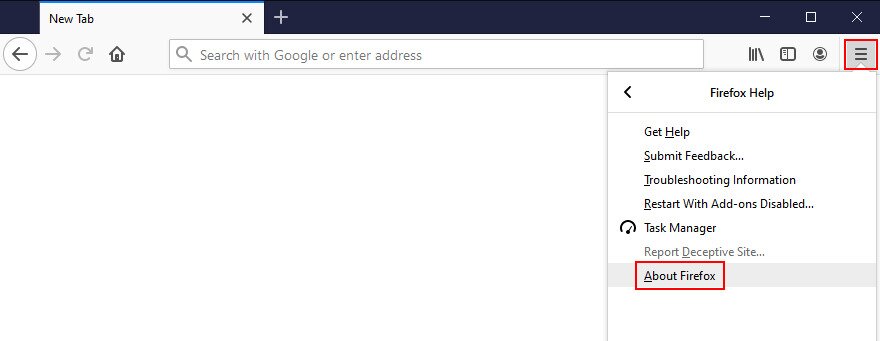
How to update Mozilla Firefox:
- Open Firefox
- Click the ≡ button next on the upper-right part
- Go to Help

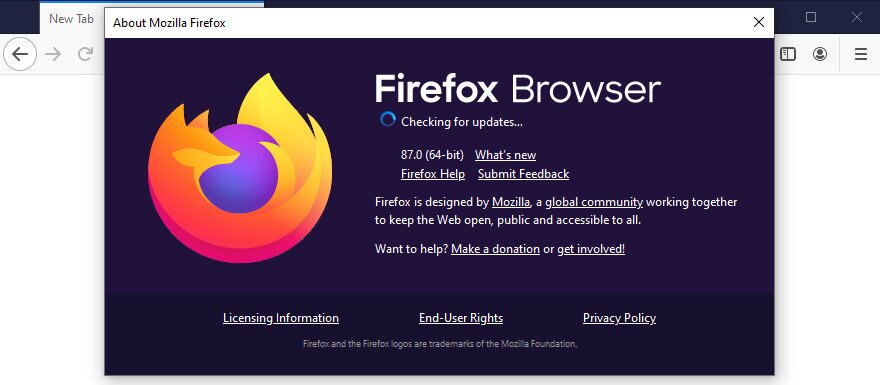
- Click About Firefox
- Wait until the browser installs any available updates

- Restart Firefox
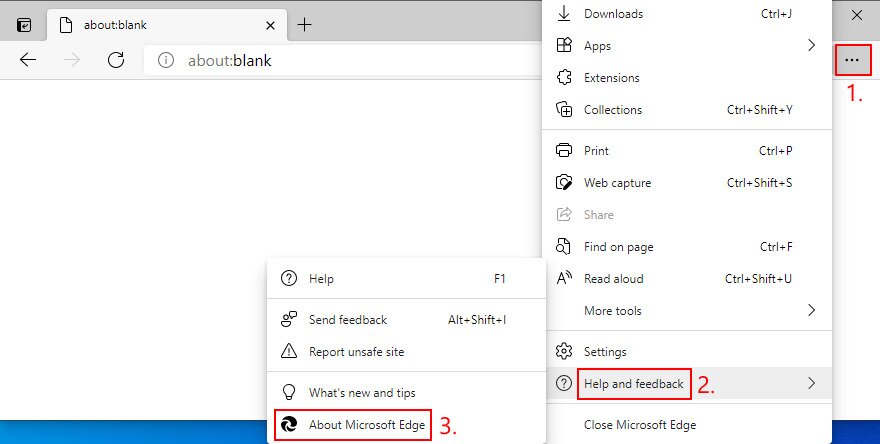
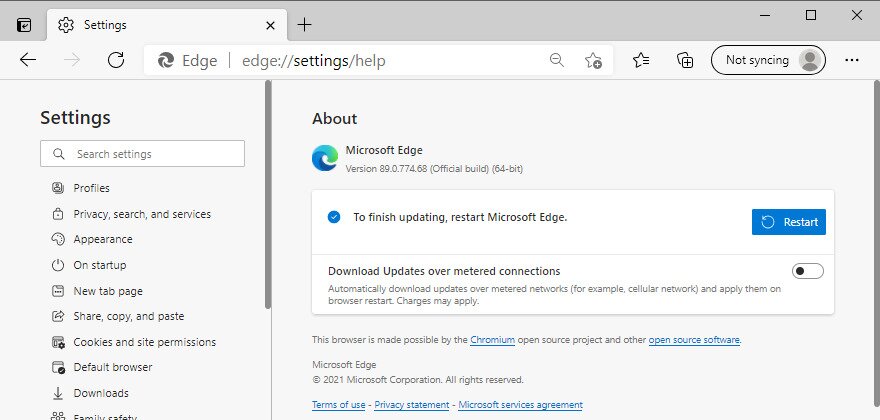
How to update Microsoft Edge:
- Fire up Microsoft Edge
- Open the More menu in the upper-right corner
- Visit the Help & feedback menu area

- Click About Microsoft Edge (or visit
edge://settings/help) - Wait until Edge applies any updates. Click Restart when it’s done

8. Clear the app cache
Whether you’re using Android, iPhone or iPad, you should know that YouTube TV saves some data to cache to load faster in the future. However, if the cache is full and doesn’t get emptied automatically anymore, it can lead to functionality issues. In some cases, YouTube TV stops working altogether. But you can easily fix it by clearing the app cache.
How to clear YouTube TV cache on Android and iOS:
- Visit the Settings menu on your device
- Visit Storage > Apps or Other Apps, or General > Storage
- Find and tap YouTube TV
- Select Clear cache, or Offload app
- Restart YouTube TV and see if the reset worked
9. Clear the browser cache
Alternatively, if you’re using a web browser to watch YouTube TV, it’s a good idea to clear its cache to resolve any functionality problems. For instance, you can easily clear Chrome site data. Here’s what you should do.
How to clear Chrome cache on Windows and macOS:
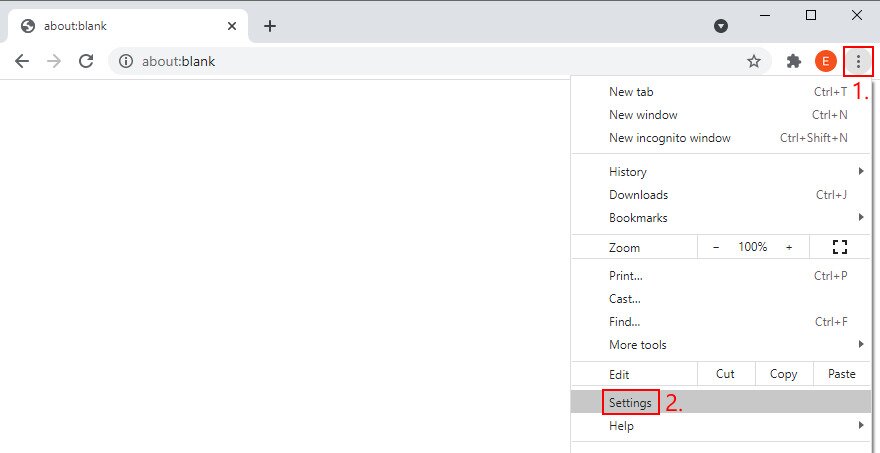
- Fire up Google Chrome
- Click the More button in the top-right corner
- Head over to Settings

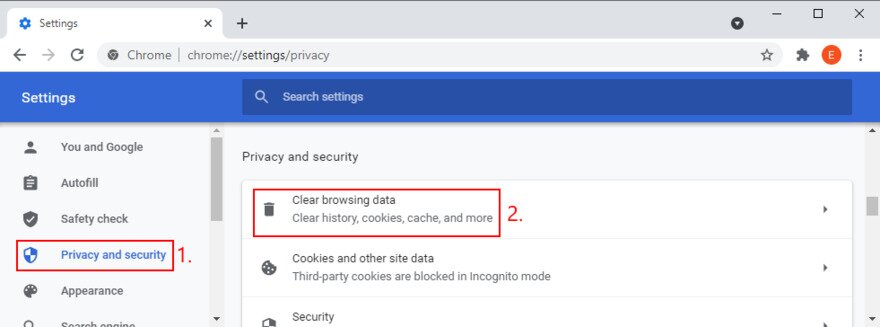
- Go to the Privacy and security section
- Click Clear browsing data (or visit
chrome://settings/clearBrowserData)
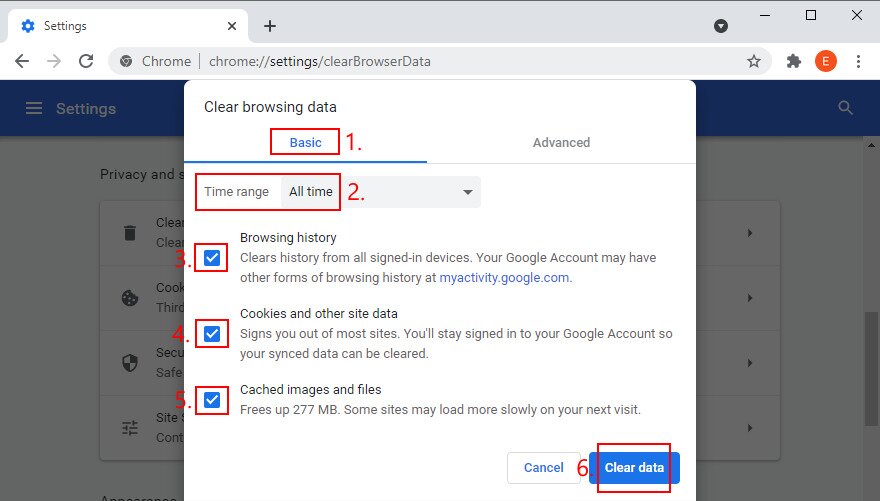
- Choose the Basic area
- At Time range, select All time
- Enable the following options:
- Browsing history
- Cookies and other site data
- Cached images and files
- Click Clear data

- Restart Chrome
How to clear Firefox cache on Windows and macOS:
- Launch Mozilla Firefox
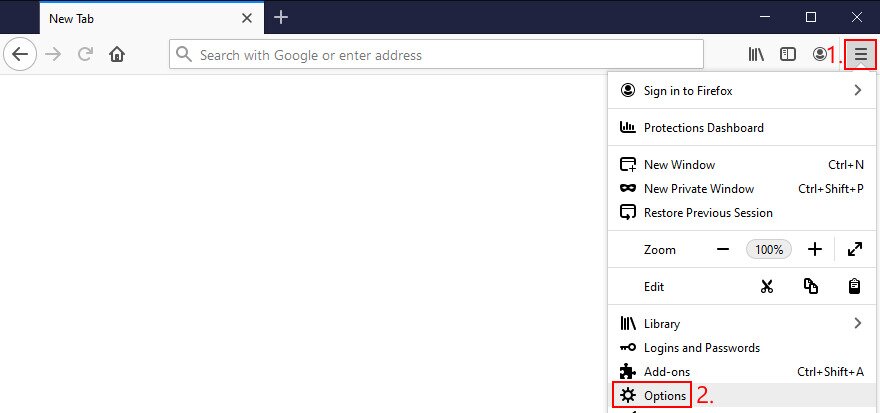
- Click the ≡ button on the top-right part of the window
- Select Options from the menu

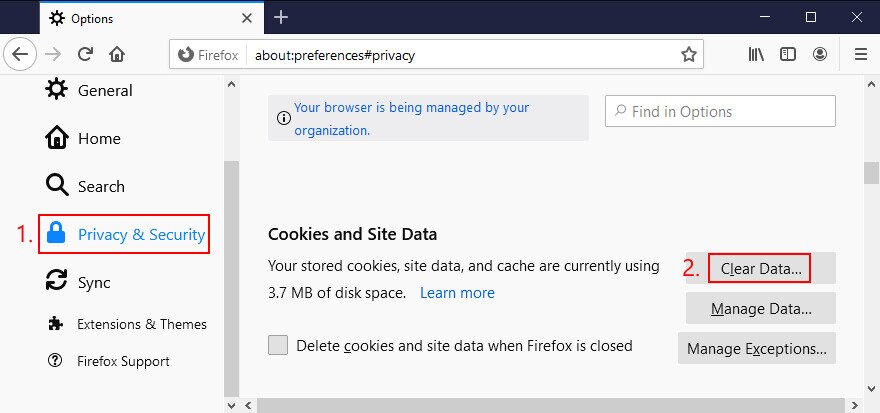
- Go to Privacy & Security and click Clear Data…

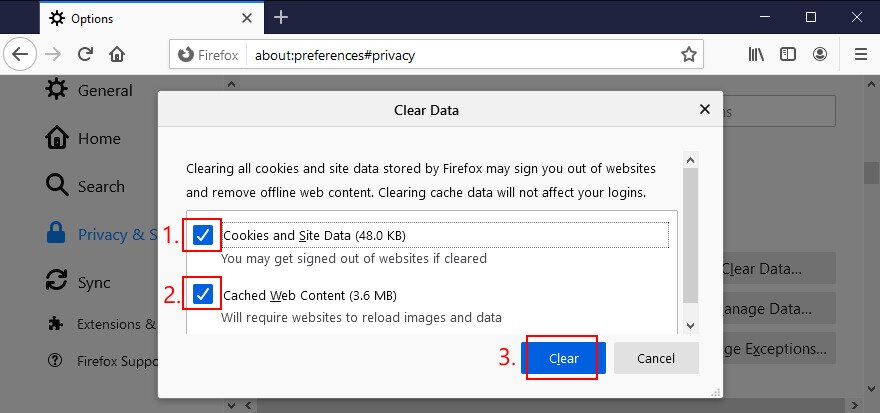
- Make sure to enable the next settings:
- Cookies and Site Data
- Cached Web Content
- Disable all other options
- Click the Clear button

- Restart Firefox
- Try to access YouTube TV now
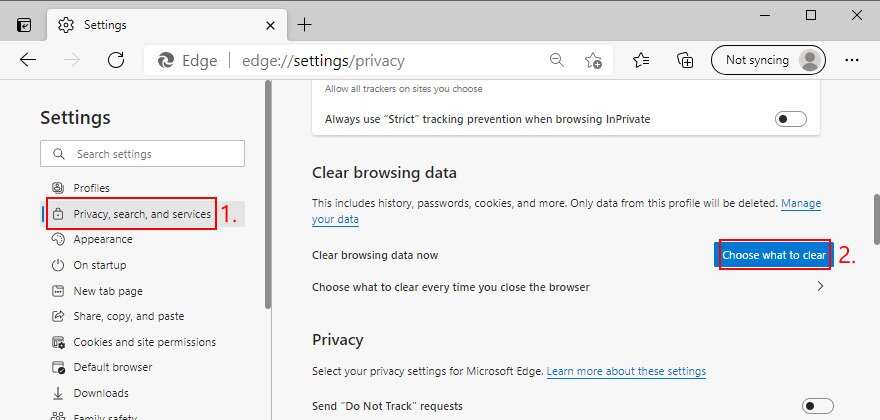
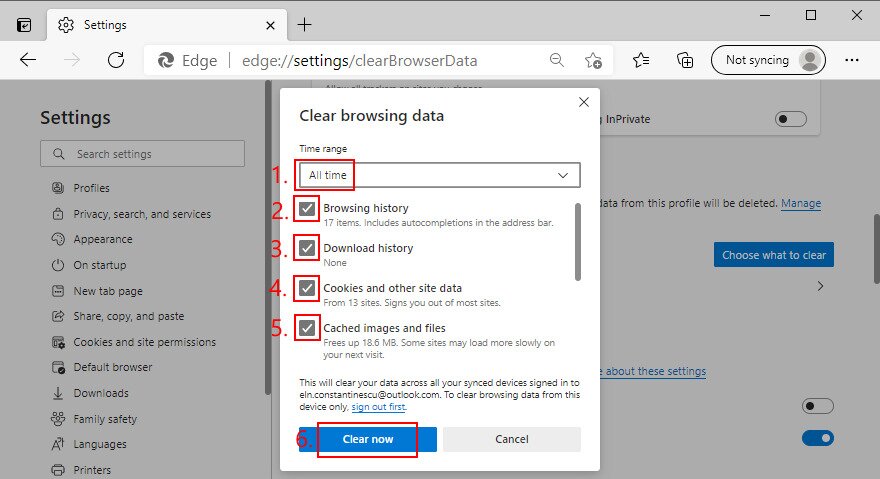
How to clear Microsoft Edge cache:
- Start Microsoft Edge on your PC
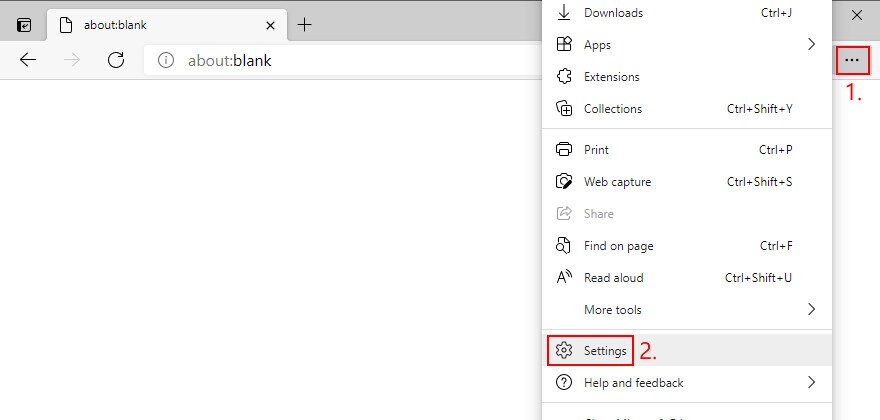
- Open the More menu and select Settings

- Head over to the Privacy, search, and services section (or visit
edge://settings/privacy) - At Clear browsing data now, click Choose what to clear

- Set Time range to All time
- Check the following options:
- Browsing history
- Download history
- Cookies and other site data
- Cached images and files
- Uncheck all other options
- Click Clear now

- Restart Edge and check for YouTube TV errors
10. Reset browser settings to default
It’s possible that the customized settings of your web browser are causing functionality issues with YouTube TV. In this case, you should reset browser settings to default, before attempting to watch TV on your computer. For example, you can easily restore Chrome settings to factory values. Here’s how.
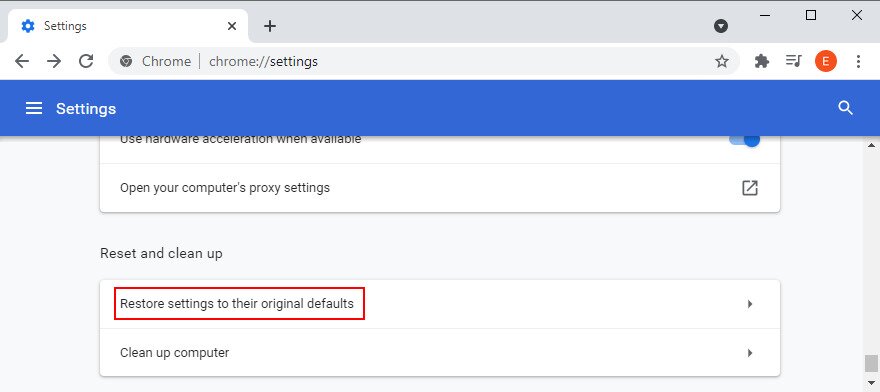
How to reset Chrome settings on Windows and Mac:
- Launch Chrome
- Open the More menu in the top-right corner
- Select Settings (or visit
chrome://settings/) - Scroll down to the bottom of the page
- Click Advanced
- At Reset and clean up, click Restore settings to their original defaults

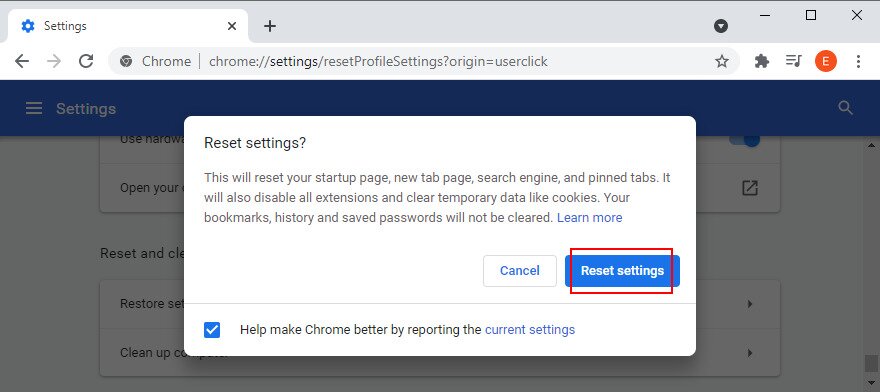
- When asked again, click Reset settings

- Restart Chrome
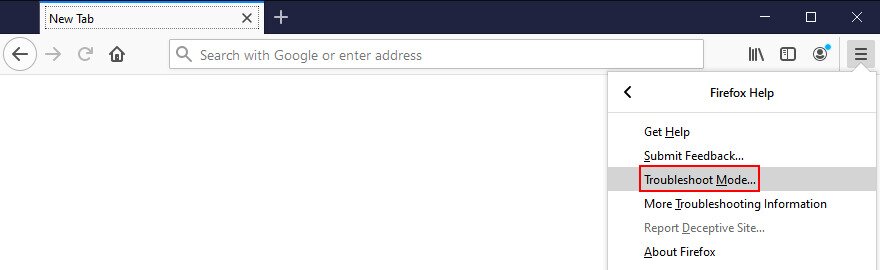
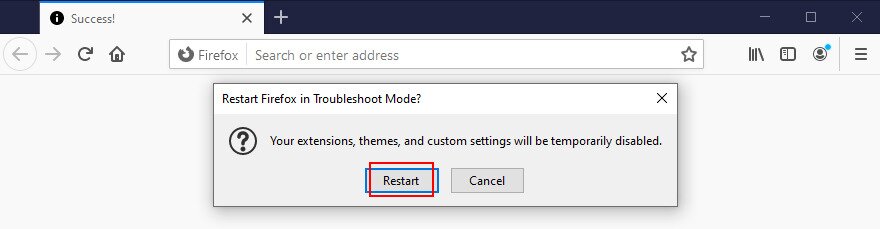
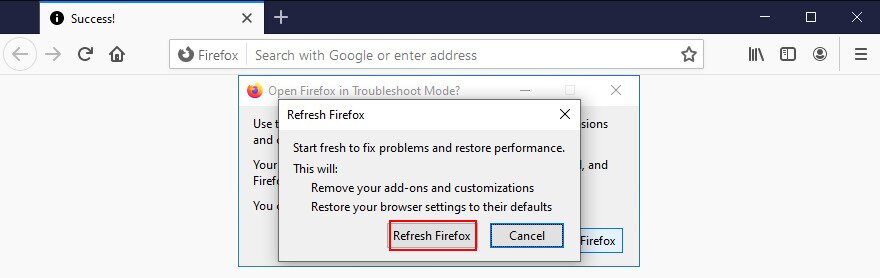
How to reset Firefox settings on Windows and Mac:
- Start Firefox
- Open the ≡ menu in the top-right corner
- Go to the Help menu and pick Troubleshoot Mode

- Click Restart

- When asked again, click Refresh Firefox to confirm

- Restart Firefox
How to reset Edge settings:
- Fire up Microsoft Edge
- Click the More button to open a menu
- Go to Settings
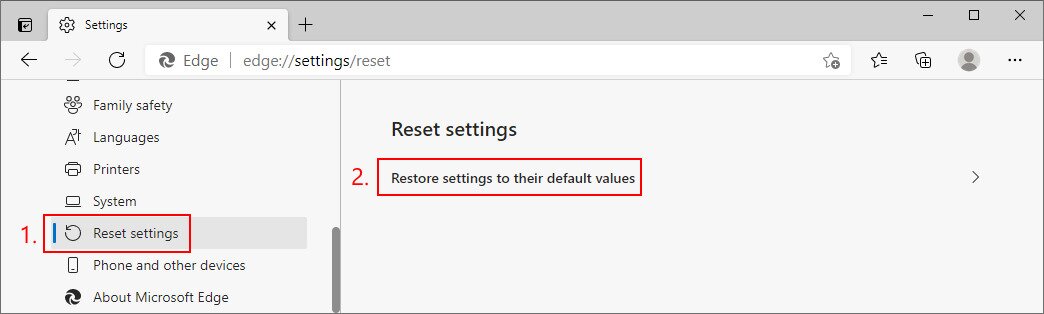
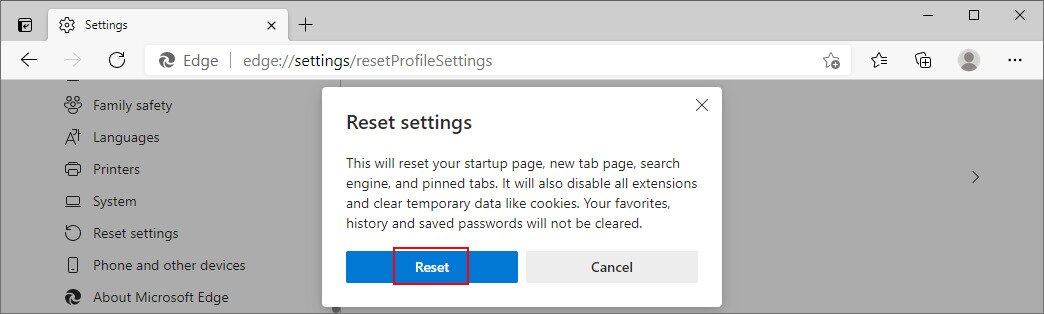
- Jump to the Reset settings section
- Click Restore settings to their default values. Or, visit
edge://settings/resetProfileSettings
- When asked, click Reset for confirmation

- After Edge resets, try to watch YouTube TV
11. Check location permissions
According to the YouTube TV help page, it’s essential to confirm your home area to avoid streaming issues due to geographical restrictions. While doing so, check that location permissions are enabled on your device for YouTube TV.
How to check location permissions on Chrome:
- Launch Google Chrome
- Open the More menu and go to Settings
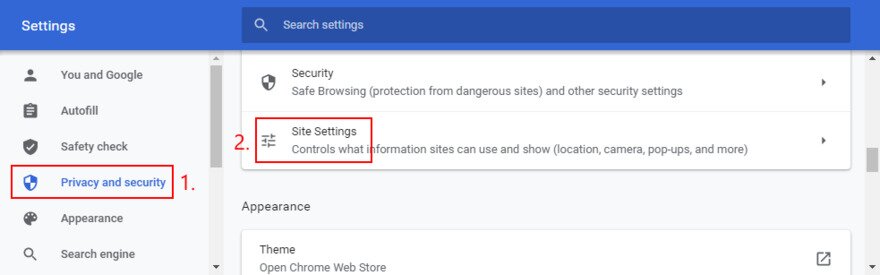
- Jump to the Privacy and security section
- Click Site settings

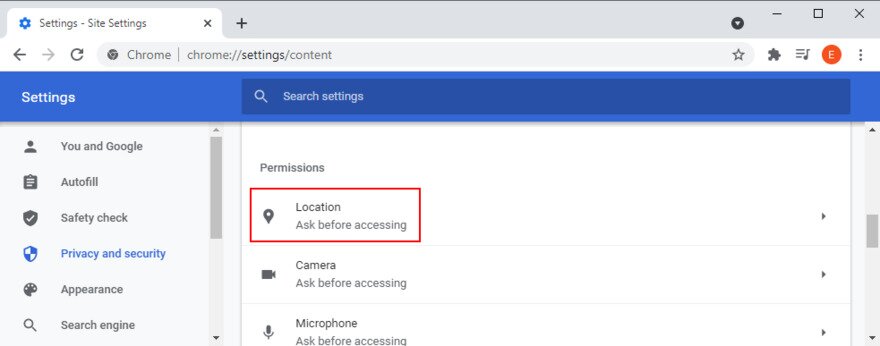
- At Permissions, pick Location

- Make sure that the YouTube TV website is on the Allow list
- Exit settings
- Try to watch YouTube TV now
How to check location permissions on Firefox:
- Open Mozilla Firefox
- Click the ≡ button and select Options
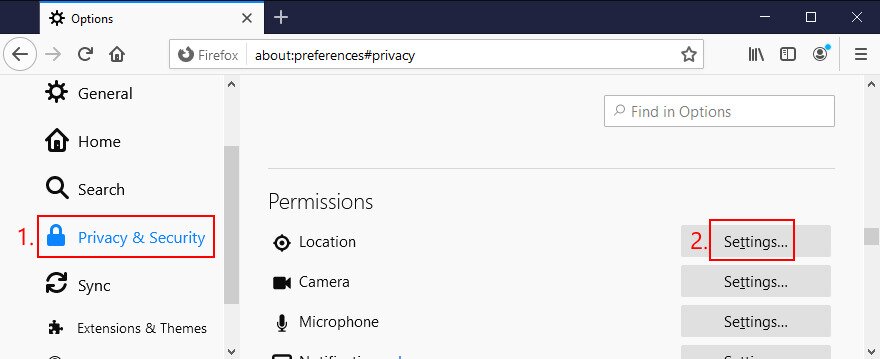
- Select Privacy & Security (or visit
about:preferences#privacy) - At Permissions, click Settings next to Location

- Search for the YouTube TV website in the list and allow it
- Click Save Changes
How to check location permissions on Edge:
- Open Microsoft Edge
- Click the More button in the top-right corner
- Go to Settings
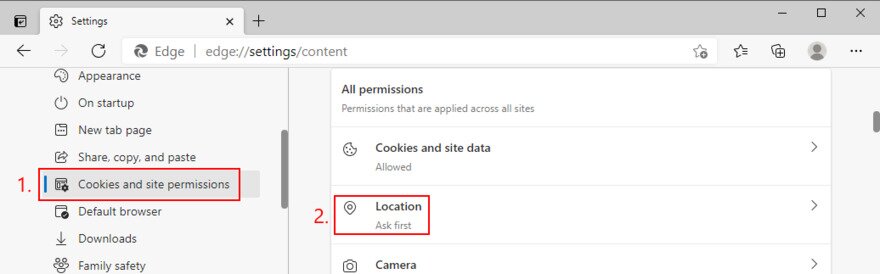
- Switch to the Cookies and site permissions area
- At All permissions, click Location

- Make sure that YouTube TV is on the Allow list
12. Fix YouTube TV Not Working on Roku Devices
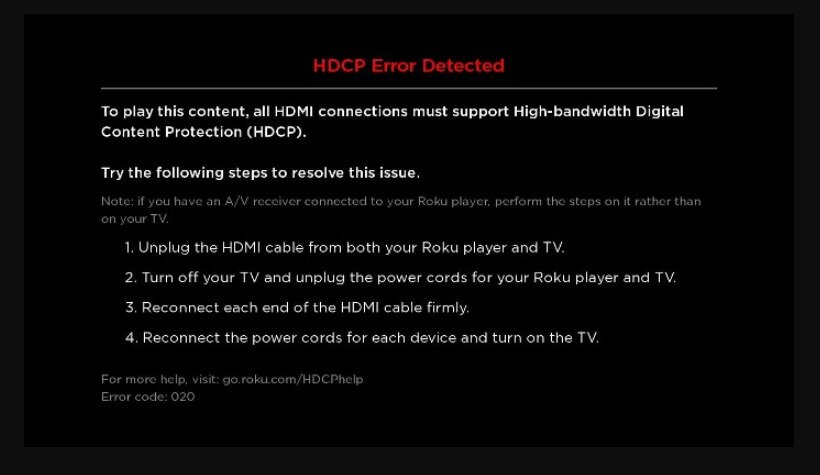
Roku players are a popular way to watch YouTube TV, but they can sometimes run into problems like black screens, HDCP errors, or app crashes. If YouTube TV isn’t working on your Roku, try these steps:
Check for HDCP Errors on Roku
If you see a message about HDCP (High-bandwidth Digital Content Protection), it usually means your TV or HDMI cable isn’t fully compatible. To fix this:
- Unplug your Roku and TV from power.
- Disconnect the HDMI cable from both devices.
- Reconnect the HDMI cable firmly, or try another HDMI port on your TV.
- If possible, use a different HDMI cable that is labeled as High-Speed.
- Plug your Roku and TV back in and turn them on.
Restart Your Roku Device
Sometimes a simple restart resolves most YouTube TV streaming issues:
- On your Roku remote, press Home.
- Go to Settings > System > System Restart.
- Select Restart and wait for the device to reboot.
Update the YouTube TV App on Roku
Outdated apps can cause playback issues. To update YouTube TV:
- Highlight the YouTube TV app on your Roku home screen.
- Press the * (star) button on your remote.
- Select Check for Updates. If an update is available, Roku will install it.
Reinstall YouTube TV on Roku
If updating doesn’t work, reinstall the app:
- Highlight YouTube TV and press the * button.
- Select Remove Channel and confirm.
- Restart your Roku by going to Settings > System > System Restart.
- Go to the Streaming Channels store, search for YouTube TV, and install it again.
Check for Roku System Updates
Finally, make sure your Roku firmware is up to date:
Select Check Now and install any available updates.
Go to Settings > System > System Update.
13. Reinstall the YouTube TV app
Another possible culprit for YouTube not working on TVs is that the app needs to be reinstalled. There might be something wrong with the installation package of the YouTube app on your Smart TV, Android or iOS device. Or, perhaps it was affected by a recent system update. To resolve this problem, you should quickly uninstall and reinstall the app.
For smart TVs in particular, reinstalling the app is pretty similar across different brands. Here is an example of how to uninstall and reinstall the YouTube TV app on LG smart TVs:
- Install the app and see if it fixes your issues
- Select YouTube TV with the remote
- Long push on the wheel (OK button) and an X will appear
- Choose the X with the remote and long press the wheel again, which will delete the app
- Go to the Home key on your remote to show the apps menu
- Go to Search and input YouTube TV
14. Reinstall your web browser
Another option is to reinstall the browser application that you use to access YouTube TV from your desktop or laptop device. To do this, simply uninstall and reinstall the apps as follows:
How to uninstall Chrome or Firefox on Windows 10:
- Press Ctrl + Shift + Esc to open Task Manager
- In the Processes tab, select the entire process tree of Chrome or Firefox
- Click End task
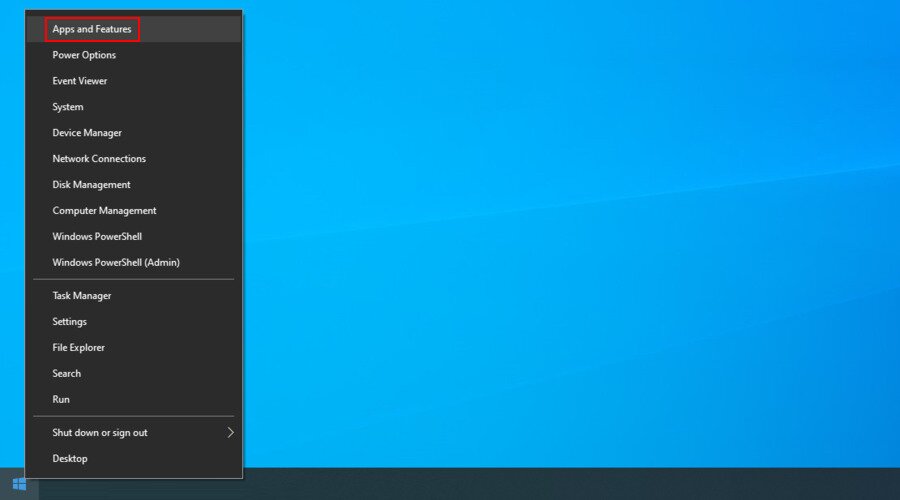
- Right-click the Windows 10 Start button and go to Apps and Features

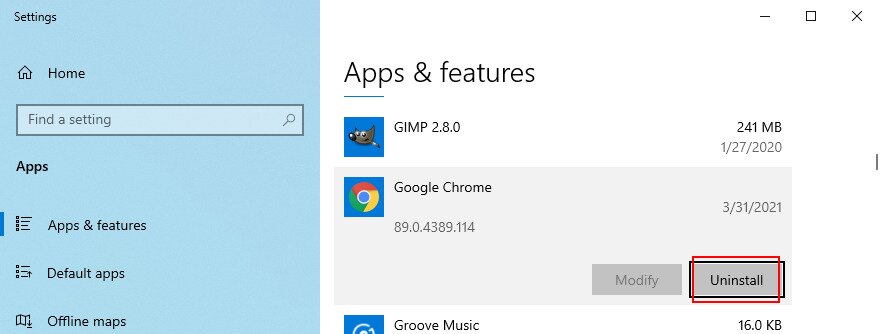
- Find and select Chrome or Firefox
- Click Uninstall and then again to confirm

- Proceed with the removal operation
How to uninstall Chrome or Firefox on macOS:
- Select the Chrome or Firefox application
- Open the Apple menu
- Select Force Quit
- Launch the Finder app
- Visit the Applications folder
- Locate Chrome or Firefox
- Drag and drop the browser folder to the Trash
- If asked, specify your administrator username and password to confirm
- Open Finder and select Empty Trash
To reinstall the browser apps:
- Download Chrome or get Firefox from the official website
- Set up the web browser
- Log in to your YouTube TV account and check for issues
15. Disable VPN or proxy tools
Many users turn to VPN or proxy tools to unlock YouTube TV content that’s not normally available in their region. However, if you’re using a free service, YouTube TV may be detecting your VPN and blocking your access as a result. Unless you’re willing to invest in a premium VPN for YouTube TV, try turning off your VPN or proxy service to get around this issue.
How to disable VPN and proxy on Windows 10:
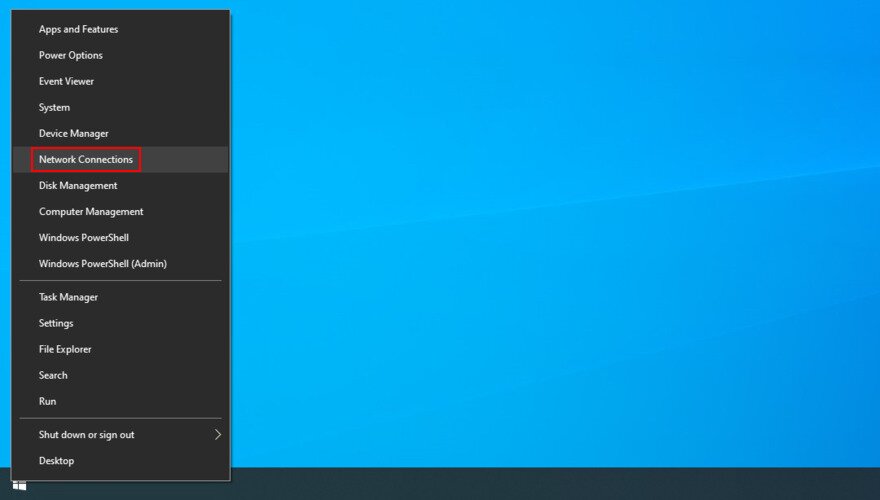
- Right-click the Start button and go to Network Connections

- Select VPN on the left side
- Disable any currently running VPN connections
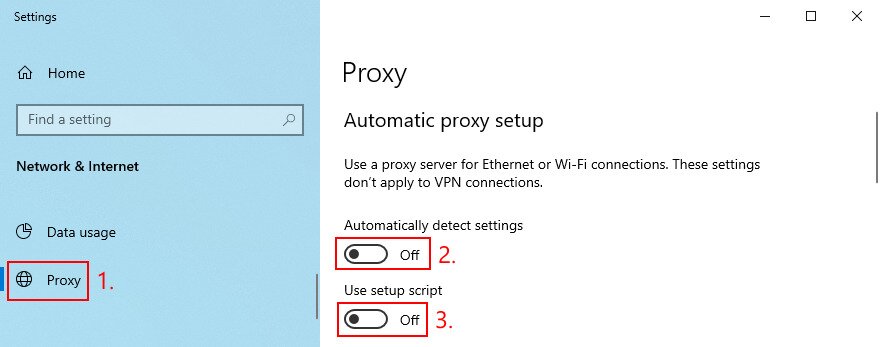
- Switch to the Proxy section on the left
- Turn off Automatically detect settings and Use setup script

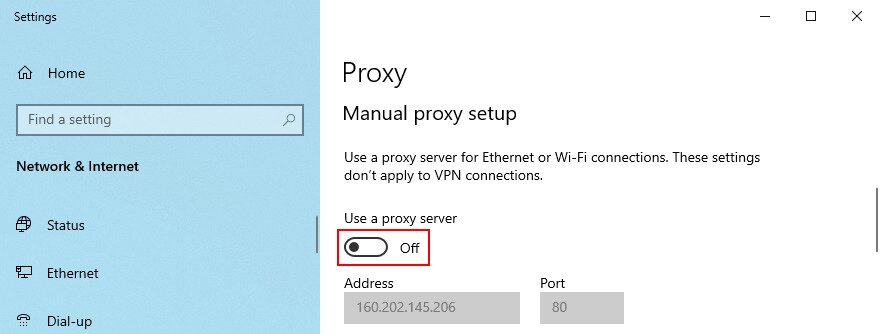
- Scroll down and also disable Use a proxy server

- Restart your computer
How to disable VPN and proxy on macOS:
- Open the Apple menu
- Click System Preferences
- Select Network and switch to the VPN section
- Switch off any active VPN connections by clicking Disconnect
- Select your internet connection and click Advanced
- Go to the Proxies section and disable all options
- Click OK
- Restart your Mac
16. Flush your DNS servers
Emptying the cache of your DNS servers is a simple way to refresh your internet connection and fix any connectivity issues that may cause YouTube TV to stop working properly. Here’s what you need to do:
How to clear the DNS cache on Windows 10
- Click the Start button, search for Command Prompt, and launch the app.
- Copy and paste the following lines (press Enter after each one):
ipconfig /flushdns
ipconfig /registerdns
ipconfig /release
ipconfig /renew
netsh winsock reset
- Quit to the desktop and restart your PC.
How to clear the DNS cache on macOS:
- Launch the Terminal app
- Run the
sudo killall -HUP mDNSRespondercommand - If prompted, type your admin username and password
- Restart your Mac
17. Change your DNS servers
If DNS flushing won’t do the trick, perhaps the DNS servers assigned by your ISP are too slow to handle streaming. A common solution is to change your default DNS servers to something else. For example, you can use Google Public DNS.
How to set Google Public DNS servers on Windows:
- Sign in to Windows 10 using an administrator account
- Right-click the Start button > Network Connections
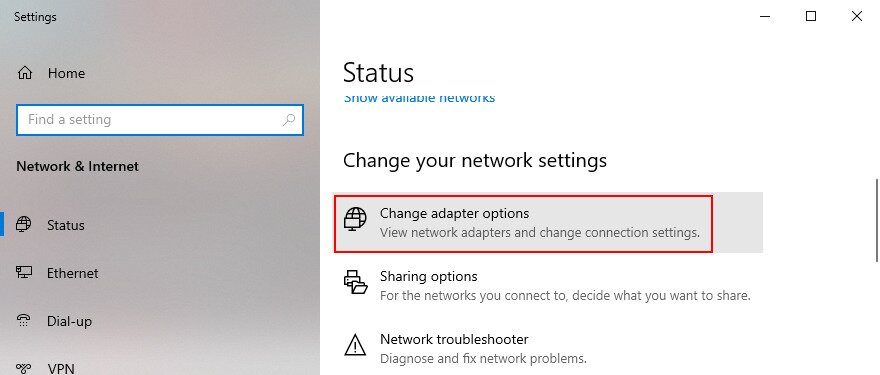
- Click Change adapter options

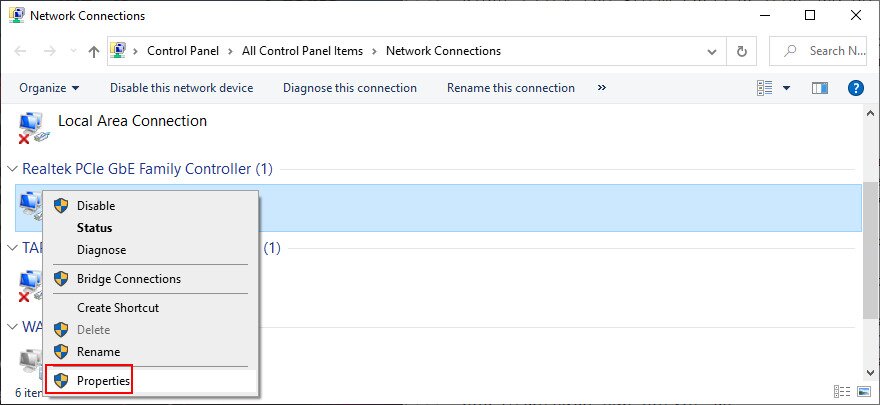
- Select your internet connection, right-click it, and go to Properties

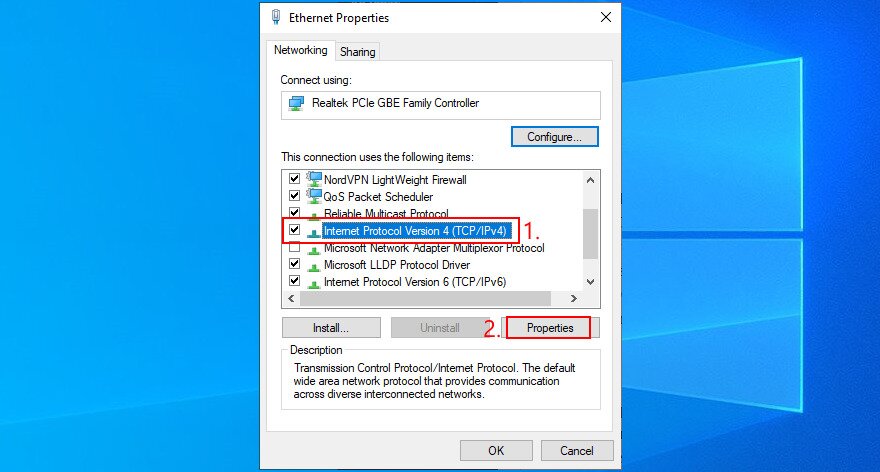
- In the Networking tab, double-click Internet Protocol Version 4 (TCP/IPv4) to view its properties

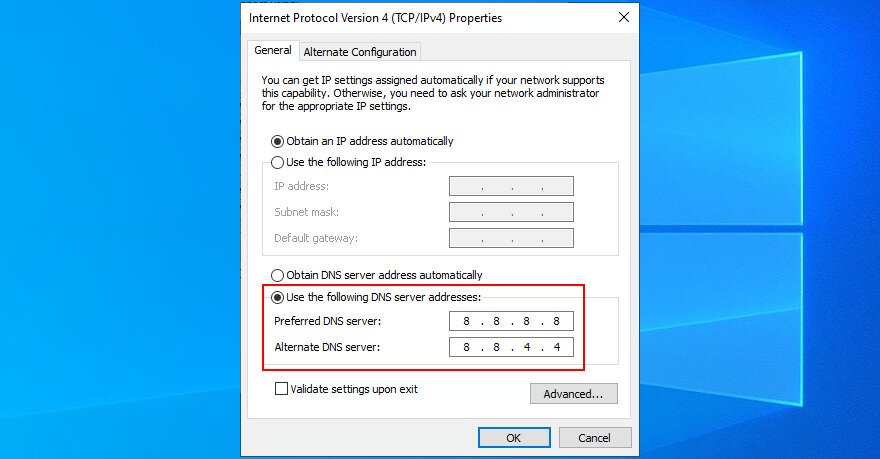
- In the General tab, select Use the following DNS server addresses
- At Preferred DNS server, type 8.8.8.8
- Set Alternate DNS server to 8.8.4.4

- Enable Validate settings upon exit and click OK
How to set Google Public DNS servers on macOS:
- Open the Apple menu
- Go to System Preferences
- Select Network and click Advanced
- Switch to the DNS area
- Click + and type 8.8.8.8
- Click + again to add 8.8.4.4
- When you’re done, click OK and exit
18. Check for system updates
Your operating system should always be updated to the latest version. This ensures that your device is equipped with the newest features, improvements, hotfixes, and security patches.
If YouTube TV stopped working due to an operating system error, you will surely fix it by checking for system updates. Here’s what you need to do:
How to update LG Smart TVs
Most smart TVs will have similar steps for updating their software. For LG, specifically, here are the steps:
- Go to Settings
- Go to Support
- Go to Software Update
- Choose Check for Updates
- You can also toggle on Auto Update from here so that in the future you’ll always have the latest software version
How to check updates for Windows 10:
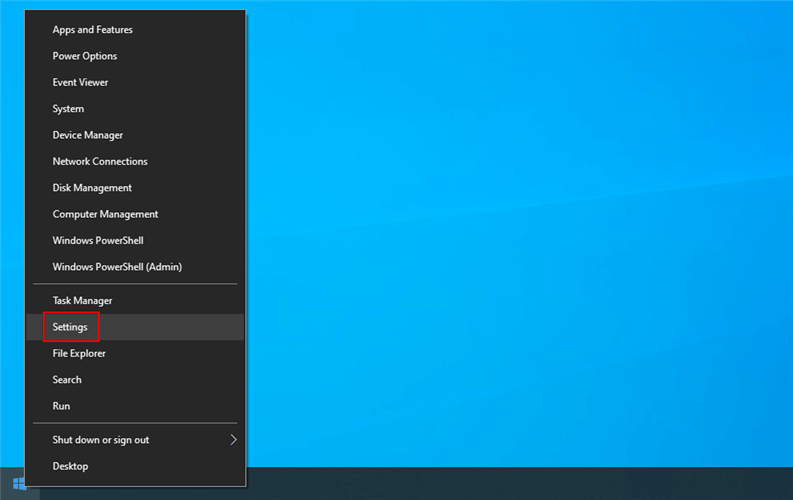
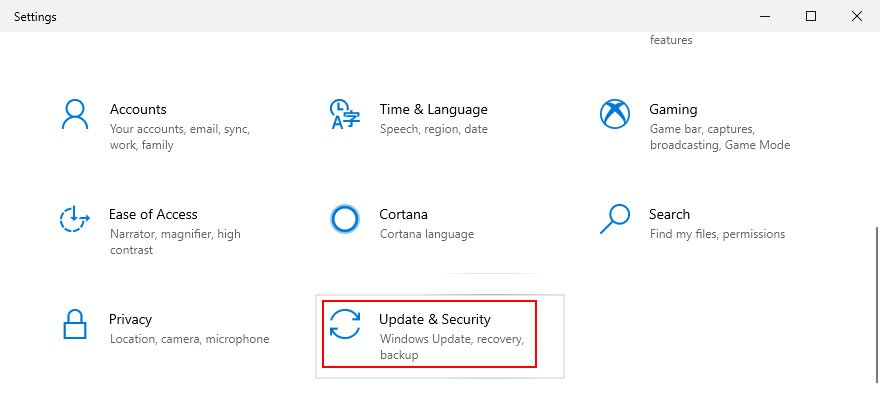
- Right-click the Start button > Settings

- Select Update & Security > Windows Update

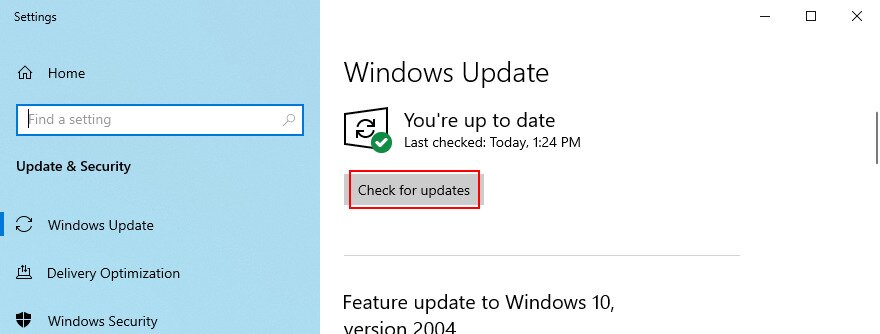
- Your operating system should automatically detect updates. If it doesn’t, click Check for updates

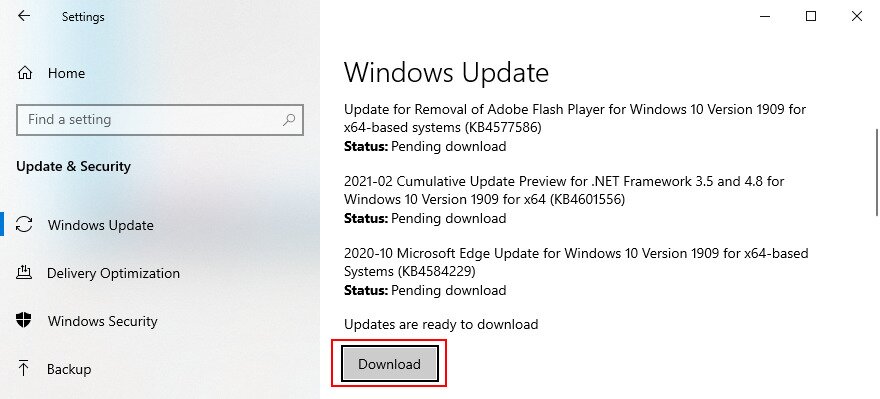
- Wait a few minutes. If the download doesn’t autostart, click Download

- Your PC will probably restart to finalize the update installation
MacOS:
- Click the Apple button to open a menu
- Select Software Update
- Patiently wait while macOS checks for updates and installs anything it finds
- Enter your admin username and password if asked to confirm the installation
- Reboot your Mac
Android:
- Select Settings
- Go to System > Advanced > System Update
- Wait while Android downloads and installs updates
- When it finishes, reboot the device
iOS:
- Visit the Settings section > General > Software Update
- Tap Download and Install
- If you’re running on low disk space, iOS will ask to remove apps. Tap Continue to agree. Your apps will be added back to your device later
- Tap Install
- Authorize the update by using your password or fingerprint
- When the update is complete, restart your iOS device
19. Check your device drivers
Incorrect installations can cause functionality issues with streaming services such as YouTube TV. It’s also possible that your device drivers are incompatible or obsolete. Whatever the issue may be, you can easily fix it.
How to reinstall drivers on Windows 10:
- Press Win key + R, type control panel, and press Enter
- Select Device Manager
- Expand all categories and look for any devices with a yellow exclamation mark
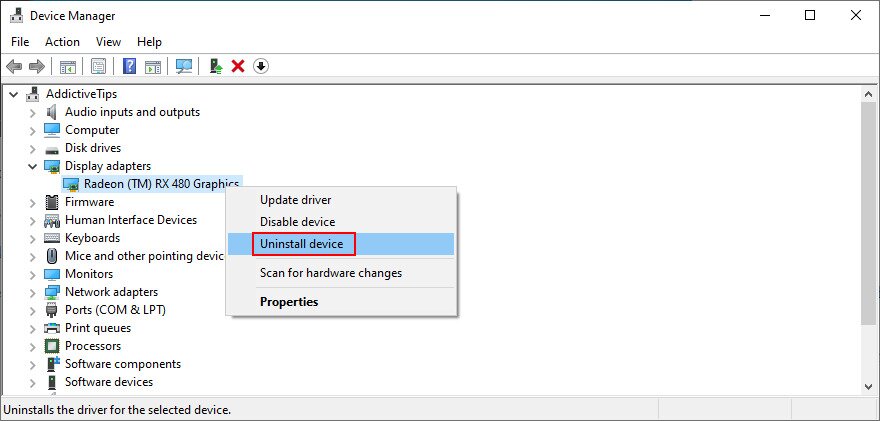
- Right-click the device and select Uninstall device

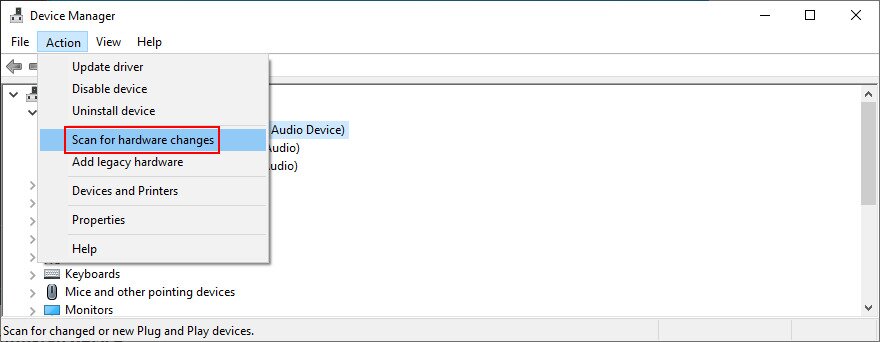
- Open the Action menu and click Scan for hardware changes

- Restart your computer. Windows will auto-reinstall the missing devices
How to update drivers on Windows 10:
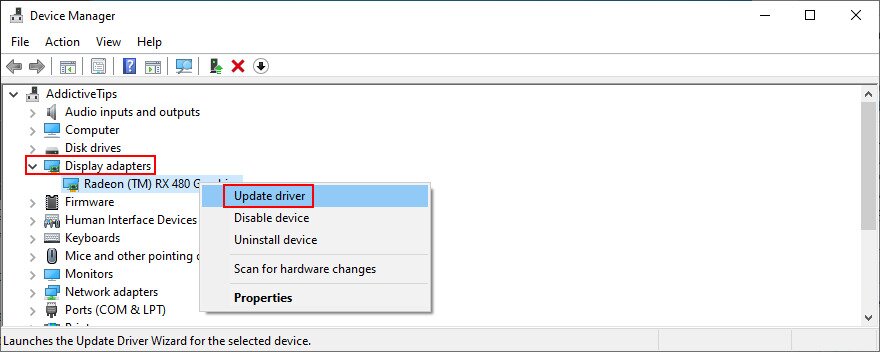
- Go back to Device Manager
- Select a device, right-click it, and choose Update driver

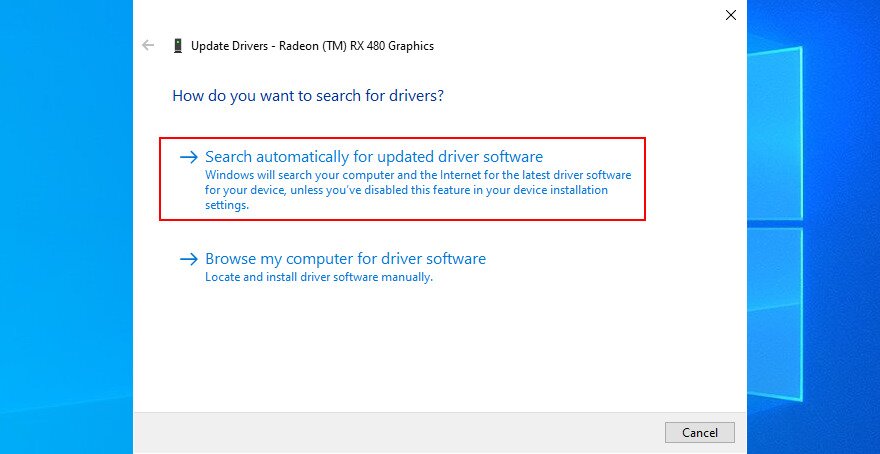
- Click Search automatically for updated driver software

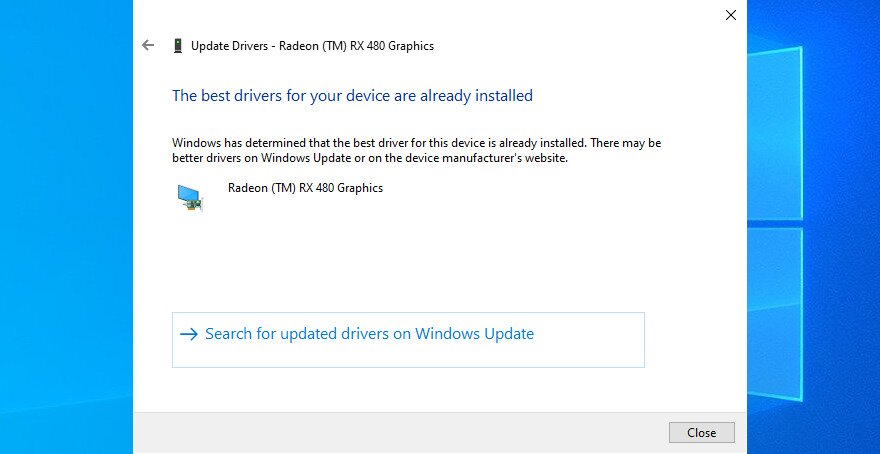
- If the online search doesn’t return anything, click Search for updated drivers on Windows Update

If you don’t know which drivers should be updated, we suggest paying a special attention when it comes to the graphics and network drivers. Better yet, use a driver update application to automatically detect any outdated drivers.
On Mac, your drivers are updated automatically when you update your operating system. If you accidentally installed an incompatible driver that’s causing streaming issues, you should roll it back immediately.
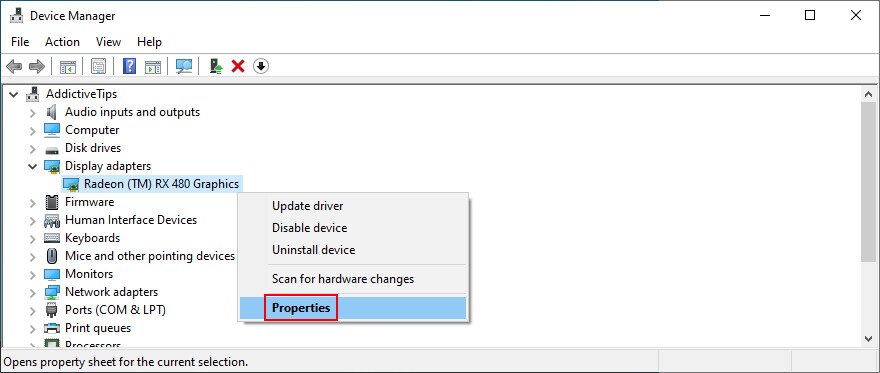
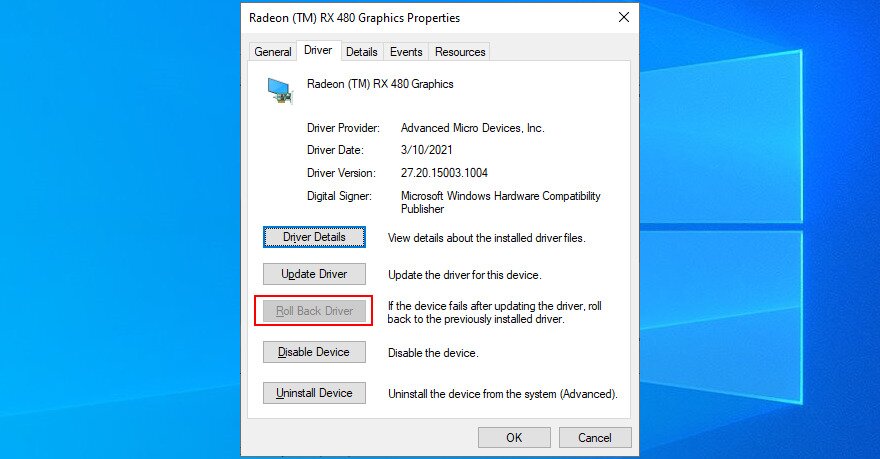
How to roll back drivers on Windows 10:
- Go to Device Manager
- Right-click a device and select Properties

- Select the Driver section
- Click Roll Back Driver and proceed with the driver removal

- Restart your machine
20. Check your internet connection
Various internet connectivity issues can hamper your streaming experience and prevent YouTube TV from functioning properly. Here are some quick tips to ensure a fast and secure internet connection:
- Reboot your router and modem
- Try moving your device closer to the router to get a better signal
- If your router has dual-band support, make sure to connect to the 5Ghz network (not 2.4Ghz) since it’s faster
- Temporarily switch from Wi-Fi to Ethernet (wired) mode
- Run a ping test between your computer and the YouTube TV website to check for packet loss
- Test your internet connection by measuring your download speed (you should have at least 3 Mbps for optimal streaming)
- Run the internet connection troubleshooter on Windows 10
- Close all other applications with internet access to allocate more network resources to the YouTube TV app
21. Log out and back into your YouTube account
Occasionally, the reason for YouTube TV not working is just a bug. You can fix it by logging out of your YouTube account and logging back in. Follow these steps:
- Open the YouTube TV app or website
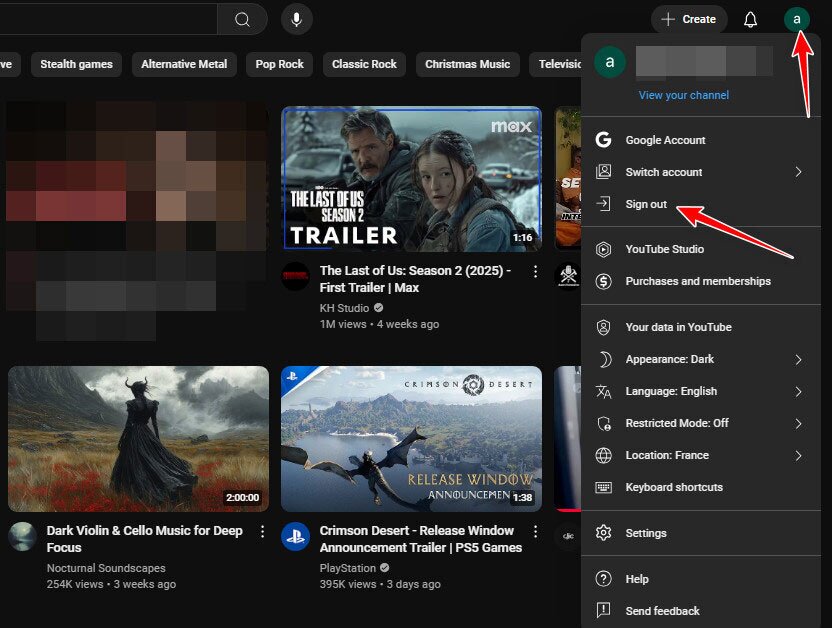
- Click on your profile picture in the top-right corner of the screen
- Select Sign Out
- Close the YouTube App or your browser
- Open it again and click on Sign In
- Enter your email and password
22. Check the Limit for Simultaneous Streams
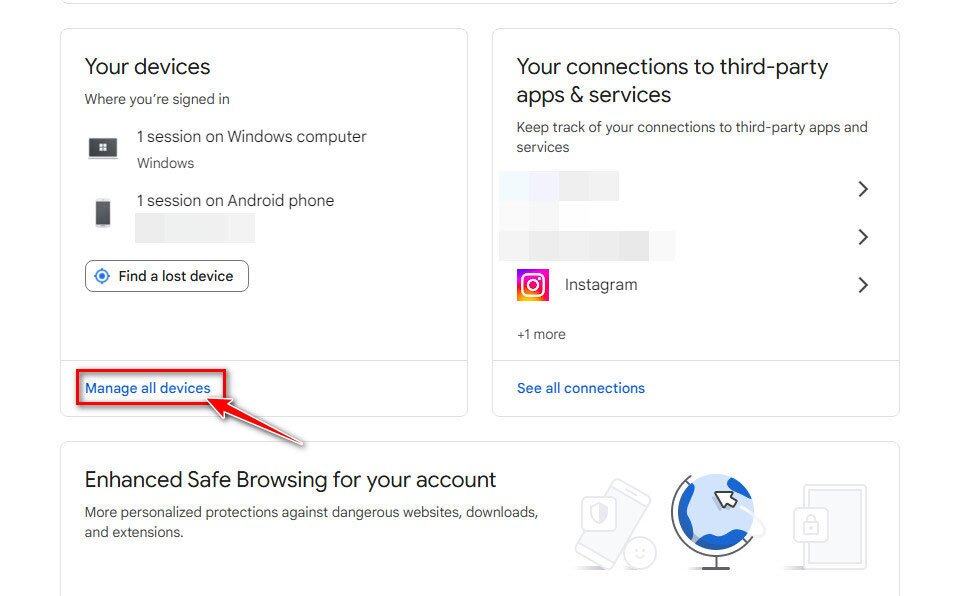
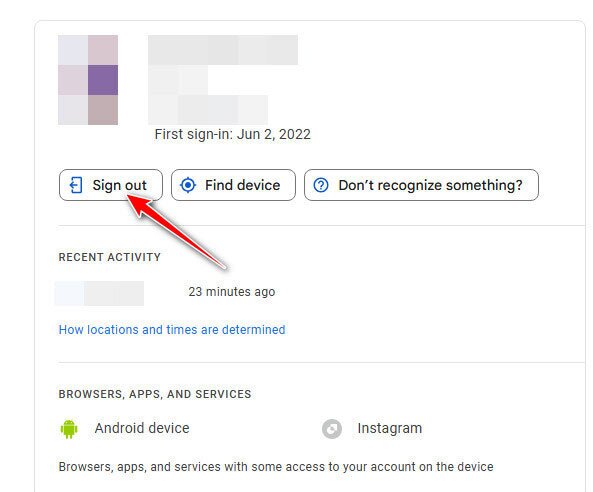
YouTube TV allows only 3 simultaneous streams per account. Therefore, if your streams are blocked and the YouTube TV app not working for you, you may have exceeded this limit. To rectify the situation, sign out on any unnecessary devices. You can also disconnect devices remotely, by following these steps:
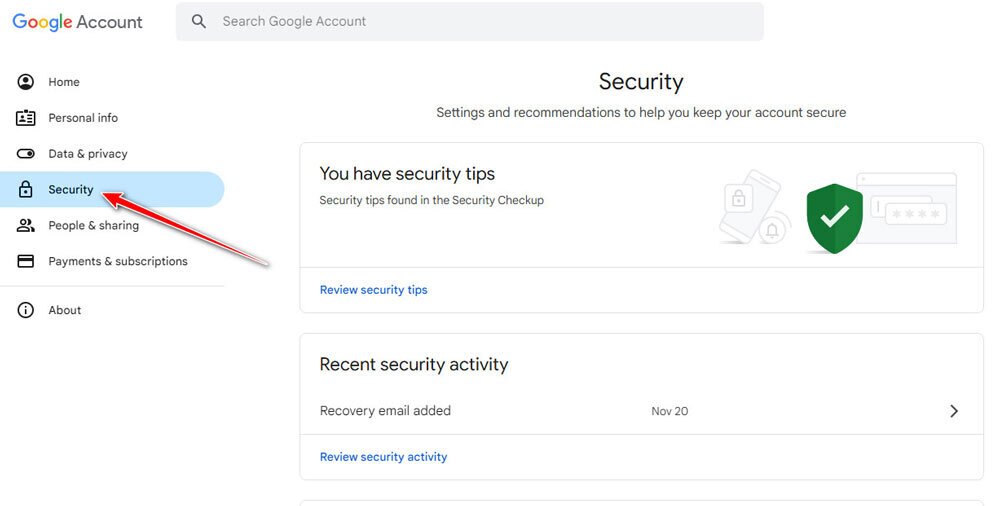
- Using a browser, go to your Google account and select Manage your Google Account.
- Go to the menu on the left side and select Security.
- Navigate to the connected devices section. Click on Manage all devices.
- Now select any devices that you don’t use and then click on Sign Out.
23. Disable Ad Blockers or Extensions
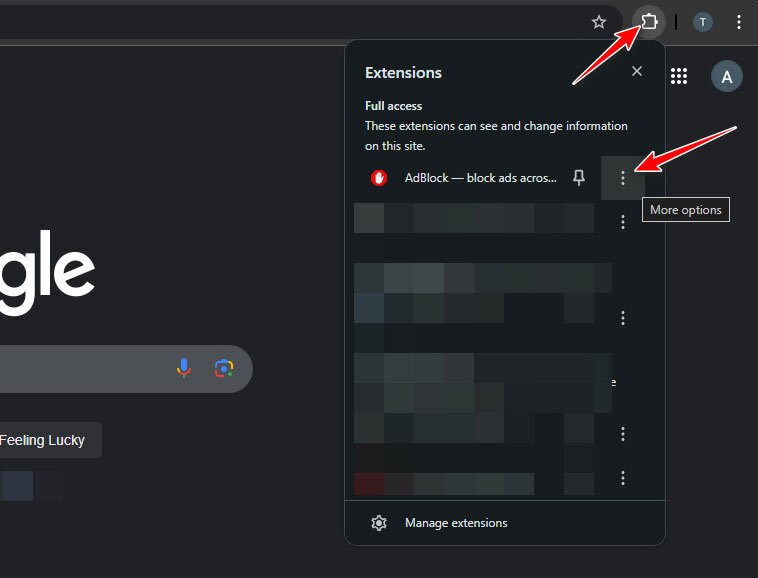
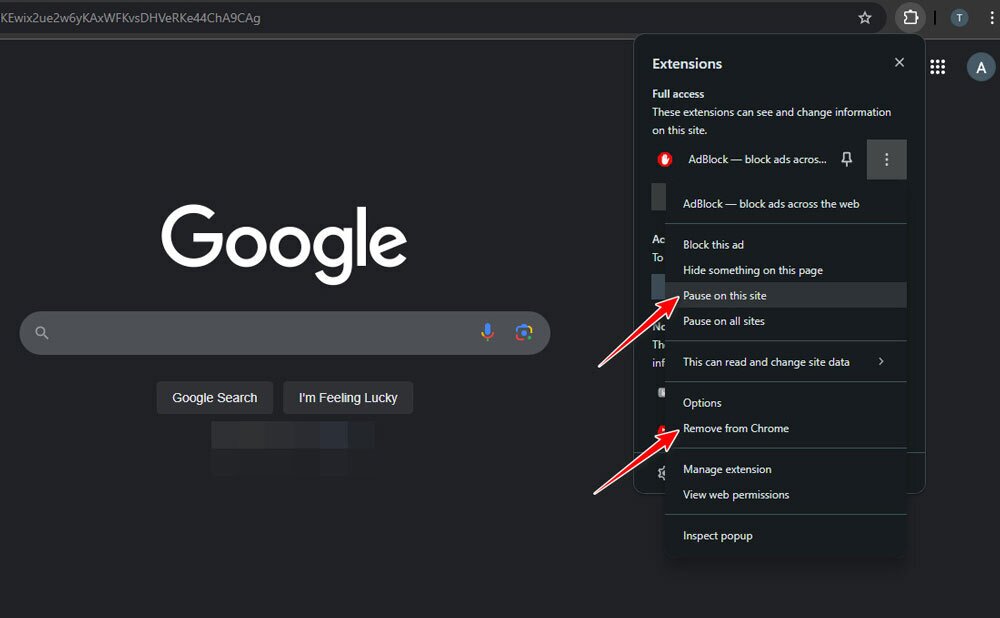
Ad blockers and some extensions can interfere with YouTube TV and stop you from accessing YouTube streams. Try disabling ad blockers and extensions that you have recently installed to see if this fixes your issues. The steps for disabling extensions, including ad blockers are similar in different browsers:
- Go to the Extensions section in your browser and click on the three dots.
- Now you can pause the extension on the YouTube TV website or completely remove it from your browser. Both of these actions can solve your problem.
24. Check the Parental Controls
Your access to YouTube TV may be restricted because of parental controls. To check these permissions, simply open your YouTube TV app or the website, go to the settings, and find the Family Sharing option. You will be able to toggle and change tFhe restrictions.
See if YouTube is Having a Service Outage
As mentioned earlier in this article, often YouTube TV issues are due to problems on YouTube’s end. It can save you a lot of unnecessary troubleshooting to check this first. YouTube doesn’t have an official page to let you know about any server issues, however there are two reputable sites that you can check for reported YouTube TV problems:
These are great resources to check for recent or current issues reported by other users. Sometimes you’ll even be able to see if a particular region was affected, or when the outage supposedly first began. It’s entirely possible that YouTube could be having server issues and these sites won’t have up to date info on it, but it is more than likely they will. Users are generally pretty good about reporting when there are outages or bugs.
Check if Other Apps Work on Your Device
This may seem obvious, but it’s helpful to see if other apps are working normally on your media player, smart TV, console or mobile device. If a similar issue occurs, it can point to the problem being with your device and not YouTube TV. You might be able to reboot your device or contact the manufacturer for help.
Lower Broadcast Delay on Your TV
Broadcast delay refers to the delay between the camera recording something and that something being displayed on your television. Reducing your broadcast delay also reduces the buffer from the video player. However, lowering the delay may also mean playback interruptions or other delays. You can experiment with the settings and see if you’re able to improve your playback, especially if you’re watching a live event, such as sports.
Here’s how:
- Go to the YouTube TV app on your television (this only works on TVs)
- Choose the three dots to open up the more menu
- Go to Broadcast Delay
- You can either Decrease it or select Default. Default helps reduce playback interruptions whereas decrease may help lower broadcast delay
Check your Computer Monitor
If you’re watching YouTube TV on a computer and you have externally connected monitors, the quality of the video may be reduced, especially on Mac and Linux devices. According to YouTube TV, this is often directly due to how these platforms deal with copyright protections. Try watching it on a different computer, if possible, or a different device entirely.
Verify Your Device’s Identity
If you see a pop-up message that says something like, “YouTube TV wants your device’s identity to be verified by Google, to determine eligibility for enhanced playback of protected media,” you will want to choose Allow. If not, your playback quality could suffer and cause some issues.
25. Contact YouTube Support
The last solution is to contact YouTube TV support and ask them why is YouTube TV not working for you. Here’s how you can contact the support:
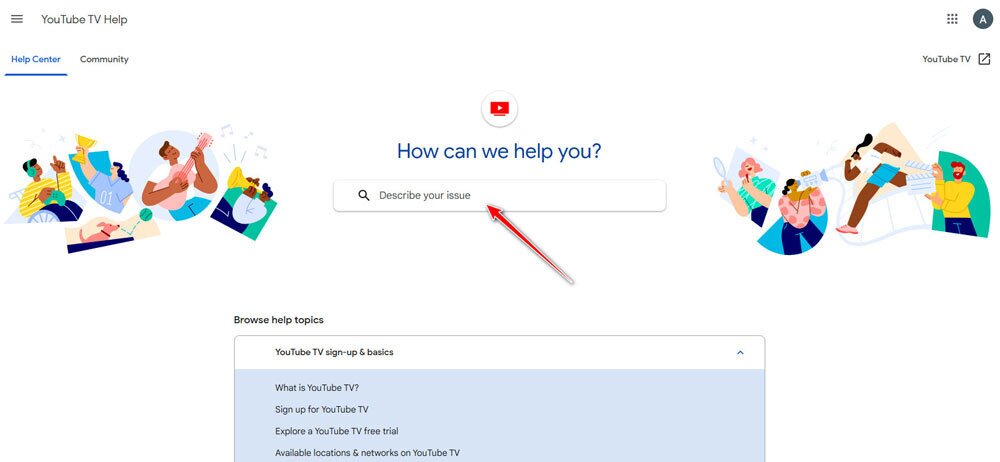
- Go to the YouTube TV Help page.
- Describe your issue in the search box to find useful guides to resolve the issue.
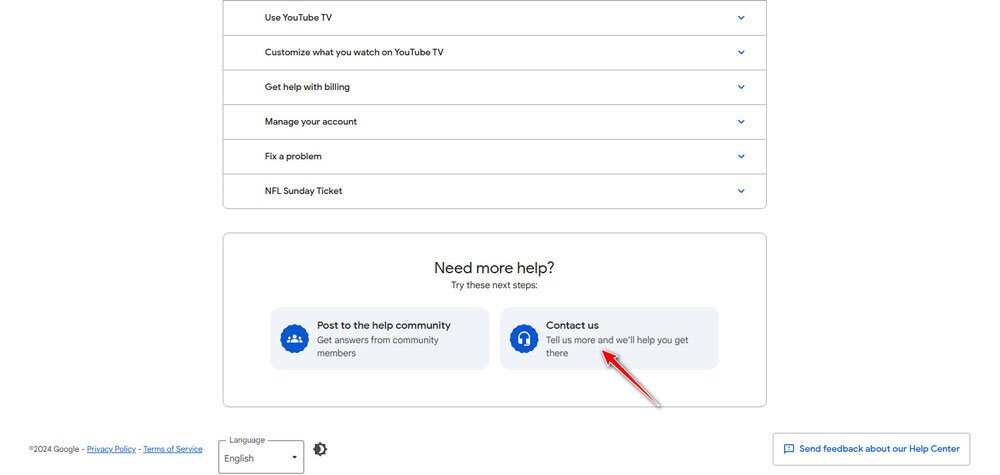
- To get help from the Support team, scroll down and click on Contact Us. From there, you will be given fields to fill in to describe your problem. You may be able to browse help articles or escalate it to speak with a support specialist. You can choose whether to chat, email, or receive a call from someone to help you troubleshoot your problem.
- You can ask the community for help. Simply click on the Community option in the top-left corner and describe your issue to the community. You can also filter your search in the YouTube TV community by specifics such as known issues, announcements, or community guides. Any of these may shed light on your problems, especially if it’s caused by a widespread issue.
You can fix YouTube TV when it’s not working anymore
There are a myriad of reasons why your YouTube TV app is not working, or the site is giving you issues. If it is a server issue, there is really not much that you can do from your end. However, if the issue lies with your device, your internet connection, or even your settings — it should only take a few moments to get everything back up and running.
How did you get YouTube TV to work on your device? Tell us about your experience in the comments below.
Frequently Asked Questions
What should I do if YouTube TV keeps crashing?
If your YouTube TV app continually crashes, you can fix it by restarting your device, updating the app to the latest version, reinstalling the YouTube TV app, and clearing the app’s cache and data.
Can YouTube TV be blocked by VPNs or Proxies?
Yes, due to licensing restrictions, YouTube TV actively monitors VPN and proxy activities. As a result, if it detects that you’re using one, your YouTube TV access will be blocked. Moreover, since YouTube TV is only available in the US, you’ll need to connect exclusively to US servers when using a VPN or proxy; otherwise, you risk getting blocked.
How do I check if YouTube TV servers are down?
Visiting websites such as Downdetector can help you find out if there is a widespread outage of YouTube TV servers. This should help you to pinpoint how widespread any problem is.
How can I fix YouTube TV showing a black screen?
This can be caused by different issues. Try these methods:
- Check your internet connectivity.
- Close the YouTube TV app or website and open it again.
- If you are using a TV, check your HDMI cable and make sure it doesn’t have any problems.
Don't miss this great deal