How to Delete a Page in Google Docs: Step-by-Step Guide
Google Docs is an awesome word processor, but it’s only useful if you know how to use it. A problem that’s really easy to run into is unnecessary pages. These can pop up by accident, or you can decide that one or two pages in the middle of your document are no longer needed.
Fortunately, if you know a few tricks like the ones we’ve outlined below, you don’t have to re-write the whole document or lose any valuable work just to delete some pages. Knowing how to delete a page in Google Docs will instantly declutter your document. You’ll want to check for blank pages and unnecessary sections before you print, share, or save your document.
Below are all your options. We’ll look at how to delete a blank page in Google Docs and how to delete non-blank pages with methods that range from really easy (i.e., use the Delete key) to more involved techniques. If you also need to delete a Word page, the steps are a bit different in Microsoft Word.
Make sure the document is in Pages view
Before trying to delete a page, it’s worth confirming that your document is actually in Pages mode. Google Docs offers a Pageless format that removes visible page boundaries entirely — and if you’re in that mode, the steps below won’t apply because there are no traditional page separators to remove.
To switch to Pages view:
- Go to File > Page setup.
- Select the Pages tab at the top of the dialog.
- Click OK to confirm.
If you can’t see clear page breaks in your document, also check View > Show print layout to make sure print layout is turned on. Pageless documents do not display traditional page breaks, so deleting a “page” only makes sense once you’ve switched back to Pages view.
How to delete a page in Google Docs
Below are the best ways to remove a page in Google Docs. We’re using the desktop website for these steps.
Option 1: Use the Delete Key
The Delete key…well, deletes stuff. It’s the fastest, easiest, and most precise way to delete pages in Google Docs. How you use it depends on whether the page has content or is blank.
To delete a page with content:
- Locate the page you want to delete.
- Starting at the top, click-and-drag the mouse down the page until you reach the final word on the page. The whole page should be highlighted.

- Press the Delete key to instantly erase the page.
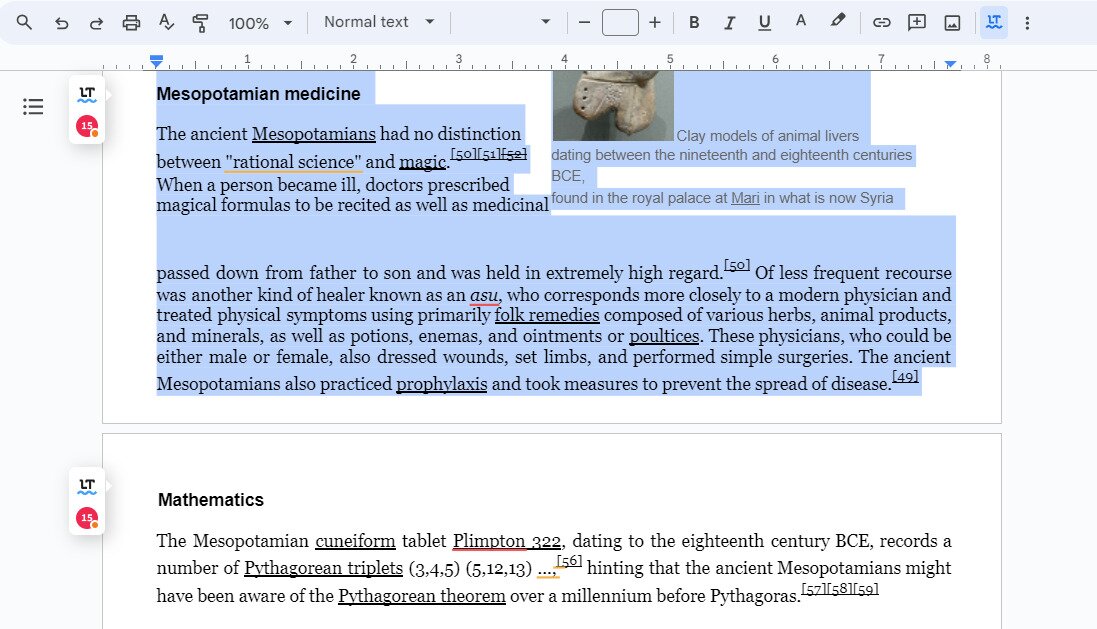
You might need to make a few minor formatting fixes after doing this so that the pages continue to flow.
To delete a blank page:
- Click at the very start of the blank page, or place your cursor at the very end of the content on the previous page.
- On Windows or ChromeOS, press Backspace to delete characters before the cursor, or Delete to delete characters after it.
- On Mac, press Delete (which acts as Backspace, deleting backward from the cursor). Keep pressing until the blank page disappears.
Note: Mac keyboards use the Delete key to delete backward, just like Backspace on Windows. If nothing is selected, always use the key that deletes backward from the cursor to close the gap that’s creating the extra page.
Option 2: Change Spacing
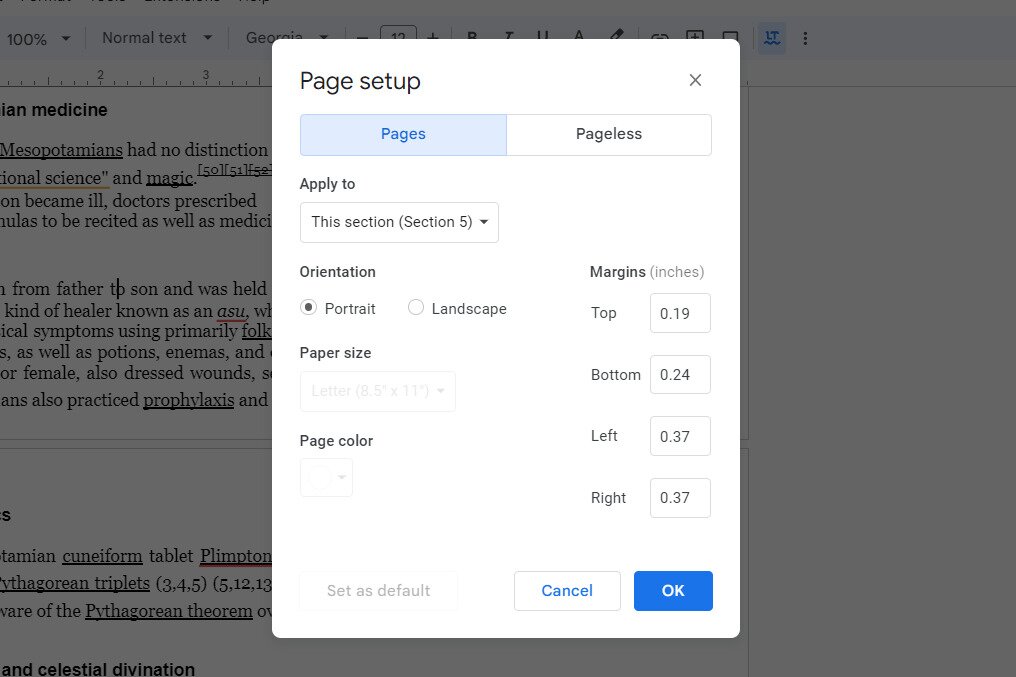
The margins on the sides of the document might large enough that they’re pushing text onto additional pages unnecessarily. Follow these steps to change the margin spacing so that more text can fit on each line, reducing the odds that your document will create more pages.
- Go to File > Page setup.

- Select the Pages tab.
- Choose each box under Margins and adjust them to be smaller numbers.

- Select OK when finished.
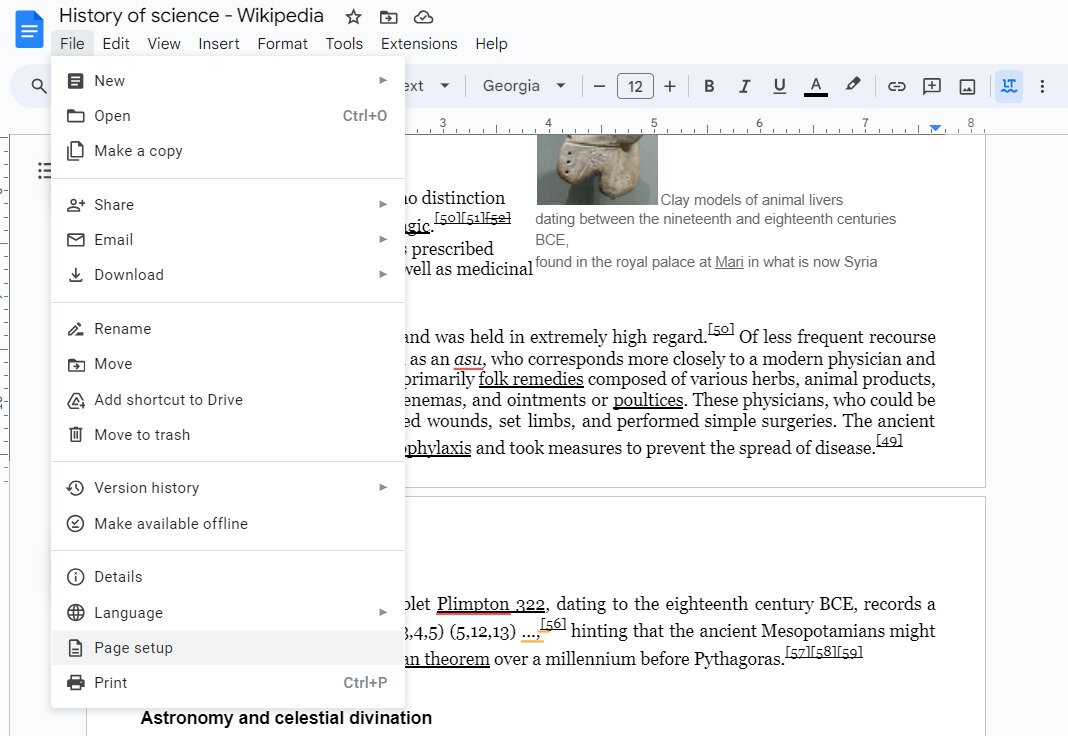
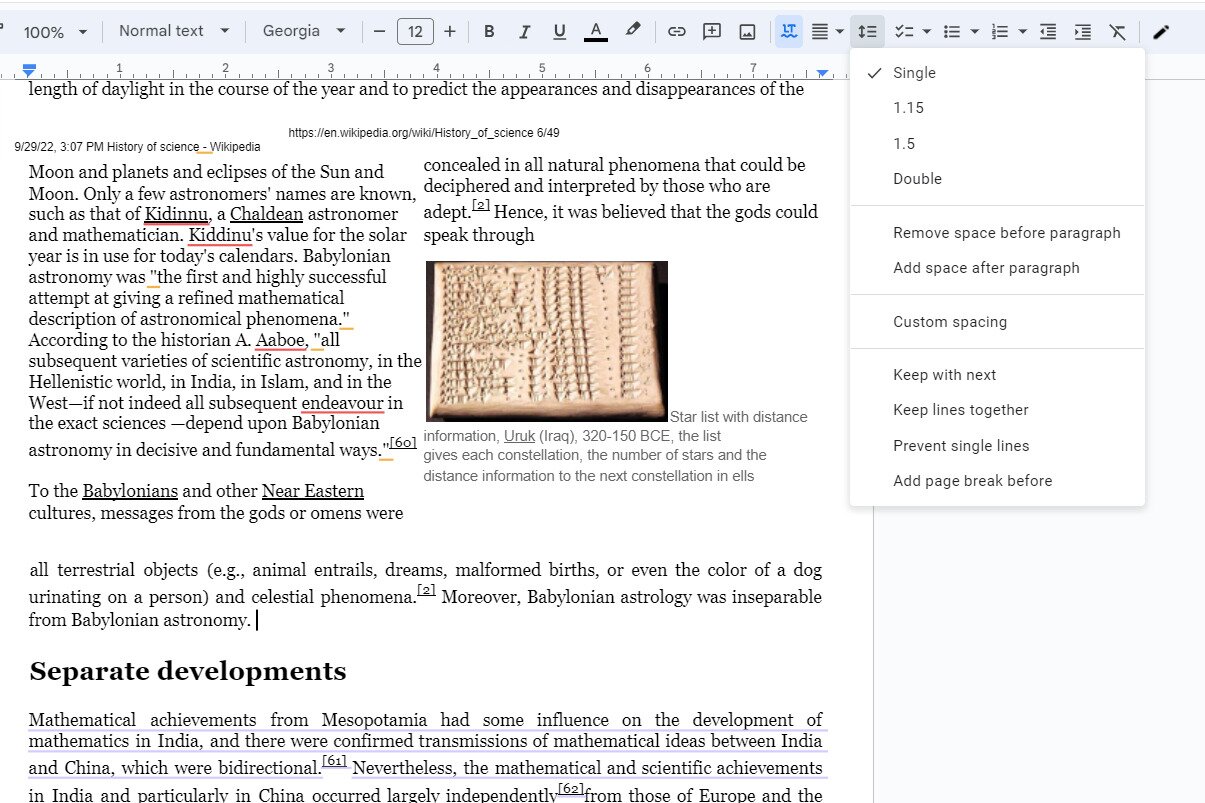
Similarly, you can adjust paragraph spacing to delete a page in Google Docs:
- Select the Line & paragraph spacing button from the toolbar.
- Pick an amount that’s lower than the current setting, such as Single.

- Alternatively, or additionally, choose Remove space before paragraph from that menu to delete spaces before paragraphs.
- Custom spacing is another choice in this menu. It lets you define an even smaller spacing amount, down to 0.06.
Tip: To avoid problems like this in the future, learn how to set a custom page size in Google Docs.
Option 3: Adjust Page Breaks
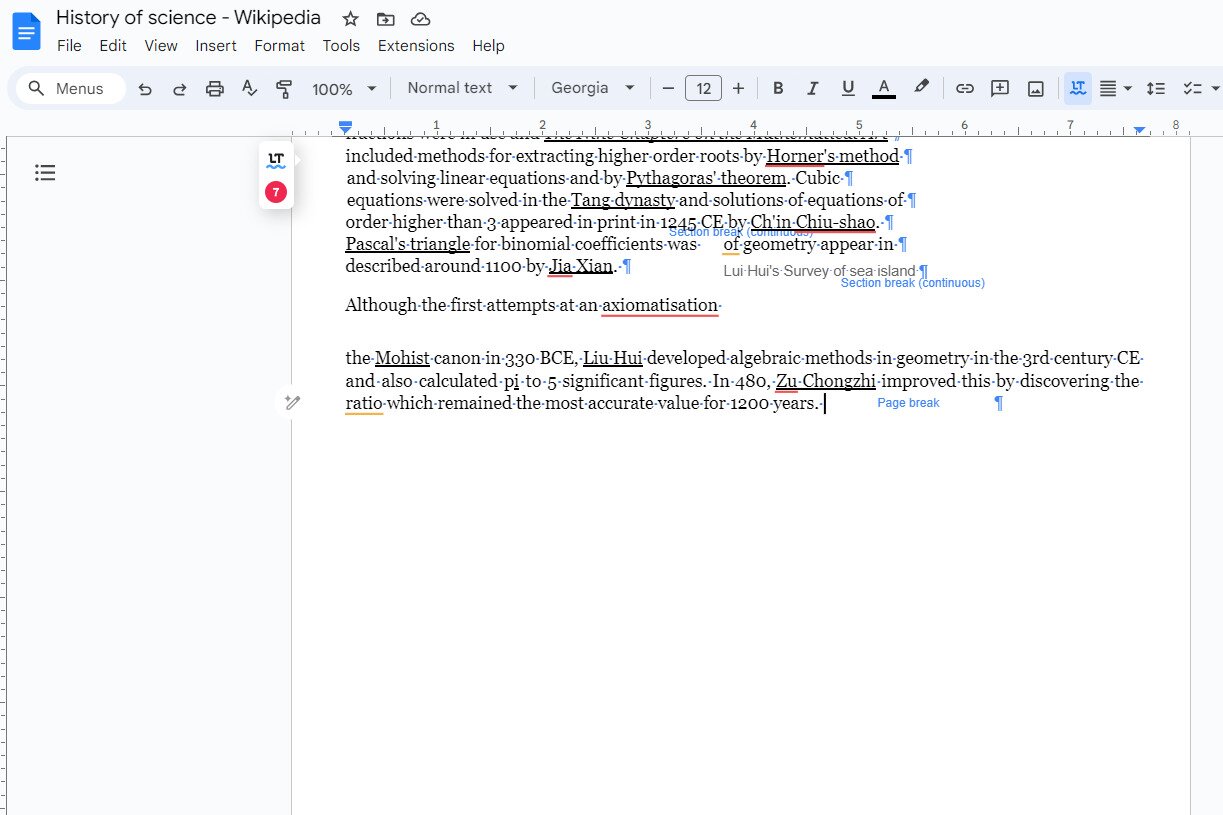
Google Docs page breaks, by definition, create new pages. They break up the page and can lead to large empty spaces. It’s easy to delete page breaks; it’s finding them that isn’t so obvious.
- Go to View > Show non-printing characters.
- Scour the document for anything that says Page break.
- Click to the left of the page break indicator and press the Delete key once.

- Press Delete again if necessary to close up the white gap and delete the page.
How to delete a blank page at the end
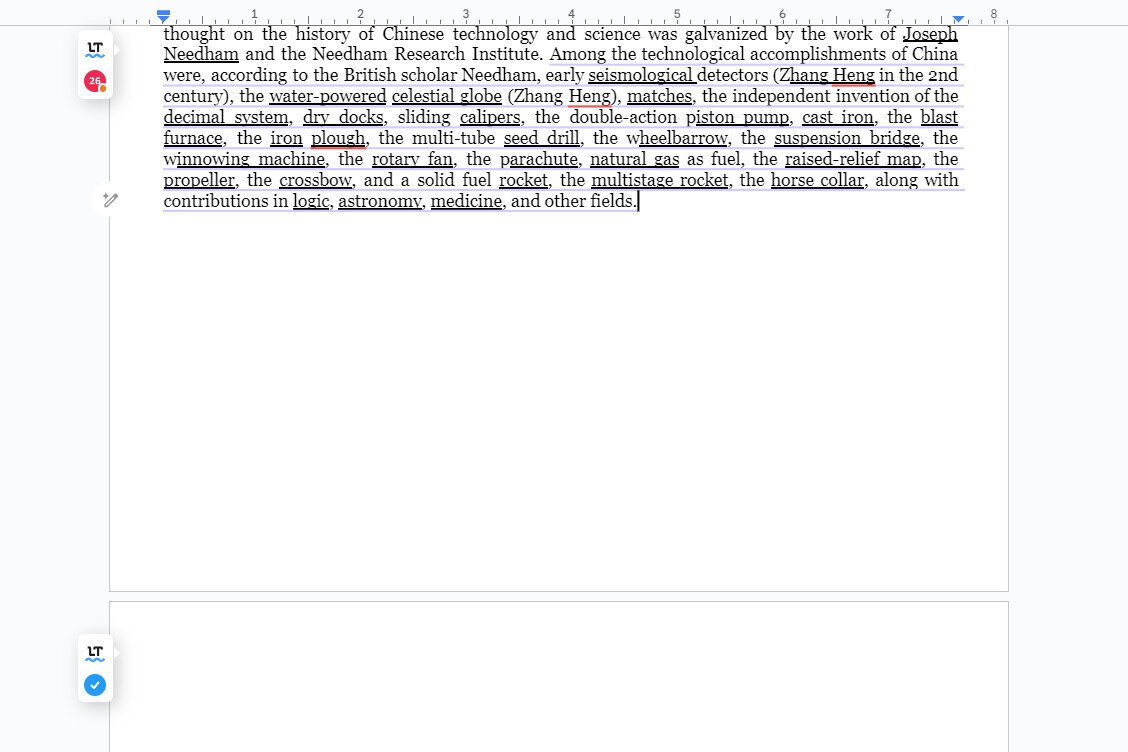
It’s pretty easy for Google Docs to leave a blank page or two at the end of a document. This happens when too many empty paragraphs have been created at the end of your text. Using the Delete key is the best way to delete a blank page in Google Docs, like this:
- Select right after the last paragraph in the document. To be precise, use your arrow keys to put the cursor immediately after the final period.

- Press the Delete key.
- If you need to, keep pressing Delete until the page below the cursor is removed.
- Alternatively, you can delete a page in Google Docs with the Backspace key, although you’ll be removing whatever exists before the cursor instead, so be sure to pay close attention to where the cursor is.
If a blank page won’t delete
Sometimes pressing Delete or Backspace doesn’t remove the blank page. This is one of the most common frustrations in Google Docs, and it usually comes down to a hidden character or a spacing setting rather than a truly undeletable page. Work through these steps in order:
- Turn on non-printing characters. Go to View > Show non-printing characters. This reveals hidden paragraph marks, page breaks, and section breaks that are invisible by default.
- Delete extra paragraph marks. Look for empty paragraph symbols (¶) on the blank page or at the end of the previous page. Click directly on each one and press Backspace or Delete to remove it.
- Remove any page or section break. If you see a Page break or Section break indicator, place your cursor directly before it and press Backspace (or Delete on Mac) to remove it.
- Reset paragraph spacing. Click inside the paragraph just before the blank page, then select Line & paragraph spacing > Custom spacing and set both Before and After to 0. Excessive spacing after the last paragraph is one of the most common causes of a stubborn blank page.
- Reduce the bottom margin. If the last line of your document is being pushed onto a new page by the bottom margin, go to File > Page setup and slightly reduce the Bottom margin value, then click OK.
Working through these five steps will resolve the vast majority of blank pages that refuse to disappear with a simple keypress.