How To Cast Your Desktop To Your TV Using Chromecast
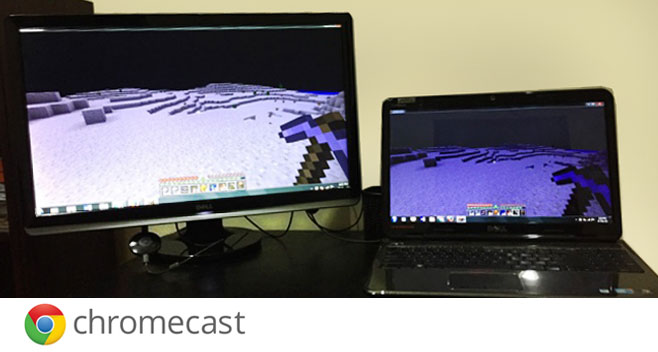
Chromecast is an amazing device and for what it costs, you can’t exactly go wrong. There are limitless possibilities when it comes to using the device, but there are also a few very basic tasks such as casting your desktop to your TV (or a monitor) that you might want to use it for. Support for the device has been growing, and whether you want to stream a tab from Chrome, mirror your whole screen, or cast directly from an app, Google has you covered. Here’s how to cast to Chromecast.
Before you cast: setup and requirements
Before any of the steps below will work, make sure you have the following in place:
- Your Chromecast or Google TV device must be plugged in and already configured through the Google Home app. If you have never set it up, complete Google Home setup first before trying to cast.
- Your casting device (phone, tablet, or computer) and your Chromecast must be connected to the same Wi-Fi network. A guest network or an isolated network will prevent your devices from discovering each other.
- Make sure Chrome (if casting from a browser) or your cast-enabled app is fully up to date.
- If you are using an iPhone or iPad, you may need to allow Local Network access so that cast-enabled apps can discover your Chromecast. Go to Settings > Privacy & Security > Local Network and enable the toggle for the app you are using.
Ways to cast to Chromecast
There is more than one way to get content onto your TV with Chromecast. Here is a quick overview of your main options:
- Cast from a Chromecast-enabled app (Android or iPhone): Apps like YouTube, Netflix, Spotify, and many others have a built-in Cast button — it looks like a screen with a Wi-Fi symbol in the corner. Tap it, select your Chromecast device, and playback moves to your TV. This is the smoothest method for video and audio because the app streams directly to the Chromecast without routing through your phone.
- Cast a browser tab from Chrome (computer): Chrome has built-in casting support with no extension required. You can send any browser tab — including web video and audio — straight to your Chromecast.
- Mirror your entire screen (computer): Chrome also lets you share your full desktop, which is useful for presentations or apps that do not have a native Cast button. Keep in mind that full-screen mirroring can introduce some latency, so it is less ideal for fast video playback compared to casting from an app or a browser tab.
The difference between casting and screen mirroring is worth noting: casting sends a stream directly to the Chromecast (your phone or computer essentially becomes the remote control), while screen mirroring duplicates whatever is on your display. For DRM-protected services like Netflix or Disney+, use the official app’s Cast button rather than full-screen mirroring for the best results.
How to cast to Chromecast from Chrome
- Make sure your Chromecast is set up, powered on, and connected to the same Wi-Fi network as your computer.
- Open the Chrome browser on your computer.
- Click the three-dot menu (⋮) in the top-right corner, then select Cast, save and share > Cast…
- A Cast bar will appear at the top of the browser. Click the Sources menu to choose how you want to cast:
- Cast tab — sends only the current browser tab to your TV. This is the best option for web video and general browsing.
- Cast screen — mirrors your entire desktop to your TV. Useful for presentations, though it can introduce some lag compared to tab casting.
- Cast file — lets you select a local video or audio file from your computer to play on your TV.
- Select your Chromecast device from the list. Casting will begin immediately.
- To stop casting, click the Cast icon that appears in the Chrome toolbar and click your device name again to disconnect.
Troubleshooting when Chromecast doesn’t appear or won’t connect
If your Chromecast is not showing up in the device list or the connection keeps dropping, work through these fixes one at a time:
- Check your Wi-Fi network: Confirm both your casting device and your Chromecast are on the same network. Guest networks and network isolation settings will block device discovery entirely.
- Restart everything: Restart your phone or computer, your Chromecast, and your router. This single step resolves the majority of connection issues.
- Update Chrome or your cast-enabled app: An outdated browser or app is a common reason the Cast button goes missing or stops working.
- iPhone/iPad — check Local Network permission: Go to Settings > Privacy & Security > Local Network and confirm the app you are casting from has permission enabled.
- Android — disable adaptive network switching: Some Android devices automatically switch between Wi-Fi and mobile data, which drops the Chromecast connection mid-session. Temporarily disable adaptive or automatic network switching while you initiate the cast.
- Cast button missing? Open another cast-enabled app or navigate to a different site in Chrome to confirm the Cast button appears there. If it does, the issue is specific to that one app or page rather than your network or Chromecast itself.

It does work! After searching for the information, I found this page and it works as posted! I needed to cast my desktop to show an informative PDF of the car that my wife wants to buy, but she cannot read the fine print, even on a monitor screen. The Acrobat PDF Reader allows character size zooming, making the reading easier on a 55 inch TV.
The option to “cast entire desktop (experimental)” is missing on my machine. I only have cast tab. Looking everywhere for information on this
Does this work with the old chromecast or just with the new one?
It should work on older devices too