How to Fix iMessage Signed Out Error on iPhone
If your iPhone keeps logging you out of iMessage, then you’re probably familiar with the iMessage signed out error. Whether this is your first time seeing it or it keeps happening repeatedly, it’s a frustrating problem that can disrupt your messaging entirely.
Why has iMessage signed out? Possible reasons include wrongly configured settings, Wi-Fi issues, iMessage server outages, or even problems with your mobile data connection or SIM.
No matter the reason for the iMessage signed out error on your iPhone, there’s no need to worry! We’ve got nearly two dozen solutions for when iMessage stops working so that you can get back to texting.
What to Do When You See the iMessage Signed Out Error
Looking for a quick solution? Try this first, before you head into the more detailed tips below:
- Close and reopen the Messages app.
- Turn on Airplane Mode for a few seconds, and then switch it back off.
- Look in Settings > Apps > Messages to confirm your iMessage settings.
How to Fix the iMessage Signed Out Error: Advanced Troubleshooting
There are several possible reasons why the iMessage signed out error occurs, so there are also many troubleshooting tips. We’ve gathered all the best fixes here so that you can get through this error in no time.
1. Restart Your iPhone
The first thing to try is restarting your iPhone. Restarting can fix numerous things, from app bugs to connectivity issues, both of which could be the reason for seeing the iMessage signed out error.
Rebooting will not erase anything and can only do your phone some good, so give it a shot before we head into these more complicated steps!
2. Check If iMessage Is Enabled
One potential reason iMessage isn’t working is because it’s turned off. Follow these steps to confirm that iMessage is actually enabled:
- Go to Settings > Apps.
- Tap Messages.
- If the toggle next to iMessage is greyed out, tap it to switch it back on.
![iMessage menu]()

3. Disable and Re-enable iMessage
If iMessage was already on, one quick way to fix the iMessage signed out error is to toggle the service off and on. It’s like a soft restart that just takes a few seconds. It’s easy to do:
- Return to Settings > Apps > Messages.
- Tap the iMessage toggle to disable it.
- Wait a few seconds, and then tap it again to re-enable it. It might take a few seconds to fully restart.
![iMessage menu]()

4. Check Your Wi-Fi Connection and Credentials
A poor internet connection could be why the iMessage signed out error appears on your iPhone.
If you’re near a reliable Wi-Fi network that you know works for other internet-related tasks, make sure you’re actually connected to the network. If your router is broadcasting over 5 GHz Wi-Fi, consider changing it to 2.4 GHz, which could help with interference.
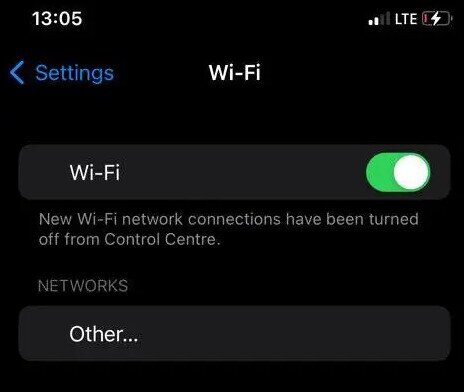
Here’s how to confirm that Wi-Fi is enabled:
- Open the Settings app and then tap Wi-Fi.
- Switch the Wi-Fi toggle on (so that it’s green).
![iPhone wifi menu]()
- If Wi-Fi is already enabled, tap the (i) next to the network and make sure the password is correct.
5. Reset Network Settings
Sometimes, resetting the network settings fixes inexplicable connectivity issues that trigger the iMessage signed out error.
Following these steps will reset your phone’s saved Wi-Fi networks and Bluetooth connections to factory defaults. Be sure to write down your Wi-Fi network settings beforehand to make setup easier later.
- Open Settings, then General.
- Go to Transfer or Reset iPhone at the bottom, then tap Reset.
- Select Reset > Reset Network Settings.
- Rejoin your Wi-Fi network upon reboot to see if iMessage works.
![Reset iPhone screen]()

6. Check Your Mobile Data Connection
Poor internet connection from your cellular network can be at fault for the iMessage signed out error. If you notice SOS and network errors, see if you have active mobile data and that your service provider is online by checking the signal bar for signal strength.
If you’re in a rural area or there are heavy weather conditions, you’re more likely to not have a signal.
7. Check Your SIM Card
If you have issues with your cellular data connection but your network provider is active on other nearby iPhones, try removing and re-inserting your SIM card (if you have one). Also check for damage and improper alignment.
It’s worth noting that lots of iPhones don’t have a physical SIM card. If your phone is older or you live in a region that still has access to these types of products, this could be a good tip to try. For most iPhone users, however, this will not apply.
8. Check Your Apple Account Settings
The iMessage signed out error might be related to your Apple Account/ID. Your Apple account provides you with access to everything Apple, including iMessage. Check that your account is correct, especially if you’re having issues with other Apple services.
- Go to Settings > Apps > Messages.
- Select Send & Receive.
- Tap on Use Your Apple Account for iMessage and sign in to iMessage if your Apple Account isn’t listed.
If your Apple Account is already listed but iMessage still won’t stay signed in, try a full reauthentication:
- Go to Settings > Apps > Messages > Send & Receive.
- Tap your Apple Account address, then choose Sign Out.
- Restart your iPhone, then return to Send & Receive and sign back in.
- If you recently changed your Apple Account password, re-enter the new password anywhere iOS prompts for it — iMessage may silently fail until every prompt is resolved.
- Confirm that the same Apple Account is used in both Messages and FaceTime (check under Settings > Apps > FaceTime).
- Verify that your trusted phone number is still valid under Settings > your name > Sign-In & Security.
Keep in mind that signing out of iCloud entirely, or changing your Apple Account password, can temporarily sign iMessage out across all your devices. Re-signing in on each device individually is the fix.
9. Change Your Password
Another cause of the iMessage signed out error could be your password, if someone is trying to hack your account. If so, change your Apple Account password:
- Open the Settings app.
- Select your Apple Account at the top.
- Tap Sign-In & Security.
- Choose Change Password.
- Type the new password into the text boxes, then tap Continue.
- Follow any other on-screen steps to finish up, and then check if iMessage works.
10. Activate Two-Factor Authentication
If a hacker is attempting to access your account or you’re experiencing the ‘Apple Account and phone number are now being used for iMessage‘ error and it is logging you out, enabling two-factor authentication can prevent them.
- Open Settings and tap on your Apple Account.
- Select Sign-In & Security.
- Select Two-Factor Authentication, and ensure one of the methods listed is enabled.
11. Check Your iMessage Server Status
Apple has a System Status page that shows the current status of its services. If the server is down, it could cause the iMessage signed out error to appear, in which case there’s nothing you can do to fix it — all you can do is wait for Apple to address the problem.
To check, open Apple System Status and confirm that iMessage is available with a green dot. It goes red if iMessage is unavailable.

12. Update iOS
It’s essential to update iOS to the latest version. Apart from keeping you safe from the latest cyber threats, software updates let you try new features.
If iMessage gets a bug fix and you don’t update iOS to install it, you could continue seeing the iMessage signed out error. Updating out of a beta version of iOS can also be useful for correcting this error.
Here’s how to check for and install new iOS updates:
- Go to Settings > General.
- Tap Software Update.
- Tap Install if an update is available.
![iPhone update screen]()

13. Check Your Date and Time
Verify that your system date and time are accurate. A discrepancy could trigger the iMessage signed out error and other strange issues on your device.
- Open the Settings app.
- Select General > Date & Time.
- Confirm that Set Automatically is chosen. This can also help with troubleshooting FaceTime sign in issues.
![iPhone date and time screen]()

14. Use an Email Address Instead
iMessage not only supports phone numbers, but also email addresses. If you’re experiencing the iMessage signed out error, try switching to use the service with your email address to see if that resolves it.
- Go to Settings > Apps > Messages.
- Tap Send & Receive.
- Choose your email address.
15. Check if a VPN is Active
If you use a VPN or other privacy software on your iPhone, it could be interfering with iMessage functionality and causing the iMessage signed out error. Try disabling the software and seeing if you can sign back into iMessage.
16. Check for Multiple Devices Signed in
If you have multiple Apple devices and there is a problem with the sign-in permissions/functions on one of them, it could affect other devices as well.
This is especially true if one of the devices is older and more prone to bugs and problems. Signing out of iMessage on older devices may help resolve the iMessage signed out error on your primary iPhone.
17. iCloud Syncing Problems
Because iCloud is used to sync multiple devices, issues with this syncing may cause the iMessage signed out error to appear as the system tries to prevent sign-in conflicts with another device.
18. Check if Low-Power Mode is Activated
Low Power Mode limits background network activity, which can occasionally contribute to iMessage connectivity problems — particularly if you enabled it around the same time the error appeared. It’s not a common direct cause of the iMessage signed out error, but it’s worth ruling out.
- Open Settings.
- Tap Battery.
- Toggle Low-Power Mode off.

19. See if Your iPhone/iPad Storage is Full
If your device storage is full, it could interfere with the ability to sync to Apple’s servers, which may trigger the iMessage signed out error from time to time.
Try clearing up some space on your device to see if this solves the problem. You can delete apps and files to quickly free up space.
Go to Settings > General > iPhone Storage to see which apps are using the most space. Here, you can also set up the Offload Unused Apps feature to save potentially lots of space.

20. System Bugs or Glitches
Apple is regularly releasing system updates, usually in response to security vulnerabilities or previous bugs. That said, sometimes these updates actually cause problems of their own.
If you are suddenly experiencing the iMessage signed out error and none of the previous troubleshooting tips helped, try looking up forums or asking other iPhone users if they are having the same problem. If so, Apple will likely roll out a fix for it soon.
21. Delete a Previous Message
If there was an old message or thread that was corrupted or stuck, it can sometimes cause the iMessage signed out error to persist. You can try deleting the message or even the entire thread to see if it sorts itself out.
22. Contact Your Carrier
Your carrier plays a bigger role in iMessage activation than most people realize. If your phone number isn’t registering with Apple’s servers, the issue is often on the carrier side — not your iPhone. Before you call, work through this checklist so you can give the support agent the right context:
- Confirm the line is active for voice and SMS. Try making a call and sending a standard text message to another number. iMessage activation relies on SMS, so if basic texting isn’t working, iMessage won’t activate either.
- Check your prepaid balance or SMS restrictions. Some prepaid plans or business accounts restrict SMS, which blocks iMessage activation entirely.
- Verify your number has finished porting. If you recently moved your number from another carrier, porting can take time to complete, and iMessage won’t activate until the port is finalized on the carrier’s end.
- Ask the carrier to reprovision your line. If your number still isn’t registering with Apple after troubleshooting, ask the carrier to reset or reprovision the line on their network. This is especially helpful when no other fix has worked.
- If you use eSIM, ask whether the eSIM profile needs to be reissued. After a device swap or eSIM transfer, the carrier sometimes needs to push a fresh eSIM profile before iMessage can activate properly.
If iMessage Says “Waiting for Activation” or “No Addresses”
These two messages are distinct from the generic iMessage signed out error, and they call for a specific set of steps. If you see either of them on your screen, work through the following before trying the broader troubleshooting list above.
Check That Your Phone Number Is Selected in Send & Receive
Go to Settings > Apps > Messages > Send & Receive and confirm that your phone number has a checkmark next to it. If it doesn’t, tap it to select it. Without this, iMessage has no address to activate against.
If You See “No Addresses,” Sign In With Your Apple Account
A “No Addresses” message usually means no Apple Account is linked to iMessage. On the same Send & Receive screen, tap Use Your Apple Account for iMessage and sign in. Once signed in, your email address will appear as an available address, and activation can proceed.
Make Sure Your Line Can Send and Receive Standard SMS
Apple activates iMessage by sending a silent SMS in the background. If your carrier plan doesn’t support SMS, or if SMS is temporarily blocked, the activation process will stall at “Waiting for Activation.” Send a regular text message to a friend to confirm SMS is working. If it isn’t, contact your carrier to resolve the SMS issue first.
Activation Can Take Up to 24 Hours After Certain Events
If you recently switched from a physical SIM to an eSIM, ported your number to a new carrier, or set up a new iPhone, iMessage activation can legitimately take up to 24 hours to complete. This is a normal part of carrier provisioning, not a bug. If you’re within that window, patience is often the actual fix.
Toggle iMessage Off and On, Then Restart and Recheck
Once you’ve confirmed SMS is working and your phone number is selected, toggle iMessage off under Settings > Apps > Messages, restart your iPhone, then toggle iMessage back on. After it restarts, go back to Send & Receive and check whether your phone number now shows as active. If activation still hasn’t completed after 24 hours, contact your carrier using the checklist in step 22 above.
Why Is My iMessage Signed Out Error Happening?
If you didn’t purposefully sign out of iMessage, matching the error to a specific trigger is the fastest way to find the right fix. Here are the most common causes and the first thing to try for each:
- Recent Apple Account sign-out or password change: Changing your Apple Account password automatically signs iMessage out on every linked device. Re-enter your new password when iOS prompts you, or go to Settings > Apps > Messages > Send & Receive and sign back in manually.
- Phone number deselected under Send & Receive: If your number lost its checkmark — which can happen after a software update or device restore — iMessage loses its activation anchor. Go to Settings > Apps > Messages > Send & Receive and tap your number to reselect it.
- SIM-to-eSIM change: Switching from a physical SIM to an eSIM (or between eSIM profiles) triggers a fresh iMessage activation. Toggle iMessage off and on, and allow up to 24 hours for the carrier to complete provisioning.
- Carrier number porting: Moving your number to a new carrier puts it in a temporary state where SMS — and therefore iMessage activation — may not work until the port finalizes. Confirm with your carrier that the port is complete before troubleshooting further.
- New device setup: Restoring or setting up a new iPhone requires iMessage to reactivate from scratch. Make sure you’re signed into the correct Apple Account and that your phone number is selected in Send & Receive.
- Apple service sign-in issues: If Apple’s authentication servers had a brief outage or your session expired, iMessage can drop its signed-in state. Check Apple’s System Status page and sign back in if the service shows green.
- Activation not completing: If iMessage shows “Waiting for Activation,” the background SMS Apple sends to verify your number may not have gone through. Confirm SMS is working on your line, then toggle iMessage off and on after verifying with your carrier.
- Wi-Fi or cellular connectivity issues: iMessage requires an active internet connection to function. A poor or dropped signal — whether Wi-Fi or mobile data — can cause the signed out error to appear. Switch connections or move to an area with better coverage.
Maintaining a Stable Internet Connection
An unreliable internet connection is one of the top reasons people experience the iMessage signed out error. You need a solid connection (Wi-Fi or mobile) to use the service, and the same kind of instability can also cause a Discord message delivery issue.
Here are some tips for ensuring that your phone has a solid internet connection so that you can better avoid iMessage issues:
- Move closer to the Wi-Fi source or switch to mobile (or Wi-Fi) if the other one feels too slow. A mobile connection can be very unreliable as you move around.
- Stop using Wi-Fi on your other devices, or at the very least, stop downloading huge files while you’re trying to use iMessage. Doing this, if possible, will allow some bandwidth to be used for messaging people.
- Unplug your router if it’s been on forever. Plug it back in after about one minute.
- Disable your VPN if you’re using one. These are known to be slower than a direct connection to the internet, and random server-related errors can go unnoticed.
- Get out of Low-Power Mode if it’s been switched on. This disables background activities that could be interfering with iMessage and contributing to the iMessage signed out error.
Frequently Asked Questions
Why is my iPhone saying iMessage is signed out?
Your iPhone may say iMessage is signed out if there’s an issue with your Apple Account, internet connection, or a recent change in settings. It can also happen after a software update or if you’ve signed out of iCloud. To fix it, go to Settings > Messages, and try toggling iMessage off and on again. You may also need to sign back in with your Apple Account.
Why does my iPhone say my iMessage is off?
This message appears if iMessage has been turned off in your settings. It could be accidental, due to a software glitch, or after a restart or update. To turn it back on, go to Settings > Messages and toggle iMessage on. Make sure your device has a stable internet connection during activation.
Why is my iPhone disconnecting from iMessage?
Your iPhone may disconnect from iMessage due to poor Wi-Fi or cellular data, issues with your Apple Account, or server-side problems from Apple. Sometimes, SIM card issues or software bugs can also interfere. Try restarting your iPhone, checking your internet connection, or signing out and back into your Apple Account under Settings > Messages > Send & Receive.
Why isn’t my phone number connecting to iMessage?
If your phone number isn’t connecting to iMessage, it might be because activation hasn’t completed properly. This could be due to no active SMS plan, poor signal, or an issue with Apple’s servers. Go to Settings > Messages > Send & Receive, and make sure your phone number is selected for activation. You can also try restarting your device or resetting network settings (Settings > General > Transfer or Reset iPhone > Reset > Reset Network Settings).
When to contact Apple Support
If you tried all of the fixes listed above after the iMessage signed out error appeared, but are still dealing with the problem, it’s best to contact Apple Support. There might be an issue with your Apple Account that only the company can resolve.