Why Is My Phone on SOS? What It Means and How to Fix It
If you’ve ever asked yourself, “Why is my phone on SOS?” — or more specifically, what is SOS on iPhone — you’re about to find out. It’s a common feature for iPhones to sometimes read SOS or SOS only when you are out of range of your usual cell service. However, it may be possible to still use your phone for emergency calls, which is what the SOS message indicates. This short guide will explain what is SOS on iPhone a little better. More importantly, we’ll help you troubleshoot what to do if it won’t go away.
What Is SOS on iPhone? Understanding SOS Mode
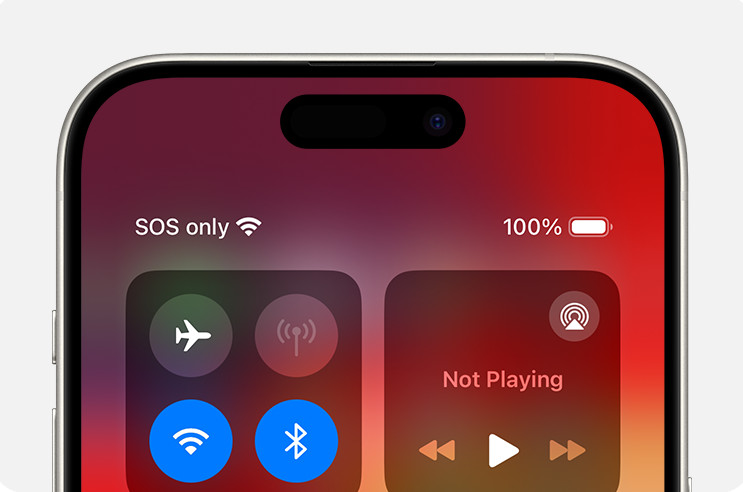
SOS mode is a way for you to still be able to call emergency services even if you’re out of range of your cellular network. The SOS on your display is actually telling you that your usual network is unavailable and that your phone will try to route your emergency calls through different networks, if possible. Only emergency calls will go through.
For applicable iPhone models, there may also be the option to text emergency services through satellite, if cell service of any kind is unavailable. On iPhone, ‘SOS’ or ‘SOS only’ in your status bar is a network state, not a standalone app or shortcut — it means your normal carrier service is unavailable but emergency calling may still work through another carrier’s network.
Keep in mind that this carrier-network SOS behavior is specific to certain regions; Apple currently supports it in Australia, Canada, and the United States. On Android, the equivalent lost-service state is typically labeled ‘Emergency calls only,’ while ‘SOS’ on many Android devices refers to a separate emergency shortcut feature — so these terms are not interchangeable across platforms. For now, however, we’ll focus on cases where the alert is not actually needed and you need to figure out how to turn it off.
What SOS, SOS Only, No Service, and Searching Mean on iPhone
When you glance at your iPhone’s status bar, you may see several different indicators depending on your connectivity situation. Understanding what is SOS on iPhone — and how it differs from related status messages — helps you diagnose the problem faster and avoid unnecessary panic.
SOS or SOS Only means your iPhone is not connected to your own carrier’s network, but it may still be able to place emergency calls by routing through another available carrier’s network. You will not be able to make regular calls, send texts, or use data — only emergency services. As noted above, Apple’s carrier-network SOS behavior (routing emergency calls through a partner network) is available in Australia, Canada, and the United States. In other regions, behavior may vary.
No Service means your iPhone has no cellular connection at all — not to your carrier or any other network. Emergency calls may not be possible through a cellular network in this state, though Emergency SOS via satellite may still be an option on supported devices.
Searching means your iPhone is actively trying to find a network to connect to. This is a temporary state and often resolves on its own once the phone locks onto a signal.
It is also important to understand that the status-bar label ‘SOS’ or ‘SOS Only’ is entirely different from the Emergency SOS feature built into iOS. The status bar label describes your network connection state. The Emergency SOS feature is a manual action you trigger yourself to call for help quickly — it is covered in more detail in the FAQ section below.
Why Is My Phone on SOS Only: Troubleshooting Methods
Usually, SOS mode isn’t an issue. It just means you’re out of cell range for your usual provider (or perhaps any cell coverage at all). If you don’t experience an actual emergency during that time, it’s no big deal. When you re-enter your network zone, it should theoretically go away and life will go back to normal. Except when it doesn’t.
These troubleshooting methods are things to try when the SOS mode doesn’t go away, even when you’re back in cell coverage again. If you keep wondering what is SOS on iPhone and why it persists despite being in a covered area, work through each step below.
Reboot your Phone
One of the first things to try is restarting your phone. This can often clear up any little bugs and glitches, clear up some of your iPhone caches, resend prompts you may have tried while out of service, and force the phone to try to reconnect to the carrier.
iPhone X and later (iPhone X, XS, XR, 11, 12, 13, 14, 15, and newer):
- Press and hold the side button and either volume button at the same time until the power-off slider appears.
- Drag the slider to the right to turn the phone off.
- Wait at least 30 seconds for the phone to fully power down.
- Press and hold the side button until the Apple logo appears to turn it back on.
iPhone SE (2nd and 3rd generation), iPhone 8, and earlier:
- Press and hold the side button (or the top button on older models) until the power-off slider appears.
- Drag the slider to the right to power off the phone.
- Once the screen is completely dark, press and hold the same button until the Apple logo appears.
If your iPhone is completely frozen and unresponsive to the steps above, a force restart may be necessary — but that is a more advanced recovery step and is only needed when the phone won’t respond at all, not as a routine restart method.
Double Check You Have Cell Coverage
If you’re out hiking with friends and you head home, it may take longer than you think to actually get into your cell network again. Even if your friends’ phones show coverage, if they have a different provider from you it may take you a little longer. Here’s one way to try to nudge your phone to connect with your cell network again.
Before adjusting any settings, it is worth doing a quick physical coverage check. SOS is frequently caused by a genuine dead zone rather than a software issue, and no settings change will help if you simply don’t have signal where you are. Work through this checklist first:
- Move outdoors or to higher ground — buildings, hills, and terrain can block cellular signals significantly.
- Leave any signal-blocking areas such as tunnels, subway stations, underground parking garages, elevators, and thick-walled buildings.
- Wait about a minute after moving to a new location to give your phone time to reacquire service on its own.
- Compare with another phone on the same carrier — if someone using your exact carrier has full bars and yours shows SOS, the problem is more likely device-specific rather than a coverage gap in that area.
- Check your carrier’s coverage map or outage page from a Wi-Fi connection to confirm whether your current location is within a covered area and whether any active outages are affecting your region.
Keep in mind that a friend’s phone showing full service does not mean yours should too, unless they are on the exact same carrier — different networks have very different coverage footprints, and one provider can have a strong signal in a location where another has none at all.
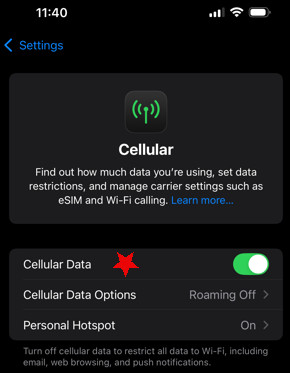
- Go to Settings
- Go to Cellular
- Toggle Cellular Data off and on again to see if it works
See if Your Cellular Provider is Having an Outage
If you’re able to find a way to sign in, go to your carrier network account and try to log in. Most of the time if there is a known outage in your area, you’ll get a network notification alert on your account. You can also often find a network status page for whatever provider you use, which will often show outages and the areas affected.
Beyond checking for outages, it is worth running through a quick carrier and account checklist, since account-side issues are a surprisingly common cause of persistent SOS status that most users overlook:
- Account standing: Confirm your account is active and in good standing. A missed payment or billing issue can result in your line being suspended, which will cause your iPhone to show SOS.
- Blocked or barred device: Check with your carrier that your device has not been flagged, blocked, or barred from cellular service — this can happen if a device is reported lost or stolen, or if there is a billing dispute.
- Correct plan on your line: Verify that the correct voice and data plan is attached to your specific line. Sometimes account changes or plan migrations can inadvertently remove service from a line.
- Service availability in your area: Confirm that your carrier actually provides coverage in your current location, not just a partner or roaming area that may require a different plan.
- IMEI registration: If your iPhone was originally purchased in another country, check whether your local carrier requires IMEI registration to provision service on the device. Some carriers will not activate service on an unregistered or internationally sourced IMEI.
Update your Phone
If you’re still wondering what is SOS on iPhone and why it appears at the top of your screen when you’re not out of cell range, it could be related to the iOS version you’re running. iPhones are notorious for needing frequent updates. It seems like there is always some bug or security flaw needing to be patched, so it’s generally a good idea to keep up with all iOS updates as soon as they are released. Here’s how to do it:
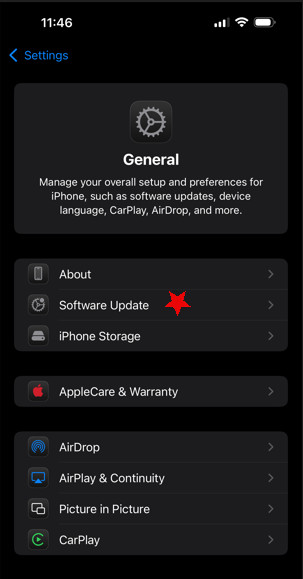
- Go to Settings
- Go to General
- Go to Software Update
- Keep in mind, you’ll need to be able to access the internet to update, so you may need to find a way to use Wi-Fi if you can’t use a cellular network
Toggle Airplane Mode On and Off
Toggling Airplane mode could help your smartphone to reconnect to your cellular network if it hasn’t done so automatically when you re-enter your coverage area. Here’s how to do it:
- Go to Settings
- Airplane Mode should be near the top. Toggle it on for at least 15-30 seconds, then toggle it off again
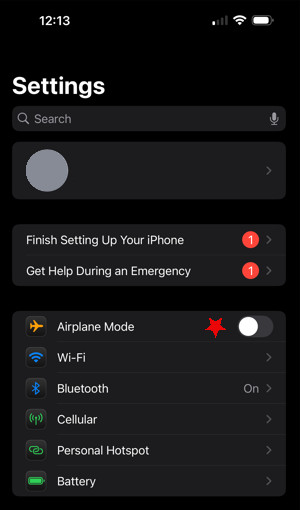
- See if the SOS mode goes away
Check for an Update From Your Carrier
Usually when there is a carrier settings update, you’ll already receive a prompt to install it. If, however, that did not occur, you can try manually installing carrier updates. These are important, as they can improve performance and connectivity, which may solve your SOS only issue. Here are the steps:
- Use a Wi-Fi or cell network to connect to the internet
- Go to Settings
- Go to General
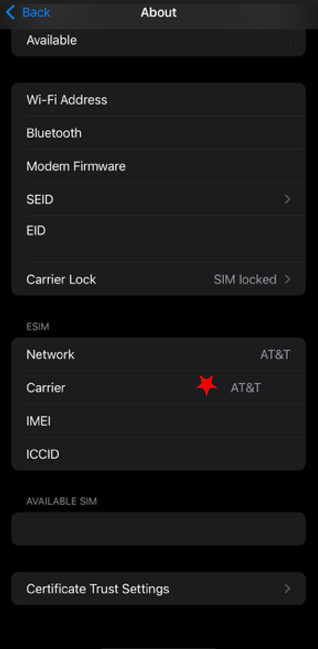
- Go to About
- If there is a carrier update, you’ll be able to see it here. Just follow any prompts
- If you need to inform your carrier of what version you are using (such as if troubleshooting with them on the phone), you can check this by scrolling down to Carrier and finding the information next to it
Turn on Data Roaming if You’re Traveling Internationally
Questions about what is SOS on iPhone often come up when users are traveling abroad. It’s one of the biggest causes you’ll run across on help forums and complaint pages. Why? Data roaming, or rather lack thereof. Data roaming lets you use cellular data services outside of your provider’s network, such as if you’re traveling outside the country.
Turning on Data roaming lets your cell phone use foreign cell networks in place of your usual one. This lets you have much better connectivity in most areas. However, your usual mobile network provider will charge you extra for this foreign data usage, including making phone calls or texting, so be aware.
Often, you can choose a plan with specific deals and savings on Data roaming, if you set it up in advance. Regardless, you’ll likely need to activate Data roaming if you’re traveling abroad and get the SOS only display. Here’s how:
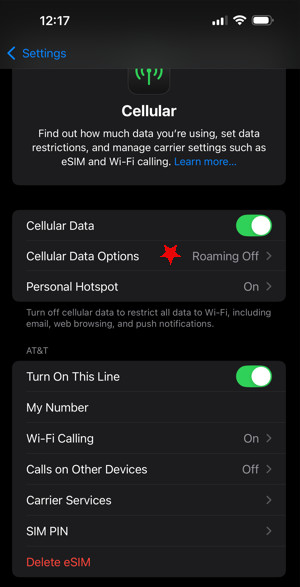
- Go to Settings
- Go to Cellular
- Go to Cellular Data Options (or whatever is most similar in your iPhone version)
- Toggle Data roaming on (being aware of likely charges for use from your provider)
Reset Your Network Settings
Be aware, resetting your network settings will also reset your passwords, reset your iPhone VPN settings, and Wi-Fi networks, so be sure you’re prepared for that. Here’s what to do:
- Go to Settings
- Go to General
- Scroll down to Transfer or Reset iPhone
[file:reset-iphone; alt:Reset iPhone setting]
- Tap Reset
- Tap Reset Network Settings
Check your SIM, eSIM, and Dual SIM Lines
A faulty, missing, or improperly provisioned SIM or eSIM is one of the most common causes of a persistent SOS status — and one that often goes unchecked. If you’re still asking what is SOS on iPhone and why it won’t clear after trying the steps above, here is how to work through the SIM side of things:
- Go to Settings
- Tap Cellular
- If you see individual cellular lines listed, tap the affected line and confirm it is toggled on.
- To perform a line reset, turn that line off, wait a few seconds, then turn it back on and recheck whether service returns — this simple toggle often resolves eSIM and Dual SIM registration problems without any further action needed.
- If a line is missing entirely, you may need to re-add the eSIM through your carrier’s app or by scanning the carrier-provided QR code. If you no longer have the QR code, contact your carrier directly to have the eSIM reprovisioned to your device.
If a physical SIM was recently inserted from a new carrier, keep in mind that your iPhone may need to download updated carrier settings before service fully returns. Leave the phone connected to Wi-Fi for a few minutes after inserting the new SIM and watch for a prompt to install carrier settings — accepting that update can make the difference between SOS and a working connection.
If your iPhone uses a physical SIM card, power off the device, carefully remove the SIM tray, and reseat the SIM card before powering back on. A SIM that is not fully seated in the tray can cause the phone to lose carrier contact entirely.
If the SIM card is visibly damaged, does not fit the tray properly, or was moved from a different device and no longer works in yours, contact your carrier and request a replacement SIM. Carriers can typically mail a replacement or swap it in-store at no cost.
If your iPhone is set up with Dual SIM (one physical SIM and one eSIM, or two eSIMs on supported models), make sure you are checking the correct line. It is easy to assume the primary line has service when in fact it is the secondary line that is active for calls. In Settings > Cellular, review which line is set as your Default Voice Line and confirm that specific line is active and provisioned correctly.
Contact Your Cell Service Provider
At this point, you may be dealing with cellular network issues that only your provider can help you troubleshoot from their end. When you call, ask them to confirm that your account is active, your line is provisioned correctly, and there are no flags on your device or IMEI.
If the carrier confirms that everything on the account and network side looks fine, the problem is most likely hardware-related and the next step is to book a repair or assessment through Apple or an authorized service provider. It could be a hardware malfunction on your phone too, such as if you accidentally dropped your iPhone in the water or damaged it. Either way, it’s not a bad idea to contact your carrier for personalized recommendations.
Frequently Asked Questions About What Is SOS on iPhone
To complete the answer above: the status-bar label ‘SOS’ or ‘SOS Only’ is a network state — it describes how your iPhone is (or isn’t) connected to a carrier. The Emergency SOS feature, on the other hand, is a deliberate action you take to call emergency services quickly when you need help. These two things are completely separate.
To review or configure the Emergency SOS feature, go to Settings > Emergency SOS. From there you can see and adjust the available activation methods. Depending on your iOS version, these include pressing and holding the side button and a volume button simultaneously until the Emergency SOS slider appears, or rapidly pressing the side button five times. On some iOS versions, you can also enable a setting that automatically calls emergency services after the countdown completes when you use the button combination.
On iPhone 14 and later, Apple also introduced Emergency SOS via satellite. This allows you to contact emergency services even when you have no cellular or Wi-Fi signal at all, by connecting directly to a satellite network. Emergency SOS via satellite is available in supported countries and regions — check Apple’s current list to confirm availability where you live or travel. This feature is separate from both the status-bar SOS indicator and the standard Emergency SOS button feature.