How to Clear Cache on iPhone: A Step-by-Step Guide
Knowing how to clear cache on iPhone can boost your device’s performance and free up some much-needed storage space. There are many reasons why your iPhone may be lagging or sluggish, but clearing the app or browser cache can resolve a wide variety of issues. We’ll take you through what a cache is, why you should care, and all the steps for clearing it on your iPhone.
What is a Cache? The Silent Speedster of Computing
The applications on your phone will store frequently accessed data, files, etc. This way, the data does not need to be reloaded every time you open your frequently used apps. This means faster access for you, making your user experience more seamless and fluid. However, as useful as the storing of cache data can be — it can also cause some issues along the way.
How is Clearing Your iPhone Cache Helpful?

Loading times on your iPhone can be greatly reduced thanks to cached data. Normally, this makes using apps and accessing websites a breeze. Except when it doesn’t….
Every so often, this cached data can cause issues. Especially if the data becomes corrupted, or there’s simply too much of it. In this case, it can actually slow down your iPhone’s loading times or cause crashes. If the data is expired or is out-of-date, the site might not load correctly (or at all).
App or browser cache issues can cause a handful of problems. Here are some reasons why clearing your cache occasionally is a good idea:
- Apps perform better: After clearing the cache, the freshly downloaded data can improve performance and make accessing the app faster.
- Correct glitches: Getting rid of stored data may clear out problematic or corrupted files in the process. You’ll probably run across the suggestion to clear your system’s cache in tons of troubleshooting guides, for this reason. It can be an extremely effective way to get rid of persistent bugs and glitches.
- Clears up your iPhone storage: If you don’t clear your caches very often, this data stacks up over time and takes up a lot of storage space that you probably need for more important things. Clearing your cache gives you more storage and also frees up that space for other resources, improving your phone’s performance too.
- Improves privacy: Because the cached data may sometimes have sensitive or personal information (such as private documents, login information, or images) removing this stored cache can keep this data out of the wrong hands, especially if your smartphone is stolen.
- Up-to-date content: If your iPhone is using previously cached information from a browser or app, it may be outdated. Periodically clearing your stored data ensures you have the most up-to-date data versions.
- Clears up authentication problems: Stored login credentials, authentication tokens and other such data can become corrupted or problematic. Clearing the cache refreshes these tokens and can help with login issues.
How to Clear Cache on iPhone Apps
Learning how to clear cache on iPhone is pretty simple. There are a few different methods and techniques to try, but the process is always fairly straightforward.
Clearing the Cache for Specific Apps on Your iPhone
Sometimes, it’s best to start small. If you want to clear cache on iPhone for just one app at a time, follow these steps:
- Go to Settings (the gearbox icon).
- Go to General.
- Tap iPhone Storage.
- Scroll to find the individual app you want.
- There will be a few options listed, but head to the Offload App and Delete App section. The Offload app will not remove all the data, but it will clear up some of the cache. This helps with increasing storage space. To keep using the app, you’ll have to reinstall it. Deleting the app completely will remove all the data and cache. If you choose to reinstall the app after deletion, none of your data will have been saved. Be sure you decide on the best option for you, as deleting the app may be more extreme than some users want.
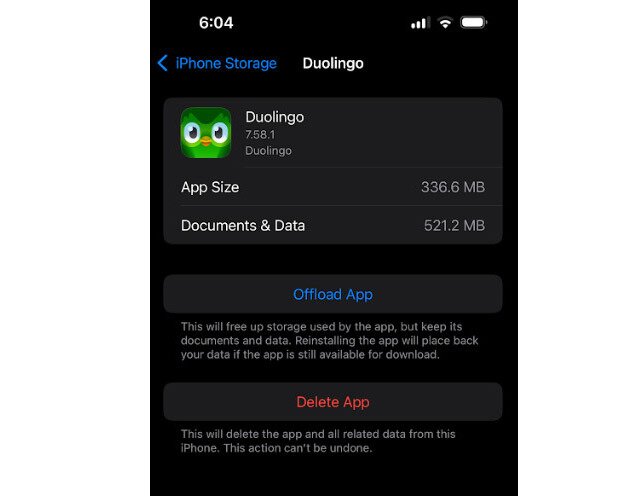
- If you pick Offload App, a window will appear. Tap Offload App to confirm this action. Deleting the app will also require confirmation.
Some specific applications may have the ability to clear the cache by accessing the app’s settings. If your app has a “clear-cache” option, simply select it and restart the app. This should clear its data. It is important to note that doing this may mean that you need to log in again.
Clear All of Your iPhone App Caches
iOS does not include a universal “clear all app caches” button — Apple simply does not provide one. Every app manages its own cache independently, so a true bulk clear-all is not something the operating system currently supports.
Offload Unused Apps is sometimes mentioned in this context, but it is important to understand what it actually does: it removes the app binary for apps you have not used recently while preserving your documents and data. That makes it a storage-management feature, not a true bulk cache-clear. Your cached data is not purged the same way a full delete would accomplish it.
The most reliable options when you need to clear cache on iPhone are:
- Use the app’s own clear-cache setting if it has one. Many apps — such as Spotify, Instagram, and some news apps — include a “Clear Cache” or “Clear Storage” option inside their own settings menu. Open the app, navigate to its settings, and look for a storage or data section.
- Offload or delete a specific app from Settings > General > iPhone Storage. Find the app in the list and tap Offload App to remove the app itself while keeping its documents and data, or tap Delete App to remove everything including cached files.
- Delete and reinstall an app when you need to fully purge its local data and start completely fresh. Go to Settings > General > iPhone Storage, find the app, tap Delete App, then reinstall it from the App Store.
Important: Deleting an app removes all locally stored data, including cached files. However, if the app uses an account or syncs data to the cloud — such as social media apps, streaming services, or apps linked to your Apple ID — that data will typically return when you sign back in after reinstalling.
How to Clear Cache on iPhone Browsers
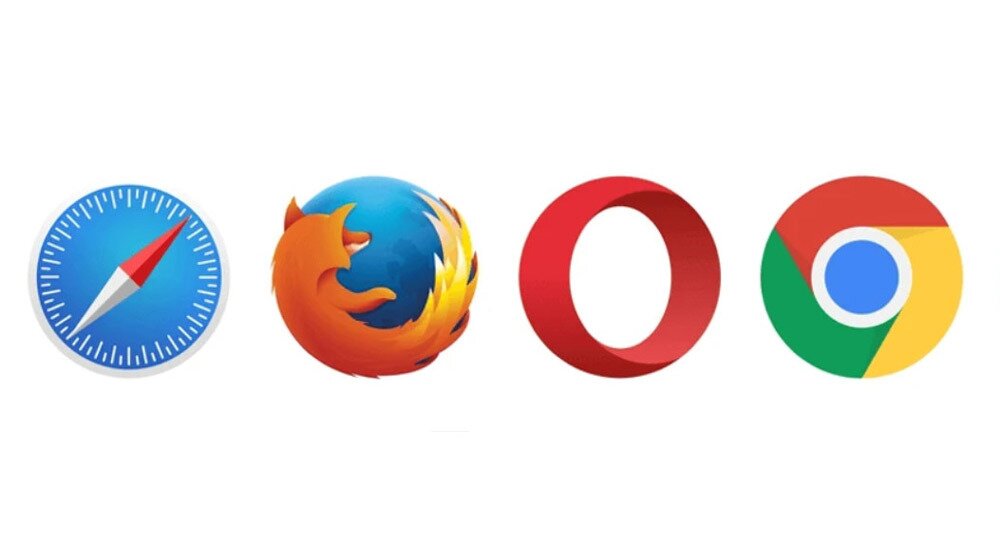
Browsers are some of the most frequently used apps on iPhones. As a result, knowing how to clear cache on iPhone browsers like Safari can be an effective way to speed up your device and avoid bugs. Simply follow these steps to clear your Safari history, cache, and cookies all at once. Not using Safari? Don’t worry, the process is similar on all browsers. Find out just how similar, by swiping through our clearing the cache on Chrome guide.
The process can be summarized as follows:
- Go to Settings.
- Scroll down to Apps.
- Find Safari and tap.
- Select Clear History and Website Data. This won’t alter your autofill info. If the button is grayed out — this means that there is no data to clear.
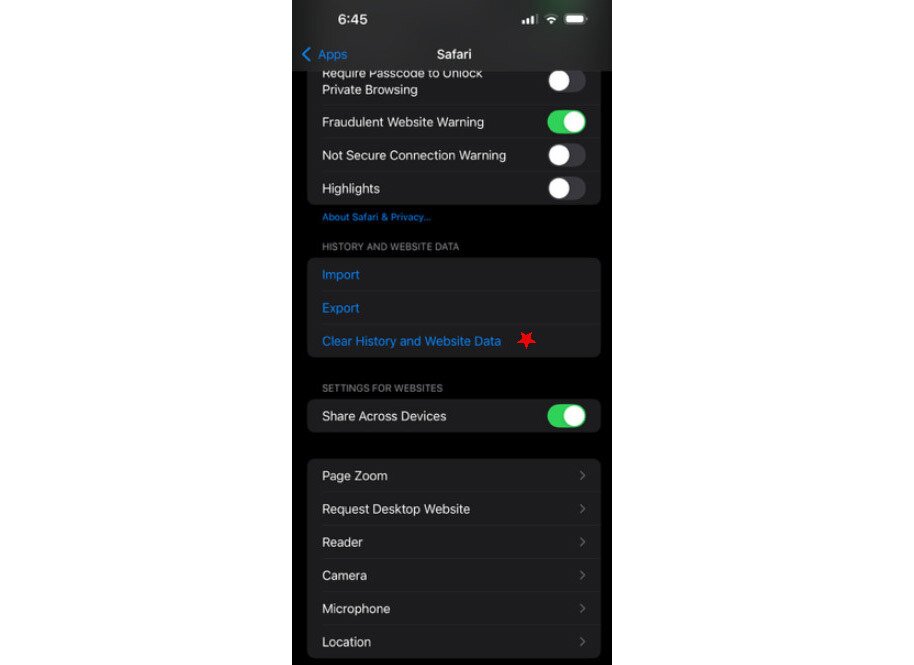
To keep your browsing history but only clear your cache and cookies:
- Go to Settings.
- Go to Apps.
- Tap Safari.
- Scroll down to find Advanced.
- Tap Website Data.
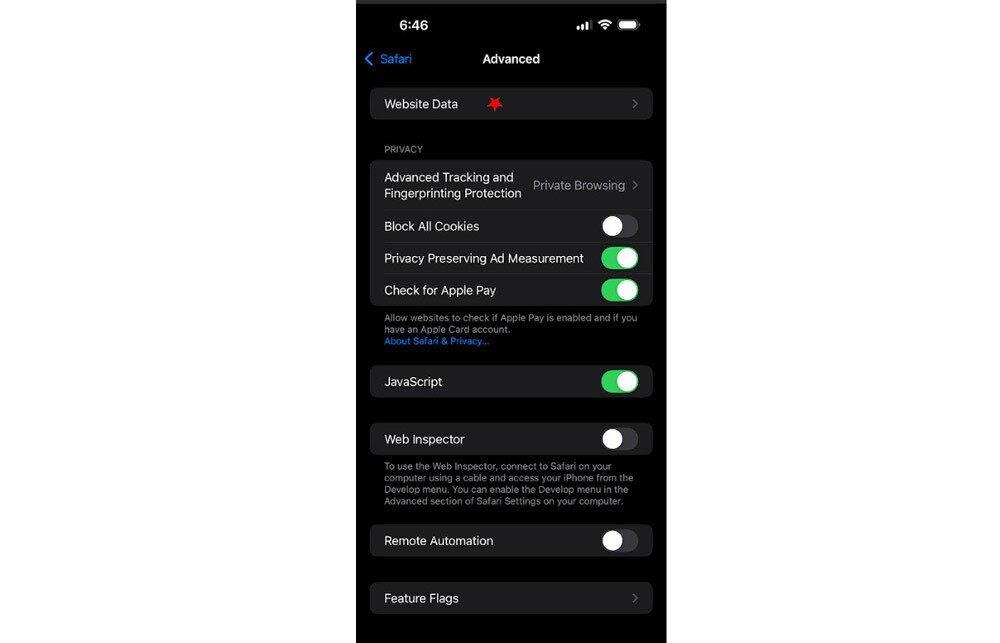
- Choose Remove All Website Data.
Here is a quick breakdown of what each Safari option removes and what it keeps:
- Clear History and Website Data: Removes your browsing history, cookies, and cached files all at once. Your saved passwords, bookmarks, and autofill information are not affected.
- Remove All Website Data (via Advanced > Website Data): Clears stored site data and cached files while leaving your browsing history intact. Saved passwords, bookmarks, and autofill information remain untouched.
Keep in mind: Clearing cookies and site data — with either method — will sign you out of most websites, so be prepared to log back in after clearing. If the “Clear History and Website Data” button appears grayed out, it simply means there is nothing currently stored and nothing needs to be cleared.
How to Clear Chrome and Firefox Cache on iPhone
If Safari is not your default browser, you can still clear cache on iPhone directly from within Chrome or Firefox — no need to dig through the iPhone Settings app.
To clear cache in Chrome on iPhone:
- Open the Chrome app.
- Tap the three-dot menu (⋮) in the bottom-right corner.
- Tap History, then select Clear Browsing Data.
- Choose a time range — select All Time to clear everything.
- Make sure Cached Images and Files is checked. You can also check Cookies, Site Data if you want a more thorough clean.
- Tap Clear Browsing Data and confirm.
Keep in mind: Clearing cookies and site data in Chrome will sign you out of most websites, so have your passwords handy before you proceed.
To clear cache in Firefox on iPhone:
- Open the Firefox app.
- Tap the menu icon (three horizontal lines) in the bottom-right corner.
- Tap Settings.
- Scroll down and tap Data Management (sometimes labeled Delete Browsing Data).
- Toggle on Cache and any other data types you want to remove.
- Tap Clear Private Data and confirm when prompted.
Keep in mind: Clearing cookies and site data in Firefox will also sign you out of websites, similar to Safari and Chrome.
If you use a different iPhone browser — such as Brave, Edge, or Opera — you can usually find the equivalent option under a Privacy, History, or Browsing Data menu within the app’s settings.
Final Thoughts on How to Clear Cache on iPhone
Understanding how to clear cache on iPhone can elevate your device’s performance and unlock valuable storage space. It can even help you to avoid bugs and glitches and keep your device in tip-top shape.
There is no one-size-fits-all solution to clearing your stored data, but the methods we have outlined above will help you to tackle various cache-related issues. Whether you need to clear cache on iPhone for a single app, a browser, or across multiple apps, the steps above cover every scenario.
Frequently Asked Questions
Would content blockers help to reduce the cache on my iPhone?
To an extent, yes. Content blockers are extensions and third-party apps that help block certain unwanted content from loading when you’re browsing on your phone. Common examples include pop-ups, ads, trackers, cookies, and other similar content. They won’t keep your iPhone from accumulating cached data (that’s not necessarily a bad thing either), but they can help reduce unwanted cached data. This makes it easier to manage your cache and helps to minimize unnecessary data storage.
How do you clear a cache on an iPad?
iPad cache clearing is similar to the process you use to clear cache on iPhone. However, there are some differences to consider. There is no specific option to clear data and cache files, but you can delete and reinstall the application, which will clear the cache. Here’s how:
- Go to Settings.
- Go to General.
- Choose iPad Storage.
- Find the App you want to delete and tap Delete app.
- You can then go to the Apple Store and re-download the previously removed app.
To clear the iPad’s browser cache, you simply:
- Go to Settings.
- Choose Safari (or other browser of choice).
- Choose Advanced.
- Choose Website Data.
- Choose Remove all website data. Do remember to note that if the option is grayed out, it means there is no web data available to clear.
What is the difference between a cache and a cookie?
Because they are often addressed together in troubleshooting methods, it’s easy to get cookies and caches confused. Here’s a quick overview of each:
- Caches: Caches store data from sites or apps to reduce loading times. Examples of this data include JavaScript, CSS, login tokens, images, etc. The next time you go to the site or app, this information is loaded from the cache, which is much quicker than doing it all over again.
- Cookies: Small amounts of data stored from websites on your iPhone or other device. This ensures that things like your login details, shopping cart items, settings, and other unique information is saved automatically. This keeps you from having to re-enter this information every time you visit the site.
The main difference is that caches save some data from apps or sites for faster loading, whereas cookies save particular details, such as login information.
How often should I clear the cache on my iPhone?
Ultimately, how often you clear cache on iPhone is up to you. However, doing this occasionally will help your phone run better and take up less storage, too. Many experts recommend doing it at least once a month.
Consider doing it more frequently if you have a lot of storage already used on your device from other things. If you have a lot of storage on your phone, you may be able to stretch this out for longer. However, because overloaded caches can cause multiple issues, it is typically a good idea just to do it fairly regularly. Furthermore, restarting your phone sporadically is important because it can clear temporary caches that may also cause issues.