How To Download and Watch Dvdrip Movies With Subtitles
If you want to download DVDRip movies and watch them with subtitles, you’ve come to the right place. I have a slight hearing difficulty that makes it hard to catch every line of dialogue in a film. I watch every movie with English subtitles so that when I miss something, I can simply read along. Subtitles are genuinely useful for everyone — not just people with hearing impairments. I’ve met plenty of people with perfect hearing who still prefer subtitles so they never miss a single word of dialogue.
Since I watch every movie with subtitles, many people have been asking me the best and easiest way to add them. So today I will share a complete guide on how to download DVDRip movies and add subtitles so you can enjoy a seamless viewing experience.
What DVDRip Means
A DVDRip is a digital video file created by copying and encoding video content from a DVD disc. Before diving into the rest of this guide, it is worth clarifying that the term covers two very different reader intents: downloading an already-ripped movie file from a third-party source online, and ripping a DVD you legally own to create a personal backup copy. These are not the same thing, and most modern guides and tools focus squarely on the second use case.
Modern DVDRip files typically come in three formats: .MP4, .MKV, and .AVI. File size and quality vary depending on the encoder settings used — a high-bitrate MKV can look nearly identical to the original disc, while a heavily compressed AVI might be a fraction of the size but noticeably lower in quality. Understanding which format and quality level you are working with will help you choose the right tool and settings for your needs.
Safety and Legality Before You Download or Rip
Before you download or rip anything, it is worth understanding where the lines are. Ripping a DVD you already own for personal backup purposes is the common legitimate use case that most DVD-ripper tools are specifically designed for. Downloading movie files from unofficial third-party sources is a different matter entirely — it carries real malware risk and, in most countries, legal risk as well.
Here are concrete checks you can apply right now to stay safe:
- Download ripping software only from the official developer’s website or a well-known, reputable distribution page — never from a random mirror or file-sharing site.
- Avoid any “movie download” packaged as a .EXE or .SCR file. Legitimate video files are never executables, and this is one of the most common ways malware is disguised.
- Verify that the file extension is actually a video format before opening anything: .MP4, .MKV, and .AVI are the standard ones to look for.
- Scan any download with your antivirus software or an online scanner such as VirusTotal before opening it, especially if the file came from an unfamiliar source.
How to Download DVDRip Movies and Subtitles
If you have been searching for named uploaders or torrent indexes such as Mininova, FXG, or aXXo, it is worth knowing that these sources are no longer active and have not been a dependable way to find files for many years. Building a workflow around defunct torrent indexes or specific uploaders from the late 2000s will leave you hitting dead ends. If you want to watch a movie legally today, your best options are established streaming services or digital rental and purchase platforms such as Vudu, Apple TV, Amazon Prime Video, and Google Play Movies. For creating a digital copy of a disc you already own, see the DVD ripping tools section below.
Subtitles are not embedded in most ripped movie files by default — they are usually distributed as a separate file. You can download matching subtitles for almost any film from OpenSubtitles, one of the largest subtitle repositories on the internet. When downloading subtitles, always make sure the subtitle file matches the exact release version of your movie to avoid sync issues.
Best Current DVD Ripper Tools
If you own a DVD and want to create a digital backup, these are the tools worth knowing about today. Each has a clear use case, so pick the one that fits your situation.
HandBrake (Windows, Mac, Linux) is the leading free, open-source option and the one most people should start with. It converts DVD content directly to .MP4 or .MKV, is actively maintained, and includes a library of presets that make quality settings easy to understand without needing to know anything about encoding. It is the best choice for most people who want a compressed, portable video file that plays everywhere.
MakeMKV (Windows, Mac, Linux) focuses on full-quality backups. It preserves the complete disc structure — including multiple audio tracks and subtitles — into a single .MKV file without re-encoding, so there is no quality loss at all. A free beta version has been available for years, though a license is required for continued use beyond the trial period. This is the right pick when you want a pixel-perfect archive of a disc you own.
DVD Shrink (Windows) is a legacy free tool that many users still reach for because of its simplicity. It has not received updates in some time, so it works best for older, unencrypted discs. For modern DVDs with newer copy protection schemes, HandBrake or MakeMKV are more reliable choices.
Here are the basic steps for ripping a DVD you own using HandBrake:
- Insert your DVD into your computer’s disc drive and open HandBrake.
- Click Open Source and select your disc drive as the source — HandBrake will scan the disc and load the available titles.
- Choose your output format in the Summary tab: .MP4 for broad compatibility across devices, or .MKV for maximum quality and subtitle/audio track flexibility.
- Pick a quality preset from the Presets panel on the right — HandBrake’s Fast 1080p30 is a solid starting point for most films and produces a good balance of size and quality.
- Click Start Encode and wait for the rip to complete. The time it takes depends on the length of the film and your computer’s processing power.
Installing The Media Player
DVDRip movies are typically in .avi format, which many media players handle poorly or require additional codecs to play correctly. I strongly recommend VLC media player, a free and open-source player that handles virtually every video format without any additional codec installation.
Installation is straightforward. When running the installer, make sure you select all optional components — some of them, such as additional codec support and browser plugins, can be very helpful down the line.
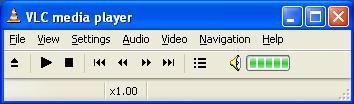
After the installation is complete, launch VLC media player and it will look something like this.
Adding Subtitles to Your Downloaded DVDRip Movies
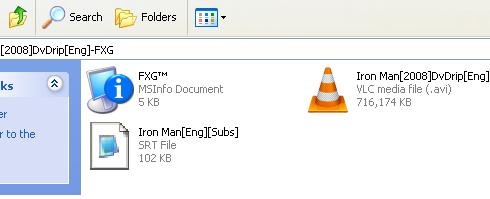
Once you download DVDRip movies and find the matching subtitle file, the most important step is to place both files in the same folder. VLC will often detect and load the subtitle file automatically when both files share the same name and location.
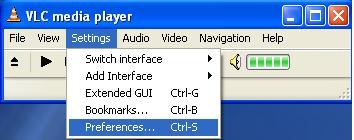
Before you play the movie, open VLC player and navigate to Settings > Preferences.
Now on the left sidebar navigate to Video > Subtitles/OSD.
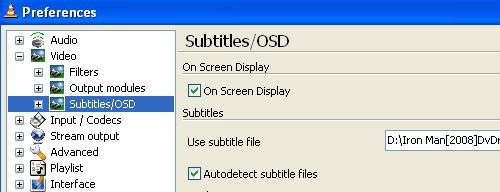
Click Browse and then locate your subtitle file. Click Open and then click Save in the preferences box. Now close VLC player, reopen it, and play your movie — you should see the subtitles displaying correctly over the video.
If the subtitle is not displaying, right-click on the screen and navigate to Subtitle track, then select Track 1. This manually activates the subtitle track and usually resolves any display issues.
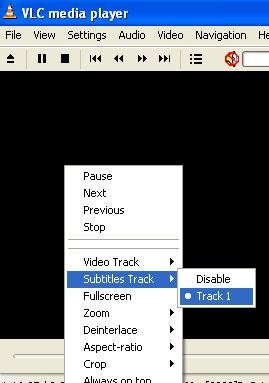
It is also worth noting that subtitle encoding can sometimes cause characters to display incorrectly, especially for non-English subtitle files. In VLC, you can fix this by going to Tools > Preferences > Subtitles/OSD and changing the default encoding to match the language of your subtitle file. This small adjustment can make a big difference in readability.
I hope this tutorial helps you download DVDRip movies and enjoy them with perfectly synced subtitles. If you have any questions, leave a comment below and I will get back to you.

Thanks…Really appreciate this…Made simple enough for non-specialists to understand…Takes teaching skills to do that…And not all IT people have it…Or the patience…Come to think of it…5 years after posting, it still helps someone…
Hi I want to save the movie with subtitle so I can upload the file to my portable Hard disk and watch the movie on my TV I have downloaded the movie and the subtitles from the internet and played on VLC but how do I save this file on VLC
HOW WOULD I DO THIS FOR A MAC???
thx!!
i downloaded a DVDrip movie in 3 parts. now the problem is that the 1st part opens with no problem but the second and 3rd consecutive part aren’t opening.plz mail me.i have vlc and media player classic .
how can i watch the subtitles i download from movies dvdrip- fxg in windows media player?
Awesome post 😀
Nice Share, thanks for this one guys 😀
hey how about using different player?? does it still working?
pls i need to know
I would prefer VLC and if not, then GOM Player is a good alternative.
use gomplayer hes allot easier to use. freeware too.
http://www.gomlab.com/eng/GMP_Introduction.html
just rename the subtitles exactly like the movie and put them in the same folder and they will run automaticly.
greetz from croatia
Razz you are perfectly right. Btw Sel you can use latest VLC media player to push the subtitles back or ahead. The new VLC player has subtitle syncing feature. It can also sync audio if it is not proper. 🙂
@Sel
You are always welcome. If you have any other kind of troubleshooting, don’t hesitate to contact me.
Hi Nakodari, thanks for the reply. I tried doing that before posting here about my problem with the subtitles.
I figured that I had to go through each dialogue and changes timings. It was time consuming. I thought perhaps there could be an automatic option where the timings of the subtitles could be increased.
Seems like there aren’t such. I tried looking for the subtitles on www.opensubtitles.org earlier, but they don’t have it there. I checked other sites, but no luck with the proper timings.
Anyways, I will change the timings manually then. Hope it is worth doing it.
Thanks, Nakodari. Appreciate you reply.
Sel
@Sel
You need to move the time ahead, which you can do by opening the subtitle file and moving every time 11 seconds ahead.
You can try downloading the subtitles from www.opensubtitles.org, they have the best and accurate subtitles from all over the web.
Hi, I have a problem with the subtitles while watching movie. The subtitles are displayed prior to the person speaking in the movie. The timings of the subtitles are not synchronised with the movie dialogues spoken. The subtitles appear 11 seconds before the actual dialogue is spoken. I downloaded several files of the mobie for the subtitles, yet am experiencing the same problem.
Is there a way how I can synchronise the subtitle timings and the dialouges spoken?
I use VLC. The subtitle file is in .srt format.
Please let me know how I can fix this. Do appreciate your response.
Thanks
you have dovnloade wrong subtitles apparently. its for the same movie but from different source. here is what you can do:
try finding subtitles that are named as axxo if you have an axxo ripped movie;
in gomplayer you can push the subtitles forward or backwards till they fit.
or you can download ” subtitleworkshop ” and there you can adjust times and everything else, you can make also youre own subtitles wit this program.
hope this helped you
Yes you are right. It loads automatically if the names is same, but it is better to add it manually because I have seen that sometimes it does not load automatically. So it all depends on different users. 🙂
Cheers, Nakodari
If the name of the movie and the subtitle is the same (except the extension obviously) the player will load the subs automatically.
I know because i speak spanish so i need subtitles all the time 😉
Regards
Thats ok, but do you know any sites where I can directly download movies from