How to Update Firestick: A Complete Guide
Whether you suspect your Amazon Firestick is running sluggishly or you just like to have the most current features, knowing how to update Firestick is essential. We show you how to get it done, plus share a few tips to get the most out of your handy streaming device.

If you want to know how to update Firestick, you’ve come to the right place. Amazon Fire TV devices, including the set top boxes and Fire TV Stick, are one of the easiest ways to stream movies to your TV. They’re fast, efficient, inexpensive, and amazingly easy to use. It’s always a good idea to keep hardware like this as up to date as possible. Amazon frequently releases small security patches and performance improvements to make your streaming experience even better. Check out our guides below to learn how to update your Amazon Fire TV device and keep it ready to go at a moment’s notice.
Use a VPN to Stream Safely and Anonymously
Online privacy is a huge concern in the modern world. Government agencies spy on our activity, ISPs record traffic and sell personal information, and hackers are just waiting for an opportunity to jump in and steal data. Staying safe is tough to do, but the good news is that VPNs take care of all the hard work so you can surf and stream in peace.
Virtual private networks (VPNs) encrypt data leaving your device to provide a safe tunnel between you and the internet. Everything you do will be locked up and safe, preventing things like mass surveillance and ISP throttling. With a VPN in place you can stream anything you like through Amazon Fire TV without worrying that someone is looking over your shoulder. If you’re new to setup, our Fire TV VPN guide can help you get started. VPNs also come with a number of other benefits, including:
- Gain access to geo-restricted content so you can watch movies from other countries on Netflix, YouTube, Hulu, BBC iPlayer, and more.
- Put a stop to ISP throttling and mass surveillance as you keep your data secure.
- Keep your mobile devices safe while traveling and using public Wi-Fi.
- Block your real location and keep your identity safe.
NordVPN – Best VPN for Amazon Firestick
Throughout nearly a decade of continuous operation, NordVPN has pushed the envelope of what a VPN provider can do and be. They’ve cultivated the most sophisticated server network in the industry, with 5,800 nodes in 59 countries offering tens of thousands of spoofable IPs to help you bypass geoblocks and access your favorite streaming content anywhere.
Also attractive to Fire TV users is NordLynx encryption–an unbreakable protocol that minimizes encryption overhead for low-latency connections. It also hides your traffic from ISP tracking and throttling, with the overall effect being buffer-free streams and a speedier, more consistent Internet connection overall.
NordVPN is uncompromising on your privacy, enshrining your right to remain anonymous online in one of the industry’s most solid no-logging policies. Install this outstanding VPN directly onto your Firestick via Amazon’s own Appstore–no sideloading or jailbreaking required. For step-by-step help, see our NordVPN Fire TV install guide.
Read our full NordVPN review.
- Optimized servers for unblocking Netflix
- Most VPN servers with different IP addresses
- DNS leak protection, kill switch
- Based in Panama
- Great support (24/7 chat).
- They can take 30 days to process refunds.
How to Update Firestick: Fire TV Stick Step-by-Step
With software as intricate as a Fire Stick, there are multiple things that need to be kept up to date. Amazon’s Fire OS takes care of most of the hard work for you, going so far as to automatically download and install updates for everything from apps to the operating system itself. The Fire TV Stick has most of these options turned on by default. You can always manually check for new versions of software or even change the update settings for a more personalized experience, however.
How to Update Firestick Manually
Amazon makes it pretty easy to manually update your Fire Stick. The option is kind of hidden, however, which may be to prevent kids from clicking options and accidentally messing up your configuration. Once you know where it’s located you can browse over and check for new releases with just a couple of clicks. Follow the steps below to manually update your Fire Stick to the latest OS version.
- Open your Fire TV interface and go to the home menu.
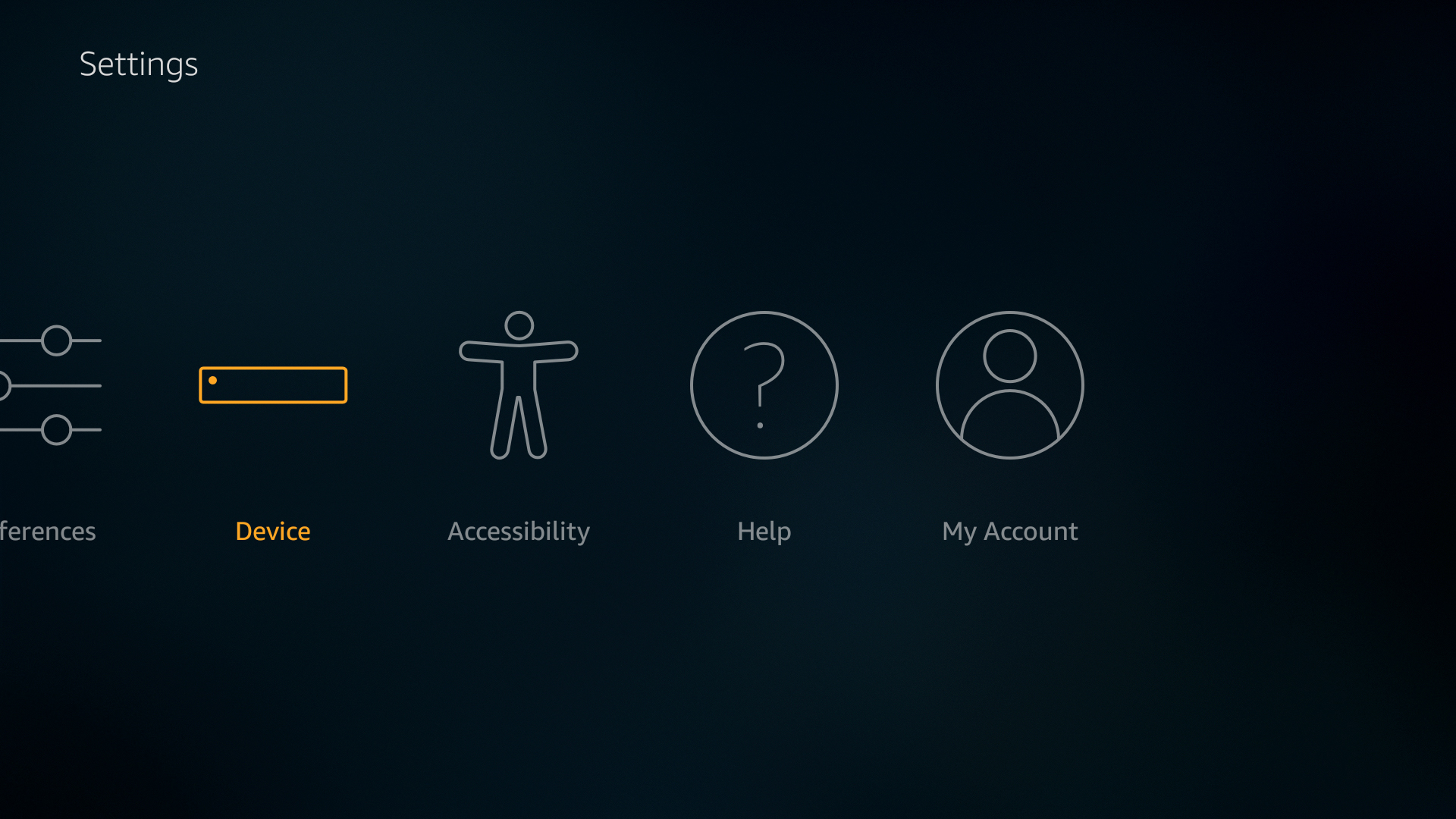
- On the menu items at the top of the screen, scroll to the right and choose “Settings”. (You may need to press “up” on your remote to highlight the menu before you can navigate.)
- Scroll right and choose “Settings”
- Scroll right through the icons and choose “My Fire TV” (on some models this may be labeled “Device & Software”; older Fire OS versions may still show “Device” here instead)
![How to Update Amazon Fire TV 1]()
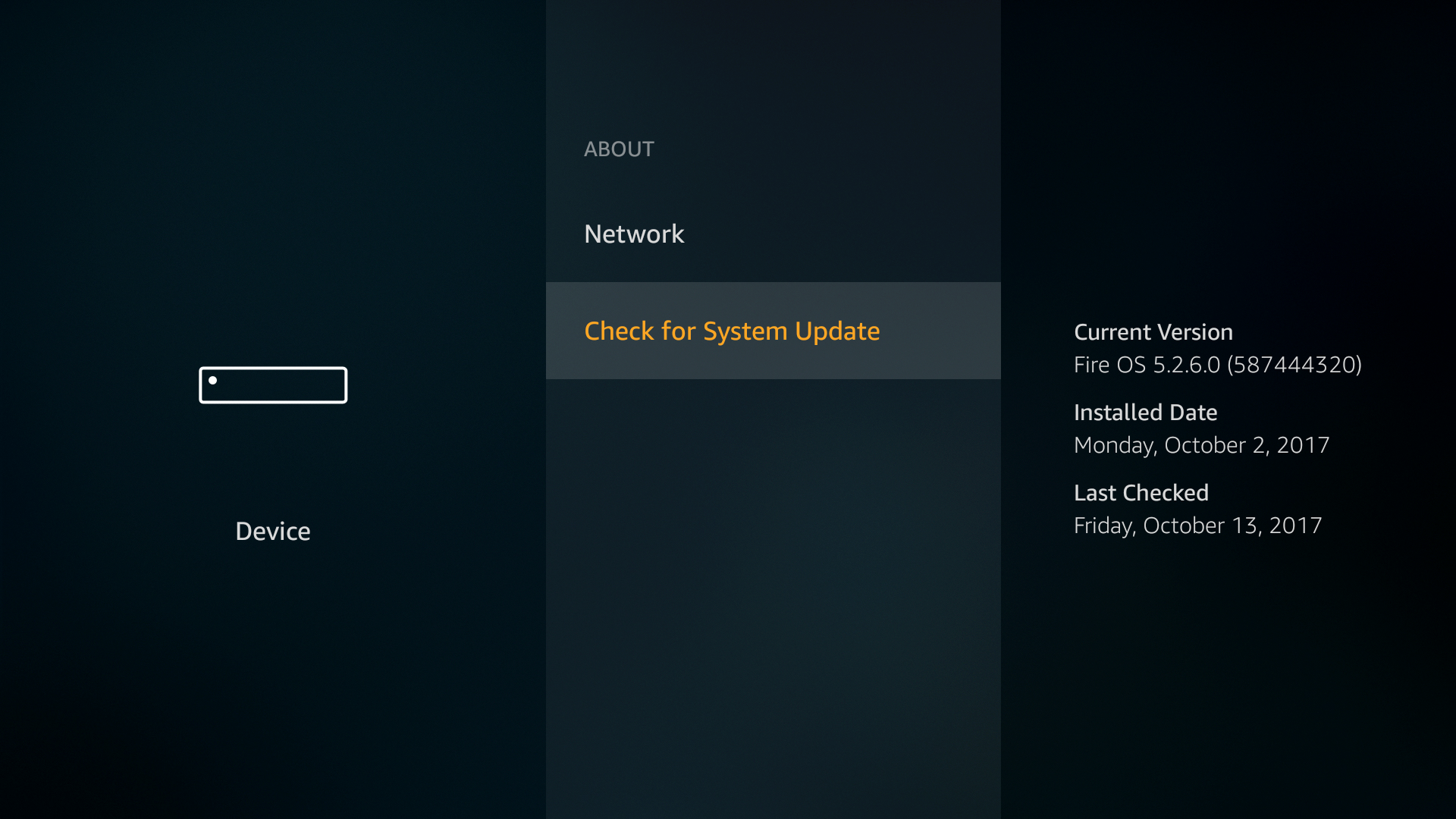
- Scroll to “About” and select it.
- Move down to “Check for System Update”
![How to Update Amazon Fire TV 2]()
- The info on the right shows when you installed the last update and the last time you or the Fire Stick checked for a new version.
- Click the “Check for System Update” option. Fire TV will check for a new release.
- If a new release is available you’ll be prompted to download and install immediately. Simply follow the pop-ups and you’ll be updated in no time.
- If no new release is available, head back to the home screen and watch a movie!
Update Your Fire TV Device – Automatic
You don’t have to manually check for updates every time you use your Fire device. Fire TV normally downloads system updates automatically in the background when the device is connected to the internet and sitting idle. You don’t need to change any settings to take advantage of this — it’s on by default and cannot be turned off without sideloading root software and going through a complicated configuration.
The most dependable way to force an immediate check is to navigate there manually: Settings > My Fire TV (or Device & Software) > About > Check for System Update. After selecting it, you may see one of the following states depending on where your device is in the process:
- Check for System Update — the device will search for a new release right now.
- Install Update or Install System Update — a download is already ready; select it to begin installation.
- Your device is up to date — no action needed; you’re already on the latest version.
Once an update installs, the Fire Stick will restart automatically to complete the process. Unless your Fire Stick isn’t connected to the internet, chances are you’re already up to date.
Update Apps on Your Amazon Fire TV Stick – Manual
A Fire TV Stick is a pretty boring device without its apps. Software you install through Fire’s main interface lets you access content well beyond the Amazon ecosystem, including Netflix movies, TV shows through Hulu, YouTube videos, and much more. Manual updates are only necessary if you don’t have regular access to the internet or if your automatic app updates have been switched off. There are two paths you may encounter depending on your device and UI version.
Method 1: Update from the Apps Row
- Open your Fire TV interface and go to the home menu.
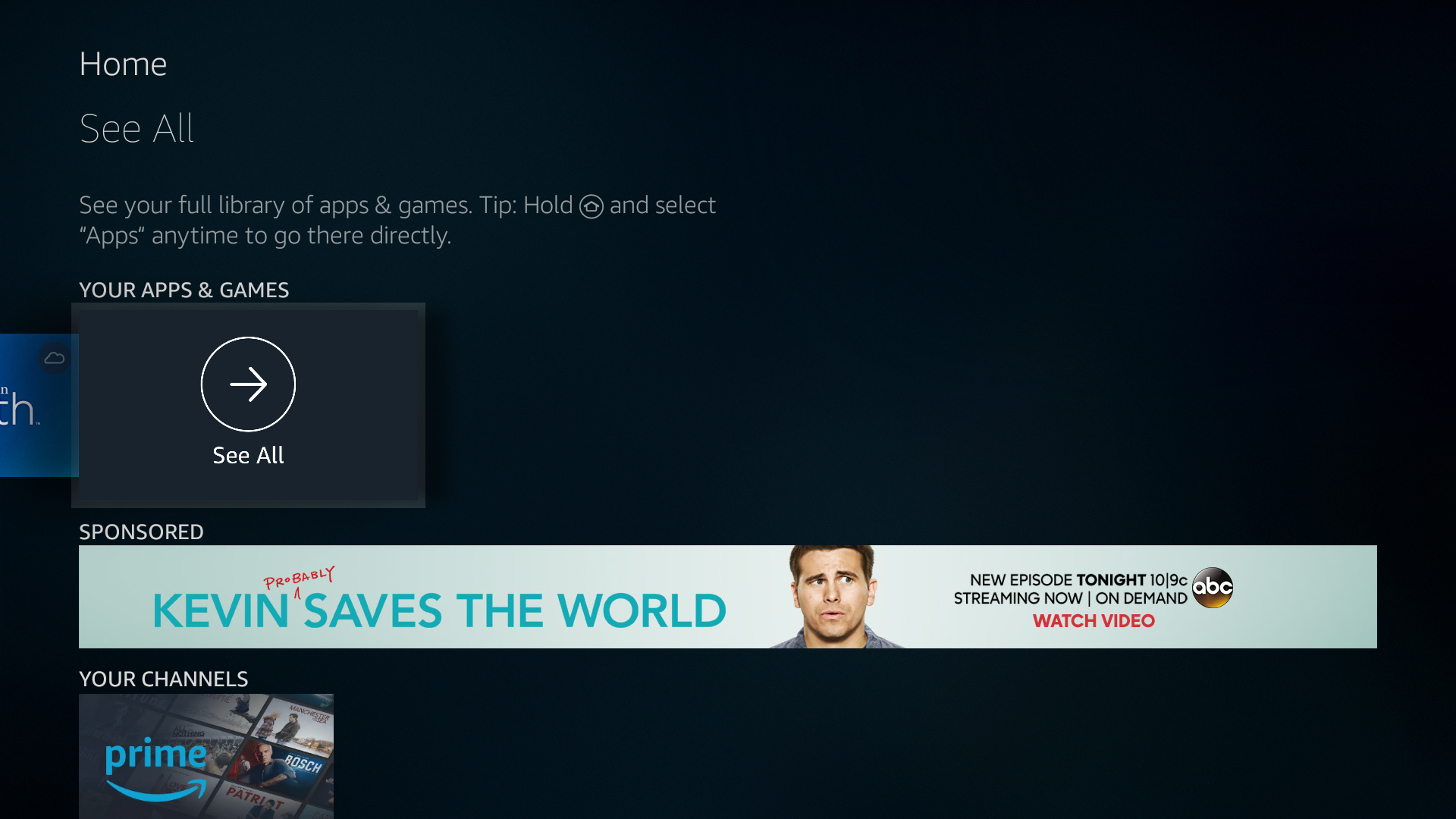
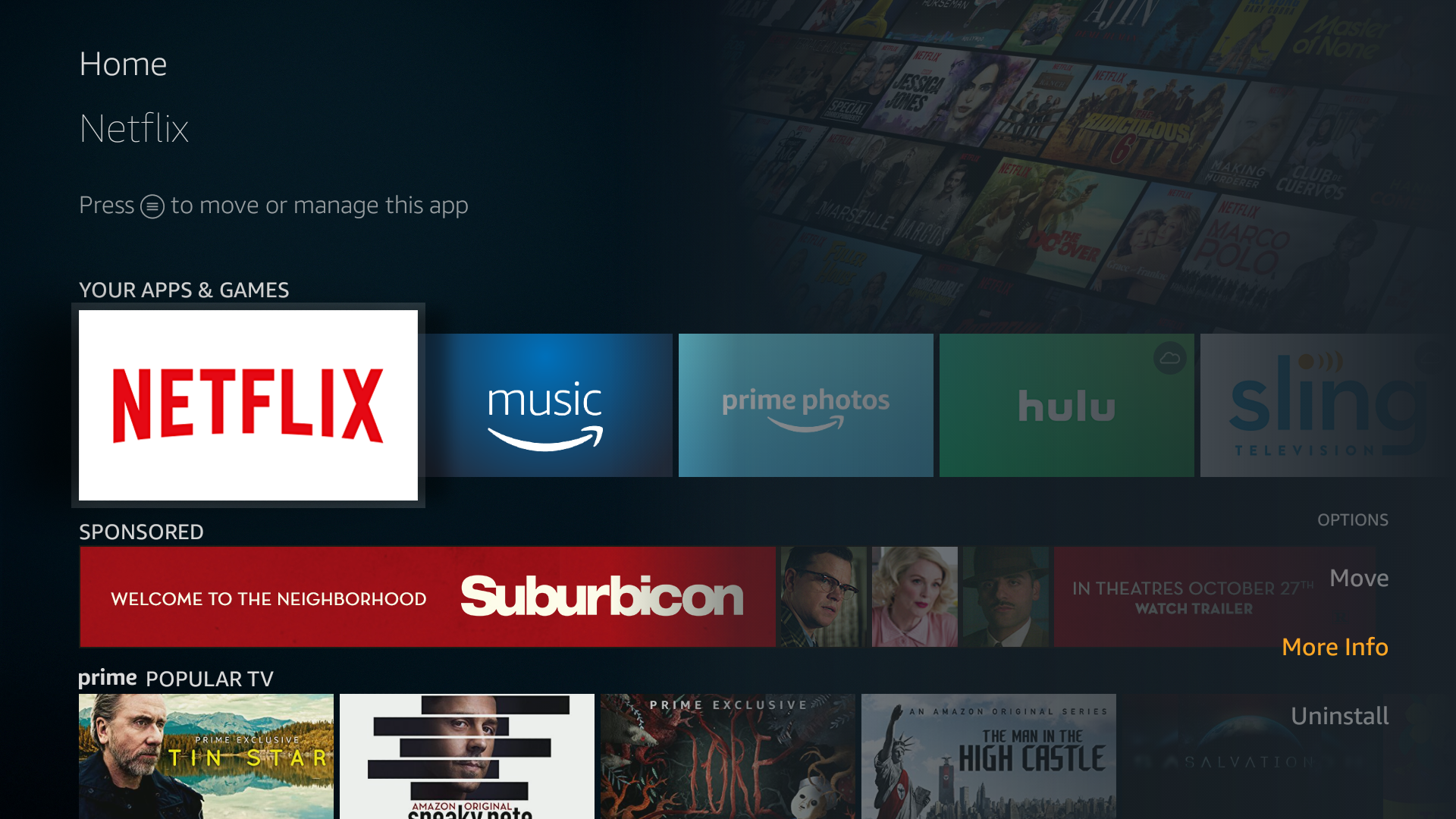
- Scroll down to the row marked “Your Apps & Games”
- If the app you want to update isn’t in the list, scroll right and choose “See All”
![How to Update Amazon Fire TV 5]()
- Highlight the app image and press the triple line menu button on your remote. This brings up a small menu with a few options at the bottom right corner of the screen.
- Highlight “More Info” and click the remote.
![How to Update Amazon Fire TV 6]()
- If an update is available, an “Update” button will appear next to “Open”. Clicking it will bring up a prompt to confirm downloading and installing the update. If no update is available, you’ll only see “Open” — there will be no special notification.
Method 2: Update via Manage Installed Applications
- Open your Fire TV interface and go to the home menu.
- Go to Settings > Applications > Manage Installed Applications.
- Select the app you want to check from the list.
- Choose “Check for Updates” if that option is available on your device.
- If an update exists, follow the on-screen prompts to install it.
Keep in mind that Fire TV only shows an Update button when a newer version actually exists in the Appstore. If you see only “Open,” the app is already on its latest available version. Feel free to go binge watch something instead!
Update Apps on Your Amazon Fire TV Stick – Automatic
Just like the operating system updates, you can set your Fire Stick to automatically scan and update apps in the background, keeping them on the latest version without you having to lift a finger. This is set to “on” out of the box, so you may not need to change anything at all. The steps below walk you through the process.
- Open your Fire TV interface and go to the home menu.
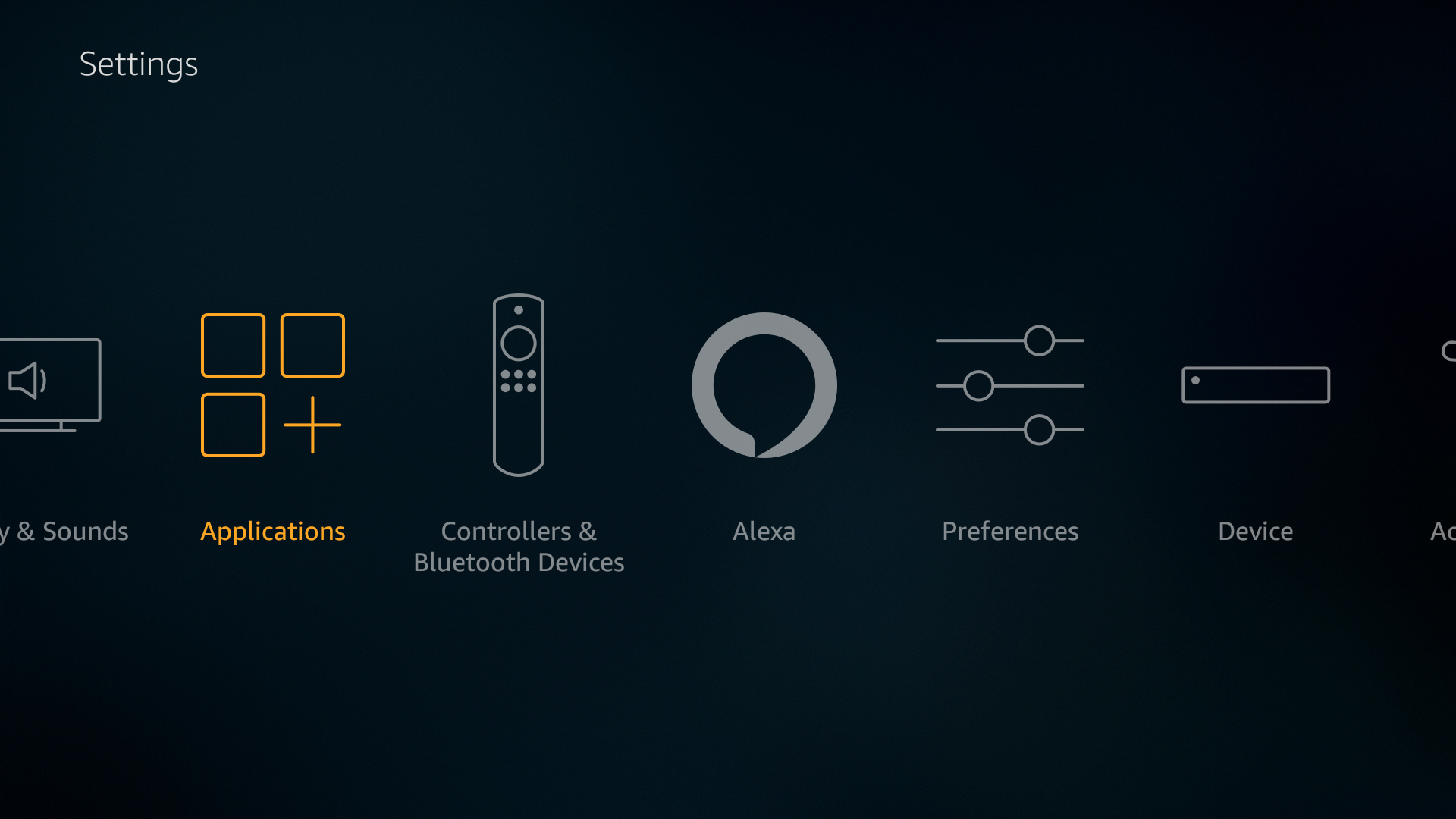
- On the menu items at the top of the screen, scroll to the right and choose “Settings”.
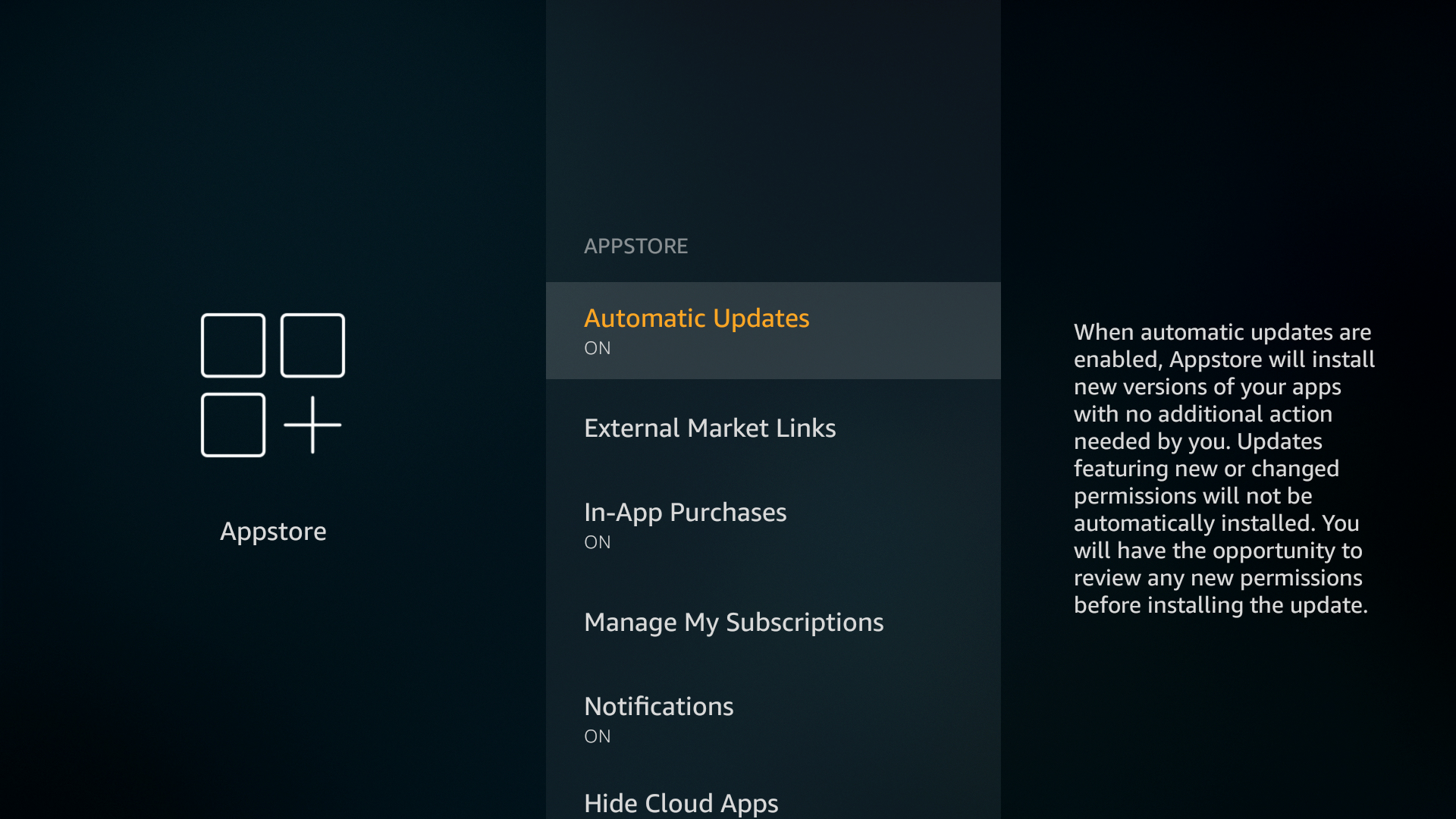
- Scroll right and select “Applications” followed by “Appstore”.
![How to Update Amazon Fire TV 7]()
- Go to “Automatic Updates” and toggle it to “on”.
![How to Update Amazon Fire TV 8]()
What to Do If Your Fire Stick Won’t Update
If you’ve tried to update and the process isn’t completing — or the device seems stuck — work through these update-specific steps before assuming something is seriously wrong. Knowing how to update Firestick also means knowing how to troubleshoot when things don’t go as planned.
- Confirm your Fire Stick is online. Go to Settings > My Fire TV (or Device & Software) > About > Network and verify it shows a connected status. If it’s not connected, fix your Wi-Fi first — an update cannot download without internet access.
- Switch to wall power. Plug your Fire Stick into a wall outlet using its included power adapter rather than a USB port on your TV. TV USB ports often supply less power than required, which can cause downloads to stall or the device to behave unpredictably mid-update.
- Restart your Fire Stick and router. Unplug both your Fire Stick and your router, wait 30 seconds, plug the router back in first, then plug in the Fire Stick. Once both are fully back online, try the update again.
- Retry the manual update check. Go to Settings > My Fire TV (or Device & Software) > About > Check for System Update and select it again. Sometimes the check simply needs a second attempt after a fresh connection.
- Free up storage if downloads fail. If the update begins downloading but fails to complete, you may not have enough free storage. Go to Settings > Applications > Manage Installed Applications and remove apps you no longer use, then retry the update.
- Factory reset or contact Amazon support as a last resort. If your Fire Stick keeps rebooting on its own, gets stuck on the update screen after repeated attempts, or refuses to download at all despite a solid connection, the next step is a factory reset (Settings > My Fire TV > Reset to Factory Defaults). If a reset doesn’t resolve it, reach out to Amazon support directly — they can identify account or device-level issues that go beyond standard troubleshooting.
How to Update Sideloaded Apps on Amazon Fire TV
Sideloading apps is the best way to get unsupported third-party content on your Fire TV. It’s surprisingly easy to do and doesn’t involve any kind of hacking or rooting. A lot of people even use it to install Kodi on their Fire TV. Sideloaded apps won’t update on their own, so if you want to know how to update Firestick sideloaded apps, follow the steps below. If a new version is released, you’ll need to manually install it. There are multiple methods of updating sideloading apps, but we prefer using the PC program adbLink, as it’s fast and easy to use.
- Make sure your device is ready by going to the Fire TV Stick’s settings page.
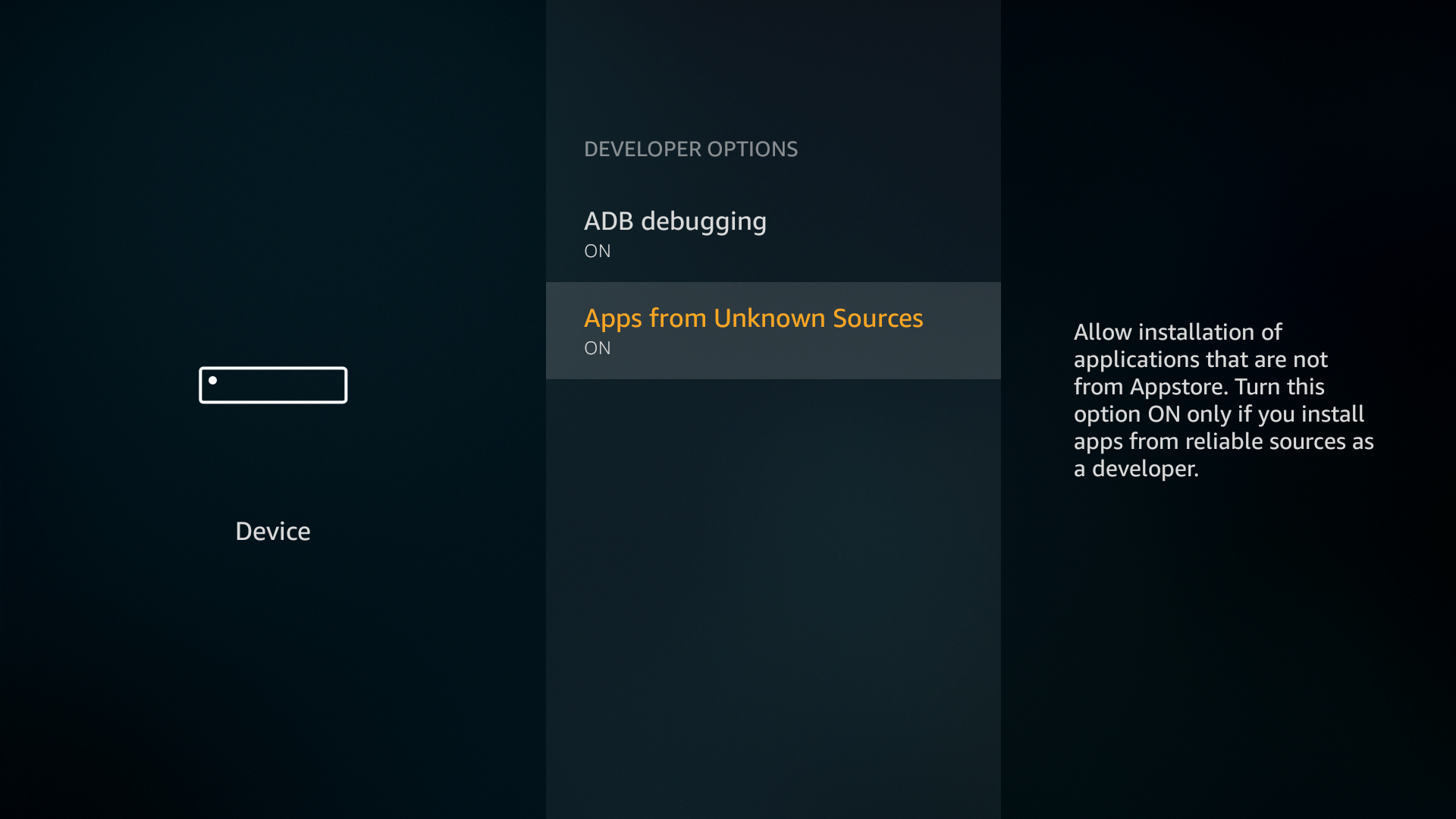
- Choose My Fire TV (or Device & Software) > Developer Options and set “Apps from Unknown Sources” to ON. If you previously sideloaded an app, it will probably already be set correctly.
![How to Update Amazon Fire TV 9]()
- Accept the warning message about installing external apps.
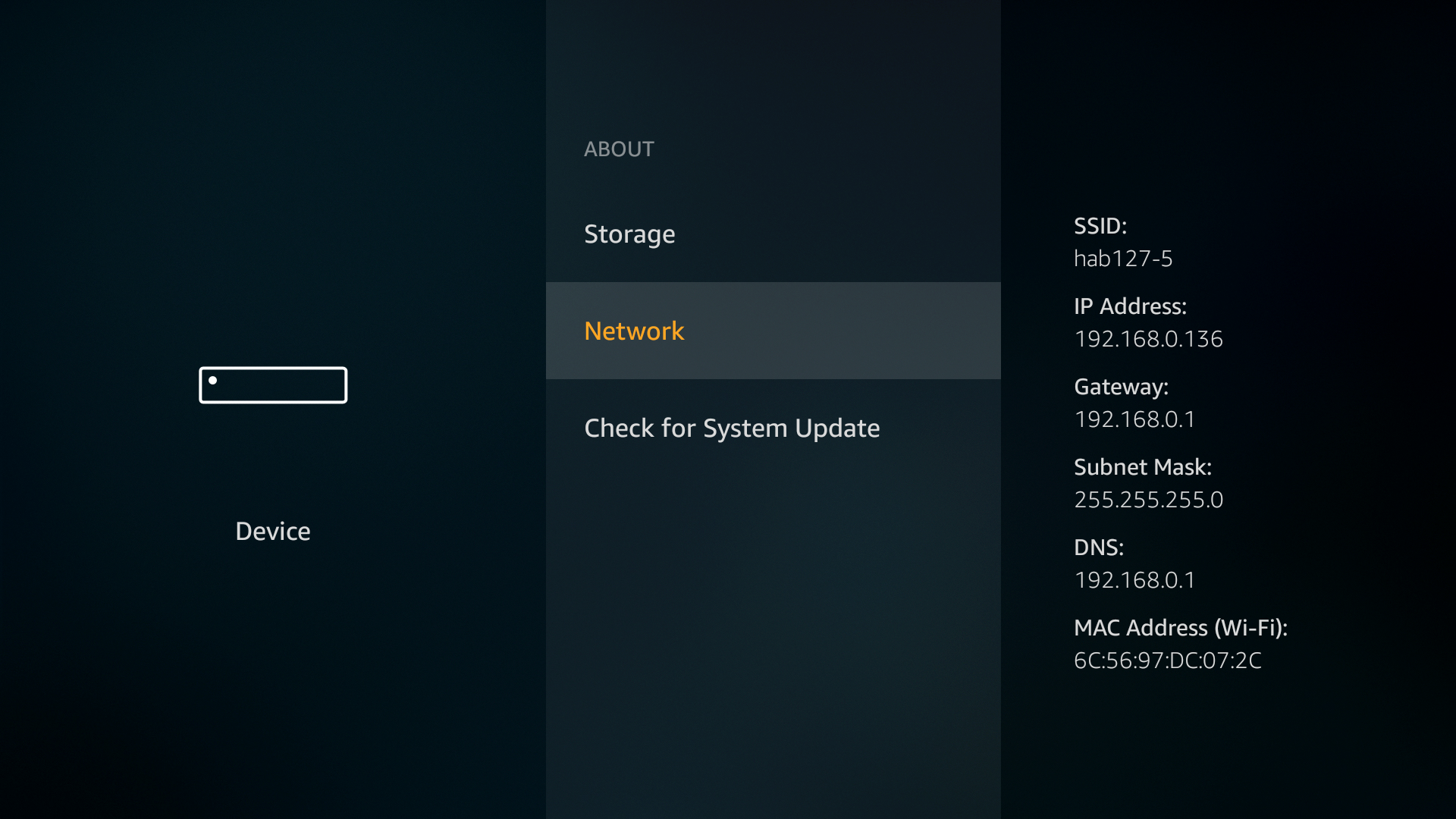
- Go to Settings > About – Network and write down the IP address of your Fire TV Stick.
![How to Update Amazon Fire TV 10]()
- Visit the adbLink website on your PC and download the program for your operating system.
- Run and install adbLink.
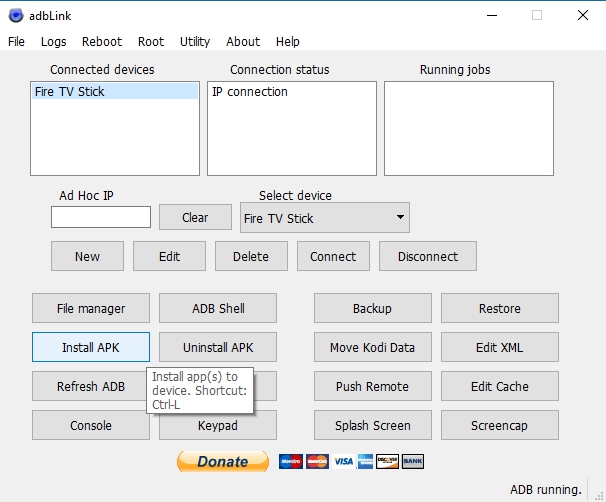
- Click “new” next to the devices box and add your Fire TV Stick.
- Type the IP address of your Fire TV Stick into adbLink.
- On your PC, download the new version of the app you want to upgrade.
- In adbLink, click the “Install APK” button.
![How to Update Amazon Fire TV 11]()
- Browse and select the .apk update file from the adbLink interface.
- Click “Yes” when the Install APK prompt appears.
- The update will automatically install over the old version of the app. Depending on the software, your account and customization data will usually be preserved.
User Tips to Update Amazon Fire TV
Did we miss your favorite trick on how to update Firestick quickly and easily? Let us know in the comments below so we can all stop configuring our Fire Sticks and get back to watching movies! If you run into any issues after updating, be sure to check out our Firestick not working troubleshooting guide for quick fixes.
Don't miss this great deal