What Is Microsoft Access? A Beginner’s Guide
Microsoft Access often flies under the radar, but it’s one of those tools that quietly gets things done. It’s part of the Microsoft 365 suite of applications and designed for creating, organizing, and analyzing data. Even though it can produce impressive tables, queries, forms, and reports, you won’t need a degree in computer science to make it work.
Still, like most software, it’s not a one-size-fits-all solution. Let’s look at what Access does best, where it’s lacking, and how it stacks up against competitors in 2025.
What Is Microsoft Access?
Microsoft Access is a relational database management system (RDBMS), which simply means it stores data in related tables rather than in one long list. This structure makes it easier to keep information consistent and prevent duplication. Access comes bundled with Microsoft 365 but can also be bought separately if you only need the database tool.
Microsoft Access is particularly good for small projects, desktop apps, or team collaborations where the heavy machinery of enterprise-grade database software is overkill. It’s intuitive, flexible, and works seamlessly with many other Microsoft programs.
How Microsoft Access Works
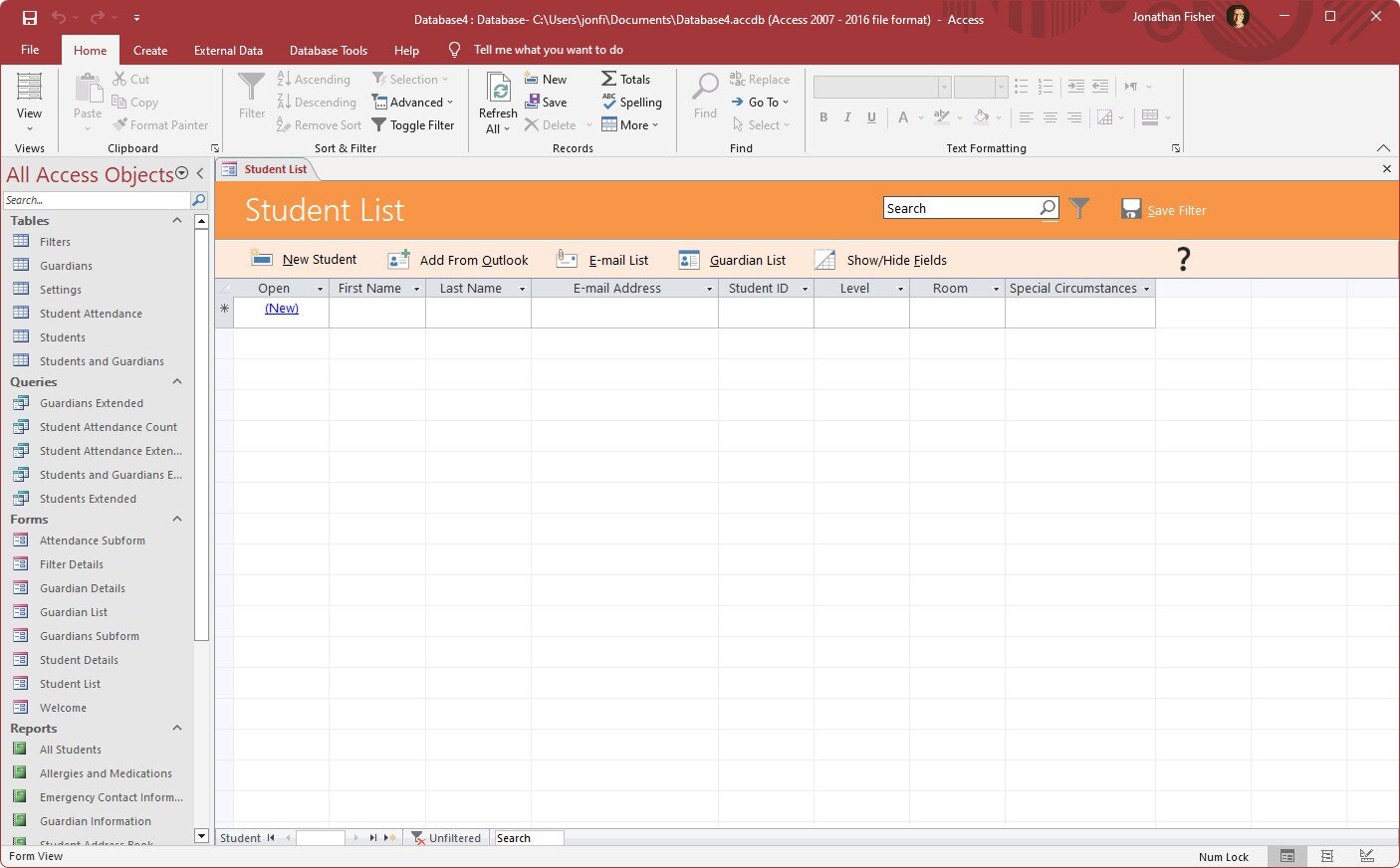
At its core, Access is built around a handful of objects that each play a specific role. Understanding how they fit together gives you a much clearer picture of what you can actually build with it.
- Tables are where your data lives. Each table holds records of a specific type — for example, a Customers table and an Orders table in a sales database.
- Relationships connect tables to each other. In that same example, a single customer can have many orders — Access lets you define and enforce that connection so your data stays consistent.
- Queries let you filter, join, and calculate across your tables. Want a list of all orders placed in the last 30 days, sorted by customer name? A query handles that.
- Forms make data entry easier and less error-prone by presenting a clean, user-friendly interface instead of a raw table grid.
- Reports format your data for printing or sharing — think a monthly sales summary or an inventory breakdown.
- Macros and VBA let you automate repetitive tasks, from sending email notifications to running a series of queries with a single button click.
Put it all together and you can build a fully functional desktop application — a small business inventory system, a client contact tracker, a project task log — without writing much, if any, code.
What Is Microsoft Access Used For?
Microsoft Access is used far more in business settings than for home use. Specifically, it’s often companies with large data sets that need to be efficiently organized and analyzed.
In plain terms, Access helps organize information. You can use it to:
- Store data in structured tables
- Run searches and queries to find specific information
- Generate reports and summaries for decision-making
- Build applications without much programming knowledge
Can I Use Microsoft Access for Free?
Microsoft Access is not typically available for free, and its availability is more nuanced than a simple yes or no. Access is a Windows-only desktop application — it is not included with every Microsoft 365 plan. Some Microsoft 365 Personal and Family plans include Access on PC, as do certain business and enterprise plans, but you should check your specific subscription before assuming it’s included. Access can also be purchased as a standalone Windows product if you don’t need the rest of the Microsoft 365 suite.
If you only need to run an existing Access database rather than design or modify one, Microsoft offers a free Access Runtime, which lets you open and use Access applications without the full set of development tools. And if you’re on a Mac, there is no native Microsoft Access app — Access is a PC-only product.
However, a free trial of Microsoft 365 is occasionally available, which includes Microsoft Access. You might also get Access at no cost through your school or workplace, or at a reduced rate if you’re a student or employee under certain licensing programs.
Key Features of Microsoft Access
- Database Creation: Easily build and manage databases to store and organize your data.
- Template Library: Use pre-designed database templates for accounting, project management, inventory, and more.
- Data Validation: Set rules to prevent bad or inconsistent data from being entered, keeping your information clean and reliable.
- Table Design Tools: Customize how your tables are structured, including field types and data relationships.
- Query Builder: Filter, sort, and search your data with a visual interface that makes complex queries simple.
- Macro Automation: Automate repetitive actions, like generating reports or updating records, with just a few clicks.
- Relationship Management: Define how tables relate to each other to avoid duplicates and maintain consistency.
- Report Generation: Turn large datasets into readable, professional-looking reports.
- Desktop Database App Creation: Build custom Windows desktop applications with forms, reports, and linked data sources — all without needing to write code. Note: Legacy Access Web Apps and Access Services for SharePoint have been retired by Microsoft. Modern Access is primarily a Windows desktop product and is not intended for building new browser-based apps.
- Security and User Permissions: Control who can view or edit your databases to help keep sensitive data protected.
- Import/Export: Move data in and out of Access using formats like Excel or CSV for easy sharing and backup.
Benefits of Microsoft Access
Here’s what sets Microsoft Access apart:
Seamless Microsoft 365 Integration
Access easily integrates with the other apps in the Microsoft 365 Suite, such as Outlook, Word, Excel, and PowerPoint. This makes working within this collection of apps a breeze, allowing you to move and share data quickly and intuitively.
Custom Apps Without Coding
One of Access’s biggest draws is the ability to create custom applications without programming expertise. Its built-in tools let you design user-friendly interfaces for entering and viewing data, so you can tailor how your team interacts with the database. This can eliminate the need to hire a programmer to build you an app that lets you tailor how you use your database.
Powerful Data Analysis & Reporting
Access helps you make sense of complex data. Its filtering and visualization tools reveal trends and patterns that would otherwise stay buried in spreadsheets. You can easily filter and extract data and reports, assisting with planning and decision-making.
Efficient Data Management
Access simplifies large-scale data handling for smaller teams. The intuitive interface makes entering, retrieving, and managing records fast and intuitive, even for users who aren’t very tech-savvy.
Drawbacks of Microsoft Access
We’ve covered the benefits, so let’s take a look at a few drawbacks of Microsoft Access.
Limited Security
While Access does offer password protection and permission controls, it’s not designed for handling highly sensitive information. It does have basic protections, but larger organizations dealing with confidential data may want something more secure.
Performance and Scalability Issues
Access works best as a departmental database tool handling moderate workloads and a handful of concurrent users. Once you push beyond those limits, things can get bumpy. Large database files and many simultaneous edits increase the risk of slowdowns and file contention — where multiple users effectively compete to write to the same file at once.
The standard fix for multi-user environments is a split database design: each user runs their own copy of the front-end file (forms, queries, reports), while everyone connects to a single shared back-end file that holds the tables. This reduces conflicts significantly and makes it easier to push updates to the front end without disturbing live data.
A few other maintenance habits matter a lot here. Running Compact and Repair regularly keeps the database file from bloating over time, and consistent backups protect you from file corruption — which is a real risk with any shared file-based database. Both are found under the Database Tools menu.
When teams genuinely outgrow a file-based back end, they don’t always have to abandon Access entirely. A common upgrade path is to keep Access as the front end — preserving all your familiar forms, queries, and reports — while migrating the tables to SQL Server or Azure SQL. This gives you a far more robust and scalable data store while protecting your existing investment in the Access interface.
Here are a few signs that you may have outgrown Access as a standalone solution:
- Frequent record-locking errors when multiple people try to edit data at the same time
- Noticeably slow query performance when working with the database over a shared network drive
- Growing need for centralized security, detailed audit logs, or role-based access controls that go beyond what Access natively offers
Poor Mobile Support
Access was built for desktop users, and it shows. Mobile compatibility is limited, lacking the functions and flexibility of tools designed specifically for mobile use. While you can build simple web apps, it’s not a strong performer on phones or tablets.
System Requirements
The newest versions of Access require Windows 10 or 11 to run. That’s a problem for organizations running older systems, where upgrading can be expensive and disruptive. Even though baseline support for Windows 10 has ended, many companies continue paying for extended support, which keeps this issue relevant.
Is Microsoft Access Still Relevant in 2025?
Rumors about Access being discontinued have made the rounds for years, but they’re mostly unfounded. Microsoft continues to support and update Access, though older versions have reached end-of-life status.
As for its compatibility with your specific needs, it entirely depends on your situation. Access isn’t ideal for enterprise databases or teams needing cloud scalability and advanced security, but for small to mid-sized businesses, it remains a practical, cost-effective solution. Its tight integration with the broader Microsoft suite ensures that many organizations still rely on Access to keep legacy systems running smoothly.
Alternatives to Microsoft Access
If Access doesn’t fit your needs, there are several solid alternatives—both free and paid. For example, LibreOffice Base is a free, open-source database management system, while Apache OpenOffice offers similar functionality. Both serve as great Microsoft Office alternatives.
When trying out an Access alternative, keep in mind that some may lack certain features or prove trickier to learn. If Access doesn’t feel right for you, here are a few other options worth exploring:
- MySQL: This relational database is open-source, easy to use, and great for small-scale applications.
- Oracle Database: For scalable, enterprise-level database management, this is a great choice for high-performance needs.
- MariaDB: This open-source option is the default for the majority of Linux distributions and is most effectively used in cloud environments.
- LibreOffice Base: It’s free, private, and compatible with Microsoft 365. This powerhouse is compatible with word processing, spreadsheets, flowcharts, vector graphics, databases, and more.
- Apache OpenOffice: Most similar to LibreOffice, it offers multilingual, cross-platform compatibility. Best of all, it’s completely free.
- PostgreSQL: This open-source platform is known for reliability, advanced features, and over three decades of active development.
- Microsoft SQL Server: For those who want to stay in the Microsoft ecosystem but need something more powerful, here’s your answer. It’s more geared toward enterprise-level databases and has advanced security features to boot.
- Azure SQL Database: A cloud-based solution offering scalability, automation, and AI optimization within the Azure environment. It uses AI to help you optimize app performance and manage varied databases.
Are you a Linux user? Take a look at this list of the best MS Access alternatives for Linux.
Don't miss this great deal