The Complete Review Of CyanogenMod 7 [Walkthrough & Guide]
CyanogenMod is to Android, what Shelby is to Ford. CyanogenMod is easily the most popular AOSP (Android Open Source Project) ROM out there today, with MIUI catching up quite fast. While both ROMs are appealing in their own manner, MIUI ROM is based on CyanogenMod, and that alone is a testament to its awesomeness. How did the ROM start out, and when? You can read all about it on CyanogenMod’s Wiki page. We are not here to talk of the past, but to offer a complete in-depth review of the ROM that paved the way for the future of Android modding!
For a list of devices officially supported by CyanogenMod, check out the official CyanogenMod page. Such is the craze for CyanogenMod, that devices that aren’t officially supported, still manage to receive ports of the ROM courtesy of enthusiasts and developers. CyanogenMod is said to offer the most barebone Android experience coupled with some very powerful tweaks. This whole package by now is not wholly developed by CyanogenMod developers alone, but is a collaborative effort between them and independent developers on sites like XDA-Developers.
CyanogenMod right now, is based on Android 2.3 Gingerbread and referred to as CyanogenMod 7. The variants of the ROM are split into 3 categories, Stable, Release Candidate and Nightlies. The Stable ROM, as suggested by the title, is the tried and tested variant of the ROM proven to be bug free and suitable for daily use. The latest stable version out right now is the CM7.0.3 and is available for an assortment of the officially supported devices. A Release Candidate (RC) ROM may not be the final version, but a variant that has no fatal flaws or bugs, with the potential to lead to the final product, that is the Stable variant. Currently CyanogenMod is looking at updating to CM7.1 but that is still being tested with the ROM in the RC1 stage. Lastly we have the Nightlies, which are as volatile as a firmware can get. These releases keep coming at an interval of a day or two and if you do end up trying one of these, do not be alarmed if the your device goes cuckoo on you. These ROMs are largely untested, and as advised by CyanogenMod, not meant for use for an average user. These releases, are meant to test untested waters with tweaked codes that may or may not break your phone.
Enough said, while CM7.03 is the latest Stable ROM out there, we decided to pair our trusted HTC Desire HD with the latest CM7 Nightly based on Android 2.3.5 Gingerbread to explore it to the last detail, and walk you through the entire ROM.
The guide has been split into the following topics:
- User Interface
- Music Player
- Camera
- Lockscreen (CyanogenMod Settings)
- Permission Management (CyanogenMod Settings)
- Phone Goggles (CyanogenMod Settings)
- Input (CyanogenMod Settings)
- Interface – CyanogenMod Settings
- Performance (CyanogenMod Settings)
- Miscellaneous CyanogenMod Tweaks
User Interface
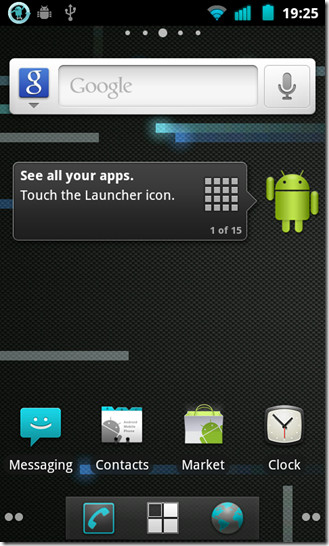
CM7 sports the most Vanilla look you can find on a Gingerbread ROM. Being an AOSP initiative, the ROM isn’t exactly the flashiest ROM aesthetically, but the simplest and to the point. Bear in mind that CyanogenMod ROMs are aimed at maximizing the performance and experience of the Android OS, looks are a priority but a second one. However, there are a lot of users out there who find this Vanilla approach very appealing.
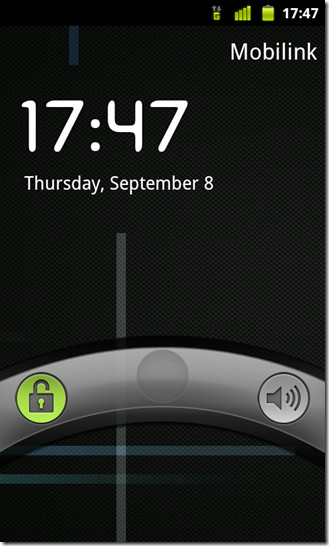
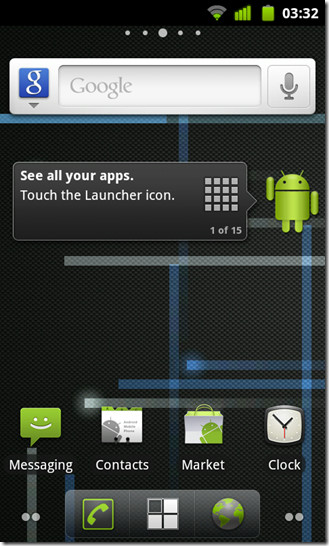
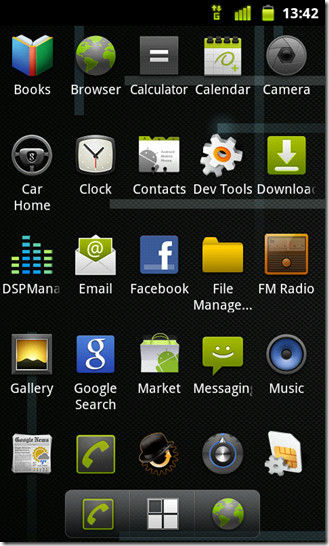
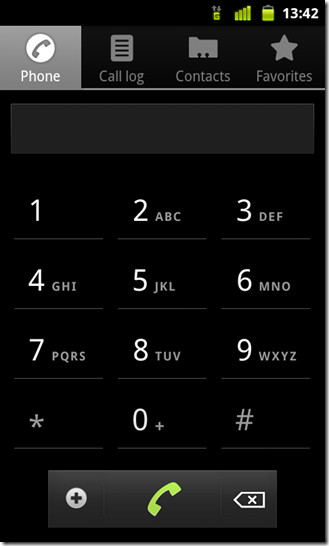
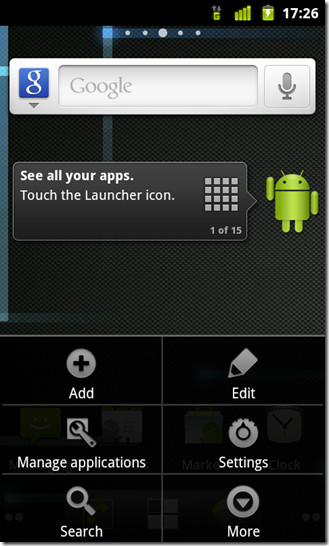
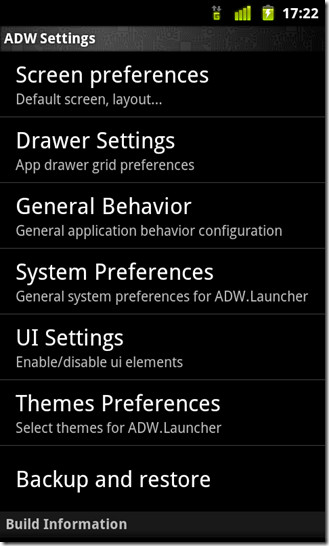
If you happened to have come across a stock Google Nexus S, you will find a startling resemblance between the Homescreen on that, and the CM7 Homescreen where both sport the Gingerbread Vanilla look. However, CM7 is using the ADW Launcher here as compared to the Gingerbread Launcher on Nexus S. While the ADW app drawer here looks pretty slick with the transparencies and all, the fluid vertical scrolling can be nauseatic for some. Fortunately, the ADW settings can be tweaked for a more customized experience. Unlike most launchers, settings for the ADW in CM7 cannot be accessed directly via the Home screen. Hit the Menu button on your device and navigate to Settings > ADW Launcher to be taken to the Launcher settings as seen in the screenshot below on the right.
We will not be going into the details of the Launcher because you may end up using some other Launcher like Launcher Pro or Go Launcher on top of CM7 here.
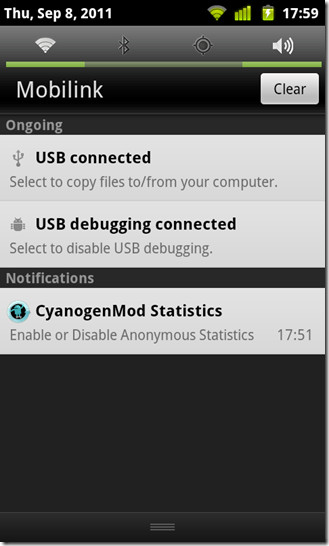
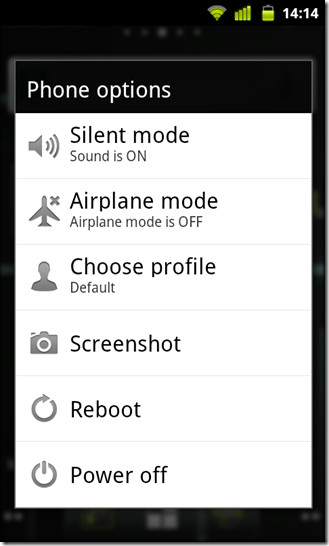
Apart from the Launcher, CM7 has a few neat tricks up its sleeves. You must have wondered why you do not have the option to remove a particular notification from the Notification Menu that your drag down? Well, you wouldn’t be the first, and it seems like the collective bewilderment has led CyanogenMod to allow us to do just that. All you have to do, is swipe that notification left or right and voila! It’s gone! The CM7.1 ROM now comes with a built-in Screenshot feature that is accessible straight from the Power Menu. Once you tap the button, it will take around 2 seconds for the device to take the screenshot. The delay is there on purpose, unless you want to capture the Power Menu over and over again.
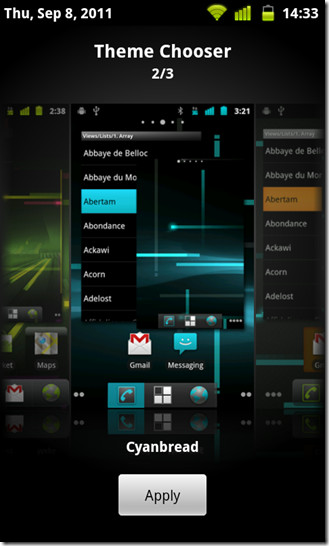
If you thought that was neat, how about some good old theming to go around? CM7 has a built in Theme Chooser allowing you to install from an array of themes available on the internet. By default, the Theme Chooser carries just three themes, which honestly are no different to each other except for a slightly changed color scheme. For some brilliant CM7 themes and instructions on how to install them on your Android device, see our guide on 12 awesome CyanogenMod 7 Themes. All themes are simply APK files that need to be installed on your device like any other Android app.
Music Player
If you have seen the MIUI music player or used music players such as Power AMP, chances are, one look at the CM7 music app and you will be very disappointed. Well it has the features you need, and boasts a very clean UI that is easily workable by anyone who has never touched an Android in their life, but a fancy equalizer, paired up with some graphical awesomeness would have appealed to even the most enthusiast Android user.
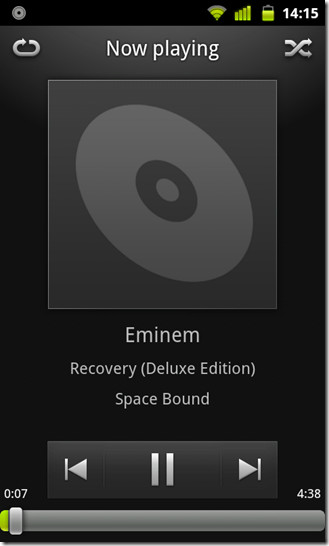
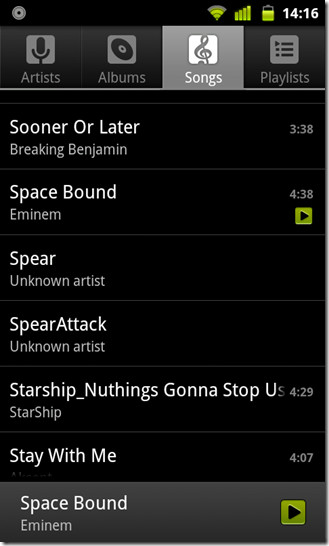
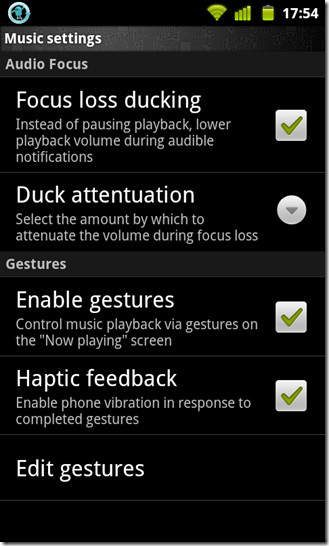
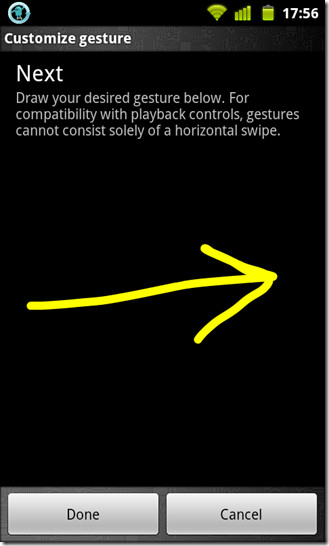
Did you know while the Music player may be a stock Google Music player, it is a bit touched up and boasts gesture recognition? That’s right, you can now control your music from the Now Playing screen by the help of simple gestures. Gestures that can also be customized, in the blink of an eye. To access this, hit the Menu button on your device and tap Music Settings to be taken to a screen similar to the one below on the left. One very useful feature here – other than Gestures of course – is the ability to lower the volume of the music being played instead of an abrupt pause whenever you receive a notification that is audible. This makes for a more pleasant experience as compared to the abrupt loss of audio. Coming back to Gestures, tap Edit Gestures to see a list of the Gestures available to you. Slick no?
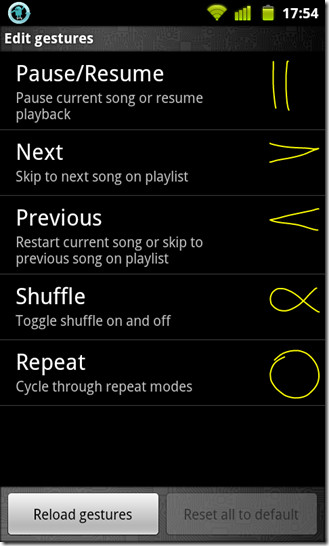
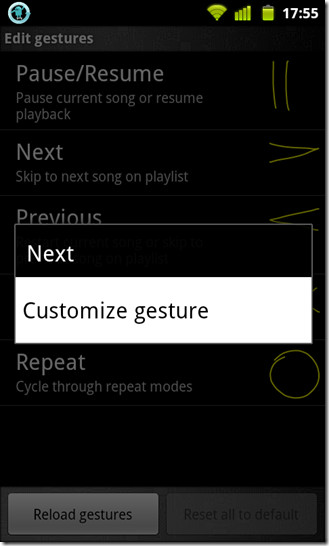
Where exactly is the edit part you ask? Simply keep a gesture pressed and a Customize gesture message will pop up. Go ahead with that and you will be asked to draw a gesture of your choice. Draw away and tap Done. You’re good to go with the Gestures so go ahead and try them out!
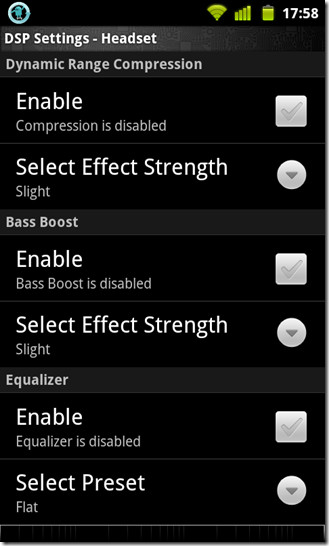
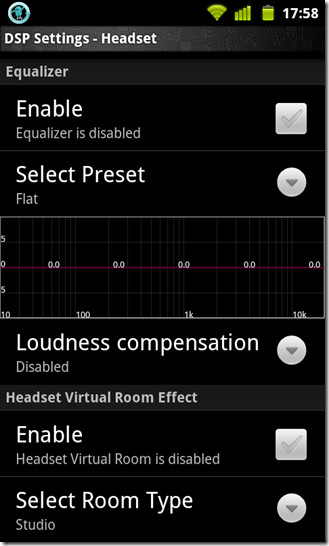
Nope, it doesn’t end here! Welcome to the DSP Manager. If you have a pair of high quality headphones lying around that you thought your Android device, wasn’t doing justice to, this app here might just change your opinion. Even better, pair it up with your audio system and we can guarantee, you will feel the difference in your music experience once you’ve done setting the app up.
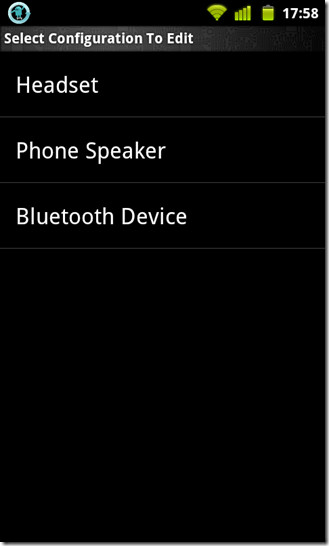
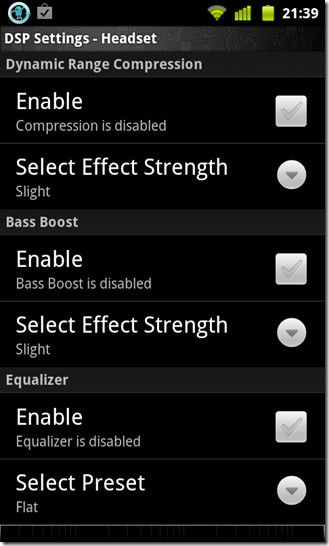
Run the app from the app drawer and choose the configuration type you want. In our case, we choose the headset, but the same applies for your audio system as well. Just think of it as an AUX out for now. We can’t really tell you which setting to tweak and by how much, it all boils down to the quality of the headphones or the speakers. However, you can gain some serious bass and treble, or even an increase in overall volume with the help of this app.
Camera
So this is awkward, but before we proceed any further with this, our screenshots with the camera running resulted in what was all black within the confines of the view frame. But that should not matter as long as the features at hand are visible to you and understandable. The CM7.1 ROM finally brings to us the Touch to Focus feature which had been previously missing. Tap anywhere on the screen and the camera will try to focus on that part of the screen. You see the green focus box? It had Megan Fox in focus, but the point here is that the Touch to Focus feature works like it should. Of course you will have to enable that in the camera settings under Focus Mode. There are plenty of other obvious camera tweaks to play around with depending on the make and model of your Android device. Oh, and you can double tap on the screen to zoom in and out.
Now here’s what boggled our minds a bit. According to CyanogenMod, the Camcorder sports continuous Autofocus while recording. We tried that, but it dint seem to work so well for the Desire HD. The focus felt fixed from the word go and not like it had the Touch to Refocus feature like the new Sense 3.0 ROMs that would help us confirm if something’s actually going on. All videos recorded, are in the MP4 format.
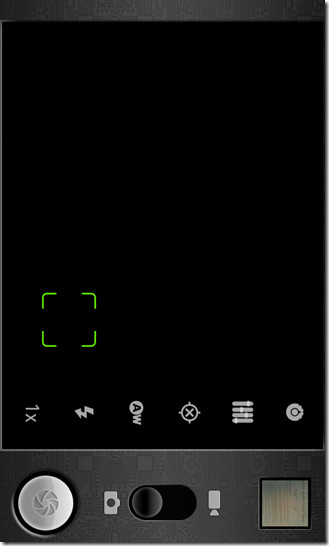
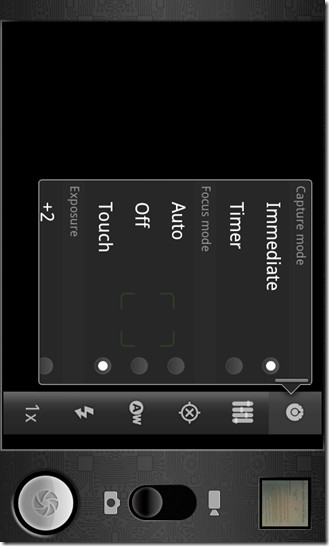
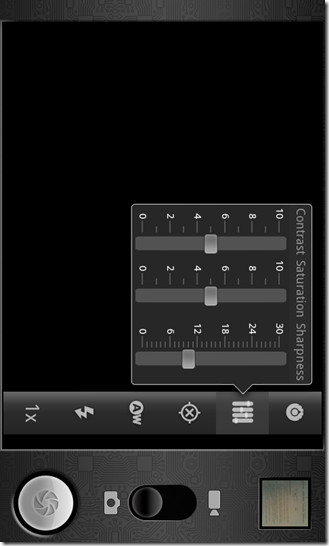
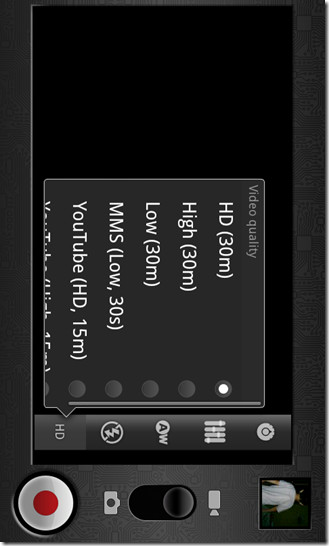
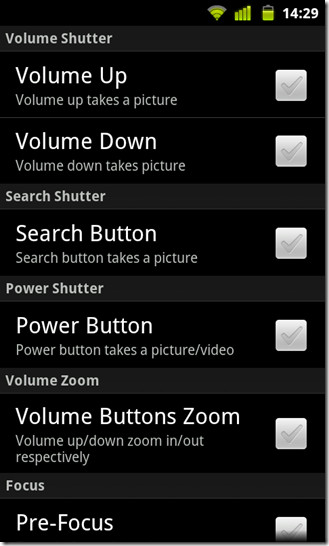
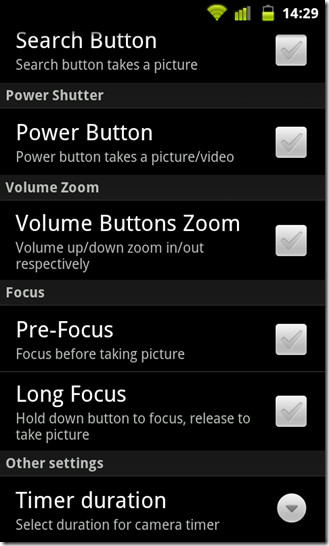
Hit the Menu button on your phone once the Camera is running and tap on Settings. You want to be here! Why? Because this is what can make the pain of tapping that shutter button on the screen go away. Using your thumb to take a picture is almost inhumane! It’s ergonomically wrong to be precise. On the Desire HD in our case, the Search button is more easier to press than the shutter button on the camera. Luckily, CyanogenMod 7 brings to you the ability to remap your soft and hard keys as the camera shutter trigger.
You also get to adjust the focusing behavior of the camera while at it. Or if you want, set a timer for moments where you badly want to be in a picture yourself.
Lockscreen – CyanogenMod Settings
While you may not have an assortment of lockscreens to choose from in CM7, the features that CM7 lockscreens offer, more than make up for that. No need to compare the lockscreens with the MIUI ones, we understand those are brilliant, yes, but it’s like comparing Metallica with the System Of A Down. Dare we make the mistake of saying which is which. Again, the highlight with the lockscreens here is the Gesture control. You had that for the Music Player, now you can enjoy gestures on your phone’s lockscreen!
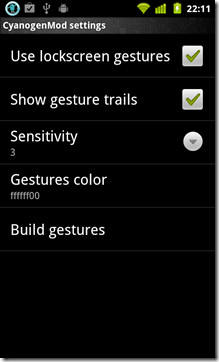
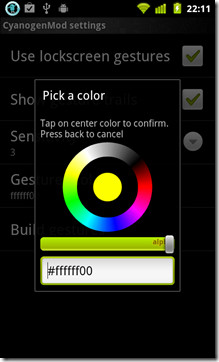
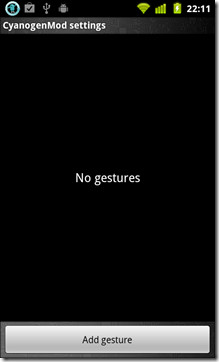
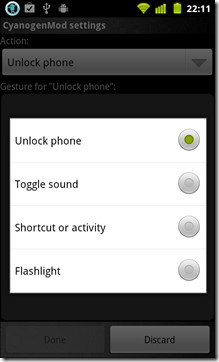
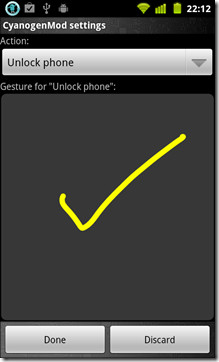
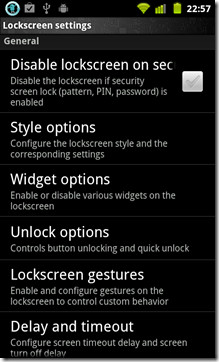
To set it up, navigate to Settings > CyanogenMod Settings > Lockscreen > Lockscreen Gestures. Enable the use of lockscreen gestures and if you want, you can enable the gesture trails as well, which is advised for the first time user. Set the sensitivity which in essence more of an accuracy adjuster. That done, hit the Build Gestures tab and Add Gesture. You have 4 actions to choose from here, Unlock Phone, Toggle Sound, Shortcut or activity and Flashlight. Once the action is chosen, draw the gesture of your choice and hit Done. Go ahead and try it out on the lockscreen!
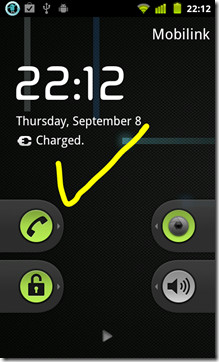
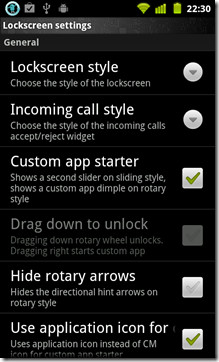
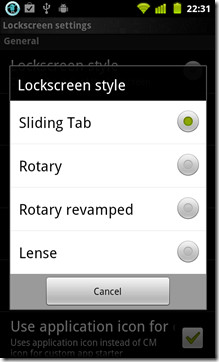
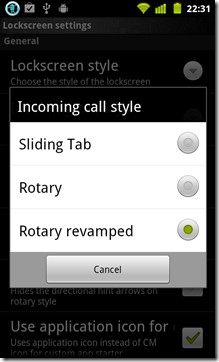
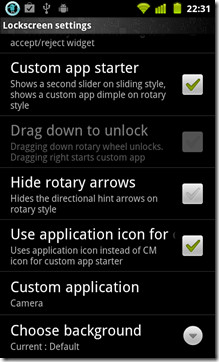
If you’re wondering what’s with the the slider lock, and even better, how are there 2 of those? No need to be alarmed, it’s just another normal everyday CM7 feature. Even that music playback control at the bottom. To change the lockscreen style, navigate to CyanogenMod Settings > Lockscreen > Style options and tap the Lockscreen Style button as shown in the screenshots below. As mentioned earlier, you do not have a wide variety of styles to choose from. You can also choose the Incoming call style which works in pretty much the same way as the lockscreen itself.
To launch an app directly from the lockscreen, you can either add a gesture as mentioned earlier, or create a custom slider, that when unlocked, would launch that particular app. You can do that by navigating to CyanogenMod Settings > Lockscreen > Style and enabling Custom app starter. Once enabled simply choose the app of your choice and voila! You’re done! If one of those shortcuts is your dialer, keeping a caller ID hide code handy can be useful for private calls. If you need story link support for sharing content directly from your lockscreen, you can set up shortcuts to your favorite social media apps.
The only widget that the CM7 lockscreen natively supports is the music player. You can enable that by navigating to CyanogenMod Settings > Lockscreen > Widget options. From there, you can enable or disable the music widget and consequently tweak it up a bit in light of the few settings available.

Hi,how can i unlock my screen on my motorola verizon(It is on lense style)
I have Cyanogenmod 7.2.0 for the Huawei u8650 and when I put in my sim card and attempt to make calls its says Mobile network not available. What’s up with this?!
what does the cymbol mean at the top of the phone that is two arrows that are going in a circle chasing each other
Can someone please tell me how to open the app market or how to download apps
Thankyou
i used it a few days ago and i fell in love with the sound. the drums beat my ears. when i installed a official rom for my mobile i lost this sound. i downloaded dsp manager but the sound was not even close enough than it was before. the basses make my headphones vibrate. anyone know how could this be? do i need to install the full rom or install dsp effects with other configuration?
i used it a few days ago and i fell in love with the sound. the drums beat my ears. when i installed a official rom for my mobile i lost this sound. i downloaded dsp manager but the sound was not even close enough than it was before. the basses make my headphones vibrate. anyone know how could this be? do i need to install the full rom or install dsp effects with other configuration?
You missed one of the best features! CM7 also disables the password lock screen, even when enforced by your overprotective email admins.
i love it
Hello,
I am n00b @ custom roms and stuff..Here is my question..CAn sum1 guide me on “how to root and install CUSTOM ROMs ?” I have a unrooted SE W8 🙁 and this device is laggy with its stock ROM. I dont understand the importance of Baseband(BB) and stuff. What does ClockWorkRecovery or some other app? Why are ROMs packed in ftf? This sounds odd and i’ve seen only .zip files till now.Please guide me.Enlighten my brain with knowledge..Plead u all..
Hi installed cm7 on coby kyros mid7016 now have no video no USB and clokworkmod dissppeared only have fastboot to PC any help would be appreciated is there a way to go back to stock Roman???
I downloaded Cyanogen mod 7. I have done all the tricks. It killed my GPS totally. The flash is horrible on this rom. So many things still wrong with this rom. Completely Stable it is not. How can you call a rom stable when it totally kills your GPS is odd to me. You all research this rom first before you download it. It’s one big headache in my opinion. Look at all the problems other people are having with it. I have an EVO 4G. There are some cool features on the rom. But they don’t make up for the problems you come across while running the rom. At this point. I’m going to a stable rom. Cause this rom isn’t stable. All the goods things I’ve heard about this rom. And I was shocked at the problems I researched online and found almost everyone else is having the same problems. That’s why I’m warning you all know. Don’t download this rom until you can Giro forums and see people praising this rom instead of complaining about it. Just trying to help you guys out. And yes I fixed permissions and everything. Goto go and get this horrible rom off my fun. You all have a good day.
Well, now you’ve learnt to do the research before flashing the rom, not after. I’m running CM7 Nightly, have no problems at all on a SGS II 🙂
Very good article!!
I have one question: how can I disable the shutter sound from the camera?? It is REALLY REALLY loud 🙁
Thanks!
Great article, very impressive. Huge effort, I’m sure. Thanks.
I’ve got a newbie question for you. If I’ve got a HTC Desire 2.2 can I still use CM7 (you said it was based on 2.3)?
amazing article man!!!!!!
I am using cm7 from about 2 months now and I just realized i missed on some of the most useful features of this ROM. My phone just got a lot better.. really great work .. cheers to you!!!!!
subscribing/following you and sharing the link to this page 😀 !!
I have the cyanogenmod mod 7 and I’ve tried everything from my settings in my messaging app to vibrate, and didn’t work, went to my other settings and put them in no over ride and didn’t work, then changed them to on silk didn’t work, then reboot my phone, cleared my dab cache still didn’t work! I just want my phone to vibrate when I get a txt! anyone kno wut to do?
Try installing GO SMS Pro from Android Market.Its free and allows you to change the appearance via several free themes..Go ahead and try tis out
Hi,
Will this ROM work on LG Optimus One P500 ??
please help me which ROM is good for LG Optimus P500 ?
I’m having frequent memory card unmount problem with existing firmware 😛
When will we have a stable mod for the Samsung Galaxy S II?
great article – thorough and informative, so people can get at the features, as well as learn about them. i didn’t see the one feature that i find most compelling, however – lockscreen delay and timeout. i want the security of the pattern/pin lock but not the nuisance of having to unlock after every brief pause while using the phone. this feature enables you to set a delay _after_ the screen is turned off (whether due to timeout or power button). i had tried several app designed to do this, but none work quite right in recent (2.0+) android versions. the cm7 one works perfectly!
you can find the feature under the cyanogen lockscreen settings, “Delay and timeout”.
@Natural_Born the kernels are stored elsewhere aside from kernels.org (backups if you will) so therefore development has stopped.
Actually there are some builders out there producing “nightly” kangs. While these are not official and don’t come from the CyanogenMod team. They work well and include updated things that aren’t involved with kernel.org.
Hey CT!
They didn’t stop – I think kernel.org was hacked so they can’t bring out the nightlies atm. They are working on it though.
Please release the first full.zip of Motus ASAP!
Cool review n all but cyanogen isn’t pushing out roms anymore thats includes nightlies! So this article is kinda pointless for those who would like to try out his roms and find out he stopped development!
cyanogenmod development is continuing, but the core developers have been on temporary release hiatus in order to take care of other things in their lives – including, for instance, steve kondik’s new employment with samsung. the situation is explained in a recent blog posting on the site: http://www.cyanogenmod.com/blog/the-state-of-cyanogenmod, where they’re clear that development is continuing and releases will resume.
Pocketdroid dot net wrote an article dedicated to your effort to write this complete guide for all Cyanogen fans out there we linked to this article, if thats alright with you giving full credit to AddictiveTips ! Cheers very good reading!!
http://www.pocketdroid.net/complete-review-of-cyanogenmod-7-walktrough-and-guide
Great write up on Cyanogenmod-7! Can Cyanogenmod-7 work on the MOTO Backflip??
MOTO MB300?
The best place to go for help in installing CM7 on the MB300 is here: http://modmymobile.com/forums/566-motorola-backflip-roms/562328-rom-official-cm7-motus-backflip-9-2-11-a.html
Hope this helps!
Where is the Motus ROM for download?
Great write up…Thank you Addictive tips
Where are the data spoofing settings. Keenly aware of spyware denying permissions is not enough. Grant permission but send noise instead of data. Cm7 needs to bundle or integrate the features of both DroidWall & AndGuard Pro. Control incoming AND outgoing connections
I wish I had the balls to put it on my Moto Milestone, I’ve been tempted too many times to do it but the process is ‘just’ enough that it’s too much work and after researching I give up everytime. Boy does this handset need some performance increases though, really showing it’s age these days 🙁
Great write up.
Does anyone know where I can download CyanogenMod 7 for the HTC HD2 from?? Installed the Nexus version but isn’t as good as I thought it would be.
Why don’t you try this out? I had a friend who was running one of these HyperDroid ROMs once on his HD2. I’m not sure if it contains all the CyanogenMod Settings but i guess there’s one way to find out =D
http://forum.xda-developers.com/showthread.php?t=769026
Thanks for the link man,I ll try it out.
You must have wondered why you do not have the option to remove a particular notification from the Notification Menu that your drag down? Well, you wouldn’t be the first, and it seems like the collective bewilderment has led CyanogenMod to allow us to do just that. All you have to do, is swipe that notification left or right and voila! It’s gone!
I accidently did this… How do I reverse this mistake?
Atm I use S.U.R.F.A.C.E ROM on SGS i9000. That ROM is super lightweight with OC and Galaxian kernel gives it some extra 200mhz. Much rather this 60 mb rom than huge CM7. It’s just an opinion though. Slim simple> huge & packed with options
Great write up on Cyanogenmod-7. Can Cyanogenmod-7 work on the HTC HD2??
Yes it can.
HOLY CRAP. that had to take a while to write up
well done. this is a great example of why you’ll been on my RSS forever 🙂
It really is amazing what all those guys have done for our devices.
Hi, can I use this for the offical ‘About’ page on CyanogenMod? It’s a great write up. I will link back to here as the original source 🙂
Sure. Go ahead. 🙂
Thanks alot SatanR1! You can use this, sure =]
Hey, our new page is online …. you may notice a surge in traffic too 😉
Check it out : http://www.cyanogenmod.com/about
Saw it a few hours ago. Peachy. Thanks again. 🙂
Looks like we may need a CM9 review soon, then I can replace that for the page 🙂
We plan to do one for CM10 as soon as an RC is available. 🙂