Steam Cloud Saves — What They Are and How to Use Them
Steam uses cloud storage to save your game files and related data, allowing you to access your personalized settings on any computer. This guide explains how to download or manually back up your saves, covers common troubleshooting tips, and shows you how to delete unwanted cloud saves.
What is Steam Cloud?
When you install Steam on a new device, it automatically downloads your cloud saves so you can access your game data, even when offline.
In some instances, Steam sometimes fails to download this information, which can make it seem like your saves are lost. However, you can still manually download your Steam Cloud saves—you just need to know where to look.
Knowing how to download Steam game files is especially useful when switching platforms. For example, if you previously played on Windows and moved to macOS, Steam may struggle with cross-platform saves. In that case, manually downloading and importing your save files can help.
How to access and download Steam Cloud saves
Before trying to download your Steam Cloud saves, make sure the files are actually being uploaded to Steam’s servers. You can do this by checking each game’s cloud sync status. Here’s how to enable Steam Cloud sync:
How to enable Steam Cloud sync
- Launch Steam and open your Library.
- Right-click a game and select Properties.

- In the General tab, enable Keep game saves in the Steam Cloud.

- Go to the Updates tab.
- Set Automatic Updates to Always keep this game updated.

- Exit the window, open the Steam menu, and go to Settings.

- Select the Cloud tab.
- Check Enable Steam Cloud synchronization for applications which support it.

- Click OK
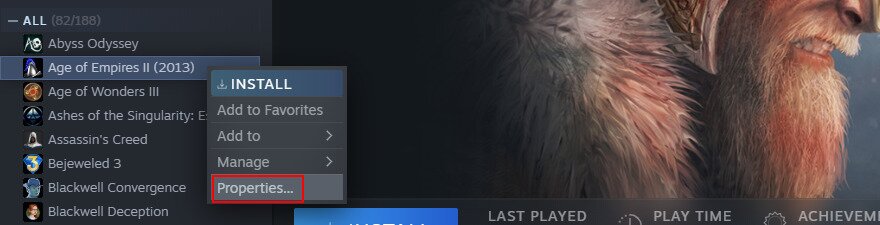
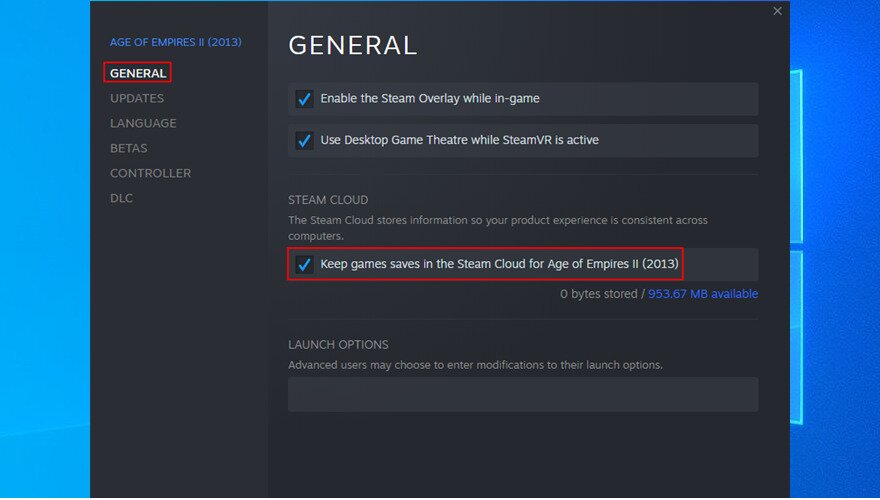
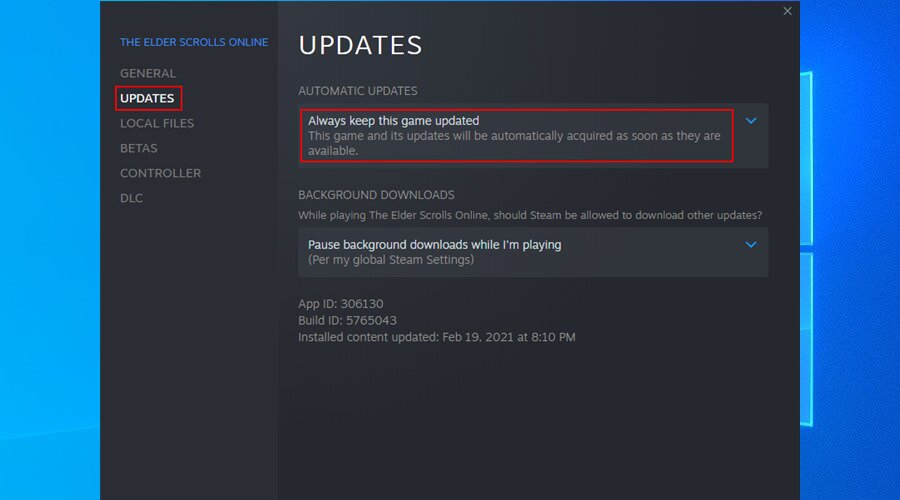
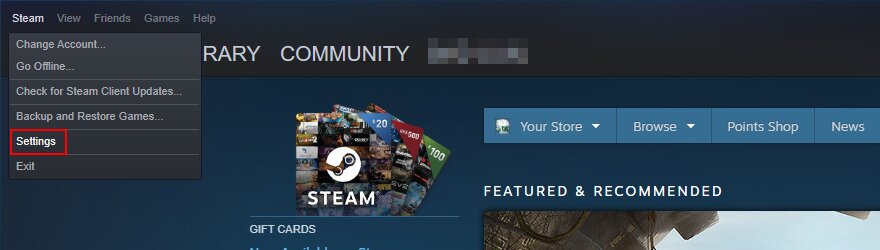
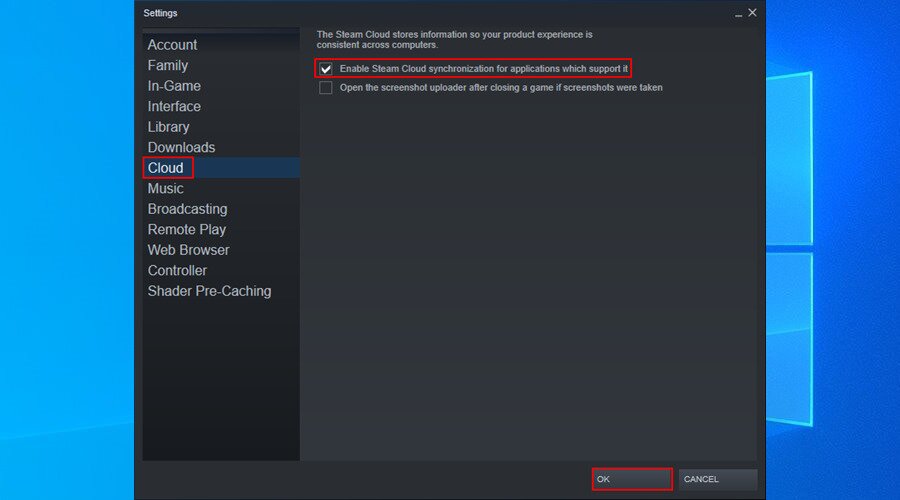
Once your files are synced, you can download Steam Cloud saves using a web browser to create a manual backup.
How to download Steam Cloud saves
- Open your web browser and access the Steam Cloud page.
- Sign in with your Steam account.
- Locate the game whose files you want to download and click Show Files.

- Click Download next to each file.

- Save the files to your computer.
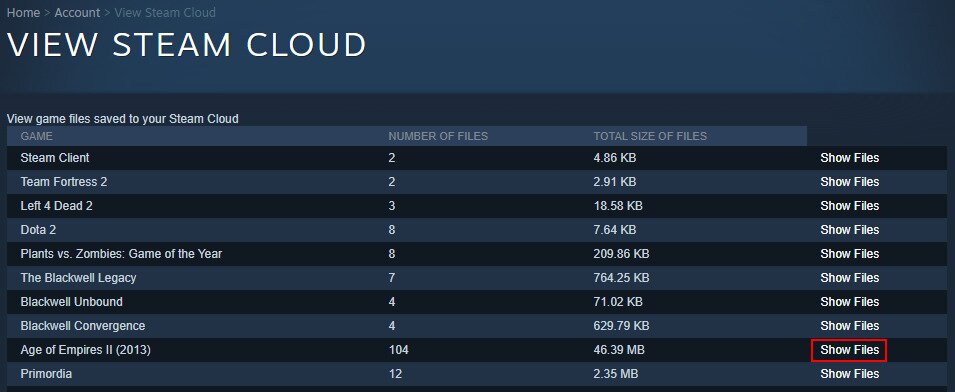
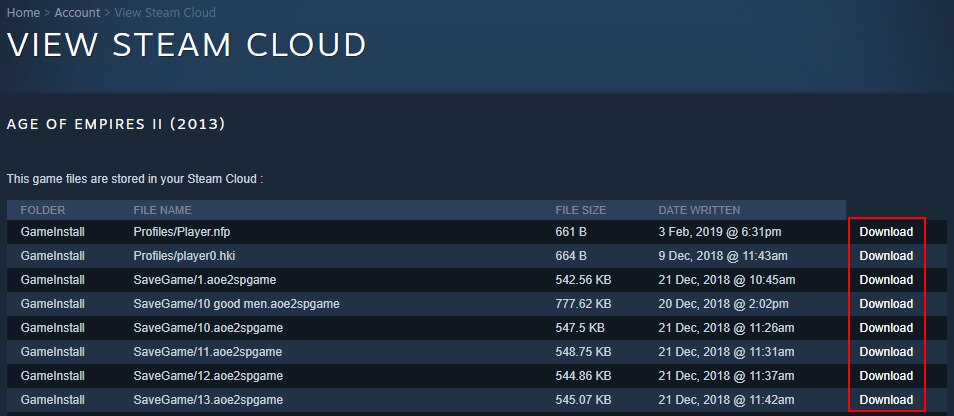
How to delete Steam Cloud saves
If you want to remove cloud saves to replay a game from scratch, deleting local saves alone usually isn’t enough, as Steam will attempt to resync them.
Removing Steam Cloud saves can be tricky, but it’s possible if you follow the steps below to clear cloud data:
- Open Steam Settings, go to the Cloud tab, and ensure Enable Steam Cloud synchronization for applications which support it is checked.
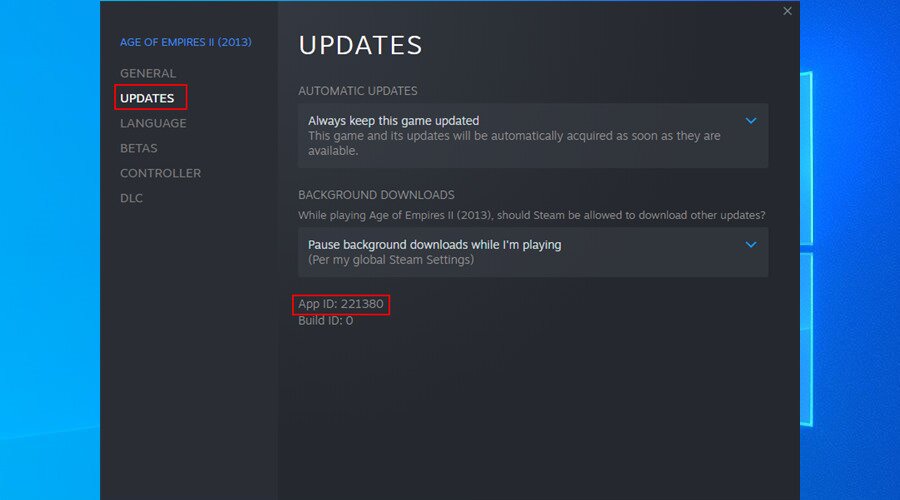
- Switch to the Updates tab and copy the game’s App ID.

- Exit Steam.
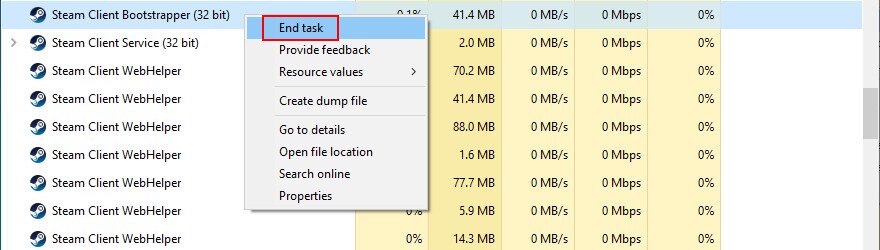
- Open Task Manager and end all Steam processes.

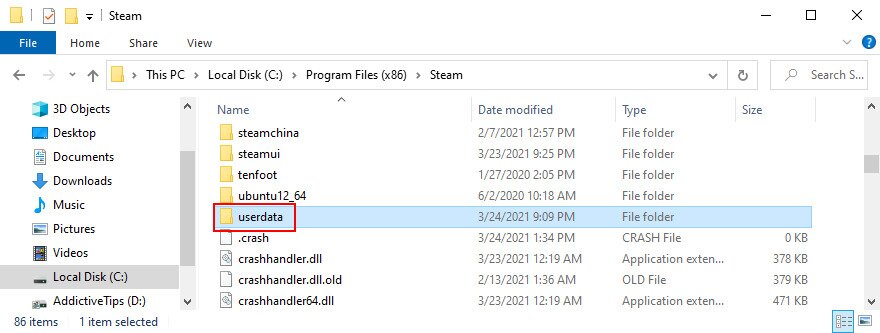
- Navigate to the Steam install folder (e.g., C:\Program Files (x86)\Steam).

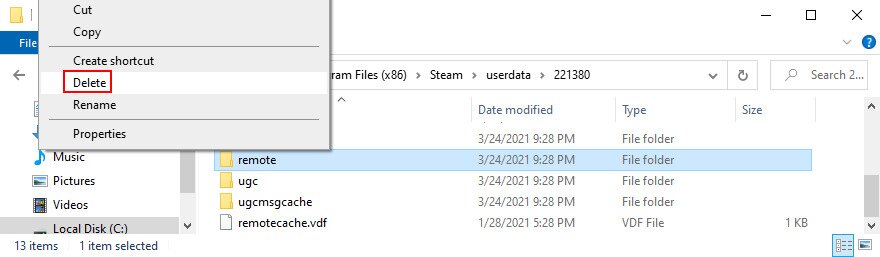
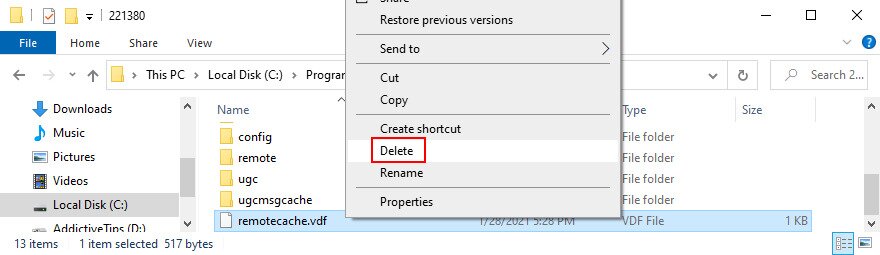
- Open the userdata directory.
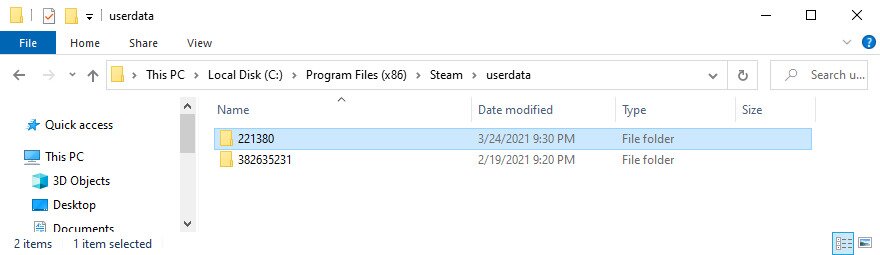
- Locate the game folder using the App ID.

- Open the remote subfolder.

- Hold Shift, right-click inside the folder, and select Open PowerShell window here.

- Type clc * and press Enter.
- Exit PowerShell; the folder should now be empty.

- Return to the App ID folder and delete remotecache.vdf.
- Launch Steam and the game to trigger the Cloud Sync Conflict screen.

- Do not select any option yet.
- Return to the App ID folder and delete the remote folder and remotecache.vdf
- Switch back to Steam and click Upload to the Steam Cloud.
- While in-game, go to Steam Settings → Cloud and disable synchronization.
- Quit the game, exit Steam, and end all Steam processes.
- Delete the App ID folder entirely.
- Relaunch the game. Steam should no longer sync saves for that title.


How to Check If a Game Supports Steam Cloud
To see if a game supports Steam Cloud, simply visit the game’s Steam Store page and look for the Steam Cloud icon in the upper-right section.
If the icon is present, the game supports Steam Cloud. Alternatively, right-click the game in your Library, open Properties, and check for Steam Cloud references.
Accessing Steam Cloud via Web Browser
To view your cloud saves online, sign in at:
https://store.steampowered.com/account/remotestorage
From there, you can see file names, sizes, timestamps, and download saves directly.
Fixing Corrupted Cloud Saves
Troubleshooting corrupted Steam Cloud saves requires you to verify your game files. Here’s how to do it:
- Go to the game with the corrupted files within your Steam library
- Click the gear icon
- Go to Properties
- Go to Local Files
- Choose “Verify integrity of game files”
- It will process, at which point that may solve your problem
If that doesn’t resolve the issue, try deleting the corrupted files using the steps above. You can also test the game while offline. If the issue persists without an internet connection, the problem may be local rather than cloud-related.
Handling Save Conflicts
Steam occasionally detects conflicting save files. Save conflicts usually occur when your local files don’t match the versions stored in Steam Cloud. This often happens if you play the same game on more than one device and the saves fail to sync properly.
When this happens, Steam will typically prompt you to choose which file to keep. In most cases, selecting the most recent save is the safest option, as it overwrites the older file.
That said, some users report losing progress after choosing the Steam Cloud version, even when they only played on a single device. While this is uncommon, it’s still something worth keeping in mind before confirming your choice.
Creating Manual Backups
Here’s how to manually backup your save files outside of Steam Cloud, so you have a local copy you can manage yourself:
- Open your Steam Library.
- Right-click the game and select Properties.
- Go to Installed Files.
- Select Backup game files.
- Choose Create Backup.
Once the process finishes, select Open folder to copy or move your backup files.
For more information, refer to Steam’s official support page for backing up your files.
FAQ
Can I disable Steam Cloud without losing progress?
Yes, as long as you manually back up your files first and confirm they work. Once disabled, your progress will be saved locally until you re-enable Steam Cloud.
What should I do if Steam Cloud fails to sync?
In some cases, the issue may be temporary and resolve itself. In others, the problem could stem from your computer or from Steam Cloud itself. It’s important not to ignore sync error messages and continue playing, as doing so can overwrite your progress. Instead. Try the following:
- Restart your system.
- Restart your network.
- Confirm Keep game saves in the Steam Cloud is enabled in the game’s properties.
- Toggle the setting off, restart Steam, then re-enable it.
- Make sure you’re running the latest version, or try reinstalling Steam.
Conclusion
You can download Steam Cloud saves on any computer by signing into your Steam account through a web browser. Deleting cloud saves is more complex, as there is no simple removal option, but it can be done by following the steps outlined above.
If you found this guide helpful, check out our other resources on what to do if Steam won’t open or how to stop steam games crashing on startup.

I do not have a “remote” subfolder under the app ID for Elden Ring. The only item within is is remotecache.vfd and I tried the powershell at this step instead and then deleting the remotecache.vfd but I cannot get the cloud sync conflict to open. Any suggestions?