How to Change Cortana’s Default Search Engine in Windows
Cortana is one of the major features introduced in Windows 10 and, as predicted, it is tied to Bing. If you want to change Cortana’s default search engine, you’ll quickly discover that Microsoft has made this more difficult than expected. Everyone knew Cortana would use Bing and Edge by default, but many users were optimistic that a customization option would let them use their browser and search engine of choice. If you set a different browser as your default browser in Windows 10, Cortana will route all web searches to it but will still use Bing. Here’s how you can make Cortana use Google in Chrome and Firefox.
Update 1: Chrometana was briefly infected by malware. The developer posted about it on Reddit and has confirmed that the issue is now resolved.
Update 2: You will need to install EdgeDeflector before you can send search queries from Cortana to your default browser.
Why You Cannot Simply Change Cortana’s Default Search Engine by Switching Browsers
It is easy to confuse three separate settings that sound related but work independently of each other: your default browser, your browser’s built-in search engine, and Windows Search/Cortana’s web search behavior.
Changing your default browser — for example, switching from Edge to Chrome or Firefox — determines which browser opens when you click a link in an email or document. Changing a browser’s default search engine — for example, switching from Bing to Google inside Chrome’s settings — determines which search engine that browser uses when you type a query into its address bar.
Neither of these changes affects what happens when you type a search into the Windows taskbar or use Cortana. Microsoft has tied Windows Search and Cortana web results directly to Microsoft Edge and Bing. When you trigger a web search from the taskbar, Windows deliberately routes that query to Edge and Bing regardless of which browser or search engine you have set as your default.
This is why many older guides that suggest simply setting Chrome or Firefox as your default browser no longer produce the expected result. Those instructions described behavior from early Windows 10 builds before Microsoft locked taskbar searches to Edge and Bing. If you have followed one of those guides and found that nothing changed, that is the reason.
It is also worth knowing that Microsoft has confirmed there is currently no supported setting to change Cortana’s default search engine away from Bing and Edge through Windows system settings.
Make Cortana Use Google Chrome (Or Firefox)
Important note for current Windows users: On current versions of Windows, changing your default browser does not change which browser or search engine is used when Windows Search or Cortana performs a web search. Microsoft has locked taskbar web searches to Microsoft Edge and Bing, and there is currently no supported way to change Cortana’s default search engine through system settings.
Following the steps below will not redirect Cortana or Windows Search results to Chrome or Firefox on up-to-date systems.
The steps below are preserved for reference and apply only to older Windows 10 builds where setting a default browser did route Cortana web searches through that browser.
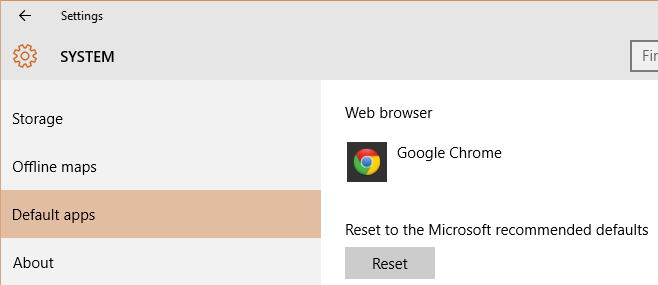
Legacy steps (older Windows 10 builds only): Open the Settings app and click the System group of settings. Go to the Default Apps tab and scroll down to the web browser option, and select Chrome/Firefox.
How to Change Cortana’s Default Search Engine Using Extensions (Legacy Method)
Status update: The redirect-based workarounds described in this section — including EdgeDeflector, Chrometana, and the Bing-Google Firefox add-on — were used on earlier Windows 10 setups to redirect Cortana searches away from Bing and Edge.
These tools are no longer a reliable or supported method for changing Cortana’s default search engine on current Windows versions. Microsoft’s current position is that there is no supported way to redirect Windows Search away from Bing and Edge, and the extensions and utilities referenced below are either removed, inactive, or ineffective on modern systems.
The information below is preserved for historical reference only and reflects how things worked on older Windows 10 builds. The installation steps can no longer be completed successfully on current systems, and we do not recommend attempting them.
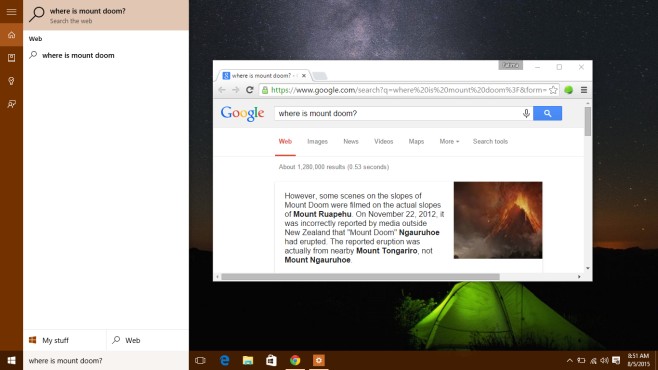
Legacy information (older Windows 10 builds only): On earlier Windows 10 setups, users could install a Chrome extension called Chrometana to redirect Bing searches to Google, combined with setting Chrome as the default browser. This was one of the more popular workarounds to change Cortana’s default search engine at the time. Firefox users could use an add-on called Bing-Google for a similar effect. These approaches are no longer functional on current systems.
Update: We initially recommended a Chrome extension called bing2google but it has been pulled from the Chrome Web Store. In its place, we recommend using Chrometana. It works just as flawlessly as bing2google. Likewise, we’ve updated our recommendation for Firefox.
Install Chrometana From The Chrome Web Store (Extension has been removed as it no longer works).
Install Bing-Google For Firefox

Ok, just read some of these post. Apparently, none of the “helpful” wanna be people know how to get Cortanta to work with Chrome. Well, it’s easy….it DOESN’T, unless you know how to program and I have a script that I’m happy to share with folks if they want to email me. Works with both 32 and 64 bit versions. OMG, it wasn’t that hard, just a little programming. Also, this will allow you to change more settings than originally allowed. Launching websites, learning characteristic’s, etc…..you will be surprised!
Did not work for me. I have Chrome set up as default, but Cortana still opens searches on Edge. Any suggestions?
There is no working solution to transfer Cortana search requests to Chrome…only to Firefox.
Well, this is why Windows Phone failed. Microsoft still wants to impose its will on its end-users, instead of permitting a level playing field. Users WANT TO choose which web browser to use when using Cortana/Windows 10 search. My solution was to remove the search icon from Windows 10 taskbar. I can search within Chrome Web Browser if I need to search. What A MAJOR MICROSOFT MESS!!
Does anybody know how to make Cortana scroll web-pages in browsers? For example: ‘Hey Cortana, scroll down’. ‘Hey Cortana, scroll up”.
`
https://uploads.disquscdn.com/images/32da7f744a216cf0aec65a3eef04354cb2f28fff61d533387fb1eafae07fef52.jpg
`
Quote Deckard from Blader Runner
On firefox doesn’t work anymore… with extension plus edgedeflector
I have installed Edge Deflector, and Cortana opens Firefox now and searches on Google.
The Bing-Google add-on works, however a bit slow. But, thank you!
P.S. Put the addon’s link on a more visible place because it gets lost in the tons of text.
.
https://uploads.disquscdn.com/images/e1820ae077ad303f0fdd69a74994b3ed8a8edd52a6788238b145d0b1bd0e0338.jpg
hey how did you get this result? I’ve installed that add-on plus edgedeflector but doesn’t work…..
SOLVED, I’ve installed the older version :facepalm:
I have installed Edge Deflector, and Cortana opens Firefox now. BUT, she opens Bing in Firefox! I don’t like Bing! How do I make Cortana search in Google on Firefox? https://uploads.disquscdn.com/images/dc744785b5254e83af38060fdc6dc6492c52db9ab81a87af7a32ec801cf56e8f.jpg
Chrometana has been blocked by MS. Did someone simply change the date of this article because it has been blocked for some time now? 2017? I don’t think so.
The update was regarding the malware problem with Crometana. It seems the extension has indeed stopped working and has been removed from the Chrome Web Store. The Firefox add-on is still working in the Creators Update.
not working
This no longer works. Microsoft doesn’t want us to be able to make our own decisions about what browser is better. Changing to Edge and back to Chrome also didn’t work. What’s the point of having a default web browser and then still opening Edge? Thanks a lot windows.
Use EdgeDeflector. It’s working flawlessly in the Creators Update. https://www.addictivetips.com/windows-tips/how-to-make-cortana-use-your-default-browser-in-windows-10/
It didn’t work at first, but if you change your default browser and then change back, It’ll work. (I changed it to Edge and back to firefox)
It does not work. Maybe it did a year ago but they changed sth. Can anyone help me? Thanks
Using Firefox, So I have the script… OK, what the flip do I do with it????
All this does is take me to a page that displays the script but does not install it. I’m savvy enough to know that if I manually insert the script somewhere I’m messing with and will probably end up with it in completely the wrong place and destroy a completely unrelated bit of software.
Seriously should come in an add-on or an Install button.
Instructions please!!!!!!
Yours Not a software builder
1) Install Edge Deflector, just using the .exe file.
2) Install addon called ‘Bing Google’. The link is at the end of the article.
It works on my Windows 64 with the latest updates. Firefox with the latest updates (55.0.3).
Doesn’t work. Cortona still opens Edge/Bing.
Didn’t work for me either. Still goes to edge/bing. I hate them!
It works very nicely, Thank you
Thanks for the tip. It worked like a dream!
You can also use Braina assistant which directly uses Google for search queries.
It works and without delay unlike the ones I tried before.Thanks!