GlobalProtect VPN Overview: How to Use
This GlobalProtect VPN review covers everything you need to know about one of the more unique VPN solutions on the market. While it is still a virtual private network that encrypts your browsing habits and keeps your location and identity protected, GlobalProtect VPN is usually used by businesses and schools for their endpoint users to remotely connect to their system. This gives users access to otherwise protected internal resources and data. If you’re interested in learning about proxy alternatives or complementary services, check out our Decodo pricing guide.
If this sounds familiar, it is likely that your school or employer uses this type of VPN, and that you use it to connect to their corporate network. This guide will briefly discuss the reasons so many companies are choosing this provider, how end users can download and use this VPN, and we’ll cover some troubleshooting questions too.
Why Choose GlobalProtect VPN: A Review

GlobalProtect VPN is a product of Palo Alto Networks, a global cybersecurity company with a variety of technical solutions for businesses looking to stay secure. One way it does this specifically for their VPN product is through multi factor authentication for users, meaning they will receive a code through email or text when they try to log in. These GlobalProtect VPN sessions also terminate on Palo Alto’s firewall, which means they have robust protections in place, such as defenses against malware and spyware. These precautions protect both the data being accessed and the user accessing this data.
It is important to understand what GlobalProtect VPN actually is at an architectural level: it is the endpoint and remote-access agent for Palo Alto Networks’ Next-Generation Firewall (NGFW) or its Prisma Access cloud platform. This makes it fundamentally different from a retail VPN you can subscribe to yourself. GlobalProtect VPN extends the security policies and inspection capabilities of the Palo Alto platform all the way out to the remote device, rather than simply creating an encrypted tunnel.
GlobalProtect VPN supports several distinct operating modes and features that admins can configure depending on their organization’s needs:
- Always-On VPN: The client connects automatically at device startup and maintains a persistent connection, ensuring all traffic is inspected regardless of user action.
- Remote Access VPN: The traditional on-demand mode where users connect manually to reach internal resources from outside the corporate network.
- Per-App VPN: Only traffic from specified applications is tunneled, leaving other traffic outside the VPN. This is configured by the admin, not the end user.
- SSL and IPSec tunnel support: GlobalProtect VPN can use either protocol, and by default attempts IPSec first for performance before falling back to SSL.
- Automatic and manual gateway selection: The client can automatically connect to the best-performing gateway based on response time, or users can manually select a gateway if the admin permits it.
- Device posture and compliance checks (Host Information Profile): Before granting access, GlobalProtect VPN can verify that the connecting device meets security requirements, such as running up-to-date antivirus software or having disk encryption enabled.
- Split tunneling and domain-based split tunneling: When enabled by the administrator, only traffic destined for corporate resources goes through the VPN while general internet traffic exits locally, which can improve performance for end users.
GlobalProtect VPN Review: Key Benefits
- It gives you remote access to their virtual private network: Not only do you get to access your school or work’s internal and cloud-based applications, you get to be private and protected while doing so.
- Enhanced security: Because you’re using an encrypted connection, it makes your internet traffic more secure, stops endpoint threats and helps prevent phishing and other online attacks.
- It controls and protects access: Your work or school will have access to their data protected, meaning there are fewer threats and they can control who connects and how.
- Remote access for remote workers/students: This type of access is particularly common for remote workers or online students who may be scattered abroad and don’t have in-person access to the apps or data they need. It also helps identify unmanaged devices (like your computer or cell phone) so that there is more protection and control over who is accessing their system.
- Enforces multi-factor authentication: Because two-factor authentication is industry standard for security best practices, using the GP app enforces this type of login from users who may not otherwise take these extra precautions.
- The VPN extends Palo Alto’s secure network platform to GlobalProtect users: This adds an extra layer of protection
- Secures traffic: This is done by associating it with specific devices and users
GlobalProtect VPN: Pros, Cons, and Verdict
GlobalProtect VPN is a genuinely strong enterprise security solution, but it is worth being clear about who it is built for and where it falls short — especially if you arrived here looking for a straightforward product recommendation.
Who GlobalProtect VPN is best for: Organizations that are already invested in Palo Alto Networks infrastructure, specifically those running Palo Alto NGFW hardware or using Prisma Access as their cloud security platform. In those environments, GlobalProtect VPN is a natural extension that adds consistent policy enforcement, device posture checking, and deep traffic inspection for every remote user.
Strengths
- Enterprise-grade security: Traffic inspection, threat prevention, and URL filtering are enforced at the firewall level, not just at the client.
- Strong MFA support: Integrates with SAML, RADIUS, and third-party identity providers, making it straightforward to enforce multi-factor authentication across the organization.
- Device-based access control: The Host Information Profile (HIP) feature lets admins grant or deny access based on the security posture of the connecting device, not just the user’s credentials.
- Centralized policy enforcement: All security policies are managed from the Palo Alto management plane, giving IT teams a single consistent view of what every remote user can access and what threats are being blocked.
- Flexible deployment: Supports Always-On, on-demand, and Per-App modes to match different organizational security requirements.
Drawbacks
- Not a standalone consumer VPN: You cannot simply download and use GlobalProtect VPN for personal privacy. It requires an organization to have a Palo Alto firewall or Prisma Access subscription with a GlobalProtect gateway enabled.
- Heavy dependency on IT and admin setup: The end-user experience is almost entirely determined by how well the organization has configured the backend. A poorly configured deployment leads to a frustrating user experience that reflects on the product even when the fault lies with the setup.
- Mixed mobile usability: Many users report that the mobile apps, particularly on Android, are less polished and less reliable than the desktop clients.
- Occasional reliability issues when switching networks: Some users report that the client does not always reconnect cleanly when moving between Wi-Fi and mobile data, or when switching between networks, which can interrupt workflows.
GlobalProtect VPN Review: Verdict
The gap between how IT administrators rate GlobalProtect VPN and how end users rate it tells the real story. Enterprise review platforms average GlobalProtect at around 4.4 out of 5, reflecting the genuine security value and policy control it delivers to organizations running Palo Alto infrastructure.
The Android app listing, however, sits at around 2.4 out of 5, reflecting real frustrations with client reliability, network switching, and the confusion that comes when the app does not work and the end user has no way to fix a backend configuration issue themselves.
If your organization already uses Palo Alto firewalls, GlobalProtect VPN is a logical and well-integrated choice. If your organization is evaluating remote access options from scratch, the value proposition depends heavily on whether the rest of your security stack is Palo Alto-based. And if you are an individual looking for a personal privacy VPN, GlobalProtect VPN is simply the wrong category of product.
GlobalProtect VPN Pricing, Licensing, and Availability
GlobalProtect VPN is not sold as a standalone product with a fixed monthly price that individuals or small teams can sign up for directly. Instead, it is licensed as a component of a broader Palo Alto Networks environment. Here is what that means in practice:
- Bundled with Palo Alto infrastructure: Access to GlobalProtect gateway functionality requires either a Palo Alto NGFW appliance or a Prisma Access subscription. The GlobalProtect client itself is part of that platform, not a separate purchase.
- Subscription and quote-based pricing: Pricing varies based on the number of users, the security features enabled (such as threat prevention or URL filtering), and whether the deployment is on-premises hardware or cloud-based (Prisma Access). Organizations typically obtain a quote directly from Palo Alto Networks or through a certified reseller.
- Not available for individual purchase: Unlike consumer VPNs that offer monthly or annual plans, there is no individual subscription tier for GlobalProtect VPN. It is an enterprise product aimed at organizations with existing or planned Palo Alto security infrastructure.
- Compatible infrastructure required: To deploy GlobalProtect VPN, an organization needs a Palo Alto firewall or Prisma Access with the GlobalProtect gateway subscription enabled. Without this backend infrastructure, the client app cannot be configured or used, regardless of how it was obtained.
If you are an end user whose school or employer provides GlobalProtect VPN access, this cost and licensing is handled entirely by your organization. You do not pay for it separately.
GlobalProtect VPN Review: Top Alternatives to Consider
If GlobalProtect VPN is not the right fit — whether because your organization is not invested in Palo Alto infrastructure, you want a simpler client experience, or you are evaluating the broader enterprise remote access market — here are the products most frequently compared to GlobalProtect VPN:
- Cisco Secure Client (formerly AnyConnect): The most widely deployed enterprise VPN client in the world. If your organization uses Cisco networking or security infrastructure, Cisco Secure Client is the natural counterpart to GlobalProtect VPN. It offers broad platform support and deep integration with Cisco’s security stack.
- Zscaler Zero Trust Exchange: A cloud-native zero trust platform that replaces the traditional VPN model entirely. Rather than granting network-level access, Zscaler brokers per-application access based on identity and device posture. It is worth evaluating if your organization wants to move away from perimeter-based security models and does not need to maintain on-premises firewall infrastructure.
- Netskope One SSE: A Security Service Edge platform that combines secure web gateway, cloud access security broker, and zero trust network access in a single cloud-delivered service. It is a strong option for organizations prioritizing visibility and control over cloud application usage alongside remote access.
Each of these alternatives is most suitable when an organization wants a broader zero trust or SSE platform, prefers a simpler end-user client experience, or is not already committed to Palo Alto infrastructure.
Important note for individual readers: If you are looking for a VPN to protect your personal privacy, hide your IP address, or access geo-restricted content — including an Italian ChatGPT access workaround — GlobalProtect VPN — and all of the enterprise alternatives listed above — are the wrong category of product entirely. You should compare consumer VPN services separately. Our VPN guide is a good place to start.
GlobalProtect VPN Download: How to Install

Because your workplace or school is the one to typically give access, they may already have download instructions for you. If not, the following may be helpful. Here are the step by step instructions, according to device and operating system.
Prerequisite Requirements
Here are some preparatory steps to know before you can actually start downloading GlobalProtect VPN:
- Understanding where to get the GlobalProtect VPN app depends on your device. The Android and iOS mobile apps are publicly available — you can find GlobalProtect on the Google Play Store and the Apple App Store directly. Linux packages are available through Palo Alto’s Customer Support Portal. Desktop agents for Windows and macOS are often distributed through your organization’s own GlobalProtect portal rather than a public download page. That said, downloading the app on any platform does not make it usable on its own. Your organization must have a Palo Alto firewall or Prisma Access deployment with a GlobalProtect gateway subscription enabled. Without that backend infrastructure, the app cannot connect. Your administrator will provide you with the portal address (FQDN or IP) and your login credentials, which are required to actually use the client.
- To download and install the GP app, you will need the fully qualified domain name (FQDN) or the IP address for the GP portal you’re trying to access. This should also be given to you by your administrator. They will also likely inform you of the username and password you’ll be using.
- You may need to enable the extensions on your system, so that it will be able to use certain GlobalProtect VPN features, such as split tunnel, or other app customizations.
Another important point, before you try to download GlobalProtect VPN, is to make sure it’s not on your device already. This may especially be the case if you are supplied with a computer or device from work or school. Their IT support may have already done the work for you.
Also, because there are so many download and login details that may be specific to your workforce or school, they should be your first point of contact if something goes amiss.
GlobalProtect VPN Download Mac: Instructions
Minimum Required macOS Versions
- macOS 10.15 (Catalina)
- macOS 11 (Big Sur)
- macOS 12 (Monterey)
- macOS 13 (Ventura)
- macOS 14 (Sonoma)
- macOS 15 (Sequoia)
Here are some steps:
Step 1: Download the installation package for GlobalProtect VPN or click the download link for the app that is relevant for your operating system. In this scenario, we will be selecting the “Mac 32/64 bit GlobalProtect agent“.
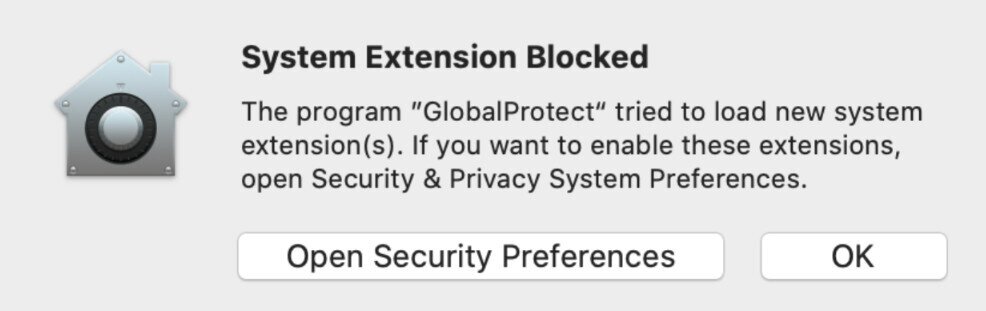
Step 2: Install GP by double-clicking on the downloaded file. If prompted, you can check the GlobalProtect extensions. Click Continue. Click Install. If you get a pop-up about the extension being blocked, select Open Security Preferences. Select Allow, then close the Preferences window. Select Continue, then Install. You may need to restart your device.
Step 3: Once installation is complete, if you’re prompted to move the installer to the trash, you may.
Step 4: You may be prompted for a password. Enter it and select Always Allow. Close.
Step 5: The GlobalProtect icon should be in your menu bar.
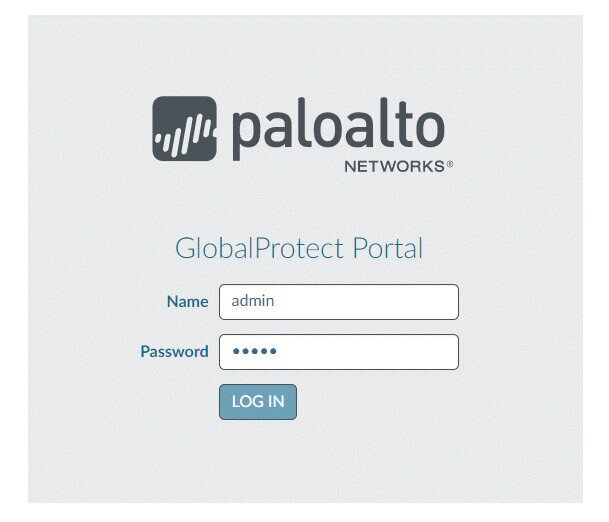
Step 6: To use it, double click the icon and enter the portal address you were given. Select connect.
Step 7: Enter your ID and password and confirm via any multi factor authentication your administrator may have set up. You should be connected.
Step 8: To disconnect, click the GlobalProtect icon on the menu bar and select Disconnect.
GlobalProtect VPN for Windows
There is a huge list of contenders for best VPN for Windows, and GlobalProtect VPN plays well with this operating system. Here’s what to know:
Minimum requirements:
- Must be Windows 7 or later
Instructions:
Step 1: Download the installation package or app for GlobalProtect VPN (per your administrator’s instructions). One way to do this is to enter the following in your browser:
https://<portal IP address or FQDN> Example: http://gp.acme.comStep 2: Log into the GlobalProtect portal (your administrator should have given you log in credentials.
Step 3: Go to the app download page (which will likely already pop up) and click the “Download Windows bit GlobalProtect agent” choosing the one that corresponds with the operating system on your device or computer. In this scenario, we will be selecting the “Download Windows 64 bit GlobalProtect Agent”.
Step 4: An installation file should pop up. Open it and Run the software, then Run GlobalProtect Setup Wizard, if applicable. Follow additional installation prompts. Close Setup Wizard.
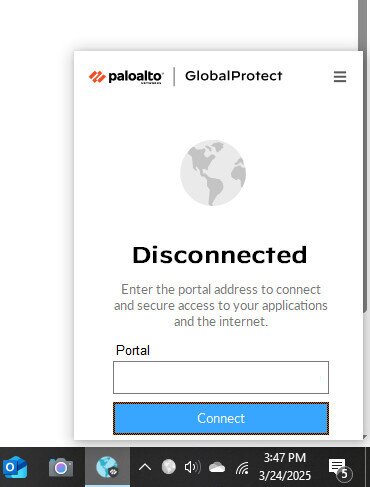
Step 5: From here, you should see the GlobalProtect icon in the system tray. Click this to launch the app and enter the FQDN or IP address you were given. Click Connect.
Step 6: From here, you should be connected to the VPN. When you’re finished, just click the icon again and choose Disconnect.
Linux
If you’re using a VPN on Linux, it can be a little more complicated. There are two different ways to install GlobalProtect VPN on your Linux device, a GUI-based installation and a CLI version. Choose whichever version is appropriate for your needs. Here are the steps:
GUI-Version Download:
Step 1: Go to the Customer Support Portal and log in with your credentials
Step 2: Choose Updates Software Updates
Step 3: Find GlobalProtect Agent for Linux
Step 4: Download the TGZ file
Step 5: Extract these files from the package. Here is an example of what you’ll see. The GUI version has the GlobalProtect_UI prefix:
user@linuxhost:~$ tar -xvf ~/pkgs/PanGPLinux-5.1.0.tgz
./
									./GlobalProtect_deb-5.1.0.0-62.deb
									./GlobalProtect_deb_arm-5.1.0.0-62.deb
									./GlobalProtect_rpm-5.1.0.0-62.rpm
									./GlobalProtect_rpm_arm-5.1.0.0-62.rpm
									./GlobalProtect_tar-5.1.0.0-62.tgz
									./GlobalProtect_tar_arm-5.1.0.0-62.tgz
									./GlobalProtect_UI_deb-5.1.0.0-62.deb
									./GlobalProtect_UI_rpm-5.1.0.0-62.rpm
									./GlobalProtect_UI_tar-5.1.0.0-62.tgz
./manifest
./relinfo
Step 6: Install the GUI GP app using root privileges and an installation method that adds missing packages as required by the app. For Ubuntu and Debian, use:
sudo apt-get install <gp-app-pkg>If using Red Hat and CentOS, use:
sudo yum install <gp-app-pkg>Step 7: Once the install finishes and the app launches, you can put in your portal address and log in information to connect. When finished, just click Disconnect.
CLI Version Download:
Step 1: After getting the app package from your administrator, copy the TGZ file to the endpoint
Step 2: Unzip the package and you’ll see these options:
- DEB for Ubuntu
- RPM for CentOS and Red Hat
Step 3: Install the package. To install the CLI version, use either:
sudo dpkg -i <gp-app-pkg> or: sudo apt-get install <gp-app-pkg>Step 4: The app installs to the /opt/paloaltonetworks/globalprotect directory. After it initially runs, there will also be a folder created called $HOME/.globalprotect, where you can save settings and registration configurations.
Step 5: After installation is finished, you can find the GP app in your menu bar and you can connect and disconnect from there. Note, you can run the app in command-line mode or prompt mode, depending on your preferences.
Android
There are lots of great VPN apps for Android devices. If you’re using Chrome for your GlobalProtect VPN download, here is how:
Step 1: Go to the Google Play Store and look for GlobalProtect
Step 2: Download the installation package and follow the prompts
Step 3: When asked for a portal address, use the one given by your administrator
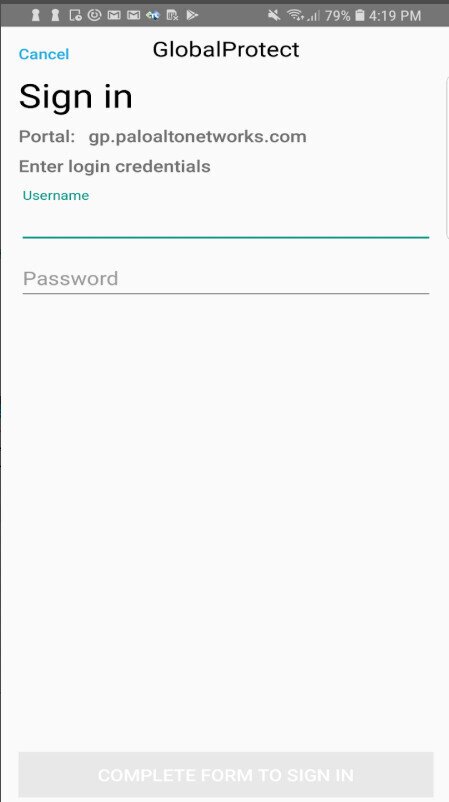
Step 4: When the install is finished, you’ll get a prompt to connect to the GP VPN and you’ll fill in your ID and password, using multi-factor authentication as needed.
Step 5: Select OK to connect when the request pops up
iOS
If you need to download GlobalProtect VPN on your iPhone or iPad, here are the instructions:
Step 1: Go to the App Store
Step 2: Search for GlobalProtect and select it
Step 3: Tap GET
Step 4: Install the GP app
Step 5: Sign in with your Apple ID
Step 6: Enter your portal address when prompted
Step 7: If prompted, tap to connect
Step 8: There will likely be a pop up that says “GlobalProtect would like to add VPN configurations.” To permit this, tap Allow and enter your iPhone or iPad passcode
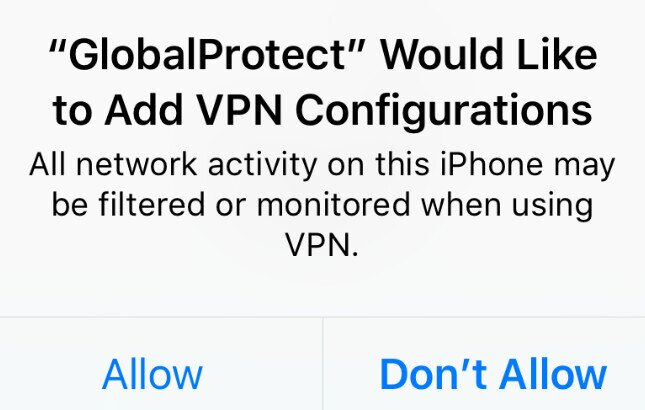
Step 9: To connect to the VPN, fill in your ID and password, doing multi-factor authentication as required. When finished, you can just tap Disconnect
GlobalProtect VPN Review: Frequently Asked Questions

Here are some frequently asked questions regarding GlobalProtect VPN.
Why is GlobalProtect VPN not connecting?
There are a handful of possibilities as to why your GlobalProtect VPN isn’t connecting. Here are some troubleshooting fixes to try:
1. See if your portal address is correct. Try deleting it and re-submitting it, in case there was a typo or error. If it still doesn’t work and you know it should be correct, try double checking with your administrator that they gave you the right address.
2. Similarly, make sure your login credentials are accurate and without errors
3. Another possible fix is to uninstall and reinstall the app again. Make sure you have downloaded the right version for your operating system. This can potentially fix a lot of errors and bugs, such as a corrupted installation file, so it may be one of the first things you try
4. Make sure you have the updated to the latest version of your operating system
5. It could be that you’re trying to access the VPN too early or too late, such as if you’re a student and your semester hasn’t started yet, or has recently ended. Permissions may not be available.
It could be connection issues from your home network or ISP
6. If you use a Mac, make sure the system extensions are enabled for GP
7. Check your system for possible startup issues due to software, such as antivirus software that may be preventing it from running
8. Clear your computer’s cache and cookies
How do I collect logs from GlobalProtect VPN for troubleshooting?
If you’re having issues with GP connecting or other errors, your IT support may want to look into the logs to try to pinpoint the cause of the problem.
They give detailed information regarding the interactions between the server and the client, helping diagnose the issue. If you want to really help out your IT support person, you can actually collect these logs yourself and send them to them. It’s pretty straightforward.
Here are the steps:
From Mac or Windows:
1. Open the GP app
2. Go to Menu
3. Go to Settings
4. Go to Troubleshooting
5. Select the Collect Logs button
6. You should get a GlobalProtectLogs.zip package that you can send to your IT support for analysis
From mobile device:
1. Open your GlobalProtect VPN app
2. Go to the Menu
3. Tap Help
4. Tap Send Logs
5. Choose the email address you want the logs sent to, such as your administrator or IT support
6. Tap Email logs
Why do I need to use a VPN for work or school?
With so many workers and students connecting to their work or school remotely, it benefits the administration in the following ways:
• It’s harder for cybercriminals to intercept important data when the worker or student is using a VPN, which keeps secure information better protected. Sometimes this is legally required by schools or employers, depending on privacy laws and the type of content being accessed
• It keeps activities private, further protecting sensitive data or interactions, such as confidential assignments or meetings
• It protects the administration’s resources from unauthorized access
• It enables geographically spread users to still access content remotely
Can I use GlobalProtect for home use?
If your school or employer gives you access to GlobalProtect VPN, often you can use it on your device for non-official purposes, such as browsing the web for your own use. That said, be sure you’re not violating terms and services of your company or school in doing so. Also, while GP has many strong VPN capabilities, it is currently more geared towards enterprise-level situations. If you lose access to GP or your administration has restrictions, you may be better off looking for another one of our favorite VPN providers for your own purposes.

