How To Make Partition In Your Hard Drive Easily
Nobody wants to setup their hard drive as one giant data dump. Learning how to partition hard drive space into multiple sections has real advantages: it makes organizing files easier, simplifies backups and reinstalls, keeps your operating system files separate from your personal data, and supports dual-boot or recovery setups. If you are planning on using multiple operating systems then you will absolutely need multiple partitions. Keep in mind, though, that poorly sized partitions can create management headaches later, so it pays to plan before you dive in.
What Is Partitioning?
A partition is a logical section of a physical disk, defined by a partition table stored at the beginning of the drive. Once a partition is formatted with a file system, Windows recognizes it as a separate volume and assigns it a drive letter — think of it as one labeled drawer inside a filing cabinet.
Partition tables: GPT vs MBR
Modern drives use one of two partition table types. MBR (Master Boot Record) is the older standard and is limited to four primary partitions and drives up to 2 TB. GPT (GUID Partition Table) is the current standard, supports drives larger than 2 TB, and allows many more partitions. If you are setting up a new drive on a PC purchased in the last several years, choose GPT unless you have a specific reason to use MBR (such as compatibility with very old hardware or 32-bit Windows).
File systems
The file system is the structure Windows uses to store and retrieve files within a partition. NTFS is the right choice for nearly all internal Windows partitions — it offers security permissions, large file support, and journaling. FAT32 and exFAT are mainly used for removable media or drives that need to be read by multiple operating systems, since they lack NTFS security features and FAT32 has a 4 GB per-file size limit.
Common partition types you may see
When you open Disk Management you may notice partitions already on your drive labeled System, Boot, or Recovery. The system/EFI partition holds the bootloader, the recovery partition lets Windows repair itself, and your main data partition (usually C:) is where Windows and your files live. You can add additional data partitions to the same drive without touching these reserved partitions.
Before You Partition a Drive
Before making any changes to your disk layout, run through these preparation steps:
- Back up your data. Formatting a partition permanently erases everything on it. Even if you are only shrinking a partition, hardware issues during the process can cause data loss. Back up important files first.
- Know your disk. Identify whether you are working with a brand-new, empty disk or an existing drive that already has data and partitions on it. The steps differ slightly for each.
- Create unallocated space if needed. Disk Management can only create a new partition in unallocated space. If your drive is fully used, you must first shrink an existing partition to free up space before you can create a new one.
- Use an administrator account. Disk Management requires administrator privileges. Standard user accounts cannot create, delete, or format partitions.
- Bring an Offline disk Online first. If a newly connected drive appears as Offline in Disk Management, right-click it and select Online before you can initialize or partition it.
How to Partition Hard Drive Using FDISK (Legacy Systems Only)
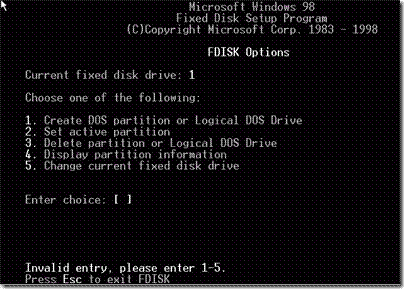
Note: FDISK is a legacy tool from the DOS and Windows 9x era and is not the correct method for any modern Windows PC. It has no understanding of GPT partition tables or UEFI firmware, which are standard on virtually all computers made in the last decade. If you are working with a system running DOS, Windows 95, or Windows 98, FDISK was the partitioning utility of that era. For any system running Windows 10 or Windows 11, use Disk Management instead — see the section below.
How to Partition a Hard Drive in Windows 10 and Windows 11
Disk Management is the built-in graphical tool for creating and managing partitions on modern Windows systems. You can open it in any of three ways:
- Right-click the Start button and select Disk Management.
- Press Windows + S, search for Create and format hard disk partitions, and press Enter.
- Press Windows + R, type diskmgmt.msc, and press Enter.
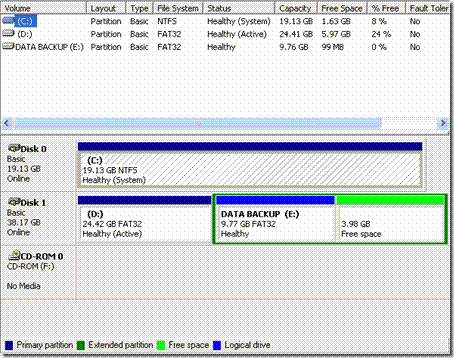
Once Disk Management opens, follow these steps:
- Initialize the disk if prompted. When you connect a brand-new drive, Windows will ask you to initialize it. You will be asked to choose between MBR and GPT. Choose GPT for any modern PC. Choose MBR only if you need compatibility with older systems or 32-bit Windows.
- Locate unallocated space. In the lower pane of Disk Management, find the black bar labeled Unallocated. If you do not see any, you will need to shrink an existing partition first: right-click a partition with free space, select Shrink Volume, enter the amount to shrink in MB, and click Shrink. The freed space will appear as Unallocated.
- Create a new partition. Right-click the Unallocated space and select New Simple Volume. This launches the New Simple Volume Wizard.
- Set the volume size. Enter how much space (in MB) you want to assign to the new partition, then click Next. You can use less than the full amount if you plan to create additional partitions later.
- Assign a drive letter. Choose a drive letter (such as D: or E:) that Windows will use to represent the partition, then click Next.
- Format the partition. Select NTFS as the file system for most uses. Give the volume a label if you like, leave Perform a quick format checked, and click Next, then Finish.
- Done. Windows will format the partition and it will appear as a new drive in File Explorer automatically. No reboot is required.
A note on partition limits: The old four-partition ceiling applies only to MBR disks, which are limited to four primary partitions. GPT disks — the standard on modern PCs — support far more partitions (Windows itself allows up to 128 on a GPT disk), so the four-partition limit is not a concern for most users today.

With those detailed steps, I think i can make partitions on my own. and I found another way to do this, I’m using aomei partition assistant, it’s easy to create it by just press enter key. hope you can share this.
HOW CAN I PARTITION WINDOWS 7. THE HARD DRIVE IS ALREADY IN USE CAN I STILL PARTITION IT
Can we restore the new drive space back to ” c” ? If so can you tell me how
this is for XP or.. all windows??
A BIGGG THNXXXXXX…
i cant understand……… n no fdisk
i was format my window7 during formating i delet my d: drvve then there show 64 gb unalocated space exteded and now i want to use these space a new partition an error mssage show here there no enough space for this operation ……
how can i solve this problem …please help me…
GUYS MY NAME IS Thabang Makinta my oprating system is last xp so i want to create a partition, if you can help please col me 0796418418 or reoly immediately plz.
GUYS MY NAME IS Thabang Makinta my oprating system is last xp so i want to create a partition, if you can help please col me 0796418418 or reoly immediately plz.
lolzzz
i can do all of step by step partition and last in check display partition but when me reboot system then get my old partition and i cant install xp
my computer is DELL and i install it with VISTA OS and the sound
is not working. how can i fix the problem
thanks for the tip…it worked…:-)
regards
Ahsan
i cannot format my xp because i cannot find the new drive in the lower pain so i could click and initialize… help plss… tnx.
Dear all ,,, there are so many ways to find out a solution for the issue being
Right click on my computer then select the command manage then go to the current partation and click right click .. 2- try to creat new partation with a new drive’s name such as ( D:) .. go once again to my computer in veiw it you will be finding \
D drive as been created as well C drive
thanks a lot,
Awesome! Thanks!!
Thanks man
to do a partion you must access your command prompt. You can do this by clicking start and clicking run. In the window type cmd, now a new window should appear type FDISK and this will lead you to where you need be (as above)
to do a partion you must access your command prompt. You can do this by clicking start and clicking run. In the window type cmd, now a new window should appear type FDISK and this will lead you to where you need be (as above)
to do a partion you must access your command prompt. You can do this by clicking start and clicking run. In the window type cmd, now a new window should appear type FDISK and this will lead you to where you need be (as above)
when i type fdisk…it says fdisk is nt recognized as an internal or external command..pls say me somethin…i don ve concept..
i dont have the fdisk then how i do the partition can any one help me ……..
Never try to use the Partitiion Magic in SATA HDD, it will damge your drive and even you won’t be able to recover your data.
How to make a partition without using floppy disk?
You can create partition using Partition Magic which you will find here https://www.addictivetips.com/windows-tips/how-to-resize-and-move-partition-without-losing-data-in-windows/
To combine 2 partitions that are next to each other, you will have to format the drive that has less files inside. Make a backup of them on DVDs or USB, and format that drive. Then you can delete the partition and add the free space the the next drive. This is the only way to do in Windows as far I know.
hay this is amit,can u please tell me how to combine 2 partition in xp.
@ Peter
Please install Windows XP. Windows 98 is outdated so nobody is going to help you. I think you will be 50+ years old that’s why you are using Windows 98 or maybe you just want to live an Epic life. Just a guess 😉
There are some programs, mostly older and even legendary games, that will not run properly in XP or Vista. Once more, DOSBox for XP/Vista is sometimes a poor substitute for Win98 or WinME’s DOS component.
following your instructions I was unable to partition my hard drive on my Windows 98 2nd.ed system. Message when trying to create Extended DOS Partition: ‘No space to create a DOS partition’
To set active partition: ‘The only startable partition on drive 1 is already set active.
Where do make a mistake ?
you still have 98? haha! i’m wating for windows 8 to come out.
And you’re a douche who is 4 years too late with your ineffective comment
hw to make partition hard disk