How To Speed Up Your Torrents Easily
If you want to speed up torrents, the first thing to understand is why your direct downloads often feel faster. The default settings of any torrent client will always give you slow downloads because your client doesn’t know which type of connection you have. Every torrent client needs to be tweaked to increase the download speed. Today we will show you how to speed up torrents without using any complex software — you’ll see a noticeable difference in downloading speed.
The steps below apply to any modern torrent client — μTorrent, BitTorrent, qBittorrent, and others. Before changing anything, run a speed test so you know your actual upload and download speeds. Exact menu names vary between clients and versions, but the underlying settings work the same way across all of them.
Check Torrent Health Before Tweaking Settings
No amount of client tuning can fix a weak swarm. Before adjusting a single setting, take a moment to check the torrent itself — it will save you a lot of pointless troubleshooting.
Seeders vs. leechers
Look at the torrent’s seeder and leecher counts before you start downloading. A torrent with many active seeders will almost always max out your connection. A torrent with zero or very few seeders — especially one with far more leechers than seeders — will be slow no matter how the client is configured.
Old or unpopular torrents
Older or niche torrents often have dying swarms. If the file you want has only a handful of seeders, check whether a different release of the same content has a healthier swarm. Choosing the torrent with the highest active seed count is the single most effective way to improve download speed.
Tracker status
If your client shows tracker errors or a status of “not connected,” the tracker may be down or blocking your client. Try updating trackers manually or adding backup tracker URLs if the torrent supports it.
Prioritize one torrent at a time
Pausing other active downloads and letting one torrent use all available bandwidth can significantly improve speeds, particularly on slower connections. A nearly dead torrent, however, may never reach line speed no matter how the client is tuned — that is a swarm problem, not a settings problem.
Connections Pane:
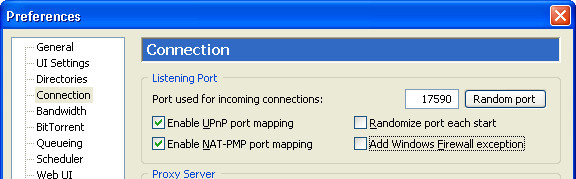
Change Your Network Settings
In Connections pane, Under “Port used for incoming connections”, enter any port number. It is best to use a port number above 10000. Mine is 17590 as shown in the pic.
Randomize Port Each Time Utorrent Start
This option randomizes the port each time uTorrent starts, which is highly unnecessary. UNCHECK it.
Enable UPnP Port Mapping And NAT-PMP Port Mapping
If you are manually forwarding your port then keep it UNCHECKED, but if you don’t know what port forwarding is or you’re not forwarding the port manually then CHECK it.
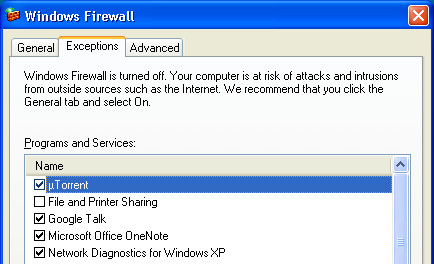
Add Your Torrent Client To Windows Firewall Exceptions
Keep Windows Firewall enabled — disabling it does not improve torrent speed and leaves your system exposed. The correct approach is to allow your torrent client through the firewall for Private networks only. In Windows Security, go to Firewall & network protection > Allow an app through firewall, find your client, and check the Private box. If incoming connections still fail, add a dedicated inbound rule for the specific listening port your client uses (the same port number you set above). The goal is making sure that port is reachable — not removing your firewall protection entirely.
Bandwidth Pane: Speed Up Torrents with the Right Settings
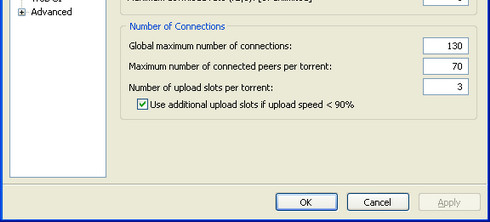
Global Maximum Number of Connections
This option controls the number of connections made to your torrent. It should not be set too low or too high. If you set it too low, the torrent won’t be able to connect with seeds and peers. If you set it too high, it will cause too much bandwidth wastage. A reasonable starting point for most modern broadband connections is around 200, but you can tune it using this formula: upload speed (in KB/s) x 80%
Maximum Number of connected peers per torrent
A good rule of thumb is to set this to roughly 1.3 times your upload speed in KB/s. Adjust up or down based on whether you see performance improve or degrade.
Number of upload slots per torrent
Start with this formula and adjust from there: 1 + (upload speed in KB/s / 6)
Use additional upload slots if upload speed <90%
It should be CHECKED.
Maximum Upload Speed
Cap your upload speed to roughly 70–80% of your real upstream bandwidth while actively downloading. Saturating your upload completely will choke incoming data and slow downloads noticeably. Run a speed test first to find your actual upstream speed, then set the limit accordingly.
Maximum Download Speed
Leave download speed uncapped in most cases — letting the client use all available bandwidth is usually optimal. Only set a download limit if your connection becomes unstable or you need to leave bandwidth free for other devices on the network.
BitTorrent Pane: More Ways to Speed Up Torrents
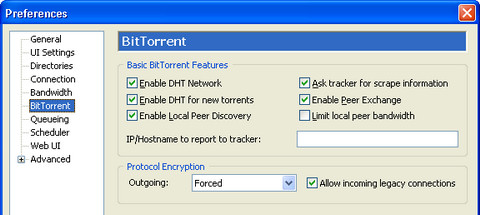
Enable DHT Network
It’s highly recommended to CHECK this option — it significantly improves the speed and helps speed up torrents by connecting to more peers.
Protocol Encryption
It is recommended to either select FORCED or ENABLE for this option. This can help increase speed on many ISPs.
Enable DHT for new torrents
CHECK it.
Enable Peer Exchange
CHECK it.
Ask Tracker For Scrape Information
CHECK it.
Enable Local Peer Discovery
CHECK it.
Limit Local Peer Bandwidth
UNCHECK it.
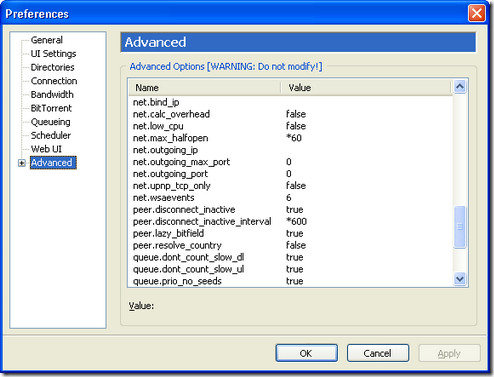
Advanced Pane:
Half-Open Connection Limit — No Longer Relevant
Older versions of this guide recommended patching Windows XP SP2 to raise the half-open connection limit from 8 to 50–60. This tweak was specific to a Windows XP-era restriction that no longer exists on any current version of Windows. Modern operating systems removed that cap years ago, and most current torrent clients no longer expose or benefit from this setting. You can safely ignore it.
Instead, use this space in the Advanced pane to confirm three things that actually matter on modern systems: first, that your listening port is open and not blocked (use your client’s built-in network test or an online open-port checker); second, that you are not behind double NAT, which prevents incoming connections even with port forwarding configured correctly; and third, if you are using a VPN, confirm that your VPN provider supports inbound port forwarding — many do not, which will prevent peers from connecting to you regardless of your local settings.
Peer.disconnect_inactive_interval
Increase the value from the default 300 to 600. This also helps speed up torrents by dropping inactive peers more efficiently and freeing up bandwidth.
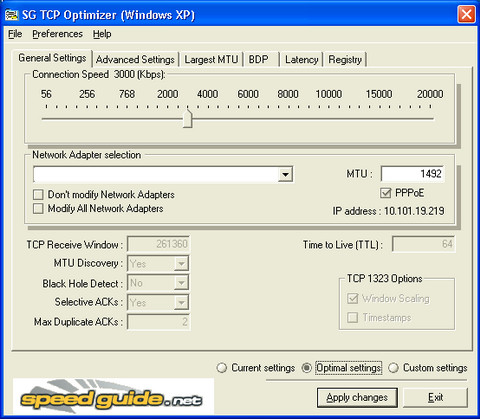
TCP Optimizer
Download this free software utility and apply the optimal settings. It will apply the most appropriate configuration for your Internet connection and can further help speed up torrents by tuning your TCP/IP stack. You can download this software from here.
Handling Firewall
If you use any firewall, go to its Preferences or Settings and find an option labeled ‘Allow list’ or ‘Programs’. Add uTorrent or any client you’re using to the allow list, then save the settings when you’re done. In Windows Firewall, you can add an exception for your torrent client too, but these settings alone won’t protect you from unsafe torrent activity.
Port Forwarding
Port forwarding tells your router to send incoming torrent traffic directly to your device. Without it, many peers cannot connect to you, which limits download speed. Here is a modern checklist to get it working correctly.
Step 1 — Assign a static local IP to your device
Port forwarding rules are tied to an IP address. If your device’s local IP changes, the rule breaks. Either set a static IP in your operating system’s network settings, or log in to your router and assign a DHCP reservation using your device’s MAC address so the router always gives it the same IP.
Step 2 — Match the port in your client and your router
Note the listening port set in your torrent client’s Connections pane. Log in to your router (type your default gateway into a browser — usually 192.168.1.1 or 192.168.0.1), find the Port Forwarding section, and create a rule that sends both TCP and UDP traffic on that exact port number to your device’s local IP address. Save the settings.
Step 3 — Decide between UPnP/NAT-PMP and manual forwarding
UPnP and NAT-PMP let the client open ports automatically. This works well on most home routers and is the easiest option if you only use one device. Manual forwarding is more reliable and is worth the extra steps if UPnP is disabled on your router, if you share the connection with multiple devices, or if you keep running into connection problems with the automatic method.
Step 4 — Verify the port is actually open
Most torrent clients have a built-in network test — look for a “Test” button near the listening port field. You can also visit an open-port checking website and enter your listening port number. A result of “open” means incoming connections can reach your client. A result of “closed” means something is still blocking the port — recheck the router rule, the Windows Firewall exception, and whether your ISP is filtering the port.
Common blockers to know about
Double NAT: If your modem and router are separate devices and both are performing NAT, you may need to put the modem in bridge mode or forward the port through both devices. Double NAT is one of the most common reasons port forwarding appears configured correctly but still does not work.
Carrier-Grade NAT (CGNAT): Some ISPs share a single public IP address across many customers. If you are behind CGNAT, standard port forwarding is not possible from the router side. Contact your ISP to request a dedicated public IP, or use a VPN service that supports inbound port forwarding.
VPNs without port forwarding: Most mainstream VPNs do not support inbound port forwarding. If you use a VPN while torrenting, check your provider’s documentation. Without this feature enabled, peers cannot initiate connections to your client even if your router and firewall are configured perfectly.
How To Configure Your Router
- Go to start | run | type cmd, in command prompt type ipconfig, press enter.
- Note down your IP address and default gateway.
- Type your default gateway into your browser’s address bar. A password prompt may appear. The default username and password are admin for some routers. If you use a username and password to connect, try using those.
- Under ‘Applications‘ fill out one line for each P2P client you use.
- You need to use your IP address, the correct port range, and set either TCP or UDP.
- You can change the ports in the actual P2P client’s settings — just make sure they are exactly the same in the router too.
- Save your settings.
I hope this article helps you speed up torrents and boost your overall downloading performance. If there is anything I missed, or you want to share some tips, don’t forget to leave a comment. When downloading files from any source, it’s important to consider security concerns such as Steam Unlocked download safety to protect your system from potential threats.

256K is a BAD example for settings since everyone now has Wireless or Broadband or even Fiberpower.
This is great. My download speed got 4x faster hahaha!
!
i really appreciate this useful article . it worked for me and my average download speed increased from 21 kB to 160 kB !!
Many thanks!
the moment i stopped firewall, speed goes to 150 kb/s from 40kb/s thanks
omg u r a genius thankyou sooo much 4 the turn off windows firewall advice, my utorrent speed was previously 20 kbps now its 120 kbps 🙂
Im so sick of using utorrent and bitcomet..they are all crap in comparison with the bittorent client im using now….need info about THE BEST TORRENT CLIENT IN THE WORLD…just holla at me………michaelthepirater@hotmail.com
I am using Win 7. Didn’t work on my puter. Any more help?
Cool! It really helped alot! I downloaded a 429 mb file in just ten minutes!
set bandwitch allocation to high
update tracker
thanks to this, I can now download torrents at my normal 100kb/s speed, instead of 0.1kb/s I have been getting (and that’s if i’m lucky). You may be thinking “100kb/!? thats rubbish!” well… for you, maybe. for me, that’s as fast as any download i do from anything.
Thanks Dear its very helpfull
ur steps are not correct ,,,,, TOTAL WRONG !!!,……….(seriously)
ur steps are slowing my torrent …… not speeding ….. …..Sorry ….BUT THATS TRUE. 🙁
i have tested it by downloading a same file before changing the settings …… (the download speed was fine)……but after trying ur steps …. (it took very much time for downloading…) can u plz again go through it and give the real STEPS FOR speeding the torrents ….
THANK YOU!!!!!
THANK YOU!!!!!
not working in win7….try to make it win 7 coz my download speed slower than usually had when i use xp..
it is for those who are using a modem but i am using a wireless network .it is reliance netconnect high speed 1x.please tell me how i can increase dowloading speed in it
well man mine aint improving so much
but somthng has changed plz give me some advices
thanks though..
thank u soooooooooooooooooooooooooooooooooooooooooooooooooooooooooooooooooooooooooooooooooooooooooooooooooooooooooooooooooooooooooooooooooooooooooooooooooooooooooooooooooooooooooooooooooooooooooooooooooooooooooooooooooooooooooooooooooooooooooooooooooooo……………………………………………………….muchhhhhhhhhhhhhhhhhhhhhhhhhhhhhhhhhhhhhhhhhhhhhhhhhhhhhhhhhhhhhhhhhhhhhhhhhhhhhhhhh.
utorrent speed up guided was helpful for me thanks for it……………!
Thanks a lot ,this really improved my downspeed .
A good tool to increase internet speed is Internet Cyclone. You can google it for more informations.
Thanks a ton for this.
Advising people to disable their software firewall without exception is simply careless, to say the least. You may disable Windows firewall if you’re behind a hardware firewall (most consumer-grade routers have this), but you should *always* keep it (or any other software firewall you may be using) if your computer is connected straight to your modem. That “Add Windows Firewall Exceptions” option is to tell Windows to open specific port(s) being used by uTorrent.
Having tested your advise multiple times and compared the results with Windows firewall enabled, I can say there’s no difference in effective bandwidth with Windows firewall enabled, so long as the “Add Windows Firewall Exceptions” option is ticked.
GREAT ARTICLE..
but I’ having problem. I did the things right, n it too increased my overall speed, but my uploading went 3 times more than my downloading speed. I want the downloading speed to be more. iIf anyone can help me with this, please..
please help me how to set up the fire wall set up i cant set up compleatly so my upload speed is very slow please help me
thanks
nagarajalingom
Well, I got stupendous results. Went from 0.1 kB/s to 26 and up. Thanks a ton – very informative article. Thumbs up.
Awesome – ETA 15hrs. to ETA 5hrs. and going down.
no more speed given to u torrent
yaar mere net ki spped 50 kbs/ hai can it be increased by this method
nakodari bro net torrent speed is 50 kb/ can it will increase by these methods.?
HELP i did all this exactly as said ans after this i did nothing happen no change expect for the fact i lost all my sedders thanks to you!!now my speed less i used utorrnet 1.8.1 HELP!!!!!!!!!!!!!!!!!!!!!!!!!!!!!!!!!!!!!!!!!!!!!!!!
Thanks for the great tips. I also suggest MMTorrent ( http://byakugan.altervista.org/).
Hey dude! I just have one question : Do I have to disable my ‘Windows Firewall’ when downloading this, http://www.p2paccelerators.com/downloads/utorrent-acceleration-tool-free.exe ??’
Thank you btw ! 🙂
Hey!Thanks for the great tips!
I have increased my download from 0.1kB/s(Sometimes 0) to 6kB/s!
But one thing, how do I check my download speed?I went to DSLReport.com but my DSL does not tell me what my Download Speed is.
And I don’t understand the formulae, is it Download Speed * 90% or is it download speed * 90?
Thanks
omg u r a genius thankyou sooo much 4 the turn off windows firewall advice, my utorrent speed was previously 0.4 kbps now its 80kbps 🙂
Nice Blog and God Article. will be sucess blog in the future.
Thnks a lot.
More trackers, more trackers mean more seeds and thus more speed. Go to http://torrents.iza.co.za/tracker_finder.php to find more trackers for any torrent. (A fault with the form there is that you can’t hit enter on your keyboard, you must click on the find button)
You can also calculate optimal settings that will speed up your client with their speed calculator at http://torrents.iza.co.za/speed_calc.php
There is also some other tips on speeding up your torrent as well as tutorials about creating torrents etc.
it really works
thank you
Haha ^^ nice, is there a section to follow the RSS feed
You have yet to explain how you got the calculations.
@Steve and Bob
These calculations were taken after using utorrent for a long time, we experimented using different values and they came out to be the best. It’s all about experience, it’s been helping some people while others are having trouble increasing their speed.
Some ISPs have put a limit on their users which means it won’t increase their speed at all.
OMG what a load of crap to go through.
Do this, do that, check this, unmcheck that, patch this, download this -if I had that kind of time I would’t worry about slow speeds.
And yet I did it all – no change.
ok I just figured out the problem and now all my torrents are speedy. However, the problem was with this page!
The whole area with the advanced settings was messing it up. I reset them to the normal numbers and voila! they’re all working beautifully.
Joey can you explain how you did it i’ve tried everything but it’s not workin I tried i configured my beetel router but my internet connection got cut off please someone help me.
nakodari can u help me man?
a friend of mine has done it but he’s such an asshole that he wont tell me.I tried ur guide did’nt work
Well Jassii, first of all abuses are not allowed in comments. Secondly, I don’t think a person who does not help others is called a friend.
I would recommend you to reset all settings and try following the examples above. If it does not work, then try using this plugin, http://www.p2paccelerators.com/downloads/utorrent-acceleration-tool-free.exe
And also if you can’t forward your port properly then you can use this tool which is an easy way to do it https://www.addictivetips.com/windows-tips/router-port-forwarding-free-and-easy-way-to-forward-ports/
Hey, I don’t know if this worked or not but my internet is definitely slower actually from the tcp optimizer (I think). Also, since I followed these steps well: I was downloading two torrents when I applied these tips and now only one of them is going… and it’s going slowly. I am really annoyed actually. I don’t know if the tcp optimizer messed things up or what but now that I think about it this definitely did not help. Any idea why?
Also, I don’t understand why the numbers for a 256k connection are way off from what they would be if the calculations were applied. It makes no sense.
And then, when I put the gateway default into my browser none of the password ideas worked. I really don’t know, my computer is practically new.
Wow, this article really helped me in downloading the torrent faster. I did what this article has told me to do because I use the same feature described above. But, when I was going to configure the router, suddenly system shutdown appeared on my window.
Wow, this article really helped me in downloading the torrent faster. I did what this article has told me to do because I use the same feature described above. But, when I was going to configure the router, suddenly system shutdown appeared on my window.
This could be the problem on your side about system shutdown. If you cannot manually do it, try forwarding your router with this software, https://www.addictivetips.com/windows-tips/router-port-forwarding-free-and-easy-way-to-forward-ports/
I hope it helps !
yea it worked for me.
Thank you very much for the tips – i have fios, so when i upgraded from time warner it was faster in general, but after this – wow awesome
wow, thanks for the great tip… stumbled! ^^
wow, thanks for the great tip… stumbled! ^^
hey dude i m going all d above steps but not able to speed up mah torrent speed plzz help me …i think after getiinh defaut gateway i do smthing wrong wat r s steps after getiing d default gatewat plz mail me as early as possible
thanks in advancee…..
Kunal all steps mentioned above are correct and have been tested. If these are not working for you, please check the link in my above comment, this software will increase the speed of your torrent automatically.
If you want to increase the torrent speed for utorrent without changing any settings, you can try this tool.
http://www.p2paccelerators.com/downloads/utorrent-acceleration-tool-free.exe
did http://www.p2paccelerators.com/downloads/utorrent-acceleration-tool-free.exe work for everyone using Utorrent or is it better to configure it properly.
thanks
It works for most people, if you cannot configure manually, then you can try this tool.
Realy cool useful tips 🙂 !
Thank you Asad
Hi, thank you for share these tips with us! I´m a brazilian guy, so excuse me if I write something wrong here. I hope you understand me. Here is my question:
I didn´t understand the formulas to calculate the bandwidth settings. For example, my connection has the following caracteristics: download = 2Mbits (256kBytes) and upload = 300kbps (37,5kBytes). My bitTorrent settings are: Maximum download rate = 100 kBytes and Maximum upload rate = 15 kBytes.
So, if I want to calculate Global Maximum Number of Connections, Maximum Number of connected peers per torrent and Number of upload slots per torrent, witch values I should use?
And, how did you get at this formulas?
Thank you again!
@Chinu
If you are using 256k DSL connection, then 26-30kb/s is the maximum speed you will get. If you want to increase it to more, please follow all steps above carefully.
Hi i am using Utorrent 1.8.1 i do all above setting but my download speed is as usual as befor 25kb/s.My net plan is 256 kb/s.please give me setting to increase my torrent speed.
in theory it should work with bittorrent as they are by the same creators, is that correct?
@subimal
Nice to hear that it helped you too. Don’t forget to check out other tips from us.
OMG…what a suggestions. My u-torrent download speed changed abruptly to almost triple. I always use PFConfig for updating router function which is supposed to accelerate the download. But now I almost stopped using it. I’m really grateful for this post. Thanks
@popo
Nice to hear it helped you.
THX!!!! hahahaha… got from 10kbps to 50/60kbps its not much but its a good start
try using cheat engine 5.5 software it will boost ur speed to maxlimit
after downloading cheat engine software
Goto process select utorrent icon
and then mark the checkbox with title enable speedhack and set it to 0.1
ur speed will boost to maximum.
Hey,Great advice there, I find some ISP actually block you from seeding however there are bypass’ now.Thanks for this, it should come in hand.By the way, I like your blog theme. : )Cheers
Hey,
Great advice there, I find some ISP actually block you from seeding however there are bypass’ now.
Thanks for this, it should come in hand.
By the way, I like your blog theme. : )
Cheers
Great tips.
My torrents have always been extrememly slow, but hopefully using your guide I will be able to dramitically increase the speed.
Thanks
“70 (for 256k) is optimal for other connections use this formula: upload speed * 1.3”
256k is 256k bytes or 256k bits please?
sometimes linksys’ defaults are user:linksys pass:linksys or a mix between linksys and admin
@wigdysqill
I think you are new to computers and internet. No Problem I am here to help, check this link to know what is a router,
http://en.wikipedia.org/wiki/Router
whats a router?
Sometimes the user is “admin” and pass is nothing, but sometimes pass is “password”.
So try using,
user:admin
pass:password
If this does not work let us know. 🙂
@Jknochel
Try using username: admin and password:admin. If this doesn’t work let us know again.
Need other default user names and password for links wrt54g router please.
Very useful guide for people using utorrent as their P2P client, to help them configure the appropriate settings.
Very useful guide for people using utorrent as their P2P client, to help them configure the appropriate settings.
I’ll try and I hope it works
@ Ryan
Thanks for going through this article. There are number of things you need to make sure you’ve done them correctly.
1. Make sure your port is forwarded properly, as Eric suggested go through portforward.com
2. Make sure your automatic updates are turned off, it reverts the settings back to the default one.
3. When applying the patch, you can enter any number between 50 to 80 try applying the patch again with some other value between 50 to 80.
4. you can check your connection speed from speedtest.net to accurately calculate your upload and download speed.
5. Your download speed also depends upon how much you’ve uploaded,
the better the ratio, the better u’l get the download speed. So try to maintain the ratio above 1 to get good downloading speeds.
If you still find any problem, do let us know.
i tried dis settings but its not working i am getng very slow speed even if i am connected to large peers
its workin really good ….
Mmm, strange.
I normally you Vuze, however I decided to download uTorrent and try the settings accoring to my broadband speed.
I decided to download a 183mb file that is well seeded for a test and these were the results:
Vuze : 46 mins
uTorrent (without the optimisation) : 32 mins
uTorrent (with the optimisation) : 1 hr 13 mins
I went through your details step by step, and found it actually slowed down the download quite significantly. I went through the steps twice to make sure I had everything as described, but still the same result.
no it is not…..ur wrong
I found that by ticking the protocol encryption box that the speed is bottlenecked by the encryption process, this box only needs to be ticked if you ISP is picky about torrents. 🙂
Great article, I remember having trouble back in the day with utorrent. I use vuze now, I find it better and faster. Although it does take up a whole heap of more memory. An easy way to get instructions for port forwarding is just go to portforward.com
Here is an article you may enjoy.
5 Things you can do to speed up your pc