Convert XLS To CSV
If you need to convert XLS to CSV, you have come to the right place. CSV is the most cross-platform spreadsheet format, and converting a spreadsheet into CSV format makes sense since most applications support CSV rather than XLS or any other proprietary format. CSV files are lightweight, easy to parse, and compatible with virtually every data tool, database, and programming language available today. This post will focus on two easy ways to convert Excel Spreadsheet XLS and XLSX format into CSV format, so you can choose whichever method best fits your situation.
What Changes When You Convert XLS/XLSX to CSV
Before diving into the conversion methods, it is worth knowing what you gain — and what you give up — when you save a spreadsheet as CSV. Understanding these tradeoffs can save you a frustrating surprise after the conversion is complete.
CSV files keep the plain tabular values from your spreadsheet cells, but they do not preserve:
- Multiple worksheets — only the active (currently selected) sheet is exported. If your workbook has several tabs, you will need to export each one separately.
- Formulas — instead of saving the formula itself, CSV captures the calculated result (the number or text the formula produced at the time of export).
- Charts and images — any visual elements embedded in your workbook are dropped entirely.
- Macros and VBA code — all automation is stripped out.
- Cell formatting — colors, fonts, bold, borders, and number formats do not survive the conversion.
- Comments and notes — any annotations attached to cells are lost.
In short, CSV is a plain-text format that captures data only. If you need to keep any of the above features, make sure to save a copy of your original XLS or XLSX file before converting. If your workbook has multiple sheets, you will need to export each sheet as a separate CSV file — some online tools can automate this and bundle the results into a ZIP download.
Method 1 – Save XLS as CSV in Microsoft Excel
If you have Microsoft Excel installed on your computer, the fastest way to convert an XLS or XLSX file to CSV is to use Excel’s built-in Save As feature. Here is how to do it in current versions of Excel (Microsoft 365, Excel 2021, Excel 2019, and Excel 2016):
- Open your workbook in Microsoft Excel.
- Click the sheet tab at the bottom of the screen for the sheet you want to export as CSV.
- Click File in the top menu, then select Save As (or go to File > Export > Change File Type depending on your version).
- Choose a location to save the file, then open the Save as type dropdown.
- Select CSV UTF-8 (Comma delimited) or CSV (Comma delimited) — the UTF-8 option is recommended for files containing special characters or non-English text.
- Click Save. Excel will display a warning that only the active sheet will be saved in this format — click OK (or Keep Current Format) to confirm.
Your CSV file will be saved to the location you chose. Repeat the process for any other sheets in the workbook that you need to export.
Note: Excel for the web (via OneDrive or Office.com) may not expose the same CSV export option in all situations. If you cannot find the option in the browser version, open the file in the desktop Excel app first and follow the steps above.
Method 2 – How to Convert XLS to CSV Using XLS To CSV Converter
XLS To CSV Converter is a small tool developed to quickly convert Microsoft Excel Spreadsheet into CSV format so that it can be used with other applications. This is particularly handy if you are working on a machine that does not have Microsoft Office installed, or if you are on a non-Windows operating system and need a lightweight standalone solution.
Note that Office 2007 and 2010 already have the built-in option to save a spreadsheet directly in CSV format. However, this dedicated tool will come in useful when you don’t have Microsoft Office available. It is a no-frills utility that gets the job done without requiring any installation of heavy software suites.
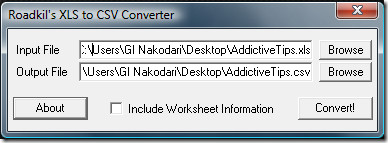
The downside of using this tool is that only the older XLS format can be converted — it does not support the newer XLSX format introduced with Microsoft Office 2007. If your files are in XLSX format, you will need to use Method 3 instead, which handles both formats with ease.
Method 3 – Convert XLS to CSV Using Google Sheets
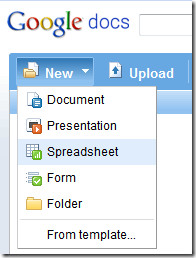
This method does not require any software installation at all. Google Sheets is a free, browser-based spreadsheet application that supports importing a wide range of file formats and exporting them as CSV. It is also a practical way to open XLSX without Excel before exporting the file as CSV. Head over to sheets.google.com and sign in with your Google account.
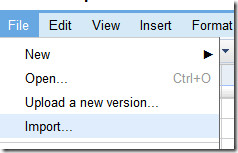
Once you are in Google Sheets, click File and then select Import.
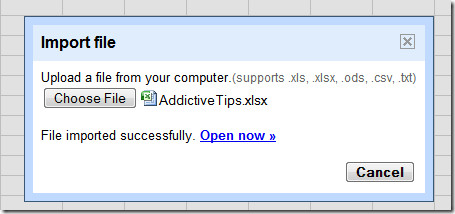
Google Sheets can import the following formats: .xls, .xlsx, .ods, .csv, and .txt. This broad compatibility means you can use this method regardless of which Excel format your file is saved in. Click Choose File and select the Excel Spreadsheet you want to convert. Once the importing process is complete, hit the Open Now link to open the file in the editor.
Once your spreadsheet is open in Google Sheets, click File, select Download, and choose Comma-separated values (.csv, current sheet) from the submenu. Google Sheets will then prepare and download the file in CSV format directly to your computer.
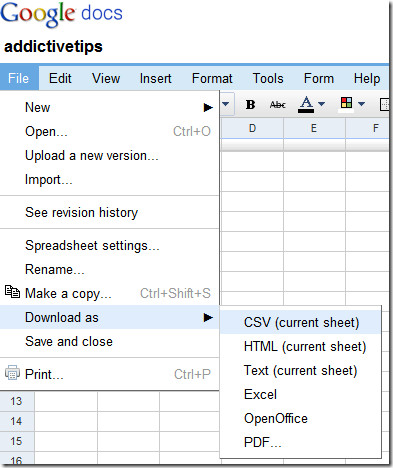
This will download the spreadsheet in CSV format. It’s that simple. One thing to keep in mind is that if your workbook contains multiple sheets, Google Sheets will only export the currently active sheet as a CSV file. If you need to convert XLS to CSV for multiple sheets, you will need to repeat the download process for each sheet individually.
Alternative – Use an Online XLS to CSV Converter
If you do not have Excel installed and do not want to set up a Google account, a dedicated online converter is often the quickest route. These browser-based tools let you upload an XLS or XLSX file and download the result as a CSV — no software installation required.
This option works especially well in a few situations: you are on a shared or work computer without Office, you need to convert a batch of files at once, you are pulling files from a cloud storage service, or you simply want the fastest possible path from file to download. Many online converters support drag-and-drop, allow you to import files directly from Google Drive or Dropbox, and can output each worksheet as a separate CSV file bundled in a ZIP archive — which saves you the trouble of repeating the export manually for every sheet.
A quick note on privacy: Avoid uploading spreadsheets that contain sensitive, confidential, or personal data to any online converter unless the service clearly states that files are deleted immediately after conversion or that the conversion happens locally in your browser. When in doubt, use the desktop Excel or Google Sheets methods above to keep your data off third-party servers.
Both methods described above are reliable and free to use. The dedicated XLS To CSV Converter tool is best suited for quick, offline conversions of older XLS files, while the Google Sheets method is more versatile and supports both XLS and XLSX formats without requiring any software installation. Whichever approach you choose, you can convert XLS to CSV in just a few simple steps and have your data ready for use in any application that supports the CSV format.
Enjoy!

When I try to convert my .xls to ,cvs in google doc I get this error message below. Please advise:
The uploaded file has the wrong format specification – for example, you might be trying to upload a CSV file as a XLS file.
thanks a lot, really helpful. +++
Thanks..was really helpful..I like the google method…
thanks
Thank u sir.
Thanks much GOOGLE
nice
Very Smart …!
I tried Method2… Document is not getting converted as .CSV. Its Windows XP Professional & Office 2007 i’m using. Could you please suggest me.
Thank You So much.
While converting the excel file to CSV format,it was found that zeros preceeding a number(for eg:0001234) are being truncated(1234).Could you please provide a solution such that the zeros are retained.
Usually that’s excel’s fault. It happens when excel is interpreting those columns as a number rather than as text. Try Selecting All (Ctrl+A), Right click on any selected cell, Format Cells, and choose Text as the Category.
I have a major problem with the conversation to .csv from .xls and .xlsx-formats alike. When using the special Danish characters æ, ø and å, these are changed to various wrong characters (to “?” from Excel, Polish characters in XLS2CSV Converter, some strange combinations from Google docs).
I run Windows 7 and Office 2007. On another computer running XP, I don’t have this issue at all.
Any ideas for a fix?
this was very helpful! thank you!
If any field has comma (,) in spreadsheet will result problem.
[example: cell A has data ” addictivetips,google,orkut”] .
Because comma (,) is used as delimitter in .CSV file.
so above example is considered as 3 seperate data in a .CSV file…
this may cause problems if you uploadded file to SQL database…
to avoid this :
in google doc before download sheet press “ctrl+f” (Find and Replace), find comma(,)
and replace it with (.) or any other charecter.you can use space also.
then proceed as explained in article….
“google doc” method worked for me… thanks for article and thanks for google doc service….
Thanks for the idea using Google Spreadsheet 😀
You know, on windows, if you’ve never opened a CSV file before, try creating a blank textfile and changing the extension to .csv
Windows will give its standard warning message about possible incompatibility. Ignore it and change the extension.
Now immediatly double click it or press enter to open it. It will be opened with Windows Excel.
That’s what happened to me anyway. And the fun thing was: Excel doesn’t use commas to seperate the data, it uses the ; character.
That happened to me anyway. Until one of my teachers told me to try and open it with notepad.